Hi
msalton1,
I've reinstalled win7 pro sp1 to a new SSD. I've downloaded the convenience rollup from MS.
I assume my next step is to install the convenience rollup.
- Any advice on how to proceed so as to have the smoothest, trouble free update to current day?
- What can I expect in terms of updating issues beyond that? Does the rollup bypass the update hang issues?
- Also, is there a current list of updates to avoid (or uninstall after the fact)?
- I did the pro sp1 install a few weeks ago. I'm doing this as time permits, so I may need to rearm the activation timer. Does this present any problems?
Going down the convenience rollup [
KB3125574] route in order to get the OS upto date is not the best way to approach this. This is because there are pre-requisite updates, servicing stack updates, and some updates have been superseded.
For the best and smoothest method to do this on the
LIVE OS use
DISM++ [Deployment Image Servicing & Management]. Please follow my instructions below!
NOTE: The
light blue text below are links to the relevant websites and programs, just
click them!
DISM++ - Basic Overview
DISM++ is a FREE implementation tool that has the ability to perform
Windows Updates [WU]. Some of the advantages [but not all] are:
[1] The GUI is
very easy to understand and use.
[2] It is
much faster than M$’s WU because it uses a different engine.
[3] It downloads the latest WU DB from the M$ servers, scans your OS, and then lists the updates available.
[4] It
doesn’t install
superseded updates like M$ does.
[5] It gives
you the option of what you want to install.
[6] The
pre-ticked updates are what is
recommended and are similar to the WU
critical and
recommended updates. The
un-ticked updates are similar to the WU
optional updates.
[7] It
warns you if an update:
- Includes telemetry.
- Has known issues with certain hardware.
- Needs exclusive access.
- Is suspect.
- Your OS doesn't need it.
- Has any other known issues.
[8] It
doesn’t require
re-booting between updates.[9] It can be used to
either update an
install.wim image
OFFLINE, or to update the
LIVE OS.
DISM++ - Run Windows Updates On The LIVE OS
DISM++ Direct download [zip] =>
DISM++.
DISM++ Website [you will need to translate the page] =>
DISM++ |New Windows Utility.
Here is the quick procedure guide:
[1]
Download the latest version of
DISM++ [see the DISM++ Direct download [zip] link above].
[2]
Extract the files using something like
7-Zip here =>
7-Zip.
[3] Turn
Sleep mode
OFF in
Power Options [you can turn it back on after you have finished].
[4] Double-click
Dism++x86 or
Dism++x64 and then click
Run.
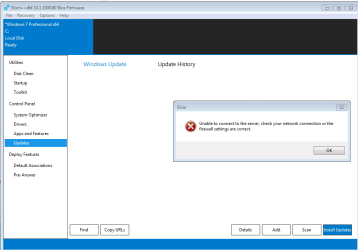
[5] Click
Updates in the left-hand pane and then click
Scan [bottom right].
[6] Once the scan has completed, click
Install Updates [blue button to the right of
Scan].
[7] If any warning
pop-ups appear [see item [7] in the Basic Overview above], click
Cancel and it will skip that one. There could be several of these appear so click
Cancel to all of them.
[8] It is advisable to run the DISM++ WU a
couple of times. To do this, just
re-boot and
Scan again [from number [4] above].
[9] Run
M$ WU to see if there are any other updates available.
That's it!
Create A System Image
Once you have your
OS updated and running the way you like it, create a
system image. This way, if things go wrong in the future, you will be able to restore your OS
back to the exact same state that it is now in a very short time. This is because you will
NOT have to install
ALL the updates again, not to mention the amount of time needed to download and install them, and the numerous restarts required. There are two imaging programs which are very popular among members here, the first is
AOMEI Backupper Standard [FREE], and the second is
Macrium Reflect [FREE].
I hope this helps!