Solved Using xcopy tools to transfer desktop files/folders from a second HD

loninappleton

New member
Member
VIP
Local time
9:00 PM
Messages
892
That's the best subject line I could muster.


I have had some HD failures after a power interuption. One was hosed and I reformated that.
A clone HD to HD was in progress when the power failed. The target disk which still has data can transfer files off of it. They are visible to Explorer. But Desktop on the Target is the problem. I retrieved the DOS command to view the Desktop on the second HD.

What are the DOS commands to scroll through pages of directory in DOS mode? I can never seem to recall or find the sequence of C:\DIR whatever and the command to stop the page roll and then continue to see the files and folders with the space bar or key to scroll a list.

Once that is done, xcopy or robocopy are the only tools mentioned in what I could find.

I need the steps to get through this and extract what is missing from the Desktop on that second (target) disk.

xcopy and robocopy are obscure commands to me. I tried using them years ago but nothing came of it. I don't remember any success at all.

Is there an ISO program run from a CD that can display both HD's and automate the xcopy tasks?

A lot of questions here but the old DOS format is the only solution.
 

My Computer My Computer

At a glance

Windows 7 x64 UltimateAMD Athlon II x3 4502 GB
Computer type
PC/Desktop
Computer Manufacturer/Model Number
custom
OS
Windows 7 x64 Ultimate
CPU
AMD Athlon II x3 450
Motherboard
MSI 880GM
Memory
2 GB
Hard Drives
various
Browser
Firefox, Opera
To pause the DIR command after each screen, use /P .

Here's a URL you might find helpful: MS-DOS and Windows command line dir command

I use either Syncback or Syncexp to copy files from one directory to another. I have them set up to only copy files that have changed from what is in the destination folder.

Hope this helps.
 

My Computer My Computer

At a glance

Windows 7 Ultimate x64
Computer type
PC/Desktop
OS
Windows 7 Ultimate x64
Robocopy is simple just use robocopy c:\folder d:\folder /mir that mirrors all the files from one drive to the other with all folders
 

My Computer My Computer

At a glance

win 8 32 bit
Computer type
PC/Desktop
OS
win 8 32 bit
that's the best subject line i could muster.


I have had some hd failures after a power interuption. One was hosed and i reformated that.
A clone hd to hd was in progress when the power failed. The target disk which still has data can transfer files off of it. They are visible to explorer. But desktop on the target is the problem. I retrieved the dos command to view the desktop on the second hd.

What are the dos commands to scroll through pages of directory in dos mode? I can never seem to recall or find the sequence of c:\dir whatever and the command to stop the page roll and then continue to see the files and folders with the space bar or key to scroll a list.

Once that is done, xcopy or robocopy are the only tools mentioned in what i could find.

I need the steps to get through this and extract what is missing from the desktop on that second (target) disk.

Xcopy and robocopy are obscure commands to me. I tried using them years ago but nothing came of it. I don't remember any success at all.

Is there an iso program run from a cd that can display both hd's and automate the xcopy tasks?

A lot of questions here but the old dos format is the only solution.

View attachment XCopyTool.zip
 

My Computers My Computers

  • At a glance

    7 X64i5 84002x8gb 3200mhz
    Computer type
    PC/Desktop
    OS
    7 X64
    CPU
    i5 8400
    Motherboard
    gigabyte b365m ds3h
    Memory
    2x8gb 3200mhz
    Hard Drives
    various
    PSU
    pure power 11 400w cm
    Case
    Coolermaster
    Cooling
    cryorig m9i
  • At a glance

    7x64g54008gb ddr4 2400
    Computer type
    PC/Desktop
    OS
    7x64
    CPU
    g5400
    Motherboard
    ga b365m ds3h
    Memory
    8gb ddr4 2400
    PSU
    xfx pro 450w

My Computer My Computer

At a glance

Win 7 HP SP1 64-bit Vista HB SP2 32-bit Linux...Intel(R) Pentium(R) CPU P6200 @ 2.13GHz4.00 GBIntel(R) Graphics Media Accelerator HD
Computer type
Laptop
Computer Manufacturer/Model Number
Fujitsu LIFEBOOK
OS
Win 7 HP SP1 64-bit Vista HB SP2 32-bit Linux Mint 18.3
CPU
Intel(R) Pentium(R) CPU P6200 @ 2.13GHz
Motherboard
FUJITSU FJNBB06
Memory
4.00 GB
Graphics Card(s)
Intel(R) Graphics Media Accelerator HD
Sound Card
[1] Realtek High Definition Audio [2] Intel(R) Display Audio
Screen Resolution
1366 x 768 x 32 bits (4294967296 colors) @ 59 Hz
Hard Drives
TOSHIBA MK5076GSX
Antivirus
AVG FREE
"if you don't use it, you loose it"


If I forget the switches for any DOS command, here's what I do:


Run----CMD----Enter


At the command prompt type the name of the command like this:
XCOPY /? > C:\xcopy.txt


That command line will print out all the possible switches to the xcopy.txt file in the root directory of C:.
It's over a page, so you might want to print it out.


You could do the same thing with the Dir command.


Once I've done all that, I print out the .txt file, and drop the printout in a file, for future reference.


DOS is still very useful, if one can remember how to use it.;)


Cheers Mates!
:cool:
 

My Computer My Computer

At a glance

Win 7 Pro, SP1, x86, Win-11/Pro/64AMD8GB CrucialVarious
Computer type
PC/Desktop
Computer Manufacturer/Model Number
Various
OS
Win 7 Pro, SP1, x86, Win-11/Pro/64
CPU
AMD
Motherboard
Various
Memory
8GB Crucial
Graphics Card(s)
Various
Sound Card
OnBoard
Monitor(s) Displays
Acer 21.5"
Hard Drives
Crucial SSD, 500 GB
PSU
OEM
Case
SFF Slim Line Case
Cooling
OEM
Keyboard
eMachines
Mouse
Logitech Wireless
Internet Speed
varies
Antivirus
Windows Defender/Super Anti-Spyware
Browser
Firefox
This will get me started. What is frustrating is the constant errors of one comma out of place, misspellings etc especially in paths to the desktop. I can't remember the path now.

C:\
cd D:
D:\users\lon\desktop or something
goes to the desktop.

Then D:\DIR /p (?)

And doing it backward from D: to C:

I will look at xcopy tool and the other replies. Will not have quick replies myself. Baby steps more like it.

The disk is almost good to use, just won't boot. I wondered if a simple transfer of Win32 folder from C: to D: would get me out of the jam.
 

My Computer My Computer

At a glance

Windows 7 x64 UltimateAMD Athlon II x3 4502 GB
Computer type
PC/Desktop
Computer Manufacturer/Model Number
custom
OS
Windows 7 x64 Ultimate
CPU
AMD Athlon II x3 450
Motherboard
MSI 880GM
Memory
2 GB
Hard Drives
various
Browser
Firefox, Opera
I always have a lot of questions. Maybe I'm jumping the gun. I looked at xcopytools and it shows what I would see in Explorer, not showing any way to make the path to the D:\ desktop folder info I'm seeking. Is xcopy tool a sheel of DOS or

does it just run in Win7 with it's nice interface?


I'll practice with the DOS pause control to see if I can at least find what I want back.
 

My Computer My Computer

At a glance

Windows 7 x64 UltimateAMD Athlon II x3 4502 GB
Computer type
PC/Desktop
Computer Manufacturer/Model Number
custom
OS
Windows 7 x64 Ultimate
CPU
AMD Athlon II x3 450
Motherboard
MSI 880GM
Memory
2 GB
Hard Drives
various
Browser
Firefox, Opera
not showing any way to make the path to the D:\ desktop folder info I'm seeking

Click Select Source (top left) and browse to the source folder you want to copy.

Click Select Destination (top right) and browse to the destination to copy it to.
 

My Computers My Computers

  • At a glance

    7 X64i5 84002x8gb 3200mhz
    Computer type
    PC/Desktop
    OS
    7 X64
    CPU
    i5 8400
    Motherboard
    gigabyte b365m ds3h
    Memory
    2x8gb 3200mhz
    Hard Drives
    various
    PSU
    pure power 11 400w cm
    Case
    Coolermaster
    Cooling
    cryorig m9i
  • At a glance

    7x64g54008gb ddr4 2400
    Computer type
    PC/Desktop
    OS
    7x64
    CPU
    g5400
    Motherboard
    ga b365m ds3h
    Memory
    8gb ddr4 2400
    PSU
    xfx pro 450w
I can make a screen shot of what I see if needed but I don't see how to make the path in the right way that DOS does
for the xcopy program which is (remembering) C:\users\myname\desktop but on the d: drive.
 

My Computer My Computer

At a glance

Windows 7 x64 UltimateAMD Athlon II x3 4502 GB
Computer type
PC/Desktop
Computer Manufacturer/Model Number
custom
OS
Windows 7 x64 Ultimate
CPU
AMD Athlon II x3 450
Motherboard
MSI 880GM
Memory
2 GB
Hard Drives
various
Browser
Firefox, Opera
Do you understand how to use a browse dialog?

Click Select Source

A browse dialog opens

Browse to d:\users\myname\desktop
 

My Computers My Computers

  • At a glance

    7 X64i5 84002x8gb 3200mhz
    Computer type
    PC/Desktop
    OS
    7 X64
    CPU
    i5 8400
    Motherboard
    gigabyte b365m ds3h
    Memory
    2x8gb 3200mhz
    Hard Drives
    various
    PSU
    pure power 11 400w cm
    Case
    Coolermaster
    Cooling
    cryorig m9i
  • At a glance

    7x64g54008gb ddr4 2400
    Computer type
    PC/Desktop
    OS
    7x64
    CPU
    g5400
    Motherboard
    ga b365m ds3h
    Memory
    8gb ddr4 2400
    PSU
    xfx pro 450w
I'll see if I can figure it out.
 

My Computer My Computer

At a glance

Windows 7 x64 UltimateAMD Athlon II x3 4502 GB
Computer type
PC/Desktop
Computer Manufacturer/Model Number
custom
OS
Windows 7 x64 Ultimate
CPU
AMD Athlon II x3 450
Motherboard
MSI 880GM
Memory
2 GB
Hard Drives
various
Browser
Firefox, Opera
Hi loninappleton,

I'll see if I can figure it out.

It really is quite simple, just follow what SIW2 has said below . . .

Click Select Source (top left) and browse to the source folder you want to copy.

Click Select Destination (top right) and browse to the destination to copy it to.

Do you understand how to use a browse dialog?

Click Select Source

A browse dialog opens

Browse to d:\users\myname\desktop

I hope this helps!
 

My Computer My Computer

At a glance

Win 7 HP SP1 64-bit Vista HB SP2 32-bit Linux...Intel(R) Pentium(R) CPU P6200 @ 2.13GHz4.00 GBIntel(R) Graphics Media Accelerator HD
Computer type
Laptop
Computer Manufacturer/Model Number
Fujitsu LIFEBOOK
OS
Win 7 HP SP1 64-bit Vista HB SP2 32-bit Linux Mint 18.3
CPU
Intel(R) Pentium(R) CPU P6200 @ 2.13GHz
Motherboard
FUJITSU FJNBB06
Memory
4.00 GB
Graphics Card(s)
Intel(R) Graphics Media Accelerator HD
Sound Card
[1] Realtek High Definition Audio [2] Intel(R) Display Audio
Screen Resolution
1366 x 768 x 32 bits (4294967296 colors) @ 59 Hz
Hard Drives
TOSHIBA MK5076GSX
Antivirus
AVG FREE
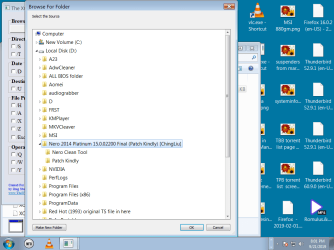
Aside from reading instructions, here is what I have done with the xcopy tool.


Unzip the zip file.


a file xcopytool.hta html application is unzipped

using Explorer from the Start menu gives several options shown

xcopytool.exe > That winks open a DOS window and closes

run xcopytool.hta > gives the actual program box in the screen shot attached

selection of source as D: gives what is shown in the screen shot

I'm writng this out as a notes file to save for such times as I ever have
to do it again. But if there's any more Q and A to do on it, I'm just going
to something other than xcopytool.


Not being lazy about it. Between Q and A in this thread I've used DOS to find the desktop
on drive D: After inspecting that I see that saved files can be replaced with new (program downloads
etc.) and the large folder I sought is not listed. Perhaps it was a shortcut. I'm looking
at a search tool called Everything which works well in C: to find misplaced things like .lnk shortcut
files. Right now I don't know if it is an effective tool for D:.


I'll mark the thread solved soon since I'm looking at other tools than xcopy or xcopytool.
 

Attachments

  • xcopy  browse.png
    xcopy browse.png
    43.5 KB · Views: 0

My Computer My Computer

At a glance

Windows 7 x64 UltimateAMD Athlon II x3 4502 GB
Computer type
PC/Desktop
Computer Manufacturer/Model Number
custom
OS
Windows 7 x64 Ultimate
CPU
AMD Athlon II x3 450
Motherboard
MSI 880GM
Memory
2 GB
Hard Drives
various
Browser
Firefox, Opera
What is xcopytool.exe? I have never seen that.


You are almost there. Select the source you wish to copy ( as in your screenshot)

Then select destination to copy it to.

A window will pop up asking you to confirm the source and destination.

Then you can tick any of the switches you want ( those are the little boxes).

Then click OK for xcopy to do the job.

I don't know how it could be any simpler.
 

My Computers My Computers

  • At a glance

    7 X64i5 84002x8gb 3200mhz
    Computer type
    PC/Desktop
    OS
    7 X64
    CPU
    i5 8400
    Motherboard
    gigabyte b365m ds3h
    Memory
    2x8gb 3200mhz
    Hard Drives
    various
    PSU
    pure power 11 400w cm
    Case
    Coolermaster
    Cooling
    cryorig m9i
  • At a glance

    7x64g54008gb ddr4 2400
    Computer type
    PC/Desktop
    OS
    7x64
    CPU
    g5400
    Motherboard
    ga b365m ds3h
    Memory
    8gb ddr4 2400
    PSU
    xfx pro 450w
One additional note.


After closing this thread I had some practice with a program called Everything by Voidtools. It is full featured and has done what I wanted to do which is to simply drag and drop from the D: back
to the C: drive and also give access to desktop on D:


The Everything tool is free at:


voidtools


Run Everything on D: open a Window for C: and drag and drop.
 

My Computer My Computer

At a glance

Windows 7 x64 UltimateAMD Athlon II x3 4502 GB
Computer type
PC/Desktop
Computer Manufacturer/Model Number
custom
OS
Windows 7 x64 Ultimate
CPU
AMD Athlon II x3 450
Motherboard
MSI 880GM
Memory
2 GB
Hard Drives
various
Browser
Firefox, Opera
I have been using everything for years.
 

My Computers My Computers

  • At a glance

    7 X64i5 84002x8gb 3200mhz
    Computer type
    PC/Desktop
    OS
    7 X64
    CPU
    i5 8400
    Motherboard
    gigabyte b365m ds3h
    Memory
    2x8gb 3200mhz
    Hard Drives
    various
    PSU
    pure power 11 400w cm
    Case
    Coolermaster
    Cooling
    cryorig m9i
  • At a glance

    7x64g54008gb ddr4 2400
    Computer type
    PC/Desktop
    OS
    7x64
    CPU
    g5400
    Motherboard
    ga b365m ds3h
    Memory
    8gb ddr4 2400
    PSU
    xfx pro 450w
Back
Top