No Bootloader Installed

Marc C

New member
Local time
4:04 AM
Messages
6
HI All,

I have used the search facility but did not come across a post with the same issue as I have.

My 6 year old laptop with W7 died 3 weeks ago. It would not switch on at all. I removed the SSD and connected it to a working PC; the drive was fine and all the data was intact and useable.

After much internet searching I managed to get my laptop to boot to BIOS. Attaching a USB drive with W7, I used the recovery selection but it failed because it could not find a boot drive (I think it was).

Further selections stated that no OS was installed.

I have tried various intrenet suggestions and the last ran a programme which said:

"no bootloader is installed in the MBR of /dev/nvme0n1"

Suggested repair: "win-legacy-basic-fix"

A search for this took me to sites which promised to fix this in exchange for lots of cash.

Can anyone suggest how I might be able to resolve this issue?

Thank you.

Marc
 

My Computers

System One System Two

  • OS
    W10
  • Computer type
    PC/Desktop
you can borrow my boot media to have a look and take screenshots . It includes explorer, disk management etc

sceenshot of disk management would be useful

17514x64v30.iso

extract the iso to create bootable usb using this: View attachment Usb7ice.zip
 

My Computers

System One System Two

  • Computer type
    PC/Desktop
    OS
    7 X64
    CPU
    i5 8400
    Motherboard
    gigabyte b365m ds3h
    Memory
    2x8gb 3200mhz
    Hard Drives
    various
    PSU
    pure power 11 400w cm
    Case
    Coolermaster
    Cooling
    cryorig m9i
  • Computer type
    PC/Desktop
    OS
    7x64
    CPU
    g5400
    Motherboard
    ga b365m ds3h
    Memory
    8gb ddr4 2400
    PSU
    xfx pro 450w
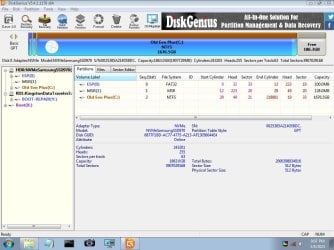
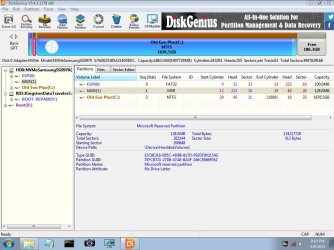
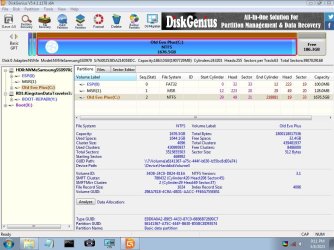
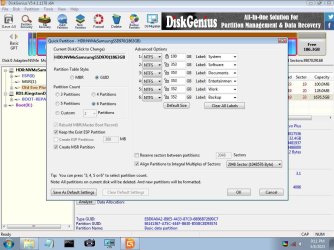
Thanks for the files; sorry for the delay in replying but it took me a little time to realise that the screengrabs were not being saved on the USB drive I had made but could be saved on another USB drive.

I hope they are legible and shed some light!

ESP(0).jpgHD(0).jpgMSR(1).jpgOld Evo Plus(C).jpgQuick Partition.jpg

- - - Updated - - -

I also had another thought.

I have an SSD with a working W7 installation. Is there a file or folder I can copy from the working SSD and paste it to the non booting SSD (after putting the non working SSD into an external caddy?
 

My Computers

System One System Two

  • OS
    W10
  • Computer type
    PC/Desktop
"no bootloader is installed in the MBR of /dev/nvme0n1"

that is odd. It only applies to mbr partitioned disks.

Your samsung nvme is gpt partitioned and should be booted in efi mode.
 

My Computers

System One System Two

  • Computer type
    PC/Desktop
    OS
    7 X64
    CPU
    i5 8400
    Motherboard
    gigabyte b365m ds3h
    Memory
    2x8gb 3200mhz
    Hard Drives
    various
    PSU
    pure power 11 400w cm
    Case
    Coolermaster
    Cooling
    cryorig m9i
  • Computer type
    PC/Desktop
    OS
    7x64
    CPU
    g5400
    Motherboard
    ga b365m ds3h
    Memory
    8gb ddr4 2400
    PSU
    xfx pro 450w
that is odd. It only applies to mbr partitioned disks.

Your samsung nvme is gpt partitioned and should be booted in efi mode.


I changed boot from legacy to UEFI mode secure boot off.

THe SSD did not boot but I chose startup repair. "Windows is loading files" appeared twice but nothing was loaded.

I chose the other option - start windows normally. This opened Dell Support Assist which checked the memory was OK then "Windows loading files" as above.

I rebooted to safe mode. "Loading windows files" led to start normally which led to "Windows loading files" then nothing.

A little history. I installed W7 on this disk in 2015 following detailed and complicated instructions of the internet. I created a USB flash drive with Rufus but cannot remember which version nor which settings I selected. Could this be the reason why the Samsung SSD was gpt partitioned and which therefore led to it being booted in EFI mode?

This flash drive has been mislaid and refuses to be found.
 

My Computers

System One System Two

  • OS
    W10
  • Computer type
    PC/Desktop
I changed boot from legacy to UEFI mode secure boot off.

THe SSD did not boot but I chose startup repair. "Windows is loading files" appeared twice but nothing was loaded.

I chose the other option - start windows normally. This opened Dell Support Assist which checked the memory was OK then "Windows loading files" as above.

I rebooted to safe mode. "Loading windows files" led to start normally which led to "Windows loading files" then nothing.

A little history. I installed W7 on this disk in 2015 following detailed and complicated instructions of the internet. I created a USB flash drive with Rufus but cannot remember which version nor which settings I selected. Could this be the reason why the Samsung SSD was gpt partitioned and which therefore led to it being booted in EFI mode?

This flash drive has been mislaid and refuses to be found.

Update.

In 2016 I installed W7 on my wife’s laptop. I used Rufus to create the bootable flash drive. (With the current version, even if I select “MBR partition scheme for BIOS or UEFI”, after selecting the ISO image the partition scheme changes to “ GPT partition scheme for UEFI. I suspect this is why I ended up with a bootable USB flash drive in GPT).

It installed at the first attempt and all worked well until 2 months ago when the laptop crashed. I have managed to get the laptop working again but it will only boot into BIOS – no operating system can be found.

I have a system image which was created 1 year ago. It is on a 4TB external hard drive.

I created a NEW flash drive in GPT. I used this to try and install the system image but it failed at the very end – something about too many identifiers…

I created another new flash drive making sure that MBR partition scheme for BIOS or UEFI was selected after choosing the ISO file. I successfully installed W7 on the old laptop.

I used this “MBR” flash drive to try and install the system but it was not accepted: “windows cannot restore a system image to a computer that has different firmware. The system image was created on a computer using EFI and this computer is using BIOS”.

I have gone down every rabbit hole on the internet but without success.

Does anyone have any ideas on how I can load this EFI system image onto a BIOS laptop?
 

My Computer

Computer type
PC/Desktop
OS
W 7 Ultimate x64
Your hard drive might be a dud. Lots of Info. on the Internet from these crappy Samsung 970s. Here's one article: Samsung seemingly caught swapping components in its 970 Evo Plus SSDs | Ars Technica

Here's another: Update on Samsung SSD Reliability | Hacker News

I believe relatively recently Samsung released a firmware update to fix this. If it's possible, maybe the drive can be connected to another computer and its firmware flashed with the latest via the Samsung Magician software.


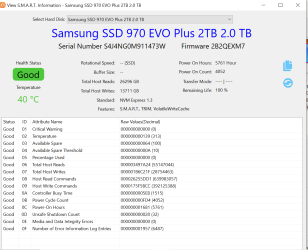
Look in Disk Genius' options for SMART data. I'm curious to see what that says.


that is odd. It only applies to mbr partitioned disks.

Your samsung nvme is gpt partitioned and should be booted in efi mode.

It's probably a generic message. The laptop is six years old. At least that's my thinking on it. Or the drive is so bad that BIOS is displaying the wrong message.

- - - Updated - - -

My 6 year old laptop with W7 died 3 weeks ago. It would not switch on at all. I removed the SSD and connected it to a working PC; the drive was fine and all the data was intact and useable.


SSD or NVMe drive? You attached it to another computer how?

The laptop was able to boot to BIOS AFTER removing the drive?

Make and model of the laptop?

- - - Updated - - -

that is odd. It only applies to mbr partitioned disks.

Your samsung nvme is gpt partitioned and should be booted in efi mode.

Just some food for thought, it's actually possible to boot from a GPT partition in a traditional BIOS.
 

My Computer

Computer type
PC/Desktop
OS
Windows 7 Ultimate x64
“windows cannot restore a system image to a computer that has different firmware. The system image was created on a computer using EFI and this computer is using BIOS”.

Does anyone have any ideas on how I can load this EFI system image onto a BIOS laptop?


If it is a windows system image, you can apply it manually. I suggest using the free version of diskgenius.

partition the target disk mbr and mark the prospective windows partition Active.

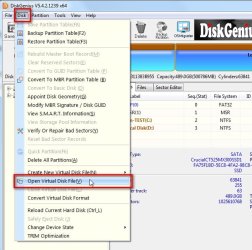
then apply the windows partition from the vhd file using diskgenius like this:

dg-vhd1.jpg

browse to the .vhd file in your windowsimagebackup folder select the .vhd and click Open


dg-vhd2.jpg

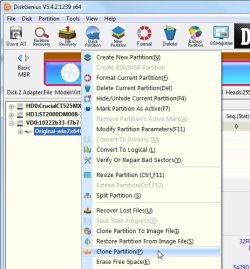
the vhd will then appear in the left pane of diskgenius like any other disk.

rt click the windows partition in ths vhd and select clone partition and point it at the target partition on the laptop disk

dg-vhd3.jpg

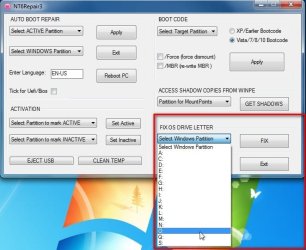
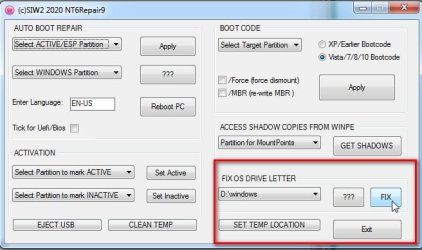
after it has been cloned to the target partition, fix the drive letter

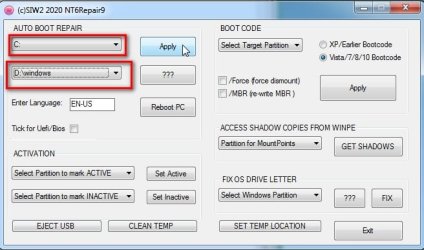
Open NT6repair ( link is on the desktop of my boot media ) select the windows partition letter in the dropdown. Then click FIX

so if you cloned the windows partition from the vhd to partition E: then you must select E: in the dropdown then click FIX

fixletter.jpg

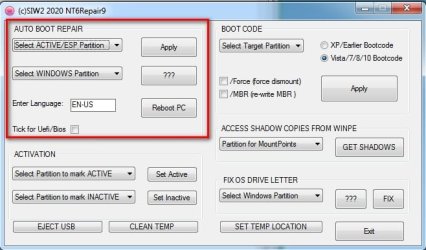
Then you can EITHER use the Autobootrepair section in the picture above.
select the active partition in the drop[dwon
select the windows partition in the dropdown
click APPLY


OR

open cmd prompt and type :
bcdboot windowspartitionletter:\windows /s activepartitionletter:
for example if you have just cloned the windows partition from the vhd to partition E:
bcdboot E:\windows /s E:

you can borrow my boot media, all the tools are in there
:ar: 17514x64v30.iso

make sure you boot the media in bios mode ( do not boot it in uefi mode)

I have done it many times.
 
Last edited:

My Computers

System One System Two

  • Computer type
    PC/Desktop
    OS
    7 X64
    CPU
    i5 8400
    Motherboard
    gigabyte b365m ds3h
    Memory
    2x8gb 3200mhz
    Hard Drives
    various
    PSU
    pure power 11 400w cm
    Case
    Coolermaster
    Cooling
    cryorig m9i
  • Computer type
    PC/Desktop
    OS
    7x64
    CPU
    g5400
    Motherboard
    ga b365m ds3h
    Memory
    8gb ddr4 2400
    PSU
    xfx pro 450w

Disk genius SMART data:

970 EVO Plus SMART.PNG

The drive is an NVME drive and was placed in an enclosure. Connecting the enclosure to a working laptop revealed all the contents of the SSD.

The failed laptop (now working) is a Dell XPS 13 9350. It booted into BIOS but I can’t remember whether the SSD was fitted or not – the laptop would not boot into Windows.

- - - Updated - - -

...partition the target disk mbr and mark the prospective windows partition Active.......

Thank you for the details and screenshots. It is getting late here in Cyprus (Eastern Med) so I will wait until my mind is fresh tomorrow.

One question though: when you say "target disk" do you mean the disk on which the system image is? If so the disk is an external Seagate 4TB Back Up Plus. I read that disks larger than 4TB cannot be partitioned to mbr. Can I copy the system image to a 2TB exFAT drive and partition that drive to mbr?
 

My Computer

Computer type
PC/Desktop
OS
W 7 Ultimate x64
The target disk is where you want to restore the image or part of it. It is what you are aiming the restore at.

If that is an nvme disk they are usually gpt partition style.


I successfully installed W7 on the old laptop.

not clear what you are doing. You have a 4tb external which contains the image and now it seems you have a 2tb nvme disk in an external enclosure.

what is the disk in the laptop on which you have win7 currently installed?

Is that 2tb samsung nvme the laptop disk that you have taken out, or is it a new one you want to put in?
 
Last edited:

My Computers

System One System Two

  • Computer type
    PC/Desktop
    OS
    7 X64
    CPU
    i5 8400
    Motherboard
    gigabyte b365m ds3h
    Memory
    2x8gb 3200mhz
    Hard Drives
    various
    PSU
    pure power 11 400w cm
    Case
    Coolermaster
    Cooling
    cryorig m9i
  • Computer type
    PC/Desktop
    OS
    7x64
    CPU
    g5400
    Motherboard
    ga b365m ds3h
    Memory
    8gb ddr4 2400
    PSU
    xfx pro 450w
The target disk is where you want to restore the image or part of it. It is what you are aiming the restore at.

If that is an nvme disk they are usually gpt partition style.

It is not clear what you are doing. You have a 4tb external which contains the image and now it seems you have a 2tb nvme disk in an external enclosure.

what is the disk in the laptop on which you have win7 currently installed?

Is that 2tb samsung nvme the laptop disk that you have taken out, or is it a new one you want to put in?

Thank you for the answer.

The 4TB disk is an external disk which contains the system image.

The 2TB disk is a Samsung NVME disk which is now in the laptop. It has W7 installed with an MBR partition style.

Off to try your detailed instructions - I will let you know how I get on; my wife has promised me a chocolate cake if I succeed!

- - - Updated - - -

Off to try your detailed instructions - I will let you know how I get on; my wife has promised me a chocolate cake if I succeed!
No chocolate cake yet……..

S1W1

I followed your instructions but, after

Open NT6repair ( link is on the desktop of my boot media ) select the windows partition letter in the dropdown. Then click FIX

I got an error message: c:\windowsSYSTEM32\CONFIG\SOFTWARE HIVE NOT FOUND

What do you think?
 

My Computer

Computer type
PC/Desktop
OS
W 7 Ultimate x64
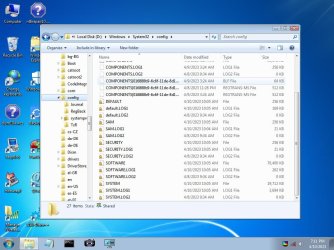
take a look and see if c:\windows\system32\config\software exists.

are you sure c is the drive letter of the partition you cloned to ?

post a screenshot of disk management from the booted media. There is a camera icon on the taskbar. Save the screenshot onto the usb stick so you can post it up here later.
 

My Computers

System One System Two

  • Computer type
    PC/Desktop
    OS
    7 X64
    CPU
    i5 8400
    Motherboard
    gigabyte b365m ds3h
    Memory
    2x8gb 3200mhz
    Hard Drives
    various
    PSU
    pure power 11 400w cm
    Case
    Coolermaster
    Cooling
    cryorig m9i
  • Computer type
    PC/Desktop
    OS
    7x64
    CPU
    g5400
    Motherboard
    ga b365m ds3h
    Memory
    8gb ddr4 2400
    PSU
    xfx pro 450w
I said that my system image was on a 4TB external drive and indeed it is. "Just in case" I had also copied it to a 2TB external drive.

This morning, the 4TB drive was connected to my W10 laptop so I tried to restore from the 2 TB drive to the W7 laptop. When this failed I tried the 4TB drive but although disk management (and Genius) could see the drive, windows explorer could not - it appears that no drive letter is attached to the drive (another problem to rectify, another day).

I tried the 2TB drive again with the same result: c:\windowsSYSTEM32\CONFIG\SOFTWARE HIVE NOT FOUND

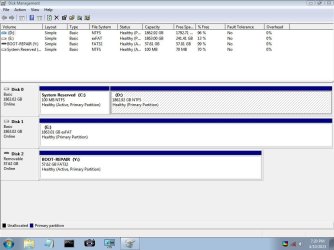
c:\windowsSYSTEM32\CONFIG\SOFTWARE HIVE is on the c drive which is called D drive with the booted media

I post 2 screenshots software.jpgdisk management.jpg
 

My Computer

Computer type
PC/Desktop
OS
W 7 Ultimate x64
c:\windowsSYSTEM32\CONFIG\SOFTWARE HIVE is on the c drive which is called D drive with the booted media

therefore you need to select D in the dropdown.

the letters you see when booted into winpe are in the winpe registry and are completely independent of the letters assigned in the registry of windows on your hard disk.

nt6repair10.jpg

then if you use Autobootrepair, you would select the letter of the Active/ESP partition ( in your screenshot the Active partition shows as C )

and select the windows partition ( which in your screenshot shows as D )

autobootrepair1.jpg

autobootrepair2.jpg
 
Last edited:

My Computers

System One System Two

  • Computer type
    PC/Desktop
    OS
    7 X64
    CPU
    i5 8400
    Motherboard
    gigabyte b365m ds3h
    Memory
    2x8gb 3200mhz
    Hard Drives
    various
    PSU
    pure power 11 400w cm
    Case
    Coolermaster
    Cooling
    cryorig m9i
  • Computer type
    PC/Desktop
    OS
    7x64
    CPU
    g5400
    Motherboard
    ga b365m ds3h
    Memory
    8gb ddr4 2400
    PSU
    xfx pro 450w
S1W2,

Thank you again for the screenshots.

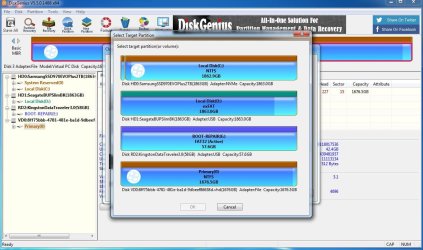
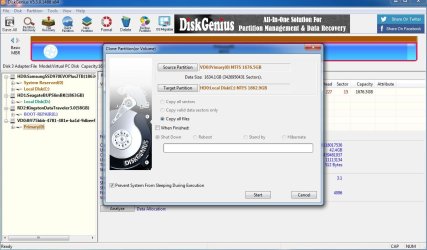
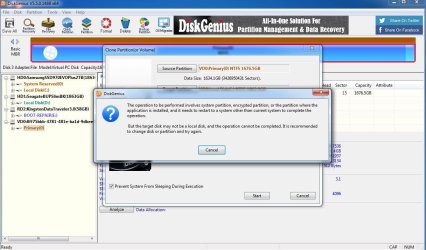
Your botable disk does not contain DiskGenius (as far as I can see) so i returned to my W7 laptop which has DiskGenius and nt6repair to make sure what I was doing was correct. Yesterday I had made a mistake in trying to clone the VHD - I had selected the drive and not the file within it.

Following your instructions on a live w7 laptop and not using your bootable media for the reason stated above, I was unsuccessful. I attach screenshots in the order they were taken:

disk genius 1.JPGdisk genius 2.JPGdisk genius 3.JPGdisk genius 4.JPG

I guess it is me doing something wrong and I really do appreciate all the help you are giving me.

- - - Updated - - -

S1W2,

I have found Diskgenius on your bootable drive and am trying again. Cloning in progress but it it states that it going to take 24 hours! Not sure my old laptop can take it...

Thank you for all your help.

- - - Updated - - -

Update,

It took 11 hours but failed. The error message referred to EFI and BIOS so I looked at your previous advice. I then noticed: make sure you boot the media in bios mode ( do not boot it in uefi mode)

which I had not because, when I tried to boot in BIOS mode, all I got was an unable to find boot disk or similar message. However, on the 4th attempt in BIOS, the programme loaded. Now starting again.
 
Last edited:

My Computer

Computer type
PC/Desktop
OS
W 7 Ultimate x64
I am not sure why you want to use bios mode and mbr partition style on that machine.

Most people would set the mode to uefi and use a gpt partitioned nvme disk.

Dell XPS 13 9350.

do you need anything that is currently on the nvme disk ?

Dell XPS 13 (2015) - BIOS [v.A03] without comment | ITFroccs.hu - YouTube

General >boot sequence > select uefi

General >advanced boot options > enable legacy option roms

System configuration > Sata option > select AHCI

Secure Boot >secure boot enable > select Disabled

then you could convert the nvme disk to gpt which you would have to do from another os or booted media.
 
Last edited:

My Computers

System One System Two

  • Computer type
    PC/Desktop
    OS
    7 X64
    CPU
    i5 8400
    Motherboard
    gigabyte b365m ds3h
    Memory
    2x8gb 3200mhz
    Hard Drives
    various
    PSU
    pure power 11 400w cm
    Case
    Coolermaster
    Cooling
    cryorig m9i
  • Computer type
    PC/Desktop
    OS
    7x64
    CPU
    g5400
    Motherboard
    ga b365m ds3h
    Memory
    8gb ddr4 2400
    PSU
    xfx pro 450w
I am not sure why you want to use bios mode and mbr partition style on that machine. .............

Originally, in 2016, I installed W7 on the XPS 13 (2015) from a flash drive which unwittingly, was in EFI mode.

I can't remember any of the settings but I do remember being advised to select legacy roms secure boot off.

After the XPS 13 crashed in January, in April, I found the original flash drive. I was unable to boot the flash drive from Legacy but was able to boot it from UEFI. However, it had no success at restoring a system image and could not repair the OS as it could not find one.

I decided to do a clean install with the flash drive which worked in 2015. BUT, when the machine rebooted I got an unable to find boot disk type message and the only way I could get W7 to boot was to hit F12 each time and select the drive from the UEFI options.

I tried every BIOS boot change I could think of but without success.

I then installed a clean version of W7 in legacy BIOS mode. Since I have a good system image, I thought it might be possible to install a system image but it has proved impossible until I read your instructions. My wife is going bananas at her old laptop running constantly (24 hours at last count) with me trying to install the system image. If the current attempt fails then she wants a simple W7 which boots at start up without me having to hit F12.

I shall report back.

- - - Updated - - -

In post number 8 you say:


Then you can EITHER use the Autobootrepair section in the picture above.
select the active partition in the drop[dwon
select the windows partition in the dropdown
click APPLY

Sorry to be a bit thick but is the "active" partition your boot disk and is the windows partition the target disk?
 

My Computer

Computer type
PC/Desktop
OS
W 7 Ultimate x64
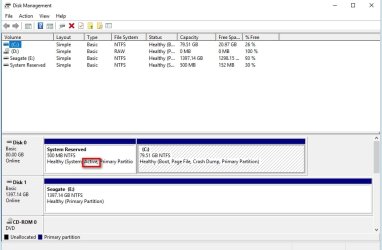
it is the partition that says Active on it. Look in disk management.

here is a random screenshot showing where it says Active

the first partition is marked Active in the picture below and the windows partition is the second one.

Yours might be different. In some setups the windows partition is also the Active partition in some setups it is a separate partition.

active-part.jpg
 

My Computers

System One System Two

  • Computer type
    PC/Desktop
    OS
    7 X64
    CPU
    i5 8400
    Motherboard
    gigabyte b365m ds3h
    Memory
    2x8gb 3200mhz
    Hard Drives
    various
    PSU
    pure power 11 400w cm
    Case
    Coolermaster
    Cooling
    cryorig m9i
  • Computer type
    PC/Desktop
    OS
    7x64
    CPU
    g5400
    Motherboard
    ga b365m ds3h
    Memory
    8gb ddr4 2400
    PSU
    xfx pro 450w
S1W2,

Success!

Thank you very much indeed for all your very kind help and especially the screenshots without which I would not have been able to reinstall W7 and the system image.

Much appreciated.
 

My Computer

Computer type
PC/Desktop
OS
W 7 Ultimate x64
well done for persevering :-)
 

My Computers

System One System Two

  • Computer type
    PC/Desktop
    OS
    7 X64
    CPU
    i5 8400
    Motherboard
    gigabyte b365m ds3h
    Memory
    2x8gb 3200mhz
    Hard Drives
    various
    PSU
    pure power 11 400w cm
    Case
    Coolermaster
    Cooling
    cryorig m9i
  • Computer type
    PC/Desktop
    OS
    7x64
    CPU
    g5400
    Motherboard
    ga b365m ds3h
    Memory
    8gb ddr4 2400
    PSU
    xfx pro 450w
Back
Top