
How to Run a Program in Compatibility Mode in Windows 7
Information
Compatibility mode allows a older program written for an earlier versions of Windows to possibly run in Windows 7. You can also use Compatibility mode to always have a program to Run as an administrator.
Note
32 bit Windows has emulation for 16 bit programs built in. 64-bit Windows only has emulation for 32 bit programs. If the program ran on 32-bit Windows 7 and not 64 bit, then chances are it's a 16 bit program and you may have to use something like DosBox or XP Mode to be able to run it in 64-bit Windows.
Tip
If changing the Compatibility settings does not fix the problem, go to the program manufacturer's website to see if there is an update for the program.
To see if your software is compatible with Windows 7, check it here: Windows 7 Compatibility Center home
To see if your software is compatible with Windows 7, check it here: Windows 7 Compatibility Center home
Warning
Do not use Compatibility mode on antivirus programs, firewall programs, disk utilities, or other system programs because it could cause data loss or create a security risk.
You only want to use these type of programs for the Windows listed in their system requirements.
You only want to use these type of programs for the Windows listed in their system requirements.
OPTION ONE
To Set Compatibility Mode of Application in Properties Page
2. Click on Properties.
3. Click on the Compatibility tab. (see screenshot below)
NOTE: If the Compatiblity options are grayed out, then it is a 64 bit program and cannot be changed.
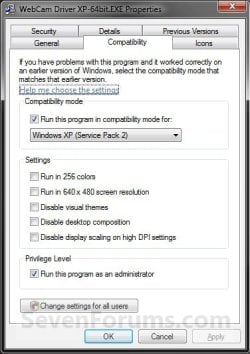
4. To Run a Program in Compatibility Mode in Only your User Account
NOTE: Runs the program using settings from a previous version of Windows. Try this setting if you know the program is designed for (or worked in) a specific previous version of Windows.A) Check the Run this program in compatibility mode for box. (see screenshot below)
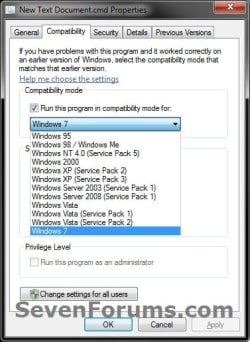
B) Click on the drop down menu arrow and select which version of Windows the program was made for. (see screenshot below)
NOTE: Always pick the latest Windows version the program was written for to have a better chance of it running properly in Windows 7.
Warning
MSI files (right screenshot below) will only have the Previous version of Windows option available for it. This option will allow Windows 7 to automatically use the previous version compatibility mode it thinks is best for the MSI file to run properly as. You will not be able to do steps 5 and 6 below.

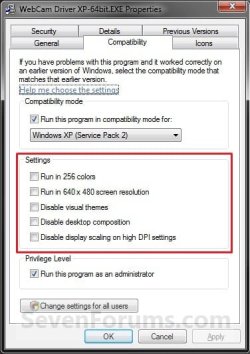
5. To Change the Settings for a Program in Only your User Account
NOTE: These settings will be grayed out and not available for 64-bit programs.A) Check or uncheck the settings you want for the program. (see screenshot below)
NOTE: See the table below the screenshot for a description of each setting.
| Setting | Description |
|---|---|
| Run in 256 colors | Uses a limited set of colors in the program. Some older programs are designed to use fewer colors. |
| Run in 640 × 480 screen resolution | Runs the program in a smaller-sized window. Try this setting if the graphical user interface appears jagged or is rendered improperly. |
| Disable visual themes | Disables themes on the program. Try this setting if you notice problems with the menus or buttons on the title bar of the program. |
| Disable desktop composition | Turns off transparency and other advanced display features. Choose this setting if window movement appears erratic or you notice other display problems. |
| Disable display scaling on high DPI settings | Turns off automatic resizing of programs if large-scale font size (DPI) is in use. Try this setting if large-scale fonts are interfering with the appearance of the program. |
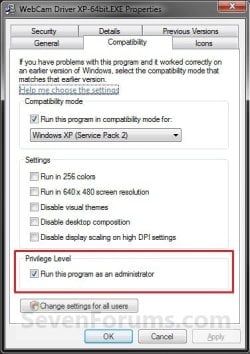
6. To Change the Privilege Level of a Program in Only your User Account
NOTE: Runs the program as an administrator. Some programs require administrator privileges to run properly. If you are not currently logged on as an administrator, this option is not available.A) Check or uncheck the Run this program as an administrator box to enable or disable this option. (see screenshot below)
7. To Change These Settings for All Users
NOTE: You must be logged in as an administrator to be able to do this step. A) Click on the Change settings for all users button. (See screenshot below)
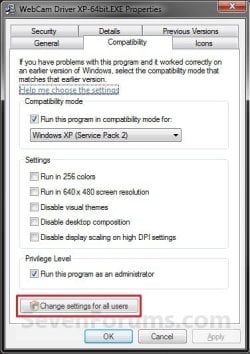
B) Repeat steps 4, 5, and 6 in this new window to apply them to all users on the computer, and click on OK. (see screenshot below)
NOTE: Changes made here will override and gray out the same setting in the window used in step 4, 5, or 6 above.
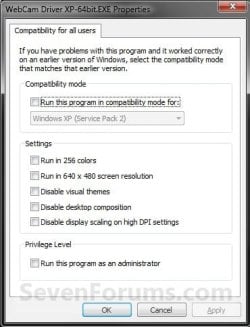
8. Click on OK to apply the changes. (see screenshot below step 3)
OPTION TWO
Set Compatibility Mode of Application using "Troubleshoot compatibility"
NOTE: This option opens the Program Compatibility Assistant wizard to let Windows 7 help decide what is best to try and make the program compatible.1. Right click on the program's shortcut (LNK file), .EXE file, BAT file, CMD file, or MSI file, and click on Troubleshoot compatibility. (see screenshot below)
NOTE: You will not have the Troubleshoot compatibility option available for pinned items in the Start Menu or on the taskbar. You will only have the Troubleshoot compatibility option available for 3rd party programs in the Start Menu - All Programs area instead.
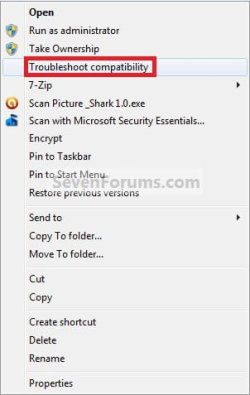
2. You will see this for a moment while Windows 7 is detecting what the issues may be with the program. (see screenshot below)

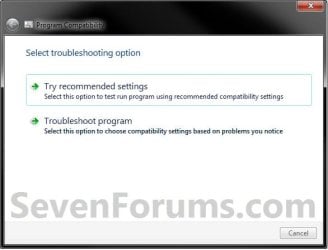
3. The wizard will now give you a list of choices to choose from. Select the option you would like to try, then follow the rest of the onscreen instructions until you are through troubleshooting the compatibility issue with the program. (see screenshot below)
OPTION THREE
To Set Compatibility Mode of Application in Registry Editor
2. If prompted by UAC, then click on Yes.
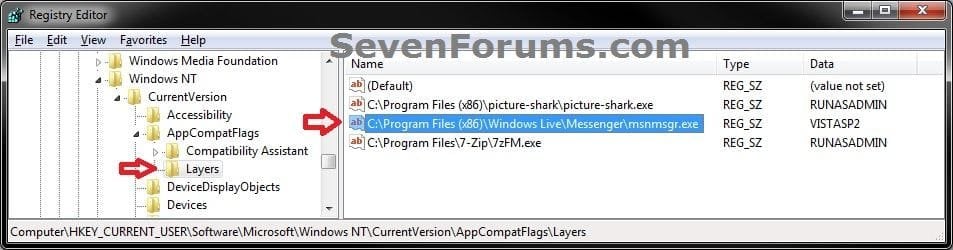
3. In regedit, navigate to each location below one at a time and do the steps below for each location. (see screenshot below)
Code:
HKEY_CURRENT_USER\Software\Microsoft\Windows NT\CurrentVersion\AppCompatFlags\Layers
Code:
HKEY_LOCAL_MACHINE\SOFTWARE\Microsoft\Windows NT\CurrentVersion\AppCompatFlags\Layers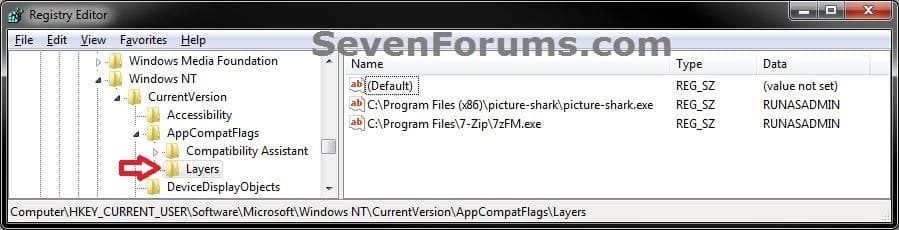
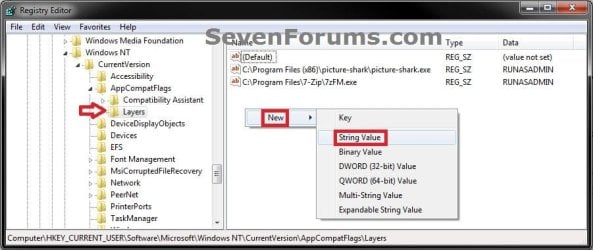
4. To Run a Program in Compatibility ModeA) In the right pane of Layers, right click on a empty area and click on New, then on String Value. (see screenshot below)
B) Type in the full path of the program's exe file and press Enter, then right click on the full path and click on Modify. (see screenshot below)
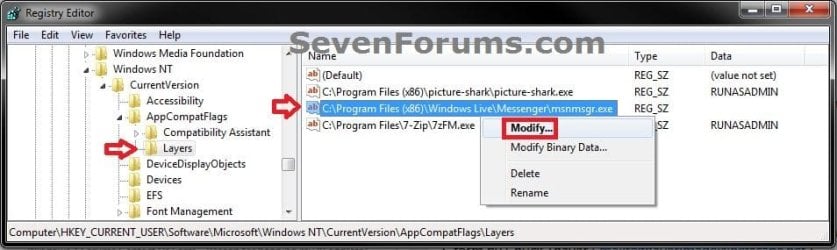
C) Type in a single or combination of Data values (see tables below) for how you want to run the program as, and click on OK. (see screenshot below)
NOTE: If you use more than one Settings, then you must add them in the order they are in the table below.
[Compatibility Mode (only one)] + space + [Settings (one or more with a space inbetween)] + space + [Privilege Level]

Tip
EXAMPLE ONE:
To run a program as if it was in Windows Vista SP2 (Compatibility Mode), and Run in 256 colors (Settings), and to run as administrator you would type:
VISTASP2 256Color RUNASADMIN
EXAMPLE TWO:
Say you also wanted to Run in 640 x 480 screen resolution (2nd Settings) with the above example, you would type:
VISTASP2 256Color 640x480 RUNASADMIN
| Compatibility Mode | Data Value |
|---|---|
| Windows 95 | WIN95 |
| Windows 98 / Windows Me | WIN98 |
| Windows NT 4.0 (Service Pack 5) | NT4SP5 |
| Windows 2000 | WIN2000 |
| Windows XP (Service Pack 2) | WINXPSP2 |
| Windows XP (Service Pack 3) | WINXPSP3 |
| Windows Server 2003 (Service Pack 1) | WINSRV03SP1 |
| Windows Server 2008 (Service Pack 1) | WINSRV08SP1 |
| Windows Vista | VISTARTM |
| Windows Vista (Service Pack 1) | VISTASP1 |
| Windows Vista (Service Pack 2) | VISTASP2 |
| Windows 7 | WIN7RTM |
| Settings | Data Value |
|---|---|
| Run in 256 colors | 256Color |
| Run in 640 x 480 screen resolution | 640x480 |
| Disable visual themes | DISABLETHEMES |
| Disable desktop composition | DISABLEDWM |
| Disable display scaling on high DPI settings | HIGHDPIAWARE |
| Privilege Level | Data Value |
|---|---|
| Run this program as an Administrator | RUNASADMIN |
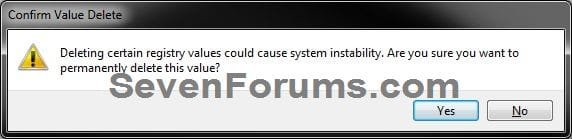
5. To Stop a Program from Running in Compatibility ModeA) In the right pane of Layers, right click on the full path Name and click on Delete. (see screenshot below)
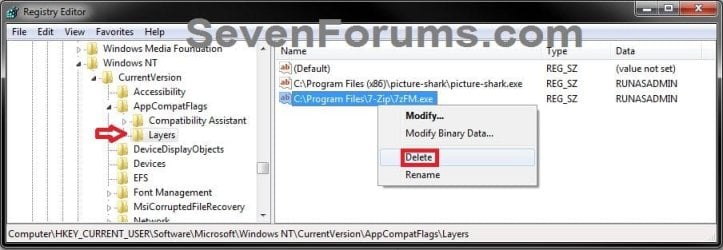
B) Click on Yes to confirm deletion. (see screenshot below)
6. Close regedit when done.
NOTE: Some programs may require you to restart the computer for this to be applied.
That's it,
Shawn Brink
Related Tutorials
- How to Turn Internet Explorer Compatibility View On or Off for a Website
- How to Display All Websites in Compatibility View in Internet Explorer
- How to Disable Desktop Composition for a Program
- How to Create a Program Compatibility Troubleshoot Shortcut in Windows 7
- How to Enable or Disable Windows 7 Program Compatibility Assistant
- How to Add or Remove "Troubleshoot compatibility" from the Context Menu in Windows 7
- How to Add "Run as administrator" to VBS File Context Menu
- How to Add "Run as administrator" to MSI File Context Menu
- How to Add or Remove "Compatibility" Tab in Properties Page in Windows
Attachments
Last edited:


