Elevated Program Shortcut without UAC Prompt - Create

How to Create an Elevated Program Shortcut without a UAC Prompt in Windows


   Information
This will show you how to create an elevated "Run as administrator" shortcut of any installed program using Task Scheduler so that it will not give you a UAC prompt for permission when you start it while still having UAC turned on in Vista, Windows 7, and Windows 8.

In the tutorial, you will first create a new task, then a new shortcut to run the task. Afterwards, how to change the icon of the shortcut.

   Note
Special thanks to OEM for pointing this out, and the previous Vista version by DMEX.

   Warning


  • This shortcut and task can only be created and work while logged in as an administrator account.
  • This shortcut will not work in a standard user account.


Here's How:
1. Press the Windows + R keys to open the Run dialog, type taskschd.msc, and press Enter.
NOTE: This will open Task Scheduler. This file is located at:
C:\Windows\system32\taskschd.msc.

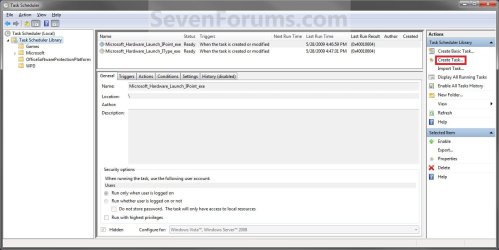
2. While having Task Scheduler Library selected in the left pane, click/tap on Create task in the far right pane. (see screenshot below)
Step1.jpg
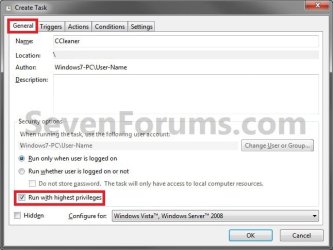
3. Under the General tab, type in the "Name" of the program you want to create this shortcut for. (see screenshot below)
NOTE: This will be the name of the task. As an example, I will use CCleaner for that program. Make note of this name, you will need it later in step 12 and 14 below.
Step2.jpg
4. Check the Run with highest privileges box. (See screenshot below)
Step3.jpg
5. Click/tap on the Configure for drop down box to open it, and select Windows® 7, Windows Server™ 2008 R2 or the Windows you are currently in. (see screenshot above and below)
NOTE: This is like compatibility mode. If the program does not support running in Windows 7 normally, then you can select the OS that is does support running in instead to have it run in compatibility mode as if it was running in that OS instead of Windows 7.

Drop_Down_Box.jpg
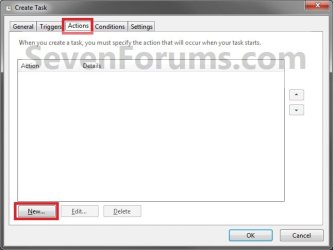
6. Click/tap on the Actions tab, then on the New button. (see screenshot below)
Step4.jpg
7. In the Program/script: box in the Actions tab, copy and paste the path below. (see screenshot below step 9)
NOTE: Thank you to chillz for the updated steps 7 and 8.
%windir%\System32\cmd.exe
8. In the Add arguments (optional): box in the Actions tab, type in the argument below. (see screenshot below step 9)

NOTE: Substitute Task Name in the argument below with the name you entered in step 3 (ex: CCleaner) within quotes, and substitute Full Path of Program in the argument below with the actual full path of the program's .exe file within quote.
/c start "Task Name" "Full Path of Program"


For example:

Code:
/c start "CCleaner" "C:\Program Files\CCleaner\CCleaner64.exe"
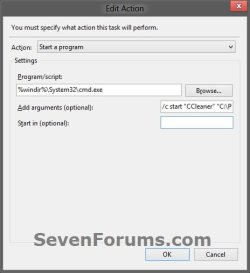
9. Click/tap on OK. (see screenshot below)
step7.jpg
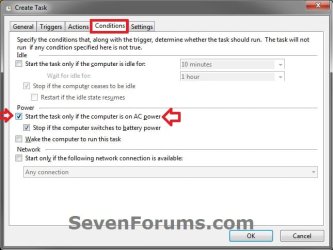
10. Click/tap on the Conditions tab, and uncheck the Stop if the computer switches to battery power box first, then uncheck the Start the task only if the computer is on AC power box. (see screenshots below)
NOTE: This step is mostly for laptops, so that you will be able to run the program when the laptop is running on battery power.
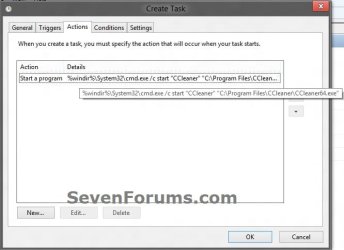
step8.jpg

Conditions.jpg

11. Click/tap on OK. (See screenshots above)

12. You will now see your new task created with the name (ex: CCleaner) you gave it in step 3. Close Task Scheduler. (see screenshot below)
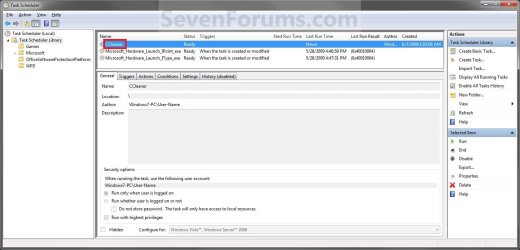
Step9.jpg
13. Right click or press and hold on an empty area of your desktop, then click/tap on New and Shortcut.

14. Type in the target below for the location field, then click/tap on the Next button. (see screenshot below)
NOTE: Subsitute task-name in the target with the name (ex: CCleaner) within quotes that you used in step 3.
schtasks /run /tn "task-name"

For example: For my task name CCleaner I used from step 3, I would type:
schtasks /run /tn "CCleaner"
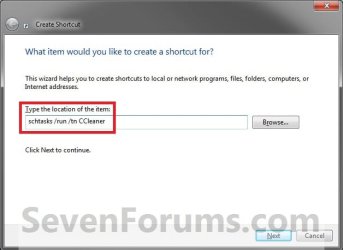
Step10.jpg
15. Type in a name you want for the shortcut (ex: CCleaner), then click/tap on the Finish button. (see screenshot below)
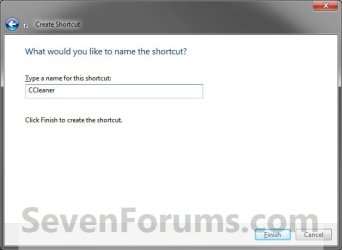
Step11.jpg
16. Right click on the new shortcut (ex: CCleaner) on the desktop, then click/tap on Properties.

17. Click/tap on the Shortcut tab, and on the Change Icon button. (see screenshot below)
Step12.jpg
18. Click/tap on OK. (see screenshot below)
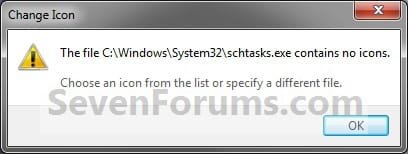
Step13.jpg
19. Click/tap on the Browse button. (see screenshot below)
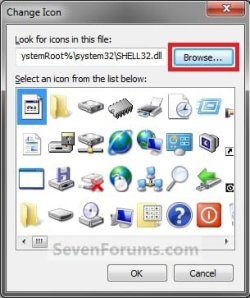
Step14.jpg
20. Navigate to the .exe file of the program that you have created this shortcut with, select it, and click/tap on Open. (see screenshot below)
NOTE: If you have a icon of your own that you would prefer to use instead, then navigate to where you have that icon saved at instead.
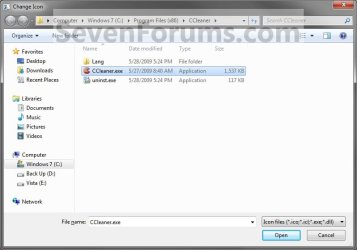
Step15.jpg
21. Select the icon you want for the shortcut, then click/tap on OK. (see screenshot below)
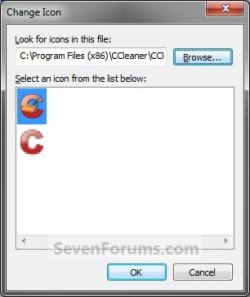
Step16.jpg
22. Click/tap on OK. (see screenshot below)
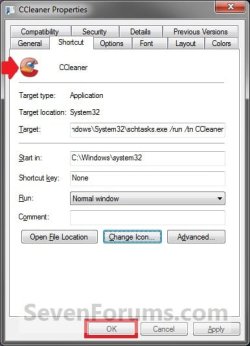
Step17.jpg
23. You can now use this elevated shortcut to run at startup in your "Startup" folder, run at startup as a task, Pin to Start Menu, Pin to Taskbar, assign a keyboard shortcut, or move to where you like for easy use.

24. When you run this new elevated shortcut, you will now no longer have to click/tap on YES to approve the UAC prompt to allow the program run as administrator.


   Tip
To Undo and Remove this Task:
  • While having Task Scheduler Library selected in the left pane, right click on the task in the right pane that you created in step 12, then click on Delete and Yes to approve.
  • Delete the shortcut.
That's it,
Shawn


Last edited:
You're welcome HammerHead. :)
 

My Computer

Computer type
PC/Desktop
Computer Manufacturer/Model Number
Self built custom
OS
64-bit Windows 11 Pro for Workstations
CPU
Intel i7-8700K OC'd to 5 GHz
Motherboard
ASUS ROG Maximus XI Formula Z390
Memory
64 GB (4x16GB) G.SKILL TridentZ RGB DDR4 3600 MHz
Graphics Card(s)
ASUS ROG-STRIX-GTX1080TI-O11G-GAMING
Sound Card
Integrated
Monitor(s) Displays
2 x Samsung Odyssey G7 27"
Screen Resolution
2560x1440
Hard Drives
1TB Samsung 990 PRO M.2,
4TB Samsung 990 PRO PRO M.2,
TerraMaster F8 SSD Plus NAS
PSU
Seasonic Prime Titanium 850W
Case
Thermaltake Core P3
Cooling
Corsair Hydro H115i
Keyboard
Logitech wireless K800
Mouse
Logitech MX Master 4
Internet Speed
2 Gb/s Download and 100 Mb/s Upload
Antivirus
Malwarebyte Anti-Malware Premium
Browser
Google Chrome
Other Info
Logitech Z625 speaker system,
Logitech BRIO 4K Pro webcam,
HP Color LaserJet Pro MFP M477fdn,
APC SMART-UPS RT 1000 XL - SURT1000XLI,
Galaxy S23 Plus phone
Hello Bink,

The method you described works but I wonder is there an easier way to do that.

I installed many programs in Windows 7, some short cuts showed a administrator shield symbol on their lower right corner and some didn't. The ones have the shield symbols will prompt for Administrator permission and the ones have no shield symbols will just run (like Skype, Firefox, EPSON Print CD, Baylon, uTorrent ... etc) without prompting. I checked the shortcut properties and the executable .exe properties between the two types of programs and I matched them all the permission check boxes but those will prompt still will prompt. I wonder where the setting is located to differentiate these executable files.

Do you have some ideas?

Thanks!
 

My Computer

OS
Windows 7
Hello Jychan, and welcome to Seven Forums.

Sorry, but I do not know of another method that can be used to bypas UAC and still have it run as administrator. :(
 

My Computer

Computer type
PC/Desktop
Computer Manufacturer/Model Number
Self built custom
OS
64-bit Windows 11 Pro for Workstations
CPU
Intel i7-8700K OC'd to 5 GHz
Motherboard
ASUS ROG Maximus XI Formula Z390
Memory
64 GB (4x16GB) G.SKILL TridentZ RGB DDR4 3600 MHz
Graphics Card(s)
ASUS ROG-STRIX-GTX1080TI-O11G-GAMING
Sound Card
Integrated
Monitor(s) Displays
2 x Samsung Odyssey G7 27"
Screen Resolution
2560x1440
Hard Drives
1TB Samsung 990 PRO M.2,
4TB Samsung 990 PRO PRO M.2,
TerraMaster F8 SSD Plus NAS
PSU
Seasonic Prime Titanium 850W
Case
Thermaltake Core P3
Cooling
Corsair Hydro H115i
Keyboard
Logitech wireless K800
Mouse
Logitech MX Master 4
Internet Speed
2 Gb/s Download and 100 Mb/s Upload
Antivirus
Malwarebyte Anti-Malware Premium
Browser
Google Chrome
Other Info
Logitech Z625 speaker system,
Logitech BRIO 4K Pro webcam,
HP Color LaserJet Pro MFP M477fdn,
APC SMART-UPS RT 1000 XL - SURT1000XLI,
Galaxy S23 Plus phone
First, what's the point of setting every option in a shortcut and its exe to Run as Admin if it still prompts the UAC?! :sarc: Either I'm the admin or I'm not. Damn, MS, where's the common sense?!

Second, holy crap!! I can't believe after all the crap with Vista that the current solution to runing a regularly run program is some 15 convoluted steps to trick the OS. WTF?

Many thanks to you for resolving MS's issues for them.
 

My Computer

OS
Windows 7 7100

My Computer

Computer type
PC/Desktop
Computer Manufacturer/Model Number
Self built custom
OS
64-bit Windows 11 Pro for Workstations
CPU
Intel i7-8700K OC'd to 5 GHz
Motherboard
ASUS ROG Maximus XI Formula Z390
Memory
64 GB (4x16GB) G.SKILL TridentZ RGB DDR4 3600 MHz
Graphics Card(s)
ASUS ROG-STRIX-GTX1080TI-O11G-GAMING
Sound Card
Integrated
Monitor(s) Displays
2 x Samsung Odyssey G7 27"
Screen Resolution
2560x1440
Hard Drives
1TB Samsung 990 PRO M.2,
4TB Samsung 990 PRO PRO M.2,
TerraMaster F8 SSD Plus NAS
PSU
Seasonic Prime Titanium 850W
Case
Thermaltake Core P3
Cooling
Corsair Hydro H115i
Keyboard
Logitech wireless K800
Mouse
Logitech MX Master 4
Internet Speed
2 Gb/s Download and 100 Mb/s Upload
Antivirus
Malwarebyte Anti-Malware Premium
Browser
Google Chrome
Other Info
Logitech Z625 speaker system,
Logitech BRIO 4K Pro webcam,
HP Color LaserJet Pro MFP M477fdn,
APC SMART-UPS RT 1000 XL - SURT1000XLI,
Galaxy S23 Plus phone
Thanks, and really enjoying the fix, don't get me wrong. Just venting at MS.

I understand what UAC is attempting to accomplish, so what's the point of "Run as Admin" if it still generates the nanny prompt? Isn't the Admin trusted on his own machine?

(pssst - I think the order of UAC levels and their descriptions are shifted by one at the above link. :P )
 

My Computer

OS
Windows 7 7100
Oh I understand Fogy. No problem.

When you are using "Run as Admin", it is requesting to run the program elevated. Since this is the same if you did it manually or a program tries to automatically, it triggers UAC to ask your to allow permission first. UAC is the last line of defense to stop a program from running as elevated and having full access to the entire computer.

You could use the built-in Administrator account to not have UAC bug you though, and have fill access. The only drawback is that everything that is running in the built-in Administrator account also has full access without UAC stopping it.

The UAC levels and descriptions look correct in the tutorial. :confused:
 

My Computer

Computer type
PC/Desktop
Computer Manufacturer/Model Number
Self built custom
OS
64-bit Windows 11 Pro for Workstations
CPU
Intel i7-8700K OC'd to 5 GHz
Motherboard
ASUS ROG Maximus XI Formula Z390
Memory
64 GB (4x16GB) G.SKILL TridentZ RGB DDR4 3600 MHz
Graphics Card(s)
ASUS ROG-STRIX-GTX1080TI-O11G-GAMING
Sound Card
Integrated
Monitor(s) Displays
2 x Samsung Odyssey G7 27"
Screen Resolution
2560x1440
Hard Drives
1TB Samsung 990 PRO M.2,
4TB Samsung 990 PRO PRO M.2,
TerraMaster F8 SSD Plus NAS
PSU
Seasonic Prime Titanium 850W
Case
Thermaltake Core P3
Cooling
Corsair Hydro H115i
Keyboard
Logitech wireless K800
Mouse
Logitech MX Master 4
Internet Speed
2 Gb/s Download and 100 Mb/s Upload
Antivirus
Malwarebyte Anti-Malware Premium
Browser
Google Chrome
Other Info
Logitech Z625 speaker system,
Logitech BRIO 4K Pro webcam,
HP Color LaserJet Pro MFP M477fdn,
APC SMART-UPS RT 1000 XL - SURT1000XLI,
Galaxy S23 Plus phone
When you are using "Run as Admin", it is requesting to run the program elevated.

So, running as a user account with admin perms is still not as admin as the built in admin? I would understand the elevation coming from a user, but I was thinking having admin perms would suffice to quell UAC for common programs and games such as WoW. Since out of the box it didn't, I tried "Run as Admin", as admin, and it still prompted. I figured it couldn't get much adminier than that. Fortunately I'll be taking some classes to ferret all this out.

The UAC levels and descriptions look correct in the tutorial. :confused:

Here is what I'm seeing from
http://www.sevenforums.com/tutorials/299-user-account-control-uac-change-notification-settings.html

4. To Turn Off UAC Notifications Completely
NOTE: This is level 4. See the fourth screenshot under step 5 in METHOD ONE. This will notify you of all changes made by programs to your computer, and changes you make to Windows 7 settings.
It looks like level 4 has level 1's description, etc.
 

My Computer

OS
Windows 7 7100
DOH! fixed. Thank you.

You should not be bothered by UAC if you enable and log on to the built-in Adminsitrator account, or just turn off UAC.
 

My Computer

Computer type
PC/Desktop
Computer Manufacturer/Model Number
Self built custom
OS
64-bit Windows 11 Pro for Workstations
CPU
Intel i7-8700K OC'd to 5 GHz
Motherboard
ASUS ROG Maximus XI Formula Z390
Memory
64 GB (4x16GB) G.SKILL TridentZ RGB DDR4 3600 MHz
Graphics Card(s)
ASUS ROG-STRIX-GTX1080TI-O11G-GAMING
Sound Card
Integrated
Monitor(s) Displays
2 x Samsung Odyssey G7 27"
Screen Resolution
2560x1440
Hard Drives
1TB Samsung 990 PRO M.2,
4TB Samsung 990 PRO PRO M.2,
TerraMaster F8 SSD Plus NAS
PSU
Seasonic Prime Titanium 850W
Case
Thermaltake Core P3
Cooling
Corsair Hydro H115i
Keyboard
Logitech wireless K800
Mouse
Logitech MX Master 4
Internet Speed
2 Gb/s Download and 100 Mb/s Upload
Antivirus
Malwarebyte Anti-Malware Premium
Browser
Google Chrome
Other Info
Logitech Z625 speaker system,
Logitech BRIO 4K Pro webcam,
HP Color LaserJet Pro MFP M477fdn,
APC SMART-UPS RT 1000 XL - SURT1000XLI,
Galaxy S23 Plus phone
You should not be bothered by UAC if you enable and log on to the built-in Adminsitrator account, or just turn off UAC.


In the interest of best practice, though, I'll use your fix and stay off admin accounts. Best of both worlds for now.
 

My Computer

OS
Windows 7 7100
In the interest of best practice, though, I'll use your fix and stay off admin accounts. Best of both worlds for now.

LOL, there you go. That would be best so that you do not give everything full access. :)
 

My Computer

Computer type
PC/Desktop
Computer Manufacturer/Model Number
Self built custom
OS
64-bit Windows 11 Pro for Workstations
CPU
Intel i7-8700K OC'd to 5 GHz
Motherboard
ASUS ROG Maximus XI Formula Z390
Memory
64 GB (4x16GB) G.SKILL TridentZ RGB DDR4 3600 MHz
Graphics Card(s)
ASUS ROG-STRIX-GTX1080TI-O11G-GAMING
Sound Card
Integrated
Monitor(s) Displays
2 x Samsung Odyssey G7 27"
Screen Resolution
2560x1440
Hard Drives
1TB Samsung 990 PRO M.2,
4TB Samsung 990 PRO PRO M.2,
TerraMaster F8 SSD Plus NAS
PSU
Seasonic Prime Titanium 850W
Case
Thermaltake Core P3
Cooling
Corsair Hydro H115i
Keyboard
Logitech wireless K800
Mouse
Logitech MX Master 4
Internet Speed
2 Gb/s Download and 100 Mb/s Upload
Antivirus
Malwarebyte Anti-Malware Premium
Browser
Google Chrome
Other Info
Logitech Z625 speaker system,
Logitech BRIO 4K Pro webcam,
HP Color LaserJet Pro MFP M477fdn,
APC SMART-UPS RT 1000 XL - SURT1000XLI,
Galaxy S23 Plus phone
Excellent... Works like a charm

I have CCleaner set to run on startup but the UAC pop us was a pain.
With your tutorial and a little help from the 'Startup Control Panel' freeware I was able to edit the startup so that CCleaner runs with announcing itself.

Thanks you.
 

My Computer

OS
Windows 7
You're welcome Jivannaveen, and welcome to Seven Forums. :)
 

My Computer

Computer type
PC/Desktop
Computer Manufacturer/Model Number
Self built custom
OS
64-bit Windows 11 Pro for Workstations
CPU
Intel i7-8700K OC'd to 5 GHz
Motherboard
ASUS ROG Maximus XI Formula Z390
Memory
64 GB (4x16GB) G.SKILL TridentZ RGB DDR4 3600 MHz
Graphics Card(s)
ASUS ROG-STRIX-GTX1080TI-O11G-GAMING
Sound Card
Integrated
Monitor(s) Displays
2 x Samsung Odyssey G7 27"
Screen Resolution
2560x1440
Hard Drives
1TB Samsung 990 PRO M.2,
4TB Samsung 990 PRO PRO M.2,
TerraMaster F8 SSD Plus NAS
PSU
Seasonic Prime Titanium 850W
Case
Thermaltake Core P3
Cooling
Corsair Hydro H115i
Keyboard
Logitech wireless K800
Mouse
Logitech MX Master 4
Internet Speed
2 Gb/s Download and 100 Mb/s Upload
Antivirus
Malwarebyte Anti-Malware Premium
Browser
Google Chrome
Other Info
Logitech Z625 speaker system,
Logitech BRIO 4K Pro webcam,
HP Color LaserJet Pro MFP M477fdn,
APC SMART-UPS RT 1000 XL - SURT1000XLI,
Galaxy S23 Plus phone
Hi Shawn

Another very clear and easy to follow tutorial. This method also works to open a file. That lets me get straight into my MYOB account in one click instead of going through the UAC system every time.:D

Many thanks
Clive
 

My Computer

Computer Manufacturer/Model Number
OEM
OS
W7 Ultimate
You're most welcome Clive, and welcome to Seven Forums. :)
 

My Computer

Computer type
PC/Desktop
Computer Manufacturer/Model Number
Self built custom
OS
64-bit Windows 11 Pro for Workstations
CPU
Intel i7-8700K OC'd to 5 GHz
Motherboard
ASUS ROG Maximus XI Formula Z390
Memory
64 GB (4x16GB) G.SKILL TridentZ RGB DDR4 3600 MHz
Graphics Card(s)
ASUS ROG-STRIX-GTX1080TI-O11G-GAMING
Sound Card
Integrated
Monitor(s) Displays
2 x Samsung Odyssey G7 27"
Screen Resolution
2560x1440
Hard Drives
1TB Samsung 990 PRO M.2,
4TB Samsung 990 PRO PRO M.2,
TerraMaster F8 SSD Plus NAS
PSU
Seasonic Prime Titanium 850W
Case
Thermaltake Core P3
Cooling
Corsair Hydro H115i
Keyboard
Logitech wireless K800
Mouse
Logitech MX Master 4
Internet Speed
2 Gb/s Download and 100 Mb/s Upload
Antivirus
Malwarebyte Anti-Malware Premium
Browser
Google Chrome
Other Info
Logitech Z625 speaker system,
Logitech BRIO 4K Pro webcam,
HP Color LaserJet Pro MFP M477fdn,
APC SMART-UPS RT 1000 XL - SURT1000XLI,
Galaxy S23 Plus phone
Hi - I think you answered this before but I want to clarify.

Would this trick work so that I am not asked for the Admin password? I have an app that requires UAC prompt and password under the limited user account. I want this app available to all users but do not want them to input the admin password. I cannot find a workaround this. I have W7 Home Premium x64. thx
 

My Computer

OS
Windows 7 Home Premium x64
CPU
Intel Core2Duo E7200 OC'd to 3.0 Ghz
Motherboard
MSI Neo P55
Memory
4GB PC-6400
Graphics Card(s)
Nvidia GeForce 8600GT
Hello Mkarias, and welcome to Seven Forums.

Yes, that is what this shortcut for that program will allow. :)
 

My Computer

Computer type
PC/Desktop
Computer Manufacturer/Model Number
Self built custom
OS
64-bit Windows 11 Pro for Workstations
CPU
Intel i7-8700K OC'd to 5 GHz
Motherboard
ASUS ROG Maximus XI Formula Z390
Memory
64 GB (4x16GB) G.SKILL TridentZ RGB DDR4 3600 MHz
Graphics Card(s)
ASUS ROG-STRIX-GTX1080TI-O11G-GAMING
Sound Card
Integrated
Monitor(s) Displays
2 x Samsung Odyssey G7 27"
Screen Resolution
2560x1440
Hard Drives
1TB Samsung 990 PRO M.2,
4TB Samsung 990 PRO PRO M.2,
TerraMaster F8 SSD Plus NAS
PSU
Seasonic Prime Titanium 850W
Case
Thermaltake Core P3
Cooling
Corsair Hydro H115i
Keyboard
Logitech wireless K800
Mouse
Logitech MX Master 4
Internet Speed
2 Gb/s Download and 100 Mb/s Upload
Antivirus
Malwarebyte Anti-Malware Premium
Browser
Google Chrome
Other Info
Logitech Z625 speaker system,
Logitech BRIO 4K Pro webcam,
HP Color LaserJet Pro MFP M477fdn,
APC SMART-UPS RT 1000 XL - SURT1000XLI,
Galaxy S23 Plus phone
Thank you, Brink. I tried doing this and can get up to step 9 but then after I hit OK, I get the following: Enter user account information for running this task. My only option is to pick my computer name\standard. I do not input a password and then I get the following message:

Task Scheduler cannot create the task. The user account is unknown, the password is incorrect, or the user account does not have permission to create this task.

Now, I am doing this under the limited account not the Administrator. Is this correct? Am I suppose to use my admin password when I get the first menu? I am confused because my Admin account is not available as an option so why would I need to input it? Thanks.
 

My Computer

OS
Windows 7 Home Premium x64
CPU
Intel Core2Duo E7200 OC'd to 3.0 Ghz
Motherboard
MSI Neo P55
Memory
4GB PC-6400
Graphics Card(s)
Nvidia GeForce 8600GT
Mkarias,

You will need to create the task while logged in the administrator account. You cannot do it from within a standard account. :(
 

My Computer

Computer type
PC/Desktop
Computer Manufacturer/Model Number
Self built custom
OS
64-bit Windows 11 Pro for Workstations
CPU
Intel i7-8700K OC'd to 5 GHz
Motherboard
ASUS ROG Maximus XI Formula Z390
Memory
64 GB (4x16GB) G.SKILL TridentZ RGB DDR4 3600 MHz
Graphics Card(s)
ASUS ROG-STRIX-GTX1080TI-O11G-GAMING
Sound Card
Integrated
Monitor(s) Displays
2 x Samsung Odyssey G7 27"
Screen Resolution
2560x1440
Hard Drives
1TB Samsung 990 PRO M.2,
4TB Samsung 990 PRO PRO M.2,
TerraMaster F8 SSD Plus NAS
PSU
Seasonic Prime Titanium 850W
Case
Thermaltake Core P3
Cooling
Corsair Hydro H115i
Keyboard
Logitech wireless K800
Mouse
Logitech MX Master 4
Internet Speed
2 Gb/s Download and 100 Mb/s Upload
Antivirus
Malwarebyte Anti-Malware Premium
Browser
Google Chrome
Other Info
Logitech Z625 speaker system,
Logitech BRIO 4K Pro webcam,
HP Color LaserJet Pro MFP M477fdn,
APC SMART-UPS RT 1000 XL - SURT1000XLI,
Galaxy S23 Plus phone
Thanks. OK, I tried this again via the Admin account. I carefully followed all the steps but once I try to run the task via shortcut, I get the following message: Failed to load url of version.ini. I even tried to run the task via the task scheduler and got the same error message. :(

I deleted the short cut and task and redid this and still got the same message. Any ideas? The game does work fine using the standard shortcut.

I am trying to do for CrossFire (free online FPS game). Thanks!
 

My Computer

OS
Windows 7 Home Premium x64
CPU
Intel Core2Duo E7200 OC'd to 3.0 Ghz
Motherboard
MSI Neo P55
Memory
4GB PC-6400
Graphics Card(s)
Nvidia GeForce 8600GT
Back
Top