
Elevated Program Shortcut - Create for Standard User

How to Create an Elevated Program Shortcut Any User is able to Run in Vista, Windows 7, and Windows 8

   Information
This will show you how to create an elevated program shortcut that allows any user (ex: Standard user) to be able to run a program that runs as administrator without being prompted to enter the administator's password each time in Vista, Windows 7, and Windows 8.

   Note
If the user you want to have this shortcut has been restricted with Parental Controls in Windows 7 with it set as Standard Account can only use the programs I allow, then they will not be able to use the shortcut in this tutorial since they will not be allowed to use the runas.exe file used by this shortcut. Windows 7 will not allow runas.exe to be added to the allowed to run list.


If the user you want to have this shortcut has been restricted with Family Safety in Windows 8 with it set as (user) can only use the apps I allow, then they will not be able to use the shortcut in this tutorial since they will not be allowed to use the runas.exe file used by this shortcut. Windows 8 will not allow runas.exe to be added to the allowed to run list.


You will not be able to do this in Vista Starter, Vista Home Basic, Vista Home Premium, Windows 7 Home Basic, and Windows 7 Starter editions since the runas /savecred switch option is not available and will be ignored in them.


If you disable the built-in Administrator account, the elevated shortcut will stop working until you enable the built-in Administrator again. This is because the elevated shortcut uses the password of the built-in Administrator to approve running it.


OPTION ONE

To Create Elevated Shortcut for User using RunasSPC Program


1. Download the free RunasSPC program in a .zip file at the site below.

Download


2. The link below can help show you how to use the program.
Runas Spc guidance and examples
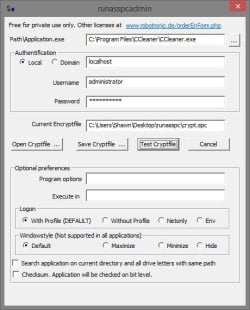

runasspcadmin.jpg


OPTION TWO

To Create Elevated Shortcut for User using runas Command


   Tip
This option uses the runas command included in Windows.

The Administrator's password (credential) used by the elevated shortcut is encrypted and stored in the Credential Manager (Control Panel (icons view)) as an "interactive logon" entry under Windows Credentials for only that user account like below.

The Administrator account's password cannot be viewed.

If you like, you can Remove (delete) this credential at anytime in Credential Manager to strip the password from the elevated shortcut to make it ask for the password again when opened like in step 18 below.
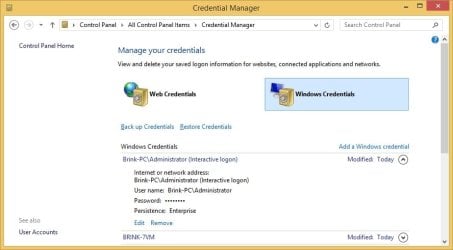
Credential_Manager.jpg

   Warning
This elevated shortcut creates a security hole.

It would be best to only do this with a trusted user.

Once you have created the elevated shortcut, the user can use the built-in Administrator's saved credentials in Credential Manager along with the command below to run and access anything they want on the computer with the same rights as the built-in Administrator.

RUNAS /savecred /user:administrator "command to run"


1. If you have not already, enable the built-in elevated "Administrator" account, and create a password for it.

   Warning
You must use the actual built-in Administrator account, and not just another administrator type user account. If you don't the shortcut will not work.


2. Log in to the built-in Administrator account, right click or press and hold on an empty space on the desktop, and click/tap on New and Shortcut.


3. Type the location below into the location area, and click/tap on the Next button. (see screenshot below)
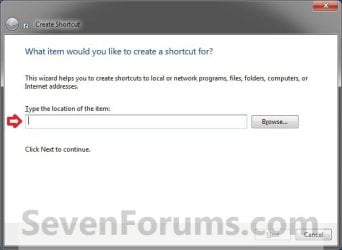
Step1.jpg

   Note

  • You would substitute ComputerName in the command below with the actual computer name.
  • If the Administrator account has been renamed, then you would also need to substitute Administrator in the command below with the new name.
  • You would substitute Full path to program's exe file in the command below with the actual full path of the elevated program's exe file within quotes that you want to have the standard user be able to run.
Code:
runas /user:[B][COLOR=red]ComputerName[/COLOR][/B]\[B]Administrator[/B] /savecred "[B][COLOR=red]Full path to program's exe file[/COLOR][/B]"
For example: I would like to have a standard user to be able to run CCleaner without me or them having to enter the Administrator's account password each time. For this, I would type this:
Code:
runas /user:[B][COLOR=red]Brink-PC[/COLOR][/B]\[B]Administrator[/B] /savecred "[B][COLOR=red]C:\Program Files\CCleaner\CCleaner.exe[/COLOR][/B]"
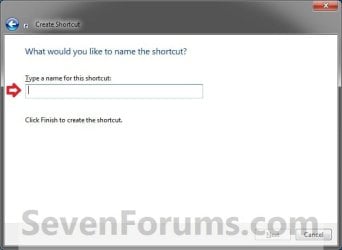
3. Type in the name of the program (ex: CCleaner), and click/tap on the Finish button. (see screenshot below)
Step2.jpg
4. Right click or press and hold on the new shortcut, click/tap on Properties, Shortcut tab, and on the Change Icon button. (see screenshot below)
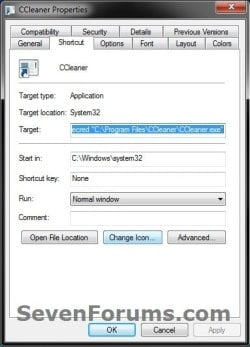
Step3.jpg
5. Click/tap on OK. (see screenshot below)
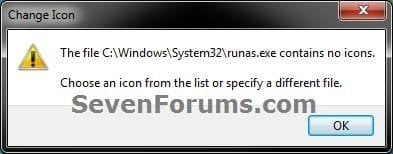
Step4.jpg
6. Click/tap on the Browse button, navigate to the location of the program's (ex: CCleaner) exe file, click on Open, select the program's icon, and click/tap on OK. (see screenshots below)
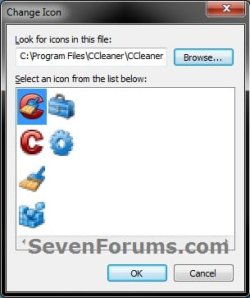
Step5A.jpg

Step5B.jpg

7. Click/tap on OK. (see screenshot below)
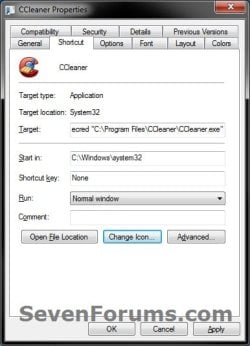
Step6.jpg
8. While still logged in to the "Administrator" account, copy the shortcut to the desktop folder of the user account (ex: Test) that you would like to be able to run this elevated program without getting a UAC prompt or having to provide the administrator's password for it.
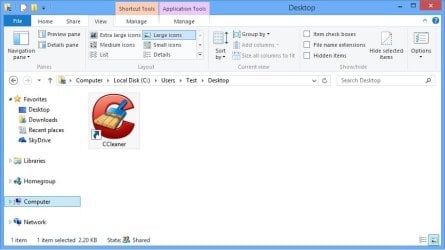
Desktop.jpg
9. Right click or swipe down on the shortcut on the user's desktop that you just copied to, and click/tap on Properties. (see screenshot above)

10. Click/tap on the Security tab, and Advanced button. (see screenshot below)
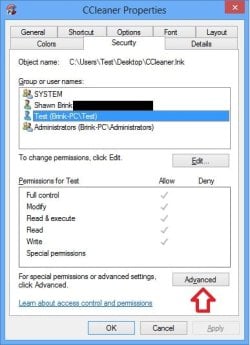
Security-1.jpg
11. Select the user account (ex: Test) that the elevated shortcut is for, and click/tap on the Disable inheritance button. (see screenshot below)
Security-2.jpg
12. Click/tap on Convert inherited permissions into explicit permissions on this object. (see screenshot below)
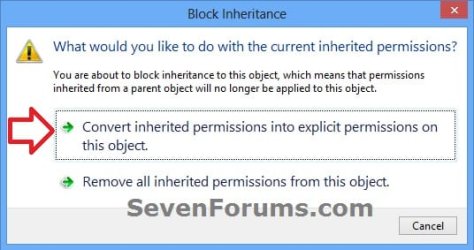
Security-3.jpg
13. Select the user account (ex: Test), and click/tap on the Edit button. (see screenshot below)
security-4.jpg
14. Make sure that only the Read & execute and Read "Allow" permissions are checked, and click/tap on OK. (see screenshot below)
NOTE: This will prevent the user (ex: Test) from being able to change the target of the elevated shortcut, and only be able to run the program the elevated shortcut was created to run.
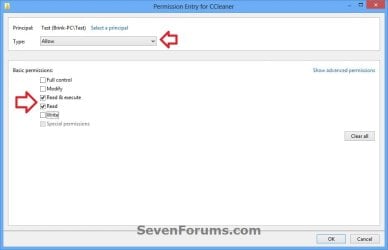
Security-5.jpg
15. Click/tap on OK. (see screenshot below)
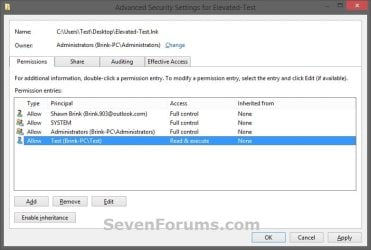
Read_Execute.jpg
16. Click/tap on OK. (see screenshot below)
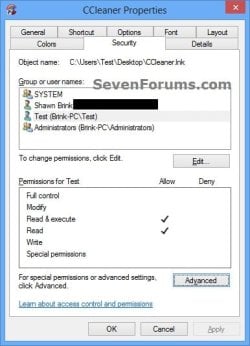
Security-7.jpg
17. Log on to the user account (ex: Test) that you made a copy of this shortcut to, and run the shortcut.

18. In the command prompt that opened, type in your built-in Administrator account's password and press Enter. You will not see the password while you are typing it in. (see screenshot below)

NOTE: You will only have to enter the Administrator's password for only the first time that this shortcut is ran in the user account (ex: Test). Afterwards, it will be remembered and entered automatically for the user when they run it without anyone being able to see the password.
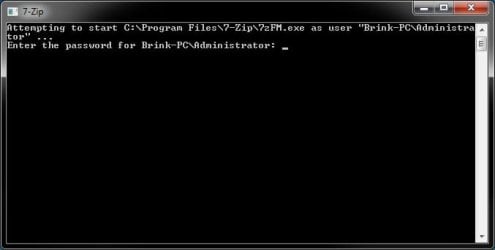
step7.jpg
19. In Vista and Windows 7, the user can now Pin to Taskbar (Windows 7 only) or Pin to Start Menu, add to Quick Launch, assign a keyboard shortcut to it, or move this shortcut to where you like for easy use.

20. In Windows 8 and 8.1, the user can Pin to Taskbar on desktop, Pin to Start screen, add to Quick Launch, assign a keyboard shortcut to it, or move this shortcut to where you like for easy use.


That's it,
Shawn


Last edited:
Note that the Administrator account must not be disabled or the shortcut stops working until it is enabled again.

Hello Adam, and welcome to Seven Forums.

Yes, that would be correct. Since the shortcut uses the password of the built-in Administrator to approve running it elevated, it would fail to run if the built-in Administrator account was disabled.

I'll add a note to the tutorial to help prevent this. Thank you. :)
 
Last edited:

My Computer

Computer type
PC/Desktop
Computer Manufacturer/Model Number
Self built custom
OS
64-bit Windows 11 Pro for Workstations
CPU
Intel i7-8700K OC'd to 5 GHz
Motherboard
ASUS ROG Maximus XI Formula Z390
Memory
64 GB (4x16GB) G.SKILL TridentZ RGB DDR4 3600 MHz
Graphics Card(s)
ASUS ROG-STRIX-GTX1080TI-O11G-GAMING
Sound Card
Integrated
Monitor(s) Displays
2 x Samsung Odyssey G7 27"
Screen Resolution
2560x1440
Hard Drives
1TB Samsung 990 PRO M.2,
4TB Samsung 990 PRO PRO M.2,
TerraMaster F8 SSD Plus NAS
PSU
Seasonic Prime Titanium 850W
Case
Thermaltake Core P3
Cooling
Corsair Hydro H115i
Keyboard
Logitech wireless K800
Mouse
Logitech MX Master 4
Internet Speed
2 Gb/s Download and 100 Mb/s Upload
Antivirus
Malwarebyte Anti-Malware Premium
Browser
Google Chrome
Other Info
Logitech Z625 speaker system,
Logitech BRIO 4K Pro webcam,
HP Color LaserJet Pro MFP M477fdn,
APC SMART-UPS RT 1000 XL - SURT1000XLI,
Galaxy S23 Plus phone
Error 740

HI,

When I run my shortcut as the admin user I get an error 740: The requested operation requires elevation.

I have not logged back in as the std user I was just testing it as the admin.

What did I do wrong?

Machine is Win 7.

Cheers
 

My Computer

Computer type
PC/Desktop
OS
Cheshire
Hello RJ, and welcome to Seven Forums.

Did you use runas with the built-in Administrator account for the target location of the shortcut?
 

My Computer

Computer type
PC/Desktop
Computer Manufacturer/Model Number
Self built custom
OS
64-bit Windows 11 Pro for Workstations
CPU
Intel i7-8700K OC'd to 5 GHz
Motherboard
ASUS ROG Maximus XI Formula Z390
Memory
64 GB (4x16GB) G.SKILL TridentZ RGB DDR4 3600 MHz
Graphics Card(s)
ASUS ROG-STRIX-GTX1080TI-O11G-GAMING
Sound Card
Integrated
Monitor(s) Displays
2 x Samsung Odyssey G7 27"
Screen Resolution
2560x1440
Hard Drives
1TB Samsung 990 PRO M.2,
4TB Samsung 990 PRO PRO M.2,
TerraMaster F8 SSD Plus NAS
PSU
Seasonic Prime Titanium 850W
Case
Thermaltake Core P3
Cooling
Corsair Hydro H115i
Keyboard
Logitech wireless K800
Mouse
Logitech MX Master 4
Internet Speed
2 Gb/s Download and 100 Mb/s Upload
Antivirus
Malwarebyte Anti-Malware Premium
Browser
Google Chrome
Other Info
Logitech Z625 speaker system,
Logitech BRIO 4K Pro webcam,
HP Color LaserJet Pro MFP M477fdn,
APC SMART-UPS RT 1000 XL - SURT1000XLI,
Galaxy S23 Plus phone
Sorry Yes I worked out it had to be the administrator account

Sorry Yes I worked out it had to be the administrator account not just an administrator account :-)

Thanks for the post v informative.

I don't suppose you know if it works on Terminal server. I dont want to give admin rights to the users.

Would the same process apply?
 

My Computer

Computer type
PC/Desktop
OS
Cheshire
Great news.

I'm afraid that I don't know how it will work on Terminal server either.
 

My Computer

Computer type
PC/Desktop
Computer Manufacturer/Model Number
Self built custom
OS
64-bit Windows 11 Pro for Workstations
CPU
Intel i7-8700K OC'd to 5 GHz
Motherboard
ASUS ROG Maximus XI Formula Z390
Memory
64 GB (4x16GB) G.SKILL TridentZ RGB DDR4 3600 MHz
Graphics Card(s)
ASUS ROG-STRIX-GTX1080TI-O11G-GAMING
Sound Card
Integrated
Monitor(s) Displays
2 x Samsung Odyssey G7 27"
Screen Resolution
2560x1440
Hard Drives
1TB Samsung 990 PRO M.2,
4TB Samsung 990 PRO PRO M.2,
TerraMaster F8 SSD Plus NAS
PSU
Seasonic Prime Titanium 850W
Case
Thermaltake Core P3
Cooling
Corsair Hydro H115i
Keyboard
Logitech wireless K800
Mouse
Logitech MX Master 4
Internet Speed
2 Gb/s Download and 100 Mb/s Upload
Antivirus
Malwarebyte Anti-Malware Premium
Browser
Google Chrome
Other Info
Logitech Z625 speaker system,
Logitech BRIO 4K Pro webcam,
HP Color LaserJet Pro MFP M477fdn,
APC SMART-UPS RT 1000 XL - SURT1000XLI,
Galaxy S23 Plus phone
Hello,

I noticed that I can run any program requiring Admin rights under SUA which is on the local hard drive but this does not work with programs on pen drives!! Strange!

Has anyone tried this successfully? Also I was able to run the programs with newly created Admins as well not just built in Admins.

Win 7 Ultimate
 

My Computer

Computer type
PC/Desktop
OS
Windows 7 32bit
Hi Brink,

I just checked its NTFS but assuming if it was FAT32 it shouldn't have any problems running the runas command but still it doesn't work. The black box simply disappears. There's no typo since the same procedure works perfectly for programs on the hard drive.

Have you tried running them from usb drive?
 

My Computer

Computer type
PC/Desktop
OS
Windows 7 32bit
Hello Exus,

I just tested this with a standalone exe file on a USB flash drive, and it works just fine. It doesn't matter if the USB flash drive is FAT32 or NTFS.

It sounds like you may have not typed the password in correctly. To test, remove the saved credential for the shortcut in Credential Manager, and run the shortcut again to be prompted to enter the password again, and see if it may run properly afterwards. :)
 

My Computer

Computer type
PC/Desktop
Computer Manufacturer/Model Number
Self built custom
OS
64-bit Windows 11 Pro for Workstations
CPU
Intel i7-8700K OC'd to 5 GHz
Motherboard
ASUS ROG Maximus XI Formula Z390
Memory
64 GB (4x16GB) G.SKILL TridentZ RGB DDR4 3600 MHz
Graphics Card(s)
ASUS ROG-STRIX-GTX1080TI-O11G-GAMING
Sound Card
Integrated
Monitor(s) Displays
2 x Samsung Odyssey G7 27"
Screen Resolution
2560x1440
Hard Drives
1TB Samsung 990 PRO M.2,
4TB Samsung 990 PRO PRO M.2,
TerraMaster F8 SSD Plus NAS
PSU
Seasonic Prime Titanium 850W
Case
Thermaltake Core P3
Cooling
Corsair Hydro H115i
Keyboard
Logitech wireless K800
Mouse
Logitech MX Master 4
Internet Speed
2 Gb/s Download and 100 Mb/s Upload
Antivirus
Malwarebyte Anti-Malware Premium
Browser
Google Chrome
Other Info
Logitech Z625 speaker system,
Logitech BRIO 4K Pro webcam,
HP Color LaserJet Pro MFP M477fdn,
APC SMART-UPS RT 1000 XL - SURT1000XLI,
Galaxy S23 Plus phone
Problem Solved

Hi Brink,

Ok I just tested using the Built-in Admin account and everything is working fine. I was facing problems using the newly created admin accounts. I was hesitant using the built-in Admin account since its not considered a safe practice to keep them enabled. Maybe securing the builtin admin with a strong password seems to be the only viable option. Anyways thanks alot for your help :D
 
Last edited:

My Computer

Computer type
PC/Desktop
OS
Windows 7 32bit
You're most welcome. :)

Ah, that's why then. It'll only work with the built-in Administrator.

Yeah, if you use a strong password, it'll help keep out unauthorized access. If you like, you could also rename the "Administrator" account to something that people wouldn't think it was the built-in Administrator by just looking at it. If you rename, you'll need to recreate the shortcuts using the new name though.

http://www.sevenforums.com/tutorials/7417-built-administrator-account-change-name.html
 

My Computer

Computer type
PC/Desktop
Computer Manufacturer/Model Number
Self built custom
OS
64-bit Windows 11 Pro for Workstations
CPU
Intel i7-8700K OC'd to 5 GHz
Motherboard
ASUS ROG Maximus XI Formula Z390
Memory
64 GB (4x16GB) G.SKILL TridentZ RGB DDR4 3600 MHz
Graphics Card(s)
ASUS ROG-STRIX-GTX1080TI-O11G-GAMING
Sound Card
Integrated
Monitor(s) Displays
2 x Samsung Odyssey G7 27"
Screen Resolution
2560x1440
Hard Drives
1TB Samsung 990 PRO M.2,
4TB Samsung 990 PRO PRO M.2,
TerraMaster F8 SSD Plus NAS
PSU
Seasonic Prime Titanium 850W
Case
Thermaltake Core P3
Cooling
Corsair Hydro H115i
Keyboard
Logitech wireless K800
Mouse
Logitech MX Master 4
Internet Speed
2 Gb/s Download and 100 Mb/s Upload
Antivirus
Malwarebyte Anti-Malware Premium
Browser
Google Chrome
Other Info
Logitech Z625 speaker system,
Logitech BRIO 4K Pro webcam,
HP Color LaserJet Pro MFP M477fdn,
APC SMART-UPS RT 1000 XL - SURT1000XLI,
Galaxy S23 Plus phone
I would like to add a small tip in case if you are only using the Built-in Admin for THIS purpose.
You can hide the Administrator account from the welcome screen by setting the following registry key:

User Account - Hide

[HKEY_LOCAL_MACHINE\SOFTWARE\Microsoft\Windows NT\CurrentVersion\Winlogon\SpecialAccounts\UserList]
"Administrator"=dword:00000000

To unhide:

[HKEY_LOCAL_MACHINE\SOFTWARE\Microsoft\Windows NT\CurrentVersion\Winlogon\SpecialAccounts\UserList]
"Administrator"=dword:00000001

Cheers:)
 

My Computer

Computer type
PC/Desktop
OS
Windows 7 32bit
Hello!
I'm 99% sure I have the shortcut code written correctly, and I've triple checked the file location.
However, after I launch the shortcut, the command window opens and immediately closes, and my program never launches.
I made the shortcut while on a standard user account, could this keep the program from launching?
 

My Computer

Computer type
PC/Desktop
Computer Manufacturer/Model Number
Dell
OS
Windows 7 Home Premium
Antivirus
Norton
Hello!
I'm 99% sure I have the shortcut code written correctly, and I've triple checked the file location.
However, after I launch the shortcut, the command window opens and immediately closes, and my program never launches.
I made the shortcut while on a standard user account, could this keep the program from launching?

Hello Kneewah, and welcome to Seven Forums.

Yep, that would be why. You would need to do the tutorial while logged in to your built-in Administrator account for it to work. :)
 

My Computer

Computer type
PC/Desktop
Computer Manufacturer/Model Number
Self built custom
OS
64-bit Windows 11 Pro for Workstations
CPU
Intel i7-8700K OC'd to 5 GHz
Motherboard
ASUS ROG Maximus XI Formula Z390
Memory
64 GB (4x16GB) G.SKILL TridentZ RGB DDR4 3600 MHz
Graphics Card(s)
ASUS ROG-STRIX-GTX1080TI-O11G-GAMING
Sound Card
Integrated
Monitor(s) Displays
2 x Samsung Odyssey G7 27"
Screen Resolution
2560x1440
Hard Drives
1TB Samsung 990 PRO M.2,
4TB Samsung 990 PRO PRO M.2,
TerraMaster F8 SSD Plus NAS
PSU
Seasonic Prime Titanium 850W
Case
Thermaltake Core P3
Cooling
Corsair Hydro H115i
Keyboard
Logitech wireless K800
Mouse
Logitech MX Master 4
Internet Speed
2 Gb/s Download and 100 Mb/s Upload
Antivirus
Malwarebyte Anti-Malware Premium
Browser
Google Chrome
Other Info
Logitech Z625 speaker system,
Logitech BRIO 4K Pro webcam,
HP Color LaserJet Pro MFP M477fdn,
APC SMART-UPS RT 1000 XL - SURT1000XLI,
Galaxy S23 Plus phone
I created the shortcut again while logged into the administrator account, and the program still won't launch. I used a screen recorder to freeze the brief second when the command window pops up, and it says that the program requires elevation. Here's the exact code I wrote, can you guys spot any problems? (The admin account has been renamed Dad, it is the only admin account on the computer.)

C:\Windows\System32\runas.exe /user:BLU-RAYINSPIRON\Dad /savecred "C:\Program Files (x86)\Bandicam\bdcam.exe"
 

My Computer

Computer type
PC/Desktop
Computer Manufacturer/Model Number
Dell
OS
Windows 7 Home Premium
Antivirus
Norton
Kneewah,

The problem is that you do not have it set to runas the built-in Administrator. Only the parts in red in the command below can be substituted with the actual.

runas /user:ComputerName\Administrator /savecred "Full path to program's exe file"
 

My Computer

Computer type
PC/Desktop
Computer Manufacturer/Model Number
Self built custom
OS
64-bit Windows 11 Pro for Workstations
CPU
Intel i7-8700K OC'd to 5 GHz
Motherboard
ASUS ROG Maximus XI Formula Z390
Memory
64 GB (4x16GB) G.SKILL TridentZ RGB DDR4 3600 MHz
Graphics Card(s)
ASUS ROG-STRIX-GTX1080TI-O11G-GAMING
Sound Card
Integrated
Monitor(s) Displays
2 x Samsung Odyssey G7 27"
Screen Resolution
2560x1440
Hard Drives
1TB Samsung 990 PRO M.2,
4TB Samsung 990 PRO PRO M.2,
TerraMaster F8 SSD Plus NAS
PSU
Seasonic Prime Titanium 850W
Case
Thermaltake Core P3
Cooling
Corsair Hydro H115i
Keyboard
Logitech wireless K800
Mouse
Logitech MX Master 4
Internet Speed
2 Gb/s Download and 100 Mb/s Upload
Antivirus
Malwarebyte Anti-Malware Premium
Browser
Google Chrome
Other Info
Logitech Z625 speaker system,
Logitech BRIO 4K Pro webcam,
HP Color LaserJet Pro MFP M477fdn,
APC SMART-UPS RT 1000 XL - SURT1000XLI,
Galaxy S23 Plus phone
Thank you for posting this educative information, However, after entering the password in the command prompt, it just disappears but still asking for password when i try opening the application as standard user.

Is there something i am missing?
 

My Computer

Computer type
PC/Desktop
OS
window 7 32bits
Hello Deewai, and welcome to Seven Forums.

Double check that you are using the credentials for the built-in "Administrator" account, and not just for a normal administrator account.

If you used Option Two and are using the built-in Administrator, then delete the credentials in Credential Manager, and try again to see if you may have just made a mistake somewhere. :)
 

My Computer

Computer type
PC/Desktop
Computer Manufacturer/Model Number
Self built custom
OS
64-bit Windows 11 Pro for Workstations
CPU
Intel i7-8700K OC'd to 5 GHz
Motherboard
ASUS ROG Maximus XI Formula Z390
Memory
64 GB (4x16GB) G.SKILL TridentZ RGB DDR4 3600 MHz
Graphics Card(s)
ASUS ROG-STRIX-GTX1080TI-O11G-GAMING
Sound Card
Integrated
Monitor(s) Displays
2 x Samsung Odyssey G7 27"
Screen Resolution
2560x1440
Hard Drives
1TB Samsung 990 PRO M.2,
4TB Samsung 990 PRO PRO M.2,
TerraMaster F8 SSD Plus NAS
PSU
Seasonic Prime Titanium 850W
Case
Thermaltake Core P3
Cooling
Corsair Hydro H115i
Keyboard
Logitech wireless K800
Mouse
Logitech MX Master 4
Internet Speed
2 Gb/s Download and 100 Mb/s Upload
Antivirus
Malwarebyte Anti-Malware Premium
Browser
Google Chrome
Other Info
Logitech Z625 speaker system,
Logitech BRIO 4K Pro webcam,
HP Color LaserJet Pro MFP M477fdn,
APC SMART-UPS RT 1000 XL - SURT1000XLI,
Galaxy S23 Plus phone
Thanks for this, I've just tested it on a standalone Windows 8.1EE machine and it worked well. Do you know if it works the same way if setup on a machine joined to a domain - in this case Server 2012R2 ?

Thanks
 

My Computer

Computer type
PC/Desktop
OS
Windows 8.1EE 64 & 32 bit
Hello PeakRock, and welcome to Seven Forums.

I'm not able to test on a domain, but it wouldn't hurt to test and see. Please let us know how it went.
 

My Computer

Computer type
PC/Desktop
Computer Manufacturer/Model Number
Self built custom
OS
64-bit Windows 11 Pro for Workstations
CPU
Intel i7-8700K OC'd to 5 GHz
Motherboard
ASUS ROG Maximus XI Formula Z390
Memory
64 GB (4x16GB) G.SKILL TridentZ RGB DDR4 3600 MHz
Graphics Card(s)
ASUS ROG-STRIX-GTX1080TI-O11G-GAMING
Sound Card
Integrated
Monitor(s) Displays
2 x Samsung Odyssey G7 27"
Screen Resolution
2560x1440
Hard Drives
1TB Samsung 990 PRO M.2,
4TB Samsung 990 PRO PRO M.2,
TerraMaster F8 SSD Plus NAS
PSU
Seasonic Prime Titanium 850W
Case
Thermaltake Core P3
Cooling
Corsair Hydro H115i
Keyboard
Logitech wireless K800
Mouse
Logitech MX Master 4
Internet Speed
2 Gb/s Download and 100 Mb/s Upload
Antivirus
Malwarebyte Anti-Malware Premium
Browser
Google Chrome
Other Info
Logitech Z625 speaker system,
Logitech BRIO 4K Pro webcam,
HP Color LaserJet Pro MFP M477fdn,
APC SMART-UPS RT 1000 XL - SURT1000XLI,
Galaxy S23 Plus phone
I am trying to run Photoshop CS3 with admin right for a normal user. I followed option 2 and at step 11, I didn't have the option "Disable Inheritance". I am on Windows 7 Ultimate. I get a disabled check-box which says "Include inheritable permissions from this object's parent. So I skipped the steps 11-14. And when I double clicked the shortcut and enter the password just to check, I get the error as:
RUNAS ERROR: Unable to run - "C:\Program Files (x86)\Adobe\Adobe Photoshop CS3\Photoshop.exe
-2147467259: Unspecified error
 

My Computer

Computer type
PC/Desktop
OS
Windows 7 Ultimate x64
Memory
4 gb
Antivirus
Avast
Browser
Chrome
Back
Top