Windows Easy Transfer - Transfer To & From Computers

How to Transfer Files from One Computer to Another Computer with Windows Easy Transfer

   Information
This tutorial will show you how to transfer your user files and settings from one computer to another using the Windows Easy Transfer tool.
   Note
This feature is available in Vista and Windows 7. It can also be used as a handy backup if you are thinking about installing a new build of Windows 7 on your current machine.
   Tip
This process can also be used between accounts if, for example, your old account has been acting up and you do not want to re-install and transfer your old data.
   Tip


To do this you will need to follow the steps outlined in Step 1 below, then create a new user account. Next, log into the new User account and proceed to follow Step 2 below to invoke the copy process.

Many thanks to Ztruker for testing & highlighting the above possibility.


STEP ONE

Save Transfer File from Old Computer


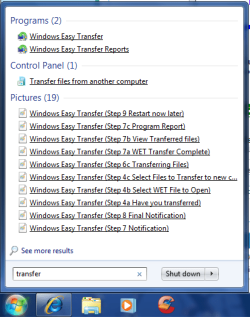
1. Open the start menu and type transfer in the search line, or navigate to All Programs, Accessories, System Tools, and click on Windows Easy Transfer.​
start menu 2.png

start menu 1.png
2. Click on Next when the application opens.
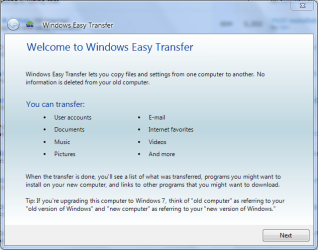
Windows Easy Transfer (Step 1).PNG
3. Choose destination to save the Transfer file and click on Next.
NOTE: Please note for the purpose of this tutorial I have selected the external hard disk or USB flash drive.
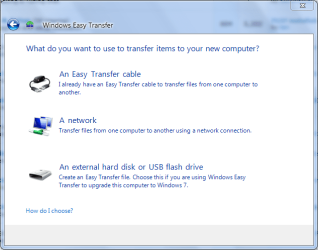
Windows Easy Transfer (Step 2 Choose Destination).PNG
4. Select This is my old computer from the list.
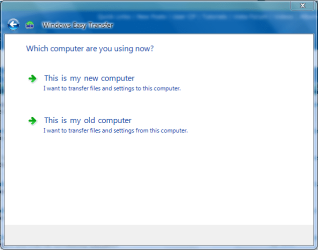
Windows Easy Transfer (Step 3 Choose Computer).PNG
5. Windows Easy Transfer will scan for files that can be transferred.
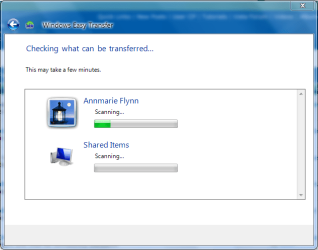
Windows Easy Transfer (Step 3a Scanning User Files).PNG
6. Select which files you wish saved suring the transfer process, then click on Next.

Windows Easy Transfer (Step 4 Select Files to Transfer).PNG


7. You will be prompted for a password in the next screen, but this is optional.
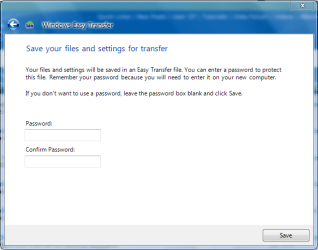
Windows Easy Transfer (Step 5 Choose a Password).PNG


8. Choose where to save your Transfer file and what to name it, then click Save.
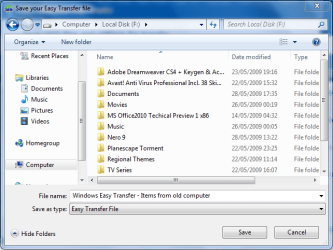
Windows Easy Transfer (Step 6 Save WET file).PNG


9. Windows will begin the saving process.
WARNING: This can take some time depending on the overall size of the data being saved.
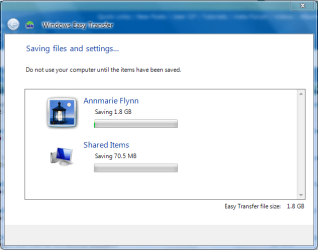
Windows Easy Transfer (Step 6a Saving WET file).PNG


10. Windows will prompt when saving has finished.

Windows Easy Transfer (Step 6b WET Save Complete).PNG


Windows Easy Transfer (Step 7 Notification).PNG

Windows Easy Transfer (Step 8 Final Notification).PNG


STEP TWO

Transfer Files to New Computer


1. Follow steps 1, 2 & 3 in the STEP ONE section above.​


2. Select This is my new computer from the list.​
Windows Easy Transfer (Step 3 Choose Computer).PNG
3. Windows will display a notification asking if you have already saved files from your old computer, select Yes.
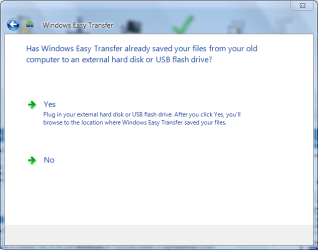
Windows Easy Transfer (Step 4a Have you transferred).PNG
4. Select the Transfer file previously saved in the STEP ONE (step 6) section and click on Open.
Windows Easy Transfer (Step 4b Select WET File to Open).PNG
5. You will be shown a selection of options that can be transferred. Choose which the options you want and click on Transfer.
Windows Easy Transfer (Step 4c Select Files to Transfer to new computer).PNG
6. Windows will start transferring user files and settings to your new computer.
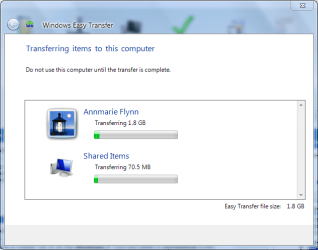
Windows Easy Transfer (Step 6c Transferring Files).PNG
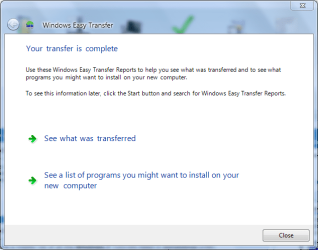
7. Once finished, Windows will give the option to view which files have been transfered....
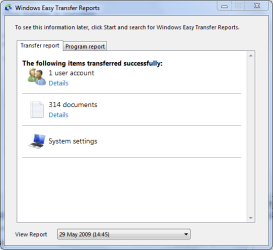
Windows Easy Transfer (Step 7b View Tranferred files).PNG
and which programs you will need to install for some settings to work correctly.
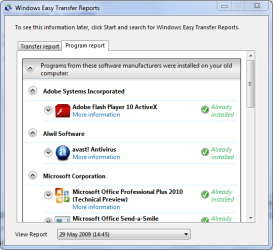
Windows Easy Transfer (Step 7c Program Report).PNG
8. You will recieve a final completion notification and asked if you wish to restart your computer.
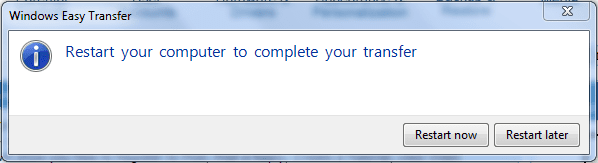
Windows Easy Transfer (Step 8 Final Notification).PNG

Windows Easy Transfer (Step 9 Restart now later).PNG
   Note
Once Windows restarts, you can now access all the files and folders that have been transferred.


Attachments
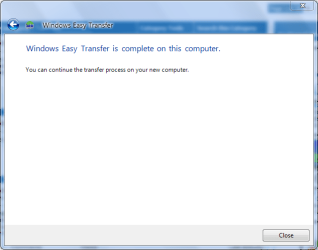
  • Windows Easy Transfer (Step 7a WET Transfer Complete).PNG
    Windows Easy Transfer (Step 7a WET Transfer Complete).PNG
    90 KB · Views: 47
Last edited by a moderator:
How to Transfer Files from One Computer to Another Computer with Windows Easy Transfer. I have XP & Vista (different HDD's) same computer. I plan on putting Windows 7 on the XP hdd. Can I transfer files from the Vista to Win 7. (different hdd's but same computer) I hope that makes sense.
 

My Computer

Computer Manufacturer/Model Number
home built
OS
Windows 7 Professional x64
CPU
AMD Athlon 64 X2 6000 3.1GHz
Motherboard
Asus M3A78-EM
Memory
G.SKILL 4GB (2 x 2GB) 240-Pin DDR2 SDRAM DDR2 800 (PC2 6400)
Graphics Card(s)
ATI Radeon HD4350 512mb
Sound Card
on board
Monitor(s) Displays
Samsung SyncMaster 206bw
Screen Resolution
1680x1050
Hard Drives
Seagate 250gb
WD 160gb
WD 250gb USB
Maxtor 40gb (backup)
PSU
Thermaltake PurePower 500watt
Case
Apevia
Cooling
2x120 case fans
Keyboard
wireless Logitech
Mouse
wireless Logitech
Internet Speed
DSL (best I can do in the boonies)
Other Info
Lord make my word sweet, in case I have to eat them later...
Hi mcleod55,

In short, yes you can. The Easy Transfer for 7 is the same (if not very slightly different) from Vista and will transfer all the files you require. You can even download W.E.T for XP from Microsoft.

Hope this helps :)


OS
 

My Computer

Computer Manufacturer/Model Number
Compaq Desktop
OS
Windows 7 Ultimate x64
CPU
AMD Sempron Dual Core
Memory
3GB
Graphics Card(s)
NVIDIA GeForce 6150SE nForce 430
Screen Resolution
1024x768
Hard Drives
150GB Sata
Installed Win7 last night. Tonight I'm going to install my apps and then import the Windows Easy Transfer I did from the old system.

Question: My C (Windows) partition is 50 GB and I've set up a much larger data partition.

My Easy Transfer is about 80GB.

Will it try to install all 80GB on C? I noticed that my install has said up my user account on C so I've changed the default for all of my libraries to the data drive - will it recognise this and sort out the files accordingly?
 

My Computer

OS
Windows 7
Answered my own question. Even though I'd set the default locations in my profile to the much larger partition (thanks to another tutorial here) windows easy transfer still refused to put my 80GB of files into the 50GB System partition. Could find no workaround.

Eventually I elected not to to transfer the Itunes folder, as I have a manual backup of it, and let the system work its magic.
 

My Computer

OS
Windows 7
32 bit to 64 bit

I seem to have run into a problem while doing the easy file transfer.
I have upgraded from Vista to Windows 7. I initially used the "upgrade" option to go from vista to 7, however I was also hoping to go from 32 to 64 bit. As I wasn't paying close enough attention at the time, I ended up with the 32 bit version of Windows 7 installed. At this point I realized that I would require a "clean" install, so used the Easy File Transfer utility and saved my files to a removeable USB hard drive.
After completing the clean install of the 64 bit version of Windows 7, I started the EFT utility only to discover that when I select the file that I saved to, it tells me that it cannot read the file.
Is there any EASY way for me to get to these files?
 

My Computer

OS
Windows 7
Orbital Shark,

Thank you very much for this clear and handy tutorial!

A small correction:
6. Select which files you wish saved suring the transfer process, then click on Next.

Should be during I think.
I hope you don't mind me for correcting this ;-)

Best regards,

zx81
 

My Computer

Computer Manufacturer/Model Number
Dell Inpspiron 1720
OS
Windows 7 Home Premium x64
CPU
Intel 1720 Core 2 Duo 2.00GHz,800,2M
Memory
4GB 667MHz DDR2 SDRAM (2x2048)
Graphics Card(s)
NVIDIA Geforce Go 8600M GT 256MB DDR2
Sound Card
SigmaTel
Monitor(s) Displays
17.0" Widescreen WXGA+ (1440x900) TFT with TrueLife
Screen Resolution
1440x900
Hard Drives
2x160GB 5400RPM Serial ATA
Mouse
Logitech
Make sure you run EZT from DVD...

If you are transferring old data from XP or Vista, make sure and run Easy Transfer from the Win7 install disc. You will find it in the X:\Support\Migwiz folder (where X is the drive letter of your DVD), just double click on the migwiz.exe app to start it. The version included with Win7 is much faster and robust than previous versions.

Orbital, you might want to add that to the tutorial!
 

My Computer

Computer Manufacturer/Model Number
Homebrew PC - "Alpha_Dawg"
OS
Windows 7 Ultimate 64 bit Steve Ballmer Signature Edition
CPU
Intel Core 2 Quad - Q9550 - 2.83GHz stock - OC'd to 3.6GHz
Motherboard
Gigabyte EP45-UD3P
Memory
4GB DDR2 800MHz (PC6400) OCZ Reaper
Graphics Card(s)
Nvidia GE Force 8800 GTS
Sound Card
Asus Xonar DX
Monitor(s) Displays
Samsung SyncMaster 2333HD
Screen Resolution
1920 x 1080
Hard Drives
WD Caviar Black 750GB - 7200RPM - 32MB cache
WD Caviar Green 1.5TB - 5400RPM - 64MB cache
WD Caviar Green 2.0TB - 5400RPM - 64MB cache
PSU
PC Power & Cooling Silencer 750
Case
Gigabyte 3D Aurora
Cooling
Case is Air - 5ea. 120mm fans (mix of Arctic and Xigmatec)
Keyboard
MS Natural Wireless KB
Mouse
MS Wireless Mouse
Internet Speed
50 mbps down/5 mbps up
Other Info
AVerMedia - AVerTVHD G2 Dual Tuner Card
hi guys,
can i clone all my data's(include windows) with this way??

Welcome to sevenforums Kaanstain!

Not sure what you mean by clone, but this will get all your docs, pics, videos, music, and Windows settings from old setup to new win7 setup. It is meant as an easy way to transfer your existing data and settings... not a backup!
 

My Computer

Computer Manufacturer/Model Number
Homebrew PC - "Alpha_Dawg"
OS
Windows 7 Ultimate 64 bit Steve Ballmer Signature Edition
CPU
Intel Core 2 Quad - Q9550 - 2.83GHz stock - OC'd to 3.6GHz
Motherboard
Gigabyte EP45-UD3P
Memory
4GB DDR2 800MHz (PC6400) OCZ Reaper
Graphics Card(s)
Nvidia GE Force 8800 GTS
Sound Card
Asus Xonar DX
Monitor(s) Displays
Samsung SyncMaster 2333HD
Screen Resolution
1920 x 1080
Hard Drives
WD Caviar Black 750GB - 7200RPM - 32MB cache
WD Caviar Green 1.5TB - 5400RPM - 64MB cache
WD Caviar Green 2.0TB - 5400RPM - 64MB cache
PSU
PC Power & Cooling Silencer 750
Case
Gigabyte 3D Aurora
Cooling
Case is Air - 5ea. 120mm fans (mix of Arctic and Xigmatec)
Keyboard
MS Natural Wireless KB
Mouse
MS Wireless Mouse
Internet Speed
50 mbps down/5 mbps up
Other Info
AVerMedia - AVerTVHD G2 Dual Tuner Card
You can see i'm from Turkey,and i'm working in cafe, we have 40 computer here.
all of them had xp, i wanted to try win7 and i decided to change my system...
each has 500gb HDD, and 400gb Game we have... i installed everything one of them after that, i tried to clone hdd to the others.
i tried first acronis work edition
acronis home 2010
norton ghost 14

but i couldn't

at the last i tried windows backup and recovery program:D

it's perfect now....

i cloned each hdd easily


thank you win 7.


thank you win seven forums...
 

My Computer

OS
googlegooglegoogle
Excellent tutorial,will definitely use this when I upgrade to 64 bit
 

My Computer

Computer Manufacturer/Model Number
Home built
OS
windows 7 home premium 64 bit
CPU
core 2 duo [email protected] ghz
Motherboard
xfx 680i
Memory
4gb patriot 6400
Graphics Card(s)
msi radeon 4870
Sound Card
x-fi extreme gamer
Monitor(s) Displays
samsung 22 in 1680x1050
Hard Drives
2 wd sata 250gb
PSU
coolermaster extremepower 650
Case
nzxt apollo
Cooling
ocz cpu cooler 3 case fans
Keyboard
logitech
Mouse
logitech x518
Thought this link would be useful and you might consider putting the MS links in your tutorial.

Windows Easy Transfer - If your old PC isn't running Windows 7, you'll need to install the appropriate version of Windows Easy Transfer.
 
Last edited:

My Computer

Computer type
PC/Desktop
Computer Manufacturer/Model Number
76~2.0
OS
Windows 7 Ult x64 - SP1/ Windows 8 Pro x64
CPU
Intel Core i5-3570K 4.6GHz
Motherboard
Gigabyte GA-Z77X UD3H, f18
Memory
8GB (2X4GB) DDR3 1600 Corsair Vengeance CL8 1.5v
Graphics Card(s)
Sapphire HD 7770 Vapor-X OC 1GB DDR5
Sound Card
Onboard VIA VT2021
Monitor(s) Displays
22" LCD Dell
Screen Resolution
1680x1050
Hard Drives
Samsung 840Pro 128GB SSD,
Seagate Barracuda 500GB SATA2 7200rpm 32MB cache, Seagate Barracuda 1TB SATA2 7200rpm 32MB cache,
PSU
Corsair HX650W
Case
Cooler Master Storm Scout
Cooling
Corsair H80 2x12cm Noctua NF P12 , 2x14cm case fans
Keyboard
Logitech Wave
Mouse
CM Sentinel
Internet Speed
Dismal
Antivirus
Avast
Browser
Opera Next
Other Info
Haswell laptop: HP Envy 17t-j, i7-4700MQ, GeForce 740M 2GB DDR3, 17.3" Full HD 1920x1080, 16GB RAM, Samsung 840 Pro 128GB, 1TB Hitachi 7200 HDD,
Desktop: eSATA ports,
External eSATA Seagate 500GB SATA2 7200rpm,
External WD USB 500GB
Thought this link would be useful and you might consider putting the MS links in your tutorial.

Windows Easy Transfer - If your old PC isn't running Windows 7, you'll need to install the appropriate version of Windows Easy Transfer.

Why DL it when you have it on the Win7 DVD?

You will find it in the X:\Support\Migwiz folder (where X is the drive letter of your DVD), just double click on the migwiz.exe app to start it.
 

My Computer

Computer Manufacturer/Model Number
Homebrew PC - "Alpha_Dawg"
OS
Windows 7 Ultimate 64 bit Steve Ballmer Signature Edition
CPU
Intel Core 2 Quad - Q9550 - 2.83GHz stock - OC'd to 3.6GHz
Motherboard
Gigabyte EP45-UD3P
Memory
4GB DDR2 800MHz (PC6400) OCZ Reaper
Graphics Card(s)
Nvidia GE Force 8800 GTS
Sound Card
Asus Xonar DX
Monitor(s) Displays
Samsung SyncMaster 2333HD
Screen Resolution
1920 x 1080
Hard Drives
WD Caviar Black 750GB - 7200RPM - 32MB cache
WD Caviar Green 1.5TB - 5400RPM - 64MB cache
WD Caviar Green 2.0TB - 5400RPM - 64MB cache
PSU
PC Power & Cooling Silencer 750
Case
Gigabyte 3D Aurora
Cooling
Case is Air - 5ea. 120mm fans (mix of Arctic and Xigmatec)
Keyboard
MS Natural Wireless KB
Mouse
MS Wireless Mouse
Internet Speed
50 mbps down/5 mbps up
Other Info
AVerMedia - AVerTVHD G2 Dual Tuner Card
Thought this link would be useful and you might consider putting the MS links in your tutorial.

Windows Easy Transfer - If your old PC isn't running Windows 7, you'll need to install the appropriate version of Windows Easy Transfer.

Why DL it when you have it on the Win7 DVD?

You will find it in the X:\Support\Migwiz folder (where X is the drive letter of your DVD), just double click on the migwiz.exe app to start it.

Quality, thanks for the info :)
 

My Computer

Computer Manufacturer/Model Number
Compaq Desktop
OS
Windows 7 Ultimate x64
CPU
AMD Sempron Dual Core
Memory
3GB
Graphics Card(s)
NVIDIA GeForce 6150SE nForce 430
Screen Resolution
1024x768
Hard Drives
150GB Sata
Thought this link would be useful and you might consider putting the MS links in your tutorial.

Windows Easy Transfer - If your old PC isn't running Windows 7, you'll need to install the appropriate version of Windows Easy Transfer.

Why DL it when you have it on the Win7 DVD?

You will find it in the X:\Support\Migwiz folder (where X is the drive letter of your DVD), just double click on the migwiz.exe app to start it.

Is the XP and Vista version on the Win7 DVD?

I thought Vista was the same and XP different. Does anyone know if the XP WET is different?
 

My Computer

Computer type
PC/Desktop
Computer Manufacturer/Model Number
76~2.0
OS
Windows 7 Ult x64 - SP1/ Windows 8 Pro x64
CPU
Intel Core i5-3570K 4.6GHz
Motherboard
Gigabyte GA-Z77X UD3H, f18
Memory
8GB (2X4GB) DDR3 1600 Corsair Vengeance CL8 1.5v
Graphics Card(s)
Sapphire HD 7770 Vapor-X OC 1GB DDR5
Sound Card
Onboard VIA VT2021
Monitor(s) Displays
22" LCD Dell
Screen Resolution
1680x1050
Hard Drives
Samsung 840Pro 128GB SSD,
Seagate Barracuda 500GB SATA2 7200rpm 32MB cache, Seagate Barracuda 1TB SATA2 7200rpm 32MB cache,
PSU
Corsair HX650W
Case
Cooler Master Storm Scout
Cooling
Corsair H80 2x12cm Noctua NF P12 , 2x14cm case fans
Keyboard
Logitech Wave
Mouse
CM Sentinel
Internet Speed
Dismal
Antivirus
Avast
Browser
Opera Next
Other Info
Haswell laptop: HP Envy 17t-j, i7-4700MQ, GeForce 740M 2GB DDR3, 17.3" Full HD 1920x1080, 16GB RAM, Samsung 840 Pro 128GB, 1TB Hitachi 7200 HDD,
Desktop: eSATA ports,
External eSATA Seagate 500GB SATA2 7200rpm,
External WD USB 500GB
Thought this link would be useful and you might consider putting the MS links in your tutorial.

Windows Easy Transfer - If your old PC isn't running Windows 7, you'll need to install the appropriate version of Windows Easy Transfer.

Why DL it when you have it on the Win7 DVD?

You will find it in the X:\Support\Migwiz folder (where X is the drive letter of your DVD), just double click on the migwiz.exe app to start it.

Is the XP and Vista version on the Win7 DVD?

I thought Vista was the same and XP different. Does anyone know if the XP WET is different?

It would seem logical since Microsoft has different links. They would not do that unless the files were different. It would be too confusing to some.
 

My Computer

Computer Manufacturer/Model Number
Keeps changing - (Custom)
OS
Windows 7 Professional x64
CPU
Intel Core i7 860
Motherboard
Gigabyte GA-P55-UD4P
Memory
4GB DDR3 Mushkin 1600Mhz @ 7-8-7-20
Graphics Card(s)
MSI GTS250 1GB DDR3 Twin Frozr
Sound Card
Onboard realtek
Monitor(s) Displays
Samsung SyncMaster 24" P2450 + Samsung 20" 2033
Screen Resolution
1920 X 1080 and 1600 X 900 (#2 system 1440 X 900)
Hard Drives
Patriot Inferno 120GB SSD + 3 WD Blue 640GB drives
PSU
Corsair 750 HX Modular
Case
Lancool PC-K62
Cooling
Cooler Master TX3 CPU cooler and 4-140mm and 1-120mm case
Keyboard
Gigabyte USB keyboard
Mouse
Microsoft wireless laser mouse 5000
Internet Speed
7 Mb down 1.5 up
Other Info
System #2: AMD Phenom II X6 1055T (Freezer 7 Pro cooler) - Gigabyte 880GMA-UD2H - WD 500GB Black - 9500GT (1GB) 500W OCZ modular PSU - Antec 200 case. System #3 (LapTop) Core 2 Duo T6670 - 320GB 7200RPM HD - 4GB DDR3 RAM.
Used Windows Easy Transfer on Windows xp 2 months ago, unfortunately, I forgot my password.

I am now attempting to extract those files under Windows 7. Is there a way to bypass the password part?

Tried using MigRecover, no good. Thank you.
 

My Computer

OS
Windows 7 Ultimate 32 bit
Can the easy transfer wizard be used to transfer files and settings from a Win 7 32 bit machine to a Win 7 64 bit machine?

Thanks folks
 

My Computer

Computer Manufacturer/Model Number
Home built
OS
XP home sp-3
CPU
3.3 ghz intel
Motherboard
I forget
Memory
1GB
Graphics Card(s)
Radeon x500
Sound Card
Onboard
Monitor(s) Displays
acer 17" flat
Hard Drives
WD 80GB partitioned C:/F:
WD 250GB partitioned g:/H:
PSU
500W
Case
ATX
Cooling
ZeroTherm BTF90
Can the easy transfer wizard be used to transfer files and settings from a Win 7 32 bit machine to a Win 7 64 bit machine?

Thanks folks

Yes, I've done it!
 

My Computer

Computer Manufacturer/Model Number
Homebrew PC - "Alpha_Dawg"
OS
Windows 7 Ultimate 64 bit Steve Ballmer Signature Edition
CPU
Intel Core 2 Quad - Q9550 - 2.83GHz stock - OC'd to 3.6GHz
Motherboard
Gigabyte EP45-UD3P
Memory
4GB DDR2 800MHz (PC6400) OCZ Reaper
Graphics Card(s)
Nvidia GE Force 8800 GTS
Sound Card
Asus Xonar DX
Monitor(s) Displays
Samsung SyncMaster 2333HD
Screen Resolution
1920 x 1080
Hard Drives
WD Caviar Black 750GB - 7200RPM - 32MB cache
WD Caviar Green 1.5TB - 5400RPM - 64MB cache
WD Caviar Green 2.0TB - 5400RPM - 64MB cache
PSU
PC Power & Cooling Silencer 750
Case
Gigabyte 3D Aurora
Cooling
Case is Air - 5ea. 120mm fans (mix of Arctic and Xigmatec)
Keyboard
MS Natural Wireless KB
Mouse
MS Wireless Mouse
Internet Speed
50 mbps down/5 mbps up
Other Info
AVerMedia - AVerTVHD G2 Dual Tuner Card
Really hoping that some of you experts can help out with this one!

My old XP PC has been giving me problems recently, frequent crashes and slow performance. I have, today, been out and purchased a new Windows 7 PC.

After looking at the forums I decided to use the Easy Transfer Wizard over Ethernet method. All was going well until my old PC crashed half way through the transfer. Thus I had to start over, again, my old PC died half way through.

Now I know that it is possible to mount my old internal hdd in my new PC as an additional drive. However, I was wondering if it is possible then to run the Transfer wizard from my old HDD to the new one within the same PC? I realise that I could manually copy the data and config files between drives but was hoping that the Wizard can handle this situation. Any advice would be greatly appreciated!
 

My Computer

OS
Windows 7
Back
Top