One of your disks need to be checked for consistency

shawn10

New member
Local time
9:35 AM
Messages
7
Location
Trois-Rivières
Hey!

I installed Windows 7 a few weeks ago, and every time I boot up, it says that one of my disks needs to be checked for consistency. The first two times, I let it check for errors, none were found. But it keeps wanting to check every time I boot up. Sometimes I skip, sometimes I let it check, with no errors found. Is there any way to make it go away? A setting or something?

Thanks!
 

My Computer

Computer Manufacturer/Model Number
Custom
OS
Windows 7 Ultimate (32-bits)
CPU
AMD Athlon 64 X2 Dual Core Processor 6000+ 3.10 GHz
Motherboard
Biostar MCP6P M2+
Memory
3 GB
Graphics Card(s)
ATI Radeon X1950
Monitor(s) Displays
Acer AL2016W (20 in)
Hard Drives
300 GB
It's all about the current flag set.

Chkdsk /f starts up a run regardless of flag state, to ensure that errors are fixed. Should stop after you manually run the command and let it finish once cleanly.

Run the above command from the command prompt (cmd.exe) by copying and pasting into it. Hit enter.
 

My Computer

Computer Manufacturer/Model Number
self built
OS
7600.20510 x86
CPU
P4 550 3.4 GHz HT running at 3.5 GHz
Motherboard
MSI PM8M3-V (MS-7211 v1.x) Micro-ATX mainboard
Memory
OCZ 2 GB(2x1GB) DDR400mHz running @ 414 mHz
Graphics Card(s)
HIS Radeon HD 3850 IceQ 3 Turbo HDMI Dual DL-DVI AGP
Sound Card
MOTU Traveler firewire studio interface 192 kHz 24 bit
Monitor(s) Displays
22" widescreen Acer X223W LCD, 17" Compaq P75 CRT
Screen Resolution
1680x1050 and 1280x1024
Hard Drives
SATA I x2 WD, 400 GB and 120 GB, SATA 2 WD Caviar Black 1 TB
PSU
350W generic
Case
Cybertronpc, it glows blue
Cooling
stock cpu fan, Ice-Q 3 gpu and system, many case fans
Keyboard
Logitch Classical Keyboard 200
Mouse
Logitech Mediaplay cordless
Internet Speed
1792/448 kbits/sec
Other Info
SATA II PCI fake RAID adapter, 1 GB Readyboost, original ATI Remote Wonder (even works with WMC perfectly), Logitech Rumblepad 2 game controller x2
I tried running the Chkdsk /f but "access denied as you do not have sufficient privileges. You may have to invoke this program running in elevated mode."

What do I do now?
 

My Computer

Computer Manufacturer/Model Number
HP Pavilion dv7
OS
windows 7
I tried running the Chkdsk /f but "access denied as you do not have sufficient privileges. You may have to invoke this program running in elevated mode."

What do I do now?

Go into windows explorer, right click your disk and tick both boxes when you check for errors.
 

My Computer

Computer Manufacturer/Model Number
Sony Vaio Z46GDU
OS
Windows 7 Ultimate x86-64
CPU
[email protected] 1066MHz FSB
Motherboard
Sony branded
Memory
6GB DDR3 1066MHz
Graphics Card(s)
9300M GS 256MB Dedicated (Speed) + Intel4500MHD (Stamina)
Sound Card
Realtek HD Audio
Monitor(s) Displays
13.1' WXGA
Screen Resolution
1600x900
Hard Drives
320GB 7200RPM w/ 16MB cache
Internet Speed
1MB/s
This used to work in XP and Vista ... haven't come across it in win7 but you could try it .. dunno if it will work

The operating system would run ScanDisk on F: drive, stating that the computer did not shut down properly, and needs to be checked for consistency .... which is not true. The system then runs a full ScanDisk on drive F: and gives an error-free report. Then after that, each time it boots, it runs ScanDisk on F: drive all over again and finds no errors.

Well this is what Windows refers to as "setting the dirty bit" and what you have to do is unset that bit. Every time Windows starts, autochk.exe is called by the kernel to scan all volumes to check if the volume dirty bit is set. If the dirty bit is set, autochk performs an immediate chkdsk /f on that volume. Chkdsk /f verifies file system integrity and attempts to fix any problems with the volume. It is usually caused by a hard shut down or a power loss during a read-right operation on that particular drive.

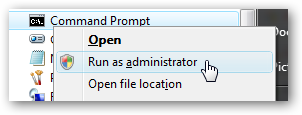
You will need to open a command prompt in administrator mode by right-clicking and choosing “Run as administrator” (or use the Ctrl+Shift+Enter shortcut from the search box)

image6.png


and then type

fsutil dirty query f: (substitute the letter "f" with the drive that is giving you problems)

To see the other commands for fsutil type fsutil plus /? or just type fsutil alone. Here is what you will see:

fsutil
---- Commands Supported ----

behavior Control file system behavior
dirty Manage volume dirty bit
file File specific commands
fsinfo File system information
hardlink Hardlink management
objectid Object ID management
quota Quota management
reparsepoint Reparse point management
sparse Sparse file control
usn USN management
volume Volume management

This queries the drive, and more than likely it will tell you that it is dirty. Next, type

CHKNTFS /X f:

The X tells Windows to NOT check that particular drive on the next reboot. At this time, manually reboot your computer, it should not do a Chkdsk and take you directly to Windows.

Once Windows has fully loaded, bring up another CMD prompt and type and now you want to do a Chkdsk manually by typing

Chkdsk /f /r f:

This should take you through 5 stages of the scan and will unset that dirty bit. this takes a while so be patient. Finally, type

fsutil dirty query f:

and Windows will confirm that the dirty bit is not set on that drive. It will give you this message:

Volume - f: is NOT Dirty

From here we are back to some sense of normality .... ;)
 

My Computer

Computer type
PC/Desktop
Computer Manufacturer/Model Number
Self Built
OS
Windows 7 Ultimate 64bit
CPU
AMD Phenom Quad core 9950 black edition
Motherboard
Gigabyte
Memory
16Gb
Graphics Card(s)
2x XFX Radeon 5850
Sound Card
PCI Express X-Fi Titanium / Logitech G35
Monitor(s) Displays
2x HP 2410i
Screen Resolution
1920x1080
Hard Drives
2x 500Gb Seagate
1x 300Gb Seagate
1x 1Tb Seagate
2x 1Tb Hitatchi
PSU
Jean Tech Storm 700W
Case
Cooler Master COSMOS S
Cooling
Akasa Evo Blue Pro
Keyboard
Logitech G15
Mouse
Mad Catz M.M.O. 7
Internet Speed
12mb
the command prompt is now telling me "The FSUTIL requires a local volume"

now what?
 

My Computer

Computer Manufacturer/Model Number
HP Pavilion dv7
OS
windows 7
I just did ran it for the c drive and it says that c is dirty
 

My Computer

Computer Manufacturer/Model Number
HP Pavilion dv7
OS
windows 7
Okidoki ... then you need to continue from here

CHKNTFS /X f:

The X tells Windows to NOT check that particular drive on the next reboot. At this time, manually reboot your computer, it should not do a Chkdsk and take you directly to Windows.

Once Windows has fully loaded, bring up another CMD prompt and type and now you want to do a Chkdsk manually by typing

Chkdsk /f /r f:

This should take you through 5 stages of the scan and will unset that dirty bit. this takes a while so be patient. Finally, type

fsutil dirty query f:

and Windows will confirm that the dirty bit is not set on that drive. It will give you this message:

Volume - f: is NOT Dirty

From here we are back to some sense of normality ....

 

My Computer

Computer type
PC/Desktop
Computer Manufacturer/Model Number
Self Built
OS
Windows 7 Ultimate 64bit
CPU
AMD Phenom Quad core 9950 black edition
Motherboard
Gigabyte
Memory
16Gb
Graphics Card(s)
2x XFX Radeon 5850
Sound Card
PCI Express X-Fi Titanium / Logitech G35
Monitor(s) Displays
2x HP 2410i
Screen Resolution
1920x1080
Hard Drives
2x 500Gb Seagate
1x 300Gb Seagate
1x 1Tb Seagate
2x 1Tb Hitatchi
PSU
Jean Tech Storm 700W
Case
Cooler Master COSMOS S
Cooling
Akasa Evo Blue Pro
Keyboard
Logitech G15
Mouse
Mad Catz M.M.O. 7
Internet Speed
12mb
getting some message when I type in the chkdsk/c/r c:

The type of file system is NTFS
Cannot lock current drive

Chkdsk cannot run because the volume is in use by another process.
Would you like to schedule this volume to be checked the next time the system restarts (Y/N)? I said Y and rebooted.

Still coming up with a dirty c
 

My Computer

Computer Manufacturer/Model Number
HP Pavilion dv7
OS
windows 7
getting some message when I type in the chkdsk/c/r c:

Wrong command you should be typing

Chkdsk /f /r c:

(need to read carefully before executing these commands ;) )
 

My Computer

Computer type
PC/Desktop
Computer Manufacturer/Model Number
Self Built
OS
Windows 7 Ultimate 64bit
CPU
AMD Phenom Quad core 9950 black edition
Motherboard
Gigabyte
Memory
16Gb
Graphics Card(s)
2x XFX Radeon 5850
Sound Card
PCI Express X-Fi Titanium / Logitech G35
Monitor(s) Displays
2x HP 2410i
Screen Resolution
1920x1080
Hard Drives
2x 500Gb Seagate
1x 300Gb Seagate
1x 1Tb Seagate
2x 1Tb Hitatchi
PSU
Jean Tech Storm 700W
Case
Cooler Master COSMOS S
Cooling
Akasa Evo Blue Pro
Keyboard
Logitech G15
Mouse
Mad Catz M.M.O. 7
Internet Speed
12mb
Still getting, even after changing the command:


The type of file system is NTFS
Cannot lock current drive

Chkdsk cannot run because the volume is in use by another process.
Would you like to schedule this volume to be checked the next time the system restarts (Y/N)?
 

My Computer

Computer Manufacturer/Model Number
HP Pavilion dv7
OS
windows 7
Did you start the process from the beginning again on the second attempt ?

If so try rebooting in safe mode then run the command

Chkdsk /f /r c:

Soz I haven't tried these commands from Win7 so I'm still unsure if it's going to work ... but its worth a try
 

My Computer

Computer type
PC/Desktop
Computer Manufacturer/Model Number
Self Built
OS
Windows 7 Ultimate 64bit
CPU
AMD Phenom Quad core 9950 black edition
Motherboard
Gigabyte
Memory
16Gb
Graphics Card(s)
2x XFX Radeon 5850
Sound Card
PCI Express X-Fi Titanium / Logitech G35
Monitor(s) Displays
2x HP 2410i
Screen Resolution
1920x1080
Hard Drives
2x 500Gb Seagate
1x 300Gb Seagate
1x 1Tb Seagate
2x 1Tb Hitatchi
PSU
Jean Tech Storm 700W
Case
Cooler Master COSMOS S
Cooling
Akasa Evo Blue Pro
Keyboard
Logitech G15
Mouse
Mad Catz M.M.O. 7
Internet Speed
12mb
Disk Check

I get to step 11 and never get a report that the scan is complete. It seems to be stuck on the Disk Check scan screen.:(
 
Last edited by a moderator:

My Computer

Computer Manufacturer/Model Number
HP Pavilion dv7
OS
windows 7
You could try a Linux diagnostic cd, but it seems as if your hard drive is nearly dead.
 

My Computer

Computer Manufacturer/Model Number
Sony Vaio Z46GDU
OS
Windows 7 Ultimate x86-64
CPU
[email protected] 1066MHz FSB
Motherboard
Sony branded
Memory
6GB DDR3 1066MHz
Graphics Card(s)
9300M GS 256MB Dedicated (Speed) + Intel4500MHD (Stamina)
Sound Card
Realtek HD Audio
Monitor(s) Displays
13.1' WXGA
Screen Resolution
1600x900
Hard Drives
320GB 7200RPM w/ 16MB cache
Internet Speed
1MB/s
I have the same issue too. I am running Win 7 64 bit and it keeps asking me to do the check disk. I have let it run a number of times, but it has never come up with errors. I run on a single hard drive partitioned into two drives, c and d. It keeps asking to check c where I keep the majority of my files. I ran the fsutil thing and it showed the drive as not dirty, so I'm not sure if those suggestions there would help.

I've considered wiping the computer again and reinstalling, but I'm not sure. I am thinking of repartitioning the drive back into a single partition instead of 2. But before I resort to anything drastic I'd like any more tips/suggestions I could follow to address this issue. Thanks.
 

My Computer

OS
Win 7 64 bit
Worked for me

Thanks, PooMan UK! I'm running windows 7 home premium 64 bit on a laptop purchased last December and ran into this problem several months ago with my D drive. Since I don't reboot very often it has not been a big deal, but can be quite the pain. Followed your instructions to the letter and it worked perfectly -- so yes, the same fix does apply to Windows 7 as to XP and Vista. Saved me from reformatting my D drive (which would not have taken much effort, but also probably would not have fixed the problem, since it sounds like it's a registry issue).
 

My Computer

OS
Windows 7 home premium
had the problem of having disk checked every time I started computer....not anymore....!!! it was internet explorer !!!...dont open that anymore. I use mozilla firefox....problem solved....it was nasty I Explorer...try it...and dont open I E anymore...:D
 

My Computer

OS
windows xp home edition 32
What makes you think it is IE8 causing your chkdsk at startup? Please post the log which shows IE caused this.

IE8 in Win7 is rock solid stable, the best version ever with features that blow away the other browsers.

Boot the WIN7 DVD or REpair CD to run a Startup Repair: http://www.sevenforums.com/tutorials/681-startup-repair.html?ltr=S

Run a full chkdsk /r on HD, then maker's full diag/repair CD scan: Hard Drive Diagnostics Tools and Utilities (Storage) - TACKtech Corp.

Last resort before reinstall: http://www.sevenforums.com/tutorials/3413-repair-install.html?ltr=R
 
Same problem here. Machine is only about 3 weeks old, and out of the blue came the "One of your disks needs to be checked for conistency" message on boot up. The check process ticks down and freezes on the last second. Re-boot, and pressing Any Key before the 15 second count-down is complete generally allows the login screen, and from there the Desktop. However... Defrag does not show C: as being a drive that is defragmentable... in fact, it doesn't show C: at all. System Restore likewise recognizes a problem on C: and will not restore until the error is fixed. Using System Restore, there is hot button that is labeled "Check The Disk For Errors" and that results in two tickable choices:

1) Automatically Fix File System Errors
2) Scan and Attempt Recovery of Bad Sectors

However ..... Only the 2nd option is allowable or doable, because if the 1st option is ticked, an error message pops up saying: "Windows can't check hard disk while it is in use" ....... That, is about as oxymoronic as it gets! Unbelievable!

Anyway, ran Option 2 above, which ran for about 3 or more hours, (750 GB drive), and in the end, reported that it found no problems.

From the C: prompt, as an "Administrtor;" ran SFC / SCANNOW as well as CHKDSK ... and neither utitlity found any problems on C:. CHKDSK /F was not allowed, but was scheduled at next re-boot..... It too did not run when machine was re-booted, but stalled and froze just like the System-invoked check that started all this mess.

Basically, the System goes in useless circles with all these error messages, and has the user chasing his or her own tail until finally one realizes that it is all for naught.

The machine is going back to the store tonight.

Bring Back XP !!!
 

My Computer

OS
Windows 7 x64
PooMan UK ... You're a Godsend. I tried the CHDKDSK /F /R from Safe Mode, and although I didn't see any activity as far as an actual check goes, I restarted normally after that and Bingo! All is right with the world again. Whereas defrag formerly didn't recognize C: ... and whereas I was formerly getting the "consistency" error message at boot up, that is all corrected now.

It took a bit of intuitive doing though. Initially, following your instructions, I sort of deviated and selected the "Safe Mode with C: prompt" choice. At that point, at the C: prompt, I entered the CHKDSK /F /R command but was told that my status needed to be "elevated" (doesn't everybody's!). ... I did however, enter the command and selected Y (Yes) which stipulated scheduling the command CHKDSK /F /R to be run at next start-up, which I did, but this time choosing the first menu option: Safe Mode (strictly).

Invisibly, something good must have happened because upon yet another, but this time NORMAL re-boot, no initial error message appeared and Defrag thinks the world is wonderful; showing C: as a defragmentable drive again.

Thanks heaps.... This fix is one for the books!
Mike
 

My Computer

OS
Windows 7 x64
Back
Top