
Dual Boot Installation with Windows 7 and XP

How to Setup a Dual Boot Installation with Windows 7 and XP


   Information
This will show you how to install Windows 7 and XP to dual boot with when you already have either Windows 7 or XP installed first.
   Note
With a dual boot installaton, you will have two operating systems (OS) installed. When you start the computer, you will have the choice to choose which OS you would like to start up to. This method is the easiest way of doing a dual boot with these two operating systems.
   Tip
When dual booting with another OS (ex: Vista or XP), you may not always have that OS partition show up in Computer with a driver letter in Windows 7. If this happens, then you will just need to add a drive letter to the OS (ex: Vista or XP) partition in Windows 7 Disk Management for it to show up in Computer with a driver letter.
   Warning
To stop XP from deleting your Windows 7 System Restore Points everytime XP is started, then see System Restore Points - Stop XP Dual Boot Delete to hide Windows 7 from XP.

Windows 7 Minimum Hardware Requirements


NOTE: For more information on this, see: Windows 7 system requirements
  • 1 GHz 32-bit or 64-bit processor
  • 1 GB RAM for 32-bit Windows 7 OR 2 GB RAM for 64-bit Windows 7
  • 16 GB available disk space 32-bit Windows 7 OR 20 GB for 64-bit Windows 7
  • Support for DirectX 9 graphics with 128 MB memory (in order to enable Aero theme)
  • DVD-R/W Drive
  • Internet or phone access to activate Windows 7.
Windows XP Minimum Hardware Requirements

NOTE: For more information on this, see: System requirements for Windows XP operating systems
  • PC with 300 megahertz (MHz) or higher processor clock speed recommended; 233-MHz minimum required;* Intel Pentium/Celeron family, AMD K6/Athlon/Duron family, or compatible processor recommended
  • 128 megabytes (MB) of RAM or higher recommended (64 MB minimum supported; may limit performance and some features)
  • 1.5 gigabyte (GB) of available hard disk space.*
  • Super VGA (800 × 600) or higher resolution video adapter and monitor
  • CD-ROM or DVD drive
  • Keyboard and Microsoft Mouse or compatible pointing device
EXAMPLE: Windows Boot Manager
NOTE: This is the boot screen where you select what operating system that you would like to start. By default, you have 30 seconds to choose another operating system before the default operating system will start automatically.
Example.jpg


OPTION ONE

When XP is Installed First


NOTE: If you have a RAID setup, you will need to have the Windows 7 RAID drivers on a USB flash drive available to select and load while installing Windows 7.
1. Do step 2 or 3 below for where you wanted to install Windows 7 at.

2. To Create a New Partition from the XP Hard Disk Drive
A) With your Windows 7 installation disc boot into the Command Prompt from the System Recovery Options screen.
NOTE: Make sure that the CD/DVD drive is selected first in the boot order in the BIOS.

B) In the command prompt, select and shrink the XP volume by how many MB (1024 MB = 1 GB) you want to have for this Windows 7 partition. (See screenshot below)
NOTE: You would do steps 2 to 9 in METHOD TWO at that link. Windows 7 will need a minimum of 16 GB (16384 MB).

XP-W7_1.jpg
C) Click on the X at the top right corner to close the command prompt. (See screenshot above)

D) Click on the X at the top right corner to close System Recovery Options. (See screenshot below)
XP-W7_2.jpg
E) Go to step 4.
3. To Use a Separate Hard Disk Drive than the XP Drive
A) Boot from your Windows 7 installation disc.
NOTE: Make sure that the CD/DVD drive is selected first in the boot order in the BIOS.
4. Click on the Install now button. (See screenshot below)

XP-W7_3.jpg
5. When you get to this point, select the partition (step 2) or hard drive to install Windows 7 on. (See screenshot below)

XP-W7_4.jpg
6. Finish installing Windows 7.
NOTE: You would start at step 9 in that link to finish installing Windows 7.

7. When finished, restart the computer to have the option to boot from XP (Earlier Verision of Windows) or Windows 7. (See screenshot below)

   Note
If you are only booting into Windows 7 and do not have XP listed in the Windows Boot Manager, then you can install only EasyBCD (step 8 Option Two below) to add XP (or Windows 7) while started in Windows 7 the same way to the boot list.

Example.jpg


OPTION TWO

When Windows 7 is Installed First


   Warning

1. To Create a New Partition from the Windows 7 Hard Disk Drive
NOTE: If you want to install XP on a separate internal hard drive instead, then skip this step and go to step 2.
A) In Windows 7, select and shrink the Windows 7 volume in Disk Management by how many MB (1024 MB = 1 GB) you want to have for this XP partition. (See screenshots below)
NOTE: You would do all of Method One at that link.

W7-XP-1.jpg

W7-XP-2.jpg

W7-XP-3.jpg
2. Insert your XP installation disc, then restart the computer and press any key to boot from it when prompted. (See screenshot below)
NOTE: Make sure that the CD/DVD drive is selected first in the boot order in the BIOS.

Step1.jpg
3. From XP Setup, Press Enter. (See screenshot below)


   Warning

W7-XP-4.jpg
4. Press F8. (See screenshot below)
NOTE: On some multimedia keyboards, you may need to press the F-Lock or Function key before pressing F8.
W7-XP-5.jpg
5. Select the partition (step 1) or hard drive that you want to install XP on using the arrow keys and press Enter.

W7-XP-6.jpg
6. Finish installing XP.


   Tip
If you get Error loading Operating System after XP restarts:
  • Using your Windows 7 installation disc, boot to the command prompt at startup.
  • Type in these comands below, and press enter after each one.
    • bootrec /FixMbr
    • bootrec /FixBoot
    • bootrec /RebuildBcd
  • Exit the command prompt and restart the computer.
  • At this point, Windows 7 should boot up the same way before trying to install XP.
  • Continue to step 8 below and run EasyBCD from Windows 7 instead.

7. In XP, download and install .Net Framework 2.0 (32-bit) version or .Net Framework 2.0 (64-bit) version first, and EasyBCD (free version) for your 32-bit (x86) or 64-bit (x86) XP.
NOTE: In XP, Net Framework is required to be installed to run EasyBCD. After you click on Register (at bottom of link) for the free EasyBCD, registration is not required to download it.

8. Run EasyBCD (free version).
NOTE: This is required to repair the Windows 7 boot file and add XP to the Windows Boot Manager list.

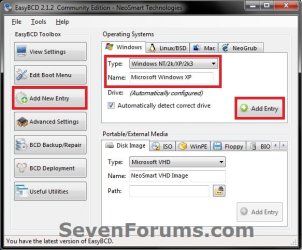
9. On the left side of EasyBCD, click on the Add New Entry button. (See screenshot below)
A) In the top section under Operating Systems, click on the Windows tab. (See screenshot below)
B) To the right of Type, select Windows NT/2k/XP/2k3 from the drop down menu. (See screenshot below)
:warn:WARNING: Be sure to leave the Automatically detect correct drive box checked.

C) To the right of Name, you can leave the default Microsoft Windows XP as the name to be displayed in the Windows Boot Manager, or you can type whatever name you would like to have instead. (See screenshot below)
D) Click on the Add Entry button. (See screenshot below)
W7-XP-7.jpg
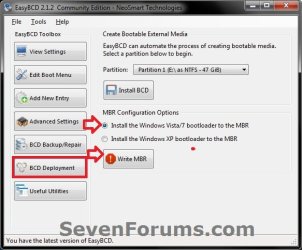
10. On the left side of EasyBCD, click on the BCD Deployment button, select (dot) the Install the Windows Vista/7 bootloader to the MBR option, and click on the Write MBR button. (See screenshot below)
W7-XP-9.jpg
11. Close EasyBCD.

12. Restart the computer to have the option to boot from Microsoft Windows XP or Windows 7. (See screenshot below)

Example2.jpg
   Tip
If Windows 7 will not start up when selected, then use your Windows 7 installation DVD to do a Startup Repair.

That's it,
Shawn


Last edited:
Antares,

It's not going to make any noticeable difference in performance on which OS is installed at the beginning of the drive.

To make it easier, you could just install Windows 7 on a 2nd hard drive to dual boot with your existing XP installation. This way all you would have to worry about is installing Windows 7 and all of the drivers and programs for it.
Thanks Shawn, the only issue is that for some reason that I don't know my PC is unable to boot from the 2nd hard drive (the BIOS settings do not have the 2nd drive as a boot option, only the main drive), so I will be forced to install both OS in the main drive.
 

My Computer

Computer type
PC/Desktop
Computer Manufacturer/Model Number
Dell Dimension 8200/Personal Build
OS
Windows XP Professional SP3/Windows 7 Ultimate x64
CPU
Intel Pentium 4 3.06GHz Northwood/Intel Core i7 3770K
Motherboard
North Bridge:Intel Tehama i850(E)/Asus P8Z77-V Deluxe
Memory
2 Gb RDRAM Dual Channel/GSkill 32GB DDR3 1866
Graphics Card(s)
ATI ALL-IN-WONDER X800 XT AGP/MSI GTX 660 Ti PE
Sound Card
Voyetra Turtle Beach Santa Cruz PCI/Onboard Realtek HD
Monitor(s) Displays
Viewsonic VP230mb ViewPanel
Screen Resolution
1600x1200 32bit
Hard Drives
Western Digital 500Gb IDE drive (main drive) (XP PC)/Samsung 512GB 840 Pro Series SSD main+Western Digital Caviar Black 2 TB SATA III 7200 RPM 64 MB Cache as 2nd internal (Win 7 PC)
PSU
Dell OEM/Thermaltake Toughpower Grand 850W TPG-850M
Case
Dell OEM/Corsair Obsidian 650DW-1 Midtower
Cooling
Dell OEM/Noctua NH-D14
Keyboard
Dell Multimedia keyboard
Mouse
Logitech Cordless MouseMan® Optical M-RM63
W7 Partition Size.

Hi

Thanks for the tutorial, I am about to install Windows XP Pro on my machine currently running Windows 7 64bit Home premium.

my question is I only expect to use XP for my Film and photo scanner, what size of partition would the OS need? I can calculate how much extra space I will need for my scans and photos.

thanks in advance

SDM197.
 

My Computer

OS
W7 64Bit Home premium
I have 12.9GB in use with basic programming installed.

SP3, AV etc. My ASUS drivers and utilities which is less than 300MB.

There is no photo software, pictures, videos or games installed yet.

So if you allow for 13GB for your basics you should be good.
Did a snapshot for you also.
Mike
 
Last edited:

My Computer

Computer Manufacturer/Model Number
Hopalong/ Godzilla
OS
Windows7 Pro 64bit SP-1; Windows XP Pro 32bit
CPU
Intel Core i7-870 Lynnfield 2.93GHz LGA 1156 95W Quad-Core
Motherboard
ASUS P7P55D-E PRO
Memory
8GB@1400MHz Crucial Ballistix DDR3-1600 4x2GB
Graphics Card(s)
ASUS ENGTX460 DirectCU/2DI/1GD5 1GB 256-bit GDDR5
Sound Card
VIA Onboard
Monitor(s) Displays
Asus VS248H-P 24"; Samsung SyncMaster 941BW 19"ws
Screen Resolution
1920x1080; 1440x900
Hard Drives
Samsung 830 120GB SSD
Intel 320 120GB SSD
Western Digital Caviar Black WD7501AALS 750GB 7200 RPM SATA 3.0Gb/s
Western Digital Caviar Black WD6401AALS 640GB 7200 RPM SATA 3.0Gb/s
PSU
COOLER MASTER Silent Pro RS850-AMBAJ3-US 850W Modular
Case
COOLER MASTER HAF 932 RC-932-KKN5-GP Black
Cooling
Scythe "Mugen-2 Rev.B" (2 ScytheKaze-Jyuni PWM fans)
Keyboard
Logitech K-320
Mouse
Kensington
Antivirus
Avast Inernet Suite
Browser
IE 9 ; Chrome
Hi

Thanks for the tutorial, I am about to install Windows XP Pro on my machine currently running Windows 7 64bit Home premium.

my question is I only expect to use XP for my Film and photo scanner, what size of partition would the OS need? I can calculate how much extra space I will need for my scans and photos.

thanks in advance

SDM197.

Hello SDM, and welcome to Seven Forums. :)

In addition, here is a link below for XP requirements. XP needs at minimum 1.5 GB, but I would give it at least 10% more than your total space needed to give XP some working room.

System requirements for Windows XP operating systems

Hope this helps,
Shawn
 
Last edited:

My Computer

Computer type
PC/Desktop
Computer Manufacturer/Model Number
Self built custom
OS
64-bit Windows 11 Pro for Workstations
CPU
Intel i7-8700K OC'd to 5 GHz
Motherboard
ASUS ROG Maximus XI Formula Z390
Memory
64 GB (4x16GB) G.SKILL TridentZ RGB DDR4 3600 MHz
Graphics Card(s)
ASUS ROG-STRIX-GTX1080TI-O11G-GAMING
Sound Card
Integrated
Monitor(s) Displays
2 x Samsung Odyssey G7 27"
Screen Resolution
2560x1440
Hard Drives
1TB Samsung 990 PRO M.2,
4TB Samsung 990 PRO PRO M.2,
TerraMaster F8 SSD Plus NAS
PSU
Seasonic Prime Titanium 850W
Case
Thermaltake Core P3
Cooling
Corsair Hydro H115i
Keyboard
Logitech wireless K800
Mouse
Logitech MX Master 4
Internet Speed
2 Gb/s Download and 100 Mb/s Upload
Antivirus
Malwarebyte Anti-Malware Premium
Browser
Google Chrome
Other Info
Logitech Z625 speaker system,
Logitech BRIO 4K Pro webcam,
HP Color LaserJet Pro MFP M477fdn,
APC SMART-UPS RT 1000 XL - SURT1000XLI,
Galaxy S23 Plus phone
Hi,

Thank you both for your replies,

SDM197.
 

My Computer

OS
W7 64Bit Home premium
You're most welcome SDM. I'm glad that we could help. :)
 

My Computer

Computer type
PC/Desktop
Computer Manufacturer/Model Number
Self built custom
OS
64-bit Windows 11 Pro for Workstations
CPU
Intel i7-8700K OC'd to 5 GHz
Motherboard
ASUS ROG Maximus XI Formula Z390
Memory
64 GB (4x16GB) G.SKILL TridentZ RGB DDR4 3600 MHz
Graphics Card(s)
ASUS ROG-STRIX-GTX1080TI-O11G-GAMING
Sound Card
Integrated
Monitor(s) Displays
2 x Samsung Odyssey G7 27"
Screen Resolution
2560x1440
Hard Drives
1TB Samsung 990 PRO M.2,
4TB Samsung 990 PRO PRO M.2,
TerraMaster F8 SSD Plus NAS
PSU
Seasonic Prime Titanium 850W
Case
Thermaltake Core P3
Cooling
Corsair Hydro H115i
Keyboard
Logitech wireless K800
Mouse
Logitech MX Master 4
Internet Speed
2 Gb/s Download and 100 Mb/s Upload
Antivirus
Malwarebyte Anti-Malware Premium
Browser
Google Chrome
Other Info
Logitech Z625 speaker system,
Logitech BRIO 4K Pro webcam,
HP Color LaserJet Pro MFP M477fdn,
APC SMART-UPS RT 1000 XL - SURT1000XLI,
Galaxy S23 Plus phone
Hello!

This is by far the best dual boot tutorial I've found. :D

I've some questions:

1.- Which one is recommended or less-troubled to be installed first? (I'm starting from scratch a dual boot project)

2.- I'm installing this on my 80 GB HD and this will be only for OS and Program Files, how do you recommend to partition it? (talking in % or GB's)

3.- If I point both OS's to the 250 GB HD, can they share "My Documents" folder? Or is recommended to partition this one too and point each OS to different partition?

4.- Can I add Ubuntu later?

Thanks in advance ;)
 

My Computer

Computer Manufacturer/Model Number
Custom Built
OS
Windows 7 Ultimate x64
CPU
AMD Sempron 140
Motherboard
AsRock N68S with UCC
Memory
Kingston 1 GB 800 Mhz
Monitor(s) Displays
Gateway FDP1530
Hard Drives
Seagate 80 GB SATA
Seagate 250 GB SATA
Case
Ackteck
Cooling
NA
Hello M0y, and welcome to Seven Forums.

Answers inline. :)


1.- Which one is recommended or less-troubled to be installed first? (I'm starting from scratch a dual boot project)
Using Option One with XP installed first is the easiest way.

2.- I'm installing this on my 80 GB HD and this will be only for OS and Program Files, how do you recommend to partition it? (talking in % or GB's)
It depends on how much you plan on installing along with each OS on the two separate partitions, but I say about 20-30 GB for XP and the rest for Windows 7.
3.- If I point both OS's to the 250 GB HD, can they share "My Documents" folder? Or is recommended to partition this one too and point each OS to different partition?
No. You do not want to have two separate OS's sharing a folder like that. It will cause to many problems trying to do so. It would be best to have each OS use their own separate folder instead.

4.- Can I add Ubuntu later?
Yes, you can do a triple boot with Ubuntu later if you like. I do not know the details of doing so since I have never used Ubuntu though.


Hope this helps,
Shawn
 

My Computer

Computer type
PC/Desktop
Computer Manufacturer/Model Number
Self built custom
OS
64-bit Windows 11 Pro for Workstations
CPU
Intel i7-8700K OC'd to 5 GHz
Motherboard
ASUS ROG Maximus XI Formula Z390
Memory
64 GB (4x16GB) G.SKILL TridentZ RGB DDR4 3600 MHz
Graphics Card(s)
ASUS ROG-STRIX-GTX1080TI-O11G-GAMING
Sound Card
Integrated
Monitor(s) Displays
2 x Samsung Odyssey G7 27"
Screen Resolution
2560x1440
Hard Drives
1TB Samsung 990 PRO M.2,
4TB Samsung 990 PRO PRO M.2,
TerraMaster F8 SSD Plus NAS
PSU
Seasonic Prime Titanium 850W
Case
Thermaltake Core P3
Cooling
Corsair Hydro H115i
Keyboard
Logitech wireless K800
Mouse
Logitech MX Master 4
Internet Speed
2 Gb/s Download and 100 Mb/s Upload
Antivirus
Malwarebyte Anti-Malware Premium
Browser
Google Chrome
Other Info
Logitech Z625 speaker system,
Logitech BRIO 4K Pro webcam,
HP Color LaserJet Pro MFP M477fdn,
APC SMART-UPS RT 1000 XL - SURT1000XLI,
Galaxy S23 Plus phone
thanks for answering so soon Brink, tomorrow I'll start and give feedback about it. :p
 

My Computer

Computer Manufacturer/Model Number
Custom Built
OS
Windows 7 Ultimate x64
CPU
AMD Sempron 140
Motherboard
AsRock N68S with UCC
Memory
Kingston 1 GB 800 Mhz
Monitor(s) Displays
Gateway FDP1530
Hard Drives
Seagate 80 GB SATA
Seagate 250 GB SATA
Case
Ackteck
Cooling
NA
You're most welcome M0y. :)
 

My Computer

Computer type
PC/Desktop
Computer Manufacturer/Model Number
Self built custom
OS
64-bit Windows 11 Pro for Workstations
CPU
Intel i7-8700K OC'd to 5 GHz
Motherboard
ASUS ROG Maximus XI Formula Z390
Memory
64 GB (4x16GB) G.SKILL TridentZ RGB DDR4 3600 MHz
Graphics Card(s)
ASUS ROG-STRIX-GTX1080TI-O11G-GAMING
Sound Card
Integrated
Monitor(s) Displays
2 x Samsung Odyssey G7 27"
Screen Resolution
2560x1440
Hard Drives
1TB Samsung 990 PRO M.2,
4TB Samsung 990 PRO PRO M.2,
TerraMaster F8 SSD Plus NAS
PSU
Seasonic Prime Titanium 850W
Case
Thermaltake Core P3
Cooling
Corsair Hydro H115i
Keyboard
Logitech wireless K800
Mouse
Logitech MX Master 4
Internet Speed
2 Gb/s Download and 100 Mb/s Upload
Antivirus
Malwarebyte Anti-Malware Premium
Browser
Google Chrome
Other Info
Logitech Z625 speaker system,
Logitech BRIO 4K Pro webcam,
HP Color LaserJet Pro MFP M477fdn,
APC SMART-UPS RT 1000 XL - SURT1000XLI,
Galaxy S23 Plus phone
just a bit of advice: If you install two versions of windows to the same HDD, hide the C drive when installing any drivers or programs to the second OS in order to make reduce the possibility of corrupting both operating systems...

also if installing xp when windows 7 is already installed, make sure all the drive letters match before proceeding to install XP. That will make it possible to share some programs between operating systems by using a 3rd partition or another HDD without taking up twice as much drive space to have it installed in both operating systems
 
Last edited:
Hello, I need some help with setting up my dual boot. Am using Method 2 since I already have Windows 7 Ultimate x64 running and would like to setup Windows XP SP2.

As for this thread, I have done up to Method 2 : [3. From XP Setup, Press Enter. (See screenshot below)]

Then, when I loaded my XP disc and it started loading the drivers and such, it will come to a point where i get a BSOD. Any ideas as to why this occurs? I am using an original XP disc.

As for RAID/SATA drivers, is this the reason for my BSOD? Do I need them installed? If I do, where can I download them. Need answers quickly as I have stuff to get done.

Help is appreciated. Thank you.
 

My Computer

Computer Manufacturer/Model Number
Dell XPS 420
OS
Windows 7 Ultimate x64
Graphics Card(s)
nVIDIA
Sound Card
SoundBlaster Audigy
Hello Paul, and welcome to Seven Forums.

Yes, you will need to load the SATA drivers during the XP installation, or have the SATA drivers slipstreamed in the XP installation DVD.

If you have a store bought computer (ex: Gateway), then you can get the drivers at your computer manufacturer's website for your brand and model number. If you built the computer yourself, then you can get the drivers at your motherboard manufacturer's website for it's model number.

Here's a copy of how to install your SATA drivers from the Warning box in the tutorial below.

   Warning
If you have a SATA drive, then you will need to do either one of these options to load the SATA drivers for XP.

Hope this helps,
Shawn
 

My Computer

Computer type
PC/Desktop
Computer Manufacturer/Model Number
Self built custom
OS
64-bit Windows 11 Pro for Workstations
CPU
Intel i7-8700K OC'd to 5 GHz
Motherboard
ASUS ROG Maximus XI Formula Z390
Memory
64 GB (4x16GB) G.SKILL TridentZ RGB DDR4 3600 MHz
Graphics Card(s)
ASUS ROG-STRIX-GTX1080TI-O11G-GAMING
Sound Card
Integrated
Monitor(s) Displays
2 x Samsung Odyssey G7 27"
Screen Resolution
2560x1440
Hard Drives
1TB Samsung 990 PRO M.2,
4TB Samsung 990 PRO PRO M.2,
TerraMaster F8 SSD Plus NAS
PSU
Seasonic Prime Titanium 850W
Case
Thermaltake Core P3
Cooling
Corsair Hydro H115i
Keyboard
Logitech wireless K800
Mouse
Logitech MX Master 4
Internet Speed
2 Gb/s Download and 100 Mb/s Upload
Antivirus
Malwarebyte Anti-Malware Premium
Browser
Google Chrome
Other Info
Logitech Z625 speaker system,
Logitech BRIO 4K Pro webcam,
HP Color LaserJet Pro MFP M477fdn,
APC SMART-UPS RT 1000 XL - SURT1000XLI,
Galaxy S23 Plus phone
Hi there, I think you will need the sata drive. I slipstreamed them in my XP disk. I downloaded the drive googling my model.
And it worked fine.
 

My Computer

Computer Manufacturer/Model Number
acer aspire 5741G
OS
Windows 7x64
I'm trying to understand you but I just can't. I am trying the slipstreamed in the XP installation DVD method but i dont know where to get the Promise Fastrak 376 or my type of drivers. Its confusing. Drivers for my W7 or XP? I bought it and i have a Drivers and Utilities CD. Is that it?
 

My Computer

Computer Manufacturer/Model Number
Dell XPS 420
OS
Windows 7 Ultimate x64
Graphics Card(s)
nVIDIA
Sound Card
SoundBlaster Audigy

My Computer

Computer type
PC/Desktop
Computer Manufacturer/Model Number
Self built custom
OS
64-bit Windows 11 Pro for Workstations
CPU
Intel i7-8700K OC'd to 5 GHz
Motherboard
ASUS ROG Maximus XI Formula Z390
Memory
64 GB (4x16GB) G.SKILL TridentZ RGB DDR4 3600 MHz
Graphics Card(s)
ASUS ROG-STRIX-GTX1080TI-O11G-GAMING
Sound Card
Integrated
Monitor(s) Displays
2 x Samsung Odyssey G7 27"
Screen Resolution
2560x1440
Hard Drives
1TB Samsung 990 PRO M.2,
4TB Samsung 990 PRO PRO M.2,
TerraMaster F8 SSD Plus NAS
PSU
Seasonic Prime Titanium 850W
Case
Thermaltake Core P3
Cooling
Corsair Hydro H115i
Keyboard
Logitech wireless K800
Mouse
Logitech MX Master 4
Internet Speed
2 Gb/s Download and 100 Mb/s Upload
Antivirus
Malwarebyte Anti-Malware Premium
Browser
Google Chrome
Other Info
Logitech Z625 speaker system,
Logitech BRIO 4K Pro webcam,
HP Color LaserJet Pro MFP M477fdn,
APC SMART-UPS RT 1000 XL - SURT1000XLI,
Galaxy S23 Plus phone
I'm trying to understand you but I just can't. I am trying the slipstreamed in the XP installation DVD method but i dont know where to get the Promise Fastrak 376 or my type of drivers. Its confusing. Drivers for my W7 or XP? I bought it and i have a Drivers and Utilities CD. Is that it?

Your rig does not have a Promise Fastrak 376 Sata Controller.

First check for all the Win XP drivers for your hardware.
If your Win XP CD, does not support your Sata Controller, you will need to load drivers to uses at F6.
Load Sata Controller drivers with a floppy disk is the best way.

http://www.sevenforums.com/tutorials/66010-sata-drivers-load-windows-xp-setup-dual-boot.html
OR
http://www.sevenforums.com/tutorials/72185-sata-drivers-slipstream-into-windows-xp-cd.html

You can download your F6 Sata Controller drivers from here:

Intel Sata Controller Drivers
 

My Computer

OS
ME/XP/Vista/Win7
Thanks for the quick response. I'm loving this quick response. Thanks for your time and will get back to you when I need help.

My rig is a Dell XPS 420. Running in x64 bit. "You can download your F6 Sata Controller drivers from here:

Intel Sata Controller Drivers" Ok I've gone to that site but which OS do I choose? My W7 or XP? And which driver to download. Sorry for the trouble.
 

My Computer

Computer Manufacturer/Model Number
Dell XPS 420
OS
Windows 7 Ultimate x64
Graphics Card(s)
nVIDIA
Sound Card
SoundBlaster Audigy
My rig is a Dell XPS 420. Running in x64 bit. "You can download your F6 Sata Controller drivers from here:

Intel Sata Controller Drivers" Ok I've gone to that site but which OS do I choose? My W7 or XP? And which driver to download. Sorry for the trouble.

You would need to choose the XP version so that you can slipstream them. :)
 

My Computer

Computer type
PC/Desktop
Computer Manufacturer/Model Number
Self built custom
OS
64-bit Windows 11 Pro for Workstations
CPU
Intel i7-8700K OC'd to 5 GHz
Motherboard
ASUS ROG Maximus XI Formula Z390
Memory
64 GB (4x16GB) G.SKILL TridentZ RGB DDR4 3600 MHz
Graphics Card(s)
ASUS ROG-STRIX-GTX1080TI-O11G-GAMING
Sound Card
Integrated
Monitor(s) Displays
2 x Samsung Odyssey G7 27"
Screen Resolution
2560x1440
Hard Drives
1TB Samsung 990 PRO M.2,
4TB Samsung 990 PRO PRO M.2,
TerraMaster F8 SSD Plus NAS
PSU
Seasonic Prime Titanium 850W
Case
Thermaltake Core P3
Cooling
Corsair Hydro H115i
Keyboard
Logitech wireless K800
Mouse
Logitech MX Master 4
Internet Speed
2 Gb/s Download and 100 Mb/s Upload
Antivirus
Malwarebyte Anti-Malware Premium
Browser
Google Chrome
Other Info
Logitech Z625 speaker system,
Logitech BRIO 4K Pro webcam,
HP Color LaserJet Pro MFP M477fdn,
APC SMART-UPS RT 1000 XL - SURT1000XLI,
Galaxy S23 Plus phone
32 or 64bit? My XP Home disc is 32bit. So?
 

My Computer

Computer Manufacturer/Model Number
Dell XPS 420
OS
Windows 7 Ultimate x64
Graphics Card(s)
nVIDIA
Sound Card
SoundBlaster Audigy
Back
Top


