WD External Hard Drive Not Showing on My PC

farhaj

New member
Member
VIP
Local time
2:39 AM
Messages
127
WD "My Passport Ultra" Formatted Deeply & Not Showing on My PC

I have an External Hard Drive "WD - My Passport Ultra" Blue" which I happened to access it after a couple of years and now I am facing the following problems in it and want answers to issues that I have in it.

1) I feel that the WD Hard Drive has been formatted completely to depth :cry: that when I attach to my Laptop shows in the Task Bar as the HD been Inserted , But it doesn't show up anything on the MY PC...
Can I know in any way what type of Formatting technique was applied to it....

2)

(a) I heard that their are Partitions for all kinds of Storage Devices weather it Ext. HD or Internal HD. or Flash Drives or Laptop Hard Drives... Is this thing True for a Storage Device.

(b) If the Partitions are deleted as well during Formatting or Deleting; is their then any way to Retrieve all those Lost Data and Files in it..?

3) When I go to the Device Management, I am able to see an Extra Drive in it (Showing 2 Sections in it) But, Can't give it a Name or access it and gives out a message before to choose a type out of 2.. What is this exactly?

Photo Below:
WDBMLA0020BBL-EESN-lg__72018.1554887791.jpg


I tried updating the Drivers as well, But in vain...

4) DO you have a solution out for this one..?

5) Can you tell me in details the steps I need to do in order to see my Lost data and the Files in my Hard Drive..?

P.S. - ( I am accessing this Hard Drive after a Very Long time Now)

If, their is any more information that I can share which can help me in accessing my files, please let me know about it.
 
Last edited:

My Computer My Computer

At a glance

Windows 7 Home Premium 64bit
Computer type
Laptop
Computer Manufacturer/Model Number
Toshiba
OS
Windows 7 Home Premium 64bit
Hard Drives
Hitachi
Does it show in disk manager it may just need a drive letter assigned
 

My Computer My Computer

At a glance

win 8 32 bit
Computer type
PC/Desktop
OS
win 8 32 bit
Does it show in disk manager it may just need a drive letter assigned

I have replied that on the Main Title Post as well..
BUt, can you please re-read it again and let me know the answers for it...
 

My Computer My Computer

At a glance

Windows 7 Home Premium 64bit
Computer type
Laptop
Computer Manufacturer/Model Number
Toshiba
OS
Windows 7 Home Premium 64bit
Hard Drives
Hitachi
[Just for general information]


I have several WD hard drives, that were originally in External USB enclosures, that just quit working.
(it seems to be the USB to SATA circuitry that gives up the ghost.)


Then when the original owner was ready to throw them in the trash, they gave them to me.
(I was their computer tech)


Once the actual HD was removed from the enclosure and reformatted on my main PC, they worked OK.
But since they are WD brand, I only use them for temporary (scratch) disks.
The WD brand has been on my Sh** list for many years now, due to their low quality and lack of reliability.


Cheers Mates, and Good Luck,
TM :cool:
 

My Computer My Computer

At a glance

Win 7 Pro, SP1, x86, Win-11/Pro/64AMD8GB CrucialVarious
Computer type
PC/Desktop
Computer Manufacturer/Model Number
Various
OS
Win 7 Pro, SP1, x86, Win-11/Pro/64
CPU
AMD
Motherboard
Various
Memory
8GB Crucial
Graphics Card(s)
Various
Sound Card
OnBoard
Monitor(s) Displays
Acer 21.5"
Hard Drives
Crucial SSD, 500 GB
PSU
OEM
Case
SFF Slim Line Case
Cooling
OEM
Keyboard
eMachines
Mouse
Logitech Wireless
Internet Speed
varies
Antivirus
Windows Defender/Super Anti-Spyware
Browser
Firefox
[Just for general information]


I have several WD hard drives, that were originally in External USB enclosures, that just quit working.
(it seems to be the USB to SATA circuitry that gives up the ghost.)


Then when the original owner was ready to throw them in the trash, they gave them to me.
(I was their computer tech)


Once the actual HD was removed from the enclosure and reformatted on my main PC, they worked OK.
But since they are WD brand, I only use them for temporary (scratch) disks.
The WD brand has been on my Sh** list for many years now, due to their low quality and lack of reliability.


Cheers Mates, and Good Luck,
TM :cool:


You were able to retrieve data from it back from the WD external Hard Drives..
 

My Computer My Computer

At a glance

Windows 7 Home Premium 64bit
Computer type
Laptop
Computer Manufacturer/Model Number
Toshiba
OS
Windows 7 Home Premium 64bit
Hard Drives
Hitachi
I am waiting for your feed back and help guys...
Guide properly your friend over here
 

My Computer My Computer

At a glance

Windows 7 Home Premium 64bit
Computer type
Laptop
Computer Manufacturer/Model Number
Toshiba
OS
Windows 7 Home Premium 64bit
Hard Drives
Hitachi
anyone out their who can assist me..
 

My Computer My Computer

At a glance

Windows 7 Home Premium 64bit
Computer type
Laptop
Computer Manufacturer/Model Number
Toshiba
OS
Windows 7 Home Premium 64bit
Hard Drives
Hitachi
If you want some help, don't be rude.
I read your OP and I did not see any mention of disk manager as Samuria suggested.
Open Disk Manager (C:\Windows\System32\diskmgmt.msc) expand the window and the columns and post an image here as an attachment.
 

My Computers My Computers

  • At a glance

    Windows 7 HP 64i5 6600K - 800MHz to 4200MHz4+4G GSkill DDR4 3000IG - Intel 530
    Computer type
    PC/Desktop
    Computer Manufacturer/Model Number
    custom build
    OS
    Windows 7 HP 64
    CPU
    i5 6600K - 800MHz to 4200MHz
    Motherboard
    GA-Z170-HD3P
    Memory
    4+4G GSkill DDR4 3000
    Graphics Card(s)
    IG - Intel 530
    Monitor(s) Displays
    Samsung 226BW
    Screen Resolution
    1680x1050
    Hard Drives
    (1) -1 SM951 – 128GB M.2 AHCI PCIe SSD drive for Windows 7 and Lubuntu
    (2) -1 WD SATA 3 - 1T for Data
    (3) -1 WD SATA 3 - 1T for backup
    PSU
    Thermaltake 450W TR2 gold
    Keyboard
    Old and good Chicony mechanical keyboard
    Mouse
    Logitech mX performance - 9 buttons (had to disable some)
    Internet Speed
    500Mb/s
    Browser
    Firefox 64
    Other Info
    TinyWall firewall
  • At a glance

    Windows 7 Proi7-4500U 800MHz to 3.0GHz(4+4)G DDR3 1600IG intel 4400 + NVIDIA GeForce GT 745M
    Computer type
    Laptop
    System Manufacturer/Model Number
    Asus Q550LF
    OS
    Windows 7 Pro
    CPU
    i7-4500U 800MHz to 3.0GHz
    Motherboard
    Asus Q550LF
    Memory
    (4+4)G DDR3 1600
    Graphics Card(s)
    IG intel 4400 + NVIDIA GeForce GT 745M
    Sound Card
    Realtek
    Monitor(s) Displays
    LG Display LP156WF4-SPH1
    Screen Resolution
    1920 x 1080
    Hard Drives
    BX500 120G SSD for Windows and programs +
    1T HDD for data
    Internet Speed
    500 Mb/s
    Browser
    Firefox
    Other Info
    TinyWall firewall
If you want some help, don't be rude.
I read your OP and I did not see any mention of disk manager as Samuria suggested.
Open Disk Manager (C:\Windows\System32\diskmgmt.msc) expand the window and the columns and post an image here as an attachment.

I am not being Rude.. If, it felt like that I apologize for it..
Just asking for some answers to the problem, if anyone from you can assist..

Right now, I don't have access to my HD. as it is away at the moment...
But, I checked it in the Disk Manager...Disk Manager (C:\Windows\System32\diskmgmt.msc)

It Showed
1) 2 Partitions for the Drive and was
2) written on the 2 Partitions as "Unallocated "..

So, what do you suggest now..
Can mY data be retrieved in any way possible.
 

My Computer My Computer

At a glance

Windows 7 Home Premium 64bit
Computer type
Laptop
Computer Manufacturer/Model Number
Toshiba
OS
Windows 7 Home Premium 64bit
Hard Drives
Hitachi
1. If it is your external disk where is it "ät the moment" and why is it away "ät the moment"????

2. Quote - "When I go to the Device Management, I am able to see an Extra Drive in it (Showing 2 Sections in it) But, Can't give it a Name or access it and gives out a message before to choose a type out of 2.. What is this exactly?" - Unquote

Quote - " I checked it in the Disk Manager...Disk Manager (C:\Windows\System32\diskmgmt.msc)

It Showed
1) 2 Partitions for the Drive and was
2) written on the 2 Partitions as "Unallocated ".. -Unquote

Combining these two statements I would say this:

All HDDs when bought, come with the full volume formatted mostly as NTFS. If the capacity is 2TB or less those are initialised as MBR and if the capacity is larger than 2TB those are initialised as GPT. The pertinent point is it has only one volume that is a single partition

That it now has two partitions and that too "Unallocated" means that you or someone else have/has deleted that single volume and created two volumes but left it unformatted..It could not happen on its own.We also do not know in what all ways it has been tampered with as you yourself do not seem to know about it. In this scenario, no one can categorically say whether any data on it can be recovered.(You also haven't told what important data you had on it and if it were so important why you hadn't accessed it for two long years and why you are lending it to others !)
 

My Computer My Computer

At a glance

Windows 7 Home Premium 32 bit
OS
Windows 7 Home Premium 32 bit
1. If it is your external disk where is it "ät the moment" and why is it away "ät the moment"????

2. Quote - "When I go to the Device Management, I am able to see an Extra Drive in it (Showing 2 Sections in it) But, Can't give it a Name or access it and gives out a message before to choose a type out of 2.. What is this exactly?" - Unquote

Quote - " I checked it in the Disk Manager...Disk Manager (C:\Windows\System32\diskmgmt.msc)

It Showed
1) 2 Partitions for the Drive and was
2) written on the 2 Partitions as "Unallocated ".. -Unquote

Combining these two statements I would say this:

All HDDs when bought, come with the full volume formatted mostly as NTFS. If the capacity is 2TB or less those are initialised as MBR and if the capacity is larger than 2TB those are initialised as GPT. The pertinent point is it has only one volume that is a single partition

That it now has two partitions and that too "Unallocated" means that you or someone else have/has deleted that single volume and created two volumes but left it unformatted..It could not happen on its own.We also do not know in what all ways it has been tampered with as you yourself do not seem to know about it. In this scenario, no one can categorically say whether any data on it can be recovered.(You also haven't told what important data you had on it and if it were so important why you hadn't accessed it for two long years and why you are lending it to others !)

I will explain a little more here, maybe previously; I was not quite clear..

1) The Thing is that right now I moved to a different location and the Hard Drive is at the previous place. So, Some how I managed to access it online through Team Viewer..
And, after I asked to plug in, that top post is the complete story I got to see then..

2) Secondly, yes the data in it is really important as it contains my previous works of many years which I collected and had put into it.. But, it seems that someone got a hold of it and then Formatted it.

3) Now, I don't know exactly; what type of formatting was done on it and All I want is now to Retrieve all the deleted data in it..

4) When I "went into "My PC" and "Disk Management" ; I only see that my Attached Drive:
a) Shows that the "WD Drive" has been Connected (in the Task Bar).
b) The Device is Running and the LED Light Lit on the WD Drive.(External)
c) Does Not show the Drive (on to "My PC")
d) Has No Name Assigned to it. (in Disk Manager)
e) Shows 2 Sections in it. (in Disk Manager)
f) Has written "Unallocated" (in Disk Manager)
g) The Hard Drive total Space is more than 2TB something like close to 3TB (in Disk Manager)


Here is the Complete Story...

Now, How can I know what type of Formatting has done on it and is the data retrievable from it.
 

My Computer My Computer

At a glance

Windows 7 Home Premium 64bit
Computer type
Laptop
Computer Manufacturer/Model Number
Toshiba
OS
Windows 7 Home Premium 64bit
Hard Drives
Hitachi
We do not have a magic wand or a crystal ball to say what has really happened to that drive. Usually when people come here requesting data recovery, they have been using that HDD and suddenly something has happened and the HDD becomes inaccessible. Even in these cases, we have to do a lot of investigative work to ascertain what could have happened and resort to a trial and error method to check whether the data can be retrieved.In your case it is much worse. You hadn't used the HDD for two years. Your PC and HDD was accessible to an outsider. He could have tampered with it in many ways. That makes data recovery really difficult. Our first effort will be to ascertain whether at all there is any data left on it.

For that you have to get your HDD back into your physical possession, and plug it into your current PC which I believe runs Windows 7. Disable or uninstall any programs that can give access to it by an outsider. Plug in only your faulty HDD and post a full screenshot of Windows Disk Management.Please read and adhere to the guidelines here Disk Management - Post a Screen Capture Image

Next, download and install MiniTool Partition Wizard Free version 9.1 from here. (Yes, you heard it right - old version 9.1 and not any later version. In later versions Partition Recovery feature - if we need it - is not free)

MiniTool Partition Wizard Free 11.6 Download for Windows / Old Versions Page 2 / FileHorse.com

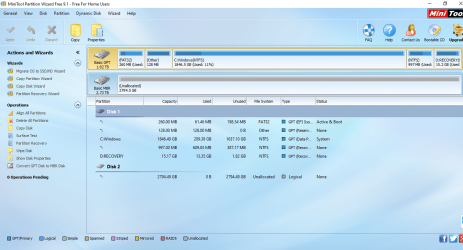
Please remove all that is plugged into your USB ports,except your keyboard/mouse, plug in only your faulty external drive - we do not want any clutter to remain focussed - , Run Partition Wizard, say NO if it offers a new version, and post a screenshot of how your drives look in it - the very first screen when you launch it.

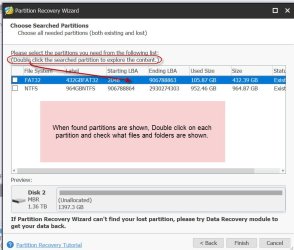
On the left Pane click on Partition Recovery Wizard > Next > Select your faulty Drive > Next > Full Disk > Next > Full scan > Next. Allow the full scan to complete. It may take a long time to finish. At the end of the full Scan you will get a window showing all the found partitions .Post a screenshot of it ( only that Window. No need of any background). After you have taken the screenshot click on Cancel button on that Window and close PW. You can run it again if need be. Post the screenshots.Let me examine it to give further instructions.

Screenshots and Files - Upload and Post in Seven Forums

So in all you will be posting three screenshots.
 

My Computer My Computer

At a glance

Windows 7 Home Premium 32 bit
OS
Windows 7 Home Premium 32 bit
We do not have a magic wand or a crystal ball to say what has really happened to that drive. Usually when people come here requesting data recovery, they have been using that HDD and suddenly something has happened and the HDD becomes inaccessible. Even in these cases, we have to do a lot of investigative work to ascertain what could have happened and resort to a trial and error method to check whether the data can be retrieved.In your case it is much worse. You hadn't used the HDD for two years. Your PC and HDD was accessible to an outsider. He could have tampered with it in many ways. That makes data recovery really difficult. Our first effort will be to ascertain whether at all there is any data left on it.

For that you have to get your HDD back into your physical possession, and plug it into your current PC which I believe runs Windows 7. Disable or uninstall any programs that can give access to it by an outsider. Plug in only your faulty HDD and post a full screenshot of Windows Disk Management.Please read and adhere to the guidelines here Disk Management - Post a Screen Capture Image

Next, download and install MiniTool Partition Wizard Free version 9.1 from here. (Yes, you heard it right - old version 9.1 and not any later version. In later versions Partition Recovery feature - if we need it - is not free)

MiniTool Partition Wizard Free 11.6 Download for Windows / Old Versions Page 2 / FileHorse.com

Please remove all that is plugged into your USB ports,except your keyboard/mouse, plug in only your faulty external drive - we do not want any clutter to remain focussed - , Run Partition Wizard, say NO if it offers a new version, and post a screenshot of how your drives look in it - the very first screen when you launch it.

On the left Pane click on Partition Recovery Wizard > Next > Select your faulty Drive > Next > Full Disk > Next > Full scan > Next. Allow the full scan to complete. It may take a long time to finish. At the end of the full Scan you will get a window showing all the found partitions .Post a screenshot of it ( only that Window. No need of any background). After you have taken the screenshot click on Cancel button on that Window and close PW. You can run it again if need be. Post the screenshots.Let me examine it to give further instructions.

Screenshots and Files - Upload and Post in Seven Forums

So in all you will be posting three screenshots.

Thanks for writing the Details...

I will get the ScreenShots and update over here...

Please, inform me back after seeing the results
 

My Computer My Computer

At a glance

Windows 7 Home Premium 64bit
Computer type
Laptop
Computer Manufacturer/Model Number
Toshiba
OS
Windows 7 Home Premium 64bit
Hard Drives
Hitachi
farhaj

Take your time. No need to be in a hurry.

To cut down some time....

A 27-03-2020 12-51-17.jpg

B 27-03-2020 12-57-50.jpg

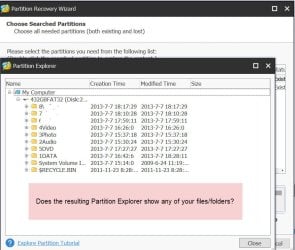
If you want to, post the screenshot of this Partition Explorer window.Or else just report what you see.(The three screenshots requested in my earlier post however is a must)

After checking, as instructed earlier close all the windows and close Partition Wizard.
 

My Computer My Computer

At a glance

Windows 7 Home Premium 32 bit
OS
Windows 7 Home Premium 32 bit
farhaj

Take your time. No need to be in a hurry.

To cut down some time....

View attachment 411450

View attachment 411449

If you want to, post the screenshot of this Partition Explorer window.Or else just report what you see.(The three screenshots requested in my earlier post however is a must)

After checking, as instructed earlier close all the windows and close Partition Wizard.

I appreciate all of the help and advices you are giving out to me..
I will try to bring the screen shots in this Week InshAllah...

And then please guide me from their...
This partition wizard screenshots are an extra which you have advised me apart from the 3 Main ones..?
 

My Computer My Computer

At a glance

Windows 7 Home Premium 64bit
Computer type
Laptop
Computer Manufacturer/Model Number
Toshiba
OS
Windows 7 Home Premium 64bit
Hard Drives
Hitachi
It is the continuation of the third screenshot ( Partitions Found - Choose Searched Partitions - Window.) in my post #12. After taking the screenshot of that Window, you will double click on each partition listed and check whether your files and folders are shown in the next Partition Explorer Window.So you will be adding one or more screenshots - that of Partition Explorer - for each Found Partition.
 
Last edited:

My Computer My Computer

At a glance

Windows 7 Home Premium 32 bit
OS
Windows 7 Home Premium 32 bit
Here is the Screen Shot of the Disk Management Tool for the WD Hard Drive..

Here The "WD Hard Drive is Referred to as "Disk 1" and the local PC Drive is referred to as "Disk 0"..."


Blue Hard Drive Disk Management.png
 
Last edited:

My Computer My Computer

At a glance

Windows 7 Home Premium 64bit
Computer type
Laptop
Computer Manufacturer/Model Number
Toshiba
OS
Windows 7 Home Premium 64bit
Hard Drives
Hitachi
Here is the Second Image for it...

Here The "WD Hard Drive" is Referred to as "Disk 2" and the Local PC Drive is referred to as "Disk 1"..."


Blue Hard Drive MiniTool Partition Wizard start page.png


And Over here Can you explain it to me as well; what exactly is meant by "GBT" and "MBR"...????
 
Last edited:

My Computer My Computer

At a glance

Windows 7 Home Premium 64bit
Computer type
Laptop
Computer Manufacturer/Model Number
Toshiba
OS
Windows 7 Home Premium 64bit
Hard Drives
Hitachi
I am running the 3rd Partition Wizard but it's taking way too much time.. the Hard Drive is 3 TB.. So, how much you think time it would take...

And what results would the partition wizard show on the screen....?
if it won't show any files or folders as you have shown in the 2nd last post; then what does that suppose to mean then...?
 

My Computer My Computer

At a glance

Windows 7 Home Premium 64bit
Computer type
Laptop
Computer Manufacturer/Model Number
Toshiba
OS
Windows 7 Home Premium 64bit
Hard Drives
Hitachi
If you want some help, don't be rude.
I read your OP and I did not see any mention of disk manager as Samuria suggested.
Open Disk Manager (C:\Windows\System32\diskmgmt.msc) expand the window and the columns and post an image here as an attachment.

I have added the DIsk manager SCreen Shots along with the other one...
 

My Computer My Computer

At a glance

Windows 7 Home Premium 64bit
Computer type
Laptop
Computer Manufacturer/Model Number
Toshiba
OS
Windows 7 Home Premium 64bit
Hard Drives
Hitachi
Back
Top