
This may be more of a symptom so I'll explain what I've done.
This is a new build:
MB GA-F2A88XM-D3H ver 3.1
AMD A10 5800k
Fresh Win-7 install, added SP1.
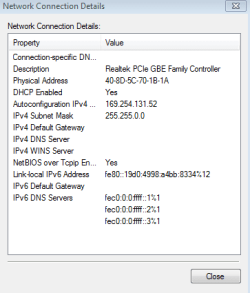
When I boot and the NIC is set to DHCP it shows a 162.254.x.x address. As I understand it that's a default address if the NIC can't find a DHCP server. It also shows only 100Mb as the speed.
I've disabled both "energy efficient Ethernet" and "green Ethernet" options. No dice
I have a Lynksys E4200 as my wireless router and DHCP server. All the other computers can access, both wired and wireless, no problem.
I've confirmed the cable works, I have made sure I've got the most up-to-date driver. 7.88.617.2014
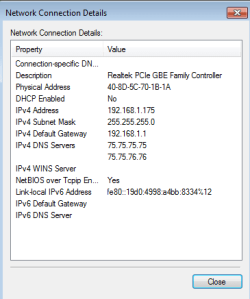
When I set a static IP 192.168.1.175, Default GW 192.168.1.1, and set the DNS to the same as the other computers on my network, sometimes it looks like I can connect, but only till I try with a browser or system update, then the connection fails. Also I noticed I don't see a Connection-specific DNS Suffix. See attached.
I seen a lot of other post about issues with this NIC and have tried most of the other suggestions, Uninstall the driver, reinstall....
Any help would be appreciated.
This is a new build:
MB GA-F2A88XM-D3H ver 3.1
AMD A10 5800k
Fresh Win-7 install, added SP1.
When I boot and the NIC is set to DHCP it shows a 162.254.x.x address. As I understand it that's a default address if the NIC can't find a DHCP server. It also shows only 100Mb as the speed.
I've disabled both "energy efficient Ethernet" and "green Ethernet" options. No dice
I have a Lynksys E4200 as my wireless router and DHCP server. All the other computers can access, both wired and wireless, no problem.
I've confirmed the cable works, I have made sure I've got the most up-to-date driver. 7.88.617.2014
When I set a static IP 192.168.1.175, Default GW 192.168.1.1, and set the DNS to the same as the other computers on my network, sometimes it looks like I can connect, but only till I try with a browser or system update, then the connection fails. Also I noticed I don't see a Connection-specific DNS Suffix. See attached.
I seen a lot of other post about issues with this NIC and have tried most of the other suggestions, Uninstall the driver, reinstall....
Any help would be appreciated.
Attachments
My Computer
- Computer type
- PC/Desktop
- Computer Manufacturer/Model Number
- Custome
- OS
- Win-7 64bit
- CPU
- AMD A10 5800k
- Motherboard
- Gigabyte GA-F2A88XM-D3H
- Memory
- HyperX 2x8GB
- Graphics Card(s)
- On-board