1970fp dvi Monitor won't fully sleep

Sammy888

Windows 7 x64 Pro.
Member
VIP
Local time
6:16 PM
Messages
156
Since I bought a new PC, the video card has a DVI connector so I thought why not use the cable that came with this monitor and connector it to via DVI.

Everything is good with the driver, no yellow explanation mark or any other errors. The monitor is correctly identified and there are no new updates for it. It is the "best driver" installed.

After visiting Dell's website, I seen this driver isn't listed in the Windows 7 64bit area, in fact, it's not listed in anything but Windows XP and older.

The problem is the Dell monitor will somewhat fall alseep but not fully. The monitor turns off but not completely, it goes into self test mode and moving the mouse or pressing a key awakes the monitor.

I never had this issue with XP and in fact, I don't have this issue when I connect my monitor to the VGA connector while running in Windows XP. I still use my XP machine often.

Is this a common or normal problem? Should I try running Windows XP Virtual PC to see if I have this problem there?
 

My Computer My Computer

At a glance

Windows 7, Windows 10 ProIntel Core i7 930G.SKILL F3-12800CL9T-6GBNQ 6GB DDR3 3X2GB DDR...ATI Radeon HD 5700
Computer type
PC/Desktop
Computer Manufacturer/Model Number
Asus P6X58D-E, Lenovo
OS
Windows 7, Windows 10 Pro
CPU
Intel Core i7 930
Motherboard
Asus X58 P6X58D-E
Memory
G.SKILL F3-12800CL9T-6GBNQ 6GB DDR3 3X2GB DDR3-1600 CL 9-9-9
Graphics Card(s)
ATI Radeon HD 5700
Hard Drives
Seagate Barracuda 1TB x2 SATA3 6GB/S 7200RPM 64MB
WD 1TB SATA3
PSU
Coolermaster Silent Pro 700W Modular Power Supply
Hello Sammy888, did you have to install the driver, or did Windows find it natively? You can try uninstalling the driver, and installing the driver again using compatibility mode.

Right click the driver installer and click on the compatibility tab. Chose XP as compatibility mode, then apply. Right click driver and choose Run As Administrator. See if that doesn't help. A Guy

compatibility.png
 

My Computer My Computer

At a glance

Windows 10 Home x64INTEL Core i5-750 Quad-Core 3.37GHzHyperX Fury Black Series 8GB (2 x 4GB) 1866MhzEVGA GeForce GTX 750 Superclocked 1GB 128-Bit...
Computer type
PC/Desktop
OS
Windows 10 Home x64
CPU
INTEL Core i5-750 Quad-Core 3.37GHz
Motherboard
ASUS P7P55D
Memory
HyperX Fury Black Series 8GB (2 x 4GB) 1866Mhz
Graphics Card(s)
EVGA GeForce GTX 750 Superclocked 1GB 128-Bit GDDR5
Monitor(s) Displays
LG 32MA68HY 32" IPS
Screen Resolution
1920 x 1080
Hard Drives
Samsung 840 Evo 120GB, SEAGATE 500GB Barracuda® 7200.12, SATA 3 Gb/s, 7200 RPM, 16MB cache
PSU
ANTEC TruePower New TP-550, 80 PLUS, 550W
Case
ANTEC Three Hundred Illusion
Cooling
COOLER MASTER Hyper 212 Plus, 4 x 120mm 1 x 140mm Noctua's
Internet Speed
85 + Mbps
Antivirus
Avast
Browser
Vivaldi
Power Settings

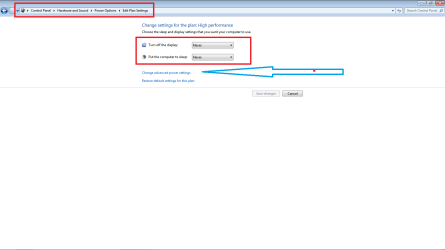
You do have the ability in Windows 7 to change your power settings thru the device manager. You have many options to choose. See the attached screenshot.

Adrian
 

Attachments

  • pwr.png
    pwr.png
    11.6 KB · Views: 37

My Computer My Computer

At a glance

Windows 7 7600 1 X64AMD PHENOM II X 550 PROCESSOR 3.1 ghzCorsair 4 gig ddr 3ati radeon 3300
Computer Manufacturer/Model Number
Custom Build
OS
Windows 7 7600 1 X64
CPU
AMD PHENOM II X 550 PROCESSOR 3.1 ghz
Motherboard
ASUS M4A78-TE
Memory
Corsair 4 gig ddr 3
Graphics Card(s)
ati radeon 3300
Sound Card
ati hd
Monitor(s) Displays
syncmaster 2033sw
Screen Resolution
1600X900 60 hz refresh
Hard Drives
twin_seagates SATA's 1 TB & 500 Gig, hitachi_slimline 160 gig
PSU
antec_550 watt
Case
cooler master GLite
Cooling
stock_heat sink
Internet Speed
20mbs up/ 1.5mbs down
Other Info
favorite child "stewie"
favorite dog "brian"
Thanks everyone.

I wasn't aware of the compatibilty feature also applied to the driver. Win 7 installed the driver on it's own. Adrian, I had previous played with the Advance settings and that didnt change things.

In any event, looks like the sleep issue is resolved.

It appears it may have been a hardware/software issue. This is what I did: I disconnected my DVI cable from monitor and connected the VGA to it that was also connected to my XP machine. When I started the XP PC, the monitor recalibrated itself (Auto Adjust) during the initial boot process up (BIOS screen). That was odd. I then checked my XP display settings when the boot process was completed and everything was normal.

I shut down XP, disconnected my VGA cable and plugged in my DVI cable and started Windows 7. I had the sleep mode set to 1 minute for testing purposes and it went to sleep without a hitch. The monitor didn't need to "Auto Adjust" at all. Go figure? :confused:
 

My Computer My Computer

At a glance

Windows 7, Windows 10 ProIntel Core i7 930G.SKILL F3-12800CL9T-6GBNQ 6GB DDR3 3X2GB DDR...ATI Radeon HD 5700
Computer type
PC/Desktop
Computer Manufacturer/Model Number
Asus P6X58D-E, Lenovo
OS
Windows 7, Windows 10 Pro
CPU
Intel Core i7 930
Motherboard
Asus X58 P6X58D-E
Memory
G.SKILL F3-12800CL9T-6GBNQ 6GB DDR3 3X2GB DDR3-1600 CL 9-9-9
Graphics Card(s)
ATI Radeon HD 5700
Hard Drives
Seagate Barracuda 1TB x2 SATA3 6GB/S 7200RPM 64MB
WD 1TB SATA3
PSU
Coolermaster Silent Pro 700W Modular Power Supply
Thanks everyone.

I wasn't aware of the compatibilty feature also applied to the driver. Win 7 installed the driver on it's own. Adrian, I had previous played with the Advance settings and that didnt change things.

In any event, looks like the sleep issue is resolved.

It appears it may have been a hardware/software issue. This is what I did: I disconnected my DVI cable from monitor and connected the VGA to it that was also connected to my XP machine. When I started the XP PC, the monitor recalibrated itself (Auto Adjust) during the initial boot process up (BIOS screen). That was odd. I then checked my XP display settings when the boot process was completed and everything was normal.

I shut down XP, disconnected my VGA cable and plugged in my DVI cable and started Windows 7. I had the sleep mode set to 1 minute for testing purposes and it went to sleep without a hitch. The monitor didn't need to "Auto Adjust" at all. Go figure? :confused:

XP to the rescue, lol. The how is not important. The important thing is your problem is solved. Just think of it as you figured it out :)

A Guy
 

My Computer My Computer

At a glance

Windows 10 Home x64INTEL Core i5-750 Quad-Core 3.37GHzHyperX Fury Black Series 8GB (2 x 4GB) 1866MhzEVGA GeForce GTX 750 Superclocked 1GB 128-Bit...
Computer type
PC/Desktop
OS
Windows 10 Home x64
CPU
INTEL Core i5-750 Quad-Core 3.37GHz
Motherboard
ASUS P7P55D
Memory
HyperX Fury Black Series 8GB (2 x 4GB) 1866Mhz
Graphics Card(s)
EVGA GeForce GTX 750 Superclocked 1GB 128-Bit GDDR5
Monitor(s) Displays
LG 32MA68HY 32" IPS
Screen Resolution
1920 x 1080
Hard Drives
Samsung 840 Evo 120GB, SEAGATE 500GB Barracuda® 7200.12, SATA 3 Gb/s, 7200 RPM, 16MB cache
PSU
ANTEC TruePower New TP-550, 80 PLUS, 550W
Case
ANTEC Three Hundred Illusion
Cooling
COOLER MASTER Hyper 212 Plus, 4 x 120mm 1 x 140mm Noctua's
Internet Speed
85 + Mbps
Antivirus
Avast
Browser
Vivaldi
Back
Top