3 TB drive can not be converted to GPT

charlesh3

New member
Local time
1:26 AM
Messages
3
Hi -

My c: drive is an SSD (120 GB) and the e: drive is a 3 TB internal hard drive that appears as 2 TB in Disk Manager.

I believe this is because there is a 100 MB partition on the e: drive titled "System Reserved" that is a System, Active, Primary Partition. The other partitions (2 TB and 746 GB) are unallocated currently.

When I installed Win 7 Ultimate, I didn't ask for any system info to be put on the e: drive. Can I simply format the e: drive and then convert it to GPT?

Chuck
 

My Computer My Computer

At a glance

Win 7 UltimateI7-377016 GB
OS
Win 7 Ultimate
CPU
I7-3770
Motherboard
MSI Z77
Memory
16 GB
Hard Drives
120 GB SSD and 3 TB
Had you formatted the 3tb before in this machine? If not check for a BIOS update to enable drives that large.

Try wiping HD first with Diskpart Clean Command followed by Convert GPT command, then format in DIsk Mgmt.
 
Yes, it has UEFI

Gerg -

The MSI Z77 series mother board that I have supports UEFI and in the BIOS the "UEFI Shell" is enabled.

Since Disk Manager reports 3 TB, I suppose the BIOS is allowing drives bigger than 2 TB.

If I wipe the HD, that will wipe out the System partition. Does that matter? Is anything really there since I installed Windows onto the c: drive?


Chuck
 

My Computer My Computer

At a glance

Win 7 UltimateI7-377016 GB
OS
Win 7 Ultimate
CPU
I7-3770
Motherboard
MSI Z77
Memory
16 GB
Hard Drives
120 GB SSD and 3 TB
Post a fully expanded shot of disk management.

Did you ever have windows installed on the 3 TB drive ? Did you have it connected when you installed windows to the ssd ?
 

My Computer My Computer

At a glance

Windows 10 Pro x64Intel Core i7 6700KGSkill TridentZ RGB 16GB 3600 16-16-16-36EVGA GTX 980 Ti SC x2
Computer type
PC/Desktop
Computer Manufacturer/Model Number
Skylake Special #666
OS
Windows 10 Pro x64
CPU
Intel Core i7 6700K
Motherboard
Asus Sabertooth Z170 Mark 1
Memory
GSkill TridentZ RGB 16GB 3600 16-16-16-36
Graphics Card(s)
EVGA GTX 980 Ti SC x2
Sound Card
Realtek High Definition
Monitor(s) Displays
AOC G2460PG
Screen Resolution
1920 x 1080 144Hz
Hard Drives
Samsung 860 Pro 256GB, Seagate Barracuda 4TB x2
PSU
EVGA 1000 P2, EVGA White Custom Braided Cables
Case
Corsair Vengeance C70 Gunmetal Black
Cooling
Corsair H100i v2, Corsair ML120 x2, Thermal Grizzly Kryonaut
Keyboard
Logitech G910 Orion Spectrum
Mouse
Logitech G700s
Internet Speed
Verizon Fios Quantum Gateway 75/75
Antivirus
Windows Defender, Malwarebytes Free 3.8.3
Browser
Chrome
Other Info
Corsair SP120 x4, LG Blu-ray Drive, Durabrand HT-395 100 Watt Dolby Digital Amp, Corsair H2100 Wireless 7.1 Headset
Thanks for the additional information.

Please post back a screenshot of your maximized Disk Management drive map and listings:

1. Type Disk Management in Start :orb: Search box.
2. Open Disk Mgmt. window and maximize it.
3. Type Snipping Tool in Start Search box.
4. Open Snipping Tool, choose Rectangular Snip, click New, draw a box around full drive map and all listings.
5, Save Snip, attach using paper clip in Reply Box.

Tell us what is on each partition.
 
Greg -

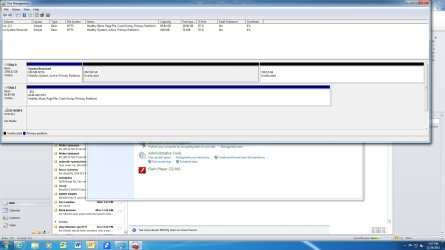
I've attached a Disk Management screen capture. There's nothing in the 2047 and 746 GB partitions on the e: drive. Since parrt of my question is "what's in the 100 MB Sys partition?" I don't have an answer for you.

To answer other questions, the 3 TB drive is new and has never had Windows or anything else on it. When I installed Win 7 Ultimate 64 bit, I don't believe there was any option for enabling / disdabling UEFI. Since Disk Management says the drive is 3 TB, can't we assume UEFI is working?

Chuck
 

Attachments

  • Disk Manager.jpg
    Disk Manager.jpg
    168.4 KB · Views: 12

My Computer My Computer

At a glance

Win 7 UltimateI7-377016 GB
OS
Win 7 Ultimate
CPU
I7-3770
Motherboard
MSI Z77
Memory
16 GB
Hard Drives
120 GB SSD and 3 TB
You may have an EFI mobo but WIn7 is not installed in EFI mode since there are no EFI boot partitions involved. This is fine, actually less trouble. You would have had a much more complicated job installing to UEFI (Unified Extensible Firmware Interface) - Install Windows 7 with - Windows 7 Forums

Your System boot files are booting C from the larger HD, probably because you never deleted the System Reserved partition, kept that HD plugged in to a preceding drive slot during install, so that the installer wrote the boot files to the first Active partition. We see this a lot.

To resolve it, Mark C Partition Active, power down to unplug the data cable from Disk0, swap the cable to Win7 HD so that it becomes Disk0, set first to boot in BIOS.

Now boot into Win7 DVD or System Repair Disk to run Startup Repair - Run up to 3 Separate Times to write the System boot files correctly to C until it becomes marked System Active.

Now you can plug back in the other HD, wipe it with Diskpart Clean Command, format in Disk Mgmt.
 
Back
Top