>80% CPU usage at "High Performance" power option

Alvin93

New member
Local time
10:24 PM
Messages
18
As the title implies, my HP Pavilion dv6 running Windows 7 HomePremium 64bit goes >80% CPU usage at that option. While when I changed it to "HP Recommended" option it goes normal again.

It's not like I have a problem with the "HP Recommended" settings, but it's just wierd: just changing the screen brightness and no-sleep setting could make CPU Usage >80%? :huh:

Anyone knows why did this happen? I just got my HDD changed by warranty 1 week ago so the windows is still fresh + added MalwareBytes.
 

My Computer My Computer

Computer Manufacturer/Model Number
HP Pavilion dv6-2130TX
OS
Windows 7 Home Premium 64-bit
CPU
Intel Core i5 @ 2.27GHz, Arrandale 32nm Technology
Motherboard
Hewlett-Packard 3659 (CPU)
Memory
4.0GB Dual-Channel DDR3 @ 532MHz
Graphics Card(s)
NVIDIA GeForce GT 230M
Sound Card
IDT High Definition Audio CODEC
Monitor(s) Displays
Generic PnP Monitor
Screen Resolution
1366x768@60Hz
Hard Drives
600GB SAMSUNG HM641JI (SATA)
Keyboard
Microsoft Natural PS/2 Keyboard with HP QLB
Mouse
Synaptics PS/2 Port TouchPad
Internet Speed
ADSL <50kBps
I think it's a thing to do with Intel CPUs. AMD have a technology called 'Cool & Quiet' and it means that when there's no demand for a high clock, the frequency will automatically go down. I think enabling 'High Performance' mode in the battery options since they clock cannot go anywhere, the usage will increase.
It's only from personal experience that it seems to be Intel, I've never heard of this problem from AMD CPU users. I think it's just OK to leave the power mode to 'Balanced'. This way, it won't waste power.
 

My Computer My Computer

Computer type
PC/Desktop
OS
10 Home x64
CPU
Intel Core i5 4670K
Motherboard
Gigabyte GA-Z87-D3HP
Memory
Corsair XMS3 8GB DDr3 1600MHz
Graphics Card(s)
Sapphire NITRO Radeon R9 Fury
Sound Card
Asus Xonar DX
Monitor(s) Displays
Acer H236HLbmjd
Screen Resolution
1920x1080
Hard Drives
Force GS 128GB - Seagate 320GB - WD Caviar Black 1TB - WD Caviar Blue 500GB
PSU
EVGA SuperNOVA 650 P2
Case
Silverstone Raven 3 RV03B-W
Keyboard
Topre Realforce 104UG-HiPro
Mouse
Mionix Naos 7000
Internet Speed
76/4 On a good day
Antivirus
SmartScreen
Browser
Internet Explorer 11
Madsupra is absolutely correct.

On an Intel CPU "Cool and Quiet" is called Speedstep, but it does the same thing.

Effectively by putting it to High Performance, you are disabling Speedstep and thus using more power/clock cycles because the CPU can't cycle down.

There is NO need to use High Performance, it is one of the most worst named settings ever. Balanced (or "HP Recommended" in your case, but their the same thing) will give you exactly the same performance, but will also allow the CPU to idle.

In truth, what your seeing isn't the CPU working overtime, it's the fact it can't Idle, so it's being confused, and thinking it must be working hard, and telling Windows this. WIndows doesn't "magically" know what your CPU is doing, it reports what the CPU is telling it.

In truth, it should be called "Use lots of power for no reason" not "High Performance"

Hope it helps :)
 

My Computer My Computer

Computer type
PC/Desktop
Computer Manufacturer/Model Number
Medion Erazer (note to self: insert model number) - with custom additions
OS
Windows 10 Pro x64
CPU
Intel Core i5 7400 @ 3.00GHz
Motherboard
OEM supllied with PC
Memory
8GB 2133Mhz DDR4 (OEM supplied)
Graphics Card(s)
Gygabyte Windforce GTX 1050Ti (Factory Overclocked)
Sound Card
Realtek
Monitor(s) Displays
Acer Al1980 + HKC
Screen Resolution
1360*768(HKC) / 1280*1024(Acer)
Hard Drives
1TB Toshiba
1TB WD Caviar Green
120GB Samsung Evo 840
PSU
OEM supplied (no power rating on case)
Case
OEM Supplied
Cooling
Stock
Keyboard
Logitech Wireless
Mouse
Logitect Wireless
Internet Speed
40Mb/s Down 10Mb/s Up
Antivirus
Defender
Browser
Firefox
Hmmm, I see... Well, thanks for the explanation guys :).
I'll just use "Power Saver" mode from now on :p
 

My Computer My Computer

Computer Manufacturer/Model Number
HP Pavilion dv6-2130TX
OS
Windows 7 Home Premium 64-bit
CPU
Intel Core i5 @ 2.27GHz, Arrandale 32nm Technology
Motherboard
Hewlett-Packard 3659 (CPU)
Memory
4.0GB Dual-Channel DDR3 @ 532MHz
Graphics Card(s)
NVIDIA GeForce GT 230M
Sound Card
IDT High Definition Audio CODEC
Monitor(s) Displays
Generic PnP Monitor
Screen Resolution
1366x768@60Hz
Hard Drives
600GB SAMSUNG HM641JI (SATA)
Keyboard
Microsoft Natural PS/2 Keyboard with HP QLB
Mouse
Synaptics PS/2 Port TouchPad
Internet Speed
ADSL <50kBps
I'm a little surprised at the arguments given. The high performance power plan ramps up clock speed to the max and keeps it at max all the time irrespective of cpu load. But thats about clock speed, what does it have to do with cpu load? CPU load will vary depending on what you're doing- if you're number crunching/ photoshopping etc. it'll be high, if you're just posting in SF, it'll be slow.

Unless the OP's doing cpu intensive jobs all day, the cpu usage as seen in the task manager should come down irrespective of the power plan, once the job is over. In fact with the high performance plan, jobs should get executed more quickly so the cpu usage should be low most of the time.

I would suspect a software/driver conflict in this case, you can do some intelligent detective work or run a clean boot procedure to determine the culprits. While you're at it, also run a malware scan with malwarebytes.
 

My Computer My Computer

Computer Manufacturer/Model Number
Too many to describe...
OS
Windows 7 x64 pro/ Windows 7 x86 Pro/ XP SP3 x86
I'm a little surprised at the arguments given. The high performance power plan ramps up clock speed to the max and keeps it at max all the time irrespective of cpu load. But thats about clock speed, what does it have to do with cpu load? CPU load will vary depending on what you're doing- if you're number crunching/ photoshopping etc. it'll be high, if you're just posting in SF, it'll be slow.

So very true.

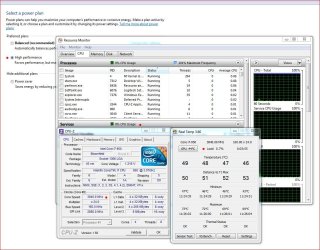
And to test this: Change your power plan, open Resource monitor and note your CPU load usage. You can also open CPU-Z to check that the processor is running at max speed, and also use Real Temp to check the loads put on the CPU. Here's a screen....

Power Plan Setting.JPG

Note there is virtually no CPU load as Bill stated. You do however have the CPU running at max frequency, again, as Bill stated.
 

My Computer My Computer

Computer type
PC/Desktop
Computer Manufacturer/Model Number
Custom built by me.
OS
Windows 10 Pro
CPU
Intel Core i7-4770K (3.5Ghz)
Motherboard
Gigabyte G1 Sniper 5 (F10 Bios)
Memory
32 gig Corsair Dominator Platinum (4x8Gig)
Graphics Card(s)
Sapphire Tri-X R9 Fury
Sound Card
Soundblaster ZXR
Monitor(s) Displays
NEC PA242W 24" LCD Monitor
Screen Resolution
1920 x 1200
Hard Drives
Primary - Samsung 850 Pro (512gig), Samsung 840 Pro (256gig), 2TB WD Caviar Black.
PSU
EVGA Supernova 1000 G2
Case
Cooler Master HAF X
Cooling
Corsair H100i with Corsair Air Series SP120 Quiet Fans
Keyboard
Logitech Wireless Wave
Mouse
Logitech Performance MX
Internet Speed
High Speed Cable
Antivirus
Norton Security
Browser
IE11
Other Info
Memory Timings - 1866MHz @ 9-9-9-27-1T @ 1.5 volts
Back
Top