A question about the virtual pc

Stefany93

New member
Power User
VIP
Local time
12:09 PM
Messages
131
Location
Bulgaria
Hello guys,

I have been wondering for some time about the virtual pc option, and I can't fully understand what it does. I have read numerios documents about it and I still can't get it. My question is, what is its primary purpose, can I install another OS on it and is it something like a '' sandbox '' for files? Since I am still learning how to install Win 7 if the virtual pc offers an installation of another OS it will be great to test myself there, but I am still very confused about that stuff.

Please help!
Best Regards
Stefany
 

My Computer

Computer Manufacturer/Model Number
The cousin of our lawyer sold it to us.
OS
Windows 7 Ultimate
CPU
Dual Core
Memory
2GB RAM
Graphics Card(s)
8800 something
Monitor(s) Displays
Small monitor, and not flat
Hard Drives
320 GB HDD
Cooling
It has a strong ventilator, I can perfectly hear it :P
Mouse
Logitech
Internet Speed
No idea.
You seem to have a good perception of it. Virtual PC allows you to create virtual computers, which you can install operating systems on like a real one. It is a good tool for "sandbox".

Since you have Windows 7 Ultimate, you can get XP Mode for free. That is a virtual XP machine.

Here's a link: Download Windows XP Mode
 

My Computer

Computer Manufacturer/Model Number
Custom
OS
Windows 7 Professional x64
CPU
Intel i7 2600K OC'd @ 4620 MHz
Motherboard
Asus P8Z68-V Pro
Memory
16GB GSkill Sniper 2133 Mhz (4x4GB)
Graphics Card(s)
EVGA GeForce GTX 480 SuperClocked+
Sound Card
Realtek High Definition Audio
Monitor(s) Displays
2x Acer S273HLbmii 27"
Screen Resolution
2 x 1920x1080
Hard Drives
64GB Crucial M4 SSD

Storage: Hitachi 1TB 5400RPM, Samsung 1.5TB 5400RPM
PSU
Corsair HW Series 750w (modular)
Case
Cooler Master HAF 932 Advanced Blue Edition
Cooling
CM Hyper 212+ CPU cooler, 3x 230mm + 1x 140mm case fans
Keyboard
Logitech MK320 (wireless)
Mouse
Logitech MK320 (wireless)
Internet Speed
30 Mb/s : 2 Mb/s
Stefany, a virtual sytem (some call it Partition) is essentially another PC on your system. You can install another Windows OS (XP, Vista, Win7, even Win98), Linux, Solaris or even OS-X (although that is not recommended) on it. It shares the resources (RAM and Disk space) with your Host system.

If you want to venture into that, I highly recommend Virtual Box. It is the easiest to setup and operate. Make sure you activate the Guest additions within your guest OS. Then you have seamless operation of the guest and the host (at the same time).

There are many people here who are real experts (not me though). Do not hesitate to ask further questions as they come up.
 

My Computer

Computer Manufacturer/Model Number
HP, Dell, Gateway, Toshiba - 4 laptops and 2 desktops
OS
Vista, Windows7, Mint Mate, Zorin, Windows 8
CPU
from 1.6GHz Duo to i7
Monitor(s) Displays
2x HP w2207
Hard Drives
5x HDD, 7x SSD, 12x Externals
Keyboard
with trackball - no mices
Mouse
Trackball mice
Internet Speed
DSL 6000
I looked at it briefly and was not impressed.

Yes, it works and yes you can install an OS, install programs, etc. The "virtual PC" is just another file on your "real PC".

But there are limitations.

How much RAM are you willing to let it have?

How much of a reduction in response time are you willing to tolerate compared to what you are accustomed?

You might not be impressed with the graphics end of things.

But all you can do is try. You can get a feeling for it in a day or two.

I was considering it in order to run a 16 bit application that won't run on 64 bit Windows.

You may decide that dual-booting another OS is preferable.
 

My Computer

Computer type
PC/Desktop
Computer Manufacturer/Model Number
Ignatz Special; 4 speed manual gearbox; factory air conditioning; one of one
OS
Windows 7 Home Premium SP1, 64-bit
CPU
Intel Skylake i5-6600K, not overclocked
Motherboard
AsRock Z170M Extreme 4, micro ATX
Memory
8 GB HyperX DDR4-2666 (2 x 4 GB)
Graphics Card(s)
none; graphics are integrated on CPU
Sound Card
onboard: Realtek ALC1150; external: USB Behringer UF0-202
Monitor(s) Displays
Dell S2340M 23 inch IPS
Screen Resolution
1600 x 900
Hard Drives
System: Crucial MX100 series SSD, 128 GB;
Data: Samsung Spinpoint 103SJ, 1 TB;
Backup: WD Caviar Green WD30EZRX-00D8PB0, 3 TB
PSU
Rosewill SilentNight 500 watt fanless, semi-modular
Case
Antec Solo II
Cooling
Noctua NH-U12S; Noctua F12 intake, Noctua S12A exhaust
Keyboard
Microsoft 200 6JH-00001 USB
Mouse
Dell or Microsoft optical wired; USB
Antivirus
Microsoft Security Essentials and Malwarebytes Premium
Browser
Pale Moon
Other Info
All fans PWM; speeds at idle: CPU circa 500 rpm; intake circa 600 rpm; exhaust circa 600 rpm; CPU temps 27 idle and 47 C load in a warm room (27 C/81 F) when running Intel Extreme Tuning Utility stress test.
I looked at it briefly and was not impressed.

Yes, it works and yes you can install an OS, install programs, etc. The "virtual PC" is just another file on your "real PC".

But there are limitations.

How much RAM are you willing to let it have?

How much of a reduction in response time are you willing to tolerate compared to what you are accustomed?

You might not be impressed with the graphics end of things.

But all you can do is try. You can get a feeling for it in a day or two.

I was considering it in order to run a 16 bit application that won't run on 64 bit Windows.

You may decide that dual-booting another OS is preferable.
My experience is just the opposite. Ubuntu in vBox is really fast for e.g. picture manipulation, the internet (but I use Chrome in lieu of FF which is a dog) and any other operation I have thrown at it. I guess you could not do any gaming there, but that is not my thing anyhow.

I have a 2.5GHz duo core CPU and vBox got 1GB of my total 3GBs, plus 25GB of my SSD space.

The beauty of that setup is that I can seamlessly switch between the host and the guest (courtesy of the Guest Additions) and I still have access to my Win7 host taskbar and my tweaked sidebar from my Vista system as well as my Win7 Rocket Dock. I sometimes use host features (e.g. snips) on the Ubuntu guest machine which runs (nearly - less the Win7 bars) full screen on a 22" monitor.
 

My Computer

Computer Manufacturer/Model Number
HP, Dell, Gateway, Toshiba - 4 laptops and 2 desktops
OS
Vista, Windows7, Mint Mate, Zorin, Windows 8
CPU
from 1.6GHz Duo to i7
Monitor(s) Displays
2x HP w2207
Hard Drives
5x HDD, 7x SSD, 12x Externals
Keyboard
with trackball - no mices
Mouse
Trackball mice
Internet Speed
DSL 6000
Thank you very much for the useful tips, guys. Now I completely understood what that thing meant :)

Merry Xmas everyone!
 

My Computer

Computer Manufacturer/Model Number
The cousin of our lawyer sold it to us.
OS
Windows 7 Ultimate
CPU
Dual Core
Memory
2GB RAM
Graphics Card(s)
8800 something
Monitor(s) Displays
Small monitor, and not flat
Hard Drives
320 GB HDD
Cooling
It has a strong ventilator, I can perfectly hear it :P
Mouse
Logitech
Internet Speed
No idea.
You already got good explanations, but let me add something.

A virtual machine is simply a "computer" running on virtualized hardware, in Windows it means you can have a virtual machine running as an almost real computer in an Explorer process (window or full screen). Depending on which virtualization application you use to run a virtual machine, it can really be almost as any real computer. The most common free applications to use and start testing and ""playing" with virtual machines are Microsoft Virtual PC, Oracle VirtualBox and VMware Player. You can read more about virtual machines here: Virtual machine - Wikipedia, the free encyclopedia.

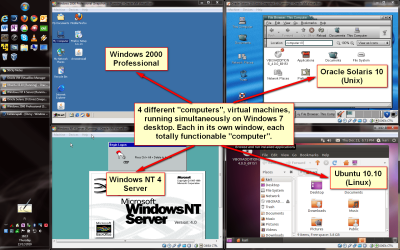
Some examples. Here you can see five operating systems running on single computer. Four guest virtual machines, two older versions of Windows (NT 4 and 2000), alongside with Linux (Ubuntu) and Unix (Solaris), all four running in explorer windows on my host computer's Windows 7 desktop. I can freely and seamless move between different operating systems, mouse and keyboard are captured by currently active one. All computers are shown in my network as individual computers, with their own IP-address:

VPC_1.png

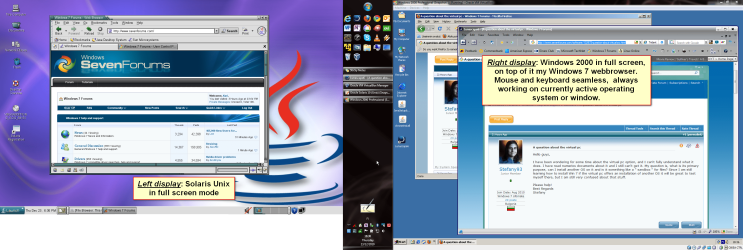
Here a scenario that I really like and use quite often. Windows 7 on dual screen system. Screen 1 on the left running Solaris Unix in full screen, screen 2 on the right Windows 2000 in full screen. Because taskbar is visible, I can also use all Windows 7 resources and applications, as here in screenshot I'm having my Win7 webbrowser on top of the Windows 2000 window:

VPC_2.png

Virtual computing is really fun!

Kari
 
Last edited:

My Computer

Computer type
Laptop
Computer Manufacturer/Model Number
HP ENVY 17-1150eg
OS
Windows 10 Pro x64 EN-GB
CPU
1.6 GHz Intel Core i7-720QM Processor
Memory
6 GB
Graphics Card(s)
ATI Mobility Radeon HD 5850 Graphics
Sound Card
Beats sound system with integrated subwoofer
Monitor(s) Displays
17" laptop display, 22" LED and 32" Full HD TV through HDMI
Screen Resolution
1600*900 (1), 1920*1080 (2&3)
Hard Drives
Internal: 2 x 500 GB SATA Hard Disk Drive 7200 rpm
External: 2TB for backups, 3TB USB3 network drive for media
Cooling
As Envy runs a bit warm, I have it on a Cooler Master pad
Keyboard
Logitech diNovo Media Desktop Laser (bluetooth)
Mouse
Logitech Performance Mouse MX
Internet Speed
50/10 Mbps VDSL
Antivirus
Windows Defender 4.3.9431.0
Browser
Maxthon 3.5.2., IE11
Kari, this is a very nice posting. Unfortunately I have to give you virtual reps because of the 15.
 

My Computer

Computer Manufacturer/Model Number
HP, Dell, Gateway, Toshiba - 4 laptops and 2 desktops
OS
Vista, Windows7, Mint Mate, Zorin, Windows 8
CPU
from 1.6GHz Duo to i7
Monitor(s) Displays
2x HP w2207
Hard Drives
5x HDD, 7x SSD, 12x Externals
Keyboard
with trackball - no mices
Mouse
Trackball mice
Internet Speed
DSL 6000
Thanks, Wolfgang. It's the thought that counts :)
 

My Computer

Computer type
Laptop
Computer Manufacturer/Model Number
HP ENVY 17-1150eg
OS
Windows 10 Pro x64 EN-GB
CPU
1.6 GHz Intel Core i7-720QM Processor
Memory
6 GB
Graphics Card(s)
ATI Mobility Radeon HD 5850 Graphics
Sound Card
Beats sound system with integrated subwoofer
Monitor(s) Displays
17" laptop display, 22" LED and 32" Full HD TV through HDMI
Screen Resolution
1600*900 (1), 1920*1080 (2&3)
Hard Drives
Internal: 2 x 500 GB SATA Hard Disk Drive 7200 rpm
External: 2TB for backups, 3TB USB3 network drive for media
Cooling
As Envy runs a bit warm, I have it on a Cooler Master pad
Keyboard
Logitech diNovo Media Desktop Laser (bluetooth)
Mouse
Logitech Performance Mouse MX
Internet Speed
50/10 Mbps VDSL
Antivirus
Windows Defender 4.3.9431.0
Browser
Maxthon 3.5.2., IE11
Thank you Kari for the nice pictures and explanation. Now I think I have overcomed my fears and will going to install a virtual pc on my pc and practise on it installing Windows 7. If everything goes well, I will post here in a few days. But if everything falls apart, I wouldn't be able to post because the pc will be repairing :D :D :D
 

My Computer

Computer Manufacturer/Model Number
The cousin of our lawyer sold it to us.
OS
Windows 7 Ultimate
CPU
Dual Core
Memory
2GB RAM
Graphics Card(s)
8800 something
Monitor(s) Displays
Small monitor, and not flat
Hard Drives
320 GB HDD
Cooling
It has a strong ventilator, I can perfectly hear it :P
Mouse
Logitech
Internet Speed
No idea.
You know, you can also download dozens of free virtual machines, ready to be run in for instance VirtualBox. Here's one site worth to check out: VirtualBoxImages.com FREE Downloads | VirtualBoxImages.com

Notice that these are so called virtual appliances (= a virtual machine already containing an operating system). Appliances on this site are all in vdi-format (virtual disk image). It is the default vhd (virtual hard disk) format of VirtualBox. Other virtualization applications have different default formats, but normally you can mount (=use) vhd's on other virtualization applications as well. For instance, you can easily mount a Virtual PC .vhd image to a VirtualBox machine.

This tutorial might interest you. The steps to create a VirtualBox virtual machine described are globally valid, you can follow those steps to install OS to a vm (virtual machine). Just choose the install media you want to use, ISO image or CD/DVD, and follow the procedure described in part 1 of that tutorial, and the launch then vm and follow instructions on screen.

If you want to practice, you could for instance download a free 90-trial of Windows 7 Enterprise here, and install it. The tutorial I mentioned tells you how to do it in VirtualBox, this tutorial shows how to install a free and working XP in Virtual PC.

If you need help setting up your first virtual machines, post your issues on our virtualization section. All our virtualization tutorials can be found here.

Kari
 

My Computer

Computer type
Laptop
Computer Manufacturer/Model Number
HP ENVY 17-1150eg
OS
Windows 10 Pro x64 EN-GB
CPU
1.6 GHz Intel Core i7-720QM Processor
Memory
6 GB
Graphics Card(s)
ATI Mobility Radeon HD 5850 Graphics
Sound Card
Beats sound system with integrated subwoofer
Monitor(s) Displays
17" laptop display, 22" LED and 32" Full HD TV through HDMI
Screen Resolution
1600*900 (1), 1920*1080 (2&3)
Hard Drives
Internal: 2 x 500 GB SATA Hard Disk Drive 7200 rpm
External: 2TB for backups, 3TB USB3 network drive for media
Cooling
As Envy runs a bit warm, I have it on a Cooler Master pad
Keyboard
Logitech diNovo Media Desktop Laser (bluetooth)
Mouse
Logitech Performance Mouse MX
Internet Speed
50/10 Mbps VDSL
Antivirus
Windows Defender 4.3.9431.0
Browser
Maxthon 3.5.2., IE11
Kari, this is a very nice posting. Unfortunately I have to give you virtual reps because of the 15.

That cracked me up. :D
 

My Computer

Computer Manufacturer/Model Number
"WartHog Wonder"
OS
Windows 7 Ultimate x64 SP1
CPU
AMD Phenom II X4, 945, Quad Core, 3.0 GHz
Motherboard
Gigabyte MA785GM-US2H
Memory
8GB G.Skill PI Black PC2 6400 * 4-4-4-12 @1.9v
Graphics Card(s)
NVIDIA 512MB 9600GT
Sound Card
Realtek ALC889A Chipset (onboard)
Monitor(s) Displays
2 x 22" Hans-G LCD
Screen Resolution
1680x1050
Hard Drives
650GB 7200RPM WD Caviar Black
PSU
OCZ 700w GameXstream
Case
Cooler Master CM 690 Midtower
Cooling
Xigmatek Gaia SD1283 CPU Cooler, Assorted 120mm case fans
Keyboard
Dell SK-8115
Mouse
Microsoft Comfort Optical Mouse 3000
Other Info
Liteon iHAS 424-98B 24x DVD/CD Writer
Back
Top