Advice on how to create a bootable clone of my Windows 7 HD

daz1761

New member
Local time
7:54 PM
Messages
22
Sorry to ask a question that has been asked quite frequently, but I need some advice on how to make a bootable clone of my Windows 7 HD to a brand new spanking HD. The reason I am asking this is because my fully licienced Windows 7 has been running on a 6 year old 320gb WD hard drive and I'm worried one day its going to pack up. I have a new Samsung F1 1TB (currently mac format) that I want to clone onto...

As I am really new to Windows and its achitecture I would just like a point in the right direction i.e. what software to use, etc. as there seems to be so many ways and options. I have no partitions either, and I'm not fussed on having any on the Samsung, only if recommended though.

This shouldn't make any difference, but I am actually running Windows 7 on a MacPro, but as I mentioned earlier, on a dedicated hard drive and not a bootcamp partition.

Thanks in advance!
 

My Computer My Computer

At a glance

Windows 7 Home 64bit
OS
Windows 7 Home 64bit
On this forum, I'd guess the preferred software for that would be Macrium.

But most people would use imaging, rather than a clone, to protect against a possible drive failure.

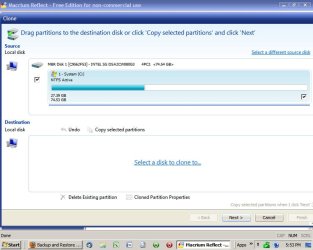
Below is the cloning screen in Macrium 5.0 Free Edition.
 

Attachments

  • Untitled-1.jpg
    Untitled-1.jpg
    68.4 KB · Views: 72

My Computer My Computer

At a glance

Windows 7 Home Premium SP1, 64-bitIntel Skylake i5-6600K, not overclocked8 GB HyperX DDR4-2666 (2 x 4 GB)none; graphics are integrated on CPU
Computer type
PC/Desktop
Computer Manufacturer/Model Number
Ignatz Special; 4 speed manual gearbox; factory air conditioning; one of one
OS
Windows 7 Home Premium SP1, 64-bit
CPU
Intel Skylake i5-6600K, not overclocked
Motherboard
AsRock Z170M Extreme 4, micro ATX
Memory
8 GB HyperX DDR4-2666 (2 x 4 GB)
Graphics Card(s)
none; graphics are integrated on CPU
Sound Card
onboard: Realtek ALC1150; external: USB Behringer UF0-202
Monitor(s) Displays
Dell S2340M 23 inch IPS
Screen Resolution
1600 x 900
Hard Drives
System: Crucial MX100 series SSD, 128 GB;
Data: Samsung Spinpoint 103SJ, 1 TB;
Backup: WD Caviar Green WD30EZRX-00D8PB0, 3 TB
PSU
Rosewill SilentNight 500 watt fanless, semi-modular
Case
Antec Solo II
Cooling
Noctua NH-U12S; Noctua F12 intake, Noctua S12A exhaust
Keyboard
Microsoft 200 6JH-00001 USB
Mouse
Dell or Microsoft optical wired; USB
Antivirus
Microsoft Security Essentials and Malwarebytes Premium
Browser
Pale Moon
Other Info
All fans PWM; speeds at idle: CPU circa 500 rpm; intake circa 600 rpm; exhaust circa 600 rpm; CPU temps 27 idle and 47 C load in a warm room (27 C/81 F) when running Intel Extreme Tuning Utility stress test.
I have no partitions either, and I'm not fussed on having any on the Samsung, only if recommended though.

Give some thought to partitioning the 1T HD if you plan to start imaging your system. It will make that easier in the future. A system image will copy your system partition with the imaging software I've used.
Here's an example of what I'd do. But keep in mind if you have that 100mb Windows partition, ask about that here. I never dealt with it.
1. Install the 1tb.
2. Partition the 1tb with a 100gb partition, and a partition with all the rest.
Let's call them D: for the 100gb, and E: for the remaining 900gb. Your old drive is C:. You can set the D: as active when you partition. Don't know if Macrium will do that for you when you restore an image.
3. Move all the non-system files from the old drive C: to the new E:. If you don't already know, make sure you know what the system files are. If you installed programs into folders other than the default Win 7 install folders, leave them on C: This should get your old drive well below 60-70gb. Check C: properties to see what you have.
4. Install Macrium and make a system image of C:, putting it on E: Make 2 images if you really want to be safe. This is insurance, and getting familiar with Macrium.
Burn the Macrium recovery disk or use the WinPE Macrium disk whs put together. You can find it on this forum, so you could just burn that and and use the CD for all your imaging. It's a quick download and burn and works well.
5. In Win 7, shrink your C: to less than the size of your 100gb E: partition. 90gb should do. Most imaging tools won't restore to a smaller partition than the image was taken from.
6. Take another image (or 2) of your C: to the E: This is the image you will restore to the D:
7. Restore that image to the D: Since source and target is the same drive it will restore slower than "normal."
8. Reboot, and change your bios to point to the new drive active partition.
Should boot up, now named C:. Your old drive will now be E: You can then partition that that entire drive as a plain primary partition. It'll be good to keep images on, but if it's flaky you might want to replace it, and also get an external drive for a second image.
Just an outline there. Don't do anything you're not sure of. Don't want you lose data or your system. Ask here if you have a question. Lots of help here.
 

My Computer My Computer

At a glance

Windows 7 Ultimate x64QuadCore Intel Core i7 920, 2666 MHz (20 x 133)6134 MB (DDR3-1333 DDR3 SDRAM)(2 - SLI) NVIDIA GeForce GTS 250 (1024 MB)
Computer Manufacturer/Model Number
Home Built
OS
Windows 7 Ultimate x64
CPU
QuadCore Intel Core i7 920, 2666 MHz (20 x 133)
Motherboard
Asus P6T
Memory
6134 MB (DDR3-1333 DDR3 SDRAM)
Graphics Card(s)
(2 - SLI) NVIDIA GeForce GTS 250 (1024 MB)
Sound Card
Onboard Realtek ALC888/1200 @ Intel 82801JB IC
Monitor(s) Displays
HDMII
Screen Resolution
1280 x 800
Hard Drives
Crucial M4 (64 GB SSD)
WD Caviar Blacks
WD5001AALS-00J7B1 ATA Device (465 GB)
WD5001AALS-00L3B2 ATA Device (465 GB)
WD Elements USB External (250 GB)
PSU
Corsair 550
Case
iStarUSA S-10000BL Black
3. Move all the non-system files from the old drive C: to the new E:. If you don't already know, make sure you know what the system files are. If you installed programs into folders other than the default Win 7 install folders, leave them on C:
Well, what can I say. Very helpful advice :-)

As I am so new to windows with a mac background, I am just wondering why an image is better than a clone? Its just on the mac Ive been cloning for years and all lincenced software, desktop alias, etc. have not been altered in the slightest, and you can boot up from the new disc by changing the startup options.

Anyway, I take it you mean non-system as in my dvd folder with all my films, and other media type stuff? Regarding programs, I've got very little so getting stuff on the C: drive to below 90GB should be fine :-)

Theres a problem regarding the bios as I dont think I can get near it as this computer is a MacPro. But there is a bootcamp startup alias on my desktop which enables me to get to all other bootable drives. If I can get to the bios, how do you do it?

Regarding Macrium, I've already downloaded it and fair doos it looks a nice bit of software so if this goes well I might just purchase it :-)

In the mean time, I will format my Samsung 1TB to MSdos on my mac laptop, then plug it into the MacPro via eSATA ready to format to NTFS!

Many thanks!
 

My Computer My Computer

At a glance

Windows 7 Home 64bit
OS
Windows 7 Home 64bit
As I am so new to windows with a mac background, I am just wondering why an image is better than a clone? Its just on the mac Ive been cloning for years and all lincenced software, desktop alias, etc. have not been altered in the slightest, and you can boot up from the new disc by changing the startup options.

If I can get to the bios, how do you do it?

Regarding Macrium, I've already downloaded it and fair doos it looks a nice bit of software so if this goes well I might just purchase it :-)

Most people get by fine with the free version of Macrium; you probably won't have to buy anything.

Regarding the BIOS, what do you mean by "how do you do it"?

I think images are preferred because you can save images from a series of dates and are not stuck with a single date as on a cloned drive. Images typically take less than 10 minutes to make. You can choose which partitions to image and save them on any other drive. The only shortcoming is that they are not bootable as is, but they can be restored in a few minutes. Like clones, they don't have a 100% success rate.
 

My Computer My Computer

At a glance

Windows 7 Home Premium SP1, 64-bitIntel Skylake i5-6600K, not overclocked8 GB HyperX DDR4-2666 (2 x 4 GB)none; graphics are integrated on CPU
Computer type
PC/Desktop
Computer Manufacturer/Model Number
Ignatz Special; 4 speed manual gearbox; factory air conditioning; one of one
OS
Windows 7 Home Premium SP1, 64-bit
CPU
Intel Skylake i5-6600K, not overclocked
Motherboard
AsRock Z170M Extreme 4, micro ATX
Memory
8 GB HyperX DDR4-2666 (2 x 4 GB)
Graphics Card(s)
none; graphics are integrated on CPU
Sound Card
onboard: Realtek ALC1150; external: USB Behringer UF0-202
Monitor(s) Displays
Dell S2340M 23 inch IPS
Screen Resolution
1600 x 900
Hard Drives
System: Crucial MX100 series SSD, 128 GB;
Data: Samsung Spinpoint 103SJ, 1 TB;
Backup: WD Caviar Green WD30EZRX-00D8PB0, 3 TB
PSU
Rosewill SilentNight 500 watt fanless, semi-modular
Case
Antec Solo II
Cooling
Noctua NH-U12S; Noctua F12 intake, Noctua S12A exhaust
Keyboard
Microsoft 200 6JH-00001 USB
Mouse
Dell or Microsoft optical wired; USB
Antivirus
Microsoft Security Essentials and Malwarebytes Premium
Browser
Pale Moon
Other Info
All fans PWM; speeds at idle: CPU circa 500 rpm; intake circa 600 rpm; exhaust circa 600 rpm; CPU temps 27 idle and 47 C load in a warm room (27 C/81 F) when running Intel Extreme Tuning Utility stress test.
daz1761,

As has been said, images are transportable since they are "simple" files.
You don't have to occupy a drive with the system partition (active, system).
It's just a simple file, that can be restored into a system.
Kind of like a dried, flattened sponge - just add water (image software) to make it usable. And like a sponge, an image can be compressed, making the file smaller so as to save space. I don't bother with that, because I have plenty of space and my system images are kept small, which is why I suggested you partition your new drive. It's an important initial consideration when setting up a new system drive if you intend to image. Which I encourage.
I have no experience with Macs, so can't help there.
Just remember to be careful how you go about it, so you don't lose data, or hose your system. I hate it when that happens. :D
 

My Computer My Computer

At a glance

Windows 7 Ultimate x64QuadCore Intel Core i7 920, 2666 MHz (20 x 133)6134 MB (DDR3-1333 DDR3 SDRAM)(2 - SLI) NVIDIA GeForce GTS 250 (1024 MB)
Computer Manufacturer/Model Number
Home Built
OS
Windows 7 Ultimate x64
CPU
QuadCore Intel Core i7 920, 2666 MHz (20 x 133)
Motherboard
Asus P6T
Memory
6134 MB (DDR3-1333 DDR3 SDRAM)
Graphics Card(s)
(2 - SLI) NVIDIA GeForce GTS 250 (1024 MB)
Sound Card
Onboard Realtek ALC888/1200 @ Intel 82801JB IC
Monitor(s) Displays
HDMII
Screen Resolution
1280 x 800
Hard Drives
Crucial M4 (64 GB SSD)
WD Caviar Blacks
WD5001AALS-00J7B1 ATA Device (465 GB)
WD5001AALS-00L3B2 ATA Device (465 GB)
WD Elements USB External (250 GB)
PSU
Corsair 550
Case
iStarUSA S-10000BL Black
Thats great thanks!

I can see how images can be a bit more useful, but I am now confused by the last post before yours (ignatzatsonic) saying that an image is not bootable, and both methods are unreliable? As far as data goes, I have nothing of importance other than my Microsoft collection (word, project, etc). But most importatly I am worried about my actual Windows 7 licence screwing up.

I will definatly stick to what you suggested: 100gb, then the rest so I can throw the images on, or maybe 150gb for D: and the rest for E: (is thats feasible with Macrium)

Regarding the BIOS, I meant how do you get into it, as in open in, access it?

Just literaly backing up my Samsung 1TB on my macbook then she's getting formatted!

Going back to Macrium, people say use the free one, but when I downloaded from their site it said 30 day trail, or am I missing something?

Many thanks!
 

My Computer My Computer

At a glance

Windows 7 Home 64bit
OS
Windows 7 Home 64bit
Images are just files. They are not bootable. They need to be restored to be useful. When restored, the drive to which they are restored becomes bootable.

On a PC, you would get into the BIOS by holding a particular key down during the boot process. That might be F2 or delete. It varies by motherboard and OEM brand.

You must have downloaded a trial version of the paid Macrium.

Here is the free version:

http://www.macrium.com/reflectfree.aspx

Re reliability: it's probably above 90%, but this and any other tech forum has plenty of posts regarding failures.

So---hope they work and know what you will do if they don't. You need to have a plan B.

Re image restoration---Macrium requires you to make a bootable "recovery" disk. You boot from that to restore the image. If you cannot boot with that disc, you cannot restore.
 

My Computer My Computer

At a glance

Windows 7 Home Premium SP1, 64-bitIntel Skylake i5-6600K, not overclocked8 GB HyperX DDR4-2666 (2 x 4 GB)none; graphics are integrated on CPU
Computer type
PC/Desktop
Computer Manufacturer/Model Number
Ignatz Special; 4 speed manual gearbox; factory air conditioning; one of one
OS
Windows 7 Home Premium SP1, 64-bit
CPU
Intel Skylake i5-6600K, not overclocked
Motherboard
AsRock Z170M Extreme 4, micro ATX
Memory
8 GB HyperX DDR4-2666 (2 x 4 GB)
Graphics Card(s)
none; graphics are integrated on CPU
Sound Card
onboard: Realtek ALC1150; external: USB Behringer UF0-202
Monitor(s) Displays
Dell S2340M 23 inch IPS
Screen Resolution
1600 x 900
Hard Drives
System: Crucial MX100 series SSD, 128 GB;
Data: Samsung Spinpoint 103SJ, 1 TB;
Backup: WD Caviar Green WD30EZRX-00D8PB0, 3 TB
PSU
Rosewill SilentNight 500 watt fanless, semi-modular
Case
Antec Solo II
Cooling
Noctua NH-U12S; Noctua F12 intake, Noctua S12A exhaust
Keyboard
Microsoft 200 6JH-00001 USB
Mouse
Dell or Microsoft optical wired; USB
Antivirus
Microsoft Security Essentials and Malwarebytes Premium
Browser
Pale Moon
Other Info
All fans PWM; speeds at idle: CPU circa 500 rpm; intake circa 600 rpm; exhaust circa 600 rpm; CPU temps 27 idle and 47 C load in a warm room (27 C/81 F) when running Intel Extreme Tuning Utility stress test.
Right!

Thats great!

Thanks for the link, I suppose if it does create an image file thats currupt, its no big deal as I will still have the original 320GB WD drive in tact! So when you say 90% you mean 90% it images properly or 90% as in once imaged and restored I could have a problem further down the line? If so I can always keep my 320GB drive safe, thats assuming that marcruim doesnt physically remove my Windows 7 licence whilst imaging.

Sorry for all the questions!

Iv'e formatted my 1TB so its all ready to be plugged in!

Silly questions, but how do you actually partition the disc. Iv'e formatted it but thats it so far...
 

My Computer My Computer

At a glance

Windows 7 Home 64bit
OS
Windows 7 Home 64bit
So when you say 90% you mean 90% it images properly or 90% as in once imaged and restored I could have a problem further down the line?

I mean that there is some chance that your image will not bail you out of whatever jam you might find yourself in---typically a failed hard drive or a badly corrupted Windows installation.

For whatever reason.

Reasonable people can differ on what the chance of failure is.


You likely wouldn't know it would fail until you got in a jam and attempted a restore. Maybe the image is corrupt. Maybe your recovery disk won't boot. Maybe it will boot, but you cannot see the image file or the target drive within the graphical interface. Maybe it will restore, but the restored image won't boot. Maybe it will boot, but not function properly.

The only purpose of imaging Windows is to save you time. No big deal. If it fails, you go to plan B and restore Windows manually.

I think Victor tests his images and in fact restores them after making the image file. On the other hand, I don't--I don't want to risk an overwrite of a C drive that is working well just to test my image.

You should certainly test your recovery disk to make sure it boots and to confirm that you can locate and identify your image files and your proposed destination drive for any restoration.

And you should back up your personal data (not Windows) through some method other than imaging.

I've made images for many years and never restored any of them. I've never had to and consider them only an emergency tool that may save me some time. If not, I have plan B.
 

My Computer My Computer

At a glance

Windows 7 Home Premium SP1, 64-bitIntel Skylake i5-6600K, not overclocked8 GB HyperX DDR4-2666 (2 x 4 GB)none; graphics are integrated on CPU
Computer type
PC/Desktop
Computer Manufacturer/Model Number
Ignatz Special; 4 speed manual gearbox; factory air conditioning; one of one
OS
Windows 7 Home Premium SP1, 64-bit
CPU
Intel Skylake i5-6600K, not overclocked
Motherboard
AsRock Z170M Extreme 4, micro ATX
Memory
8 GB HyperX DDR4-2666 (2 x 4 GB)
Graphics Card(s)
none; graphics are integrated on CPU
Sound Card
onboard: Realtek ALC1150; external: USB Behringer UF0-202
Monitor(s) Displays
Dell S2340M 23 inch IPS
Screen Resolution
1600 x 900
Hard Drives
System: Crucial MX100 series SSD, 128 GB;
Data: Samsung Spinpoint 103SJ, 1 TB;
Backup: WD Caviar Green WD30EZRX-00D8PB0, 3 TB
PSU
Rosewill SilentNight 500 watt fanless, semi-modular
Case
Antec Solo II
Cooling
Noctua NH-U12S; Noctua F12 intake, Noctua S12A exhaust
Keyboard
Microsoft 200 6JH-00001 USB
Mouse
Dell or Microsoft optical wired; USB
Antivirus
Microsoft Security Essentials and Malwarebytes Premium
Browser
Pale Moon
Other Info
All fans PWM; speeds at idle: CPU circa 500 rpm; intake circa 600 rpm; exhaust circa 600 rpm; CPU temps 27 idle and 47 C load in a warm room (27 C/81 F) when running Intel Extreme Tuning Utility stress test.
Thanks for the information! It makes more sense now :-)

So the name of the game is: always test your images, but never write over the main C: drive.

Just one more questions, how do you actually partition a hard drive? My 1TB is all formated but as 1 drive so far.

Thanks
 

My Computer My Computer

At a glance

Windows 7 Home 64bit
OS
Windows 7 Home 64bit
Thanks for the information! It makes more sense now :-)

So the name of the game is: always test your images, but never write over the main C: drive.

Just one more questions, how do you actually partition a hard drive? My 1TB is all formated but as 1 drive so far.

Thanks

I don't know of any way to "test" images other than by restoring them. But that will overwrite whatever is on the target drive. So I don't restore them as a test.

I guess you could restore an image to something other than your C drive as a test.

On a PC, you can partition a drive during the Windows installation. Look for a choice called "drive options, advanced". That will drop you into a screen where you can delete any existing partitions and make others of whatever size you want.

Do NOT, I say DO NOT, DO NOT accept a choice for "dynamic" drives if it is ever offered. It shouldn't be, as long as you have no more than 3 partitions.

Lingo note: your drive is partitioned. It has to be partitioned before it can be formatted. You just have 1 partition.

You can also make partitions using the Diskpart command, which is accessed by hitting Shift F10 early in a Windows installation, when you come to the screen asking you to choose a language. There are tutorials on this site about Diskpart.

Normally, there's no reason not to just do it later on, when you come to "drive options, advanced".

In your case, you now have 1 partition. You would delete it, which would turn that 1 TB drive into "unallocated space". You then would immediately make a new partition of say 100 GB from that unallocated space. And then most likely another one taking up the entire remainder. That would be about 831 GB. A 1 TB drive has about 931 GB usable, so 931 minus 100 is 831.
 

My Computer My Computer

At a glance

Windows 7 Home Premium SP1, 64-bitIntel Skylake i5-6600K, not overclocked8 GB HyperX DDR4-2666 (2 x 4 GB)none; graphics are integrated on CPU
Computer type
PC/Desktop
Computer Manufacturer/Model Number
Ignatz Special; 4 speed manual gearbox; factory air conditioning; one of one
OS
Windows 7 Home Premium SP1, 64-bit
CPU
Intel Skylake i5-6600K, not overclocked
Motherboard
AsRock Z170M Extreme 4, micro ATX
Memory
8 GB HyperX DDR4-2666 (2 x 4 GB)
Graphics Card(s)
none; graphics are integrated on CPU
Sound Card
onboard: Realtek ALC1150; external: USB Behringer UF0-202
Monitor(s) Displays
Dell S2340M 23 inch IPS
Screen Resolution
1600 x 900
Hard Drives
System: Crucial MX100 series SSD, 128 GB;
Data: Samsung Spinpoint 103SJ, 1 TB;
Backup: WD Caviar Green WD30EZRX-00D8PB0, 3 TB
PSU
Rosewill SilentNight 500 watt fanless, semi-modular
Case
Antec Solo II
Cooling
Noctua NH-U12S; Noctua F12 intake, Noctua S12A exhaust
Keyboard
Microsoft 200 6JH-00001 USB
Mouse
Dell or Microsoft optical wired; USB
Antivirus
Microsoft Security Essentials and Malwarebytes Premium
Browser
Pale Moon
Other Info
All fans PWM; speeds at idle: CPU circa 500 rpm; intake circa 600 rpm; exhaust circa 600 rpm; CPU temps 27 idle and 47 C load in a warm room (27 C/81 F) when running Intel Extreme Tuning Utility stress test.
Cheers, well if I get that far as in actually make an image I will certainly test it on anything other than the C: drive.

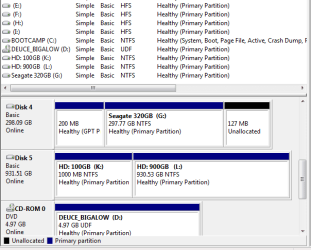
So far I have only installed Marcrium, and had a go at making a partition and I have provided a screen grab to see if I have done it correctly. I deleted the volume it had then used the simple volume wizard...

I'm not sure whats going on with the unallocated spaces of 127 - 128mb that seem to be popping up on all my drives in the picture...
 

Attachments

  • Partition Capture.PNG
    Partition Capture.PNG
    12.7 KB · Views: 8

My Computer My Computer

At a glance

Windows 7 Home 64bit
OS
Windows 7 Home 64bit
You are on a Mac as I understand it, so I'm not sure what you should see. Those HFS file system partitions are not normally seen on a PC.

What program did you use to make the partitions? How did you make them?

Disk 5 looks OK--2 healthy primary partitions. You could put Windows on the 100 GB partition.

I have no idea why that Disc 4 has 127 MB unallocated on the right side. On a PC, you would normally be able to add that space to the drive immediately to the left (G) using Windows Disk Management and a couple of mouse clicks.

Exactly what is that a screen shot of? It looks similar to Windows Disk Management.
 

My Computer My Computer

At a glance

Windows 7 Home Premium SP1, 64-bitIntel Skylake i5-6600K, not overclocked8 GB HyperX DDR4-2666 (2 x 4 GB)none; graphics are integrated on CPU
Computer type
PC/Desktop
Computer Manufacturer/Model Number
Ignatz Special; 4 speed manual gearbox; factory air conditioning; one of one
OS
Windows 7 Home Premium SP1, 64-bit
CPU
Intel Skylake i5-6600K, not overclocked
Motherboard
AsRock Z170M Extreme 4, micro ATX
Memory
8 GB HyperX DDR4-2666 (2 x 4 GB)
Graphics Card(s)
none; graphics are integrated on CPU
Sound Card
onboard: Realtek ALC1150; external: USB Behringer UF0-202
Monitor(s) Displays
Dell S2340M 23 inch IPS
Screen Resolution
1600 x 900
Hard Drives
System: Crucial MX100 series SSD, 128 GB;
Data: Samsung Spinpoint 103SJ, 1 TB;
Backup: WD Caviar Green WD30EZRX-00D8PB0, 3 TB
PSU
Rosewill SilentNight 500 watt fanless, semi-modular
Case
Antec Solo II
Cooling
Noctua NH-U12S; Noctua F12 intake, Noctua S12A exhaust
Keyboard
Microsoft 200 6JH-00001 USB
Mouse
Dell or Microsoft optical wired; USB
Antivirus
Microsoft Security Essentials and Malwarebytes Premium
Browser
Pale Moon
Other Info
All fans PWM; speeds at idle: CPU circa 500 rpm; intake circa 600 rpm; exhaust circa 600 rpm; CPU temps 27 idle and 47 C load in a warm room (27 C/81 F) when running Intel Extreme Tuning Utility stress test.
Disk 4 just has a back up of my dvd to mkv rips, that are on my C: drive so I will get rid of them volumes and reformat as all my films and other media will be on disk 5's 900GB partition hopefully, and the 100GB Windows as you say. Yes the hfs drives are always visible in "My Computer" and everywere else. But they can only be read and not written to.

I went to control panel/system security/admin tools/computer management

Then right-clicked, deleted the 1000GB volume, then ran the simple partition wizard. I take it there are different ways and methods to achieve partitions?

P.s is it worth running an anti virus scan before imaging?

Cheers
 

My Computer My Computer

At a glance

Windows 7 Home 64bit
OS
Windows 7 Home 64bit
I assume you could have taken a screen shot of the E, F, H, I and Bootcamp C drives by scrolling up a bit in that window? Those drives appear in the upper part of your screenshot, but are not seen in the bottom part.

You should be able to get to that same window by typing Disk Management into the start button search box.

Yes, there are various ways to make partitions. If Windows is already installed, Disk Management is the standard method, but it has some limitations---particularly regarding moving space from one partition to another.

The best third party partitioning tool is Partition Wizard bootable disc.

Then there is Diskpart, built into Windows.

Yeah--you might run antivirus before making an image. If you have bugs, the image file will have bugs, and they would therefore exist in any restored image.

Since you are on a Mac, that 1 TB drive shows as 1 TB, rather than 931 GB.
 

My Computer My Computer

At a glance

Windows 7 Home Premium SP1, 64-bitIntel Skylake i5-6600K, not overclocked8 GB HyperX DDR4-2666 (2 x 4 GB)none; graphics are integrated on CPU
Computer type
PC/Desktop
Computer Manufacturer/Model Number
Ignatz Special; 4 speed manual gearbox; factory air conditioning; one of one
OS
Windows 7 Home Premium SP1, 64-bit
CPU
Intel Skylake i5-6600K, not overclocked
Motherboard
AsRock Z170M Extreme 4, micro ATX
Memory
8 GB HyperX DDR4-2666 (2 x 4 GB)
Graphics Card(s)
none; graphics are integrated on CPU
Sound Card
onboard: Realtek ALC1150; external: USB Behringer UF0-202
Monitor(s) Displays
Dell S2340M 23 inch IPS
Screen Resolution
1600 x 900
Hard Drives
System: Crucial MX100 series SSD, 128 GB;
Data: Samsung Spinpoint 103SJ, 1 TB;
Backup: WD Caviar Green WD30EZRX-00D8PB0, 3 TB
PSU
Rosewill SilentNight 500 watt fanless, semi-modular
Case
Antec Solo II
Cooling
Noctua NH-U12S; Noctua F12 intake, Noctua S12A exhaust
Keyboard
Microsoft 200 6JH-00001 USB
Mouse
Dell or Microsoft optical wired; USB
Antivirus
Microsoft Security Essentials and Malwarebytes Premium
Browser
Pale Moon
Other Info
All fans PWM; speeds at idle: CPU circa 500 rpm; intake circa 600 rpm; exhaust circa 600 rpm; CPU temps 27 idle and 47 C load in a warm room (27 C/81 F) when running Intel Extreme Tuning Utility stress test.

My Computer My Computer

At a glance

Windows 7 Ultimate x64QuadCore Intel Core i7 920, 2666 MHz (20 x 133)6134 MB (DDR3-1333 DDR3 SDRAM)(2 - SLI) NVIDIA GeForce GTS 250 (1024 MB)
Computer Manufacturer/Model Number
Home Built
OS
Windows 7 Ultimate x64
CPU
QuadCore Intel Core i7 920, 2666 MHz (20 x 133)
Motherboard
Asus P6T
Memory
6134 MB (DDR3-1333 DDR3 SDRAM)
Graphics Card(s)
(2 - SLI) NVIDIA GeForce GTS 250 (1024 MB)
Sound Card
Onboard Realtek ALC888/1200 @ Intel 82801JB IC
Monitor(s) Displays
HDMII
Screen Resolution
1280 x 800
Hard Drives
Crucial M4 (64 GB SSD)
WD Caviar Blacks
WD5001AALS-00J7B1 ATA Device (465 GB)
WD5001AALS-00L3B2 ATA Device (465 GB)
WD Elements USB External (250 GB)
PSU
Corsair 550
Case
iStarUSA S-10000BL Black
I think Victor tests his images and in fact restores them after making the image file. On the other hand, I don't--I don't want to risk an overwrite of a C drive that is working well just to test my image.

Whoa, you guys are fast writers!
Except for the Mac complication, looks like you've got it under control.
I agree - don't restore an image as a test on your only working system drive.
Taking an initial image or 2 before shrinking the partition on the working drive is a precaution in case something goes wrong in the shrinking.
Again, you can't be too safe when you're doing this type change.
But to clarify, I don't test images unless trying new imaging software.
I simply always restore my previous image before making system changes that I've already tested. Then I make my changes, do updates, and immediately make a new image. Housekeeping so to speak.
I've never had a restore fail, but since data corruption or HD failure is always a possibilty, I make 2 and sometimes 3 images, to different drives.
A million ways to do it, and that's just my method.
 

My Computer My Computer

At a glance

Windows 7 Ultimate x64QuadCore Intel Core i7 920, 2666 MHz (20 x 133)6134 MB (DDR3-1333 DDR3 SDRAM)(2 - SLI) NVIDIA GeForce GTS 250 (1024 MB)
Computer Manufacturer/Model Number
Home Built
OS
Windows 7 Ultimate x64
CPU
QuadCore Intel Core i7 920, 2666 MHz (20 x 133)
Motherboard
Asus P6T
Memory
6134 MB (DDR3-1333 DDR3 SDRAM)
Graphics Card(s)
(2 - SLI) NVIDIA GeForce GTS 250 (1024 MB)
Sound Card
Onboard Realtek ALC888/1200 @ Intel 82801JB IC
Monitor(s) Displays
HDMII
Screen Resolution
1280 x 800
Hard Drives
Crucial M4 (64 GB SSD)
WD Caviar Blacks
WD5001AALS-00J7B1 ATA Device (465 GB)
WD5001AALS-00L3B2 ATA Device (465 GB)
WD Elements USB External (250 GB)
PSU
Corsair 550
Case
iStarUSA S-10000BL Black
Cheers for the guidence so far guys! You have been most helpful!

I'm still in the middle of ripping my final set of dvd's for my network drive then tommorrow I'll make a start tomorrow and let you know how I get on as I will have to let my AVG free virus software do a scan, move all my media to the 900GB partition then I'll be ready :-)

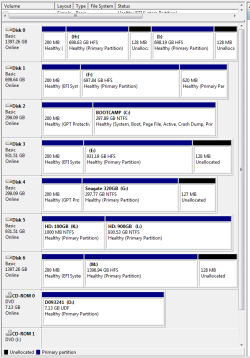
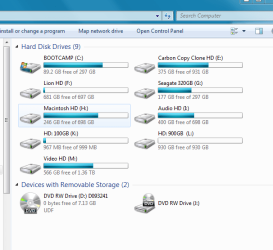
Thought I would post some more screenshots to let you guys see what everything looks like through my pane!

Although some hard drives are connected externally via eSATA and usb, plus there are 4 hard drives inside the MacPro, whereas some are partitioned also.
 

Attachments

  • Partition Capture 2.PNG
    Partition Capture 2.PNG
    23.5 KB · Views: 7
  • MyComputer.PNG
    MyComputer.PNG
    25.1 KB · Views: 4

My Computer My Computer

At a glance

Windows 7 Home 64bit
OS
Windows 7 Home 64bit
Back
Top