After Windows Update aroundJune 2013 no user icons on login for normal

wdlnd

New member
Local time
5:40 PM
Messages
11
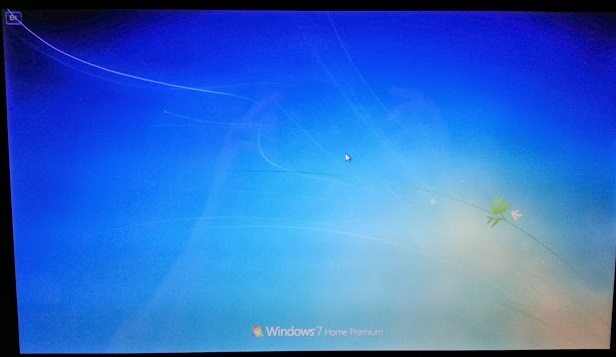
I have been running two hard drives in my Asus M60J for close to two years. It did not come with an actual Windows CD. I have a HDD which has the original operating system on it (Windows 7 Home Premium 64-bit). I have a second SSD running Windows 7 as well. I am able to access the HDD from the operating system on my SSD. Right after Windows required a restart after installing an update the Windows welcome screen comes up with the default blue background with the "EN" icon in the upper left but no users/shutdown icons appear (This is on the HDD, the SSD OS works fine). My cursor is active and I can bring up the sticky key window by pressing the shift key five times. The screen flickers black for a split second and then comes back to the blue graphical background intermittently. Mostly the blue graphical background stays up.

I realize that the normal answer is to restore a previous back, etc. Only one backup shows up from 2009. I would prefer to fix the problem instead of avoiding it. I may be wrong but it feels like this is some kind of minor registry/user account issue or something.

So no user login icon when launching Windows normally or launching safe mode/command prompt.

Here are the things I've tried after Googling and after removing my SSD:

1. I ran offline virus scans and found nothing
2. I booted with a Windows 7 Pro cd I have and tried running the repair. "Startup Repair could not detect a problem. (My HDD is partitioned so I have a d: that contains pictures, etc. for backup. The Windows repair does show my Windows Home Premium as well as second "drive" of zero size.)
The Details link states "OS booted successfully".
3. I ran SFC scannow using command prompt twice. The first time it fixed some stuff. The second time it said it was fine.
4. I ran the memory diagnostic and it said it's fine.
5. I used command prompt to get into regedit. I looked under ProfileList and I only find the three standard "S" entries, systemprofile, LocalService and NetworkService but no specific entries for users.
6. I removed the Windows disc and ran the repair option that comes up under F8. This actually prompted me for a username and password. I was able to login here. I again went into regedit->ProfileList, still no user listed.
7. I also tried to go to regedit->Winlogon and set up the keys to automatically sign in with my username and password. Rebooted and still no user prompt on either normal or safe mode.

The netuser.dat files do exist in the user directory...Not sure if that even matters here...

I can backup my data and reformat but I would really like to figure out a better fix for this...I'm sure if I knew the ins and outs of Windows registry/account architecture this would be an easy fix...Hopefully someone out there knows a relitively easy fix for this. Thanks for taking the time to read.
 

My Computer My Computer

At a glance

Windows 7 Home Premium 64 bit
Computer type
PC/Desktop
Computer Manufacturer/Model Number
Asus M60J
OS
Windows 7 Home Premium 64 bit
Hard Drives
500 GB HDD
128 GB SSD
Antivirus
Avast!
Browser
Chrome
Try a System Restore going back as far as necessary.

You can also uninstall the suspect Updates to see if it resolves it.

If it installed IE11 there are issues with that update resolved by changing DPI back to 100%. I would uninstall IE11 until they get it fixed.
 
I'm not sure how to uninstall the updates since I cannot get into Windows. I cannot even get into Windows Safe Mode. I cannot get past the login screen since no user icons are shown in order to sign in.
 

My Computer My Computer

At a glance

Windows 7 Home Premium 64 bit
Computer type
PC/Desktop
Computer Manufacturer/Model Number
Asus M60J
OS
Windows 7 Home Premium 64 bit
Hard Drives
500 GB HDD
128 GB SSD
Antivirus
Avast!
Browser
Chrome
Run System Restore from System Recovery Options.

Confirm the Partition Marked Active is 100mb System Reservd (preferred if you have it) or C, then run Startup Repair - Run up to 3 Separate Times with reboots no matter what it reports.

Other steps here for Troubleshooting Windows 7 Failure to Start include everythng that can possibly be done leading up to if necessary rescuiing your files to fun Factory Recovery or do the vastly superior Clean Reinstall - Factory OEM Windows 7 with our help to get it perfect.
 
Can Windows updates be uninstalled from a system recovery command console?
 

My Computer My Computer

At a glance

Windows 7 Home Premium 64 bit
Computer type
PC/Desktop
Computer Manufacturer/Model Number
Asus M60J
OS
Windows 7 Home Premium 64 bit
Hard Drives
500 GB HDD
128 GB SSD
Antivirus
Avast!
Browser
Chrome
Use System Restore which is more comprehensive. Go back before the problem, or as far back as you can. Then install the Updates singly or in small groups to isolate any problem Update. Chances are it won't repeat, or problems can be sorted with a few reboots as per usual.
 
I would but the only restore point that shows up is from 2009.
 

My Computer My Computer

At a glance

Windows 7 Home Premium 64 bit
Computer type
PC/Desktop
Computer Manufacturer/Model Number
Asus M60J
OS
Windows 7 Home Premium 64 bit
Hard Drives
500 GB HDD
128 GB SSD
Antivirus
Avast!
Browser
Chrome
Is that a backup image? Do you still have it?

There are other steps you've been given to which you haven't replied with the results.
 
Last edited:
Did you install the update ? Or do you have windows set to install updates automatically ?

Would like to know which update did this. Hard to believe a windows update would cause this.
 

My Computer My Computer

At a glance

Windows 10 Pro x64Intel Core i7 6700KGSkill TridentZ RGB 16GB 3600 16-16-16-36EVGA GTX 980 Ti SC x2
Computer type
PC/Desktop
Computer Manufacturer/Model Number
Skylake Special #666
OS
Windows 10 Pro x64
CPU
Intel Core i7 6700K
Motherboard
Asus Sabertooth Z170 Mark 1
Memory
GSkill TridentZ RGB 16GB 3600 16-16-16-36
Graphics Card(s)
EVGA GTX 980 Ti SC x2
Sound Card
Realtek High Definition
Monitor(s) Displays
AOC G2460PG
Screen Resolution
1920 x 1080 144Hz
Hard Drives
Samsung 860 Pro 256GB, Seagate Barracuda 4TB x2
PSU
EVGA 1000 P2, EVGA White Custom Braided Cables
Case
Corsair Vengeance C70 Gunmetal Black
Cooling
Corsair H100i v2, Corsair ML120 x2, Thermal Grizzly Kryonaut
Keyboard
Logitech G910 Orion Spectrum
Mouse
Logitech G700s
Internet Speed
Verizon Fios Quantum Gateway 75/75
Antivirus
Windows Defender, Malwarebytes Free 3.8.3
Browser
Chrome
Other Info
Corsair SP120 x4, LG Blu-ray Drive, Durabrand HT-395 100 Watt Dolby Digital Amp, Corsair H2100 Wireless 7.1 Headset
Windows was set to auto update. All I know is it was working fine until it told me that windows installed an update and needed to restart. After that it never came back.
 

My Computer My Computer

At a glance

Windows 7 Home Premium 64 bit
Computer type
PC/Desktop
Computer Manufacturer/Model Number
Asus M60J
OS
Windows 7 Home Premium 64 bit
Hard Drives
500 GB HDD
128 GB SSD
Antivirus
Avast!
Browser
Chrome
I have tried several steps posted above. Once I get back home I will post back the steps I tried and the results of said steps. Thanks for the help with this.
 

My Computer My Computer

At a glance

Windows 7 Home Premium 64 bit
Computer type
PC/Desktop
Computer Manufacturer/Model Number
Asus M60J
OS
Windows 7 Home Premium 64 bit
Hard Drives
500 GB HDD
128 GB SSD
Antivirus
Avast!
Browser
Chrome
Okay, now that I'm back home I have checked each step listed above from Gregrocker. Here are my steps:

1. Created a Windows 7 Home Premium 64 bit USB drive from an ISO.
2. I booted using the USB drive.
3. I ran diskpart and made sure the OS partition is active and all others are inactive using the disk repair/command console by hitting shift+F10.
== I previously ran offline antivirus with no problems found ==
4. I did run SFC -scannow previously but now if I try and run it when booting using the USB it says that it is in the middle of a repair and to restart and try again. I tried pointed the command prompt to c: first but the same message comes up. I can't seem to run this from the command console under the system repair menu.
== I had previously went through the process of using command prompt to rebuild the MBR using Hiren Boot CD ==
5. I ran startup repair 4 times with restarts in between. Each time I get the message, "Startup Repair could not detect a problem." Under details it says, "Boot status indicates that the OS booted successfully."

When I try to boot normally this is the screen I'm left on:
wwq9u2Q.jpg
 

My Computer My Computer

At a glance

Windows 7 Home Premium 64 bit
Computer type
PC/Desktop
Computer Manufacturer/Model Number
Asus M60J
OS
Windows 7 Home Premium 64 bit
Hard Drives
500 GB HDD
128 GB SSD
Antivirus
Avast!
Browser
Chrome
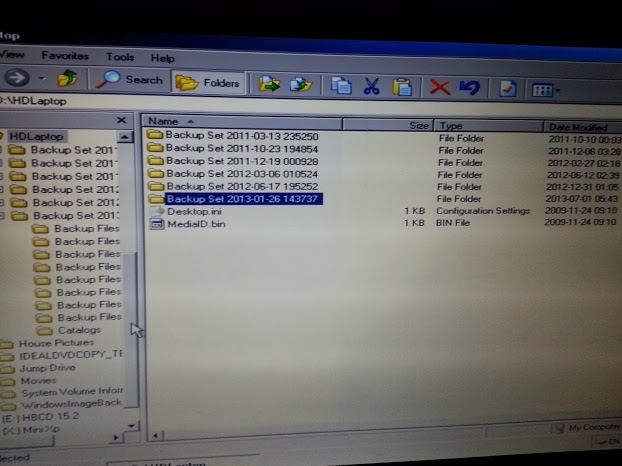
I'm downloading Partition Wizard now. While I was doing that I loaded up Hiren Boot CD and was browsing the hard drive. I partitioned my hard drive so that all my personal data would be stored on a separate partition. It looks like my backups may have been stored on this other partition as well. Here is what I found:

sKvDYdb.jpg


Does that look like a backup from July like pre-the last Windows update? If so maybe I will try restoring that and see what happens.
 

My Computer My Computer

At a glance

Windows 7 Home Premium 64 bit
Computer type
PC/Desktop
Computer Manufacturer/Model Number
Asus M60J
OS
Windows 7 Home Premium 64 bit
Hard Drives
500 GB HDD
128 GB SSD
Antivirus
Avast!
Browser
Chrome
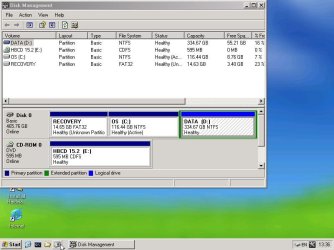
If you're in Hiren's portable XP can you post back a screenshot of Disk Mgmt which is what we need to see? Just Print Screen and paste it into Paint, save the file and attach it here.

Do these backups include an image? If so boot the Win7 disk or System Repair Disk
to do a System Image Recovery. But make sure you follow the steps closely to not format the data partition. If in doubt I'd back those files up from portable XP or Copy & Paste - in Windows Recovery Console
 
Here you go. Thanks for the quick replies!
 

Attachments

  • Screenshot 20131205-133652.jpg
    Screenshot 20131205-133652.jpg
    59.6 KB · Views: 0

My Computer My Computer

At a glance

Windows 7 Home Premium 64 bit
Computer type
PC/Desktop
Computer Manufacturer/Model Number
Asus M60J
OS
Windows 7 Home Premium 64 bit
Hard Drives
500 GB HDD
128 GB SSD
Antivirus
Avast!
Browser
Chrome
I'm assuming the 14.6 GB was Asus's recovery since I didn't get a Windows disc with my laptop purchase. After some more digging it looks like that backup was just my user account files and not an OS backup. I'm not sure why more restore points don't show up...

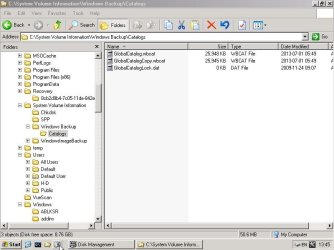
Here is something interesting that I found...
 

Attachments

  • Screenshot 20131205-134544.jpg
    Screenshot 20131205-134544.jpg
    56.4 KB · Views: 1

My Computer My Computer

At a glance

Windows 7 Home Premium 64 bit
Computer type
PC/Desktop
Computer Manufacturer/Model Number
Asus M60J
OS
Windows 7 Home Premium 64 bit
Hard Drives
500 GB HDD
128 GB SSD
Antivirus
Avast!
Browser
Chrome
The WindowsImageBackup file needed to restore your PC appears just below that in the Explorer tree. However I don't know why its located under System Volume Information. What size is that file?

That configuration normally has the System boot files on the Recovery partition to enable it to boot if needed. So move the Active flag back to Recovery and run Startup Repair 3 times to see what happens.

If that fails run System Image Recovery using the WindowsImageBackup file if it is intact.

If that is not the image backup file or won't run Recovery, then do a Clean Reinstall - Factory OEM Windows 7 deleting Recovery and C during the install. Do not touch D or you will lose your data.
 
The WindowImageBackup folder is empty. I would like to pinpoint the issue rather than reformatting. I'm just putting this out there in case someone out there has experienced the same thing and pinpointed what triggered the issue/how to resolve it without a fresh install. Thanks everyone for your help.
 

My Computer My Computer

At a glance

Windows 7 Home Premium 64 bit
Computer type
PC/Desktop
Computer Manufacturer/Model Number
Asus M60J
OS
Windows 7 Home Premium 64 bit
Hard Drives
500 GB HDD
128 GB SSD
Antivirus
Avast!
Browser
Chrome
Back
Top