All excel files opening in read only mode in Windows 7

bugger2011

New member
Local time
7:02 AM
Messages
4
in windows 7, when i open any excel file from any folder (network & desktop both), it opens as read only..

but when i open the excel file by going to open option in the Menu Bar in MS Excel, it opens correctly.. but that takes hell lot of time everytime i wanna open a excel file.. :mad:

can anyone suggest a way out..??
 

My Computer My Computer

At a glance

Windows 7
OS
Windows 7
Go to the folders involved, right click, properties, untick the read only.
 

My Computer My Computer

At a glance

Windows 10, Home Clean InstallIntel Core2 processsor Q8200(2.33Ghz 1333FSB)...6 gbATI Radeon 256MB HD3650
Computer type
PC/Desktop
Computer Manufacturer/Model Number
Dell XPS 420
OS
Windows 10, Home Clean Install
CPU
Intel Core2 processsor Q8200(2.33Ghz 1333FSB) Quad Core Tech
Motherboard
Dell
Memory
6 gb
Graphics Card(s)
ATI Radeon 256MB HD3650
Sound Card
Intergrated 7.1 Channel Audio
Monitor(s) Displays
Dell SP2009W 20"
Hard Drives
640 GB Serial ATA Hard drive
Cooling
Fan
Keyboard
Dell USB Keyboard
Mouse
Dell Premium Optical USB
Internet Speed
DSL 2.85
doesnt work.. :(
 

My Computer My Computer

At a glance

Windows 7
OS
Windows 7
Question? Were these excel files created in another version of Excel that what your using?
Or were they attachments to emails?

questions, Questions..

Rich
 

My Computer My Computer

At a glance

Windows 7 Pro x64 SP1Intel Core I716 GigsNVIDIA GeForce GTX 670M
Computer type
Laptop
Computer Manufacturer/Model Number
Toshiba Laptop Qosimo X870
OS
Windows 7 Pro x64 SP1
CPU
Intel Core I7
Motherboard
Toshiba Qosmio
Memory
16 Gigs
Graphics Card(s)
NVIDIA GeForce GTX 670M
Monitor(s) Displays
17.7" laptop
Screen Resolution
1600 x 900
Hard Drives
256 Gig SanDisk SSD for C
256 Gig Intel SSD for D
Internet Speed
50/25 FIOS
Antivirus
Vipre (all you can eat for 10 machines)
Browser
IE and FF
Other Info
I have dos 6.22, wfwg 3.11, win98, 2000 and xp VHD's available for testing. MS's Virtual PC works great.
few of the files are of 2007 version whereas few of them are of 2003 version.
i have recd almost all files thru mails.. but i am having the same problem for the files created by me..!!

dont know wat xactly is the problem - but similar problem doesnt exist for word / powerpoint.. its only excel.. once i have opened any excel file & then i go to some folder and open excel file from there by double clicking it, then it opens in read-only mode.. but if i open the same file from the Open option in File Menu, then i dont have this problem..!! strange yet true..
but i cant keep on opening every excel file thru File->Open option.. it takes hell lot of time as the files are in different folders..!!
 

My Computer My Computer

At a glance

Windows 7
OS
Windows 7
The only thing I can think of is that the 1's downloaded need to be 'Unblocked'. Right-click and select Properties and there should be an 'Unblock' button, just click it.

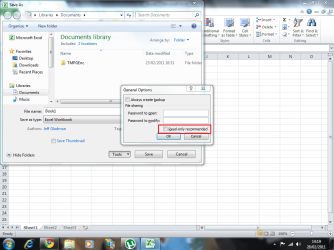
Also, when you're saving files they may have accidentally been set to save as read only. Try the following...

1, Open an Excel Spreadsheet
2, Click File > Save As
3, Click the Tools dropdown then General Options...

Check to see that the 'Read-Only Recommended' hasn't been selected by accident...

Excel.PNG
 

My Computer My Computer

At a glance

Windows 7 Ultimate x64AMD Sempron Dual Core3GBNVIDIA GeForce 6150SE nForce 430
Computer Manufacturer/Model Number
Compaq Desktop
OS
Windows 7 Ultimate x64
CPU
AMD Sempron Dual Core
Memory
3GB
Graphics Card(s)
NVIDIA GeForce 6150SE nForce 430
Screen Resolution
1024x768
Hard Drives
150GB Sata
nope.. no luck :(
 

My Computer My Computer

At a glance

Windows 7
OS
Windows 7
1. Which version of Outlook (Office) are you using?

2. Do you save the attachments to your hard drive before trying to edit?
 

My Computer My Computer

At a glance

Windows 7 Home Premium 64bitIntel(R) Core(TM) i3-2120 CPU @ 3.30GHz3.00 GB(1) Intel(R) HD Graphics (2) VNC Mirror Driver
Computer type
PC/Desktop
Computer Manufacturer/Model Number
Packard Bell
OS
Windows 7 Home Premium 64bit
CPU
Intel(R) Core(TM) i3-2120 CPU @ 3.30GHz
Motherboard
Packard Bell IPISB-AG
Memory
3.00 GB
Graphics Card(s)
(1) Intel(R) HD Graphics (2) VNC Mirror Driver
Sound Card
Realtek High Definition Audio
Monitor(s) Displays
AIO LCD
Screen Resolution
1920 x 1080
Hard Drives
WDC WD10EADX-22TDHB0 ATA Device
Fixed hard disk media
4 partitions
931.51 GB
Keyboard
Wireless
Mouse
Wireless
Antivirus
Microsoft Security Essentials
Browser
IE; Firefox
Other Info
Also:
Samsung N220 Plus Netbook - Windows 7 Home
HP laptop
iPad 5
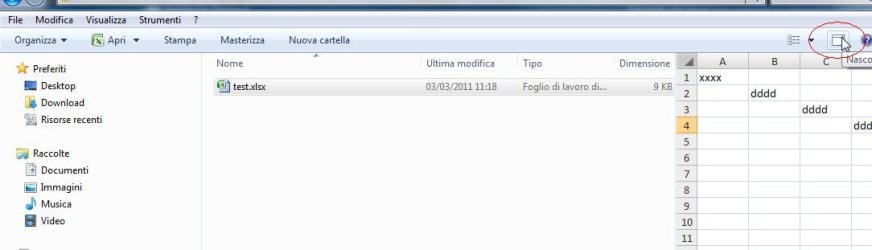
I also had the same problem, try disable file preview from Explorer, see attachment...

It seems for some reason the file is "locked" or something similar when preview is enabled, in any case disabling this feature solved the problem for me, no more Excel file opened in read-only mode.
 

Attachments

  • Clipboard01.jpg
    Clipboard01.jpg
    29.2 KB · Views: 3,762
Last edited:

My Computer My Computer

At a glance

Windows 7 64 bit
OS
Windows 7 64 bit
Lots of information here:
Outlook 2010 & Read-Only Attachments
.
.

Solution - Edit Message Method

If you put the email message into Edit mode you can edit the attachment and save changes back to the original attachment on the email message. You need to remember to save the attachment when closing AND save changes to the email message as the copy in the securetemp folder will be deleted when you close Outlook.
If you add the Edit Message button to the QAT or Ribbon, its very easy to get into Edit mode. To add the command to the QAT (or ribbon):

  1. Open a message
  2. Go to File, Options, then choose either Customize Ribbon or Quick Access Toolbar
  3. Select All Commands from the Choose command dropdown
  4. Click in the list of commands then press E on your keyboard to jump down to the Edit commands.
  5. Find Edit Message and double click on it or use the Add button to add it to the QAT or Ribbon.
  6. Click OK to return to the message.
The next time you need to edit an attachment and save the changes back to the message, open the email message, click the Edit Message button then open the attachment.
Remember: you need to save and close the attachment then save and close the email message for the edits to be saved. If you don't want changes saved (such as when rotating images), close without saving.
Solution - Disable Attachment Preview

You can make many attachments readable if you disable Attachment Preview. With this disabled you will lose the ability to view attachments in the Reading pane or open messages - you will need to double click to open them in their application.
Go to File tab, Options, Trust Center:

  1. Click the Trust Center Settings button
  2. Select Attachment Handling
  3. Add a check to the "Turn off attachment preview" option.
Note: this disables preview for all attachments. If you like the attachment preview feature, use the Edit message method.
Solution - Images viewed with Windows Photo Viewer

A workaround for those using Photo Viewer exists: in Photo viewer, click on File, Properties, General tab then clear the Read only check. Repeat for each image.
 

My Computer My Computer

At a glance

Windows 7 Home Premium 64bitIntel(R) Core(TM) i3-2120 CPU @ 3.30GHz3.00 GB(1) Intel(R) HD Graphics (2) VNC Mirror Driver
Computer type
PC/Desktop
Computer Manufacturer/Model Number
Packard Bell
OS
Windows 7 Home Premium 64bit
CPU
Intel(R) Core(TM) i3-2120 CPU @ 3.30GHz
Motherboard
Packard Bell IPISB-AG
Memory
3.00 GB
Graphics Card(s)
(1) Intel(R) HD Graphics (2) VNC Mirror Driver
Sound Card
Realtek High Definition Audio
Monitor(s) Displays
AIO LCD
Screen Resolution
1920 x 1080
Hard Drives
WDC WD10EADX-22TDHB0 ATA Device
Fixed hard disk media
4 partitions
931.51 GB
Keyboard
Wireless
Mouse
Wireless
Antivirus
Microsoft Security Essentials
Browser
IE; Firefox
Other Info
Also:
Samsung N220 Plus Netbook - Windows 7 Home
HP laptop
iPad 5
Initially I was only able to open Office documents in Read Only using Windows 7 Professional. Particularly annoying was that I could not even edit Access databases. With a bit of experimentation I discovered the following.

In Windows 7 Professional all drives and sub-folders except folders specific to your user account are initially protected in Read Only mode. Changing the file attributes does not work. This also applies Administrator users.

To correct this,
- log on in an account that has administrator privileges,
- in explorer right click the folder or drive you want to enable full access to,
- select Properties, select the Security tab, click the Edit button in that tab,
- highlight the user you wish to grant privileges,
- tick the desired boxes (Full Control grants full access),
- then click OK as necessary to apply the changes.
 

My Computer My Computer

At a glance

Windows 7 SP1 64 bitIntel i7 2700K2 x 4GB, 1333 MHz (temp till upgrade)onboard (temp till upgrade)
Computer Manufacturer/Model Number
self assembled
OS
Windows 7 SP1 64 bit
CPU
Intel i7 2700K
Motherboard
Gigabyte Z68X-UD3H-B3
Memory
2 x 4GB, 1333 MHz (temp till upgrade)
Graphics Card(s)
onboard (temp till upgrade)
Sound Card
onboard
Monitor(s) Displays
Samsung BX2440 + Acer AL2216W
Hard Drives
2
PSU
650 Watt
Case
Generic beige
Cooling
basic
Task manager - end Excel.exe on process tab

Hi,

Open Task Manager (Ctrl+Alt+Delete -> click task manager) -> processes tab -> click Excel.exe -> end process. Worked for me.

Thanks. God Bless.

Aaron
 

My Computer My Computer

At a glance

OR (Oregon)
Computer type
PC/Desktop
OS
OR (Oregon)
I just experienced this exact problem: Using Windows 7, all Excel files open in read-only mode when opened from the file system, but not when opened using File / Open from within Excel.

This happens for all Excel files, whether downloaded from the internet, opened from an email, or created locally; whether created by another user or created by me; whether saved into a restricted folder or an unrestricted folder; and whether or not saved with "Read-only recommended".

I believe all of the answers given so far, while helpful, address similar problems, but not this exact problem.

After long research, I discovered that the problem was an addin whose .xll file had been moved. When I told Excel to stop trying to load that addin, the problem went away.

My guess is that there is a bug in Excel, which causes it to go into read-only mode if it can't load an addin at launch. Given that this problem was first reported here in 2011, and I'm still experiencing it in 2018, this is apparently a long-standing bug that spans several versions of Excel.
 

My Computer My Computer

At a glance

Windows 7 x64
OS
Windows 7 x64
Have you had a look in Options for setting up Excel. Look in Save & make sure Excel is set to Save to Computer by Default, then set the Default Location to C:\Users\xxxx\Documents, the xxxx being the users name or whatever name you use for the computer.

You can have various Folders in your Documents Library far saving Excel files that you require. I have also named the Default Location for storing Excel Templates as I use a lot of Excel Templates, which are marvellous for repeated use & date transfer.

As you have not mentioned which version of Excel you are using this website might help you locate Options for your version if needed.

Where is Excel Options in Microsoft Excel 2007, 2010, 2013 and 2016
 

My Computer My Computer

At a glance

Windows 7 Home Premium 64 bit sp1Intel i5 3570 3.4Ghz Ivy Bridge SKT 1155 quad...G-Skill Rip Jaws 16Gb (8x2) DDR3 -1600 PC3 12...Gigabyte NVIDIA GT610 1Gb DDR3 810/1200 PCI-E...
Computer type
PC/Desktop
Computer Manufacturer/Model Number
Self built using existing case
OS
Windows 7 Home Premium 64 bit sp1
CPU
Intel i5 3570 3.4Ghz Ivy Bridge SKT 1155 quad core
Motherboard
Gigabyte Z77-HD3 SKT 1155 2xSata 3, 4x USB 3.0
Memory
G-Skill Rip Jaws 16Gb (8x2) DDR3 -1600 PC3 12800 CL 10 red
Graphics Card(s)
Gigabyte NVIDIA GT610 1Gb DDR3 810/1200 PCI-E 2.0 Silent
Sound Card
NVIDIA High Definition & Realtech High Definition Audio
Monitor(s) Displays
2 x Philips 226V4L 16:9 aspect ratio
Screen Resolution
1920 x 1080 HD
Hard Drives
Samsung 840 Pro 256gb SSD, SATA 3.
Hitachi Touro Portable 1tb, USB 3.0 HDD used for image b/ups.
PSU
Corsair VS450
Case
Codeng
Cooling
PSU fan & CPU fan
Keyboard
Logitech
Mouse
Logitech Wireless trackball M570
Internet Speed
Wireless 3G. 3mg down & 550kb up.
Antivirus
Bitdefender Internet Security 2020
Browser
Opera (Current Version) & Firefox
Other Info
MS Office 2013 Pro. Davis weather station software. MGE Nova 600 avr UPS.
Back
Top