Asus, problems restoring to factory settings

mynameisinuse

New member
Local time
3:36 PM
Messages
13
Hey guys,
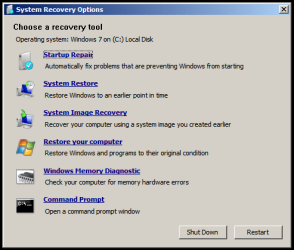
I'm currently using an Asus X42JY and it fails to startup, windows cant repair the problem so I've been trying to restore the computer to its factory settings. I didn't make a restore point when i first got the laptop nor do i have a recovery disk, I've been trying to access the hidden partition using the F9 key on the boot up. When i run through this i get stuck at the "system recovery options" where it says

"...If your operating system isn't listed, click load drivers and then install drivers for your hardisks."
Under that it displays the OS, partition size and location, its defaul its windows 7 home premium, when i click next it just takes me to the regular system restore point.

Or in other words I don't know how to get from
-Press [Enter] to select Windows Setup [EMS Enabled]
TO - Read the “ASUS Preload Wizard” screen and click Next

Also on the handbook i got with the laptop it says that i could access the hidden partition for restoring factory settings using alt+f10 but that comes up with something along the lines of:

"[/NONEXECUTE/.... i cant remember the rest.

i know there are a few forums for asus laptops but non of them have been able to help :( could someone please help me step by step?
 

My Computer My Computer

At a glance

64 bit windows 7 home premium
Computer Manufacturer/Model Number
Asus X42JY
OS
64 bit windows 7 home premium
Try tapping F8 at bootup, see what options are listed on the Repair My Computer choice if it's there.

If you don't see Factory Recovery there (it is not Recover Using a System Image, that's for using a Win7 backup image you've stored) then try running Startup Repair and post back what it reports.
 
Hello mynameisinuse, welcome to Seven Forums!


Here's additional information that may be useful.


After you have copied out or made back-ups of the data you need to save to external media; if you can find an exact Windows version that the PC shipped with you can do a clean install using the activation key on the COA sticker attached to the PC though it may require a robo-call to MS to sort the OEM batch-key.

How to Activate Windows 7 by Phone


If you can't find an exact same version, you could use the info in this tutorial to create an "all versions" installer of any version Windows installer, to install using the same method I posted above.

Windows 7 Universal Installation Disc - Create


After you have made backups of everything you care to save, the best method is to do a complete wipe (secure erase) of the entire Hard Disk Drive first, it over-writes everything, all the old Windows code including all the old drivers/programs, giving you the best possible space to install Windows to.

SSD / HDD : Optimize for Windows Reinstallation
 

My Computer My Computer

At a glance

W 7 64-bit UltimateIntel Q9550 Yorkfield8GB Dominator 8500C5DATI : XFX 5870
Computer Manufacturer/Model Number
* BFK Customs *
OS
W 7 64-bit Ultimate
CPU
Intel Q9550 Yorkfield
Motherboard
ASUS P5Q Pro
Memory
8GB Dominator 8500C5D
Graphics Card(s)
ATI : XFX 5870
Sound Card
Realtek HD Audio 7-1
Monitor(s) Displays
1x 47" LCD HDMI & 3x 26" LCD HDMI
Screen Resolution
1920x1080P & 1920x1200
Hard Drives
1x 80GB Intel X25-M G2 SSD : 1x 500GB & 1x 640GB WD Caviar Black(s)
PSU
Corsair 620HX
Case
Cooler Master RC-690
Cooling
Tuniq Tower 120, 2x 140mm and 3x 120mm case fans
Keyboard
Microsoft 500
Mouse
Razer Diamondback 3G
Internet Speed
14 Mb/s
Other Info
1x Koutech 3Gb/s SATA HDD Hot Swap Rack
With a lot of factory install OEM machines the restore function can be accessed using the "Repair Computer" option when pressing F8 on bootup.

You will normally get the option of a factory image recovery at the bottom of the following screen...

Recovery.PNG


OS
 

My Computer My Computer

At a glance

Windows 7 Ultimate x64AMD Sempron Dual Core3GBNVIDIA GeForce 6150SE nForce 430
Computer Manufacturer/Model Number
Compaq Desktop
OS
Windows 7 Ultimate x64
CPU
AMD Sempron Dual Core
Memory
3GB
Graphics Card(s)
NVIDIA GeForce 6150SE nForce 430
Screen Resolution
1024x768
Hard Drives
150GB Sata
@gregrocker

Startup Repair reports:
Problem Event Name: StartupRepairOffline
Problem Signature 01: 6.1.7600.16385
Problem Signature 02: 6.1.7600.16385
Problem Signature 03: unknown
Problem Signature 04: 21200605
Problem Signature 05: AutoFailover
Problem Signature 06: 45
Problem Signature 07: NoBootFailure
OS Version: 6.1.7600.2.0.0.256.1
locale ID: 1033

@Orbital Shark
When i hit F8 it does lead me to the page u posted, except there is no "Restore your computer"

@Bare Foot Kid
I've already made a full back up of my files using ubuntu so ill give what you said a try.

Cheers
 

My Computer My Computer

At a glance

64 bit windows 7 home premium
Computer Manufacturer/Model Number
Asus X42JY
OS
64 bit windows 7 home premium
You are looking for "Repair My Computer" on the F8 Advanced Boot TOols menu, then when you select it a "Factory Recovery" choice.

Next, from System Recovery Options use Diskpart to determine which partition is marked Active: Partition - Mark as Active. The command to check for Active on each partition is Detail Partition. You can use free Partition Wizard bootable CD to do this graphically.

If the System Reserved partition is marked Active, try Startup Repair again a few times. If it continues to fail to boot Win7, change the Active partition to Win7 partition itself then try Repairs again.

You can copy out your files using the Win7 DVD or Repair CD with this method: Copy & Paste - in Windows Recovery Console

Then your choice is to order Asus Recovery Disks from Tech Support, or find a Win7 installer, unlock all versions if necessary to clean reinstall with the Product Key on your COA sticker.

Here are tips to getting a perfect reinstall of factory OEM: Reinstalling Windows 7
 
what's "diskpart"? and there are 4 different partitions, one for the hidden partition for recovery, the OS, the partitioned d: drive and x: for windows, i can view these 4 partitions when i hit F9 on boot, it shows up through windows 7 system restore but its a special pathway that can only be accessed through F9 on boot. I don't know how to use the hidden partition for this section though. i click on install driver, but i dont know which file it is i need to use.
 

My Computer My Computer

At a glance

64 bit windows 7 home premium
Computer Manufacturer/Model Number
Asus X42JY
OS
64 bit windows 7 home premium
The light blue links in my post are tutorials which show exactly how to accomplish the steps I clearly laid out. Ask back if you have any specfic questions.

Method Two here shows how to mark Active: http://www.sevenforums.com/tutorials/71432-partition-mark-active.html.

After List Partition command, use Select Partition # on each to Detail Partition to see which is currently marked Active, or use free Partition Wizard bootable CD to look at a picture.

If you don't have the 100mb System Reserved partition, the Recovery partition might currently be marked Active, which makes Win7 harder to Repair - but run the 3 Repairs anyway, after which you can mark Win7 partition itself Active to try the Repairs.

Read more about the need for 3 repairs here: Startup Repair - Run 3 Separate Times
 
how do i know which one is the system reserved partition? the smallest size?

Im just marking the system reserved file as active and then doing start up repair, which should work?
 

My Computer My Computer

At a glance

64 bit windows 7 home premium
Computer Manufacturer/Model Number
Asus X42JY
OS
64 bit windows 7 home premium
It's normally 100mb and is marked Active.

You're trying to find which partition is currently marked Active.

If none are, then mark 100mb Active, or if not there Win7 itself.

You can also try marking Recovery partition active then reboot to see if it boots Recovery
.
Use Partition Wizard.
 
the one marked active is 116gb....

how do i know which ones the recovery partition?

and how am i supposed to use the partition wizard?
 

My Computer My Computer

At a glance

64 bit windows 7 home premium
Computer Manufacturer/Model Number
Asus X42JY
OS
64 bit windows 7 home premium
It's likely your Win7 partition which is marked Active.

Now run the 3 Startup Repairs from DVD Repair console or Repair CD to see if Win7 will start.

You can browse your files on each partition to try to determine which is recovery using the method I posted earlier to copy out your files if WIn7 won't start.

As with marking Active, you can do this using Partition Wizard's Explore feature. It is a bootable CD which gives a picture of your HD partitioning.
 
i dont have the cd, and for
"Now run the 3 Startup Repairs from DVD Repair console or Repair CD to see if Windows 7 will start"
do u mean use the system image recovery tool from the system recovery options?
 

My Computer My Computer

At a glance

64 bit windows 7 home premium
Computer Manufacturer/Model Number
Asus X42JY
OS
64 bit windows 7 home premium
ohhhh u mean mark each partition active and run the repair for each to see which one boots the recovery system?
btw there are 4 different partitions on mine not 3... could 2 of them be similar? theyre size and offset is the same its only the type and number thats different.
 

My Computer My Computer

At a glance

64 bit windows 7 home premium
Computer Manufacturer/Model Number
Asus X42JY
OS
64 bit windows 7 home premium
i tired the start up repair for each of the partitions, didnt work. ill try creating the system repair disc
 

My Computer My Computer

At a glance

64 bit windows 7 home premium
Computer Manufacturer/Model Number
Asus X42JY
OS
64 bit windows 7 home premium
nughhh nothing is working :( isnt there a way to activate the recovery partition so the computer restores back to factory settings :( i can view the recovery partition but thats all :(
 

My Computer My Computer

At a glance

64 bit windows 7 home premium
Computer Manufacturer/Model Number
Asus X42JY
OS
64 bit windows 7 home premium
You are looking for "Repair My Computer" on the F8 Advanced Boot TOols menu, then when you select it a "Factory Recovery" choice.

Next, from System Recovery Options use Diskpart to determine which partition is marked Active: Partition - Mark as Active. The command to check for Active on each partition is Detail Partition. You can use free Partition Wizard bootable CD to do this graphically.

If the System Reserved partition is marked Active, try Startup Repair again a few times. If it continues to fail to boot Win7, change the Active partition to Win7 partition itself then try Repairs again.

You can copy out your files using the Win7 DVD or Repair CD with this method: Copy & Paste - in Windows Recovery Console

Then your choice is to order Asus Recovery Disks from Tech Support, or find a Win7 installer, unlock all versions if necessary to clean reinstall with the Product Key on your COA sticker.

Here are tips to getting a perfect reinstall of factory OEM: Reinstalling Windows 7

Mark the Asus Recovery Partition ACTICE. As above post from Greg.
 

My Computer My Computer

At a glance

ME/XP/Vista/Win7
OS
ME/XP/Vista/Win7
You can Order Asus recovery disks from here:
ASUS eStore
At the search box, type in RECOVERY
 

My Computer My Computer

At a glance

ME/XP/Vista/Win7
OS
ME/XP/Vista/Win7
i did mark the asus recovery partition as active but the startup repair still failed.
thanks for the link.
 

My Computer My Computer

At a glance

64 bit windows 7 home premium
Computer Manufacturer/Model Number
Asus X42JY
OS
64 bit windows 7 home premium
Back
Top