Solved backup boot imaging insists on unused and unwanted partition

Gene Poole

New member
Member
Local time
12:21 PM
Messages
60
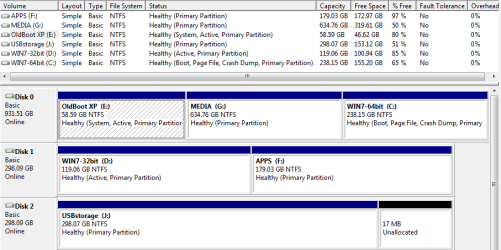
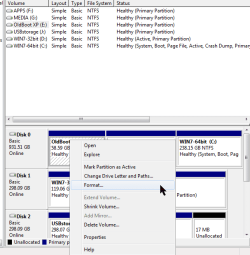
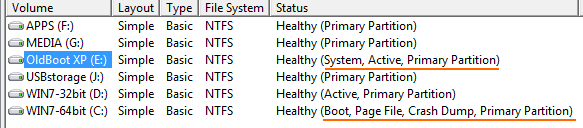
Let's start with this snap below. I only ever use the C "boot" partition for booting, yet somehow years ago when I went from XP to 7 I ended up with these partitions, a legacy from way earlier when my techy buddy set up my XP. Everything works smoothly, though, except for one problem. The tech at this one Backupper image utility says to allow for a proper system restore from a saved image I should choose "System Backup" in the utility. OK then, in that process the program insists on including not only my preferred C (boot) partition but this unwanted E (system) partition. When I do that, things go smoothly, but the image becomes significantly larger, taking up precious "J" USB storage, plus it takes longer. Since I couldn't change Backupper I figured I'd Format the unused E. But Windows refuses, I guess since it's the 'system'. I'd really like to zero out the used space there. Is there any way?
 

Attachments
  • E partition is System.png
    E partition is System.png
    4.2 KB · Views: 37

My Computer My Computer

At a glance

Windows 7 Professional SP1 64-bitIntel Core i5 3570K @ 3.40GHz8.00GB Dual-Channel DDR3 @ 802MHz1024MB ATI AMD Radeon HD 6670
Computer type
PC/Desktop
Computer Manufacturer/Model Number
home-made 2008
OS
Windows 7 Professional SP1 64-bit
CPU
Intel Core i5 3570K @ 3.40GHz
Motherboard
ASUSTeK COMPUTER INC. P8Z77-V LX
Memory
8.00GB Dual-Channel DDR3 @ 802MHz
Graphics Card(s)
1024MB ATI AMD Radeon HD 6670
Sound Card
N.A. - mobo sound
Monitor(s) Displays
HP V242h 24' + HITACHI 51F59 HDTV
Screen Resolution
1920x1080
Hard Drives
Transcend 480 GB TLC SATA III 2.5' Solid State Drive
313GB Seagate ST3320620AS ATA Device (SATA)
977GB Western Digital WDC WD1001FAES-22W7A0 ATA Device (SATA)
320GB Seagate FreeAgent GoFlex USB external
PSU
RAIDMAX 530W Modular
Case
CoolerMaster HAF912Plus
Cooling
built-in CPU and case + Coolermaster Megaflow
Keyboard
Logitech Illuminated Keyboard K740
Mouse
iOne Lynx S2 mouse
Antivirus
Panda, Malwarebytes
Browser
Firefox 54.01
Please allow us to see the entire Disk Mgmt screenshot instead of only a section which cuts out the disk map and the sizes of each partition. Disk Management - Post a Screen Capture Image.

When you're ready to get rid of XPired we can help you move the System boot files to Win7 and recover the disk space to the partition of your choice, or a new partition. The disk is not a junkyard to keep spare OS's laying around unused. Now may be the time to consider doing a perfect Clean Reinstall Windows 7 since Win7 is at the slow end of the hard drive now anyway.

In addition you can decide if you want 32 or 64 bit Win7 and delete the other one to reclaim that space too. The general rule of thumb is if you have 4gb or more RAM to use 64 bit, but for less than that I would use 32 bit for best performance.

If you wish to keep the multi-boot then you can use an imaging app that allows flexibility as to which partition it includes and where it can recover them which the Win7 backup imaging can't. A favorite one here is Macrium Imaging - Windows 7 Help Forums
 
Last edited:
Perhaps consider going with and using Acronis True Image, I can click on any single partition to backup at a time; although it too suggests both cdrive and system reserved partition -- I unclick SysRes, and continue with backup of cdrive; later, I backup ddrive.
 

My Computer My Computer

At a glance

Windows 7 Professional 64-bitDesktop i5; Acers i5 & i7desktop 16GB; 1 Acer 8GB & 1 Acer 16GB
Computer type
PC/Desktop
Computer Manufacturer/Model Number
Antec desktop; Acer Aspire laptops
OS
Windows 7 Professional 64-bit
CPU
Desktop i5; Acers i5 & i7
Memory
desktop 16GB; 1 Acer 8GB & 1 Acer 16GB
Hard Drives
1TB split into 2 equal partitions [OS and data] usable by RJS
Internet Speed
AT&T DSL
Browser
FF, GChrome, msIE
Other Info
Windows 7 Firewall, Emsisoft AM/AV, MSE [scan-only], SpywareBlaster, Ruiware/BillP combine
Please allow us to see the entire Disk Mgmt screenshot instead of only a section which cuts out the disk map and the sizes of each partition. Disk Management - Post a Screen Capture Image.

When you're ready to get rid of XPired we can help you move the System boot files to Win7 and recover the disk space to the partition of your choice, or a new partition. The disk is not a junkyard to keep spare OS's laying around unused. Now may be the time to consider doing a perfect Clean Reinstall Windows 7 since Win7 is at the slow end of the hard drive now anyway.

In addition you can decide if you want 32 or 64 bit Win7 and delete the other one to reclaim that space too. The general rule of thumb is if you have 4gb or more RAM to use 64 bit, but for less than that I would use 32 bit for best performance.

If you wish to keep the multi-boot then you can use an imaging app that allows flexibility as to which partition it includes and where it can recover them which the Win7 backup imaging can't. A favorite one here is Macrium Imaging - Windows 7 Help Forums

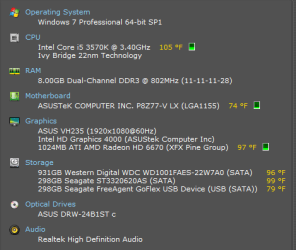
This new snap should work for you, below. Maximizing seemed excessive on 1920. I do use Macrium as well as this Aomei, and with Macrium I only image C. I always do them both the same day right after some C disc cleaning. It's been years since I restored from the Macrium, though, not sure how it's working. And I didn't ask Macrium people about any need to do a 'system' instead of a 'partition' image. I don't want to go through a restore as an experiment, only after a bad crash. Btw, I'm on 64 with 8gb. I also would prefer to avoid a new clean install as I've got this happily tweaked and also don't notice any annoying slowness. Your other ideas for help sound good. As for Acronis, that was the very first imaging program I ever used. Great at the time but seemed to get bloated. About my Specs, I'd already snapped this Speccy before I just read about your SystemInfo and then about needing IE to fill in the info.
 

Attachments

  • E partition is System.png
    E partition is System.png
    16.7 KB · Views: 2
  • speccy.png
    speccy.png
    11.3 KB · Views: 34

My Computer My Computer

At a glance

Windows 7 Professional SP1 64-bitIntel Core i5 3570K @ 3.40GHz8.00GB Dual-Channel DDR3 @ 802MHz1024MB ATI AMD Radeon HD 6670
Computer type
PC/Desktop
Computer Manufacturer/Model Number
home-made 2008
OS
Windows 7 Professional SP1 64-bit
CPU
Intel Core i5 3570K @ 3.40GHz
Motherboard
ASUSTeK COMPUTER INC. P8Z77-V LX
Memory
8.00GB Dual-Channel DDR3 @ 802MHz
Graphics Card(s)
1024MB ATI AMD Radeon HD 6670
Sound Card
N.A. - mobo sound
Monitor(s) Displays
HP V242h 24' + HITACHI 51F59 HDTV
Screen Resolution
1920x1080
Hard Drives
Transcend 480 GB TLC SATA III 2.5' Solid State Drive
313GB Seagate ST3320620AS ATA Device (SATA)
977GB Western Digital WDC WD1001FAES-22W7A0 ATA Device (SATA)
320GB Seagate FreeAgent GoFlex USB external
PSU
RAIDMAX 530W Modular
Case
CoolerMaster HAF912Plus
Cooling
built-in CPU and case + Coolermaster Megaflow
Keyboard
Logitech Illuminated Keyboard K740
Mouse
iOne Lynx S2 mouse
Antivirus
Panda, Malwarebytes
Browser
Firefox 54.01
To delete XP first move the Bootmgr - Move to C:\ with EasyBCD. I'd unplug all other HD's while doing this.

Once Win7 boots with the System Active flags on its partition C, then you can use free Partition Wizard boot CD (burned to disk with Windows Image Burner) to delete XP partition, right click on C to Extend, take up as much of Unallocated space left by XP as you want, then do the same for G. How to extend partition easily with Partition Wizard - video help.

This leaves Win7 on the slower right side of the HD. A better option would be to use PW to delete 32 bit Win7 and the empty Apps partition since Programs should always be on C with the image. Make a new Storage partition there to move the data from G, then delete G to Extend C into the deleted E and G space. You may need to Modify>Set to Inactive to get D to Delete, I don't know why D is Active since only the System partition should ever be Active. Does it boot itself through the BIOS Boot Menu, something we can't see since System Flag is not showing?

This would leave you with a full disk C partition and two full disk Storage partitions. Does this suit you?
 
Does this suit you?

Thanks again Greg, yes a successful result of this EasyBCD/P-Wizard process would suit me just fine. I've actually used the Minitool PW before without too much hassle. And once before I dl'd EasyBCD but backed off trying to do anything with it. If the drives are out does it also work off a burned boot CD? Whine, unplugging drives is for me easier said than done. I'd have to lift the PC without my legs in the lift, not just open the side, and I have a fractured spine (lifting problem), so a job like this is better left until I can get someone over. Plus, I'd hope to get a tech for this, as EasyBCD and fiddling with the BIOS is something I'd only do with smart help around. It reminds me of the time I burnt my car to the ground trying to do my first ever tune-up. Murphy's Law.

For now, if fixing this minor imaging quibble is going to take this much work and risk I guess I'd rather live with the quibble. But I will save and print this thread for the next time I need to open the case for some other upgrade.
 

My Computer My Computer

At a glance

Windows 7 Professional SP1 64-bitIntel Core i5 3570K @ 3.40GHz8.00GB Dual-Channel DDR3 @ 802MHz1024MB ATI AMD Radeon HD 6670
Computer type
PC/Desktop
Computer Manufacturer/Model Number
home-made 2008
OS
Windows 7 Professional SP1 64-bit
CPU
Intel Core i5 3570K @ 3.40GHz
Motherboard
ASUSTeK COMPUTER INC. P8Z77-V LX
Memory
8.00GB Dual-Channel DDR3 @ 802MHz
Graphics Card(s)
1024MB ATI AMD Radeon HD 6670
Sound Card
N.A. - mobo sound
Monitor(s) Displays
HP V242h 24' + HITACHI 51F59 HDTV
Screen Resolution
1920x1080
Hard Drives
Transcend 480 GB TLC SATA III 2.5' Solid State Drive
313GB Seagate ST3320620AS ATA Device (SATA)
977GB Western Digital WDC WD1001FAES-22W7A0 ATA Device (SATA)
320GB Seagate FreeAgent GoFlex USB external
PSU
RAIDMAX 530W Modular
Case
CoolerMaster HAF912Plus
Cooling
built-in CPU and case + Coolermaster Megaflow
Keyboard
Logitech Illuminated Keyboard K740
Mouse
iOne Lynx S2 mouse
Antivirus
Panda, Malwarebytes
Browser
Firefox 54.01
Reviewing, I see now "unplug all other HD's" where other is the qualifier.
 

My Computer My Computer

At a glance

Windows 7 Professional SP1 64-bitIntel Core i5 3570K @ 3.40GHz8.00GB Dual-Channel DDR3 @ 802MHz1024MB ATI AMD Radeon HD 6670
Computer type
PC/Desktop
Computer Manufacturer/Model Number
home-made 2008
OS
Windows 7 Professional SP1 64-bit
CPU
Intel Core i5 3570K @ 3.40GHz
Motherboard
ASUSTeK COMPUTER INC. P8Z77-V LX
Memory
8.00GB Dual-Channel DDR3 @ 802MHz
Graphics Card(s)
1024MB ATI AMD Radeon HD 6670
Sound Card
N.A. - mobo sound
Monitor(s) Displays
HP V242h 24' + HITACHI 51F59 HDTV
Screen Resolution
1920x1080
Hard Drives
Transcend 480 GB TLC SATA III 2.5' Solid State Drive
313GB Seagate ST3320620AS ATA Device (SATA)
977GB Western Digital WDC WD1001FAES-22W7A0 ATA Device (SATA)
320GB Seagate FreeAgent GoFlex USB external
PSU
RAIDMAX 530W Modular
Case
CoolerMaster HAF912Plus
Cooling
built-in CPU and case + Coolermaster Megaflow
Keyboard
Logitech Illuminated Keyboard K740
Mouse
iOne Lynx S2 mouse
Antivirus
Panda, Malwarebytes
Browser
Firefox 54.01
You can probably do these with all drives plugged in due to the restrictions.

Use the PW Boot disk specified. Do each step separately.

If you have any other questions, ask back first. I can write the steps out in more detail if you want. Be sure to watch the PW video tutorial.
 
OK thanks again. I'll return to this over the weekend. Probably. It might be Monday.
 

My Computer My Computer

At a glance

Windows 7 Professional SP1 64-bitIntel Core i5 3570K @ 3.40GHz8.00GB Dual-Channel DDR3 @ 802MHz1024MB ATI AMD Radeon HD 6670
Computer type
PC/Desktop
Computer Manufacturer/Model Number
home-made 2008
OS
Windows 7 Professional SP1 64-bit
CPU
Intel Core i5 3570K @ 3.40GHz
Motherboard
ASUSTeK COMPUTER INC. P8Z77-V LX
Memory
8.00GB Dual-Channel DDR3 @ 802MHz
Graphics Card(s)
1024MB ATI AMD Radeon HD 6670
Sound Card
N.A. - mobo sound
Monitor(s) Displays
HP V242h 24' + HITACHI 51F59 HDTV
Screen Resolution
1920x1080
Hard Drives
Transcend 480 GB TLC SATA III 2.5' Solid State Drive
313GB Seagate ST3320620AS ATA Device (SATA)
977GB Western Digital WDC WD1001FAES-22W7A0 ATA Device (SATA)
320GB Seagate FreeAgent GoFlex USB external
PSU
RAIDMAX 530W Modular
Case
CoolerMaster HAF912Plus
Cooling
built-in CPU and case + Coolermaster Megaflow
Keyboard
Logitech Illuminated Keyboard K740
Mouse
iOne Lynx S2 mouse
Antivirus
Panda, Malwarebytes
Browser
Firefox 54.01
A better option would be to use PW to delete 32 bit Win7 and the empty Apps partition since Programs should always be on C with the image. Make a new Storage partition there to move the data from G, then delete G to Extend C into the deleted E and G space. You may need to Modify>Set to Inactive to get D to Delete, I don't know why D is Active since only the System partition should ever be Active. Does it boot itself through the BIOS Boot Menu, something we can't see since System Flag is not showing?

OK Greg, here's the status now. I succeeded in using BCD to rid the 'System' from E. After a reboot now the C is both 'System' and 'Boot'. I've also reviewed the PW stuff, made a CD, and am ready to boot on it. But it's time to pause now for these reasons:

1. I don't know whether D is booting "itself through the BIOS Boot Menu". In 12 years on PC I've only been into the BIOS twice and I'm a tad reluctant to go back in by myself.

2. I'm not sure your plan for the partitions suits me after all. First, 'tho F/Apps seems empty, it really isn't, there are several working programs there that would take me a long time to rebuild from installer CDs. So I'd prefer to leave F as is. Further, I see no need to do anything with my G/Media, and certainly don't want to extend C into any other space. For now I have plenty of C space, and anyway my objective is to make the backup image only image C, with no E at all, to save backup image space and time. Would extending C into the current E space cause the backup to be bigger than the current C? It seems getting rid of E would make me happy here, dumping D too would be gravy. F and G need to stay, with C.

So, I'm not sure what to do with the PW process. I do have and use Skype and Teamviewer if that would help.
 

My Computer My Computer

At a glance

Windows 7 Professional SP1 64-bitIntel Core i5 3570K @ 3.40GHz8.00GB Dual-Channel DDR3 @ 802MHz1024MB ATI AMD Radeon HD 6670
Computer type
PC/Desktop
Computer Manufacturer/Model Number
home-made 2008
OS
Windows 7 Professional SP1 64-bit
CPU
Intel Core i5 3570K @ 3.40GHz
Motherboard
ASUSTeK COMPUTER INC. P8Z77-V LX
Memory
8.00GB Dual-Channel DDR3 @ 802MHz
Graphics Card(s)
1024MB ATI AMD Radeon HD 6670
Sound Card
N.A. - mobo sound
Monitor(s) Displays
HP V242h 24' + HITACHI 51F59 HDTV
Screen Resolution
1920x1080
Hard Drives
Transcend 480 GB TLC SATA III 2.5' Solid State Drive
313GB Seagate ST3320620AS ATA Device (SATA)
977GB Western Digital WDC WD1001FAES-22W7A0 ATA Device (SATA)
320GB Seagate FreeAgent GoFlex USB external
PSU
RAIDMAX 530W Modular
Case
CoolerMaster HAF912Plus
Cooling
built-in CPU and case + Coolermaster Megaflow
Keyboard
Logitech Illuminated Keyboard K740
Mouse
iOne Lynx S2 mouse
Antivirus
Panda, Malwarebytes
Browser
Firefox 54.01
I understand you've moved the Win7 boot manager to C successfully. Since I don't see where you tell us whether you want to keep D or not (you need a separate license) or what you want to do with the deleted XP space, I will try to present your options without knowing this most critical information:

If you want to keep D booting and have not been booting it via the BIOS Boot Menu key, but have had a Windows Boot menu to choose it from, then you'll need to install EasyBCD to C to add D from the Add OS menu, since the Windows Boot Menu went away when XP stopped managing the boot.

Since you don't want to extend C from over on the slow end of the drive, or touch G, then I assume you want to create a new partition in the deleted XP space. Since Partition Delete and Partition Create can be done in Disk Mgmt, there was no need for the Partiton Wizard disk unless you decide you want to equalize space between the partitions using How to extend partition easily with Partition Wizard - video help.

I hope this helps.
 
Last edited:
Typically mistake. When Win7 was installed on disk 1, you did not physically disconnect Disk 0 and Disk 2 . So your bootmgr ended up on disk 0. Now you need partition E because else you would have nothing to boot with.

You could copy the bootmgr to C, but Greg has a cleaner way to fix the problem.
 

My Computer My Computer

At a glance

Vista, Windows7, Mint Mate, Zorin, Windows 8from 1.6GHz Duo to i7
Computer Manufacturer/Model Number
HP, Dell, Gateway, Toshiba - 4 laptops and 2 desktops
OS
Vista, Windows7, Mint Mate, Zorin, Windows 8
CPU
from 1.6GHz Duo to i7
Monitor(s) Displays
2x HP w2207
Hard Drives
5x HDD, 7x SSD, 12x Externals
Keyboard
with trackball - no mices
Mouse
Trackball mice
Internet Speed
DSL 6000
I continue to be puzzled and still need advice. I've never had this PC be multi-boot, no XP and no 32-bit 7, at least not in the boot sequence, no choices just 64-bit 7. When I first installed 7, the 32-bit, I thought I might still want XP so I left it there. Then I realized I wanted 64/7 instead of 32, but I left 32 there in case anything went wrong installing 64. I have licenses for both 32 and 64. But I never use the 32 or XP any more. And, now it's booting as the C/64, no E in the mix as 'System', and it's fine that way.

Even though I only started this question to find out how to backup-image without the E/XP - I thought I'd need to format it and wasn't allowed - now I'm allowed to format E, but I'm not seeing Partition Delete or Create in Disc Mgmt. Aomei Backupper no longer insists on including E as part of a system backup, so that's solved thank you. But I see now that this is an opportunity to do other more optimizing things. Again, I don't need or want E or D, just C, F and G, but why should the E and D storage go to waste? This leaves me wondering what the best strategy is now.
 

Attachments

  • discs-now.png
    discs-now.png
    15.2 KB · Views: 23

My Computer My Computer

At a glance

Windows 7 Professional SP1 64-bitIntel Core i5 3570K @ 3.40GHz8.00GB Dual-Channel DDR3 @ 802MHz1024MB ATI AMD Radeon HD 6670
Computer type
PC/Desktop
Computer Manufacturer/Model Number
home-made 2008
OS
Windows 7 Professional SP1 64-bit
CPU
Intel Core i5 3570K @ 3.40GHz
Motherboard
ASUSTeK COMPUTER INC. P8Z77-V LX
Memory
8.00GB Dual-Channel DDR3 @ 802MHz
Graphics Card(s)
1024MB ATI AMD Radeon HD 6670
Sound Card
N.A. - mobo sound
Monitor(s) Displays
HP V242h 24' + HITACHI 51F59 HDTV
Screen Resolution
1920x1080
Hard Drives
Transcend 480 GB TLC SATA III 2.5' Solid State Drive
313GB Seagate ST3320620AS ATA Device (SATA)
977GB Western Digital WDC WD1001FAES-22W7A0 ATA Device (SATA)
320GB Seagate FreeAgent GoFlex USB external
PSU
RAIDMAX 530W Modular
Case
CoolerMaster HAF912Plus
Cooling
built-in CPU and case + Coolermaster Megaflow
Keyboard
Logitech Illuminated Keyboard K740
Mouse
iOne Lynx S2 mouse
Antivirus
Panda, Malwarebytes
Browser
Firefox 54.01
First of all, a clarification that you don't need separate licenses for 32-bit and 64-bit Win7 as these are interchangeable and can be reinstalled in either bit-version with the same license. So you're free to use the license you thought was for 32-bit on any other PC and in 64 bit if preferred. The rule of thumb is that for 4gb or more RAM use 64 bit, but any less I'd use 32 bit for best performance.

As I said in my first post, your best bet is to move the files on G to the other drive, delete E and G and then use Partition Wizard to Resize or Extend C all the way to the left to enjoy the fastest read speeds by having C on the left-hand side of the drive. You can at the same time move the right hand border or C to the left to make room for a new storage partition on the hard drive on the right hand side of the disk.

But if you don't want to do that to make Win7 fastest then the next best thing is to rightclick E to Delete Volume in Disk Mgmt. Then you can either Create New Volume for a new data partition in the fastest space on the drive where the OS should be, or you can use Partition Wizard to Extend C and/or G using the deleted XP space. I think I've offered this option several times now. How to extend partition easily with Partition Wizard - video help.

Likewise, you can delete D in Disk Mgmt to either Create a New Partition there, or extend F to the left using PW. Partition Wizard Resize Partition - Video Help.


I've now repeated each of these options at least once or twice. If you have any further questions about how to do these operations please ask back.
 
Greg, I guess since I am Dense about this partitioning stuff I don't mind seeming Dense about it. So, the questions continue.

As I said in my first post, your best bet is to move the files on G to the other drive, delete E and G and then use Partition Wizard to Resize or Extend C all the way to the left to enjoy the fastest read speeds by having C on the left-hand side of the drive. You can at the same time move the right hand border or C to the left to make room for a new storage partition on the hard drive on the right hand side of the disk.

The space on G/Media that's already used is bigger than what I think you must mean by "the other drive", the one with D and F, but if you meant that I don't think you'd say to move the files there. So what Do you mean? Also, I don't 'get' this thing with the 'sides' of the drives. I'd be all for maximizing my C read speeds. I do have one C reading slowness I don't like which is the slow display of 3 new toolbars I've created on my Taskbar. Since these new bars are full of shortcuts (to stuff on G, btw) I've just assumed it was normal for Win7 to be slow on this. Maybe the 'sides' change would improve that? Otherwise my C seems plenty speedy and I wouldn't bother with speeding it up. I don't need a 120mph-capable car when I only drive 80.


But if you don't want to do that to make Win7 fastest then the next best thing is to rightclick E to Delete Volume in Disk Mgmt. Then you can either Create New Volume for a new data partition in the fastest space on the drive where the OS should be, or you can use Partition Wizard to Extend C and/or G using the deleted XP space. I think I've offered this option several times now. How to extend partition easily with Partition Wizard - video help.

Likewise, you can delete D in Disk Mgmt to either Create a New Partition there, or extend F to the left using PW. Partition Wizard Resize Partition - Video Help.

I'm pretty sure I know How to do these PW operations (though I just might screw them up). I'm just not clear on Why to do them. For instance, why wouldn't a Format on E and D be just as good as a Delete and Create process?

See, this is why you're an IT Pro/Windows Guru and I am a lowly old man user...
 

My Computer My Computer

At a glance

Windows 7 Professional SP1 64-bitIntel Core i5 3570K @ 3.40GHz8.00GB Dual-Channel DDR3 @ 802MHz1024MB ATI AMD Radeon HD 6670
Computer type
PC/Desktop
Computer Manufacturer/Model Number
home-made 2008
OS
Windows 7 Professional SP1 64-bit
CPU
Intel Core i5 3570K @ 3.40GHz
Motherboard
ASUSTeK COMPUTER INC. P8Z77-V LX
Memory
8.00GB Dual-Channel DDR3 @ 802MHz
Graphics Card(s)
1024MB ATI AMD Radeon HD 6670
Sound Card
N.A. - mobo sound
Monitor(s) Displays
HP V242h 24' + HITACHI 51F59 HDTV
Screen Resolution
1920x1080
Hard Drives
Transcend 480 GB TLC SATA III 2.5' Solid State Drive
313GB Seagate ST3320620AS ATA Device (SATA)
977GB Western Digital WDC WD1001FAES-22W7A0 ATA Device (SATA)
320GB Seagate FreeAgent GoFlex USB external
PSU
RAIDMAX 530W Modular
Case
CoolerMaster HAF912Plus
Cooling
built-in CPU and case + Coolermaster Megaflow
Keyboard
Logitech Illuminated Keyboard K740
Mouse
iOne Lynx S2 mouse
Antivirus
Panda, Malwarebytes
Browser
Firefox 54.01
If the issue is that you don't have storage space to move the files off G to delete it and either slide C intact over to the left using Partition Wizard to Resize Partition, or drag C's left border all the way to the left then set its right border where you want it to fit in a new data partition on its right, then you can use the PW Extend feature I linked twice to add the deleted XP to C and/or G, or create a new data partition there.

This is only mentioned because it's always best to have the OS on the left side of the drive to benefit from the fastest reading speeds nearer to where the disk reader parks.

Because we've seen problems with former OS partitions leaving boot code on the drive which can interfere later, I always suggest to delete and then create new partitions during reinstall or repartitioning rather than just formatting the existing partition. It seems to get it cleaner.

You needn't ever apologize for asking questions here. You probably already know more than most people about these issues, and now you know even more and perhaps get to use the coolest tool we have here which has helped thousands of Users do complicated partitioning operations without a single failure. Partition Wizard will show you exactly how your disk looks before you Apply the steps you've taken, so you can always Undo and do over each step until it looks exactly like you want. So take all the time you need before clicking Apply, even asking back here if necessary. I will be flying most of today but check in tonight from Boston.
 
If the issue is that you don't have storage space to move the files off G to delete it and either slide C intact over to the left using Partition Wizard to Resize Partition, or drag C's left border all the way to the left then set its right border where you want it to fit in a new data partition on its right, then you can use the PW Extend feature I linked twice to add the deleted XP to C and/or G, or create a new data partition there.

This is only mentioned because it's always best to have the OS on the left side of the drive to benefit from the fastest reading speeds nearer to where the disk reader parks.

Because we've seen problems with former OS partitions leaving boot code on the drive which can interfere later, I always suggest to delete and then create new partitions during reinstall or repartitioning rather than just formatting the existing partition. It seems to get it cleaner.

It seems I'm just too dense. I can see maybe Deleting the E/XP and then expanding the G/Media to include that space. Or did I misunderstand? As for 'delete and create' being better/cleaner than format, I see now.
 

My Computer My Computer

At a glance

Windows 7 Professional SP1 64-bitIntel Core i5 3570K @ 3.40GHz8.00GB Dual-Channel DDR3 @ 802MHz1024MB ATI AMD Radeon HD 6670
Computer type
PC/Desktop
Computer Manufacturer/Model Number
home-made 2008
OS
Windows 7 Professional SP1 64-bit
CPU
Intel Core i5 3570K @ 3.40GHz
Motherboard
ASUSTeK COMPUTER INC. P8Z77-V LX
Memory
8.00GB Dual-Channel DDR3 @ 802MHz
Graphics Card(s)
1024MB ATI AMD Radeon HD 6670
Sound Card
N.A. - mobo sound
Monitor(s) Displays
HP V242h 24' + HITACHI 51F59 HDTV
Screen Resolution
1920x1080
Hard Drives
Transcend 480 GB TLC SATA III 2.5' Solid State Drive
313GB Seagate ST3320620AS ATA Device (SATA)
977GB Western Digital WDC WD1001FAES-22W7A0 ATA Device (SATA)
320GB Seagate FreeAgent GoFlex USB external
PSU
RAIDMAX 530W Modular
Case
CoolerMaster HAF912Plus
Cooling
built-in CPU and case + Coolermaster Megaflow
Keyboard
Logitech Illuminated Keyboard K740
Mouse
iOne Lynx S2 mouse
Antivirus
Panda, Malwarebytes
Browser
Firefox 54.01
So then you'd boot Partition Wizard CD, rightclick XP partition to Delete, click OK.

Next rightclick G to Extend, move the slider to include all of the the Uncallocated space remaining from XP partition, click OK, then Apply. How to extend partition easily with Partition Wizard - video help.

As an alternative you can click Create Partition and create a New partition in the deleted XP space. Partition Wizard Create Partition - Video Help

Then do the same for DISK1 and Win7 32 bit.

Is this what you want to do?
 
So then you'd boot Partition Wizard CD, rightclick XP partition to Delete, click OK.

Is this what you want to do?

Indeed, your instructions at this point seemed like the simplest solution, at least for E/XP. I decided to retain D/Win7-32 though, until I'm sure I'm not going to lose anything special like registrations. That will take a little more time.

So, I booted on the PW boot CD to delete E then expand G into the space. The UI came up and it properly read my current partitions. But nothing worked, no right-click on E, no menus, no buttons at all would respond. Dead. So I booted a second time, this time with the PW "Safe Boot" (whatever that is). Same result, dead. I have no guess why, but I wonder if I just try running the PW from C if I'd be able to do the E and G actions. Would that be unsafe?
 

My Computer My Computer

At a glance

Windows 7 Professional SP1 64-bitIntel Core i5 3570K @ 3.40GHz8.00GB Dual-Channel DDR3 @ 802MHz1024MB ATI AMD Radeon HD 6670
Computer type
PC/Desktop
Computer Manufacturer/Model Number
home-made 2008
OS
Windows 7 Professional SP1 64-bit
CPU
Intel Core i5 3570K @ 3.40GHz
Motherboard
ASUSTeK COMPUTER INC. P8Z77-V LX
Memory
8.00GB Dual-Channel DDR3 @ 802MHz
Graphics Card(s)
1024MB ATI AMD Radeon HD 6670
Sound Card
N.A. - mobo sound
Monitor(s) Displays
HP V242h 24' + HITACHI 51F59 HDTV
Screen Resolution
1920x1080
Hard Drives
Transcend 480 GB TLC SATA III 2.5' Solid State Drive
313GB Seagate ST3320620AS ATA Device (SATA)
977GB Western Digital WDC WD1001FAES-22W7A0 ATA Device (SATA)
320GB Seagate FreeAgent GoFlex USB external
PSU
RAIDMAX 530W Modular
Case
CoolerMaster HAF912Plus
Cooling
built-in CPU and case + Coolermaster Megaflow
Keyboard
Logitech Illuminated Keyboard K740
Mouse
iOne Lynx S2 mouse
Antivirus
Panda, Malwarebytes
Browser
Firefox 54.01
Running the installed PW right off C, all the menus do pop up, they're all alive. I've emailed the Minitool people.
 

My Computer My Computer

At a glance

Windows 7 Professional SP1 64-bitIntel Core i5 3570K @ 3.40GHz8.00GB Dual-Channel DDR3 @ 802MHz1024MB ATI AMD Radeon HD 6670
Computer type
PC/Desktop
Computer Manufacturer/Model Number
home-made 2008
OS
Windows 7 Professional SP1 64-bit
CPU
Intel Core i5 3570K @ 3.40GHz
Motherboard
ASUSTeK COMPUTER INC. P8Z77-V LX
Memory
8.00GB Dual-Channel DDR3 @ 802MHz
Graphics Card(s)
1024MB ATI AMD Radeon HD 6670
Sound Card
N.A. - mobo sound
Monitor(s) Displays
HP V242h 24' + HITACHI 51F59 HDTV
Screen Resolution
1920x1080
Hard Drives
Transcend 480 GB TLC SATA III 2.5' Solid State Drive
313GB Seagate ST3320620AS ATA Device (SATA)
977GB Western Digital WDC WD1001FAES-22W7A0 ATA Device (SATA)
320GB Seagate FreeAgent GoFlex USB external
PSU
RAIDMAX 530W Modular
Case
CoolerMaster HAF912Plus
Cooling
built-in CPU and case + Coolermaster Megaflow
Keyboard
Logitech Illuminated Keyboard K740
Mouse
iOne Lynx S2 mouse
Antivirus
Panda, Malwarebytes
Browser
Firefox 54.01
Back
Top