Solved Backup Error code: 0x81000019

What exactly is it you want to do with PW CD?

Please post back a screenshot of your maximized Disk Mgmt drive map with listings, using Snipping Tool in Start Menu. Tell us what it is you want to do and we'll help you get it sorted, including repairing Startup permanently which is best done from DVD Repair console or Repair CD.
System Repair Disc - Create

Personally, just from what you describe I'd be eager to get a perfect clean reinstall which will solve all issues and give you the freshest possible start. Is this an option for you?
Reinstalling Windows 7
 
I'm not sure why you are focusing on Partition Wizard. It appears your main concern is you may lose your data. Maybe your HDD is on the way out or any other number of issues causing an intermittent start problem.

You may want to see if you can make a Macrium Reflect image. This may be a faster way to "backup" your PC. If it is a HDD failing it can be used to restore to a new HDD or simply mounted independently of your current HDD for data to be recovered.
I would recommend Macrium over Windows imaging in this case.
 

My Computer

Computer type
PC/Desktop
Computer Manufacturer/Model Number
Own build
OS
Windows 7x64 Home Premium SP1
CPU
Intel i7 2600k
Motherboard
ASUS P8Z68 Deluxe
Memory
G.Skill Ripjaws (DDR3-1600) 2x4GB
Graphics Card(s)
Nvidia GeForce GTS 450; Intel HD Graphics 3000(GT2+)
Monitor(s) Displays
Dell Ultrasharp IPS panel U2311H, Samsung SyncMaster P2350
Screen Resolution
1920x1080
Hard Drives
Samsung 850 Pro SSD 256GB, Samsung SSD 840 120GB, Seagates 1TB Barracuda ST31000528AS x2
PSU
Seasonic M12II 520W
Case
Lian Li Lancool PC-K60
Cooling
Case: 1x120mm, 3x140mm CPU: Hyper 212+
Keyboard
Logitech MK520 (wireless)
Mouse
Logitech MK520
Internet Speed
6-7 Mbps
Antivirus
Norton Security Premium, Malwarebytes on 2 (MSE on 3rd PC)
Browser
FireFox
Other Info
Audio: Logitech Z523 2.1
Not that I'm trying to hijack the thread. But I couldn't help but to try and assist. Having just gone through this with a customers rig.

It sounds as if you have a hard drive that is starting to fail. You should definitely back up everything you can. Next thing I would do is to get a replacement drive and clone your original drive to the replacement drive. Using something like Acronis True Image 2011 or XXClone. And a simple IDE/SATA adapter like this USB 2.0 to IDE SATA Adapter Cable for 2.5" 3.5" Hard Drives | eBay

By doing so you will have a replacement for your hard drive with (hopefully) a larger, faster unit. That is now the exact same as your original, including factory restore partitions. (Only it won't be losing the Master Boot Record information or some such requiring you to keep using start-up repair).

I have a small computer repair business. And one of the things I make a standard practice is to clone the customers drive. It doesn't take long, isn't hard to do, and insures that the customers DATA will remain intact no matter what is done. This has saved my bacon on several occasions and led to a good reputation.

Now you can work on your system with confidence that all your data is totally backed up. If it were me. The first thing I would do is a thorough Malware scan with something like Malwarebytes. Next would be to address the back-up problem.

I have found several decent solutions. One has been as simple as deleting the "System Reserved" partition and using a Windows 7 installation disc to do a "Start-up" repair. Another one I found on another forum. I hope it is ok to post it here. My next post will be a copy of that article.
 

My Computer

Computer Manufacturer/Model Number
HP DV7-4270us (lappy) / Custom Whitebox (desktop)
OS
7Ult x64
CPU
AMD Phenom II P960 / AMD Phenom II X4 925
Motherboard
HP 1641 / Gigabyte GA-880GM-USB3
Memory
4GB Elpidia PC3-10700 / 8GB G.Skill PC3-10700
Graphics Card(s)
ATI Mobility Radeon HD 6370 s / ATI Radeon HD 4250
Sound Card
IDT Hi Def (Beats Audio) / Realtek Hi Def
Monitor(s) Displays
Duh (Laptop) / Acer 211H
Hard Drives
Laptop 640GB (5400RPM)

Desktop 1.5TB (7200RPM)
PSU
Laptop HP / Antec EarthWatts EA-500D
Case
Laptop HP / HEC 63RABB Black Steel ATX Mid Tower
Cooling
HP Crap / ThermalTake
OK. Here is the copy of that article. This way if the Admins chose to do so. They can delete this post without having to delete my whole previous post.

A SHADOW COPY COULD NOT BE CREATED - PLEASE CHECK VSS & SPP APPLICATION EVENT LOGS FOR MORE INFORMATION. DETAILS: INSUFFICIENT STORAGE AVAILABLE TO CREATE EITHER THE SHADOW COPY STORAGE FILE OR OTHER SHADOW COPY DATA". error code 0x81000019

Hi everyone,
I just spent 6 or more hours on the phone with MS level 1 and then level 2 software engineers. They accessed my pc remotely and together, we came up with a solution to this problem. This is a temporary solution until MS solves it permanently in an update.

It's a very simple solution but I caution you that you must follow the instructions exactly otherwise you will not be able to boot up to windows after a restart so here is Sangeeta Mohanty's email with the solution...

Tried to make C:\Drive as active in Disk management, it will make the boot partition (100MB ) inactive automatically, once you restart will get error boot manager is missing. We have a temporary solution.
Please go to diskmgmt.msc (OR DISK MANAGEMENT IN CONTROL PANEL) and make the C:\ partition as activate and try backing up using system image, it should work. Never restart the computer after that. Once the backup is done, please go to diskmgmt.msc make the boot partition (100MB ) as active partition. Then restart. It should work.

(IT DOES WORK - I'VE TRIED!)

** IMPORTANT** Please remember never make C:\ partition active and re boot you won't be able to boot. The reason is boot partition (100MB ) contains you boot files.
Result: was able to resolve the issue.

Hope this helps - I know it was very frustrating and I was determined to get a resolution.
Mike


  • Proposed As Answer byschmichrisSunday, October 09, 2011 9:34 PM
This is why the "Start-up Repair" after removing the "System Reserved" partition. The "Start-up Repair" does NOT create a new "System Reserved" partition. It instead writes the MBR to your C: drive. With the "System Reserved" partition gone the Back-up will now work.
 

My Computer

Computer Manufacturer/Model Number
HP DV7-4270us (lappy) / Custom Whitebox (desktop)
OS
7Ult x64
CPU
AMD Phenom II P960 / AMD Phenom II X4 925
Motherboard
HP 1641 / Gigabyte GA-880GM-USB3
Memory
4GB Elpidia PC3-10700 / 8GB G.Skill PC3-10700
Graphics Card(s)
ATI Mobility Radeon HD 6370 s / ATI Radeon HD 4250
Sound Card
IDT Hi Def (Beats Audio) / Realtek Hi Def
Monitor(s) Displays
Duh (Laptop) / Acer 211H
Hard Drives
Laptop 640GB (5400RPM)

Desktop 1.5TB (7200RPM)
PSU
Laptop HP / Antec EarthWatts EA-500D
Case
Laptop HP / HEC 63RABB Black Steel ATX Mid Tower
Cooling
HP Crap / ThermalTake
(No hijack from my point of view Gunny ... helpful comment)

But I think a Macrium Reflect Image of the OS partition, system reserved if you have one, plus any addition data partition will enable you to restore the image to a new HDD if needed. Macrium will store the MBR for replacement.

Windows imaging can be finicky which is why I don't recommend it here.
 

My Computer

Computer type
PC/Desktop
Computer Manufacturer/Model Number
Own build
OS
Windows 7x64 Home Premium SP1
CPU
Intel i7 2600k
Motherboard
ASUS P8Z68 Deluxe
Memory
G.Skill Ripjaws (DDR3-1600) 2x4GB
Graphics Card(s)
Nvidia GeForce GTS 450; Intel HD Graphics 3000(GT2+)
Monitor(s) Displays
Dell Ultrasharp IPS panel U2311H, Samsung SyncMaster P2350
Screen Resolution
1920x1080
Hard Drives
Samsung 850 Pro SSD 256GB, Samsung SSD 840 120GB, Seagates 1TB Barracuda ST31000528AS x2
PSU
Seasonic M12II 520W
Case
Lian Li Lancool PC-K60
Cooling
Case: 1x120mm, 3x140mm CPU: Hyper 212+
Keyboard
Logitech MK520 (wireless)
Mouse
Logitech MK520
Internet Speed
6-7 Mbps
Antivirus
Norton Security Premium, Malwarebytes on 2 (MSE on 3rd PC)
Browser
FireFox
Other Info
Audio: Logitech Z523 2.1
I have not used Macrium and am only somewhat familiar with it. From what I understand Macrium Reflect - Wikipedia, the free encyclopedia It is a decent way to go, as far as doing a restore from an image. Which I can see certain advantages of for certain scenarios. However. From what I am seeing it cannot clone one disk directly to another.

The thing I like (and prefer) about a disk to disk clone is that ALL partitions (including hidden ones and factory "tools" and "recovery" partitions) are cloned to the new disk. Not to mention that you can remove the hard drive from your computer and install the cloned hard drive, boot the computer and never have to do anything. Just like nothing changed. Except for the size and speed of the drive should you choose to go with a different drive.

I have encountered problems in the past with a couple of very high-end Dell XPS rigs that were SEVERELY infected. Those things will not even recognize the drives if the factory partitions aren't intact. I had to clone to a new drive and then (using Acronis Disk Director) re-format the C: partition and do a quasi "bare metal install" to the C: partition. Then transfer the customers DATA from the old drive to the new scanning it through his (now Kaspersky protected) rig. Then install all his programs and utilities and again transfer the corresponding DATA.
 

My Computer

Computer Manufacturer/Model Number
HP DV7-4270us (lappy) / Custom Whitebox (desktop)
OS
7Ult x64
CPU
AMD Phenom II P960 / AMD Phenom II X4 925
Motherboard
HP 1641 / Gigabyte GA-880GM-USB3
Memory
4GB Elpidia PC3-10700 / 8GB G.Skill PC3-10700
Graphics Card(s)
ATI Mobility Radeon HD 6370 s / ATI Radeon HD 4250
Sound Card
IDT Hi Def (Beats Audio) / Realtek Hi Def
Monitor(s) Displays
Duh (Laptop) / Acer 211H
Hard Drives
Laptop 640GB (5400RPM)

Desktop 1.5TB (7200RPM)
PSU
Laptop HP / Antec EarthWatts EA-500D
Case
Laptop HP / HEC 63RABB Black Steel ATX Mid Tower
Cooling
HP Crap / ThermalTake
Cloning is a direct bit copying process from one HDD to another. If you have your spare HDD ready to go then some may find cloning more straightforward. Its name may suggest something really clever or advanced is going on - it isn't. If you prefer it then that's fine.

Imaging can achieve the same end result by storing intermediate image files which are typically stored on a general backup external USB HDD. I have personally restored to new and "old" HDDs this way including recovery partitions. Many others have done the same.
I have a cold standby disk made this way, unplugged in a computer bay. I simply swap power and sata cables and up fires the spare disk.

I think imaging is faster, more flexible and more efficient. Because you can easily store many images you have many different versions of recovered HDD to choose from.
 

My Computer

Computer type
PC/Desktop
Computer Manufacturer/Model Number
Own build
OS
Windows 7x64 Home Premium SP1
CPU
Intel i7 2600k
Motherboard
ASUS P8Z68 Deluxe
Memory
G.Skill Ripjaws (DDR3-1600) 2x4GB
Graphics Card(s)
Nvidia GeForce GTS 450; Intel HD Graphics 3000(GT2+)
Monitor(s) Displays
Dell Ultrasharp IPS panel U2311H, Samsung SyncMaster P2350
Screen Resolution
1920x1080
Hard Drives
Samsung 850 Pro SSD 256GB, Samsung SSD 840 120GB, Seagates 1TB Barracuda ST31000528AS x2
PSU
Seasonic M12II 520W
Case
Lian Li Lancool PC-K60
Cooling
Case: 1x120mm, 3x140mm CPU: Hyper 212+
Keyboard
Logitech MK520 (wireless)
Mouse
Logitech MK520
Internet Speed
6-7 Mbps
Antivirus
Norton Security Premium, Malwarebytes on 2 (MSE on 3rd PC)
Browser
FireFox
Other Info
Audio: Logitech Z523 2.1
I appreciate the info. I did not realize that it would image the complete disk including hidden partitions. This would indeed be faster. At least for the creation of the image. If not for the whole procedure altogether. Many thanks.

That does indeed sound like the way to go. It would be less intense on the failing drive. Being as the recovery instruction set is on an active Linux disc, a complete utility and recovery disc could be created. This way it could include other tools and utilities as well. Applying this to a boot-able flash drive would be a handy thing indeed. Not to mention making my life much easier.

And as for your your comment concerning Windows imaging. I have never been a fan of relying on Windows to do ANY back up or maintenance to a computer. Not a big fan of Microsoft Security Essentials either. And they are planning on including it with Windows 8. Life is beautiful ALL the time. :sick:
 

My Computer

Computer Manufacturer/Model Number
HP DV7-4270us (lappy) / Custom Whitebox (desktop)
OS
7Ult x64
CPU
AMD Phenom II P960 / AMD Phenom II X4 925
Motherboard
HP 1641 / Gigabyte GA-880GM-USB3
Memory
4GB Elpidia PC3-10700 / 8GB G.Skill PC3-10700
Graphics Card(s)
ATI Mobility Radeon HD 6370 s / ATI Radeon HD 4250
Sound Card
IDT Hi Def (Beats Audio) / Realtek Hi Def
Monitor(s) Displays
Duh (Laptop) / Acer 211H
Hard Drives
Laptop 640GB (5400RPM)

Desktop 1.5TB (7200RPM)
PSU
Laptop HP / Antec EarthWatts EA-500D
Case
Laptop HP / HEC 63RABB Black Steel ATX Mid Tower
Cooling
HP Crap / ThermalTake
With Macrium Reflect you need to check that your system will boot under the linux DVD. Some system configurations have problems. It's best to make the pe disk if only for a safeguard. Hirens Boot CD has an earlier Macrium built in but can be used for recovery for V5 I think.
 

My Computer

Computer type
PC/Desktop
Computer Manufacturer/Model Number
Own build
OS
Windows 7x64 Home Premium SP1
CPU
Intel i7 2600k
Motherboard
ASUS P8Z68 Deluxe
Memory
G.Skill Ripjaws (DDR3-1600) 2x4GB
Graphics Card(s)
Nvidia GeForce GTS 450; Intel HD Graphics 3000(GT2+)
Monitor(s) Displays
Dell Ultrasharp IPS panel U2311H, Samsung SyncMaster P2350
Screen Resolution
1920x1080
Hard Drives
Samsung 850 Pro SSD 256GB, Samsung SSD 840 120GB, Seagates 1TB Barracuda ST31000528AS x2
PSU
Seasonic M12II 520W
Case
Lian Li Lancool PC-K60
Cooling
Case: 1x120mm, 3x140mm CPU: Hyper 212+
Keyboard
Logitech MK520 (wireless)
Mouse
Logitech MK520
Internet Speed
6-7 Mbps
Antivirus
Norton Security Premium, Malwarebytes on 2 (MSE on 3rd PC)
Browser
FireFox
Other Info
Audio: Logitech Z523 2.1
Thanks. I am familiar with Hirens and a few others. I have several PE disks (including Hirens) as well as a few "Live" Windows disks that I have made. I just had never used Macrium. I plan on giving it a try. If it works as well as you say then I will build a Boot/Recovery disc that includes it as well as a few other utilities I am partial to. Whether I do it first with Linux or with a "Live" Windows platform I'm not sure. Probably Linux first. If all goes well I will post a link to the completed disk in case anybody is interested.
 

My Computer

Computer Manufacturer/Model Number
HP DV7-4270us (lappy) / Custom Whitebox (desktop)
OS
7Ult x64
CPU
AMD Phenom II P960 / AMD Phenom II X4 925
Motherboard
HP 1641 / Gigabyte GA-880GM-USB3
Memory
4GB Elpidia PC3-10700 / 8GB G.Skill PC3-10700
Graphics Card(s)
ATI Mobility Radeon HD 6370 s / ATI Radeon HD 4250
Sound Card
IDT Hi Def (Beats Audio) / Realtek Hi Def
Monitor(s) Displays
Duh (Laptop) / Acer 211H
Hard Drives
Laptop 640GB (5400RPM)

Desktop 1.5TB (7200RPM)
PSU
Laptop HP / Antec EarthWatts EA-500D
Case
Laptop HP / HEC 63RABB Black Steel ATX Mid Tower
Cooling
HP Crap / ThermalTake
I upgraded to Macrium 5 a few weeks ago and made a Win PE disk per the rather detailed instructions. I also made a Linux boot CD, but could not get the disk to boot and access my Macrium images. The Win PE disk seems to work OK.


However, I am keeping Macrium 5 because the Linux boot disk that I made for Macrium 4 still works and shows my drives and images. As far as I know, this Linux disk is fully compatible with images made with Macrium 5.

You gotta be careful with the boot disks---they aren't worth a damn if they won't boot and access your partitions and images and you can't tell if they will without a test.
 

My Computer

Computer type
PC/Desktop
Computer Manufacturer/Model Number
Ignatz Special; 4 speed manual gearbox; factory air conditioning; one of one
OS
Windows 7 Home Premium SP1, 64-bit
CPU
Intel Skylake i5-6600K, not overclocked
Motherboard
AsRock Z170M Extreme 4, micro ATX
Memory
8 GB HyperX DDR4-2666 (2 x 4 GB)
Graphics Card(s)
none; graphics are integrated on CPU
Sound Card
onboard: Realtek ALC1150; external: USB Behringer UF0-202
Monitor(s) Displays
Dell S2340M 23 inch IPS
Screen Resolution
1600 x 900
Hard Drives
System: Crucial MX100 series SSD, 128 GB;
Data: Samsung Spinpoint 103SJ, 1 TB;
Backup: WD Caviar Green WD30EZRX-00D8PB0, 3 TB
PSU
Rosewill SilentNight 500 watt fanless, semi-modular
Case
Antec Solo II
Cooling
Noctua NH-U12S; Noctua F12 intake, Noctua S12A exhaust
Keyboard
Microsoft 200 6JH-00001 USB
Mouse
Dell or Microsoft optical wired; USB
Antivirus
Microsoft Security Essentials and Malwarebytes Premium
Browser
Pale Moon
Other Info
All fans PWM; speeds at idle: CPU circa 500 rpm; intake circa 600 rpm; exhaust circa 600 rpm; CPU temps 27 idle and 47 C load in a warm room (27 C/81 F) when running Intel Extreme Tuning Utility stress test.
Thanks everyone, brilliant to have this help.

Hope I'm not hijacking the thread back.

Golden: I tried to use RoboCopy, which I can see is a useful tool. But, it got stuck trying to get past files which required Admin permission. I tried changing permissions, and I tried using the '/dat:' command, but not much help.

What exactly is it you want to do with PW CD?

Please post back a screenshot of your maximized Disk Mgmt drive map with listings, using Snipping Tool in Start Menu. Tell us what it is you want to do and we'll help you get it sorted, including repairing Startup permanently which is best done from DVD Repair console or Repair CD.
System Repair Disc - Create

Personally, just from what you describe I'd be eager to get a perfect clean reinstall which will solve all issues and give you the freshest possible start. Is this an option for you?
Reinstalling Windows 7

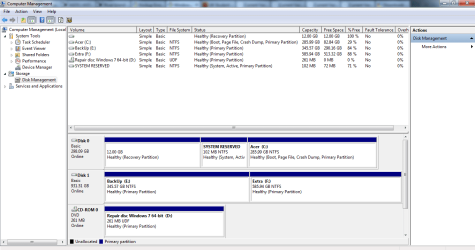
Here's a snip of my Disk Mgmnt:


What do I need to be able to clean reinstall Windows 7? (As much as I could glean from your article, I don't need much? A system recovery disk?)

I guess there are two separate issues:

Not that I'm trying to hijack the thread. But I couldn't help but to try and assist. Having just gone through this with a customers rig.

It sounds as if you have a hard drive that is starting to fail. You should definitely back up everything you can. Next thing I would do is to get a replacement drive and clone your original drive to the replacement drive. Using something like Acronis True Image 2011 or XXClone. And a simple IDE/SATA adapter like this USB 2.0 to IDE SATA Adapter Cable for 2.5" 3.5" Hard Drives | eBay

By doing so you will have a replacement for your hard drive with (hopefully) a larger, faster unit. That is now the exact same as your original, including factory restore partitions. (Only it won't be losing the Master Boot Record information or some such requiring you to keep using start-up repair).

I have a small computer repair business. And one of the things I make a standard practice is to clone the customers drive. It doesn't take long, isn't hard to do, and insures that the customers DATA will remain intact no matter what is done. This has saved my bacon on several occasions and led to a good reputation.

Now you can work on your system with confidence that all your data is totally backed up. If it were me. The first thing I would do is a thorough Malware scan with something like Malwarebytes. Next would be to address the back-up problem.

I have found several decent solutions. One has been as simple as deleting the "System Reserved" partition and using a Windows 7 installation disc to do a "Start-up" repair. Another one I found on another forum. I hope it is ok to post it here. My next post will be a copy of that article.


I) Is my HDD completely on the way out, or does it just have startup problems? [Asked at a PC shop, they thought it was dodgy and just working (slightly sporadically) until it really busts and goes into 'cascade error'. Also, my friend had a look at it: he definitely did a malware scan, and, as he had to back up my files, might also have down a clean reinstall, I'm not sure. Is there an easy way to check if the HDD has reparable faults, or needs to be cloned and chucked?]

II) I need to be able to back-up my files because of the threat of the HDD completely shutting down. I thought using the PW disc might allow me to use Windows Backup again (it hasn't been working, hence my original post on the thread).

I'm not sure why you are focusing on Partition Wizard. It appears your main concern is you may lose your data. Maybe your HDD is on the way out or any other number of issues causing an intermittent start problem.

You may want to see if you can make a Macrium Reflect image. This may be a faster way to "backup" your PC. If it is a HDD failing it can be used to restore to a new HDD or simply mounted independently of your current HDD for data to be recovered.
I would recommend Macrium over Windows imaging in this case.

However, if I can image my HDD using Macrium (I'm going to have a shot at it straight after posting this) maybe that would be the best solution? If it works well, and there is no risk of non-recovery, perhaps I should just image my disk and get on with making a clone and replacing the HDD?

[Is this a potential problem?
With Macrium Reflect you need to check that your system will boot under the linux DVD. Some system configurations have problems. It's best to make the pe disk if only for a safeguard. Hirens Boot CD has an earlier Macrium built in but can be used for recovery for V5 I think.
]

Thanks again for all the help,

Best wishes

Angus
 
Last edited by a moderator:

My Computer

Computer Manufacturer/Model Number
Acer Aspire 5741
OS
Windows 7 Home Premium 64-bit
The Disk Mgmt didn't attach (use paper clip in Reply box) but if your concern is the HD, first thing is to backup your files and image as suggested, then run the maker's diagnostics/repair extended CD scan: HD Diagnostic

Next run Disk Check with both boxes checked. These will tell you the state of your HD and file system.

As far as reinstall goes, the cleanest possible reinstall uses the WIn7 installation DVD if you can find or borrow one. If you download it be sure to get a clean copy by googling Official Win7 ISO download from My Digital Life. The rest of the steps are in my link.

But if you rely on any of the preinstalled programs which came with the computer, you may want to run Factory Recovery from its partition after backing up the Recovery Disks. Acer Support: Frequently Asked Questions list for Recovery media and Restoring a system to factory load
 
greg, here's my disk mgmt screenshot

Results from macrium not positive:

Got the error code: 'MFT corrup - error code = 6. please run 'chkdsk: C: f/'. I'm guessing that points to significant HD faults?

Any other suggestions?!
 

Attachments

  • Capture.PNG
    Capture.PNG
    138.9 KB · Views: 14

My Computer

Computer Manufacturer/Model Number
Acer Aspire 5741
OS
Windows 7 Home Premium 64-bit
If you suspect you have a failing hard drive, I would do the following in this order:

1: copy my data to another drive in an ordinary manner (mouse copy), rather than using an imaging program such as Macrium

2: then make an image of particular partitions with Macrium or similar product if you want to.

3: then determine if your drive is in fact failing by using the manufacturer's tools.

With a shaky drive, you don't want to be in the position of having to rely on an image to recover your data. Images are not a foolproof way to backup. There is always a risk of non-recovery.
 

My Computer

Computer type
PC/Desktop
Computer Manufacturer/Model Number
Ignatz Special; 4 speed manual gearbox; factory air conditioning; one of one
OS
Windows 7 Home Premium SP1, 64-bit
CPU
Intel Skylake i5-6600K, not overclocked
Motherboard
AsRock Z170M Extreme 4, micro ATX
Memory
8 GB HyperX DDR4-2666 (2 x 4 GB)
Graphics Card(s)
none; graphics are integrated on CPU
Sound Card
onboard: Realtek ALC1150; external: USB Behringer UF0-202
Monitor(s) Displays
Dell S2340M 23 inch IPS
Screen Resolution
1600 x 900
Hard Drives
System: Crucial MX100 series SSD, 128 GB;
Data: Samsung Spinpoint 103SJ, 1 TB;
Backup: WD Caviar Green WD30EZRX-00D8PB0, 3 TB
PSU
Rosewill SilentNight 500 watt fanless, semi-modular
Case
Antec Solo II
Cooling
Noctua NH-U12S; Noctua F12 intake, Noctua S12A exhaust
Keyboard
Microsoft 200 6JH-00001 USB
Mouse
Dell or Microsoft optical wired; USB
Antivirus
Microsoft Security Essentials and Malwarebytes Premium
Browser
Pale Moon
Other Info
All fans PWM; speeds at idle: CPU circa 500 rpm; intake circa 600 rpm; exhaust circa 600 rpm; CPU temps 27 idle and 47 C load in a warm room (27 C/81 F) when running Intel Extreme Tuning Utility stress test.
Disk Mgmt looks correct.

Now work through all the steps we've given you and report back or ask further questions to get them done.
 
I got the same problem-.-
But i dont know what to do..
Can some1 help me?
 

My Computer

OS
Windows 7 Professional 64 Bit
What is your computer make/model and the exact problem, symptoms, and what you've done about it so far?

Best approach is either to use another imaging program like free Macrium or Paragon 11, or if you have a WD or SEagate HD use their free Acronis premium imaging/cloning program.

If there are other problems then I'd consider clean reinstalling or running Factory Recovery as described in my last post.
 
Hmm,

After reinstalling my windows 7 i tried to backup but it gives the error msg 0x81000019.
I did disk cleanup but it's not fixed yet..
I think the problem is System Reserved partition it's 37,5 mb free. I think the problem is this but i dont know what to do..
 

My Computer

OS
Windows 7 Professional 64 Bit
It's very close to required 40 mb free but if you want to enlarge or even delete the System Reserved partition to see if it solves the problem, post back a screenshot of your maximized Disk Management drive map with listings showing all columns using the Snipping Tool in Start Menu and we will give you the exact steps.

While you wait save externally a Win7 backup image so you can start over if necessary: Backup Complete Computer - Create an Image Backup, then drag a set of your User files to backup as well.
 
Back
Top