Backup User and System Files

How to Back Up User and System Files in Windows 7

   Information
This will show you how to configure and back up user file types and system files of your choice in Windows 7.

Windows Backup logs are stored in the .evtx file below. It will open in Event Viewer when double clicked on.

C:\Windows\System32\winevt\Logs\Microsoft-Windows-Backup.evtx

   Note
New backups are saved in this format:

drive letter:\computer name\Backup Set YYYY-MM-DD HHMMSS For example: If your computer name is Brink-PC, your backup location is on hard drive (network or local) F: , and you backed up on July 9th 2011 at 3:10:38 PM (it will use 24 hour time), then your backup would be located at:
F:\BRINK-PC\Backup Set 2011-07-09 151038

There will be a incremental Backup Files YYYY-MM-DD HHMMSS folder in the Backup Set... folder location above that contains ZIP folders each under 200MB in size. These ZIP folders contain the selected backed up files. If a file that you included to be backed up is larger 200MB then it will be automatically broken up into several pieces each under 200 MB to fit into multiple ZIP files. The pieces are combined back automatically when restored from the backup though.

Backups are created in sets known as backup periods. To help maximize your disk space, Windows Backup backs up all selected folders the first time it's run and then it only backs up files that are new or have been changed since the last scheduled backup was made. Periodically, Windows creates a new, full backup. Each full backup is known as a backup period. When you view your file backups, you see all of the backup periods labeled with date ranges. If you're saving your backups on a hard drive or network location, Windows Backup will create a new, full backup for you automatically when needed. If you're saving your backups on CDs or DVDs and can't find an existing backup disc, or if you want to create a new backup of all of the files on your computer, you can create a full backup.

If you decide to delete file backups, you should always keep the most recent file backup.

By default, Windows automatically saves as many system images as it has space for without taking up more than 30 percent of space on the backup disk. Once the disk starts running out of room, Windows deletes older system images. If a system image was created through Windows Backup instead with the Include a System Image of Drives box checked (step 9 below), you can set Windows to retain as many system images as it has space for on the backup disk or to only keep the most recent system image. You should always keep the most recent system image. If you are saving your system image on a network location, you can only keep the most recent system image.

For more information, see: Learn more about system image backup - The Storage Team at Microsoft - File Cabinet Blog - Site Home - TechNet Blogs

   Tip
If you get the problem (bug) of nothing happening when you click on the Back up now, Managed space, Turn on/off schedule, or Change settings button after you have already created a backup, then using this Backup User and System Files shortcut may allow you to.
   Warning
Windows Backup won't back up the following items:

  • Program files (files that define themselves as part of a program in the registry when the program is installed).
  • Files stored on hard disks that are formatted using the FAT file system.
  • Files that are in the Recycle Bin.
  • Temporary files on drives smaller than 1 GB.


Here's How: 1. Open the Control Panel (icons view). A) Click on the Backup and Restore icon.

B) Go to step 3, 4, or 5 depending on what you would like to backup.
NOTE: If this is the first time that you are creating a backup, then it would go to step 3.
OR

2. Open the Start Menu, and click on the Computer button. A) Right click on the drive that you back up files on, and click on Properties, Tools tab, and the Back up now button. (See screenshot below) Drive_Properties.jpg
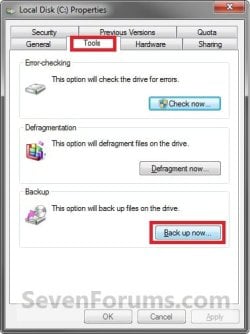
B) Go to step 3, 4, or 5 depending on what you would like to backup.
NOTE: If this is the first time that you are creating a backup, then it would go to step 3.
3. If a Backup has Not been Created Yet
NOTE: This step is for when this is the first time that you create a backup to set it up for what files/folders you would like to be backed up. A) Click on the Set up backup button. (See screenshot below) Step1.jpg
B) Go to step 6.
4. To Make Changes to an Existing Backup before Backing Up Files again
NOTE: This step is for if you would like to make changes to what files/folders you would like to be backed up since what was backed up last time. A) Click on the Change settings link. (See screenshot below) Step10.jpg
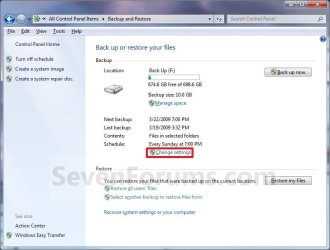
B) Go to step 6.
5. To Backup an Existing Configured Backup
NOTE: This step is for when you would like to create a incremental backup of the files/folders that you have already last setup/selected to have a new updated backup copy of them without any changes made. This incremental backup is added to the current Backup Set YYYY-MM-DD HHMMSS folder. A) Click on the Back up now button. (See screenshot below step 4A)

B) Go to step 15.
6. You will now see this window pop-up briefly. (See screenshot below) step2.jpg
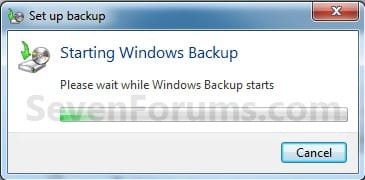
7. Select where you want to save your backup, and click on Next. (See screenshots below)
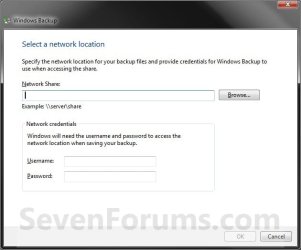
NOTE: Click on the Save on a network button if you wanted to save the backup to a network location. If you backup to a network location, you might need the password to the share. Only the Windows 7 Professional, Ultimate, and Enterprise editions are able to backup to a network location. Step3.jpg
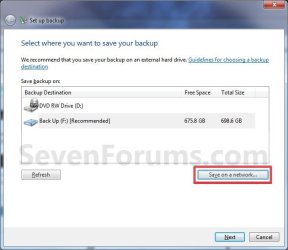
Step3B.jpg

8. Select (dot) what you want to backup. (See screenshot below) A) If you select Let Windows choose, then go to step 11.
NOTE: This will not include anything formatted with the FAT file system, files in the Recycle Bin, or any temp files that are 1GB or more.

B) If you select Let me choose, then continue on to step 9.
NOTE: This will allow you to select what files and folders your would like to backup. Step4.jpg
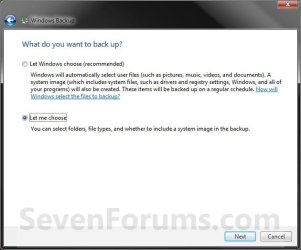
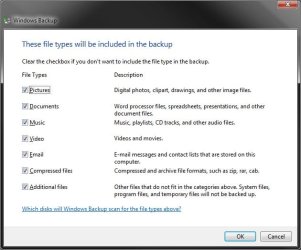
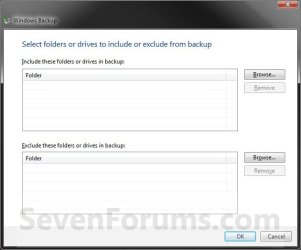
9. Select (check) what files and folders you would like to include in the backup. (See screenshot below)

   Tip
If you would like to included a system image in this backup, then also check the Include a System Image of Drives box at the bottom.

You can change the maximum space used for system images on the drive letter you are saving the Windows Backup to by changing the maximum space used by System Protection for the same drive letter. This is the same setting.

You do not have to have System Protection turned on for the drive letter, but do need to adjust the maximum space to what you like.

The size of a system image can be quite large since it will include all system drives in the image by default plus any drives you have included. If you want to keep multiple system images, be sure to increase the max size accordingly.
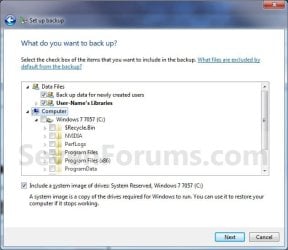
Step5.jpg
10. When finished, click on the Next button. (See screenshot above)

11. Review your backup settings to make sure they are correct. (See screenshot below)
NOTE: If they are not correct, then click on the back arrow button (top left corner) to go back to step 9 to correct them. step6.jpg
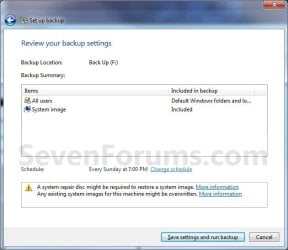
12. Click on the Change schedule link, to change the backup schedule to how often you want to have Windows 7 automatically backup these files. (See screenshot above)

13. Set the schedule to what you want, then click on OK. (See screenshot below)
NOTE: If you do not want to have a backup created automatically on a schedule, then uncheck the Run backup on a schedule box. Scheduled backups are incremental backups that are added to the current Backup Set YYYY-MM-DD HHMMSS folder. Step6_Change.jpg
14. Click on the Save settings and run backup button when ready to backup. (See screenshot below step 11)

15. You will now see this window pop-up briefly. (See screenshot below) Step7.jpg
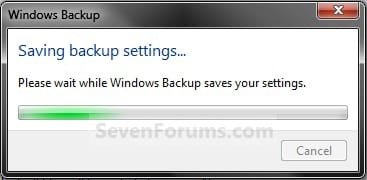
16. You will now see the backup progress. (See screenshot below) step8.jpg
That's it,
Shawn


Related Tutorials


Attachments

  • Step5_Advanced.jpg
    Step5_Advanced.jpg
    89.6 KB · Views: 130
  • Step5_Choose_Folders.jpg
    Step5_Choose_Folders.jpg
    103.2 KB · Views: 118
Last edited:
I'm only a year late but many thanks for this work-around re back up which worked for me too:D
 

My Computer

Computer Manufacturer/Model Number
Dell
OS
Windows 7 64bit
CPU
COREi3
Memory
500 GB HDD 4GB Ram
You're most welcome New 2 W7, and welcome to Seven Forums. :)
 

My Computer

Computer type
PC/Desktop
Computer Manufacturer/Model Number
Self built custom
OS
64-bit Windows 11 Pro for Workstations
CPU
Intel i7-8700K OC'd to 5 GHz
Motherboard
ASUS ROG Maximus XI Formula Z390
Memory
64 GB (4x16GB) G.SKILL TridentZ RGB DDR4 3600 MHz
Graphics Card(s)
ASUS ROG-STRIX-GTX1080TI-O11G-GAMING
Sound Card
Integrated
Monitor(s) Displays
2 x Samsung Odyssey G7 27"
Screen Resolution
2560x1440
Hard Drives
1TB Samsung 990 PRO M.2,
4TB Samsung 990 PRO PRO M.2,
TerraMaster F8 SSD Plus NAS
PSU
Seasonic Prime Titanium 850W
Case
Thermaltake Core P3
Cooling
Corsair Hydro H115i
Keyboard
Logitech wireless K800
Mouse
Logitech MX Master 4
Internet Speed
2 Gb/s Download and 100 Mb/s Upload
Antivirus
Malwarebyte Anti-Malware Premium
Browser
Google Chrome
Other Info
Logitech Z625 speaker system,
Logitech BRIO 4K Pro webcam,
HP Color LaserJet Pro MFP M477fdn,
APC SMART-UPS RT 1000 XL - SURT1000XLI,
Galaxy S23 Plus phone
Hello,
I just have a quick question. What exactly is the difference between a system image backup and a regular backup and restore, as far as the files that are included? I understand a system image is basically a clone of your specified drive(s), including os, so does a regular backup not include the os?
I'm asking because my backup drive doesn't have room for both, so if a system image is sufficient and includes personal files (music, pictures, etc.) then that is what i'll go with. If this is this case, it would seem almost redundant to backup both a system image and personal file backup, but maybe I am just ignorant.
thanks!
 

My Computer

Computer Manufacturer/Model Number
none (me)
OS
Windows 7 Home Premium 64-Bit
CPU
AMD Phenom II X2 550 BE
Motherboard
Asus M4A785TD-M EVO
Memory
Corsair Dominator 1600 4gb
Graphics Card(s)
MSI R5770 Hawk
Sound Card
integrated
Monitor(s) Displays
ASUS VW224U 22"
Screen Resolution
1680x1050
Hard Drives
WD Caviar Black 750gb
PSU
Corsair HX750
Case
Cooler Master HAF 922
Cooling
Scythe Mugen 2
Mouse
Gigabyte GM-M6800
Other Info
Computer name: the Duece
Hello Jake, and welcome to Seven Forums.

You have it correct. However, you can include a system image with your user and system files backup though. See note under step 9.

Basically a system image is a complete clone of the selected drives and partitions that gets restored the exact same way.

A User and System Files backup allows you to backup files of your choice, and on a schedule if you like.

Hope this helps,
Shawn
 

My Computer

Computer type
PC/Desktop
Computer Manufacturer/Model Number
Self built custom
OS
64-bit Windows 11 Pro for Workstations
CPU
Intel i7-8700K OC'd to 5 GHz
Motherboard
ASUS ROG Maximus XI Formula Z390
Memory
64 GB (4x16GB) G.SKILL TridentZ RGB DDR4 3600 MHz
Graphics Card(s)
ASUS ROG-STRIX-GTX1080TI-O11G-GAMING
Sound Card
Integrated
Monitor(s) Displays
2 x Samsung Odyssey G7 27"
Screen Resolution
2560x1440
Hard Drives
1TB Samsung 990 PRO M.2,
4TB Samsung 990 PRO PRO M.2,
TerraMaster F8 SSD Plus NAS
PSU
Seasonic Prime Titanium 850W
Case
Thermaltake Core P3
Cooling
Corsair Hydro H115i
Keyboard
Logitech wireless K800
Mouse
Logitech MX Master 4
Internet Speed
2 Gb/s Download and 100 Mb/s Upload
Antivirus
Malwarebyte Anti-Malware Premium
Browser
Google Chrome
Other Info
Logitech Z625 speaker system,
Logitech BRIO 4K Pro webcam,
HP Color LaserJet Pro MFP M477fdn,
APC SMART-UPS RT 1000 XL - SURT1000XLI,
Galaxy S23 Plus phone
Shawn,

that was most helpful, thanks for clarifying. i'm loving all the tutorials by the way. keep it up!

Jake
 

My Computer

Computer Manufacturer/Model Number
none (me)
OS
Windows 7 Home Premium 64-Bit
CPU
AMD Phenom II X2 550 BE
Motherboard
Asus M4A785TD-M EVO
Memory
Corsair Dominator 1600 4gb
Graphics Card(s)
MSI R5770 Hawk
Sound Card
integrated
Monitor(s) Displays
ASUS VW224U 22"
Screen Resolution
1680x1050
Hard Drives
WD Caviar Black 750gb
PSU
Corsair HX750
Case
Cooler Master HAF 922
Cooling
Scythe Mugen 2
Mouse
Gigabyte GM-M6800
Other Info
Computer name: the Duece
You're welcome Jake. :)
 

My Computer

Computer type
PC/Desktop
Computer Manufacturer/Model Number
Self built custom
OS
64-bit Windows 11 Pro for Workstations
CPU
Intel i7-8700K OC'd to 5 GHz
Motherboard
ASUS ROG Maximus XI Formula Z390
Memory
64 GB (4x16GB) G.SKILL TridentZ RGB DDR4 3600 MHz
Graphics Card(s)
ASUS ROG-STRIX-GTX1080TI-O11G-GAMING
Sound Card
Integrated
Monitor(s) Displays
2 x Samsung Odyssey G7 27"
Screen Resolution
2560x1440
Hard Drives
1TB Samsung 990 PRO M.2,
4TB Samsung 990 PRO PRO M.2,
TerraMaster F8 SSD Plus NAS
PSU
Seasonic Prime Titanium 850W
Case
Thermaltake Core P3
Cooling
Corsair Hydro H115i
Keyboard
Logitech wireless K800
Mouse
Logitech MX Master 4
Internet Speed
2 Gb/s Download and 100 Mb/s Upload
Antivirus
Malwarebyte Anti-Malware Premium
Browser
Google Chrome
Other Info
Logitech Z625 speaker system,
Logitech BRIO 4K Pro webcam,
HP Color LaserJet Pro MFP M477fdn,
APC SMART-UPS RT 1000 XL - SURT1000XLI,
Galaxy S23 Plus phone
what if i deleted a file or a program after some time of doing the full backup, it would be deleted from the backup set when windows do an incremental backup or do i have to manually delete the set and do a full backup again?
 

My Computer

Computer type
Laptop
Computer Manufacturer/Model Number
Acer Aspire 5810T8929
OS
Windows 10 Home 64b
CPU
Intel Core Solo 1.4Ghz 800Mhz FSB
Memory
Samsung 4GB DDR3
Graphics Card(s)
Intel GMA 4500MHD
Screen Resolution
1366x768
Hard Drives
Seagate Momentus XT (Hybrid HD) 750GB
Internet Speed
40 Mbs
Antivirus
Kaspersky Free Antivirus
Browser
Chrome 60.0.3112.113 (Official Build) (64-bit)
Hello LM2008,

The backups are incremental, but it also depends on how much free hard drive space you had available when you create a new backup. If you have room to keep them all, then the older backups will still be there. If you are running low on space when creating a new backup, then Windows will automatically delete the oldest backup or two to make space available for the new one.

Anything deleted since the previous backup will not be included in the newer backup afterwards, but may be available to select to restore from an older incremental backup.

Hope this helps,
Shawn
 

My Computer

Computer type
PC/Desktop
Computer Manufacturer/Model Number
Self built custom
OS
64-bit Windows 11 Pro for Workstations
CPU
Intel i7-8700K OC'd to 5 GHz
Motherboard
ASUS ROG Maximus XI Formula Z390
Memory
64 GB (4x16GB) G.SKILL TridentZ RGB DDR4 3600 MHz
Graphics Card(s)
ASUS ROG-STRIX-GTX1080TI-O11G-GAMING
Sound Card
Integrated
Monitor(s) Displays
2 x Samsung Odyssey G7 27"
Screen Resolution
2560x1440
Hard Drives
1TB Samsung 990 PRO M.2,
4TB Samsung 990 PRO PRO M.2,
TerraMaster F8 SSD Plus NAS
PSU
Seasonic Prime Titanium 850W
Case
Thermaltake Core P3
Cooling
Corsair Hydro H115i
Keyboard
Logitech wireless K800
Mouse
Logitech MX Master 4
Internet Speed
2 Gb/s Download and 100 Mb/s Upload
Antivirus
Malwarebyte Anti-Malware Premium
Browser
Google Chrome
Other Info
Logitech Z625 speaker system,
Logitech BRIO 4K Pro webcam,
HP Color LaserJet Pro MFP M477fdn,
APC SMART-UPS RT 1000 XL - SURT1000XLI,
Galaxy S23 Plus phone
Thanks for the clarification, that's why i love this site.:D
 

My Computer

Computer type
Laptop
Computer Manufacturer/Model Number
Acer Aspire 5810T8929
OS
Windows 10 Home 64b
CPU
Intel Core Solo 1.4Ghz 800Mhz FSB
Memory
Samsung 4GB DDR3
Graphics Card(s)
Intel GMA 4500MHD
Screen Resolution
1366x768
Hard Drives
Seagate Momentus XT (Hybrid HD) 750GB
Internet Speed
40 Mbs
Antivirus
Kaspersky Free Antivirus
Browser
Chrome 60.0.3112.113 (Official Build) (64-bit)
You're most welcome. :)
 

My Computer

Computer type
PC/Desktop
Computer Manufacturer/Model Number
Self built custom
OS
64-bit Windows 11 Pro for Workstations
CPU
Intel i7-8700K OC'd to 5 GHz
Motherboard
ASUS ROG Maximus XI Formula Z390
Memory
64 GB (4x16GB) G.SKILL TridentZ RGB DDR4 3600 MHz
Graphics Card(s)
ASUS ROG-STRIX-GTX1080TI-O11G-GAMING
Sound Card
Integrated
Monitor(s) Displays
2 x Samsung Odyssey G7 27"
Screen Resolution
2560x1440
Hard Drives
1TB Samsung 990 PRO M.2,
4TB Samsung 990 PRO PRO M.2,
TerraMaster F8 SSD Plus NAS
PSU
Seasonic Prime Titanium 850W
Case
Thermaltake Core P3
Cooling
Corsair Hydro H115i
Keyboard
Logitech wireless K800
Mouse
Logitech MX Master 4
Internet Speed
2 Gb/s Download and 100 Mb/s Upload
Antivirus
Malwarebyte Anti-Malware Premium
Browser
Google Chrome
Other Info
Logitech Z625 speaker system,
Logitech BRIO 4K Pro webcam,
HP Color LaserJet Pro MFP M477fdn,
APC SMART-UPS RT 1000 XL - SURT1000XLI,
Galaxy S23 Plus phone
brink,

im sorry if you answered this already but i had a problem with this backup before and gave up and used macrium. i want to give windows 7 back up another go..

on my secondary hard drive i created a partition thats 30GB, i figured that was enough for me if i only do monthly backups and just delete the old one after a new backup was done. i successful completely a backup and its only 2.11GB in size.

if i had a complete hard drive failure on my primary hard drive that holds my C drive and 100MB of system reserved. will these backups do anything for me. like would i be able to reload windows 7 to the point in which that backup was created on a secondary drive.

if not as i suspect, then whats the point? i see something about a system image? thats probably something i wanna do. i skip that step when i was doing the backup..

looks like i have to create a system image backup, is there no compression to this system image backup, my C drive has about 40GB being used and for the system image backup it needs that amount of space.. i guess its physically copying everything to that image.. how would this ever be put on a CD or DVD then..
 

My Computers

System One System Two

  • Computer type
    PC/Desktop
    Computer Manufacturer/Model Number
    PowerSpec G164
    OS
    WIN10
    CPU
    AMD Ryzen 5 3600 6-Core Processor 3.59 GHz
    Memory
    16.0 GB
    Internet Speed
    VERY FAST>>>!!!
  • Antivirus
    ESET Security Premium
Hello Eldinv,

You are correct. You would need to create a system image instead to be able to restore Windows 7 with it to how it was when the image was created. Unfortunately, there is very little compression for the backup system image file.

It could take quite a few DVDs if they were used instead. This would be why using a HDD or another partition would be preferred and more reliable. The system image is a complete copy of the selected drives.

Hope this helps,
Shawn
 

My Computer

Computer type
PC/Desktop
Computer Manufacturer/Model Number
Self built custom
OS
64-bit Windows 11 Pro for Workstations
CPU
Intel i7-8700K OC'd to 5 GHz
Motherboard
ASUS ROG Maximus XI Formula Z390
Memory
64 GB (4x16GB) G.SKILL TridentZ RGB DDR4 3600 MHz
Graphics Card(s)
ASUS ROG-STRIX-GTX1080TI-O11G-GAMING
Sound Card
Integrated
Monitor(s) Displays
2 x Samsung Odyssey G7 27"
Screen Resolution
2560x1440
Hard Drives
1TB Samsung 990 PRO M.2,
4TB Samsung 990 PRO PRO M.2,
TerraMaster F8 SSD Plus NAS
PSU
Seasonic Prime Titanium 850W
Case
Thermaltake Core P3
Cooling
Corsair Hydro H115i
Keyboard
Logitech wireless K800
Mouse
Logitech MX Master 4
Internet Speed
2 Gb/s Download and 100 Mb/s Upload
Antivirus
Malwarebyte Anti-Malware Premium
Browser
Google Chrome
Other Info
Logitech Z625 speaker system,
Logitech BRIO 4K Pro webcam,
HP Color LaserJet Pro MFP M477fdn,
APC SMART-UPS RT 1000 XL - SURT1000XLI,
Galaxy S23 Plus phone
Hello Eldinv,

You are correct. You would need to create a system image instead to be able to restore Windows 7 with it to how it was when the image was created. Unfortunately, there is very little compression for the backup system image file.

It could take quite a few DVDs if they were used instead. This would be why using a HDD or another partition would be preferred and more reliable. The system image is a complete copy of the selected drives.

Hope this helps,
Shawn


Thanks again for the reply, guess i have to stick with macrium... i cant believe the system image file cant be better compressed...such a waste of hard drive space. i can copy the whole c drive including data and the back file is only a fraction of space. i dont know whats going on, what do u suggest.
 

My Computers

System One System Two

  • Computer type
    PC/Desktop
    Computer Manufacturer/Model Number
    PowerSpec G164
    OS
    WIN10
    CPU
    AMD Ryzen 5 3600 6-Core Processor 3.59 GHz
    Memory
    16.0 GB
    Internet Speed
    VERY FAST>>>!!!
  • Antivirus
    ESET Security Premium
I would recommend a good free 3rd party HDD image program like Macrium Reflect instead.
 

My Computer

Computer type
PC/Desktop
Computer Manufacturer/Model Number
Self built custom
OS
64-bit Windows 11 Pro for Workstations
CPU
Intel i7-8700K OC'd to 5 GHz
Motherboard
ASUS ROG Maximus XI Formula Z390
Memory
64 GB (4x16GB) G.SKILL TridentZ RGB DDR4 3600 MHz
Graphics Card(s)
ASUS ROG-STRIX-GTX1080TI-O11G-GAMING
Sound Card
Integrated
Monitor(s) Displays
2 x Samsung Odyssey G7 27"
Screen Resolution
2560x1440
Hard Drives
1TB Samsung 990 PRO M.2,
4TB Samsung 990 PRO PRO M.2,
TerraMaster F8 SSD Plus NAS
PSU
Seasonic Prime Titanium 850W
Case
Thermaltake Core P3
Cooling
Corsair Hydro H115i
Keyboard
Logitech wireless K800
Mouse
Logitech MX Master 4
Internet Speed
2 Gb/s Download and 100 Mb/s Upload
Antivirus
Malwarebyte Anti-Malware Premium
Browser
Google Chrome
Other Info
Logitech Z625 speaker system,
Logitech BRIO 4K Pro webcam,
HP Color LaserJet Pro MFP M477fdn,
APC SMART-UPS RT 1000 XL - SURT1000XLI,
Galaxy S23 Plus phone
Hello!
Is there any way to change the default limit of 30% of disk space for backups? I keep my backups on a 1TB hard drive, and definitely don't want them to use over 300 GB.
Also, as I can see, Windows only makes incremental backups for several days, then it creates a new full backup. Is there any way to automatically delete the previous full backup after a new one is made? This would be a better alternative to changing the backup size limit.
 

My Computer

OS
Windows 7 Ultimate x64
CPU
Core 2 Quad Q6600
Motherboard
ASRock P43DE
Memory
8GB DDR2-800 GEIL Black Dragon
Graphics Card(s)
GeForce 8800GTX
Monitor(s) Displays
LG L226WTQ 22" 16:10
Screen Resolution
1680x1050
Hard Drives
Seagate Barracudas ST31000333AS, ST31000340AS, ST3320620AS, ST3500320NS.
PSU
Gigabyte ODIN GT 800W
Cooling
Zalman CNPS9500 CU
Keyboard
Logitech G15 (Blue)
Mouse
Microsoft SideWinder
Internet Speed
ADSL 6144/768 kbit/s
Other Info
Nothing is overclocked, I'm tired of figuring out whether it's a poorly written software or overclocking that causes problems.
Hello Rathori,

Sorry, but the sizes or how backups are made cannot be changed. You might consider trying the free program Macrium Reflect instead to be able to do this.

Hope this helps,
Shawn
 

My Computer

Computer type
PC/Desktop
Computer Manufacturer/Model Number
Self built custom
OS
64-bit Windows 11 Pro for Workstations
CPU
Intel i7-8700K OC'd to 5 GHz
Motherboard
ASUS ROG Maximus XI Formula Z390
Memory
64 GB (4x16GB) G.SKILL TridentZ RGB DDR4 3600 MHz
Graphics Card(s)
ASUS ROG-STRIX-GTX1080TI-O11G-GAMING
Sound Card
Integrated
Monitor(s) Displays
2 x Samsung Odyssey G7 27"
Screen Resolution
2560x1440
Hard Drives
1TB Samsung 990 PRO M.2,
4TB Samsung 990 PRO PRO M.2,
TerraMaster F8 SSD Plus NAS
PSU
Seasonic Prime Titanium 850W
Case
Thermaltake Core P3
Cooling
Corsair Hydro H115i
Keyboard
Logitech wireless K800
Mouse
Logitech MX Master 4
Internet Speed
2 Gb/s Download and 100 Mb/s Upload
Antivirus
Malwarebyte Anti-Malware Premium
Browser
Google Chrome
Other Info
Logitech Z625 speaker system,
Logitech BRIO 4K Pro webcam,
HP Color LaserJet Pro MFP M477fdn,
APC SMART-UPS RT 1000 XL - SURT1000XLI,
Galaxy S23 Plus phone
Thanks for your fast reply!
I'd try the program, just had to make sure this was not possible with built-in B&R utility.
 

My Computer

OS
Windows 7 Ultimate x64
CPU
Core 2 Quad Q6600
Motherboard
ASRock P43DE
Memory
8GB DDR2-800 GEIL Black Dragon
Graphics Card(s)
GeForce 8800GTX
Monitor(s) Displays
LG L226WTQ 22" 16:10
Screen Resolution
1680x1050
Hard Drives
Seagate Barracudas ST31000333AS, ST31000340AS, ST3320620AS, ST3500320NS.
PSU
Gigabyte ODIN GT 800W
Cooling
Zalman CNPS9500 CU
Keyboard
Logitech G15 (Blue)
Mouse
Microsoft SideWinder
Internet Speed
ADSL 6144/768 kbit/s
Other Info
Nothing is overclocked, I'm tired of figuring out whether it's a poorly written software or overclocking that causes problems.
No problem, but not that I'm aware of. :(
 

My Computer

Computer type
PC/Desktop
Computer Manufacturer/Model Number
Self built custom
OS
64-bit Windows 11 Pro for Workstations
CPU
Intel i7-8700K OC'd to 5 GHz
Motherboard
ASUS ROG Maximus XI Formula Z390
Memory
64 GB (4x16GB) G.SKILL TridentZ RGB DDR4 3600 MHz
Graphics Card(s)
ASUS ROG-STRIX-GTX1080TI-O11G-GAMING
Sound Card
Integrated
Monitor(s) Displays
2 x Samsung Odyssey G7 27"
Screen Resolution
2560x1440
Hard Drives
1TB Samsung 990 PRO M.2,
4TB Samsung 990 PRO PRO M.2,
TerraMaster F8 SSD Plus NAS
PSU
Seasonic Prime Titanium 850W
Case
Thermaltake Core P3
Cooling
Corsair Hydro H115i
Keyboard
Logitech wireless K800
Mouse
Logitech MX Master 4
Internet Speed
2 Gb/s Download and 100 Mb/s Upload
Antivirus
Malwarebyte Anti-Malware Premium
Browser
Google Chrome
Other Info
Logitech Z625 speaker system,
Logitech BRIO 4K Pro webcam,
HP Color LaserJet Pro MFP M477fdn,
APC SMART-UPS RT 1000 XL - SURT1000XLI,
Galaxy S23 Plus phone
Good info here! Thanks!
To be sure I'm clear on one of the topics:
I like to regularly back up my photo files to 2 external hdd's. I think I saw that they cannot be done simultaneously? Would it be easier to just do a manual 'Backup Now' for each, as opposed to setting up 2 different backup jobs? Or better yet perhaps, how would you suggest I do it?
Oh, and I don't keep my externals powered on until I want to do a backup.
I've tried one third party backup program - Lacie - hated how it worked and found it easier to just copy the new stuff/changes to my externals.
I hope that makes sense. :)
 

My Computer

OS
Windows 7 Ultimate x64
CPU
Intel Core 2 Quad
Motherboard
Nvidia NForce 750i
Memory
8 GB
Graphics Card(s)
Nvidia Geforce 9800 GTX
Hard Drives
500 gb 'C' drive, OS and programs
2 TB 'D' drive, photo storage and scratch
2 x 1TB external hdd's for back up
Hello Hamilton,

Since it's only photo files, it may be easier to just copy and paste them to your external drive as a backup. You could add "Copy to Folder" and "Move to Folder" to make doing this easier if you like.

This way you could keep your external HDD's turned off until needed.

Hope this helps,
Shawn
 

My Computer

Computer type
PC/Desktop
Computer Manufacturer/Model Number
Self built custom
OS
64-bit Windows 11 Pro for Workstations
CPU
Intel i7-8700K OC'd to 5 GHz
Motherboard
ASUS ROG Maximus XI Formula Z390
Memory
64 GB (4x16GB) G.SKILL TridentZ RGB DDR4 3600 MHz
Graphics Card(s)
ASUS ROG-STRIX-GTX1080TI-O11G-GAMING
Sound Card
Integrated
Monitor(s) Displays
2 x Samsung Odyssey G7 27"
Screen Resolution
2560x1440
Hard Drives
1TB Samsung 990 PRO M.2,
4TB Samsung 990 PRO PRO M.2,
TerraMaster F8 SSD Plus NAS
PSU
Seasonic Prime Titanium 850W
Case
Thermaltake Core P3
Cooling
Corsair Hydro H115i
Keyboard
Logitech wireless K800
Mouse
Logitech MX Master 4
Internet Speed
2 Gb/s Download and 100 Mb/s Upload
Antivirus
Malwarebyte Anti-Malware Premium
Browser
Google Chrome
Other Info
Logitech Z625 speaker system,
Logitech BRIO 4K Pro webcam,
HP Color LaserJet Pro MFP M477fdn,
APC SMART-UPS RT 1000 XL - SURT1000XLI,
Galaxy S23 Plus phone
Back
Top