Backup User and System Files

How to Back Up User and System Files in Windows 7

   Information
This will show you how to configure and back up user file types and system files of your choice in Windows 7.

Windows Backup logs are stored in the .evtx file below. It will open in Event Viewer when double clicked on.

C:\Windows\System32\winevt\Logs\Microsoft-Windows-Backup.evtx

   Note
New backups are saved in this format:

drive letter:\computer name\Backup Set YYYY-MM-DD HHMMSS For example: If your computer name is Brink-PC, your backup location is on hard drive (network or local) F: , and you backed up on July 9th 2011 at 3:10:38 PM (it will use 24 hour time), then your backup would be located at:
F:\BRINK-PC\Backup Set 2011-07-09 151038

There will be a incremental Backup Files YYYY-MM-DD HHMMSS folder in the Backup Set... folder location above that contains ZIP folders each under 200MB in size. These ZIP folders contain the selected backed up files. If a file that you included to be backed up is larger 200MB then it will be automatically broken up into several pieces each under 200 MB to fit into multiple ZIP files. The pieces are combined back automatically when restored from the backup though.

Backups are created in sets known as backup periods. To help maximize your disk space, Windows Backup backs up all selected folders the first time it's run and then it only backs up files that are new or have been changed since the last scheduled backup was made. Periodically, Windows creates a new, full backup. Each full backup is known as a backup period. When you view your file backups, you see all of the backup periods labeled with date ranges. If you're saving your backups on a hard drive or network location, Windows Backup will create a new, full backup for you automatically when needed. If you're saving your backups on CDs or DVDs and can't find an existing backup disc, or if you want to create a new backup of all of the files on your computer, you can create a full backup.

If you decide to delete file backups, you should always keep the most recent file backup.

By default, Windows automatically saves as many system images as it has space for without taking up more than 30 percent of space on the backup disk. Once the disk starts running out of room, Windows deletes older system images. If a system image was created through Windows Backup instead with the Include a System Image of Drives box checked (step 9 below), you can set Windows to retain as many system images as it has space for on the backup disk or to only keep the most recent system image. You should always keep the most recent system image. If you are saving your system image on a network location, you can only keep the most recent system image.

For more information, see: Learn more about system image backup - The Storage Team at Microsoft - File Cabinet Blog - Site Home - TechNet Blogs

   Tip
If you get the problem (bug) of nothing happening when you click on the Back up now, Managed space, Turn on/off schedule, or Change settings button after you have already created a backup, then using this Backup User and System Files shortcut may allow you to.
   Warning
Windows Backup won't back up the following items:

  • Program files (files that define themselves as part of a program in the registry when the program is installed).
  • Files stored on hard disks that are formatted using the FAT file system.
  • Files that are in the Recycle Bin.
  • Temporary files on drives smaller than 1 GB.


Here's How: 1. Open the Control Panel (icons view). A) Click on the Backup and Restore icon.

B) Go to step 3, 4, or 5 depending on what you would like to backup.
NOTE: If this is the first time that you are creating a backup, then it would go to step 3.
OR

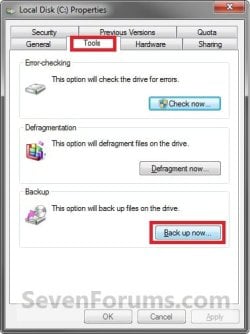
2. Open the Start Menu, and click on the Computer button. A) Right click on the drive that you back up files on, and click on Properties, Tools tab, and the Back up now button. (See screenshot below) Drive_Properties.jpg
B) Go to step 3, 4, or 5 depending on what you would like to backup.
NOTE: If this is the first time that you are creating a backup, then it would go to step 3.
3. If a Backup has Not been Created Yet
NOTE: This step is for when this is the first time that you create a backup to set it up for what files/folders you would like to be backed up. A) Click on the Set up backup button. (See screenshot below) Step1.jpg
B) Go to step 6.
4. To Make Changes to an Existing Backup before Backing Up Files again
NOTE: This step is for if you would like to make changes to what files/folders you would like to be backed up since what was backed up last time. A) Click on the Change settings link. (See screenshot below) Step10.jpg
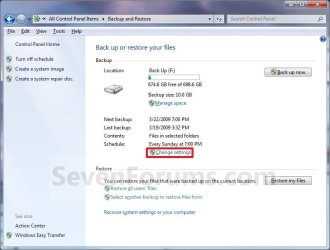
B) Go to step 6.
5. To Backup an Existing Configured Backup
NOTE: This step is for when you would like to create a incremental backup of the files/folders that you have already last setup/selected to have a new updated backup copy of them without any changes made. This incremental backup is added to the current Backup Set YYYY-MM-DD HHMMSS folder. A) Click on the Back up now button. (See screenshot below step 4A)

B) Go to step 15.
6. You will now see this window pop-up briefly. (See screenshot below) step2.jpg
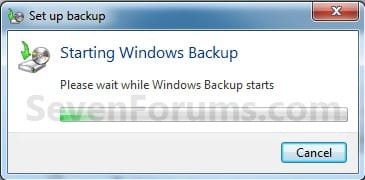
7. Select where you want to save your backup, and click on Next. (See screenshots below)
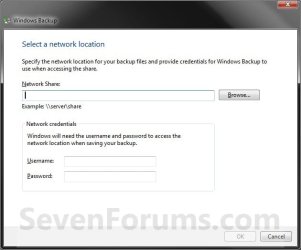
NOTE: Click on the Save on a network button if you wanted to save the backup to a network location. If you backup to a network location, you might need the password to the share. Only the Windows 7 Professional, Ultimate, and Enterprise editions are able to backup to a network location. Step3.jpg
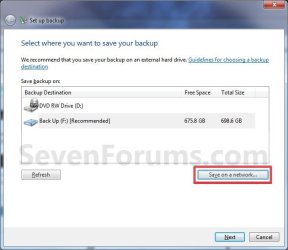
Step3B.jpg

8. Select (dot) what you want to backup. (See screenshot below) A) If you select Let Windows choose, then go to step 11.
NOTE: This will not include anything formatted with the FAT file system, files in the Recycle Bin, or any temp files that are 1GB or more.

B) If you select Let me choose, then continue on to step 9.
NOTE: This will allow you to select what files and folders your would like to backup. Step4.jpg
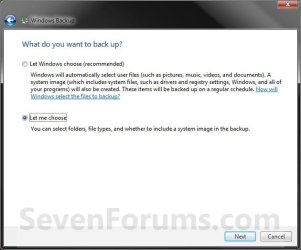
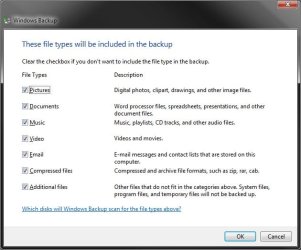
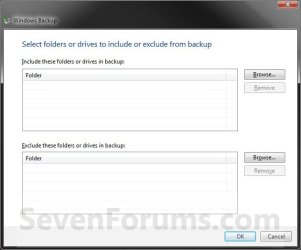
9. Select (check) what files and folders you would like to include in the backup. (See screenshot below)

   Tip
If you would like to included a system image in this backup, then also check the Include a System Image of Drives box at the bottom.

You can change the maximum space used for system images on the drive letter you are saving the Windows Backup to by changing the maximum space used by System Protection for the same drive letter. This is the same setting.

You do not have to have System Protection turned on for the drive letter, but do need to adjust the maximum space to what you like.

The size of a system image can be quite large since it will include all system drives in the image by default plus any drives you have included. If you want to keep multiple system images, be sure to increase the max size accordingly.
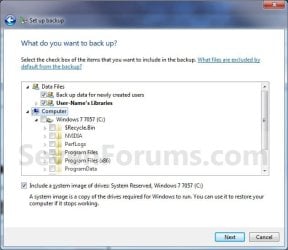
Step5.jpg
10. When finished, click on the Next button. (See screenshot above)

11. Review your backup settings to make sure they are correct. (See screenshot below)
NOTE: If they are not correct, then click on the back arrow button (top left corner) to go back to step 9 to correct them. step6.jpg
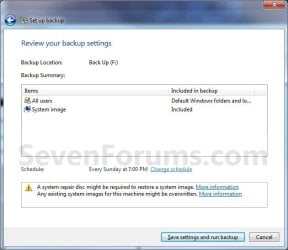
12. Click on the Change schedule link, to change the backup schedule to how often you want to have Windows 7 automatically backup these files. (See screenshot above)

13. Set the schedule to what you want, then click on OK. (See screenshot below)
NOTE: If you do not want to have a backup created automatically on a schedule, then uncheck the Run backup on a schedule box. Scheduled backups are incremental backups that are added to the current Backup Set YYYY-MM-DD HHMMSS folder. Step6_Change.jpg
14. Click on the Save settings and run backup button when ready to backup. (See screenshot below step 11)

15. You will now see this window pop-up briefly. (See screenshot below) Step7.jpg
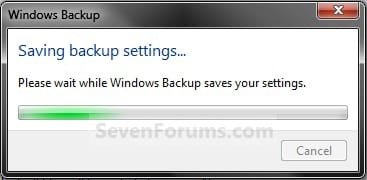
16. You will now see the backup progress. (See screenshot below) step8.jpg
That's it,
Shawn


Related Tutorials


Attachments

  • Step5_Advanced.jpg
    Step5_Advanced.jpg
    89.6 KB · Views: 130
  • Step5_Choose_Folders.jpg
    Step5_Choose_Folders.jpg
    103.2 KB · Views: 118
Last edited:
Brink,

Thank you for your nice tutorial, it worked almost like it should ;-)
I came across one minor error, I had included a folder from my backup drive in a library. In this case my library MUSIC, included a folder on the external backup drive,
this resulted in an error when I started the backup.
My solution was to remove the folder from the MUSIC library.

Now everything works fine!

One small question, does backup support incremental backups? When are backups overwritten? I mean what happens when my external backup drive is full?

Thanks in advance!

Have a nice day,

zx81
 

My Computer

Computer Manufacturer/Model Number
Dell Inpspiron 1720
OS
Windows 7 Home Premium x64
CPU
Intel 1720 Core 2 Duo 2.00GHz,800,2M
Memory
4GB 667MHz DDR2 SDRAM (2x2048)
Graphics Card(s)
NVIDIA Geforce Go 8600M GT 256MB DDR2
Sound Card
SigmaTel
Monitor(s) Displays
17.0" Widescreen WXGA+ (1440x900) TFT with TrueLife
Screen Resolution
1440x900
Hard Drives
2x160GB 5400RPM Serial ATA
Mouse
Logitech
zx81,

These are incremental backups. If you run out of space, then you will get a out of space error and will just need to delete these backups and start over on the backups.
 

My Computer

Computer type
PC/Desktop
Computer Manufacturer/Model Number
Self built custom
OS
64-bit Windows 11 Pro for Workstations
CPU
Intel i7-8700K OC'd to 5 GHz
Motherboard
ASUS ROG Maximus XI Formula Z390
Memory
64 GB (4x16GB) G.SKILL TridentZ RGB DDR4 3600 MHz
Graphics Card(s)
ASUS ROG-STRIX-GTX1080TI-O11G-GAMING
Sound Card
Integrated
Monitor(s) Displays
2 x Samsung Odyssey G7 27"
Screen Resolution
2560x1440
Hard Drives
1TB Samsung 990 PRO M.2,
4TB Samsung 990 PRO PRO M.2,
TerraMaster F8 SSD Plus NAS
PSU
Seasonic Prime Titanium 850W
Case
Thermaltake Core P3
Cooling
Corsair Hydro H115i
Keyboard
Logitech wireless K800
Mouse
Logitech MX Master 4
Internet Speed
2 Gb/s Download and 100 Mb/s Upload
Antivirus
Malwarebyte Anti-Malware Premium
Browser
Google Chrome
Other Info
Logitech Z625 speaker system,
Logitech BRIO 4K Pro webcam,
HP Color LaserJet Pro MFP M477fdn,
APC SMART-UPS RT 1000 XL - SURT1000XLI,
Galaxy S23 Plus phone
hi Brink... curious really, any idea why the 7 Home Premium doesn't support backing up to an external network drive like Vista HP did? i actually didn't notice that feature difference and now have 7 HP on a laptop.... am i missing something, or can 7 HP really not back up to a network drive? (if that's true, i have found my first and only gripe!)
 

My Computer

Computer Manufacturer/Model Number
Dell Optiplex 745
OS
Windows 7 HP x64

My Computer

Computer type
PC/Desktop
Computer Manufacturer/Model Number
Self built custom
OS
64-bit Windows 11 Pro for Workstations
CPU
Intel i7-8700K OC'd to 5 GHz
Motherboard
ASUS ROG Maximus XI Formula Z390
Memory
64 GB (4x16GB) G.SKILL TridentZ RGB DDR4 3600 MHz
Graphics Card(s)
ASUS ROG-STRIX-GTX1080TI-O11G-GAMING
Sound Card
Integrated
Monitor(s) Displays
2 x Samsung Odyssey G7 27"
Screen Resolution
2560x1440
Hard Drives
1TB Samsung 990 PRO M.2,
4TB Samsung 990 PRO PRO M.2,
TerraMaster F8 SSD Plus NAS
PSU
Seasonic Prime Titanium 850W
Case
Thermaltake Core P3
Cooling
Corsair Hydro H115i
Keyboard
Logitech wireless K800
Mouse
Logitech MX Master 4
Internet Speed
2 Gb/s Download and 100 Mb/s Upload
Antivirus
Malwarebyte Anti-Malware Premium
Browser
Google Chrome
Other Info
Logitech Z625 speaker system,
Logitech BRIO 4K Pro webcam,
HP Color LaserJet Pro MFP M477fdn,
APC SMART-UPS RT 1000 XL - SURT1000XLI,
Galaxy S23 Plus phone
hmph! well i guess i was right to begin with, but i just can't imagine WHY they would have dropped that feature from a HOME premium edition when so many home users these days are using wireless networks and a much-hyped feature of 7 was the ease of network connectivity. Oh well, i guess i can use this copy of Acronis True Image.. but dropping that feature is a real head-scratcher to me.
 

My Computer

Computer Manufacturer/Model Number
Dell Optiplex 745
OS
Windows 7 HP x64
They want you spend more to get get Professional (Business) or Ultimate instead. ;)
 

My Computer

Computer type
PC/Desktop
Computer Manufacturer/Model Number
Self built custom
OS
64-bit Windows 11 Pro for Workstations
CPU
Intel i7-8700K OC'd to 5 GHz
Motherboard
ASUS ROG Maximus XI Formula Z390
Memory
64 GB (4x16GB) G.SKILL TridentZ RGB DDR4 3600 MHz
Graphics Card(s)
ASUS ROG-STRIX-GTX1080TI-O11G-GAMING
Sound Card
Integrated
Monitor(s) Displays
2 x Samsung Odyssey G7 27"
Screen Resolution
2560x1440
Hard Drives
1TB Samsung 990 PRO M.2,
4TB Samsung 990 PRO PRO M.2,
TerraMaster F8 SSD Plus NAS
PSU
Seasonic Prime Titanium 850W
Case
Thermaltake Core P3
Cooling
Corsair Hydro H115i
Keyboard
Logitech wireless K800
Mouse
Logitech MX Master 4
Internet Speed
2 Gb/s Download and 100 Mb/s Upload
Antivirus
Malwarebyte Anti-Malware Premium
Browser
Google Chrome
Other Info
Logitech Z625 speaker system,
Logitech BRIO 4K Pro webcam,
HP Color LaserJet Pro MFP M477fdn,
APC SMART-UPS RT 1000 XL - SURT1000XLI,
Galaxy S23 Plus phone
zx81,

These are incremental backups. If you run out of space, then you will get a out of space error and will just need to delete these backups and start over on the backups.

Really? Incremental only? Not Full or Differential?

I must be misunderstanding your meaning here or not seeing some options in Win 7 Professional Backup and Restore. I don't see any options in Backup and Restore for the backups to be anything but Full or an Image.

Incremental implies that you are only backing up the changes since your last incremental or full backup, whichever came later. This means that if you need to restore data (not system files) that you have to restore your last full backup and all of the incrementals, in order, to get back to where you began.

Differential backup would be the changes since your last Full Backup. Therefore a full restore would consist of restoring your last full backup and only the last differential.

In either case the a FUll Backup is required as a starting point to restore your data.

Backups do NOT restore your system files, only images do. I would love to have the capability to save an image and then just perform Differentials off of the image but I'm not aware of any software that can do this. An alternative would be to save an image of ONLY the system files and then perform backups of everything else but I'm not aware of any way to do this either.

Ski
 

My Computer

Computer Manufacturer/Model Number
Hp Pavillion Dv9500t
OS
Windows 7 Professional
CPU
Intel Core Duo T7500 @ 2.2GHz
Memory
4Gb
Graphics Card(s)
Nvidia 8600m
Hello Ski, and welcome to Seven Forums.

When you save a backup to the same location the first time, it saves what you selected to be backed up as a full backup. Everytime you run this backup to be saved at the same location after the first time, the backup will be saved incrementally for what has changed from the previous backups and the current new one.

This backup does give you the option to backup and restore system files as well as user files. Try it and you will see them listed in the backup. :)

A system image backup is basically a restorable clone of the selected drives or partitions backed up instead. It's not for backing up and restoring individual files.

Hope this helps,
Shawn
 

My Computer

Computer type
PC/Desktop
Computer Manufacturer/Model Number
Self built custom
OS
64-bit Windows 11 Pro for Workstations
CPU
Intel i7-8700K OC'd to 5 GHz
Motherboard
ASUS ROG Maximus XI Formula Z390
Memory
64 GB (4x16GB) G.SKILL TridentZ RGB DDR4 3600 MHz
Graphics Card(s)
ASUS ROG-STRIX-GTX1080TI-O11G-GAMING
Sound Card
Integrated
Monitor(s) Displays
2 x Samsung Odyssey G7 27"
Screen Resolution
2560x1440
Hard Drives
1TB Samsung 990 PRO M.2,
4TB Samsung 990 PRO PRO M.2,
TerraMaster F8 SSD Plus NAS
PSU
Seasonic Prime Titanium 850W
Case
Thermaltake Core P3
Cooling
Corsair Hydro H115i
Keyboard
Logitech wireless K800
Mouse
Logitech MX Master 4
Internet Speed
2 Gb/s Download and 100 Mb/s Upload
Antivirus
Malwarebyte Anti-Malware Premium
Browser
Google Chrome
Other Info
Logitech Z625 speaker system,
Logitech BRIO 4K Pro webcam,
HP Color LaserJet Pro MFP M477fdn,
APC SMART-UPS RT 1000 XL - SURT1000XLI,
Galaxy S23 Plus phone
Thanks fpr the clarification. So, unless you change the name of the backup file, you will not have more than one backup but the existing file will be incrementally changed to reflect differences?

And are you also saying that if my HDD dies and I replace it with new drive, that is at least as large as the original, that I would be able to totally restore OS, MBR, systems files, applications, registry, etc from the latest backup?

If this is true, I'm going to get rid of my Acronis Software.

Thanks,
Ski
 

My Computer

Computer Manufacturer/Model Number
Hp Pavillion Dv9500t
OS
Windows 7 Professional
CPU
Intel Core Duo T7500 @ 2.2GHz
Memory
4Gb
Graphics Card(s)
Nvidia 8600m
Ski,

You would only have one backup at the same location. You would not want to rename or move it. Doing so will make it unrestorable. You can still have multiple incremental backups if each one is saved in a different location.

The replacement drive would need to be at least a little bit larger than what was backed up in the image. It will restore all of that to how it was when the last incremental system image backup was created. :)

It still would not be a bad idea to have a backup from the Acronis program to be extra safe though.
 

My Computer

Computer type
PC/Desktop
Computer Manufacturer/Model Number
Self built custom
OS
64-bit Windows 11 Pro for Workstations
CPU
Intel i7-8700K OC'd to 5 GHz
Motherboard
ASUS ROG Maximus XI Formula Z390
Memory
64 GB (4x16GB) G.SKILL TridentZ RGB DDR4 3600 MHz
Graphics Card(s)
ASUS ROG-STRIX-GTX1080TI-O11G-GAMING
Sound Card
Integrated
Monitor(s) Displays
2 x Samsung Odyssey G7 27"
Screen Resolution
2560x1440
Hard Drives
1TB Samsung 990 PRO M.2,
4TB Samsung 990 PRO PRO M.2,
TerraMaster F8 SSD Plus NAS
PSU
Seasonic Prime Titanium 850W
Case
Thermaltake Core P3
Cooling
Corsair Hydro H115i
Keyboard
Logitech wireless K800
Mouse
Logitech MX Master 4
Internet Speed
2 Gb/s Download and 100 Mb/s Upload
Antivirus
Malwarebyte Anti-Malware Premium
Browser
Google Chrome
Other Info
Logitech Z625 speaker system,
Logitech BRIO 4K Pro webcam,
HP Color LaserJet Pro MFP M477fdn,
APC SMART-UPS RT 1000 XL - SURT1000XLI,
Galaxy S23 Plus phone
Ski,

You would only have one backup at the same location. You would not want to rename or move it. Doing so will make it unrestorable. You can still have multiple incremental backups if each one is saved in a different location.

Would moving the backup to another location temporarily (for archival purposes) and moving it back to the original location prior to restoring work properly? Also, does this apply to system images?
 

My Computer

OS
Windows 7 Professional x64 x86 VISTA XP 98SE 95 3.x
CPU
Intel(R) Core(TM)2 Quad CPU Q9400 @ 2.66GHz
Memory
8 GB
Screen Resolution
1920 x 1200
PSU
OCZ Fatal1ty OCZ550FTY 550W ATX12V v2.2 25A on each rail
Hi Polycue,

It's for both backup types. It seems that moving them period makes them unrestorable since Windows 7 cannot find them. It would not be advised. If you do, it would be best to just create new backup instead. :(
 

My Computer

Computer type
PC/Desktop
Computer Manufacturer/Model Number
Self built custom
OS
64-bit Windows 11 Pro for Workstations
CPU
Intel i7-8700K OC'd to 5 GHz
Motherboard
ASUS ROG Maximus XI Formula Z390
Memory
64 GB (4x16GB) G.SKILL TridentZ RGB DDR4 3600 MHz
Graphics Card(s)
ASUS ROG-STRIX-GTX1080TI-O11G-GAMING
Sound Card
Integrated
Monitor(s) Displays
2 x Samsung Odyssey G7 27"
Screen Resolution
2560x1440
Hard Drives
1TB Samsung 990 PRO M.2,
4TB Samsung 990 PRO PRO M.2,
TerraMaster F8 SSD Plus NAS
PSU
Seasonic Prime Titanium 850W
Case
Thermaltake Core P3
Cooling
Corsair Hydro H115i
Keyboard
Logitech wireless K800
Mouse
Logitech MX Master 4
Internet Speed
2 Gb/s Download and 100 Mb/s Upload
Antivirus
Malwarebyte Anti-Malware Premium
Browser
Google Chrome
Other Info
Logitech Z625 speaker system,
Logitech BRIO 4K Pro webcam,
HP Color LaserJet Pro MFP M477fdn,
APC SMART-UPS RT 1000 XL - SURT1000XLI,
Galaxy S23 Plus phone
Thanks Shawn,

This means I need a separate partition for each backup that I do not want overwritten by the scheduled backup? Is there no way to assign the backup location to a specific folder?
 

My Computer

OS
Windows 7 Professional x64 x86 VISTA XP 98SE 95 3.x
CPU
Intel(R) Core(TM)2 Quad CPU Q9400 @ 2.66GHz
Memory
8 GB
Screen Resolution
1920 x 1200
PSU
OCZ Fatal1ty OCZ550FTY 550W ATX12V v2.2 25A on each rail
Yeah, unfortunately it only let's you choose what drive letter to backup to and not a folder location. :(
 

My Computer

Computer type
PC/Desktop
Computer Manufacturer/Model Number
Self built custom
OS
64-bit Windows 11 Pro for Workstations
CPU
Intel i7-8700K OC'd to 5 GHz
Motherboard
ASUS ROG Maximus XI Formula Z390
Memory
64 GB (4x16GB) G.SKILL TridentZ RGB DDR4 3600 MHz
Graphics Card(s)
ASUS ROG-STRIX-GTX1080TI-O11G-GAMING
Sound Card
Integrated
Monitor(s) Displays
2 x Samsung Odyssey G7 27"
Screen Resolution
2560x1440
Hard Drives
1TB Samsung 990 PRO M.2,
4TB Samsung 990 PRO PRO M.2,
TerraMaster F8 SSD Plus NAS
PSU
Seasonic Prime Titanium 850W
Case
Thermaltake Core P3
Cooling
Corsair Hydro H115i
Keyboard
Logitech wireless K800
Mouse
Logitech MX Master 4
Internet Speed
2 Gb/s Download and 100 Mb/s Upload
Antivirus
Malwarebyte Anti-Malware Premium
Browser
Google Chrome
Other Info
Logitech Z625 speaker system,
Logitech BRIO 4K Pro webcam,
HP Color LaserJet Pro MFP M477fdn,
APC SMART-UPS RT 1000 XL - SURT1000XLI,
Galaxy S23 Plus phone
So, if I change the settings of my scheduled backup to exclude the system image will it erase the existing system image?

Even with 221GB of free space letting windows chose how to manage space it still overwrites the old system image with the new. Is scheduling a daily backup the reason it cannot hold more than one image?
 

My Computer

OS
Windows 7 Professional x64 x86 VISTA XP 98SE 95 3.x
CPU
Intel(R) Core(TM)2 Quad CPU Q9400 @ 2.66GHz
Memory
8 GB
Screen Resolution
1920 x 1200
PSU
OCZ Fatal1ty OCZ550FTY 550W ATX12V v2.2 25A on each rail
Any changes you make will be reflected in the incremental backup. When you restore from the backup, you will have the dated incremental backups to select from to restore with. Think of it being like restore points in System Restore.

If you no longer wanted the backup, then you would still have to manually delete it.
 

My Computer

Computer type
PC/Desktop
Computer Manufacturer/Model Number
Self built custom
OS
64-bit Windows 11 Pro for Workstations
CPU
Intel i7-8700K OC'd to 5 GHz
Motherboard
ASUS ROG Maximus XI Formula Z390
Memory
64 GB (4x16GB) G.SKILL TridentZ RGB DDR4 3600 MHz
Graphics Card(s)
ASUS ROG-STRIX-GTX1080TI-O11G-GAMING
Sound Card
Integrated
Monitor(s) Displays
2 x Samsung Odyssey G7 27"
Screen Resolution
2560x1440
Hard Drives
1TB Samsung 990 PRO M.2,
4TB Samsung 990 PRO PRO M.2,
TerraMaster F8 SSD Plus NAS
PSU
Seasonic Prime Titanium 850W
Case
Thermaltake Core P3
Cooling
Corsair Hydro H115i
Keyboard
Logitech wireless K800
Mouse
Logitech MX Master 4
Internet Speed
2 Gb/s Download and 100 Mb/s Upload
Antivirus
Malwarebyte Anti-Malware Premium
Browser
Google Chrome
Other Info
Logitech Z625 speaker system,
Logitech BRIO 4K Pro webcam,
HP Color LaserJet Pro MFP M477fdn,
APC SMART-UPS RT 1000 XL - SURT1000XLI,
Galaxy S23 Plus phone
Does the incremental nature of the backup only apply to files and folders as opposed to the system image?
 

My Computer

OS
Windows 7 Professional x64 x86 VISTA XP 98SE 95 3.x
CPU
Intel(R) Core(TM)2 Quad CPU Q9400 @ 2.66GHz
Memory
8 GB
Screen Resolution
1920 x 1200
PSU
OCZ Fatal1ty OCZ550FTY 550W ATX12V v2.2 25A on each rail
It's for both.
 

My Computer

Computer type
PC/Desktop
Computer Manufacturer/Model Number
Self built custom
OS
64-bit Windows 11 Pro for Workstations
CPU
Intel i7-8700K OC'd to 5 GHz
Motherboard
ASUS ROG Maximus XI Formula Z390
Memory
64 GB (4x16GB) G.SKILL TridentZ RGB DDR4 3600 MHz
Graphics Card(s)
ASUS ROG-STRIX-GTX1080TI-O11G-GAMING
Sound Card
Integrated
Monitor(s) Displays
2 x Samsung Odyssey G7 27"
Screen Resolution
2560x1440
Hard Drives
1TB Samsung 990 PRO M.2,
4TB Samsung 990 PRO PRO M.2,
TerraMaster F8 SSD Plus NAS
PSU
Seasonic Prime Titanium 850W
Case
Thermaltake Core P3
Cooling
Corsair Hydro H115i
Keyboard
Logitech wireless K800
Mouse
Logitech MX Master 4
Internet Speed
2 Gb/s Download and 100 Mb/s Upload
Antivirus
Malwarebyte Anti-Malware Premium
Browser
Google Chrome
Other Info
Logitech Z625 speaker system,
Logitech BRIO 4K Pro webcam,
HP Color LaserJet Pro MFP M477fdn,
APC SMART-UPS RT 1000 XL - SURT1000XLI,
Galaxy S23 Plus phone
Is there a legal way to test the recovery withought erasing the original installation?
 

My Computer

OS
Windows 7 Professional x64 x86 VISTA XP 98SE 95 3.x
CPU
Intel(R) Core(TM)2 Quad CPU Q9400 @ 2.66GHz
Memory
8 GB
Screen Resolution
1920 x 1200
PSU
OCZ Fatal1ty OCZ550FTY 550W ATX12V v2.2 25A on each rail
Sure, you can remove the hard drive Vista is on, and put in a empty hard drive to restore it to test it with.
 

My Computer

Computer type
PC/Desktop
Computer Manufacturer/Model Number
Self built custom
OS
64-bit Windows 11 Pro for Workstations
CPU
Intel i7-8700K OC'd to 5 GHz
Motherboard
ASUS ROG Maximus XI Formula Z390
Memory
64 GB (4x16GB) G.SKILL TridentZ RGB DDR4 3600 MHz
Graphics Card(s)
ASUS ROG-STRIX-GTX1080TI-O11G-GAMING
Sound Card
Integrated
Monitor(s) Displays
2 x Samsung Odyssey G7 27"
Screen Resolution
2560x1440
Hard Drives
1TB Samsung 990 PRO M.2,
4TB Samsung 990 PRO PRO M.2,
TerraMaster F8 SSD Plus NAS
PSU
Seasonic Prime Titanium 850W
Case
Thermaltake Core P3
Cooling
Corsair Hydro H115i
Keyboard
Logitech wireless K800
Mouse
Logitech MX Master 4
Internet Speed
2 Gb/s Download and 100 Mb/s Upload
Antivirus
Malwarebyte Anti-Malware Premium
Browser
Google Chrome
Other Info
Logitech Z625 speaker system,
Logitech BRIO 4K Pro webcam,
HP Color LaserJet Pro MFP M477fdn,
APC SMART-UPS RT 1000 XL - SURT1000XLI,
Galaxy S23 Plus phone
Back
Top