BCDEDIT - How to Use

How to Use the BCDEDIT Command Line Tool

   Information
This will show you how to use BCDEDIT in the command prompt and avoid the need of third party applications like EasyBCD.
   Note
Bcdedit is a really powerful tool that Windows Vista and Windows 7 uses to manage the boot loader entries.

BCDEDIT needs a boot manager to boot your system.


A boot manager is a file that contains necessary information that instruct the system how to boot/start an operating system.
  • Windows 7 and Vista boot manager file is \bootmgr
  • Windows XP boot manager file is \ntldr
BCDEDIT can support other boot managers too, like grub for linux. You just have to place the boot file on the root of the boot manager partition. e.g. \grldr and you have a grub boot loader enabled.

Bcdedit edits a file called bcd , which is located in Windows 7's hidden partition under \boot\bcd.
In Vista, its located under C:\boot\bcd.


   Warning
You must be logged on in an administrator account to be able to do this tutorial.


To Use bcdedit:
1. Open an elevated command prompt.

2. Type bcdedit and press enter.
NOTE: By typing just bcdedit you just list your boot entries.


A boot entry consists of 4 main elements:
1. Identifier
The identifier is how the system has named the boot entry.
2. Device
The device is the drive or virtual image that the system will use to boot the boot entry.
3. Path
The path is the location on the device where the bootloader file is found.
4. Description
The description is the friendly name we give to our boot entry, e.g. "Windows 7"
You see next to the identifiers their UUIDs in {}. The UUID is the unique codename that the system gives to each boot entry and cannot be changed.

The standard identifier UUIDs are explained below:
{bootmgr} = the boot manager
{current} = the OS you selected to boot at startup.
{default} = the default OS selected to boot the PC.
{ntldr} = Windows Legacy OS Loader (for windows xp)
there are others like {memdiag} or {ramdisk} but they can't be of much use right now.
   Warning
IMPORTANT: make a backup of your bcd file first. To do that, type:

bcdedit /export C:\SAVEDBCD

This will create a file c:\savebcd which is your boot entry backup.
If you mess up, you can always undo changes by:

bcdedit /import c:\savedbcd


Now to see how we can control the above entries, here are some examples:
bcdedit /set {current} description "My edited Windows Boot Entry"
NOTE: This changes the title of the boot menu entry "{current}".

bcdedit /set {ntldr} device partition=E:
NOTE: This tells bcd that Windows XP partition is drive E:

bcdedit /set {ntldr} path \ntldr
NOTE: This tells bcd that the ntldr file which is the winxp bootloader is on root folder "\" (of drive e: as stated above)

bcdedit /displayorder {ntldr} /addfirst
NOTE: This places Windows XP as the first OS on the menu list.

bcdedit /default {ntldr}
NOTE: This places Windows XP as the default OS to boot first with.

bcdedit /displayorder {33342343-3424-2342342342-2344} /addlast
NOTE: This tells bcd that the boot entry with UUID 3334... should be the last entry on the menu.
You can copy your existing VISTA or W7 boot entry to another identical. Then you can change settings on the new entry to experiment. You will always have the first entry available, so it's safe to play with.
bcdedit /copy {current} /d "New W7 boot entry I just copied!"
this will give you a line:
NOTE: The entry was successfully copied to {4c21825f-e04b-11dd-b760-00195b61617a}. The {4c21825f-e04b-11dd-b760-00195b61617a} is the UUID of the new entry that the system just created. Yours will be different than mine! This is its identifier and you should use this to address that entry. Example:

bcdedit /set {4c21825f-e04b-11dd-b760-00195b61617a} numpoc 2
NOTE: This adds the 2 CPU Core support during boot, like you do in msconfig.

bcdedit /deletevalue {4c21825f-e04b-11dd-b760-00195b61617a} numproc
NOTE: This deletes the numproc parameter from entry {4c21825f....}

bcdedit /delete {4c21825f-e04b-11dd-b760-00195b61617a}
NOTE: This deletes the boot entry {4c21825f....} completely. In order to delete an {ntldr} entry, you must use the /f switch to force deletion: bcdedit /delete {ntldr} /f

You can always type just bcdedit to see your current settings.

What else can I do with BCDEDIT?

You can use BCDEDIT to alter any boot parameter , like you would in msconfig, only more. BCDEDIT works from booting with installation dvd too, so it can be handy for recovery purposes.
bcdedit /timeout 5
NOTE: This sets the wait-to-select-OS menu timeout at startup to 5 seconds . You will notice that I didn't give a UUID above. If you omit the UUID, it applies automatically to the relavant UUID. So: bcdedit /timeout 5 is identical to bcdedit /set {bootmgr} timeout 5
Some more advanced examples:
bcdedit /set {current} detecthal yes
bcdedit /set {current} detecthal no
NOTE: The above commands sets the detecthal to yes or no for entry {current}
To create a new boot entry to load Windows XP from a partition on your disk:
NOTE: The example below uses F: as the Windows XP partition. Replace with your xp drive letter.
bcdedit /create {ntldr} /d "Windows XP"

bcdedit /set {ntldr} device partition=F:

bcdedit /set {ntldr} path \ntldr

bcdedit /displayorder {ntldr} /addlast
   Note
Final note: BCDEDIT works from installation boot dvd too. If you mess up with a setting and you cannot boot, just boot from DVD and enter Repair Computer, then go to command prompt and there you go. You can play again with bcdedit to restore your system back.


Last edited by a moderator:
Thanx for your reply!!

Is there any method to do that in diferent hard drives insted of diferent Partitions? without installing windows 7 after. I have Windows 7 installed in the first one Hard(500gb) drive and Windows xp in the second one Hard drive(160gb), not just partitions. I tried to setup with easyBCD but it shows me C:, D: and Boot options, not Disc0, Disc1 like when you go to Linux Tab options.

Linux Tab
2h2npc5.png


Windows Tab
103dieq.png


EasyBCD View Settings Button
5anecz.png


EasyBCD View Settings
5boi6q.png


Thx a lot

EdioIlha

@theog
Thx a lot. Solved using EasyBcd2.0Beta, It copies the Netedetect and NTLDR to 200mb Windows 7 Partition(Just for who whants to know).

Thx
EdioIlha
 

My Computer

OS
WINDOWS
CPU
HT 3.0
Motherboard
PT890T-A
Memory
2048
Resetting

Hello limneos,

Very good tutorial! :)

I want to reset the place where the BCD file should be. On your example on point 2, we can read under the Windows Boot Manager title:

Windows Boot Manager
--------------------
identifier . . . . . . . . . {bootmgr}
device . . . . . . . . . . Partition=G:
path . . . . . . . . . . . . \bootmgr
description . . . . . . . . Windows Boot Manager
locale . . . . . . . . . . . .en-US
inherit . . . . . . . . . . . <globalsettings>
default . . . . . . . . . . .{default}
resumeobject . . . . . . {xxxxxxxxx-xxxx-xxxx-xxxx-xxxxxxxxxxxx}
displayorder . . . . . . . {default}

I can change settings for the partitions under any Windows Boot Loader title, but not for these ones. :confused: I tried with VistaBootPROO, but couldn't change it either.

Can you tell me please, how do I have to do to change the setting that I marked in bold? Can I edit the BCD file directly at C:\Boot\BCD? Is this file editable in the Notepad or the DOS Editor? I cannot risk to do it without being sure, or the PC will not boot.
 
Last edited:

My Computer

Computer type
PC/Desktop
Computer Manufacturer/Model Number
Home assembled
OS
Windows 7 Ultimate 64-bit SP1
CPU
AMD Athlon 64 II X3 440
Motherboard
M4A785TD-V EVO
Memory
Kingston kit 4GB DDR3 1333MHz (KVR1333D3N9K2/4)
Monitor(s) Displays
ASUS AS VH198S
Screen Resolution
1440x900
Hard Drives
Crucial MX300 2.5" SSD SATA,
Western Digital Caviar Black WD1002FAEX SATA-III,
Samsung HD161HJ SATA-II,
Seagate Barracuda ST3120022A ATA,
Western Digital WD800BB ATA.
Case
Standard
Cooling
Standard
Keyboard
Safeway SW-20
Mouse
Logitech Anywhere, Logitech MX Anywhere 2S, Technet M006
Internet Speed
130 Mbs fiber
Antivirus
Avast Premier
Browser
Firefox, Ice Dragon and Opera
Other Info
PCI ATA-133 Adapter,
Parallel Port Card PCI - PU005V2.
Could an incorrect entry in BCDEDIT cause startup to stutter, stop, and then restart again to a point where it asks:

Do you want to startup repair, that finds no wrong then finishes booting into the OS.
Or
Do you want to load windows normally, and when you say yes it also finishes booting to the OS.

In either case win runs fine until the next boot.
http://www.sevenforums.com/100352-cpu-stress-test-prime95.html
 

My Computer

Computer type
PC/Desktop
Computer Manufacturer/Model Number
Gateway DX4831-01e (Mid-Tower Desktop)
OS
Originally Win 7 Hm Prem x64 Ver 6.1.7600 Build 7601-SP1 | Upgraded to Windows 10 December 14, 2019
CPU
Intel i3 530 2.93GHz, 2933MHz 2 Cores 4 Logical Processors
Motherboard
Gateway H57M01 133 megahertz
Memory
6GB of 1,333MHz DDR3 SDRAM
Graphics Card(s)
32MB Intel Graphics Media Accelerator HD IGChip
Sound Card
Realtek High Definition Audio
Monitor(s) Displays
Gateway HX2000 20inch TFT active matrix TN
Screen Resolution
1600 x 900 x 59 hertz
Hard Drives
WDC WD10EADS-00M2B0 [HDD] (1000.20 GB) -- drive 0,
HL-DT-ST DVDRAM GH41N [CD-ROM dr]
Four card readers, and Four USB 2.0
PSU
300watts.
Case
Mid-Tower Desktop
Cooling
Stock from Gateway
Keyboard
Natural Ergonomic Keyboard 4000, see Other Info
Mouse
Orig. Gateway wore out now using Insignia USB wired optical
Internet Speed
Vz FIOS 10ms png 57.64Mbps down 65.53Mbps up Speedtest.org
Antivirus
Zamana Anti-logger with Anti-malware, MSE, Windows Firewall,
Browser
IE11.0.9600.19399-Upd ver11.0.135, Firefox 68.0.1 x64
Other Info
System Specs by Belarc.

BIOS: American Megatrends Inc. P01-A0 11/17/2009

Replaced the MS 'Natural' Standard PS/2 Enhanced 101-102 Keyboard with a new Natural Ergonomic Keyboard 4000 on August 1st 2014.

Canon Pixma MG3222 Printer.

Updated to IE11 on 12102015 | Fios Quantum Router g1100

Additional AV: SpywareBlaster, manual Mbam, SAS
Followed your bcdedit instructions for booting to XP and all looks good except when XP is selected from boot menu it just reboots to the boot menu again and must select Windows 7. I'm thinking your instructions only work if Windows 7 and haveing XP installed on the same hard drive? If this is true how to you point the path to XP on a seperate hard drive? Thanks for your tutorial on bcdedit. Also, how would you do that with DOS?
 

My Computer

OS
Windows 7 Pro 32 bit
I used easybcd to set linux as the default and set timeout to 0s... now i cant boot into windows 7.. i tried using the "bcdedit.exe /timeout" from command prompt in the recovery menu from the boot disk but that is not working... any ideas?????
 

My Computer

OS
Windows 7 Ultimate x64
bcdedit /timeout 15 - should do.

If not, just 'bcdedit' <enter> and post the output.
 

My Computer

Computer Manufacturer/Model Number
Acer Notebook
OS
Win 8 RP, Win 7, XP
CPU
Intel
Windows Boot Manager

identifier {default}
device partition=G:
path \windows\system32\winload.exe
description Windows 7
locale en-us
inherit {boot loader settings}
osdevice partition=G:
systemroot \Windows
resumeobject {a495e948-de35-11df-8a10-ee14ee42bdb8}
nx Optln
detecthal Yes

Windows Boot Loader

identifier {a495e94a-de35-11df-8a10-ee14ee42bdb8}
device partition=D:
path \Windows\System32\winload.exe
description Windows7 Ultimate (recovered)
locale en-us
osdevice partition=D:
systemroot \Windows

--that's what i got
 

My Computer

OS
Windows 7 Ultimate x64
d3u
The output of bcdedit says that there are two installs of win 7 - on G: and on D:
but it seems incomplete - either your bootmanager entry is missing or you didn't post the whole output of bcdedit.

Try "bcdedit >a.txt" and then copy-paste the contents of a.txt.

Also - which partition is active? where is linux installed ?

You could try on the command line: "diskmgmt.msc" (OS disk management) and then post the picture.
 

My Computer

Computer Manufacturer/Model Number
Acer Notebook
OS
Win 8 RP, Win 7, XP
CPU
Intel
Hi!

How can I configure it so that it wont offer a recovery option but starts windows normally? Or if offers then at least how can I configure it so that the "Start Windows normally" will be the default one in the list?
 

My Computer

OS
Windows 7 Professional 32 bit
CPU
AMD Athlon II X2 250, 3Ghz, dual core
Motherboard
ASROCK AM2NF3-VSTA
Memory
2GB
Graphics Card(s)
Geforce 6200
PSU
400 watts
sangean99,


The default choice for the boot menu is in stored in "BCD-bootmgr-DefaultObject".

There is a utility called "Visual BCD Editor" - can be found here -> Free Windows BCD Editor - Windows 7 and Vista

This utility offers the full functionality of 'bcdedit' in an explorer like GUI. Moreover it is the first GUI utility to implement the full functionality of 'bcdedit'.

visual_bcd_bootmgr.png


You can set your default loader choice by selecting the loader in the tree-view to the left, then click on the 'object' tab and in the tab click 'Set as Default Loader' button.

You can delete a loader by selecting the loader in the tree-view, right click, delete, confirm.

You can delete the menu entry for a loader by selecting {bootmgr} in the tree-view, then in Elements-view select 'DisplayOrder' and dbl-click. In the window that pops-up select the loader entry you want to delete, click on 'Delete' and then OK.

Success.
 

My Computer

Computer Manufacturer/Model Number
Acer Notebook
OS
Win 8 RP, Win 7, XP
CPU
Intel
BCDEdit not recognized

I'm on Win7 Home Premium 64b, as an administrator. In a command window I keep getting:

'bcdedit' is not recognized as an internal or external command,
operable program or batch file.

Is this a Pro tool?
 

My Computer

Computer type
PC/Desktop
Computer Manufacturer/Model Number
dell precision t3400 tower
OS
Linux Lite 3.2 x64; Windows 7, 8.1
CPU
Core2Duo 2.4
Memory
6GB ddr2
Graphics Card(s)
nVidia
Hard Drives
120gb SSD, 1TB HD, 2TB HD; sata II
Internet Speed
12/2
Browser
Vivaldi, Slimjet (Chromium) x64
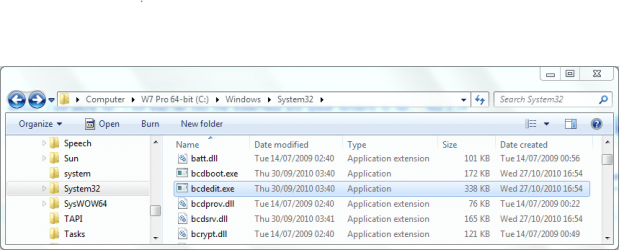
Strange. You should be able to access that no matter which edition of Windows 7 you have. Check to see if that file exists on your system. It is located in C:\Windows\System32\bcdedit.exe

Capture.PNG
 

My Computer

Computer type
PC/Desktop
Computer Manufacturer/Model Number
Dwarf Dwf/11/2012 r09/2013
OS
Windows 8.1 Pro RTM x64
CPU
Intel Core-i5-3570K 4-core @ 3.4GHz (Ivy Bridge) (OC 4.4GHz)
Motherboard
ASRock Z77 Extreme4-M
Memory
4 x 4GB DDR3-1600 Corsair Vengeance CMZ8GX3M2A1600C9B (16GB)
Graphics Card(s)
MSI GeForce GTX770 Gaming OC 2GB
Sound Card
Realtek High Definition on board solution (ALC 898)
Monitor(s) Displays
ViewSonic VA1912w Widescreen (VGA)
Screen Resolution
1440x900
Hard Drives
OCZ Agility 3 SSD 120GB SATA III x2 (RAID 0)
Samsung HD501LJ 500GB SATA II x2
Hitachi HDS721010CLA332 1TB SATA II
Iomega 1.5TB Ext USB 2.0
WD 2.0TB Ext USB 3.0
PSU
XFX Pro Series 850W Semi-Modular
Case
Gigabyte IF233
Cooling
1 x 120mm Front Inlet 1 x 120mm Rear Exhaust
Keyboard
Microsoft Comfort Curve Keyboard 3000 (USB)
Mouse
Microsoft Comfort Mouse 3000 for Business (USB)
Internet Speed
NetGear DG834Gv3 ADSL Modem/Router (Ethernet) ~4.0 Mb/s (O2)
Antivirus
Avast! 8.0.1497
Browser
IE 11
Other Info
Optical Drive: HL-DT-ST BD-RE BH10LS30 SATA Bluray
Lexmark S305 Printer/Scanner/Copier (USB)
WEI Score: 8.1/8.1/8.5/8.5/8.25
Asus Eee PC 1011PX Netbook (Windows 7 x86 Starter)
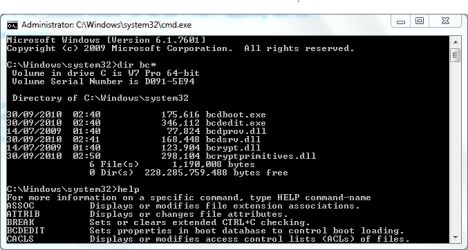
Yes, it is there. Here's a path copy: C:\Windows\System32\bcdedit.exe. I just tried the full path in the command window, and I tried the full file name. Nothing. I definitely am the administrator here.

I had another odd command window occurrence yesterday. There was a file (rstrui.exe - system restore) that I could plainly see in Explorer, but no DIR command, with Archive switches, would show it in the command window. Let me see if that's happening here too...

Indeed, this seems to be the problem. Here's the output:

Code:
C:\Windows\System32>dir bc*

 Directory of C:\Windows\System32
07/13/2009  08:11 PM            80,896 bcrypt.dll
07/13/2009  08:17 PM           249,680 bcryptprimitives.dll
               2 File(s)        330,576 bytes
               0 Dir(s)  146,007,564,288 bytes free

C:\Windows\System32>dir /a:s bc*
 Directory of C:\Windows\System32

File Not Found

C:\Windows\System32>dir /a:h bc*
 Directory of C:\Windows\System32

File Not Found

C:\Windows\System32>

For some reason my command window is not seeing system files.
 

My Computer

Computer type
PC/Desktop
Computer Manufacturer/Model Number
dell precision t3400 tower
OS
Linux Lite 3.2 x64; Windows 7, 8.1
CPU
Core2Duo 2.4
Memory
6GB ddr2
Graphics Card(s)
nVidia
Hard Drives
120gb SSD, 1TB HD, 2TB HD; sata II
Internet Speed
12/2
Browser
Vivaldi, Slimjet (Chromium) x64
Very strange. This is what I get:

Capture.PNG
 

My Computer

Computer type
PC/Desktop
Computer Manufacturer/Model Number
Dwarf Dwf/11/2012 r09/2013
OS
Windows 8.1 Pro RTM x64
CPU
Intel Core-i5-3570K 4-core @ 3.4GHz (Ivy Bridge) (OC 4.4GHz)
Motherboard
ASRock Z77 Extreme4-M
Memory
4 x 4GB DDR3-1600 Corsair Vengeance CMZ8GX3M2A1600C9B (16GB)
Graphics Card(s)
MSI GeForce GTX770 Gaming OC 2GB
Sound Card
Realtek High Definition on board solution (ALC 898)
Monitor(s) Displays
ViewSonic VA1912w Widescreen (VGA)
Screen Resolution
1440x900
Hard Drives
OCZ Agility 3 SSD 120GB SATA III x2 (RAID 0)
Samsung HD501LJ 500GB SATA II x2
Hitachi HDS721010CLA332 1TB SATA II
Iomega 1.5TB Ext USB 2.0
WD 2.0TB Ext USB 3.0
PSU
XFX Pro Series 850W Semi-Modular
Case
Gigabyte IF233
Cooling
1 x 120mm Front Inlet 1 x 120mm Rear Exhaust
Keyboard
Microsoft Comfort Curve Keyboard 3000 (USB)
Mouse
Microsoft Comfort Mouse 3000 for Business (USB)
Internet Speed
NetGear DG834Gv3 ADSL Modem/Router (Ethernet) ~4.0 Mb/s (O2)
Antivirus
Avast! 8.0.1497
Browser
IE 11
Other Info
Optical Drive: HL-DT-ST BD-RE BH10LS30 SATA Bluray
Lexmark S305 Printer/Scanner/Copier (USB)
WEI Score: 8.1/8.1/8.5/8.5/8.25
Asus Eee PC 1011PX Netbook (Windows 7 x86 Starter)
Ok, here's my problem. I just opened an elevated Command Window, and now I can see the system file without even using the a:s switch, just as you can. I don't understand why I need to take that step, however, since I am an administrator (and I just double-checked that). I've never had any problem doing anything via the command window before yesterday.

Thanks,
p.
 

My Computer

Computer type
PC/Desktop
Computer Manufacturer/Model Number
dell precision t3400 tower
OS
Linux Lite 3.2 x64; Windows 7, 8.1
CPU
Core2Duo 2.4
Memory
6GB ddr2
Graphics Card(s)
nVidia
Hard Drives
120gb SSD, 1TB HD, 2TB HD; sata II
Internet Speed
12/2
Browser
Vivaldi, Slimjet (Chromium) x64
So you can now access the file?

This is to do with privileges, and is a good reason for not disabling UAC. Although you may be running as an Administrator, you are only running with standard privileges. In order to run as a true Administrator, you need to elevate.

Think of this analogy. You and several others work in an office (representing standard privileges), inside which there is a locked cupboard (representing elevated privileges). Everyone has a key to get into the office, but only you (as an Administrator) have a key for the locked cupboard. If you wish to access the cupboard, you can simply unlock it (this is the equivalent of confirming that you want to run in elevated mode). For the others, who do not have the key, they need to ask you first (equivalent to entering a name and password of an administrative account when prompted).
 

My Computer

Computer type
PC/Desktop
Computer Manufacturer/Model Number
Dwarf Dwf/11/2012 r09/2013
OS
Windows 8.1 Pro RTM x64
CPU
Intel Core-i5-3570K 4-core @ 3.4GHz (Ivy Bridge) (OC 4.4GHz)
Motherboard
ASRock Z77 Extreme4-M
Memory
4 x 4GB DDR3-1600 Corsair Vengeance CMZ8GX3M2A1600C9B (16GB)
Graphics Card(s)
MSI GeForce GTX770 Gaming OC 2GB
Sound Card
Realtek High Definition on board solution (ALC 898)
Monitor(s) Displays
ViewSonic VA1912w Widescreen (VGA)
Screen Resolution
1440x900
Hard Drives
OCZ Agility 3 SSD 120GB SATA III x2 (RAID 0)
Samsung HD501LJ 500GB SATA II x2
Hitachi HDS721010CLA332 1TB SATA II
Iomega 1.5TB Ext USB 2.0
WD 2.0TB Ext USB 3.0
PSU
XFX Pro Series 850W Semi-Modular
Case
Gigabyte IF233
Cooling
1 x 120mm Front Inlet 1 x 120mm Rear Exhaust
Keyboard
Microsoft Comfort Curve Keyboard 3000 (USB)
Mouse
Microsoft Comfort Mouse 3000 for Business (USB)
Internet Speed
NetGear DG834Gv3 ADSL Modem/Router (Ethernet) ~4.0 Mb/s (O2)
Antivirus
Avast! 8.0.1497
Browser
IE 11
Other Info
Optical Drive: HL-DT-ST BD-RE BH10LS30 SATA Bluray
Lexmark S305 Printer/Scanner/Copier (USB)
WEI Score: 8.1/8.1/8.5/8.5/8.25
Asus Eee PC 1011PX Netbook (Windows 7 x86 Starter)
Yes, I have command line access to the file now. What I don't understand is that I've had the machine for three months and have done countless installations and work under the hood, including via the command line, and never once did I have to elevate the window. And I've changed nothing in privileges in all that time, as I'm aware.

I wonder how this affects the command window in Safe Mode. That is where I would want to invoke System Restore in a dire emergency. There must be a way to elevate the window there too.

IAC, thanks for your help.

p.
 

My Computer

Computer type
PC/Desktop
Computer Manufacturer/Model Number
dell precision t3400 tower
OS
Linux Lite 3.2 x64; Windows 7, 8.1
CPU
Core2Duo 2.4
Memory
6GB ddr2
Graphics Card(s)
nVidia
Hard Drives
120gb SSD, 1TB HD, 2TB HD; sata II
Internet Speed
12/2
Browser
Vivaldi, Slimjet (Chromium) x64
I suppose it depends on the levels to which you can muck the system up. You can do a fair amount of mucking up with bcdedit. There is a level above elevated command prompt (hidden administrator) where you can do even more mucking up or fix things of course.
 

My Computer

Computer type
PC/Desktop
Computer Manufacturer/Model Number
Own build
OS
Windows 7x64 Home Premium SP1
CPU
Intel i7 2600k
Motherboard
ASUS P8Z68 Deluxe
Memory
G.Skill Ripjaws (DDR3-1600) 2x4GB
Graphics Card(s)
Nvidia GeForce GTS 450; Intel HD Graphics 3000(GT2+)
Monitor(s) Displays
Dell Ultrasharp IPS panel U2311H, Samsung SyncMaster P2350
Screen Resolution
1920x1080
Hard Drives
Samsung 850 Pro SSD 256GB, Samsung SSD 840 120GB, Seagates 1TB Barracuda ST31000528AS x2
PSU
Seasonic M12II 520W
Case
Lian Li Lancool PC-K60
Cooling
Case: 1x120mm, 3x140mm CPU: Hyper 212+
Keyboard
Logitech MK520 (wireless)
Mouse
Logitech MK520
Internet Speed
6-7 Mbps
Antivirus
Norton Security Premium, Malwarebytes on 2 (MSE on 3rd PC)
Browser
FireFox
Other Info
Audio: Logitech Z523 2.1
Greetings
First post here! I have installed a dual boot with WinXP and Win7 and it's working fine. I want to backup my BCD using bcdedit. I start my Win7 install DVD. Hit Shift F10 to get command prompt, enter bcdedit and I get that response that the file cannot be found. This is with the boot DVD!! Shouldn't we be at elevated prompt with the DVD?

When I was setting up that dual boot a few weeks ago I was using bcdedit just fine!
 

My Computer

OS
Win7 32 bit and WinXP 32 bit
Well, now I am in big trouble. I tried imaging my main HD to external drive and it worked. Tried to boot from it into WinXP and it worked. Tried to boot into Win7 didn't work. I wanted to try another imaging program but things got so confusing, I had more than one bootable HD attached at once and now I can't get into any windows system. It says ntldr missing. I've disconnected all other drives from the machine and I've started the Win7 install disk to repair. I entered the command mode and entered "bootsect /nt52 c: /force /mbr" just to get the WinXP part working again and now it boots. When I get to the blue screen to sign on, there is no sign on button to click to enter my password at all. Nothing happens, can't click anything.

So...I started up the WinXP install CD, got into the recovery console, it found the c:\windows partition, but now wants the admin password which I type what I'm using currently and it doesn't take. Now what?? Can I somehow forcibly reset the admin password. I'm stuck.
 

My Computer

OS
Win7 32 bit and WinXP 32 bit
Back
Top