GUI Boot - Enable or Disable in Windows

How to Enable or Disable "GUI Boot" in Windows

   Information
This tutorial will show you how to enable or disable the graphical animation GUI Boot while booting or resuming from hibernation into Vista, Windows 7, or Windows 8.

You must be logged in as an administrator to be able to do the steps in this tutorial.

   Note

  • If "No GUI Boot" in Vista, you will have the Aurora boot screen instead of the green animated loading bar.
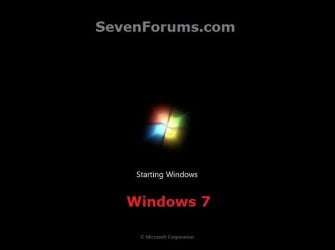
  • If "No GUI Boot" in Windows 7, you will have a blank black boot screen instead of the animated dots turning into a Windows flag.
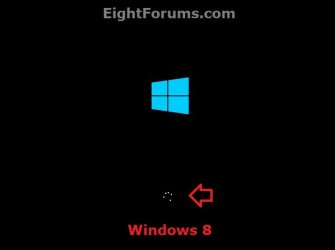
  • If "No GUI Boot" in Windows 8, you will only have the blue window in the boot screen instead of also with the animated spining circle of dots.

EXAMPLE: Default "GUI Boot" Screens in Vista, Windows 7, and Windows 8
Vista.jpg

Windows-7.jpg

Windows-8.jpg


OPTION ONE

Enable or Disable "GUI Boot" in msconfig (System Configuration)


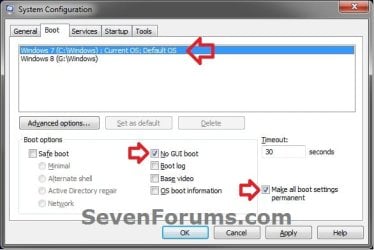
1. Press Windows+R keys to open the Run dialog, type msconfig, and click/tap on OK.

2. Click/tap on the Boot tab, select the OS (ex: Windows 7) that you want to set this for at it's startup, and go to step 3 or 4 below. (see screenshot below)
Step-1.jpg
3. To Enable GUI Boot for the Selected Windows
NOTE: This is the default setting.
A) Uncheck the No GUI Boot box, and go to step 5 below. (see screenshot below step 2)
4. To Disable GUI Boot for the Selected Windows
A) Check the No GUI Boot box, and go to step 5 below. (see screenshot below step 2)
5. If you have another Windows installed (ex: Windows 8) in a multiboot setup that you would like to set this for as well, then repeat step 3 or 4 above for it as well and go to step 6 afterwards.

6. Check the Make all boot settings permanent box, and click/tap on OK. (see screenshot below step 2)

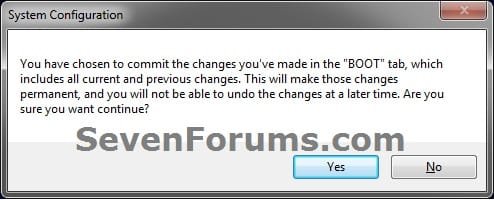
7. Click/tap on Yes. (see screenshot below)
Step-2.jpg
8. Click/tap on Restart to apply. (see screenshot below)
NOTE: Be sure to save and close anything you have open first.
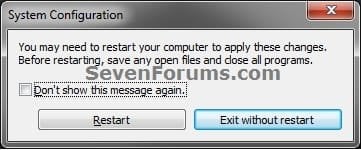
Step-3.jpg


OPTION TWO

Enable or Disable "GUI Boot" in a Command Prompt


1. Open an elevated command prompt, or a command prompt at boot.

2. In the command prompt, type bcdedit and press Enter. Under the Windows Boot Loader sections, make note of the identifier value (ex: {current}) for the OS description (ex: Windows 7) that you want to use in step 4 or 5 below.
CMD.jpg
3. Do step 4 or 5 below for what you would like to do.

4. To Enable GUI Boot for the Selected Windows
NOTE: This is the default setting.
A) In the command prompt, type the command below and press Enter.
NOTE: Substitute identifier in the command below with the actual value or long GUID number to the right of identifer in the command used from step 2.
bcdedit /set {identifier} quietboot Yes

For example: If I wanted to set this for Windows 7 (description) with it's "identifier" showing as {current} from step 2, I would type this command below exactly and press Enter.

bcdedit /set {current} quietboot Yes
B) Go to step 6 below.
5. To Disable GUI Boot for the Selected Windows
A) In the command prompt, type the command below and press Enter.
NOTE: Substitute identifier in the command below with the actual value or long GUID number to the right of identifer in the command used from step 2.
bcdedit /set {identifier} quietboot No

For example: If I wanted to set this for Windows 7 (description) with it's "identifier" showing as {current} from step 2, I would type this command below exactly and press Enter.

bcdedit /set {current} quietboot No
B) Go to step 6 below.
6. If you have another Windows installed (ex: Windows 8) in a multiboot setup that you would like to set this for as well, then repeat the steps above for it as well and go to step 7 afterwards.

7. Close the command prompt. If you like, you can restart the computer and startup the Windows this was applied to see the change.
That's it,
Shawn


Last edited:
Any way to reduce this unneeded boot time?

Other than faster hardware, you could use options 9, 13, 17, 19, 24, 32, and anything else below you find that applies to your situation to help improve the performance of Windows 7.

Optimize Windows 7
 

My Computer My Computer

Computer type
PC/Desktop
Computer Manufacturer/Model Number
Self built custom
OS
64-bit Windows 11 Pro for Workstations
CPU
Intel i7-8700K OC'd to 5 GHz
Motherboard
ASUS ROG Maximus XI Formula Z390
Memory
64 GB (4x16GB) G.SKILL TridentZ RGB DDR4 3600 MHz
Graphics Card(s)
ASUS ROG-STRIX-GTX1080TI-O11G-GAMING
Sound Card
Integrated
Monitor(s) Displays
2 x Samsung Odyssey G7 27"
Screen Resolution
2560x1440
Hard Drives
1TB Samsung 990 PRO M.2,
4TB Samsung 990 PRO PRO M.2,
TerraMaster F8 SSD Plus NAS
PSU
Seasonic Prime Titanium 850W
Case
Thermaltake Core P3
Cooling
Corsair Hydro H115i
Keyboard
Logitech wireless K800
Mouse
Logitech MX Master 4
Internet Speed
2 Gb/s Download and 100 Mb/s Upload
Antivirus
Malwarebyte Anti-Malware Premium
Browser
Google Chrome
Other Info
Logitech Z625 speaker system,
Logitech BRIO 4K Pro webcam,
HP Color LaserJet Pro MFP M477fdn,
APC SMART-UPS RT 1000 XL - SURT1000XLI,
Galaxy S23 Plus phone
Hi

I am on Windows 7 but I unable to do GUI boot in any of the ways described in your guide. I must have the GUI boot option because Windows 7 boots with the animated dots turning into the Windows flag. If I go the the system configuration screen ( Boot tab) the NO GUI BOOT is already unchecked.

I also tried to use the elevated prompt command as per instructions, but the sequence given to replace “ identifier-current” is not recognized as a valid command, with or without the { }symbols.

Whatever this GUI boot is , I want to use it to stop unnerving pop ups asking me every 10 minutes(!) to update the Malwarebytes software to a newer version. They are driving me mad. I tried all possible ways to get rid of them ( Adware, Hitmanpro, etc,) without success.

Finally, it is the Malwarebytes site that told me to use the GUI interface. No luck.
These update pop ups intrude even when I am disconnected from Internet, so I thought there might something in the Register. I did Regedit, deleted and modified in all possible ways the Malwarebytes entries, to no avail. These darn pop ups keep flooding me.
Any suggestions how to do open GUI boot or using other waysit rather through GUI booting or other ways?
Thanks
Ittiandro
 

My Computer My Computer

OS
Please select ...Windows 7
Hello Ittiandro, :-)

Go ahead and run the bcdedit command in an elevated command prompt, and post back with the output to see what may be the issue.
 

My Computer My Computer

Computer type
PC/Desktop
Computer Manufacturer/Model Number
Self built custom
OS
64-bit Windows 11 Pro for Workstations
CPU
Intel i7-8700K OC'd to 5 GHz
Motherboard
ASUS ROG Maximus XI Formula Z390
Memory
64 GB (4x16GB) G.SKILL TridentZ RGB DDR4 3600 MHz
Graphics Card(s)
ASUS ROG-STRIX-GTX1080TI-O11G-GAMING
Sound Card
Integrated
Monitor(s) Displays
2 x Samsung Odyssey G7 27"
Screen Resolution
2560x1440
Hard Drives
1TB Samsung 990 PRO M.2,
4TB Samsung 990 PRO PRO M.2,
TerraMaster F8 SSD Plus NAS
PSU
Seasonic Prime Titanium 850W
Case
Thermaltake Core P3
Cooling
Corsair Hydro H115i
Keyboard
Logitech wireless K800
Mouse
Logitech MX Master 4
Internet Speed
2 Gb/s Download and 100 Mb/s Upload
Antivirus
Malwarebyte Anti-Malware Premium
Browser
Google Chrome
Other Info
Logitech Z625 speaker system,
Logitech BRIO 4K Pro webcam,
HP Color LaserJet Pro MFP M477fdn,
APC SMART-UPS RT 1000 XL - SURT1000XLI,
Galaxy S23 Plus phone
Hello Ittiandro, :-)

Go ahead and run the bcdedit command in an elevated command prompt, and post back with the output to see what may be the issue.

Thanks
I ran again the bcdedit command.

This time the elevated command prompt to activate the GUI returns a “ successful completed “ message. (I was inadvertently using the sample identifier sequence from your instructions!).
I am not out of the thicket, though..

Malwarebytes skimpy instructions to remove their update reminders say:

Quote Although not recommended, the user may open the Graphical User Interface (GUI) -> single left-click Settings -> single -left-click Update Settings -> Update Options: Untick: "Check for program updates when checking for database updates." Close the GUI.Unquote

After successfully running the sequence on the command prompt as per your guide I do get two additional options in the Start menu , under Programs/Accessories: Windows PowerShell ISE and Windows P.S.
The first one ( PS ISE) opens an interface screen with a file called :Untitled1.PS1, with a lower pane to type something in ( what?)
The 2nd one ( PS) opens a bluish command prompt starting with : PS C:\users\My name.
Is either or both the Graphical User Interface?

If so, how to I proceed to change the settings to eliminate the Malwarebytes update reminders? I can't see any settings option.

Thanks for your help

Ittiandro
 

My Computer My Computer

OS
Please select ...Windows 7
This would be unrelated to GUI Boot.

It is normal to have the PowerShell shortcuts in your Start menu.

The best way to stop the Malwarebytes update reminder is to allow it to update Malwarebytes.

Settings > Application tab > "Install Application Updates" button
 

My Computer My Computer

Computer type
PC/Desktop
Computer Manufacturer/Model Number
Self built custom
OS
64-bit Windows 11 Pro for Workstations
CPU
Intel i7-8700K OC'd to 5 GHz
Motherboard
ASUS ROG Maximus XI Formula Z390
Memory
64 GB (4x16GB) G.SKILL TridentZ RGB DDR4 3600 MHz
Graphics Card(s)
ASUS ROG-STRIX-GTX1080TI-O11G-GAMING
Sound Card
Integrated
Monitor(s) Displays
2 x Samsung Odyssey G7 27"
Screen Resolution
2560x1440
Hard Drives
1TB Samsung 990 PRO M.2,
4TB Samsung 990 PRO PRO M.2,
TerraMaster F8 SSD Plus NAS
PSU
Seasonic Prime Titanium 850W
Case
Thermaltake Core P3
Cooling
Corsair Hydro H115i
Keyboard
Logitech wireless K800
Mouse
Logitech MX Master 4
Internet Speed
2 Gb/s Download and 100 Mb/s Upload
Antivirus
Malwarebyte Anti-Malware Premium
Browser
Google Chrome
Other Info
Logitech Z625 speaker system,
Logitech BRIO 4K Pro webcam,
HP Color LaserJet Pro MFP M477fdn,
APC SMART-UPS RT 1000 XL - SURT1000XLI,
Galaxy S23 Plus phone
Back
Top