Bios Keeps changing boot order...

Can you remove the RAID by viewing the settings?

If not, is there a RAID controller to select which shows on the first boot screen?

Will ask a RAID expert to help further here.
 
cant remove the raid in the bios.

When i show raid info, all it does is show the HDD'S in the booting of windows and shows the RAID is 'bootable', it says at the bottom press ctrl + i for config utility, and that simply takes me to the bios boot order menu.

I set the C drive as active about 30 mins ago and almost broke my pc, wouldnt boot at all , but managed to repair it and get back into the system.
 

My Computer

Computer Manufacturer/Model Number
Sony Vaio VGC-RM2U
OS
Windows 7 Ultimate X64
CPU
Q6600 Quad Core
I think the best bet here is to completely remove all drives except for the SSD. Get everything working with ONLY that drive in the system. Once that is working correctly then we can add drives back into the system.

I did a quick review of this issue as gregrocker asked if I would take a look at it (forgive me if I did not read everything correctly or I missed something you already tried). Another issue I can see is it looks like the original RAID on the 2 x 500 drives is still completely active and bootable including the factory recovery partition. This could all be interfering with the boot up process. It would be best to get any and all data that is needed off the RAID set so that you can break the RAID and wipe the drives clean.

Once the SSD is working correctly then you can add the 2 x 500 drives back into the system as blank drives. At that point you can decide how to set them up.

Sorry everyone I can only take a peak at this right now. I have a server down that looks like it will be a bit of work to check out and get back on-line. Hopefully I have giving some direction on what can be done until I can re-check this thread later. -WS

Noticed this thread by the OP too could help others in this thread:
http://www.sevenforums.com/installation-setup/134871-does-my-mb-support-ahci.html
 

My Computer

Computer type
PC/Desktop
Computer Manufacturer/Model Number
Dell OP7010
OS
Windows 7 Enterprise (x64); Windows Server 2008 R2 (x64)
Memory
16GB
Monitor(s) Displays
4 Dell 24" LCD
Screen Resolution
1280x1024
Keyboard
Dell
Mouse
Dell Optical
Internet Speed
40meg
Thanks for all the advice guys, im in the process of moving 500GB of files now, so ill come back in an hour or so and attempt any way to destroy the RAID without resorting to a sledge hammer.
 

My Computer

Computer Manufacturer/Model Number
Sony Vaio VGC-RM2U
OS
Windows 7 Ultimate X64
CPU
Q6600 Quad Core
No, Its not, but when the pc is powered down then on, it resets its boot order and puts it 2nd to the dvd drive, then attempts to boot from it.


My biggest fear is that after all teh effort of backing up and deleting the RAID, my pc still wont detect the pc on first boot.
 

My Computer

Computer Manufacturer/Model Number
Sony Vaio VGC-RM2U
OS
Windows 7 Ultimate X64
CPU
Q6600 Quad Core
Ok ive managed to destroy the RAID, and now have 2 seperate 500GB HDD'S, so at least it doesn ttry to boot from the RAID0 as its gone..


But it didnt fix the problem of the SSD not being detected from a cold PC Boot.
 

My Computer

Computer Manufacturer/Model Number
Sony Vaio VGC-RM2U
OS
Windows 7 Ultimate X64
CPU
Q6600 Quad Core
Did you wipe the [COLOR=#0072bc !important][COLOR=#0072bc !important]HD's[/COLOR][/COLOR] so that they can't interfere with booting? Disk - Clean and Clean All with Diskpart Command

Yep, the pc doesnt try to boot from any of them anymore.

Does it boot directly to SSD with the other HD's disconnected?

Sometimes, but most of the time it will say 'insert bootable media' or soemthing along those lines

What is the exact current BIOS Boot Order? Move SSD into first place, before DVD drive.

It doesnt appear in the bios, unless after i get the system running i restart, then it will be in the bios.
When it is in teh bios i do put it above the DVD Drives, which are connected from a seperate unit with a really big wide cable.

If it changes the boot order to DVD drive first, then try unplugging the cable to DVD drive - what happens then?

It simply wont find anything to boot from.


Ive even resorted to putting the SSD on the 6th sata port, but it acts the same as if it was on the 1st.
 

My Computer

Computer Manufacturer/Model Number
Sony Vaio VGC-RM2U
OS
Windows 7 Ultimate X64
CPU
Q6600 Quad Core
It is looking like SSD Hd is going down.
Do you have 2nd PC that you try the SSD HD on.
 

My Computer

OS
ME/XP/Vista/Win7
Hello DeltaWar. I have the exact same problem.

I got my computer 3 weeks ago. 1 ssd disk as boot disk and one regular harddrive for media files such as pictures, etc.

Everything worked fine untill I moved all my photos to the bulk disk from my old computer. I used a flash memory and an external usb harddrive to move the files, and after that I have the same problem as you do.

On boot, it claims that I have no hard drive, check your cables yada yada. I press ctrl+alt+del and enter the bios. Go too boot order, harddrives, change place between ssd and the bulk disk and it works. Reset, and it works. Turn off the computer and wait a few hours and same problem as before. It changed back the setings in my BIOS and fail to load. I'm 50% sure it's not a soft ware problem, because then it should give the same problem when I restart the computer and im 90% sure it's not a battery problem on my motherboard. The clock is still working and all the other things I change stay the way I changed them.

Only thing I can think of is that it fails to detect the ssd drive as I turn it on the first time. The 2:nd time it actually tends to notice the ssd drive, but by then it has changed the boot order in the BIOS back again. I'm not a computer wiz, so I don't know if/how that could change.


I'll check back regularly to update with more information if needed.

 
Last edited:

My Computer

OS
Windows 7 32 bit
CPU
Intel Core# i7 Quad Processor i7-950
Motherboard
ASUS P6X58D-E, Socket-1366
Memory
Corsair XMS3 DDR3 1600MHz 6GB
Graphics Card(s)
Gainward GeForce GTX 470 1280MB
Sound Card
?
Monitor(s) Displays
Samsung something
Hard Drives
Western Digital Caviar® GreenPower# 1TB
Sata 3 Gb/s, 64MB Cache

Crucial RealSSD C300 2,5" 128GB
PSU
?
Case
Antec Nine Hundred Two Midi Tower
Cooling
Built in fans
Yes that is EXACTLY the SAME.

Its 100% not the battery. I swapped mine out for a new one and didnt change a thing.

Also on the OCZ website the firmware update they have is for 1.24, and mine already has firmware 1.25 so its not a firmware update issue, at least on my SSD, dont know what make you have.


And the SSD cant be going down, as its brand new.
 

My Computer

Computer Manufacturer/Model Number
Sony Vaio VGC-RM2U
OS
Windows 7 Ultimate X64
CPU
Q6600 Quad Core
Hello DeltaWar. I have the exact same problem.

I got my computer 3 weeks ago. 1 ssd disk as boot disk and one regular harddrive for media files such as pictures, etc.

Everything worked fine untill I moved all my photos to the bulk disk from my old computer. I used a flash memory and an external usb harddrive to move the files, and after that I have the same problem as you do.

On boot, it claims that I have no hard drive, check your cables yada yada. I press ctrl+alt+del and enter the bios. Go too boot order, harddrives, change place between ssd and the bulk disk and it works. Reset, and it works. Turn off the computer and wait a few hours and same problem as before. It changed back the setings in my BIOS and fail to load. I'm 50% sure it's not a soft ware problem, because then it should give the same problem when I restart the computer and im 90% sure it's not a battery problem on my motherboard. The clock is still working and all the other things I change stay the way I changed them.

Only thing I can think of is that it fails to detect the ssd drive as I turn it on the first time. The 2:nd time it actually tends to notice the ssd drive, but by then it has changed the boot order in the BIOS back again. I'm not a computer wiz, so I don't know if/how that could change.


I'll check back regularly to update with more information if needed.


Just out of curiosity, IS your USERS folder on the C Drive, and you just have the bulk of your media added to your libary with adding a folder to that 'user' directory?

OR

Is your USERS folder NOT in C, but in D (OR any other drive) ?


As i used AUDIT mode when i done my fresh install, so i dont have appdata and users folders on the C DRIVE.


Does anyone think this could cause a problem as the system reffers to both C AND D Drives as system drives, (it labells both c and d drives when using backup n restore in the CP)
 

My Computer

Computer Manufacturer/Model Number
Sony Vaio VGC-RM2U
OS
Windows 7 Ultimate X64
CPU
Q6600 Quad Core
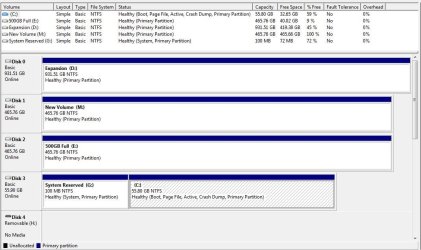
Please post back a screenshot of your full Disk Mgmt drive map, using Snipping Tool in Start Menu. Tell us what is located where.

Did you ever reset the CMOS? Try again. Check the SATA controller setting before and after.
 
Yes i resetted CMOS.

Ive also notices, that when it doesnt boot as it cant find the SSD, if i wait on that screen for about 30 seconds and ctrl alt del, it will reboot and find the SSD and boot windows.

Its just like it doesnt find it quick enough on the boot.
 

Attachments

  • dsk.JPG
    dsk.JPG
    90.2 KB · Views: 100

My Computer

Computer Manufacturer/Model Number
Sony Vaio VGC-RM2U
OS
Windows 7 Ultimate X64
CPU
Q6600 Quad Core
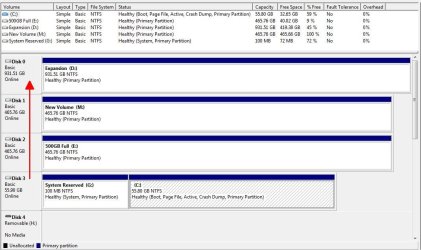
1) System Reserved should have no drive letter.

2) System Reserved should be active.

3) The best Sata port on your MB for SDD HD would be Disk 0.
 

My Computer

OS
ME/XP/Vista/Win7
1) System Reserved should have no drive letter.

2) System Reserved should be active.

3) The best Sata port on your MB for SDD HD would be Disk 0.

Agreed I would move the SDD to Disk 0.
 

Attachments

  • DiskMan.jpg
    DiskMan.jpg
    84.1 KB · Views: 54

My Computer

Computer type
PC/Desktop
Computer Manufacturer/Model Number
Dell OP7010
OS
Windows 7 Enterprise (x64); Windows Server 2008 R2 (x64)
Memory
16GB
Monitor(s) Displays
4 Dell 24" LCD
Screen Resolution
1280x1024
Keyboard
Dell
Mouse
Dell Optical
Internet Speed
40meg
Type Disk Management in Start Search box, rightclick on System Reserved partition to remove Drive letter, then mark System Reserved partition Active in Disk Mgmt.

Next power down to swap DISK0 cable to Win7 HD. Now boot into BIOS setup to change Boot Order to DVD drive first, then DISK0 Win7 HD as next in order to boot.

If Win7 will not now start, boot into the Repair CD or Install DVD Repair console, accept any offered Repair. If it fails to start again, boot back in to DVD/CD to http://www.sevenforums.com/tutorials/105541-startup-repair-run-3-separate-times.html
 
I made the system reserved as ACTIVE, and tried the repairs 3 times as you said.

Problem still persists, its not a case of a bad installation as im not getting bootmgr is missing anymore, but its a case of the SSD not being detected on BOOT.

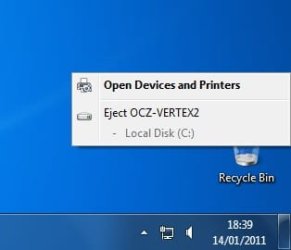
also i just noticed my PC seems to treat the SSD as a removable mem stick not a HDD.
 

Attachments

  • ocz.jpg
    ocz.jpg
    8.4 KB · Views: 733

My Computer

Computer Manufacturer/Model Number
Sony Vaio VGC-RM2U
OS
Windows 7 Ultimate X64
CPU
Q6600 Quad Core
The reason for this is that the preferred SATA mode for installing Win7 is AHCI when enables "hot plugging" which treats a HD like a removable drive so that it can be unplugged without powering down the computer - by Safely Removing Hardware.

I don't think this provides a clue except that SATA controller is indeed recognizing the disk.

What makes you think the BIOS isn't recognizing the SSD? Is it registering in BIOS?
 
Back
Top