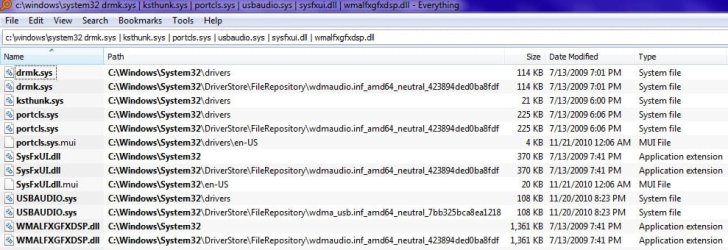
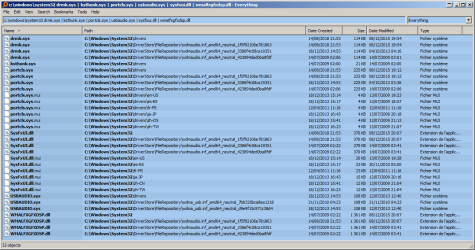
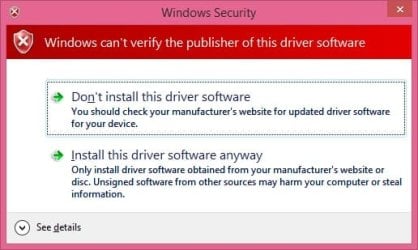
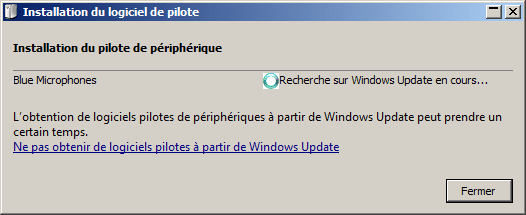
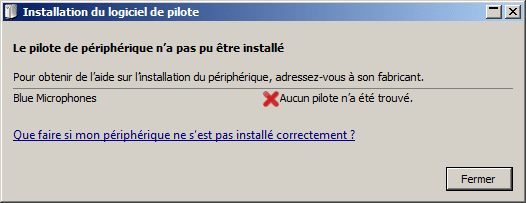
Okay, it looks like the exported XML file is showing a vendor ID for your working Yeti on the working computer as a Logitech device which it is not. Thus, if you try to import that exported XML and driver, the driver still probably won't work because the vendor ID and product ID is wrong. It appears you do have the dlls and sys files and what not. I checked their sizes you show there against mine. I think this may be a chip issue in how certain OS environments ID the USB chip. If I had a Yeti I'd tear it open and see what chip it uses.
How to identify computer chips or integrated circuits on circuit boards | How To Wiki | Fandom
USB\VID_046D - Logitech, Inc. | Device Hunt
This is the correct vendor ID according to the Device Hunt website.
USB\VID_B58E - Blue Microphones | Device Hunt
We might be able to modify that XML file with the correct information to import, but I don't think the PID (Product ID) would be correct, thus we'd have to see if your unknown device shows that correctly in Device Manager.
In the mean time, let's try this. In the Everything program search for
wdma_usb.inf. Do you see that file in the path of
C:\Windows\System32\DriverStore\FileRepository\xxxx? It should probably be 89KB in size (at least mine is). If found, we want to direct the microphone to this INF file in the "update software" option via Device Manager. To do that, go into Device Manager, right click the unknown device for the Yeti and chose "Update Driver Software" in the right click context menu. Now select "Browse my computer for driver software." Navigate to where the
wdma_usb.inf is located in the DriverStore folder previously found in the Everything program. Does it install anything? Any errors?
Prior to doing this you may want to unplug most all other USB devices if they are drawing a lot of power. The maximum amount of Amps allowed per USB hub is 500 mA (half an Amp). In Windows XP you could see how much power each hub was using, but it doesn't appear to have that option in Device Manger for those hubs in Windows 7.
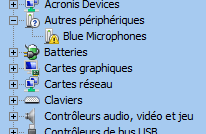
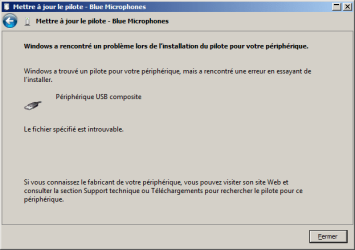
Doing some basic research I see others may have this exact same issue and it seems to me it might be all in how the chip IDs its self to Windows for proper USB driver installation. At least that's my hypothesis. I see in your Device Manager under Other (autres) peripherals the Yeti is identified and gives its name. It's just not able to install the right driver automatically for functionality like it should. Thus my speculation on proper hardware ID detection. And that could be the chip in the microphone and how it interact with certain setups and computer configurations.
If you go to the unknown device, double click and chose properties | Driver | Details | Hardware Ids from the drop down, what does it say? You can right click the values and copy/paste. A vendor ID will be four characters.
Also, go to command prompt and enter
dxdiag Click through each tab noting any problems. Below is dxdiag there is also an option for 64 bit. Select that and once again go to each tab noting any problems. Preferably the sound tab for both 32 and 64 bit versions of drivers.
Are you using HDMI for audio delivery? That could potentially mess things up. To uninstall that component you'd go into your Nvidea control panel or equivalent.
- - - Updated - - -
Yeah, very interesting VMware passed the USB hardware though to the guest and Win 10 IDed the peripheral and installed the correct driver. So we know it's not hardware related, it's proper driver ID related. Finding the reason as to why Windows is having a coughing fit is the obvious solution.