Bootup / HDD issue

Zomad

New member
Local time
6:54 AM
Messages
6
My computer was stuck at the logging off (while shutting down) screen a few days ago, so I had to do a forced power off (pressed power button for 4sec).

When I tried to turn the computer back on, it would now stuck on the Windows 7 loading screen, without HDD activity. After several tries, I attempted to run Windows Repair through F8/DVD, in which I tried both the auto repair option and through command prompt with bootsect /nt60 (all/sys/d: )

This method allowed the Windows to boot into the desktop sporadically, and yesterday, after booting into desktop, I noticed that one of my HDD is missing.
So I tried to reboot again, and noticed that the said drive would fail during SMART...

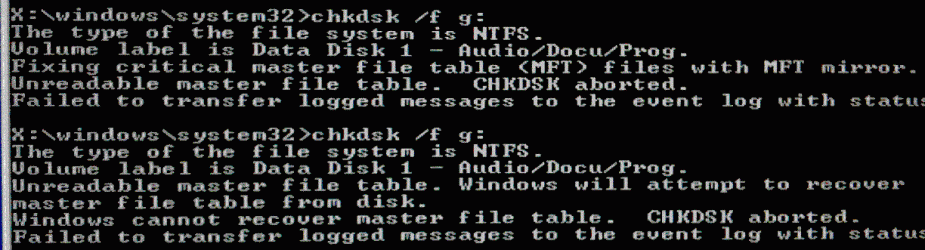
Again, I ran the Windows Repair, and tried to access it through command prompt, with the following results:
listvol.gif (G drive is the one with issue)
chkdsk.gif (chkdsk /f on G: )

And through Ubuntu pendrive...
ubuntu.gif (Ubuntu error when trying to open the HDD folder)

Does this mean the HDD is dead? Or is this something that can be fixed through software/configuration of some sort?

Thank you for the help!!
 

My Computer

OS
Windows 7 x64
That does not look too good. If even Ubuntu cannot open it, I would say it is history.

Next time you have to force a shutdown, do not use the power-off button. Instead press Start on your keyboard, then press the right arrow key twice, then press the letter "U". That will shut the system down in an orderly fashion. For Restart use "R".
 

My Computer

Computer Manufacturer/Model Number
HP, Dell, Gateway, Toshiba - 4 laptops and 2 desktops
OS
Vista, Windows7, Mint Mate, Zorin, Windows 8
CPU
from 1.6GHz Duo to i7
Monitor(s) Displays
2x HP w2207
Hard Drives
5x HDD, 7x SSD, 12x Externals
Keyboard
with trackball - no mices
Mouse
Trackball mice
Internet Speed
DSL 6000
The filesystem is a mess - that doesn't mean there is a physical problem with the HD.
 

My Computers

System One System Two

  • Computer type
    PC/Desktop
    OS
    7 X64
    CPU
    i5 8400
    Motherboard
    gigabyte b365m ds3h
    Memory
    2x8gb 3200mhz
    Hard Drives
    various
    PSU
    pure power 11 400w cm
    Case
    Coolermaster
    Cooling
    cryorig m9i
  • Computer type
    PC/Desktop
    OS
    7x64
    CPU
    g5400
    Motherboard
    ga b365m ds3h
    Memory
    8gb ddr4 2400
    PSU
    xfx pro 450w
Well, if it's dead... I guess the only option is to replace it with a new one...

In the case of messed up filesystem, any recommendation on how to proceed with the recovery?

Right now, it seems that whenever the said HDD did not pass SMART, Windows would boot up okay, but I would not be able to access it in anyway under Windows and OnTrack Recovery.

However, if the said HDD pass SMART, Windows would be stuck at the Windows loading screen.

I am thinking of unplugging the HDD and moving it to an external enclosure to solve the boot up issue, but I am not sure how to proceed with the recovery past that.

Any recommendation would be grateful, thanks!!
 

My Computer

OS
Windows 7 x64
This is a tough one. If the filesystem is messed up so bad that even Ubuntu cannot deal with it, you do not have a lot of options left.

If you attach it to another system with an enclosure, you could try Shadow Explorer - provided there are restore points on the drive/partition. Another option may be Recuva - but that needs an MFT that is intact. Lots of luck, you'll need it.

PS: there is a chance that the drive itself is still OK - just a messy filesystem.
 

My Computer

Computer Manufacturer/Model Number
HP, Dell, Gateway, Toshiba - 4 laptops and 2 desktops
OS
Vista, Windows7, Mint Mate, Zorin, Windows 8
CPU
from 1.6GHz Duo to i7
Monitor(s) Displays
2x HP w2207
Hard Drives
5x HDD, 7x SSD, 12x Externals
Keyboard
with trackball - no mices
Mouse
Trackball mice
Internet Speed
DSL 6000
Thanks for the tips so far!
I decided to buy a enclosure and a HDD to replace it.

However, when I booted into Ubuntu Pendrive to give it another go before tearing down the PC, the previously unreadable disk is suddenly readable now, with another previously readable disk now unreadable!

Ubuntu's disk manager was able to identify those two disks, yet unable to identify the filesystem... How strange is that!

Anyway, I decided that the physical disks must be alright, and the issues must be of logical nature. With that, I formatted my C: and reinstalled Win7. This seemed to solve the "stuck at loading screen" and I was able to get all my data back.

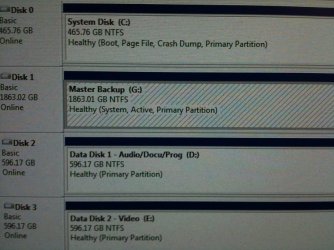
Yet, during the process, Win7 did not load my 2TB backup drive, and I had to go into Disk Management to configure it... All I had to did was map a drive letter to it. However, after that, I noticed that the drives' status are quite strange. The 2TB backup drive is indicated as "system" and "active", as seen in the image attachment...
disk_mngmt.JPG
(when I right click on the 2TB drive, the option to format it was grayed out.)

From my research, the "system" status should be on my C:\...
So my questions now are...
Should I be worried about the current status of the drives?
If these status may cause havoc in the future, how do I fix them?

Thank you again for the help!
 

My Computer

OS
Windows 7 x64
Glad to see you have it working. Now that it is up and running, if everything looks and works fine then you should back up now and make sure that you save everything on a separate drive of storage device. I would still suspect that there will be some issue in the future. Back up first. Try a defrag and then check the system. If after a check disk shows any problem then You can run the repair feature of windows 7 and see if that cleans up anything. Just be sure to back up and save anything you do not wish to lose.
 

My Computer

Computer type
PC/Desktop
Computer Manufacturer/Model Number
Self made
OS
windows 7 home premium 64, and Windows 10 64 bit
CPU
I7 940
Motherboard
ASUS P6TX58D Premium- BIOS VERSION 1402
Memory
12 GB Dominator 3 channel 1600
Graphics Card(s)
Radeon R9 Fury Nitro
Sound Card
Z1
Monitor(s) Displays
50 Inch Panasonic TV
Screen Resolution
1920x1080
Hard Drives
Main drive OCZ Revodrive V2 and 8 TB multi drives
PSU
Coolermaster 1000
Case
CoolerMaster 932
Cooling
Coolermaster Dual fan
Keyboard
mx 5500 revolution
Mouse
mx 5500 revolution
Internet Speed
12 mb
Browser
Chrome
Other Info
set up for 3D Blue Ray applications with a surround room of 12 speaker Definitive Technology and multi amps, main is driven by yamaha M-65
Hi Zomad,

That is normal.

It should be ok as it is.

However, I would make the win 7 drive system - it will be easier if you want to change your drives, and for backup imaging.
 

My Computers

System One System Two

  • Computer type
    PC/Desktop
    OS
    7 X64
    CPU
    i5 8400
    Motherboard
    gigabyte b365m ds3h
    Memory
    2x8gb 3200mhz
    Hard Drives
    various
    PSU
    pure power 11 400w cm
    Case
    Coolermaster
    Cooling
    cryorig m9i
  • Computer type
    PC/Desktop
    OS
    7x64
    CPU
    g5400
    Motherboard
    ga b365m ds3h
    Memory
    8gb ddr4 2400
    PSU
    xfx pro 450w
I did some checking...
It seems that I'll have to do some fixing with bcd editing...
Will give it a try after work today.

Not sure if a program called EasyBCD will be a better choice for such task..

Please let me know if anyone got any suggestion, thanks!
 

My Computer

OS
Windows 7 x64
EasyBCD is better if you want to use menus and buttons to do everything. BCD Edit does the same stuff but you need to know much more of the details.

As to Ubuntu reading your drive, it uses one of two different sets of drivers to read NTFS volumes, depending on what you have installed and which is the default. But either way, if the volume undergoes unclean removale, Ubuntu will firmly refuse to read the volume again. So, errors like you saw don't mean the drive is damaged, they don't necessarily mean the filesystem is damaged. They are quite often fixed by running chkdsk on the NTFS volume -- something you can't do from Ubuntu.
 

My Computer

Computer type
PC/Desktop
Computer Manufacturer/Model Number
Custom
OS
Win7 Pro 32-bit, Win8 Pro 32-bit
CPU
AMD Phenom II X6 1090T
Motherboard
Gigabyte
Memory
4GB ddr3 1300
Graphics Card(s)
AMD HD 4290 onboard
Sound Card
Builtin Realtek HD Audio
Monitor(s) Displays
Samsung 24" widescreen, LG 23" widescreen
Screen Resolution
1920x1200/1920x1080
Hard Drives
Kingston 256GB SSD
Keyboard
Logitech Illuminated Keyboard
Mouse
Logitech M705 wireless mouse
Antivirus
Norton Av 2013
Browser
IE v10
I was able to change the system drive to C:\ with EasyBCD, and used diskpart to keep C:\ as the only active drive. It seems everything is in order now! :)

Now, I am wondering if it's possible to use Acronis to restore C:\ to its previous state with my backup data... but I guess that's another topic altogether.

Thank you all for the help so far!!
 

My Computer

OS
Windows 7 x64
Restoring an Acronis image should not present any problems.

That said, however, I recommend creating an image of your now working drive before you do. And remember, Acronis TI images the MBR separately (and automatically), so if you have to restore back to the image you should create, be sure to unhide the MBR in the restoration window.

And for future reference, restoring your Acronis image may have overwritten and therefore corrected the original problem you posted about.

James
 

My Computer

OS
Win7U 64 RTM
CPU
Q9550
Motherboard
GA-EP45-UD3R
Memory
8GB Gskill
Graphics Card(s)
ASUS|EAH4850/HTDI/1GD3/A
Sound Card
xfi Plat
Monitor(s) Displays
Dell 2405fpw
Screen Resolution
1920x1200
Hard Drives
Seagate & WD sata Drives
PSU
Antec
Case
Antec
Keyboard
MS Natural Ergonomic 4000
Mouse
Logitech MX610 USB Cordless
...so if you have to restore back to the image you should create, be sure to unhide the MBR in the restoration window.

Let's assume the Acronis backup have the desired files, but its MBR and other boot/system settings may be corrupt. In this case, if I were to restore with this C: backup, I would uncheck MBR and Track 0 during the restoration process?
 

My Computer

OS
Windows 7 x64
...so if you have to restore back to the image you should create, be sure to unhide the MBR in the restoration window.

Let's assume the Acronis backup have the desired files, but its MBR and other boot/system settings may be corrupt. In this case, if I were to restore with this C: backup, I would uncheck MBR and Track 0 during the restoration process?

Yes. You can restore the MBR separately or not at all. You can also choose to restore only the HD image, keeping your current MBR.

I can't stress strongly enough!:

you should make a complete image of your now functional system partition before you do anything else (again, Acronis should automatically image the mbr). Given the problems you've been having, I recommend placing the image on an external drive.

After everything is setup and running smoothly, you can image the entire drive (with all of its partitions). Keep at least a copy of the image on an external source.

James
 

My Computer

OS
Win7U 64 RTM
CPU
Q9550
Motherboard
GA-EP45-UD3R
Memory
8GB Gskill
Graphics Card(s)
ASUS|EAH4850/HTDI/1GD3/A
Sound Card
xfi Plat
Monitor(s) Displays
Dell 2405fpw
Screen Resolution
1920x1200
Hard Drives
Seagate & WD sata Drives
PSU
Antec
Case
Antec
Keyboard
MS Natural Ergonomic 4000
Mouse
Logitech MX610 USB Cordless
Back
Top