Brother MFC Software - setting as Default Scanner Program

sbi

New member
Local time
5:55 PM
Messages
9
I have a Brother MFC-J825DW. I installed the software and it works fine.
Photoshop is also present on this machine (W7 Home, 64bit) and it was installed long time before the Brother.

When I scan a document from the device (pressing the SCAN button on the device, as oppose to from Windows), a window pops up in Windows asking me which software do I want to use for this scan: The Brother one, or Photoshop, hence defeats the purpose of a "one button scan" feature. There is no "remember this selection" option.

How do I set up the Brother to be the default scanning software?

Note that I have installed the same software in several other Windows (7 and XP) machines which also have Photoshop installed and never had this issue in any other PC.

Thank you.
 

My Computer

OS
7 Professional 32bit
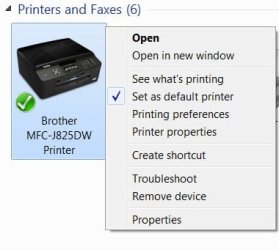
well you should be able to go into the printers section and set the brother printer as the default printer by right clicking on the printer you want as default and selecting set as default. That should take care of the issue. If not post back and we can go from there.
 

My Computer

Computer type
PC/Desktop
Computer Manufacturer/Model Number
custom built
OS
Windows 7 ultimate 64-bit
CPU
Intel I7 2600K 3.4ghz
Motherboard
Asus Evo P8P67
Memory
Corsair 16gb ddr3 1600mhz
Graphics Card(s)
Nvidia Geforce gt 430
Sound Card
Sound Blaster Titanium x-fi pci express
Monitor(s) Displays
Dell E198WFP
Hard Drives
1 western digital 2TB drive.
PSU
Antec 1200 watt
Case
Inwin Dragon Rider
Cooling
6 case supplied cooling fans
Keyboard
logitech mk700
Mouse
logitech m705
Internet Speed
25-50mbps download; 10mbps upload(i think)
Antivirus
avg free 2014
Browser
mozilla firefox
Other Info
Also have a pretty bad speaker setup which is a klipsch promedia 5.1 surround speaker setup with huge subwoofer and lg blu ray player/writer. Also a hp officejet pro 8600 plus wireless all in one and a logitech s7500 webcam.
well you should be able to go into the printers section and set the brother printer as the default printer by right clicking on the printer you want as default and selecting set as default. That should take care of the issue. If not post back and we can go from there.

The issue is not a default printer but rather a default scanning software when using the device's scan button.

This is the pop-up screen I'm getting. Hope this helps.
 

Attachments

  • Brother Scan.jpg
    Brother Scan.jpg
    18.1 KB · Views: 33
Last edited:

My Computer

OS
7 Professional 32bit
Anyone?
 

My Computer

OS
7 Professional 32bit
Hello sbi, try this

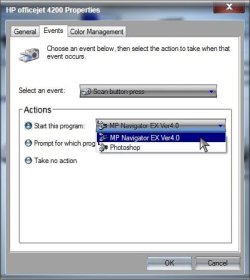
Start> In search box type Devices and Printers> Enter> Right click the Brother MFC-J825DW> Scan Properties> Events tab> Select an event> Choose the Scan button> Actions> Check Start this program> Drop down choose the ControlCenter 4> OK your way out

Similar to this:

Scan.jpg

That should work. A Guy
 

My Computer

Computer type
PC/Desktop
OS
Windows 10 Home x64
CPU
INTEL Core i5-750 Quad-Core 3.37GHz
Motherboard
ASUS P7P55D
Memory
HyperX Fury Black Series 8GB (2 x 4GB) 1866Mhz
Graphics Card(s)
EVGA GeForce GTX 750 Superclocked 1GB 128-Bit GDDR5
Monitor(s) Displays
LG 32MA68HY 32" IPS
Screen Resolution
1920 x 1080
Hard Drives
Samsung 840 Evo 120GB, SEAGATE 500GB Barracuda® 7200.12, SATA 3 Gb/s, 7200 RPM, 16MB cache
PSU
ANTEC TruePower New TP-550, 80 PLUS, 550W
Case
ANTEC Three Hundred Illusion
Cooling
COOLER MASTER Hyper 212 Plus, 4 x 120mm 1 x 140mm Noctua's
Internet Speed
85 + Mbps
Antivirus
Avast
Browser
Vivaldi
Hello A Guy,

Thank you for your response.

Unfortunately there is no Scan Properties and it is nowhere to be found under (General) Properties either :cry:
 

Attachments

  • 2014-08-31_093320.jpg
    2014-08-31_093320.jpg
    19 KB · Views: 25

My Computer

OS
7 Professional 32bit

My Computer

Computer type
PC/Desktop
OS
Windows 10 Home x64
CPU
INTEL Core i5-750 Quad-Core 3.37GHz
Motherboard
ASUS P7P55D
Memory
HyperX Fury Black Series 8GB (2 x 4GB) 1866Mhz
Graphics Card(s)
EVGA GeForce GTX 750 Superclocked 1GB 128-Bit GDDR5
Monitor(s) Displays
LG 32MA68HY 32" IPS
Screen Resolution
1920 x 1080
Hard Drives
Samsung 840 Evo 120GB, SEAGATE 500GB Barracuda® 7200.12, SATA 3 Gb/s, 7200 RPM, 16MB cache
PSU
ANTEC TruePower New TP-550, 80 PLUS, 550W
Case
ANTEC Three Hundred Illusion
Cooling
COOLER MASTER Hyper 212 Plus, 4 x 120mm 1 x 140mm Noctua's
Internet Speed
85 + Mbps
Antivirus
Avast
Browser
Vivaldi
I know this, I am aware of how it works and how to configure it. As I mentioned in the OP, I have installed this specific printer and software in several W7 machines but never had this issue before. Note that you can setup default program only with image scanning, not File scanning. As I said - I have photoshop on the other machines too but don't have this problem where the Scan doesn't know which program to use.
 

My Computer

OS
7 Professional 32bit
Ahh, I did know this...

The issue, I believe is the missing Scan properties menu item. I assumed it must be bacause of the complexity of the printer, or the software. But every device that has scan functions on the two 7 PCs I look at have the Scan Properties. Do you have access to the other working systems to see if that is the case? If not, I'm sorry, I don't know what is different. A Guy
 

My Computer

Computer type
PC/Desktop
OS
Windows 10 Home x64
CPU
INTEL Core i5-750 Quad-Core 3.37GHz
Motherboard
ASUS P7P55D
Memory
HyperX Fury Black Series 8GB (2 x 4GB) 1866Mhz
Graphics Card(s)
EVGA GeForce GTX 750 Superclocked 1GB 128-Bit GDDR5
Monitor(s) Displays
LG 32MA68HY 32" IPS
Screen Resolution
1920 x 1080
Hard Drives
Samsung 840 Evo 120GB, SEAGATE 500GB Barracuda® 7200.12, SATA 3 Gb/s, 7200 RPM, 16MB cache
PSU
ANTEC TruePower New TP-550, 80 PLUS, 550W
Case
ANTEC Three Hundred Illusion
Cooling
COOLER MASTER Hyper 212 Plus, 4 x 120mm 1 x 140mm Noctua's
Internet Speed
85 + Mbps
Antivirus
Avast
Browser
Vivaldi
If I may.

Are you using usb or wifi?

When you go to Devices and Printers and then right click on your chosen default printer you are not getting a option to scan and you should be. The best I can think of is that option has not been installed.
Did you install the printer/scanner from the CD/DVD that came with the printer?

I don't know your printer but could you check if installing the scanner is a option on your CD/DVD?
 

My Computer

Computer type
PC/Desktop
Computer Manufacturer/Model Number
Home made Desktop
OS
Windows 10 Pro. 64/ version 1709 Windows 7 Pro/64
CPU
Intel i7-6800K @ 4.3
Motherboard
ASUS X-99 Deluxe II
Memory
Corsair Platinum 16 gig @2400
Graphics Card(s)
EVGA GTX 1070 OC
Monitor(s) Displays
Asus 27" LED LCD/VE278Q
Screen Resolution
1920-1080 or 1280-720 HDMI
Hard Drives
INTEL SSD 730-240 Gb Sata 3.0/
PSU
EVGA Platium 1200W
Case
Phanteks Luxe Tempered Glass 8 fans/ one radiator
Cooling
XSPC/ Water Cooled CPU
Keyboard
Das 4 Professional
Mouse
Logitech M705/MX Anywhere 2-S
Internet Speed
100 mbits
Antivirus
Microsoft Security Essentials/ Malwarebytes Premium 3.0/ SAS
Browser
I.E. 11 default/Firefox/ ISP Time Warner Cable/Spectrum
Other Info
LG BluRay Burner/
Sound system-KLipsch-THX/
Icy Dock ssd Hot Swap bays.
@Layback Bear - it is WiFi and it was installed from the file that was downloaded from the Brother website.

To be clear, the printer/scanner work perfectly fine. It is just an extra window that pops up that shouldn't...for some reason, this specific W7 machine cannot determine what is the default TWAIN driver/software to be used with this device.
Also, there shouldn't be an option to scan from Right Click, I don't have that in the other machines either.
As I mentioned - if I press the Scan button on the device itself it will scan, but instead of doing it automatically - that is, hit the Scan button, I select which PC I want this to go to and the scan starts - it pops this window on the PC and I need to select Brother or Photoshop. Once I do, the scan works perfectly fine. It's just an extra step that for some reason this W7 laptop adds in the middle and it shouldn't.

Thanks.
 

My Computer

OS
7 Professional 32bit
I think i might be able to solve the problem for others

on the start menu type scanner > click on scanners and cameras > click on properties > Click on events tab > tick the radio box under actions (start this program) >>> remember to repeat the last step for each event under the select an event dropdown box before clicking okay!!


so now rather than getting a pesky prompt, it should do its thing automatically.

hope this helps others.
 

My Computer

Computer type
PC/Desktop
Computer Manufacturer/Model Number
Acer
OS
Metro Manila
Thanks, unfortunately it doesn't work. Nothing happens when I press the Scan button on the device, and also it does not remember my selection after re-boot.
 

My Computer

OS
7 Professional 32bit
Shucks!!

Oh man, It makes me feel frustrated when that happens. Now I really can't think of anything that might help. Sorry man!! Hope someone can solve it. I was able to solve my problem that way.
 

My Computer

Computer type
PC/Desktop
Computer Manufacturer/Model Number
Acer
OS
Metro Manila
No worries, at least you tried :D

Thanks.
 

My Computer

OS
7 Professional 32bit
I found the solution.

Instead of going through the normal device settings, you need to go through photoshop. I have CS4, and here's how I did it:

1. File - Import - WIA Support
2. In "WIA Support", click Start (doesn't matter what's checked), and the next window should show your device (I have the DCP-L2540D WLAN), click properties
3. Click Events on top, and make sure "Scan/Image Button" is selected. "Prompt which program to run" was selected, I changed it to "Start this program" and selected which one I wanted.

Be sure to do it for all 4 options (Scan/File, Scan/E-mail, Scan/OCR, Scan/Image)
 

My Computer

Computer type
PC/Desktop
OS
Windows 7 64-bit
Thank you buckeye. Unfortunately when I try that, a window pops up with the following error:

"The attempt to change the registered event handler failed. Please make sure the device is turned on and connected properly." :(

It is on and it is connected properly.
 

My Computer

OS
7 Professional 32bit
I know this is old tread, but it helped me in finding a solution to this problem...
If you don't have your scanner among devices, you need to add it.
You will know you don't have it, if you don't find it when you right click on device icon, and there is no "Optic scan properties or Scanning features" or something similar (I don't have English W7 installed)

  • Open "Devices and Printers" from the Start menu.
  • Click "Add device". New window will pop up, and you will get all the devices you can add. There will be listed your "printer" again. Select it and click Next
  • It will be added to the "Printers and Fax"
  • Right click on newly added device and select "Optic scan properties[FONT=&quot] or [/FONT]Scanning features[FONT=&quot]" and go to [/FONT]"Events" tab
  • Select "Run program" and from drop down menu, select your application
  • Save selection
And that is it.
 

My Computer

Computer type
PC/Desktop
Computer Manufacturer/Model Number
custom build
OS
Windows 7 Ultimate x64 SP1
CPU
i5-3550 @3.30 GHz
Motherboard
ASUS P8H77-V LE
Memory
8 GB
Graphics Card(s)
AMD Radeon HD 5700
Monitor(s) Displays
2x Samsung
Screen Resolution
2x HD
Hard Drives
SSD
Internet Speed
1GB
Antivirus
Avast
There is also option to start app called wiaacmgr.exe from Start menu. There you will find a list of "optic scanners". If you select one and use Properties, you can edit "Events" and "Network Setting"...
 

My Computer

Computer type
PC/Desktop
Computer Manufacturer/Model Number
custom build
OS
Windows 7 Ultimate x64 SP1
CPU
i5-3550 @3.30 GHz
Motherboard
ASUS P8H77-V LE
Memory
8 GB
Graphics Card(s)
AMD Radeon HD 5700
Monitor(s) Displays
2x Samsung
Screen Resolution
2x HD
Hard Drives
SSD
Internet Speed
1GB
Antivirus
Avast
Back
Top