
Commands and Extensions for WinDbg
!analyze
Performs analysis of the dump file, and displays information about the current exception or bugcheck.
Parameters for !analyse extension:
-v Displays verbose output of the analysis.
!analyze -v
-f Performs a fast and very brief analysis of the dump file.
!analyze -f
-show [bugcheckcode] Displays information about the specified bug check code.
!analyze -show
!cpuid
Displays information about the processors within the system.
Parameters for !cpuid extension:
[Processor] Specifies the processor whose information will be displayed; will give information specific to that processor.
!cpuid [Processor]
!sysinfo
Displays system information, such as the ACPI, CPU information and BIOS.
Parameters for !sysinfo:
cpuinfo Displays information about the processor.
cpuspeed Displays the maximum and current processor speeds.
machineid Displays information about the system, such as: SMBIOS, BIOS, firmware, system and baseboard.
smbios Displays the SMBIOS table, and provides information about the system (Memory, BIOS and CPU).
lm (Load Listed Modules)
Displays information about the listed modules.
Parameters for lm command:
e Lists modules which have symbol problems, and displays the 3rd party drivers.
n t Lists modules with a name and time; symbol information is not included.
lm n t [Module Name] The module name is usually the driver without the file extension.
f Lists the modules full image path.
i [Module Name] Gives detailed information about a specific module.
lmi [Module Name]
v Lists the modules verbose, and displays information which includes: symbol file name; image file name; checksum information; version information; date stamps; time stamps and information regarding if the module is managed code (CLR).
lmv [Module Name]
.hh
Displays help for WinDbg.
.time
Displays the time of dump generation.
More Commands and Extensions (WinDbg)
1) Open WinDbg program and go to Help and then Contents.

2) Expand Debugger Reference, and then expand the Debugger Commands.
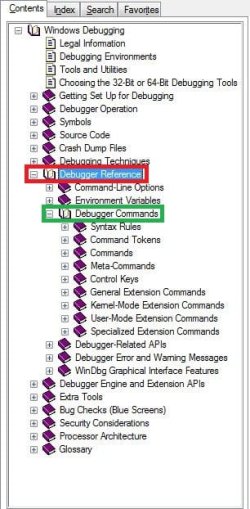
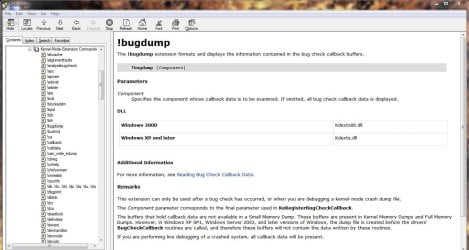
3) Expand General Extension Commands and Kernel-Mode Extension Commands, and then click which command/extension you would like to view for detailed information about that extension/command.
Hope this helps,
Harry
Last edited by a moderator:

 It will be helpful, for sure.

