
How to Change the "Bubbles Screen Saver" Settings in Windows 7 and Windows 8
Information
By default the Bubbles screen saver has no settings to set in the Screen Saver Settings window in Windows 7 and Windows 8. However, you can change the Bubbles screen saver settings through the registry instead. This will show you how to.
Note
The default location of the Bubbles screen saver file is at:
C:\Windows\System32\Bubbles.scr.
C:\Windows\System32\Bubbles.scr.
Tip
You will just need to play with the settings below and adjust the Value Data (step 8) until you get the desired affect from the selected DWORD Name (step 5).
EXAMPLE: Bubbles Screen Saver

OPTION ONE
To Restore the Default Bubbles Screen Saver Settings
Download
2. Save the .reg file to your desktop.
3. Double click/tap on the downloaded .reg file to merge it.
4. Click/tap on Run, Yes (UAC), Yes, and OK when prompted.
5. When finished, you can delete the downloaded .reg if you like.
OPTION TWO
To Customize the Bubbles Screen Saver Settings
2. If prompted by UAC, then click /tap on Yes.
3. In regedit, navigate to the location below. (See screenshot below)
Code:
HKEY_CURRENT_USER\Software\Microsoft\Windows\CurrentVersion\Screensavers\Bubbles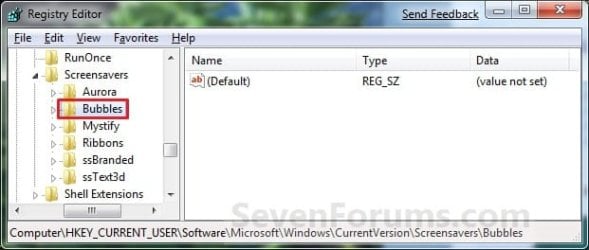
4. In the right pane, right click on a empty area, and click/tap on New and DWORD (32-bit) Value. (see screenshot above)
5. Type in a DWORD Name from the table below that you want to change and press Enter.
| DWORD Name | Value Data | Description |
|---|---|---|
| MaterialGlass | 0 or 1 | Set this value to 0 for solid bubbles, 1 for transparent bubbles. |
| Radius | 1130000000 to 1090000000 | For smaller or larger bubbles. Higher value number for larger bubbles. |
| ShowBubbles | 0 or 1 | Set this value to 1 for current desktop background, 0 for black desktop background. |
| ShowShadows | 0 or 1 | Set this value to 1 to enable, 0 to disable bubble shadows. |
| SphereDensity | 1000000000 to 2100000000 | For more or less bubbles on screen. Higher value number for more bubbles. |
| TurbulenceForce | 1000000000 to 2000000000 | How strong the "wind" is on your screen. 1000000000 = No turbulence, and bubbles move inertially in straight lines until they hit something. 1100000000 = very slight turbulence, not really noticeable but enough to keep the pattern changing. 1150000000 = noticeable turbulence; the screen starts to look as if small gusts of wind are batting the bubbles about. 1200000000 = strong turbulence, with whirls of bubbles whipping about all over the place. |
| TurbulenceNumOctaves | 1 to 255 | For how fast the bubble colors are distributed on the screen. Higher value number for faster color change. |
| TurbulenceSpeed | 1000000000 to 2000000000 | Affects how quickly colors change across the screen. This is most noticeable with a screen well packed with little bubbles. 1000000000 = bubble that's stationary or barely moving will change color very slowly. 2000000000 = stationary bubble will change quite rapidly. |
6. Double click/tap on the DWORD Name (from step 5) to modify it.
7. Dot Decimal, type in the Value Data you want in the table above, and click/tap on OK. (see example screenshot below)
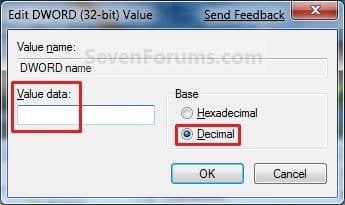
8. Repeat steps 4 to 7 to change another available DWORD Name option.
NOTE: You can add and customize one, a few, or all of the available options if you like (see table below step 6), but only add one instance of each DWORD Name in step 5 to prevent problems.
9. Close Regedit when done.
That's it,
Shawn Brink
Related Tutorials
- How to Change the Screen Saver in Windows 7 and Windows 8
- How to Make your own Windows 7 Theme Pack
- How to Change or Save a Windows 7 Theme
- How to Change the "Aurora Screen Saver" Settings in Windows 7 and Windows 8
- How to Change the "Mystify Screen Saver" Settings in Windows 7 and Windows 8
- How to Change the "Ribbons Screen Saver" Settings in Windows 7 and Windows 8
Attachments
Last edited:


