Solved Bulk Change All Folder Icons in Single Folder or Folder Type

ScubaGolfJim

Banned
Local time
3:29 PM
Messages
4
First, please forgive me if I have overlooked this issue in the many searches I have performed thus far.

I would like to know if anyone has a way to change all folder icons within a single folder to one specific icon without performing each one individually. I have over 1,400 folders within a master folder of which I would like to change the child folder icons. I really don't wish to perform this on a folder-by-folder basis.
:cry:

This is not a Default Folder Icon Change inquiry. This is simply all child folders within a single master folder. I would also be interested if the change would affect all folders of a specific type. Windows 7 does allow the 'setup' of a folder to be distributed (details view with selected details, order, and column size for example) but the icon did not distribute as well.

Any suggestions?
 

My Computer

Computer Manufacturer/Model Number
Custom
OS
Windows 7 Ultimate x64
CPU
AMD Phenom II X4 955 Black Edition
Motherboard
Gigabyte 890GPA-UD3H
Memory
(2) 4GB G.Skill Ripjaws SDRAM DDR3 1600
Graphics Card(s)
On-Board ATI Radeon HD 4290
Sound Card
Creative Soundblaster Audigy 2 Platinum
Monitor(s) Displays
Samsung SyncMaster 940Be
Hard Drives
WD Caviar Black WD1002FAEX 1TB 7200 RPM SATA3
WD Caviar Black WD7501AALS 750GB 7200 RPM SATA2
PSU
Antec TruePower New TP-750
Case
Antec SX1040BII
Cooling
Standard
First, a little bit of theory. What happens when a person sets a custom icon for a folder in Windows 7?
1. Attributes of a Folder change to Read-only (of the folder, NOT content!).
2. A hidden system file created inside that folder, which contains a link to the icon.

Thus, having such file as model, it is possible simply copy it across desired folders, and change attributes of those folders correspondingly.

Secondly, having this idea in my mind, I have put all of my little knowledge of Batch files together and created a script.
BEFORE script is started the following is needed to be done:
Master folder needs to be selected and a custom icon applied to it.

ONLY AFTER THAT
1. Script is placed inside that master folder and launched.
2. First, script checks if hidden system file with custom icon settings is there.
3. Secondly, script looks for subfolders and start changing its attributes.
4. Thirdly, script copies this settings file to all subfolders of current master folder, including all levels of subfolders.


For 100 folders it took about 21 seconds, for 200 folders with different levels of subfolders it took about 57 seconds on my laptop.

I have included remarks (comments) in the source code for better understanding what is going on.

UPDATE: Original file deleted. Script was not meant to be applied to system folders.
Please check a newer FIXED version at this post.

PLEASE READ NEW INSTRUCTION IN THAT POST.
 
Last edited:

My Computer

Computer type
PC/Desktop
OS
Windows 8.1 ; Windows 7 x86 (Dec2008-Jan2013)
Other Info
"The scale icon at the top right of a post or tutorial is how you can give rep to the member."
Neutron16

Works Perfectly. Thank you Very much. Performed two separate tests and will run the batch for the entire 1400+ a little later in the day. Again... Thank You!!
:thumbsup:
 

My Computer

Computer Manufacturer/Model Number
Custom
OS
Windows 7 Ultimate x64
CPU
AMD Phenom II X4 955 Black Edition
Motherboard
Gigabyte 890GPA-UD3H
Memory
(2) 4GB G.Skill Ripjaws SDRAM DDR3 1600
Graphics Card(s)
On-Board ATI Radeon HD 4290
Sound Card
Creative Soundblaster Audigy 2 Platinum
Monitor(s) Displays
Samsung SyncMaster 940Be
Hard Drives
WD Caviar Black WD1002FAEX 1TB 7200 RPM SATA3
WD Caviar Black WD7501AALS 750GB 7200 RPM SATA2
PSU
Antec TruePower New TP-750
Case
Antec SX1040BII
Cooling
Standard
Neutron16... I love you. I have been wanting to be able to do this forever. ♥
 

My Computer

OS
Windows 7 Ultimate x32
Can you please tell me exactly how to do what is necessary to use your super cool bat file.

By the way totally loving this you rock man!
I have wanted to know how to do this for so long!

Thank you
 

My Computer

Computer Manufacturer/Model Number
HP DV7 CTo 3000
OS
Windows 7 Ultimate x64
CPU
Core i7 720 QM
Memory
4 GB
Graphics Card(s)
Nvidia GeForce GT 230 m
Hard Drives
OCZ Vertex 120 GB SSD
&
500 GB Seagate Momentus Hybrid 7200
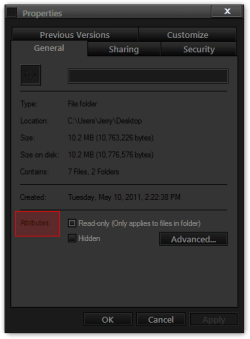
So I got it to work, but still unsure how to change the attributes.
Sorry if that is silly but I dont know how.
Can you please let me know.
Again thanx in advance
 

My Computer

Computer Manufacturer/Model Number
HP DV7 CTo 3000
OS
Windows 7 Ultimate x64
CPU
Core i7 720 QM
Memory
4 GB
Graphics Card(s)
Nvidia GeForce GT 230 m
Hard Drives
OCZ Vertex 120 GB SSD
&
500 GB Seagate Momentus Hybrid 7200
So I got it to work, but still unsure how to change the attributes.
Sorry if that is silly but I dont know how.
Can you please let me know.
Again thanx in advance
Right click>Properties
Jerry
 

Attachments

  • Properties.png
    Properties.png
    15.8 KB · Views: 298

My Computer

Computer type
Laptop
Computer Manufacturer/Model Number
Sager NP9170
OS
Win 7 Pro x64 / Win 10 Pro
CPU
Intel(R) Core(TM) i7-3630QM CPU @ 2.40GHz
Motherboard
CLEVO P170EM
Memory
12 GB
Graphics Card(s)
(1) Intel(R) HD Graphics 4000 (2) NVIDIA GeForce GTX 675M
Sound Card
(1) Realtek High Definition Audio (2) Intel(R) Display Aud
Monitor(s) Displays
17.3
Screen Resolution
1920x1080
Hard Drives
(1) Samsung 860 EVO 500GB(OS) (1) Samsung 860 EVO 500GB(Data)
Keyboard
Backlite
Antivirus
MSE, Malwarebytes Pro
Browser
Firefox
Other Info
DESKTOP: Custom-built.
OS: Win 10 Pro x64.
CASE: Rosewill R5.
CPU: Intel I5 4670K CPU @ 3.40GHz.
CPU COOLER: Cool Master Hyper 212 EVO.
MOTHERBOARD: Asus Z87-A.
MEMORY: Kingston HyperX 2x4 GB.
GPU: Nvidia Geforce 650 TI.
PSU: Corsair TX750.
DRIVES: (1) Samsung 840 120 GB SSD (2) Western Digital blue 500 GB 7200 RPM.
Neutron16... I love you. I have been wanting to be able to do this forever. ♥

Can you please tell me exactly how to do what is necessary to use your super cool bat file.

By the way totally loving this you rock man!
I have wanted to know how to do this for so long!

Thank you

So I got it to work, but still unsure how to change the attributes.
Sorry if that is silly but I dont know how.
Can you please let me know.
Again thanx in advance

Is that not to change attributes to folders and files, where as in this case just need to change the attibutes for folders ONLY?
 

My Computer

Computer Manufacturer/Model Number
HP DV7 CTo 3000
OS
Windows 7 Ultimate x64
CPU
Core i7 720 QM
Memory
4 GB
Graphics Card(s)
Nvidia GeForce GT 230 m
Hard Drives
OCZ Vertex 120 GB SSD
&
500 GB Seagate Momentus Hybrid 7200
Is that not to change attributes to folders and files, where as in this case just need to change the attibutes for folders ONLY?
Tweak Hound, you do not need to change attributes yourself, script does that for you.

All you need is to change icon of a master folder and put that script inside that master folder and run it as administrator.

The part in my post there I talk about attributes is just for your information.
Because when I give solutions I also try to explain why and how they work.

And also, inside script there are detailed comments in case anybody wants to use/copy part of the script.
 

My Computer

Computer type
PC/Desktop
OS
Windows 8.1 ; Windows 7 x86 (Dec2008-Jan2013)
Other Info
"The scale icon at the top right of a post or tutorial is how you can give rep to the member."
Am new to the forum, but I'd like to thank you very much for making this available to one and all.

It is kindly appreciated.
 

My Computer

OS
Windows 7 64 bit
Excellent little script there Neutron. All my font folders now look the same (or different, according to parent folder!).
 

My Computer

OS
windows 7 ultimate
Need Help!

Hi! New user to the forum and used Neutron16's .bat script. Running the script changed not only the icon but also renamed all my sub-folders to the parent name. Is there any way to reverse this change? Your help would be really appreciated.

Neutron16, could you help? I have to re-discover and rename ~700 photo folders.

THANK YOU!
 

My Computer

OS
Win 7 Pro x64
What you have described is very unusual. This script was tested with different operation systems and with non-unicode folders too.

There is NO command in the script that would rename folders. Command Attrib change only the attributes of certain folders and command XCOPY only copy settings file.
Did you add anything to the script, did you interupted script?

Please give us your Windows version, language of your windows and please post a screenshot of those renamed folders, at least some of them. And what names they had before (like 12-12-2011 or words, latin or non-latin based)?
 

My Computer

Computer type
PC/Desktop
OS
Windows 8.1 ; Windows 7 x86 (Dec2008-Jan2013)
Other Info
"The scale icon at the top right of a post or tutorial is how you can give rep to the member."
Need Help! Multiple folders with same name

Neutron16, Thanks for your quick response. I am running the US English version of 64-bit Win 7 Pro.
These are the steps I followed:

Testing
1. Created nested test folders (optimized for ‘General Items’) on desktop
2. Changed icon for Master folder
3. Copied .bat file
4. Ran it without Admin and got warning to ‘Run as Admin’
5. Ran as admin and was successful
6. Re-ran process multiple times successfully

Actual run
7. Navigated to C:\Our Documents\My Pictures
8. Changed icon on ‘My Pictures’ folder (optimized for ‘Pictures’)
9. Copied .bat file from test folders
10. Ran as admin but nothing happened
11. I right-clicked on Properties -> General tab and under security clicked ‘Unblock’
12. Ran again with no success
13. Re-ran process with test-folders successfully, though this time I had to logout for changes to take effect. Also noticed that I could not use certain ‘system’ icons.
14. To mimic exact conditions, I changed folder type from optimized for ‘Pictures’ to optimized for ‘General Items’
15. I then dragged-dropped .bat file from test folders
16. Right-clicked on Properties -> General tab and under security clicked ‘Unblock’
17. Ran it without admin and got warning to ‘Run as Admin’
18. Ran as admin and it started to work successfully. I did get a few exceptions at the start (did not keep a screen-shot, as I thought I would see the exceptions :() but it seemed to run successfully.
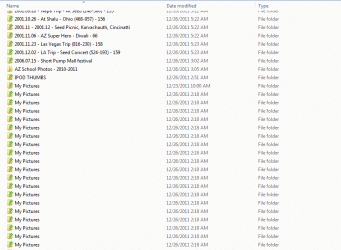
19. I navigated over to the ‘My Pictures’ folder and saw that all folder icons and names were identical – ‘My Pictures’

I noticed that though each folder was named exactly the same, they were still in order. I right-clicked on Properties -> Sharing and noticed that the original file names were still available under ‘Network File and Folder Sharing’ and the sort was maintained against this information. My picture folder names are in the following format - mm.dd.yyyy - text - text
I have made no edits to the script – not even opened it in an editor
Thanks!!

Neutron16[/FONT said:
;1715294]What you have described is very unusual. This script was tested with different operation systems and with non-unicode folders too.

There is NO command in the script that would rename folders. Command Attrib change only the attributes of certain folders and command XCOPY only copy settings file.
Did you add anything to the script, did you interupted script?

Please give us your Windows version, language of your windows and please post a screenshot of those renamed folders, at least some of them. And what names they had before (like 12-12-2011 or words, latin or non-latin based)?
 

Attachments

  • My Pictures Folder.GIF
    My Pictures Folder.GIF
    120.8 KB · Views: 75

My Computer

OS
Win 7 Pro x64
Ok, that makes sense now. What have happened is just another proove that script does it's job with conditions I have described when I uploaded it - it copies desktop.ini file from master folder to nested folders.

What I have never thought of is that system folders usually have their aliases a.k.a "LocalizedResourceName" in desktop.ini files.

Script have never actually renamed your folders. You can verify this with third party file managers like Altap Salamander.

Download it or another files manager, navigate to your master folder and make sure that all folders have their original names. Then make search in all subfolders for desktop.ini file and delete all copies of desktop.ini in nested folders (inside master folder) except one for the master folder.

Now they should return to original state. Now, I do not recommend to apply script to "system" folders like My Pictures. If you insist I can create a custom bat file for you for free - just PM me your desktop.ini file from master folder.
 

My Computer

Computer type
PC/Desktop
OS
Windows 8.1 ; Windows 7 x86 (Dec2008-Jan2013)
Other Info
"The scale icon at the top right of a post or tutorial is how you can give rep to the member."
THANKS Neutron16!!! That worked. I deleted all the INI files and the folders automatically reset to their original names and icons. I would be very grateful if you can write me the BAT file to convert the icons for My Pictures folder.
 
Last edited by a moderator:

My Computer

OS
Win 7 Pro x64
subirs, please delete your email from the post above.

I have created another version of my script. I does the same thing, except it copies desktop.ini file from predefined folder.

You need to create this folder first
C:\custom_icon\
and apply your icon to it. Then put the script in your master folder (My pictures or whatever) and start it.
DO NOT PUT ANYTHING IN C:\custom_icon\
this is a temporary folder, just to copy icon from. You can delete it once script will finish it's job.

Basically, in this case script will copy icon not from master folder but from C:\custom_icon\
 

Attachments

My Computer

Computer type
PC/Desktop
OS
Windows 8.1 ; Windows 7 x86 (Dec2008-Jan2013)
Other Info
"The scale icon at the top right of a post or tutorial is how you can give rep to the member."
Neutron16, Thank you Very, VERY much! I am extremely grateful for you taking time out of your day to help me out. I really do appreciate it!! You saved me quite a few hours of rework.

Thank you!!
 

My Computer

OS
Win 7 Pro x64
Thanks!

Wonderful Script! Thanks a lot for sharing it, Neutron16. :)
 

My Computer

OS
Windows 7 Home Premium 32bit
Neutron16,
You Da Man!
Script is awesome. So far it's the quickest search I've done and found a solution to when it comes to MS.
Simple, easy, just how all solutions should be. Thanks again for sharing a great resource with us all :D
 

My Computer

OS
Windows 7 Ultimate x64
Back
Top