
You are using an out of date browser. It may not display this or other websites correctly.
You should upgrade or use an alternative browser.
You should upgrade or use an alternative browser.
Can I install/use Dynamics CRM 4.0 on Windows 7
- Thread starter AAAHome
- Start date

My Computer
At a glance
7 Pro
- OS
- 7 Pro
I saw that, however when I run the splash.exe (which has options to install individually the CRM server, email router, connector for SQL, CRM for Outlook and Data Migration Wizard), nothing happens when I click on either option to install. The curser spins for a second & the splash box closes.
So I had tried running the individual .exe's in each folder & most installed fine, however no shortcuts were created & can't find any apps to launch in any of the folders.
Plus when I got to installing the CRM server, it tells me that my computer is running an OS that MS Dynamics CRM doesn't support, & that it must have Server 2003, and edition with SP2 or Server 2008.
So I had tried running the individual .exe's in each folder & most installed fine, however no shortcuts were created & can't find any apps to launch in any of the folders.
Plus when I got to installing the CRM server, it tells me that my computer is running an OS that MS Dynamics CRM doesn't support, & that it must have Server 2003, and edition with SP2 or Server 2008.
My Computer
At a glance
Windows XP to Windows 7
- OS
- Windows XP to Windows 7
IIS, Application services and Indexing need to be installed through add features:
- Click Start, click All Programs, click Administrative Tools, and then click Server Manager.
- Right-click Roles, and then click Add Roles.
- Click Next to get to the Server Role Screen.
- Mark the checkbox for the following roles, and then click Next.
- Application Server
- File Services
- Click Next to get to the Roles Services for the Application Server.
- Select the checkbox next to Web Server (IIS) Support. When the Add Roles Wizard box comes up, click Add Required Role Services, and then click Next.
- Click Next to get to the Web Server Role Services, keep the existing checkboxes that are marked and mark the checkbox next to IIS 6 Management Compatibility, and then click Next.
- Click Next to get to the File Services Role Services, mark the checkbox next to Indexing Service , and then click Next.
- Click Install
- Click Start, click All Programs, click Administrative Tools and click Server Manager.
- Expand Roles and right-click Application Server, File Services or Web Server (IIS) depending on the role you need and click Add Role Services.
- Complete the wizard to add the desired role services.
My Computer
At a glance
7 Pro
- OS
- 7 Pro
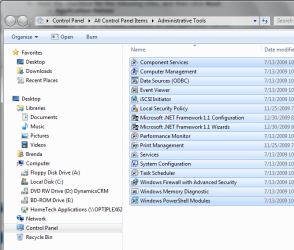
I can't seem to find Server Manager. Attached is a snippet of everything in my Adminstrative Tools directory. When I search for Server Manager I get SQL Server Configuration Manager & opening that I don't find anything that say Roles.
Attachments
Last edited:
My Computer
At a glance
Windows XP to Windows 7
- OS
- Windows XP to Windows 7
The term 'role' now relates to a server OS. It's basically a summary of what you have installed.
You'll need to add/remove features a different way:
Control Panel
(view by: Small Icons)
Select Programs and Features
Then to the left, you'll select: Turn Windows features on or off
The following box will give you the options to install the Indexing services(s)
IIS (Internet Information Services) and related requirements.
The list in my previous post gives you the "features" you'll need to install as prereqs for CRM.
The "How To" section actually refers to server OS so just use the "Add Remove Features" I provided above.
You'll need to add/remove features a different way:
Control Panel
(view by: Small Icons)
Select Programs and Features
Then to the left, you'll select: Turn Windows features on or off
The following box will give you the options to install the Indexing services(s)
IIS (Internet Information Services) and related requirements.
The list in my previous post gives you the "features" you'll need to install as prereqs for CRM.
The "How To" section actually refers to server OS so just use the "Add Remove Features" I provided above.
My Computer
At a glance
7 Pro
- OS
- 7 Pro
I was able to find Indexing Service & Internet Information Services & turned them on. I couldn't find Application Service or Server, or File Services.
I tried again with the two turned on & still having the same issues.
I tried again with the two turned on & still having the same issues.
My Computer
At a glance
Windows XP to Windows 7
- OS
- Windows XP to Windows 7
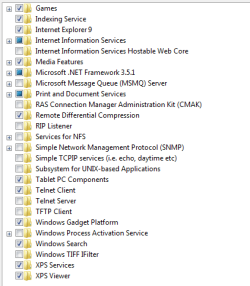
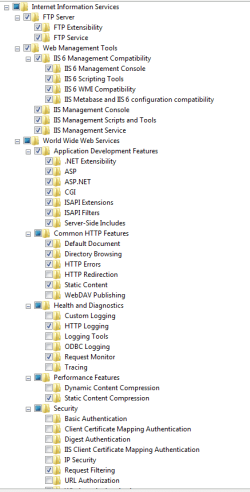
Attached are snippets of the root folders in turn windows features on/off, & one showing everything in the IIS folder so you can see what's checked & unchecked. Am I missing something? Also do I have anything unnecessarily turned on?
Attachments
My Computer
At a glance
Windows XP to Windows 7
- OS
- Windows XP to Windows 7

My Computer
At a glance
Windows XP to Windows 7
- OS
- Windows XP to Windows 7
having the same problem
Hi, I'm wondering if you've been able to resolve this issue?
I'm getting the same error message when trying to install CRM 4.0 on win 7.
the installation log is attached below.
this seems to suggest that it's not supported
however, this official MS blog announcement says different.
Any ideas?
installation log:
10:06:50| Info| === Setup bootstrap logging started 28/12/2011 10:06:50 ===
10:06:50| Info| Bootstrap version: 4.0.7333.3.
10:06:50| Info| User: user
10:06:50| Info| Invoked with command line: "D:\program downloads\dynamics\setupserver.exe"
10:06:50| Info| Running D:\program downloads\dynamics\setupserver.exe
10:06:50| Info| Loading bootstrap library D:\program downloads\dynamics\ServerSetup.dll
10:06:50| Info| Microsoft Dynamics CRM is not currently installed.
10:07:02| Error| System requirements check failed.
10:07:02| Info| Closing bootstrap library D:\program downloads\dynamics\ServerSetup.dll
10:07:02| Info| === Setup bootstrap logging ended 28/12/2011 10:07:02 ===
10:07:34| Info| === Setup bootstrap logging started 28/12/2011 10:07:34 ===
10:07:34| Info| Bootstrap version: 4.0.7333.3.
10:07:34| Info| User: user
10:07:34| Info| Invoked with command line: "D:\program downloads\dynamics\setupserver.exe"
10:07:34| Info| Running D:\program downloads\dynamics\setupserver.exe
10:07:34| Info| Loading bootstrap library D:\program downloads\dynamics\ServerSetup.dll
10:07:34| Info| Microsoft Dynamics CRM is not currently installed.
10:08:34| Error| System requirements check failed.
10:08:34| Info| Closing bootstrap library D:\program downloads\dynamics\ServerSetup.dll
10:08:34| Info| === Setup bootstrap logging ended 28/12/2011 10:08:34 ===
Hi, I'm wondering if you've been able to resolve this issue?
I'm getting the same error message when trying to install CRM 4.0 on win 7.
the installation log is attached below.
this seems to suggest that it's not supported
however, this official MS blog announcement says different.
Any ideas?
installation log:
10:06:50| Info| === Setup bootstrap logging started 28/12/2011 10:06:50 ===
10:06:50| Info| Bootstrap version: 4.0.7333.3.
10:06:50| Info| User: user
10:06:50| Info| Invoked with command line: "D:\program downloads\dynamics\setupserver.exe"
10:06:50| Info| Running D:\program downloads\dynamics\setupserver.exe
10:06:50| Info| Loading bootstrap library D:\program downloads\dynamics\ServerSetup.dll
10:06:50| Info| Microsoft Dynamics CRM is not currently installed.
10:07:02| Error| System requirements check failed.
10:07:02| Info| Closing bootstrap library D:\program downloads\dynamics\ServerSetup.dll
10:07:02| Info| === Setup bootstrap logging ended 28/12/2011 10:07:02 ===
10:07:34| Info| === Setup bootstrap logging started 28/12/2011 10:07:34 ===
10:07:34| Info| Bootstrap version: 4.0.7333.3.
10:07:34| Info| User: user
10:07:34| Info| Invoked with command line: "D:\program downloads\dynamics\setupserver.exe"
10:07:34| Info| Running D:\program downloads\dynamics\setupserver.exe
10:07:34| Info| Loading bootstrap library D:\program downloads\dynamics\ServerSetup.dll
10:07:34| Info| Microsoft Dynamics CRM is not currently installed.
10:08:34| Error| System requirements check failed.
10:08:34| Info| Closing bootstrap library D:\program downloads\dynamics\ServerSetup.dll
10:08:34| Info| === Setup bootstrap logging ended 28/12/2011 10:08:34 ===
My Computer
At a glance
win 7 pro 64
- OS
- win 7 pro 64

Hi there
AFAIK it REALLY does need a server OS to install it on.
If you are a registered student or a member of TECHNET you can get a copy of W2008 server -- why not install this as a VM and then install the CRM on the W2008 server VM.
(Actually a Technet subscription is IDEAL for testing these sorts of products out and IMO well worth the cost).
Cheers
jimbo
AFAIK it REALLY does need a server OS to install it on.
If you are a registered student or a member of TECHNET you can get a copy of W2008 server -- why not install this as a VM and then install the CRM on the W2008 server VM.
(Actually a Technet subscription is IDEAL for testing these sorts of products out and IMO well worth the cost).
Cheers
jimbo
My Computer
At a glance
Linux CENTOS 7 / various Windows OS'es and se...Intel i7 Intel i58GB, 16GBOn Motherboard
- Computer type
- PC/Desktop
- Computer Manufacturer/Model Number
- Custom built, several laptops HP/ASUS
- OS
- Linux CENTOS 7 / various Windows OS'es and servers
- CPU
- Intel i7 Intel i5
- Memory
- 8GB, 16GB
- Graphics Card(s)
- On Motherboard
- Sound Card
- Realtek HD audio
- Monitor(s) Displays
- Apple Cinema display, Samsung LCD
- Screen Resolution
- 1920 X 1080
- Hard Drives
- 4 X 1TB SATA
- Mouse
- Toshiba wireless laser
- Internet Speed
- > 20MB up
Similar threads

- Replies
- 60
- Views
- 36K
- Replies
- 2
- Views
- 4K

- Replies
- 48
- Views
- 29K