Can Win7 Computers Be on LAN With Win 11 Computer

NewW7User

Member
VIP
Member
I may be getting a new Win11 computer. Before I buy it I'm asking if there are any known problems with a Win11 computer being on a LAN with two Win 7 computers and being able to share folders/files among them.
 

My Computers

System One System Two

  • Computer type
    PC/Desktop
    Computer Manufacturer/Model Number
    Dell XPS 8300
    OS
    W7 Pro 64
    Memory
    8G
    Sound Card
    RealTek High Definition Audio
    Monitor(s) Displays
    Asus
    Hard Drives
    WD Elements, Samsung Story Station, Samsung EVO 860 / 870
    Mouse
    Logitech M310
    Antivirus
    Avast, Malwarebytes, SUPERAntiSpyware
    Browser
    Firefox, Avast Secure Browser
  • Computer type
    Laptop
    System Manufacturer/Model Number
    HP
    OS
    Win10
    Keyboard
    external
    Mouse
    wireless
    Browser
    Firefox, Avast
    Antivirus
    Avast / Malwarebytes / Superantispyware
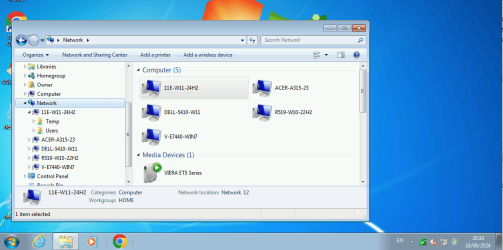
Problems? No, not really. I have Win7, Win10 and Win11 machines on my LAN, the sharing settings work the same across all of them.

image.png
 

My Computers

System One System Two

  • Computer type
    Laptop
    Computer Manufacturer/Model Number
    Toshiba satellite C650D
    OS
    Windows 7 Home Premium x64
    CPU
    AMD V120
    Memory
    4GB
    Internet Speed
    150 Mbps
    Antivirus
    MSE
    Browser
    IE11, Edge, Firefox
    Other Info
    I also have W7 Pro on my System Two, and several W7 Hyper-V VMs. My other machines run Windows 10/11. Their specs are in my Ten Forums & Eleven Forum profiles.
  • Computer type
    Laptop
    System Manufacturer/Model Number
    Lenovo Thinkpad T430
    OS
    Windows 7 Pro x64
    CPU
    Intel i5-3320M
    Memory
    8 GB
    Hard Drives
    250GB Samsung SSD 860 EVO
    Other Info
    Antivirus: MSE
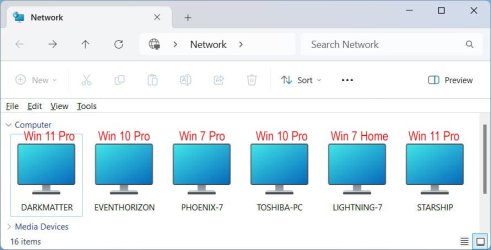
No problem for me either. I have a mixture of Windows XP, 7, 10 & 11 computers. I have 5 desktop and 3 laptop computers.

Here are the computers that are currently powered on as seen on my Windows 11 laptop.

Network Computers.jpg
 

My Computers

System One System Two

  • Computer type
    PC/Desktop
    Computer Manufacturer/Model Number
    Custom build
    OS
    Windows 7 Home Premium 64-bits
    CPU
    AMD FX-8350
    Motherboard
    Gigabyte GA-990FXA-UD3 (AM3+)
    Memory
    GSKILL Ripjaw-X PC3 12800 8GB (2x4GB)
    Graphics Card(s)
    ASUS ROG STRIX GTX 1060 6GB
    Sound Card
    Integrated
    Monitor(s) Displays
    Asus VE228H (21.5-in)
    Screen Resolution
    1920x1080 60Hz
    Hard Drives
    SAMSUNG 870 EVO 2.5 Inch SATA SSD (1TB)
    SAMSUNG 870 EVO 2.5 Inch SATA SSD (1TB)
    SAMSUNG 870 EVO 2.5 Inch SATA SSD (1TB)
    PSU
    Corsair RM750x (750 watts)
    Case
    Corsair Carbide Series 200R
    Cooling
    Corsair Hydro Series H60 (CWCH60)
    Keyboard
    Logitech Elite
    Mouse
    Logitech M510 Wireless Mouse
    Internet Speed
    Comcast Gigabit Extra (1200Mbps down / 35Mbps up)
    Antivirus
    Malwarebytes
    Browser
    Firefox, Edge, Chrome
    Other Info
    ASUS DRW-24B1ST DVD-RW (24X) optical drive
    Seagate Expansion Desk (5TB) external SATA/USB HDD
    Comcast XB8 Internet Gateway
  • Computer type
    PC/Desktop
    System Manufacturer/Model Number
    Custom
    OS
    Windows 7 Pro (64-bit)
    CPU
    AMD Phenom II 960T X4
    Motherboard
    ASUS M4N82 Deluxe
    Memory
    Corsair XMS2 DDR2-800 8GB (4x2GB)
    Graphics Card(s)
    ASUS ENGTX560 DCII OC/2DI/1GD5 1GB
    Monitor(s) Displays
    Samsung 930B 19-inch LCD
    Screen Resolution
    1280x1024
    Hard Drives
    Samsung SSD 870 EVO 1000 GB (Windows 10)
    Seagate ST1000DM003 1000 GB (Windows 7)
    PSU
    Antec TruePower (new) TP-650
    Case
    Antec Three Hundred
    Cooling
    AMD stock cooler from FX8350
    Mouse
    Logitech M100
    Internet Speed
    Xfinity Gigabit Extra 1200/35 Mbps
Thank you Bree and MisterEd. I appreciate your responses. Today I tried to connect the Win7 computers with a friend's Win10 laptop as a sort of test. At first I couldn't get all the Win7s and the Win10 to see each other. I "fiddled" around, checking that each one said "shared" and permissions were for "everyone" with everything checked and eventually got one of the Win7s and the Win10 laptop to see each other. Sometimes they would show up in Map Network Drive and other times they wouldn't. But after I shut down and re-started the Win10 laptop I couldn't get any Win7s to see the Win10 nor the Win10 to see any Win7s..

It seemed like it was all flakey and sort of worked once but not again. Is there a checklist I could consult to see each place that needs something set? I would be able to use that when I add the Win11 computer to the LAN.
 

My Computers

System One System Two

  • Computer type
    PC/Desktop
    Computer Manufacturer/Model Number
    Dell XPS 8300
    OS
    W7 Pro 64
    Memory
    8G
    Sound Card
    RealTek High Definition Audio
    Monitor(s) Displays
    Asus
    Hard Drives
    WD Elements, Samsung Story Station, Samsung EVO 860 / 870
    Mouse
    Logitech M310
    Antivirus
    Avast, Malwarebytes, SUPERAntiSpyware
    Browser
    Firefox, Avast Secure Browser
  • Computer type
    Laptop
    System Manufacturer/Model Number
    HP
    OS
    Win10
    Keyboard
    external
    Mouse
    wireless
    Browser
    Firefox, Avast
    Antivirus
    Avast / Malwarebytes / Superantispyware
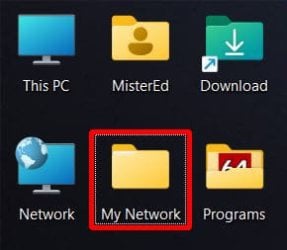
Seeing computers on my network has always kind hit and miss. I like others have tried many things but nothing worked perfectly. To work around this I created a folder on my desktop called My Network.

SS2.jpg

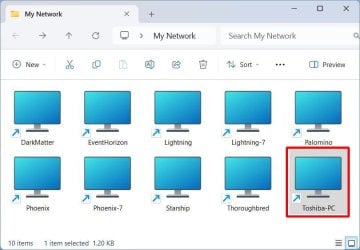
Inside this folder I created shortcuts to each computer on my network.

SS3.jpg

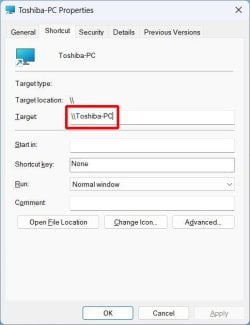
To create each shortcut I right-clicked and selected New > Shortcut. For example, A shortcut to computer Toshiba-PC is \\Toshiba-PC.

SS4.jpg

Once I completed the folder with the shortcuts to all my computers I copied the same My Network folder to the desktops on all my other computers.
 

My Computers

System One System Two

  • Computer type
    PC/Desktop
    Computer Manufacturer/Model Number
    Custom build
    OS
    Windows 7 Home Premium 64-bits
    CPU
    AMD FX-8350
    Motherboard
    Gigabyte GA-990FXA-UD3 (AM3+)
    Memory
    GSKILL Ripjaw-X PC3 12800 8GB (2x4GB)
    Graphics Card(s)
    ASUS ROG STRIX GTX 1060 6GB
    Sound Card
    Integrated
    Monitor(s) Displays
    Asus VE228H (21.5-in)
    Screen Resolution
    1920x1080 60Hz
    Hard Drives
    SAMSUNG 870 EVO 2.5 Inch SATA SSD (1TB)
    SAMSUNG 870 EVO 2.5 Inch SATA SSD (1TB)
    SAMSUNG 870 EVO 2.5 Inch SATA SSD (1TB)
    PSU
    Corsair RM750x (750 watts)
    Case
    Corsair Carbide Series 200R
    Cooling
    Corsair Hydro Series H60 (CWCH60)
    Keyboard
    Logitech Elite
    Mouse
    Logitech M510 Wireless Mouse
    Internet Speed
    Comcast Gigabit Extra (1200Mbps down / 35Mbps up)
    Antivirus
    Malwarebytes
    Browser
    Firefox, Edge, Chrome
    Other Info
    ASUS DRW-24B1ST DVD-RW (24X) optical drive
    Seagate Expansion Desk (5TB) external SATA/USB HDD
    Comcast XB8 Internet Gateway
  • Computer type
    PC/Desktop
    System Manufacturer/Model Number
    Custom
    OS
    Windows 7 Pro (64-bit)
    CPU
    AMD Phenom II 960T X4
    Motherboard
    ASUS M4N82 Deluxe
    Memory
    Corsair XMS2 DDR2-800 8GB (4x2GB)
    Graphics Card(s)
    ASUS ENGTX560 DCII OC/2DI/1GD5 1GB
    Monitor(s) Displays
    Samsung 930B 19-inch LCD
    Screen Resolution
    1280x1024
    Hard Drives
    Samsung SSD 870 EVO 1000 GB (Windows 10)
    Seagate ST1000DM003 1000 GB (Windows 7)
    PSU
    Antec TruePower (new) TP-650
    Case
    Antec Three Hundred
    Cooling
    AMD stock cooler from FX8350
    Mouse
    Logitech M100
    Internet Speed
    Xfinity Gigabit Extra 1200/35 Mbps
Sorry for a probably silly question but where did you define the computer names that the shortcuts point to? I think my real question is how did you get the shortcuts unless your computer saw the other computers at least one time to make a shortcut. Or am I way off base here.
 
Last edited:

My Computers

System One System Two

  • Computer type
    PC/Desktop
    Computer Manufacturer/Model Number
    Dell XPS 8300
    OS
    W7 Pro 64
    Memory
    8G
    Sound Card
    RealTek High Definition Audio
    Monitor(s) Displays
    Asus
    Hard Drives
    WD Elements, Samsung Story Station, Samsung EVO 860 / 870
    Mouse
    Logitech M310
    Antivirus
    Avast, Malwarebytes, SUPERAntiSpyware
    Browser
    Firefox, Avast Secure Browser
  • Computer type
    Laptop
    System Manufacturer/Model Number
    HP
    OS
    Win10
    Keyboard
    external
    Mouse
    wireless
    Browser
    Firefox, Avast
    Antivirus
    Avast / Malwarebytes / Superantispyware
Sorry for a probably silly question but where did you define the computer names that the shortcuts point to? I think my real question is how did you get the shortcuts unless your computer saw the other computers at least one time to make a shortcut. Or am I way off base here.
Someone once said, "The only stupid question is the one not asked". We have all asked the same question as you at some time in the past. It is all about learning...

When you first install Windows it will assign a computer name. Optionally you can select to give it a different name at that time. Also, you can change the computer name any time by going to the Control Panel in Windows 7 or Settings in Windows 10 & 11.

Note: Computer names are not case sensitive. For example, Toshiba-PC is the same as TOSHIBA-PC.

The easiest thing now is to log into each computer and go into the Control Panel/Settings and see what it is. You can also change the computer name if you wish.

Here are some examples:

O/S: Windows 7 Pro
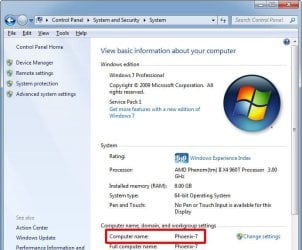
Control Panel > System and Security > System
Computer name: Phoenix-7

Phoenix-7.jpg

O/S: Windows 10 Pro
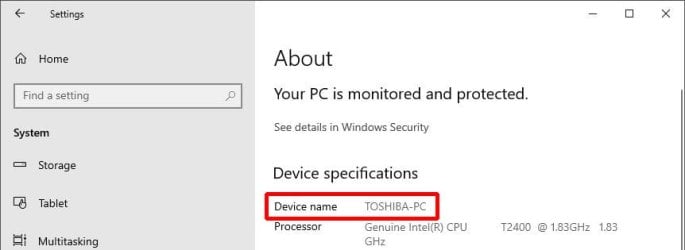
Settings > System > About
Device Name: Toshiba-PC

Toshiba-PC.jpg

O/S: Windows 11 Pro
Settings > System > About
Device Name: Starship

Starship.jpg
 

My Computers

System One System Two

  • Computer type
    PC/Desktop
    Computer Manufacturer/Model Number
    Custom build
    OS
    Windows 7 Home Premium 64-bits
    CPU
    AMD FX-8350
    Motherboard
    Gigabyte GA-990FXA-UD3 (AM3+)
    Memory
    GSKILL Ripjaw-X PC3 12800 8GB (2x4GB)
    Graphics Card(s)
    ASUS ROG STRIX GTX 1060 6GB
    Sound Card
    Integrated
    Monitor(s) Displays
    Asus VE228H (21.5-in)
    Screen Resolution
    1920x1080 60Hz
    Hard Drives
    SAMSUNG 870 EVO 2.5 Inch SATA SSD (1TB)
    SAMSUNG 870 EVO 2.5 Inch SATA SSD (1TB)
    SAMSUNG 870 EVO 2.5 Inch SATA SSD (1TB)
    PSU
    Corsair RM750x (750 watts)
    Case
    Corsair Carbide Series 200R
    Cooling
    Corsair Hydro Series H60 (CWCH60)
    Keyboard
    Logitech Elite
    Mouse
    Logitech M510 Wireless Mouse
    Internet Speed
    Comcast Gigabit Extra (1200Mbps down / 35Mbps up)
    Antivirus
    Malwarebytes
    Browser
    Firefox, Edge, Chrome
    Other Info
    ASUS DRW-24B1ST DVD-RW (24X) optical drive
    Seagate Expansion Desk (5TB) external SATA/USB HDD
    Comcast XB8 Internet Gateway
  • Computer type
    PC/Desktop
    System Manufacturer/Model Number
    Custom
    OS
    Windows 7 Pro (64-bit)
    CPU
    AMD Phenom II 960T X4
    Motherboard
    ASUS M4N82 Deluxe
    Memory
    Corsair XMS2 DDR2-800 8GB (4x2GB)
    Graphics Card(s)
    ASUS ENGTX560 DCII OC/2DI/1GD5 1GB
    Monitor(s) Displays
    Samsung 930B 19-inch LCD
    Screen Resolution
    1280x1024
    Hard Drives
    Samsung SSD 870 EVO 1000 GB (Windows 10)
    Seagate ST1000DM003 1000 GB (Windows 7)
    PSU
    Antec TruePower (new) TP-650
    Case
    Antec Three Hundred
    Cooling
    AMD stock cooler from FX8350
    Mouse
    Logitech M100
    Internet Speed
    Xfinity Gigabit Extra 1200/35 Mbps
Thank you for explaining that. But how do you create a shortcut when Computer A (win7) doesn't see Computer B (Win10) and the reverse, too. How do you create a shortcut out of thin air? I could just type in \\Computer-B-name and \\Computer-A-name but where am I typing it to make a shortcut?

I know - I'm missing something obvious but I don't know what.
 

My Computers

System One System Two

  • Computer type
    PC/Desktop
    Computer Manufacturer/Model Number
    Dell XPS 8300
    OS
    W7 Pro 64
    Memory
    8G
    Sound Card
    RealTek High Definition Audio
    Monitor(s) Displays
    Asus
    Hard Drives
    WD Elements, Samsung Story Station, Samsung EVO 860 / 870
    Mouse
    Logitech M310
    Antivirus
    Avast, Malwarebytes, SUPERAntiSpyware
    Browser
    Firefox, Avast Secure Browser
  • Computer type
    Laptop
    System Manufacturer/Model Number
    HP
    OS
    Win10
    Keyboard
    external
    Mouse
    wireless
    Browser
    Firefox, Avast
    Antivirus
    Avast / Malwarebytes / Superantispyware
Thank you for explaining that. But how do you create a shortcut when Computer A (win7) doesn't see Computer B (Win10) and the reverse, too. How do you create a shortcut out of thin air? I could just type in \\Computer-B-name and \\Computer-A-name but where am I typing it to make a shortcut?

I know - I'm missing something obvious but I don't know what.
A couple things I didn't mention are:

1. Every computer that you want to connect to must be already be connecting correctly. If you are unsure as to whether it is already connecting correctly then just ask. The only problem is that not all computers are showing up in File Explorer > Network.

2. The computer you are making a shortcut to must be turned on and awake when you make the shortcut. Otherwise creating the shortcut process will fail.

I already said how to make a shortcut to a computer in Post #5. However, I will repeat it again:

I will show this in Windows 11 but the process will be the same in Windows 7 & 10:

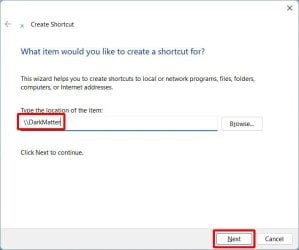
For example, a shortcut to computer DarkMatter is \\DarkMatter. To create a shortcut to computer DarkMatter:

1. Right-click on desktop or in folder

2. Select New > Shortcut.

3a. Enter location: \\DarkMatter
3b. Click Next

S1.jpg

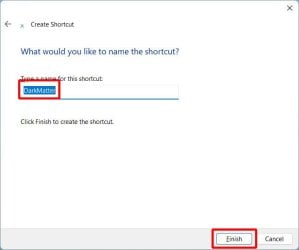
4. I accepted default name of DarkMatter
4b. Click Finish

S2.jpg

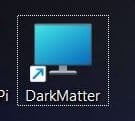
5. Shortcut to computer DarkMatter is created

S3.jpg
 

My Computers

System One System Two

  • Computer type
    PC/Desktop
    Computer Manufacturer/Model Number
    Custom build
    OS
    Windows 7 Home Premium 64-bits
    CPU
    AMD FX-8350
    Motherboard
    Gigabyte GA-990FXA-UD3 (AM3+)
    Memory
    GSKILL Ripjaw-X PC3 12800 8GB (2x4GB)
    Graphics Card(s)
    ASUS ROG STRIX GTX 1060 6GB
    Sound Card
    Integrated
    Monitor(s) Displays
    Asus VE228H (21.5-in)
    Screen Resolution
    1920x1080 60Hz
    Hard Drives
    SAMSUNG 870 EVO 2.5 Inch SATA SSD (1TB)
    SAMSUNG 870 EVO 2.5 Inch SATA SSD (1TB)
    SAMSUNG 870 EVO 2.5 Inch SATA SSD (1TB)
    PSU
    Corsair RM750x (750 watts)
    Case
    Corsair Carbide Series 200R
    Cooling
    Corsair Hydro Series H60 (CWCH60)
    Keyboard
    Logitech Elite
    Mouse
    Logitech M510 Wireless Mouse
    Internet Speed
    Comcast Gigabit Extra (1200Mbps down / 35Mbps up)
    Antivirus
    Malwarebytes
    Browser
    Firefox, Edge, Chrome
    Other Info
    ASUS DRW-24B1ST DVD-RW (24X) optical drive
    Seagate Expansion Desk (5TB) external SATA/USB HDD
    Comcast XB8 Internet Gateway
  • Computer type
    PC/Desktop
    System Manufacturer/Model Number
    Custom
    OS
    Windows 7 Pro (64-bit)
    CPU
    AMD Phenom II 960T X4
    Motherboard
    ASUS M4N82 Deluxe
    Memory
    Corsair XMS2 DDR2-800 8GB (4x2GB)
    Graphics Card(s)
    ASUS ENGTX560 DCII OC/2DI/1GD5 1GB
    Monitor(s) Displays
    Samsung 930B 19-inch LCD
    Screen Resolution
    1280x1024
    Hard Drives
    Samsung SSD 870 EVO 1000 GB (Windows 10)
    Seagate ST1000DM003 1000 GB (Windows 7)
    PSU
    Antec TruePower (new) TP-650
    Case
    Antec Three Hundred
    Cooling
    AMD stock cooler from FX8350
    Mouse
    Logitech M100
    Internet Speed
    Xfinity Gigabit Extra 1200/35 Mbps
I did that on desktop on Win10 to one of the Win7 computer. It says it created the shortcut. But it doesn't connect. It gives error message it wants credentials. What is that? It's setup to share with "everyone" which is what happens with Win7 computers that try to access it.
 

My Computers

System One System Two

  • Computer type
    PC/Desktop
    Computer Manufacturer/Model Number
    Dell XPS 8300
    OS
    W7 Pro 64
    Memory
    8G
    Sound Card
    RealTek High Definition Audio
    Monitor(s) Displays
    Asus
    Hard Drives
    WD Elements, Samsung Story Station, Samsung EVO 860 / 870
    Mouse
    Logitech M310
    Antivirus
    Avast, Malwarebytes, SUPERAntiSpyware
    Browser
    Firefox, Avast Secure Browser
  • Computer type
    Laptop
    System Manufacturer/Model Number
    HP
    OS
    Win10
    Keyboard
    external
    Mouse
    wireless
    Browser
    Firefox, Avast
    Antivirus
    Avast / Malwarebytes / Superantispyware
I did that on desktop on Win10 to one of the Win7 computer. It says it created the shortcut. But it doesn't connect. It gives error message it wants credentials. What is that? It's setup to share with "everyone" which is what happens with Win7 computers that try to access it.

What you are seeing is normal until you set up the security further. Instead of referring you to a post I made on another forum I will repeat it here...

I am the only one I want to access all my computers over my network. For this reason I have my user (type Administrator) set up on all my computers. I have configured the shares so I can read and write to them from other computers. Example to do this:

Select folder to share

Select Properties

Select Sharing tab

Select Advanced Sharing

411631d1719021305-sharing-win-10-disks-folders-lan-win7-computers-s1.jpg


Check Share this folder
Select Permissions

411632d1719021324-sharing-win-10-disks-folders-lan-win7-computers-s2.jpg


Select Add

411633d1719021358-sharing-win-10-disks-folders-lan-win7-computers-s3.jpg


Enter your user name
Selct OK

411634d1719021375-sharing-win-10-disks-folders-lan-win7-computers-s4.jpg


Select your user name
Check Permissions Full Control, Change, and Read
Select OK

411635d1719021392-sharing-win-10-disks-folders-lan-win7-computers-s5.jpg


Select OK

Select Close
 

My Computers

System One System Two

  • Computer type
    PC/Desktop
    Computer Manufacturer/Model Number
    Custom build
    OS
    Windows 7 Home Premium 64-bits
    CPU
    AMD FX-8350
    Motherboard
    Gigabyte GA-990FXA-UD3 (AM3+)
    Memory
    GSKILL Ripjaw-X PC3 12800 8GB (2x4GB)
    Graphics Card(s)
    ASUS ROG STRIX GTX 1060 6GB
    Sound Card
    Integrated
    Monitor(s) Displays
    Asus VE228H (21.5-in)
    Screen Resolution
    1920x1080 60Hz
    Hard Drives
    SAMSUNG 870 EVO 2.5 Inch SATA SSD (1TB)
    SAMSUNG 870 EVO 2.5 Inch SATA SSD (1TB)
    SAMSUNG 870 EVO 2.5 Inch SATA SSD (1TB)
    PSU
    Corsair RM750x (750 watts)
    Case
    Corsair Carbide Series 200R
    Cooling
    Corsair Hydro Series H60 (CWCH60)
    Keyboard
    Logitech Elite
    Mouse
    Logitech M510 Wireless Mouse
    Internet Speed
    Comcast Gigabit Extra (1200Mbps down / 35Mbps up)
    Antivirus
    Malwarebytes
    Browser
    Firefox, Edge, Chrome
    Other Info
    ASUS DRW-24B1ST DVD-RW (24X) optical drive
    Seagate Expansion Desk (5TB) external SATA/USB HDD
    Comcast XB8 Internet Gateway
  • Computer type
    PC/Desktop
    System Manufacturer/Model Number
    Custom
    OS
    Windows 7 Pro (64-bit)
    CPU
    AMD Phenom II 960T X4
    Motherboard
    ASUS M4N82 Deluxe
    Memory
    Corsair XMS2 DDR2-800 8GB (4x2GB)
    Graphics Card(s)
    ASUS ENGTX560 DCII OC/2DI/1GD5 1GB
    Monitor(s) Displays
    Samsung 930B 19-inch LCD
    Screen Resolution
    1280x1024
    Hard Drives
    Samsung SSD 870 EVO 1000 GB (Windows 10)
    Seagate ST1000DM003 1000 GB (Windows 7)
    PSU
    Antec TruePower (new) TP-650
    Case
    Antec Three Hundred
    Cooling
    AMD stock cooler from FX8350
    Mouse
    Logitech M100
    Internet Speed
    Xfinity Gigabit Extra 1200/35 Mbps
Thank you Mister Ed for your time and work in reproducing the examples you already had elsewhere. It is very much appreciated!
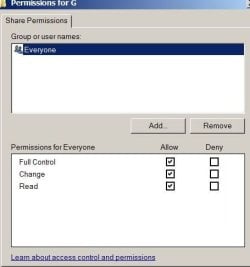
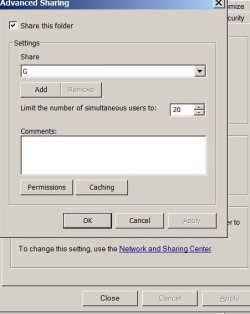
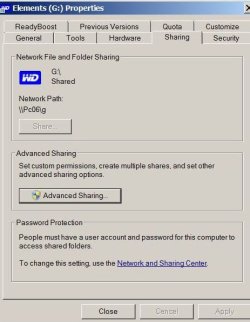
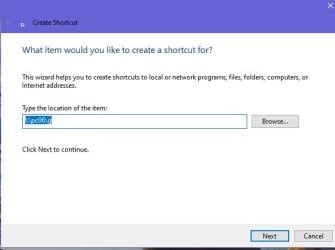
However, I believe I'm following your examples but I still get that error message. I am trying to access the C-Disk on the Win7 computer (PC06) and a USB Disk Drive G-Disk attached to that same Win7 computer (PC06) from the Win10 computer. I am giving full access rights to both disks. I have no problem accessing both disks from my other two Win7 computers.
Here is what I have set on that Win7 computer (PC06) for the USB disk (G-Disk on Win7 computer). And also the Win10 shortcut attempts. I didn't upload the C-Disk settings because I thought it might be too much here but I can if that will help.
 

Attachments

  • G-Disk Properties-3.jpg
    G-Disk Properties-3.jpg
    21.4 KB · Views: 18
  • G-Disk Properties-2.jpg
    G-Disk Properties-2.jpg
    30.1 KB · Views: 19
  • G-Disk Properties-1.jpg
    G-Disk Properties-1.jpg
    42.4 KB · Views: 18
  • Win10 Shortcut-1.jpg
    Win10 Shortcut-1.jpg
    20.5 KB · Views: 18
  • Win10 Shortcut-2.jpg
    Win10 Shortcut-2.jpg
    29.9 KB · Views: 19

My Computers

System One System Two

  • Computer type
    PC/Desktop
    Computer Manufacturer/Model Number
    Dell XPS 8300
    OS
    W7 Pro 64
    Memory
    8G
    Sound Card
    RealTek High Definition Audio
    Monitor(s) Displays
    Asus
    Hard Drives
    WD Elements, Samsung Story Station, Samsung EVO 860 / 870
    Mouse
    Logitech M310
    Antivirus
    Avast, Malwarebytes, SUPERAntiSpyware
    Browser
    Firefox, Avast Secure Browser
  • Computer type
    Laptop
    System Manufacturer/Model Number
    HP
    OS
    Win10
    Keyboard
    external
    Mouse
    wireless
    Browser
    Firefox, Avast
    Antivirus
    Avast / Malwarebytes / Superantispyware
What to share:
1. For security reasons it is best not the share the "C:" system drive. However you can share individual not-system folders
2. Sharing other drives is OK if you wish
3. You normally share folders

I would strongly advise that you don't try to give full shared access to "Everyone". In fact I already tried it myself and it didn't work for me either.

I found it best to have the same account on all computers. This account has the same username and password and is of type Administrator. This greatly simplifies access to shared files.

If you are on Computer #1 and try to access a share on Computer #2 and you don't have a common username/password then you will be prompted to enter a username & password. What you do then is enter a valid username & password on Computer #2. Having a common username & password on both computers makes that unnecessary.

Also, I suggest that after you create a shared folder you give full access to just the common username not everyone. That has always worked for me.

Is there any reason you are trying to create a shortcut to a share \\pc06\g instead of just \\pc06? It is simpler to just create a shortcut to computers and navigate to the share.

I just created a shortcut to the USB connected hard drive R: on my Windows 7 computer called Lightning-7.

Note R: is a 5TB Seagate Expansion Desktop external hard drive.

On Windows 7 computer Lightning-7

In File Explorer right-click on R: and selected Properties
Select Sharing tab
Select Advanced Sharing
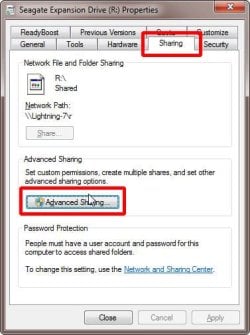
S1.jpg

Check Share this folder
Select Permissions
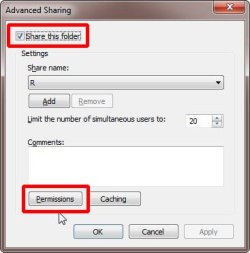
S2.jpg

Add the user name MisterEd that is common to all my computers
Select this user and check Allow Full Control, Change, and Read
Select OK

S3.jpg

On Windows 10 computer EventHorizon

Double-click on shortcut to Windows 7 computer Lightning-7
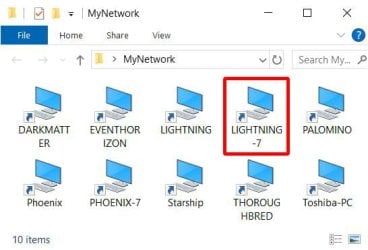
S4.jpg

Double-click on R which is USB connected hard drive on Lightning-7
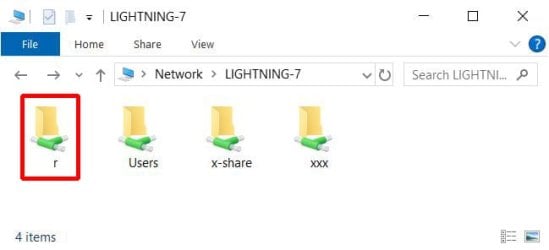
S5.jpg

Because of the way I set up the permissions I can do anything on this hard drive just as if I was accessing it on the computer Lightning-7.

 

My Computers

System One System Two

  • Computer type
    PC/Desktop
    Computer Manufacturer/Model Number
    Custom build
    OS
    Windows 7 Home Premium 64-bits
    CPU
    AMD FX-8350
    Motherboard
    Gigabyte GA-990FXA-UD3 (AM3+)
    Memory
    GSKILL Ripjaw-X PC3 12800 8GB (2x4GB)
    Graphics Card(s)
    ASUS ROG STRIX GTX 1060 6GB
    Sound Card
    Integrated
    Monitor(s) Displays
    Asus VE228H (21.5-in)
    Screen Resolution
    1920x1080 60Hz
    Hard Drives
    SAMSUNG 870 EVO 2.5 Inch SATA SSD (1TB)
    SAMSUNG 870 EVO 2.5 Inch SATA SSD (1TB)
    SAMSUNG 870 EVO 2.5 Inch SATA SSD (1TB)
    PSU
    Corsair RM750x (750 watts)
    Case
    Corsair Carbide Series 200R
    Cooling
    Corsair Hydro Series H60 (CWCH60)
    Keyboard
    Logitech Elite
    Mouse
    Logitech M510 Wireless Mouse
    Internet Speed
    Comcast Gigabit Extra (1200Mbps down / 35Mbps up)
    Antivirus
    Malwarebytes
    Browser
    Firefox, Edge, Chrome
    Other Info
    ASUS DRW-24B1ST DVD-RW (24X) optical drive
    Seagate Expansion Desk (5TB) external SATA/USB HDD
    Comcast XB8 Internet Gateway
  • Computer type
    PC/Desktop
    System Manufacturer/Model Number
    Custom
    OS
    Windows 7 Pro (64-bit)
    CPU
    AMD Phenom II 960T X4
    Motherboard
    ASUS M4N82 Deluxe
    Memory
    Corsair XMS2 DDR2-800 8GB (4x2GB)
    Graphics Card(s)
    ASUS ENGTX560 DCII OC/2DI/1GD5 1GB
    Monitor(s) Displays
    Samsung 930B 19-inch LCD
    Screen Resolution
    1280x1024
    Hard Drives
    Samsung SSD 870 EVO 1000 GB (Windows 10)
    Seagate ST1000DM003 1000 GB (Windows 7)
    PSU
    Antec TruePower (new) TP-650
    Case
    Antec Three Hundred
    Cooling
    AMD stock cooler from FX8350
    Mouse
    Logitech M100
    Internet Speed
    Xfinity Gigabit Extra 1200/35 Mbps
Thank you Mister Ed for your time and work in reproducing the examples you already had elsewhere. It is very much appreciated!
However, I believe I'm following your examples but I still get that error message. I am trying to access the C-Disk on the Win7 computer (PC06) and a USB Disk Drive G-Disk attached to that same Win7 computer (PC06) from the Win10 computer. I am giving full access rights to both disks. I have no problem accessing both disks from my other two Win7 computers.
Here is what I have set on that Win7 computer (PC06) for the USB disk (G-Disk on Win7 computer). And also the Win10 shortcut attempts. I didn't upload the C-Disk settings because I thought it might be too much here but I can if that will help.

What to share:
1. For security reasons it is best not the share the "C:" system drive. However you can share individual not-system folders
2. Sharing other drives is OK if you wish
3. You normally share folders

I would strongly advise that you don't try to give full shared access to "Everyone". In fact I already tried it myself and it didn't work for me either.

I found it best to have the same account on all computers. This account has the same username and password and is of type Administrator. This greatly simplifies access to shared files.

If you are on Computer #1 and try to access a share on Computer #2 and you don't have a common username/password then you will be prompted to enter a username & password. What you do then is enter a valid username & password on Computer #2. Having a common username & password on both computers makes that unnecessary....

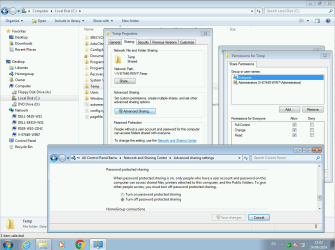
Everything MisterEd has said is spot on, but I take a slightly different approach to sharing. I agree, you absolutely should NOT share the C: drive. My aim in sharing is to be able to transfer files between any of my PCs on the network. For that I create and share a C:\Temp folder on every one of my PCs, giving not only share permissions to Everyone, but also setting NTFS security permissions for Everyone, Full Control. This is the only share I ever set up, I use it as a dropping off point for file transfers, moving them to their final intended location on the destination PC once received.

Yes, computer #1 will by default attempt to connect to computer #2 with the name and password you are signed in to #1 with. If the name and/or password don't match you'll be challenged to provide the name and password of an account on computer #2.

In addition to MisterEd's good advice, I find sharing works a lot smoother if you turn off Password Protected Sharing in the Network and Sharing Centre.

image.png
 

My Computers

System One System Two

  • Computer type
    Laptop
    Computer Manufacturer/Model Number
    Toshiba satellite C650D
    OS
    Windows 7 Home Premium x64
    CPU
    AMD V120
    Memory
    4GB
    Internet Speed
    150 Mbps
    Antivirus
    MSE
    Browser
    IE11, Edge, Firefox
    Other Info
    I also have W7 Pro on my System Two, and several W7 Hyper-V VMs. My other machines run Windows 10/11. Their specs are in my Ten Forums & Eleven Forum profiles.
  • Computer type
    Laptop
    System Manufacturer/Model Number
    Lenovo Thinkpad T430
    OS
    Windows 7 Pro x64
    CPU
    Intel i5-3320M
    Memory
    8 GB
    Hard Drives
    250GB Samsung SSD 860 EVO
    Other Info
    Antivirus: MSE
"Is there any reason you are trying to create a shortcut to a share \\pc06\g instead of just \\pc06? It is simpler to just create a shortcut to computers and navigate to the share."

The USB disk drive is defined as "g" on pc06. The network path is \\PC06\g. I thought I have to define the shortcut the same way.

I also saw that on PC06 I don't have the whole C-disk shared, only one folder on it.

I added the Win10 computer's account to the PC06 computer so the would have the same names but it did not help. It still says pc06 is denying access to to your PC. it is also still describing PC06 as a media server, not network drive.
 

My Computers

System One System Two

  • Computer type
    PC/Desktop
    Computer Manufacturer/Model Number
    Dell XPS 8300
    OS
    W7 Pro 64
    Memory
    8G
    Sound Card
    RealTek High Definition Audio
    Monitor(s) Displays
    Asus
    Hard Drives
    WD Elements, Samsung Story Station, Samsung EVO 860 / 870
    Mouse
    Logitech M310
    Antivirus
    Avast, Malwarebytes, SUPERAntiSpyware
    Browser
    Firefox, Avast Secure Browser
  • Computer type
    Laptop
    System Manufacturer/Model Number
    HP
    OS
    Win10
    Keyboard
    external
    Mouse
    wireless
    Browser
    Firefox, Avast
    Antivirus
    Avast / Malwarebytes / Superantispyware
"Is there any reason you are trying to create a shortcut to a share \\pc06\g instead of just \\pc06? It is simpler to just create a shortcut to computers and navigate to the share."

The USB disk drive is defined as "g" on pc06. The network path is \\PC06\g. I thought I have to define the shortcut the same way.

I also saw that on PC06 I don't have the whole C-disk shared, only one folder on it.

I added the Win10 computer's account to the PC06 computer so the would have the same names but it did not help. It still says pc06 is denying access to to your PC. it is also still describing PC06 as a media server, not network drive.
There is nothing wrong with creating shortcuts to individual shares like you do. However, I usually share several folders on each computer. For me it makes more sense to only create a shortcut to the computer itself. All I have to do is double-click on this shortcut to show all the folders that are shared.

You said you have the same user names on the other computers but are the passwords all the same also? That is also required.

In Post #15 it was suggested that you disable Password Protected Sharing. Doing this allows you to choose to share fully with Everyone if you want. I am sure if you want you can do this and possibly make things easier. That is your choice.

Before I retired I was a computer professional. Sharing fully with everyone doesn't seem right to me. That is why I like to limit full sharing to only the user I want. Note that is enforced by enabling Password Protected Sharing.
 

My Computers

System One System Two

  • Computer type
    PC/Desktop
    Computer Manufacturer/Model Number
    Custom build
    OS
    Windows 7 Home Premium 64-bits
    CPU
    AMD FX-8350
    Motherboard
    Gigabyte GA-990FXA-UD3 (AM3+)
    Memory
    GSKILL Ripjaw-X PC3 12800 8GB (2x4GB)
    Graphics Card(s)
    ASUS ROG STRIX GTX 1060 6GB
    Sound Card
    Integrated
    Monitor(s) Displays
    Asus VE228H (21.5-in)
    Screen Resolution
    1920x1080 60Hz
    Hard Drives
    SAMSUNG 870 EVO 2.5 Inch SATA SSD (1TB)
    SAMSUNG 870 EVO 2.5 Inch SATA SSD (1TB)
    SAMSUNG 870 EVO 2.5 Inch SATA SSD (1TB)
    PSU
    Corsair RM750x (750 watts)
    Case
    Corsair Carbide Series 200R
    Cooling
    Corsair Hydro Series H60 (CWCH60)
    Keyboard
    Logitech Elite
    Mouse
    Logitech M510 Wireless Mouse
    Internet Speed
    Comcast Gigabit Extra (1200Mbps down / 35Mbps up)
    Antivirus
    Malwarebytes
    Browser
    Firefox, Edge, Chrome
    Other Info
    ASUS DRW-24B1ST DVD-RW (24X) optical drive
    Seagate Expansion Desk (5TB) external SATA/USB HDD
    Comcast XB8 Internet Gateway
  • Computer type
    PC/Desktop
    System Manufacturer/Model Number
    Custom
    OS
    Windows 7 Pro (64-bit)
    CPU
    AMD Phenom II 960T X4
    Motherboard
    ASUS M4N82 Deluxe
    Memory
    Corsair XMS2 DDR2-800 8GB (4x2GB)
    Graphics Card(s)
    ASUS ENGTX560 DCII OC/2DI/1GD5 1GB
    Monitor(s) Displays
    Samsung 930B 19-inch LCD
    Screen Resolution
    1280x1024
    Hard Drives
    Samsung SSD 870 EVO 1000 GB (Windows 10)
    Seagate ST1000DM003 1000 GB (Windows 7)
    PSU
    Antec TruePower (new) TP-650
    Case
    Antec Three Hundred
    Cooling
    AMD stock cooler from FX8350
    Mouse
    Logitech M100
    Internet Speed
    Xfinity Gigabit Extra 1200/35 Mbps
Back
Top