Solved Cannot boot from HDDs after Power Outage

Sirus804

New member
Local time
8:20 AM
Messages
19
Two days ago I was very pleased with this forum in helping me resolve a BSOD issue. Unfortunately, that night there was a power outage. I've never had issues with power outages until now. My computer is plugged into a surge protector. I can't boot from either of my HDDs. I go into BIOS and check the boot order, nothing is wrong. When F12ing to choose what to boot, I choose Hard disk and it recognizes both my Seagate and Western Digital Hard drives. So, I'm not sure it's a hardware issue.

I put in my Windows 7 CD to try to repair it. It boots up fine. However when I choose to repair windows it doesn't recognize the windows 7 partition on my WD640 drive. Windows says if it doesn't recognize the drive with windows 7, then press the drivers button to install drivers for your Hard drive. I click it and I can see my other Seagate drive and all its files along with any other plugged in drives except my WD640gb drive with windows. Install drivers for my HD? That's where I get lost. I've never needed drivers for it.. or was there a CD. Am I misunderstanding what it means? Is everything on that drive erased? Can a power outage do that? Please, any help would be amazing.

Is there anyway to check if the data is corrupted? Like if it not gone. If I were to just get another HD or SSD and install windows on it, could I still use my 640 gb for storage?
 

My Computer

OS
Windows 7 Ultimate x64
CPU
Intel Q6600
Motherboard
Gigabyte GA-EP45-UD3R
Memory
4GB Gskill DDR2
Graphics Card(s)
GTX 260 core 216
Hard Drives
640gb Western Digital Caviar Black
240gb Seagate
PSU
750W
Case
Raidmax Smilodon
Keyboard
Saitek Cyborg
Mouse
Logitech G9
Two days ago I was very pleased with this forum in helping me resolve a BSOD issue. Unfortunately, that night there was a power outage. I've never had issues with power outages until now. My computer is plugged into a surge protector. I can't boot from either of my HDDs. I go into BIOS and check the boot order, nothing is wrong. When F12ing to choose what to boot, I choose Hard disk and it recognizes both my Seagate and Western Digital Hard drives. So, I'm not sure it's a hardware issue.

I put in my Windows 7 CD to try to repair it. It boots up fine. However when I choose to repair windows it doesn't recognize the windows 7 partition on my WD640 drive. Windows says if it doesn't recognize the drive with windows 7, then press the drivers button to install drivers for your Hard drive. I click it and I can see my other Seagate drive and all its files along with any other plugged in drives except my WD640gb drive with windows. Install drivers for my HD? That's where I get lost. I've never needed drivers for it.. or was there a CD. Am I misunderstanding what it means? Is everything on that drive erased? Can a power outage do that? Please, any help would be amazing.

Is there anyway to check if the data is corrupted? Like if it not gone. If I were to just get another HD or SSD and install windows on it, could I still use my 640 gb for storage?

The first thing I would do is run Checkdisk. How to use CHKDSK (Check Disk) - Windows 7 Let us know how that comes out.
 

My Computer

Computer type
PC/Desktop
Computer Manufacturer/Model Number
Custom Build
OS
Windows 7 Home Premium 32-Bit - Build 7600 SP1
CPU
Intel Core i3-2120 3.30Ghz
Motherboard
Asus P8Z68-V LX Intel Z68 Socket H2 ATX
Memory
Kingston 4 GB DDR3 1333 mhz
Graphics Card(s)
AMD Radeon HD6670
Sound Card
Sound Blaster Audigy SE 24-Bit
Monitor(s) Displays
Asus VE228
Screen Resolution
1440 X 900
Hard Drives
OCZ Vertex 3 120 GB Sata 3 SSD ==
Kingston SH103/S3 120 G Hyper X 120 GB SSD ==
Western Digital 500 GB Caviar Green 7200 RPM ==
PSU
Corsair CX600M == 600 Watt
Case
NZXT Apollo - Silver with Clear Side Panel
Cooling
Three 120 mm Fans
Keyboard
Microsoft Natural 4000
Mouse
Microsoft Custom Optical 3000
Internet Speed
AT&T Fiber Optic Wireless Network
Antivirus
Microsoft Security Essentials
Browser
Chrome
Other Info
120 mm Blue LED Fan -- Three Blue LED Lazer Light Sticks
Hello Sirus804.


Don't try to install anything until we get you sorted as you may over-write the data, there are ways to copy out the data to an external HDD; have a look at the tutorial at the link below.

Copy & Paste - in Windows Recovery Console


The first thing to try would be to reset the CMOS of the motherboard, do you know how?
 

My Computer

Computer Manufacturer/Model Number
* BFK Customs *
OS
W 7 64-bit Ultimate
CPU
Intel Q9550 Yorkfield
Motherboard
ASUS P5Q Pro
Memory
8GB Dominator 8500C5D
Graphics Card(s)
ATI : XFX 5870
Sound Card
Realtek HD Audio 7-1
Monitor(s) Displays
1x 47" LCD HDMI & 3x 26" LCD HDMI
Screen Resolution
1920x1080P & 1920x1200
Hard Drives
1x 80GB Intel X25-M G2 SSD : 1x 500GB & 1x 640GB WD Caviar Black(s)
PSU
Corsair 620HX
Case
Cooler Master RC-690
Cooling
Tuniq Tower 120, 2x 140mm and 3x 120mm case fans
Keyboard
Microsoft 500
Mouse
Razer Diamondback 3G
Internet Speed
14 Mb/s
Other Info
1x Koutech 3Gb/s SATA HDD Hot Swap Rack
See the problem is that I can't run chkdsk or copy and paste. My main C: drive isn't recognized at all in windows repair or when I go to fix drivers. Though the HDD itself shows up in BIOS. My second HDD, which used to be E:, is now labeled as C:...
This is my dilema.. Does that mean the HD is the issue? Or is it still windows?
 

My Computer

OS
Windows 7 Ultimate x64
CPU
Intel Q6600
Motherboard
Gigabyte GA-EP45-UD3R
Memory
4GB Gskill DDR2
Graphics Card(s)
GTX 260 core 216
Hard Drives
640gb Western Digital Caviar Black
240gb Seagate
PSU
750W
Case
Raidmax Smilodon
Keyboard
Saitek Cyborg
Mouse
Logitech G9
See the problem is that I can't run chkdsk or copy and paste. My main C: drive isn't recognized at all in windows repair or when I go to fix drivers. Though the HDD itself shows up in BIOS. My second HDD, which used to be E:, is now labeled as C:...
This is my dilema.. Does that mean the HD is the issue? Or is it still windows?

Are you able to boot with your Win CD and snip Disk Management so we can see what it looks like?
 

My Computer

Computer type
PC/Desktop
Computer Manufacturer/Model Number
Custom Build
OS
Windows 7 Home Premium 32-Bit - Build 7600 SP1
CPU
Intel Core i3-2120 3.30Ghz
Motherboard
Asus P8Z68-V LX Intel Z68 Socket H2 ATX
Memory
Kingston 4 GB DDR3 1333 mhz
Graphics Card(s)
AMD Radeon HD6670
Sound Card
Sound Blaster Audigy SE 24-Bit
Monitor(s) Displays
Asus VE228
Screen Resolution
1440 X 900
Hard Drives
OCZ Vertex 3 120 GB Sata 3 SSD ==
Kingston SH103/S3 120 G Hyper X 120 GB SSD ==
Western Digital 500 GB Caviar Green 7200 RPM ==
PSU
Corsair CX600M == 600 Watt
Case
NZXT Apollo - Silver with Clear Side Panel
Cooling
Three 120 mm Fans
Keyboard
Microsoft Natural 4000
Mouse
Microsoft Custom Optical 3000
Internet Speed
AT&T Fiber Optic Wireless Network
Antivirus
Microsoft Security Essentials
Browser
Chrome
Other Info
120 mm Blue LED Fan -- Three Blue LED Lazer Light Sticks
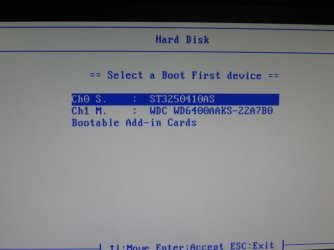
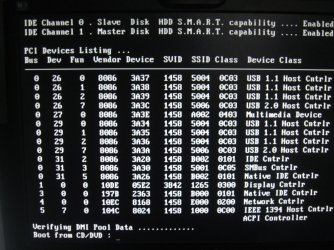
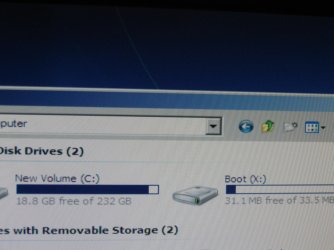
-So I boot from HDD and see that it recognizes both my WDC and Seagate. My WDC is the drive with windows. Yes, I am booting from the WDC
-It skips over the HDD to boot from and goes straight to CD.
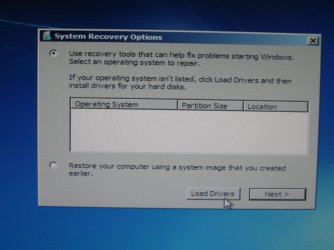
-In the repair menu it doesn't recognize the drive with windows 7.
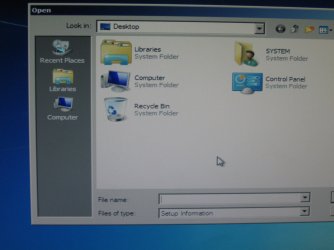
-I click on drivers.
-In my computer it only lists my Seagate drive and the boot. Not my 640gp drive with Windows.

I attached pictures.

Also, just to rule out things.. I reset CMOS just in case. It didn't solve anything.
 

Attachments

  • IMG_0584.jpg
    IMG_0584.jpg
    542.6 KB · Views: 9
  • IMG_0583.jpg
    IMG_0583.jpg
    747.9 KB · Views: 5
  • IMG_0586.jpg
    IMG_0586.jpg
    980.5 KB · Views: 14
  • IMG_0587.jpg
    IMG_0587.jpg
    627.5 KB · Views: 7
  • IMG_0588.jpg
    IMG_0588.jpg
    971.1 KB · Views: 8

My Computer

OS
Windows 7 Ultimate x64
CPU
Intel Q6600
Motherboard
Gigabyte GA-EP45-UD3R
Memory
4GB Gskill DDR2
Graphics Card(s)
GTX 260 core 216
Hard Drives
640gb Western Digital Caviar Black
240gb Seagate
PSU
750W
Case
Raidmax Smilodon
Keyboard
Saitek Cyborg
Mouse
Logitech G9
It finally seems clear your OS is on the WD which shows in BIOS but not in WinRe. Seagate is a data drive which data does show up when you browse it from WinRe drivers-loading mini-explorer.

Move the WD HD up to the top of the boot list so it is set to boot first, or try booting it using one-time BIOS Boot menu.

What is the 2mb boot disk X shown in #5 screenshot? That is not nearly big enough to be a Win7 Repair disk which is 147mb.. Use only the Win7 DVD Repair console (WinRE) or Repair CD: http://www.sevenforums.com/tutorials/2083-system-repair-disc-create.html

Unplug the Seagate to perform these repairs:

Open a Command line from the DVD Recovery Tools list by clicking Next shown in your #3 screenshot, or press Shift + F10 when you boot to first screen. Type:

bootrec.exe /fixboot
bootrec.exe /fixmbr

Although these commands are automated in Win7 Startup Repair, if no OS shows to repair they can sometimes make it visible. Then run Startup Repair anyway up to 3 separate times with reboots if it will run.

If this fails, return to the Command Line to run http://www.sevenforums.com/tutorials/433-disk-check.html

Next I would boot the next most useful tool for Win7 repair, free Partition Wizard bootable CD to see exactly what it finds. We have been able to rely on this even more than Disk Mgmt so it will see your WD if it is there and connected correctly.

If the disk is showing, highlight it and select Rebuild MBR on Disk tab. First make sure Win7 partition is marked Active - If it isn't and Rebuild MBR doesn't start it, run Startup Repair again x3.

Next I would burn to CD WD Data Lifeguard DOS bootable diagnostics/repair CD, boot and run the full scan. Finally, boot back into DVD Command Line to run ChkDsk. If neither of these work, you can pronounce your HD dead.
 
Last edited:
I believe BootX is the DVD/CDROM - this shows when you boot from installation disk
 

My Computer

Computer type
PC/Desktop
Computer Manufacturer/Model Number
Golden Mk. I.4
OS
Windows 10 Pro x64 ; Xubuntu x64
CPU
Intel i7 860 @ 2.80 GHz O/C'ed to 4.0GHz
Motherboard
Gigabyte P55A-UD3R Rev.1. Award BIOS F13
Memory
16GB Corsair Vengance DDR3 @ 661 MHz Dual Channel (9-9-9-24)
Graphics Card(s)
EVGA NVidia GTX 560 1024MB
Sound Card
Realtek Integrated
Monitor(s) Displays
Dual Samsung SyncMaster 2494HS
Screen Resolution
1920*1080 and 1920*1080
Hard Drives
1*Samsung 840 EVO 120GB SSD;
1*OCZ Vertex 2 60GB SSD;
2*Samsung F3 SpinPoint 1TB in RAID0;
1*Samsung F1 SpinPoint 1TB;
2*Western Digital 1TB External USB 3.0
1*Western Digital 500GB External USB 3.0
1*Seagate 500GB External USB 2.0
PSU
Thermaltake ToughPower QFan 750W
Case
Thermaltake Element S VK60001W2Z
Cooling
Corsair H60 Water Cooling, 2*230mm and 2*80mm case fans
Keyboard
Logitech G110
Mouse
Logitech MX518
In the BIOS the HDD you want to boot from is on the secondary position in the left top most photo, my understanding from my set up is i high light it then on the numbers pad on my keyboard I hit the + button to put the(WDC640) HDD I want to boot from in the primary position(witch should have the boot MBR files on it) witch in turn makes windows boot upon a normal load.
 
I believe BootX is the DVD/CDROM - this shows when you boot from installation disk

Then the size has got to be wrong if it's the Repair CD he's booting from. It only shows 2mb when Win7 Repair size is 147mb, while the disk is only 33.5mb which is too small to be the smallest flash stick.


In the BIOS the HDD you want to boot from is on the secondary position in the left top most photo, my understanding from my set up is i high light it then on the numbers pad on my keyboard I hit the + button to put the(WDC640) HDD I want to boot from in the primary position(witch should have the boot MBR files on it) witch in turn makes windows boot upon a normal load.

I noticed that too but the OS should still show in WinRE if it is present on the system, unless damaged enough not to show or be reparable. But it should be moved up to be sure.
 
Alright, here is an update of my status so far. Thanks in advance Gregrocker for all the steps that are definitely helping.

Yeah X: is the cd dvd that I'm booting off of.. don't know why it's so weird.

-I downloaded a repair cd, minitool partition wizard, and WD Data Lifeguard. I put them all on separate CDs.
-I unplugged my Seagate drive.
-Put in the repair CD and it booted from it. I typed in those exe commands and they didn't seem to work.
-Then I went to startup repair, and restarted my PC.
-Windows booted from the drive, though it couldn't finished booting. I got a BSOD. Stop: 0x0000007B , which is expected.
-Booted from CD again and started start up repair. It took awhile repairing. It failed to repair the drive automatically. checked the repair diag.
"Root cause: A recent driver or upgrade may be preventing the system from starting."

This may make a little sense. The same night of the power surge I fixed my computer from a NOT LESS OR EQUAL BSOD by updating my drivers.

-turned my computer off and back on
-It booted normally (wasn't paying attention). Got the same BSOD.
So I figured the driver must be recognized by now.
-Booted from repair CD and it recognized the drive. I clicked next. It automatically did startup repair again. It couldn't fix it again. Same root cause. Error code 0x490
-I went to the cmd prompt and did a chkdsk c: /F /R
-Now I am waiting as it is taking a REALLY long time on stage 4... going through each of the files slowly. So I guess this means the data didn't vanish.
I will update on what happens.
 

My Computer

OS
Windows 7 Ultimate x64
CPU
Intel Q6600
Motherboard
Gigabyte GA-EP45-UD3R
Memory
4GB Gskill DDR2
Graphics Card(s)
GTX 260 core 216
Hard Drives
640gb Western Digital Caviar Black
240gb Seagate
PSU
750W
Case
Raidmax Smilodon
Keyboard
Saitek Cyborg
Mouse
Logitech G9
Did Startup Repair ask you if it could System Restore? If not try running System Restore from the Recovery Tools list just below Startup Repair to roll back the driver.

Try booting into Safe Mode to uninstall the driver.

I would also continue trying to repair the HD using WD diagnostics/repair Extended scan.

You still have a HD, it would seem.
 
I'm not sure if it asked about System restore. However, I don't have any system restore points. That's another whole issue. I try to activate system restore but it never would let me, even when I was an admin. But that is unrelated.

I remember booting into safe mode the first time and I BSODed.. but when the chkdsk finishes I will try again. It is taking awhile.

But yeah, I was still thinking about using the WD repair tool and see if that'd fix it.

I'm still unsure what driver would cause the issue though. I don't remember installing drivers for any HDDs. The only driver I updating I think it somewhat relevant (and I think was the problem of my early BSOD) was something like JMicron Raid Tool. I updated it and got rid of it from startup (The BSOD occured on startup).
 

My Computer

OS
Windows 7 Ultimate x64
CPU
Intel Q6600
Motherboard
Gigabyte GA-EP45-UD3R
Memory
4GB Gskill DDR2
Graphics Card(s)
GTX 260 core 216
Hard Drives
640gb Western Digital Caviar Black
240gb Seagate
PSU
750W
Case
Raidmax Smilodon
Keyboard
Saitek Cyborg
Mouse
Logitech G9
If you uninstalled your RAID driver or it failed during update, then that might be your problem.

Can you reinstall it at the load drivers link on Repair CD?

Did you have a RAID setup, or did your SATA use a RAID driver as some do?

What were you doing exactly with the RAID driver?
 
I don't know.. I don't do anything with RAID or w/e... I literally had no idea what the thing even was. It was just starting up on startup without me even knowing. I got rid of it from startup and nothing changed. I don't know what it does.
 

My Computer

OS
Windows 7 Ultimate x64
CPU
Intel Q6600
Motherboard
Gigabyte GA-EP45-UD3R
Memory
4GB Gskill DDR2
Graphics Card(s)
GTX 260 core 216
Hard Drives
640gb Western Digital Caviar Black
240gb Seagate
PSU
750W
Case
Raidmax Smilodon
Keyboard
Saitek Cyborg
Mouse
Logitech G9
I think Startup Repair can't fix the problem because you have no restore points to reverse the failed driver update.

Some Gigabyte boards use JMicron RAID drivers in place of Intel, so it you uninstalled it or tried a failed update it might have messed up your SATA controller which would explain why you can't see your HD or data. However the driver should be in the Win7 driverstore as are all modern SATA drivers. You could find the exact driver for your SATA controller on the Gigabyte webpage for your mobo model, unzip it to flash or CD and insert it at the drivers link to be sure.

The other course would be to continue trying to repair the HD using Data Lifeguard extended scan and Disk Check. It might fix your HD, or at least enable you to copy out your data via the drivers link or using Paragon Rescue disk, which can also attempt to rescue your Win7 partition.

Others may have better ideas, but based on the bluescreen which you attempted to fix earlier, System Restore never working resulting in the apparent bad driver being unfixable now, and your other complaints I think you may be due for a new HD or at least a fresh clean install.

Here are some tips for getting the best possible reinstall based on hundreds done here: http://www.sevenforums.com/installation-setup/125874-re-install-windows-7-a.html#post1086729
 
When you say that it makes me believe that the issue does reside with that specific driver. It logically makes sense. I am going to look for drivers for it.

Chkdsk found one smalll 4kb issue, but it didn't solve the problem.

I am currently running the data lifeguard scan, it is almost finished. Quick scan found 1 issue. I'll learn further once it finished. Thanks for all the help man. You know your stuff.
 

My Computer

OS
Windows 7 Ultimate x64
CPU
Intel Q6600
Motherboard
Gigabyte GA-EP45-UD3R
Memory
4GB Gskill DDR2
Graphics Card(s)
GTX 260 core 216
Hard Drives
640gb Western Digital Caviar Black
240gb Seagate
PSU
750W
Case
Raidmax Smilodon
Keyboard
Saitek Cyborg
Mouse
Logitech G9

My Computer

OS
Windows 7 Ultimate x64
CPU
Intel Q6600
Motherboard
Gigabyte GA-EP45-UD3R
Memory
4GB Gskill DDR2
Graphics Card(s)
GTX 260 core 216
Hard Drives
640gb Western Digital Caviar Black
240gb Seagate
PSU
750W
Case
Raidmax Smilodon
Keyboard
Saitek Cyborg
Mouse
Logitech G9
Alright, after the WD data lifeguard finished it found some issues and solved them but didn't solve the main issue. I'm still getting the BSOD 0x7B. So I will try to figure out the driver issue. If I cannot, would a repair install of windows 7 do things right?
 

My Computer

OS
Windows 7 Ultimate x64
CPU
Intel Q6600
Motherboard
Gigabyte GA-EP45-UD3R
Memory
4GB Gskill DDR2
Graphics Card(s)
GTX 260 core 216
Hard Drives
640gb Western Digital Caviar Black
240gb Seagate
PSU
750W
Case
Raidmax Smilodon
Keyboard
Saitek Cyborg
Mouse
Logitech G9
Unfortunately you must be able to boot Win7 to run a http://www.sevenforums.com/tutorials/3413-repair-install.html?ltr=R which is an in-place Upgrade done from the desktop.

If you can't get WinRe to recognize the installation for repair by inserting your chipset SATA controller driver, then see if the files show now to copy out your files. If not, you can try moving the HD to another computer to see if it's readable from that OS or using Repair CD.
 
Back
Top