Solved Cannot boot from SSD after windows partition cloning

George300

New member
Member
Local time
11:42 PM
Messages
59
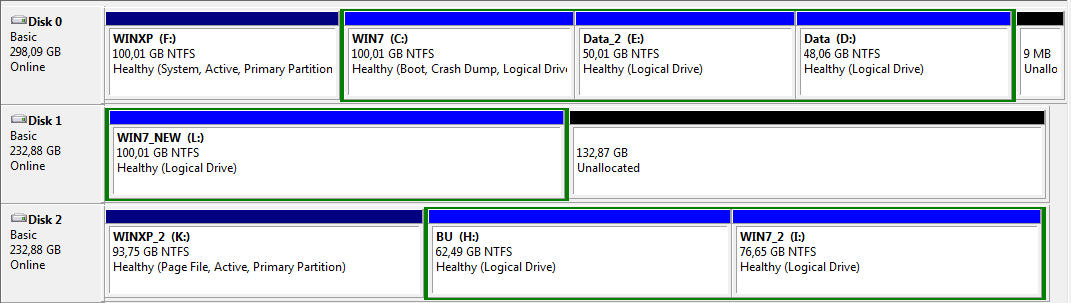
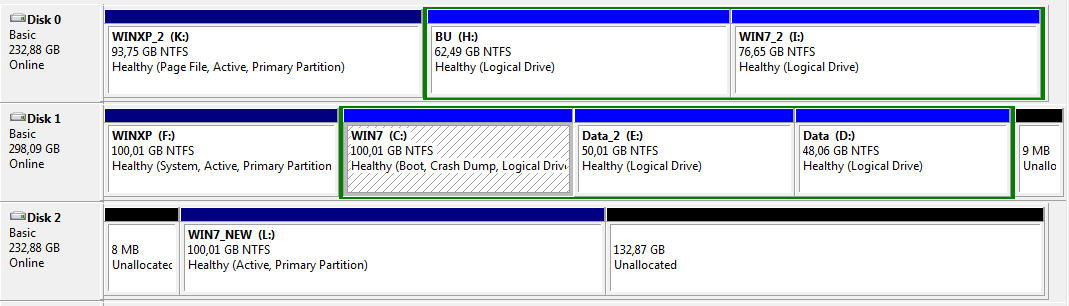
Using EaseUS Todo Backup Free 8.2, I cloned my WIN7 partition (Disk 0 in the image) to a new ssd (Disk 1 in the image).

disks.jpg


When I boot from Disk 1, the boot menu options remain the same as before (WINXP, WIN7, WIN7_2) and do not include the new windows in the new ssd (WIN7_NEW).
I booted from a "Repair disc Windows 7 32-bit". In the "System Recovery Options" there was no operating system listed. I clicked Next and did a Startup Repair. I then booted from Disk 1 and opened Disk Management, but there was no Primary Partition on Disk 1. I did that 3 times, but to no avail.
How can I make windows boot from my new ssd, while keeping my old windows as an option in the boot menu?
Thanks
 

My Computer My Computer

At a glance

Windows 7 Professional 342it
Computer type
PC/Desktop
OS
Windows 7 Professional 342it
It`s because Windows 7 was installed in a Logical Partition on Disk 0 and the boot files are on the XP partition.

It`s still in a Logical Partition and you can`t boot from a Logical partition.

Use Partition Wizard and try to turn it into a Primary Partition and mark it active, then you can try to run startup repair on it, with all other drives disconnected.

I recommend making and using a Partition Wizard Boot CD to attempt it.

Bootable Partition Manger | MiniTool Partition Wizard Bootable Edition
 

My Computer My Computer

At a glance

Windows 10 Pro x64Intel Core i7 6700KGSkill TridentZ RGB 16GB 3600 16-16-16-36EVGA GTX 980 Ti SC x2
Computer type
PC/Desktop
Computer Manufacturer/Model Number
Skylake Special #666
OS
Windows 10 Pro x64
CPU
Intel Core i7 6700K
Motherboard
Asus Sabertooth Z170 Mark 1
Memory
GSkill TridentZ RGB 16GB 3600 16-16-16-36
Graphics Card(s)
EVGA GTX 980 Ti SC x2
Sound Card
Realtek High Definition
Monitor(s) Displays
AOC G2460PG
Screen Resolution
1920 x 1080 144Hz
Hard Drives
Samsung 860 Pro 256GB, Seagate Barracuda 4TB x2
PSU
EVGA 1000 P2, EVGA White Custom Braided Cables
Case
Corsair Vengeance C70 Gunmetal Black
Cooling
Corsair H100i v2, Corsair ML120 x2, Thermal Grizzly Kryonaut
Keyboard
Logitech G910 Orion Spectrum
Mouse
Logitech G700s
Internet Speed
Verizon Fios Quantum Gateway 75/75
Antivirus
Windows Defender, Malwarebytes Free 3.8.3
Browser
Chrome
Other Info
Corsair SP120 x4, LG Blu-ray Drive, Durabrand HT-395 100 Watt Dolby Digital Amp, Corsair H2100 Wireless 7.1 Headset
As Brian says, you can't boot from a Logical partition, so download free Partition Wizard, burn to CD with Windows Image Burner, boot disk, right click Win7 partition to set partition as Primary with Partition Wizard,
click OK.

Next right click C again to Set Active partition, click OK. Apply both steps.

Then power down to unplug all other hard drives, swap old Win7 drive cable to SSD so it is now DISK0 and remains set first to boot in BIOS, boot Win7 CD to run Startup Repair - Run 3 Separate Times until Win7 starts and has the System Active flags on it.

An alternative is that you can install PW to the old Win7 drive if it will boot, convert SSD WIn7 to Primary and Set Partition Active, then move Bootmgr - Move to C:\ with EasyBCD - Windows 7 Forums. Power down to swap cables between old Win7 drive and SSD so it becomes first hard drive to boot in BIOS, boot Win7 on SSD.

Your partitioning is a disorganized mess so if you know what you want to do with each drive tell us so we can give you the steps like we have done for thousands of others successfully without a single failure.

In particular you should extend the new C to the rest of the hard drive if you want, or create a new data partition there rather than just ignore the wasted space. And what about the other Win7 and XP partitions.
 
Thanks for your answers.
Gregrocker, I think the alternative you proposed is easier.
1)Will I have to run Startup Repair, if I follow the alternative solution?
2)Why do I have to swap cables between old Win7 drive and SSD? Can't I just change the boot order in bios?
 

My Computer My Computer

At a glance

Windows 7 Professional 342it
Computer type
PC/Desktop
OS
Windows 7 Professional 342it
Yes you can just change the boot order in the bios.
 

My Computer My Computer

At a glance

Windows 10 Pro x64Intel Core i7 6700KGSkill TridentZ RGB 16GB 3600 16-16-16-36EVGA GTX 980 Ti SC x2
Computer type
PC/Desktop
Computer Manufacturer/Model Number
Skylake Special #666
OS
Windows 10 Pro x64
CPU
Intel Core i7 6700K
Motherboard
Asus Sabertooth Z170 Mark 1
Memory
GSkill TridentZ RGB 16GB 3600 16-16-16-36
Graphics Card(s)
EVGA GTX 980 Ti SC x2
Sound Card
Realtek High Definition
Monitor(s) Displays
AOC G2460PG
Screen Resolution
1920 x 1080 144Hz
Hard Drives
Samsung 860 Pro 256GB, Seagate Barracuda 4TB x2
PSU
EVGA 1000 P2, EVGA White Custom Braided Cables
Case
Corsair Vengeance C70 Gunmetal Black
Cooling
Corsair H100i v2, Corsair ML120 x2, Thermal Grizzly Kryonaut
Keyboard
Logitech G910 Orion Spectrum
Mouse
Logitech G700s
Internet Speed
Verizon Fios Quantum Gateway 75/75
Antivirus
Windows Defender, Malwarebytes Free 3.8.3
Browser
Chrome
Other Info
Corsair SP120 x4, LG Blu-ray Drive, Durabrand HT-395 100 Watt Dolby Digital Amp, Corsair H2100 Wireless 7.1 Headset
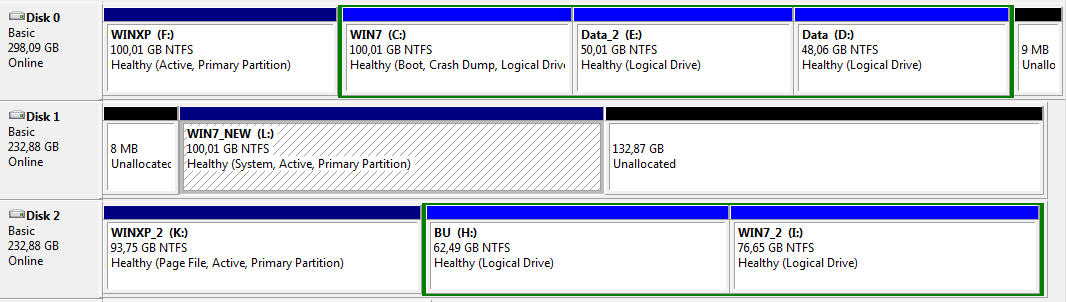
Using Partition Wizard from WIN7 I converted WIN7_NEW (SSD) partition to Primary and Active.
In EasyBCD, in the following screen, I must select partition L (WIN7_NEW), right?

194356d1379306711t-bootmgr-move-c-easybcd-2012-01-21_2348.png
 

My Computer My Computer

At a glance

Windows 7 Professional 342it
Computer type
PC/Desktop
OS
Windows 7 Professional 342it
I selected L in the above screen and saw this:
EasyBCD has successfully made drive L: the new boot partition, and has loaded the new BCD store for modification, should you wish to make any further changes. If this partition is on your first boot disk, you don't need to take any further action. If it's not, you should now turn off your PC and change the boot drive from the BIOS for the changes to take effect.

I changed the bios to boot from the new SSD, but the boot menu options were the same as before (WINXP, WIN7, WIN7_2) and did not include the new windows in the new ssd (WIN7_NEW).
What can I do?
 

My Computer My Computer

At a glance

Windows 7 Professional 342it
Computer type
PC/Desktop
OS
Windows 7 Professional 342it
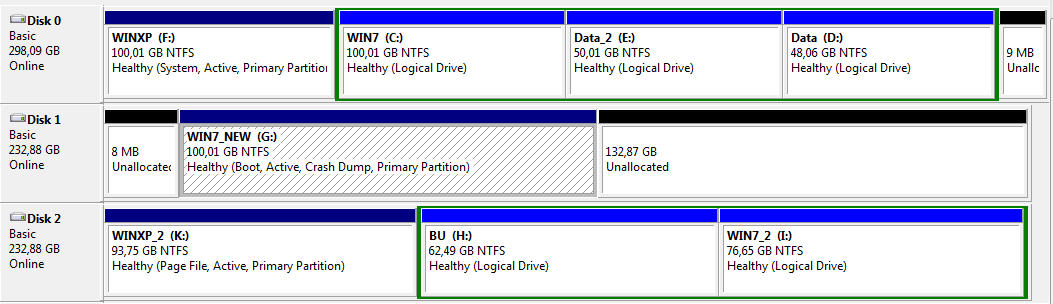
My partitions now are like this:

disks2.jpg


How do I boot from L?
 

My Computer My Computer

At a glance

Windows 7 Professional 342it
Computer type
PC/Desktop
OS
Windows 7 Professional 342it
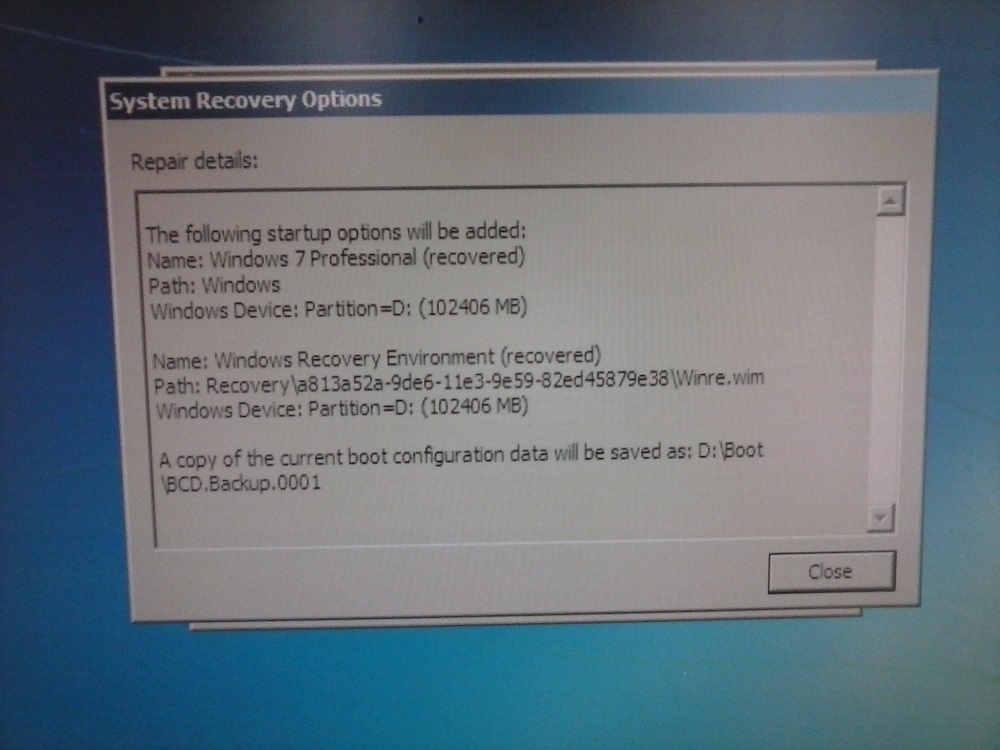
I booted from a "Repair disc Windows 7 32-bit" and the result was this:

repair.jpg


Then, I booted from the ssd. The boot menu was like this:
Earlier Version of Windows
Windows 7
Windows 7 Professional
Windows 7 Professional (recovered)

The last entry was new, so I selected that.
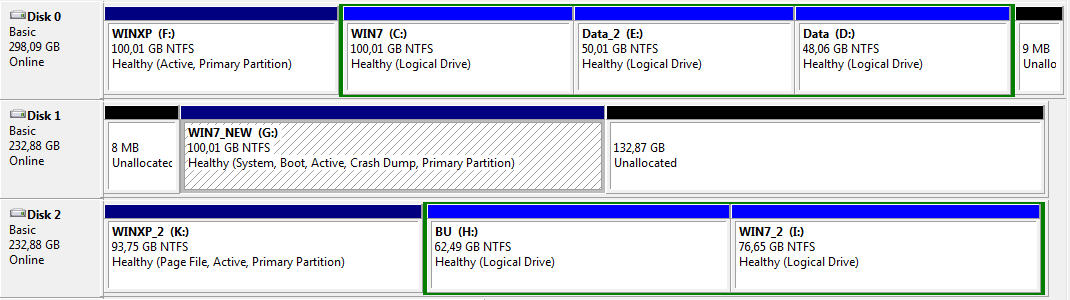
My partitions now are like this:

disks3.jpg


So, it seems I finally managed to boot from the ssd.
Now, I must change the partition letter from G to C, right?
 

My Computer My Computer

At a glance

Windows 7 Professional 342it
Computer type
PC/Desktop
OS
Windows 7 Professional 342it
Now, I must change the partition letter from G to C, right?
You cannot change the drive letter of the booted Windows from C. The screenshot shows that you must actually still be booted to Windows on the old drive since it's showing as C, not the copied Windows on the SSD.

When you boot to Windows, it makes itself C... no matter where it is. All other partitions get lettered after that, as D, E, etc., although you can change the letters of the other partitions. You just can't change C.

Now, originally you had a 2-Windows multiboot setup, starting from an original WinXP. That partition was marked as "active", and was where Boot Manager (from WinXP, originally) lived. When you installed Win7 as a second bootable Windows in a 100GB partition on that drive, the Win7 installer recognized that you already had an existing bootable WinXP partition. So it replaced Boot Manager from WinXP with Boot Manager from Win7, and created a boot menu... showing the two bootable Windows choices, with Win7 being designated at the default and WinXP dropped to optional second.

Then you copied Win7 from the spinner, to your new SSD. You likely intended to eliminate the Win7 partition from the spinner and instead use the copy now residing on the SSD. But the spinner was still set in the BIOS to be the boot drive, and the original WinXP "active" partition was still where Boot Manager lived. Assuming you still wanted to retain bootability to WinXP in your new configuration, what you actually now should have done is simply run EasyBCD to (a) delete the old Win7 spinner partition entry in the boot menu, and (b) add a new entry for the copied Win7 partition that now lives on the SSD. The fact that both your old Win7 and your copied Win7 are "logical" partitions is of zero consequence, as long as your old WinXP partition is still retained as the "active" partition where Boot Manager lives. The WinXP partition is "primary" and that satisfies the requirement for bootability. After that, Windows can reside on either "logical" or "primary" partitions without concern.

So, you DO NOT WANT TO BOOT FROM YOUR SSD. Your Win7 partition on the spinner didn't have Boot Manager in it, because it was your WinXP partition that was actually the primary "active" boot partition where Boot Manager lived. And assuming you still want to have WinXP in your environment, you still want the spinner to be the first boot drive in the BIOS, and you still want the WinXP partition to be "active" since that's where Boot Manager lives.

You just want to use EasyBCD to delete the old spinner Win7 entry and add the new SSD Win7 entry to the boot menu. You can leave the SSD Win7 partition as logical, since that's fine. Again, it's the WinXP partition which is the "active" partition for Boot Manager, which will then move on to start Windows from the SSD (in its logical partition is fine).

Now honestly, this is all how it SHOULD have been done.

But from other people's suggestions, you've now converted that "logical" Win7 copy on the SSD to "primary", and you've run Windows Repair to create Boot Manager in that SSD Win7 partition. However I don't see that the SSD Win7 partition is marked "active" and without that you will not be able to boot to it. Use Partition Wizard to set that partition as "active" on the SSD.

Then get into the BIOS and set the SSD as the first drive in the boot sequence. This will eliminate WinXP entirely, if that's what you really want to do now. You will now only have the SSD Win7 in your bootable environment, unless you use EasyBCD to add back the WinXP partition on the spinner to the new boot menu which I believe is now present on your SSD Win7 "primary" partition (since you ran Windows Repair).

Once you get to boot successfully to SSD Win7, it will automatically letter itself as C at boot time. Any other partitions still seen (on spinner or SSD) will get D, E, etc.


Bottom line: there's nothing wrong with a Windows partition living in a "logical"partition, as long as it's not the "active" partition where Boot Manager lives. The requirement of "primary" is only for the "active" partition where the BIOS goes to kick off Boot Manager, and to present the boot menu with 2 or more bootable Windows systems (on the same or different drive as the "active" partition).

You don't have to boot to the SSD, to get to use Win7 on the SSD. You only have to have have an entry in the boot menu in the WinXP "active" partition on the spinner, which points to Win7 on the SSD. And that could have been done with EasyBCD after you copied the Win7 partition from spinner to SSD. At that point you could have also deleted the now obsolete boot menu entry for the old Win7 partition on the spinner, along with physically deleting it and reusing its space for a "data" partition.

Any Windows partition, no matter from "logical" or "primary", once booted to by Boot Manager (which can be in any "active" partition on any drive, but it must be a "primary" partition) will automatically letter itself as C.

So... do you want to retain WinXP or not? Your final cleanup steps depend on that decision, now that you've done everything others have suggested. Sorry I didn't see this thread earlier, as I believe I could have saved you some exasperation.

 

My Computer My Computer

At a glance

Windows 7 Pro x64 (1), Win7 Pro X64 (2)i5-3350p 3.1Ghz/6MB-cache (1); E8400 3.0Ghz/6...8GB PC3-12800 DDR3 (1); 4GB PC3-10600 DDR3 (2)ATI HD7750 (1), (see TV cards); ATI R7 250 (2)
Computer type
PC/Desktop
Computer Manufacturer/Model Number
Home-built, two systems (1) and (2)
OS
Windows 7 Pro x64 (1), Win7 Pro X64 (2)
CPU
i5-3350p 3.1Ghz/6MB-cache (1); E8400 3.0Ghz/6MB-cache (2)
Motherboard
ASUS P8Z77-V Pro (1); ASUS P5Q3 (2)
Memory
8GB PC3-12800 DDR3 (1); 4GB PC3-10600 DDR3 (2)
Graphics Card(s)
ATI HD7750 (1), (see TV cards); ATI R7 250 (2)
Sound Card
Realtek ALC892 HD Audio (1); Realtek ALC1200 HD Audio (2)
Monitor(s) Displays
Eizo HD2441W LCD, Eizo S2433W (1); Eizo 24" S2433W (2)
Screen Resolution
1920x1200, 1920x1200 (1); 1920x1200 (2)
Hard Drives
(1) 1TB SATA-II (7200RPM), 2x2TB SATA-III (7200RPM), 250GB SATA-III (10000RPM) for OS; 2x2TB external USB 3.0

(2) 320GB SATA-II (7200RPM), 750GB SATA-II (7200RPM), 150GB SATA-II (10000RPM) for OS; 2TB external USB 3.0
PSU
Nesteq ECS-6001 600W (1); Nesteq ECS-5001 500W (2)
Case
Acousti-Case 360 (1) and (2)
Cooling
Noctua NH-U12P SE2 for CPU, 2x120mm case fans (1) and (2)
Keyboard
IBM PS/2 (1) and (2)
Mouse
Logitech MX Revolution wireless (1); Microsoft wired (2)
Internet Speed
100mbps down / 10mbps up
Antivirus
Microsoft Security Essentials; Malwarebyte Anti-Malware Pro
Browser
Firefox
Other Info
Ceton InfiniTV 4-tuner cablecard-enabled TV card as well as Hauppauge HVR-2250 OTA/ATSC 2-tuner TV card in (1), running under Win7 WMC
Dsperber, thanks for your detailed answer.

I don't want to eliminate any partition. I want to retain the old windows and be able to boot from it in the future.

You wrote "I don't see that the SSD Win7 partition is marked active", but the screenshot shows that the SSD Win7 partition (WIN7_NEW) is "System, Boot, Active, Primary".

How can I continue?
 

My Computer My Computer

At a glance

Windows 7 Professional 342it
Computer type
PC/Desktop
OS
Windows 7 Professional 342it
I don't want to eliminate any partition. I want to retain the old windows and be able to boot from it in the future.
So you want to be able to boot to all three? WinXP, and spinner Win7 as well as SSD Win7?


You wrote "I don't see that the SSD Win7 partition is marked active", but the screenshot shows that the SSD Win7 partition (WIN7_NEW) is "System, Boot, Active, Primary".
Oops... my mistake. I was looking for the word "active" at the front of the list, like it shows on the WinXP partition. I didn't notice that it was further to the right in the list.

Ok. So it IS active. And it's also "primary", which is required if you want to use it as the Boot Manager location going forward (which is what you accomplished when you ran Windows Repair).


How can I continue?
The only thing left to do is to go into the BIOS of your machine and change the boot sequence hard drive list to show the SSD as #1. Then, when you boot it will be your "active" primary Win7 partition on the SSD (where a usable Boot Manager now lives, thanks to Windows Repair) that is read.

I don't really know what the state of the boot menu in your SSD Win7 partition is, but for sure at least the SSD Win7 partition will be automatically booted to if it's the only bootable Windows in the boot menu. If there are already more than one bootable Windows in that boot menu (from what you've already accomplished with EasyBCD), then you'll see them all and can choose what you want.

When you eventually do boot to the SSD Win7, it will be self-lettered as C. You can now do whatever else you want with EasyBCD, such as adding back the WinXP partition on the spinner as a boot menu choice, if it's not already there. Same with the old spinner Win7 partition, if it's not already there.

So you're really very close to being where you want to be. It's just that you really didn't need to do all that you've done, given what you were coming from and where you wanted to be. You didn't need to alter things to boot from the SSD (which is what then required making that Win7 partition "primary", and running Windows Repair or EasyBCD to plant a usable Boot Manager inside of it). You could have simply continued to boot from the "active" WinXP partition on the spinner, and simply used EasyBCD (while still running from either WinXP or the old spinner Win7) to add the copied SSD Win7 partition (still "logical") as an additional boot menu... and make it the default. Then you wouldn't have needed to go into the BIOS to change the boot sequence.

Note that still is an option if you want, to just stay with WinXP on spinner as the BIOS boot drive #1, and adding the SSD Win7 as an additional entry to that old original boot menu in the WinXP partition where the old spinner Win7 already also exists. All using EasyBCD to accomplish what you want.

In other words, I believe you currently have TWO AVAILABLE AND USABLE Boot Manager locations, in the WinXP partition on spinner, and in the SSD Win7 partition on SSD. Each of those has its own boot menu which can be configured by EasyBCD running on the booted OS, whichever Windows that is at the time. And thus you now have two choices in the BIOS as well... depending on whether you want to boot to spinner or SSD, since it really makes no difference now that you've said you want a 3-Windows boot menu no matter what.

At this point, there's really no difference which drive you care to start the boot process off of since you have TWO partitions (one on each drive) that is fully capable of initiating Boot Manager and a 3-Windows boot menu. Whichever you choose, that's what you need to set correctly in the BIOS, and use EasyBCD to get the boot menu that is presented to you by the Boot Manager you opt to use to show all 3 bootable Windows.
 

My Computer My Computer

At a glance

Windows 7 Pro x64 (1), Win7 Pro X64 (2)i5-3350p 3.1Ghz/6MB-cache (1); E8400 3.0Ghz/6...8GB PC3-12800 DDR3 (1); 4GB PC3-10600 DDR3 (2)ATI HD7750 (1), (see TV cards); ATI R7 250 (2)
Computer type
PC/Desktop
Computer Manufacturer/Model Number
Home-built, two systems (1) and (2)
OS
Windows 7 Pro x64 (1), Win7 Pro X64 (2)
CPU
i5-3350p 3.1Ghz/6MB-cache (1); E8400 3.0Ghz/6MB-cache (2)
Motherboard
ASUS P8Z77-V Pro (1); ASUS P5Q3 (2)
Memory
8GB PC3-12800 DDR3 (1); 4GB PC3-10600 DDR3 (2)
Graphics Card(s)
ATI HD7750 (1), (see TV cards); ATI R7 250 (2)
Sound Card
Realtek ALC892 HD Audio (1); Realtek ALC1200 HD Audio (2)
Monitor(s) Displays
Eizo HD2441W LCD, Eizo S2433W (1); Eizo 24" S2433W (2)
Screen Resolution
1920x1200, 1920x1200 (1); 1920x1200 (2)
Hard Drives
(1) 1TB SATA-II (7200RPM), 2x2TB SATA-III (7200RPM), 250GB SATA-III (10000RPM) for OS; 2x2TB external USB 3.0

(2) 320GB SATA-II (7200RPM), 750GB SATA-II (7200RPM), 150GB SATA-II (10000RPM) for OS; 2TB external USB 3.0
PSU
Nesteq ECS-6001 600W (1); Nesteq ECS-5001 500W (2)
Case
Acousti-Case 360 (1) and (2)
Cooling
Noctua NH-U12P SE2 for CPU, 2x120mm case fans (1) and (2)
Keyboard
IBM PS/2 (1) and (2)
Mouse
Logitech MX Revolution wireless (1); Microsoft wired (2)
Internet Speed
100mbps down / 10mbps up
Antivirus
Microsoft Security Essentials; Malwarebyte Anti-Malware Pro
Browser
Firefox
Other Info
Ceton InfiniTV 4-tuner cablecard-enabled TV card as well as Hauppauge HVR-2250 OTA/ATSC 2-tuner TV card in (1), running under Win7 WMC
Yes, I want to be able to boot to all OSes.

The only thing left to do is to go into the BIOS of your machine and change the boot sequence hard drive list to show the SSD as #1.

Thanks, but as I had written, "Then, I booted from the ssd". In the BIOS boot sequence hard drive list, the SSD is already #1.
 

My Computer My Computer

At a glance

Windows 7 Professional 342it
Computer type
PC/Desktop
OS
Windows 7 Professional 342it
Yes, I want to be able to boot to all OSes.

The only thing left to do is to go into the BIOS of your machine and change the boot sequence hard drive list to show the SSD as #1.

Thanks, but as I had written, "Then, I booted from the ssd". In the BIOS boot sequence hard drive list, the SSD is already #1.
Ok, sorry for not following everything. But I now see that you theoretically ARE booted to the SSD, and since the Win7 partition located on that drive is marked "active" presumably you're running from that Windows.

If all this is true, I cannot understand why it's not already C. I don't believe you're actually booted to that Windows.

In my opinion, since it is the original spinner Win7 partition which still shows as C, then THAT is the version of Windows you're actually booted to... using the new boot menu coming from the SSD Win7 partition on the SSD, but still pointing to the original spinner Win7 location on the spinner.

Your new boot menu (in the SSD Win7 partition) has to be wrong. Or, you selected the wrong Win7 to boot from. Had you selected the correct SSD Win7, then it would show as C and not as G. C is the booted and operating Windows, so since the spinner Win7 shows as C then that's where you're actually running from.

Please run EasyBCD again (remembering that you've complicated things by now having TWO drives that are each bootable and which both have "active" partitions containing Boot Manager and a corresponding boot menu). This really isn't a good idea, as these kinds of issues are bound to arise.

Your best bet is to have only one drive that you plan to boot from. And that could still be the original spinner, if you're wanting to be able to run WinXP anyway... so the spinner is staying in your machine. If it were me, I'd go into the BIOS again and revert the boot drive #1 back to your original spinner. Now when you boot to it (i.e. to the Boot Manager and boot menu in the WinXP partition), it its boot menu will probably still show only the original two Windows... WinXP and Win7 on the spinner. Opt to boot to Win7 (on the spinner). Then run EasyBCD (from that Win7 on the spinner) and ADD a third Windows, i.e. from the copy of Win7 on the SSD. Period. End of story. Stick with the boot menu already on your WinXP partition and just add the new SSD Win7 location as a third bootable Windows (probably choosing it as your default).

Ideally, I'd also remove the "active" flag for the SSD Win7 partition to avoid confusion, but it's not critical. Forget about booting from the SSD. Just go back to booting from the spinner, and update that boot menu to have all three Windows entries in it.
 

My Computer My Computer

At a glance

Windows 7 Pro x64 (1), Win7 Pro X64 (2)i5-3350p 3.1Ghz/6MB-cache (1); E8400 3.0Ghz/6...8GB PC3-12800 DDR3 (1); 4GB PC3-10600 DDR3 (2)ATI HD7750 (1), (see TV cards); ATI R7 250 (2)
Computer type
PC/Desktop
Computer Manufacturer/Model Number
Home-built, two systems (1) and (2)
OS
Windows 7 Pro x64 (1), Win7 Pro X64 (2)
CPU
i5-3350p 3.1Ghz/6MB-cache (1); E8400 3.0Ghz/6MB-cache (2)
Motherboard
ASUS P8Z77-V Pro (1); ASUS P5Q3 (2)
Memory
8GB PC3-12800 DDR3 (1); 4GB PC3-10600 DDR3 (2)
Graphics Card(s)
ATI HD7750 (1), (see TV cards); ATI R7 250 (2)
Sound Card
Realtek ALC892 HD Audio (1); Realtek ALC1200 HD Audio (2)
Monitor(s) Displays
Eizo HD2441W LCD, Eizo S2433W (1); Eizo 24" S2433W (2)
Screen Resolution
1920x1200, 1920x1200 (1); 1920x1200 (2)
Hard Drives
(1) 1TB SATA-II (7200RPM), 2x2TB SATA-III (7200RPM), 250GB SATA-III (10000RPM) for OS; 2x2TB external USB 3.0

(2) 320GB SATA-II (7200RPM), 750GB SATA-II (7200RPM), 150GB SATA-II (10000RPM) for OS; 2TB external USB 3.0
PSU
Nesteq ECS-6001 600W (1); Nesteq ECS-5001 500W (2)
Case
Acousti-Case 360 (1) and (2)
Cooling
Noctua NH-U12P SE2 for CPU, 2x120mm case fans (1) and (2)
Keyboard
IBM PS/2 (1) and (2)
Mouse
Logitech MX Revolution wireless (1); Microsoft wired (2)
Internet Speed
100mbps down / 10mbps up
Antivirus
Microsoft Security Essentials; Malwarebyte Anti-Malware Pro
Browser
Firefox
Other Info
Ceton InfiniTV 4-tuner cablecard-enabled TV card as well as Hauppauge HVR-2250 OTA/ATSC 2-tuner TV card in (1), running under Win7 WMC
Or, you selected the wrong Win7 to boot from. Had you selected the correct SSD Win7, then it would show as C and not as G.
I booted from the sdd. The boot menu was like the following. I tried all options. I am showing where each option leads to:
Earlier Version of Windows -> WINXP
Windows 7 -> WIN7
Windows 7 Professional -> WIN7_2
Windows 7 Professional (recovered) -> WIN7_NEW

C is the booted and operating Windows, so since the spinner Win7 shows as C then that's where you're actually running from.
Ok, but then why does %windir% lead to G:\Windows and the G partition says "Boot" in Disk Management?

I booted from the hard disk. The boot menu was like the following (WIN7_NEW was missing):
Earlier Version of Windows -> WINXP
Windows 7 -> WIN7
Windows 7 Professional -> WIN7_2

Having booted from the hard disk to my old WIN7 (and without changing anything), Disk Management is like this:
disks4.jpg


For some reason, the disk numbers have been changed (cf. http://www.sevenforums.com/installation-setup/369425-cannot-boot-ssd-after-windows-partition-cloning.html#post3063166). Why did this happen?

Am I now ready to run EasyBCD and add L as an additional boot entry?
 

My Computer My Computer

At a glance

Windows 7 Professional 342it
Computer type
PC/Desktop
OS
Windows 7 Professional 342it
See my posts on an almost identical problem thread, also produced by using the same EaseUS product you used.

In both your case and that case, the resulting drive letters got screwed up... and it's likely the disk numbers are part of the problem. I cannot vouch for EaseUS as I've never used it, but I also never will use it since I only use Macrium Reflect for these jobs of cloning Windows partitions from spinners to SSD, followed by Partition Wizard to then blow away the original Win7 partition and re-purpose it for "data".

Macrium Reflect marks the cloned target partition "active" automatically, but you must yourself get into the BIOS to change the boot sequence to show the SSD now as the first drive in the boot sequence in order to then be able to boot to that drive and get to Boot Manager... if for some reason you feel you want to boot to Boot Manager off of the SSD. You'll also need to use EasyBCD to transfer Boot Manager to that SSD Win7 partition in that case. But since you still want to have WinXP available, why do that? Just leave the WinXP as the "active" boot partition with the 3-Windows boot menu in it.

There are no problems if you use Macrium Reflect, and that's why I use it.

See my final suggestion on that other thread, where I suggest the very same "let's start over" solution. Don't waste any more time on this. Just use Partition Wizard to disappear the extraneous Windows partitions, going back to your original setup and original Win7 partition (if necessary, going into the BIOS to reset the boot drive sequence to return things to the way they originally were for the time being).

Then use Macrium Reflect "clone this partition" wizard, designating your existing Win7 partition as source and the now available free space on the SSD (which became available from deleting it using Partition Wizard) as the target for the operation. Then use EasyBCD to add the newly cloned SSD Win7 partition, and you're done. No need to change the boot drive sequence in the BIOS, as Boot Manager and boot menu in the WinXP partition is perfectly fine and now reflects the new SSD Win7 as a new available option.

That's what I'd do.
 

My Computer My Computer

At a glance

Windows 7 Pro x64 (1), Win7 Pro X64 (2)i5-3350p 3.1Ghz/6MB-cache (1); E8400 3.0Ghz/6...8GB PC3-12800 DDR3 (1); 4GB PC3-10600 DDR3 (2)ATI HD7750 (1), (see TV cards); ATI R7 250 (2)
Computer type
PC/Desktop
Computer Manufacturer/Model Number
Home-built, two systems (1) and (2)
OS
Windows 7 Pro x64 (1), Win7 Pro X64 (2)
CPU
i5-3350p 3.1Ghz/6MB-cache (1); E8400 3.0Ghz/6MB-cache (2)
Motherboard
ASUS P8Z77-V Pro (1); ASUS P5Q3 (2)
Memory
8GB PC3-12800 DDR3 (1); 4GB PC3-10600 DDR3 (2)
Graphics Card(s)
ATI HD7750 (1), (see TV cards); ATI R7 250 (2)
Sound Card
Realtek ALC892 HD Audio (1); Realtek ALC1200 HD Audio (2)
Monitor(s) Displays
Eizo HD2441W LCD, Eizo S2433W (1); Eizo 24" S2433W (2)
Screen Resolution
1920x1200, 1920x1200 (1); 1920x1200 (2)
Hard Drives
(1) 1TB SATA-II (7200RPM), 2x2TB SATA-III (7200RPM), 250GB SATA-III (10000RPM) for OS; 2x2TB external USB 3.0

(2) 320GB SATA-II (7200RPM), 750GB SATA-II (7200RPM), 150GB SATA-II (10000RPM) for OS; 2TB external USB 3.0
PSU
Nesteq ECS-6001 600W (1); Nesteq ECS-5001 500W (2)
Case
Acousti-Case 360 (1) and (2)
Cooling
Noctua NH-U12P SE2 for CPU, 2x120mm case fans (1) and (2)
Keyboard
IBM PS/2 (1) and (2)
Mouse
Logitech MX Revolution wireless (1); Microsoft wired (2)
Internet Speed
100mbps down / 10mbps up
Antivirus
Microsoft Security Essentials; Malwarebyte Anti-Malware Pro
Browser
Firefox
Other Info
Ceton InfiniTV 4-tuner cablecard-enabled TV card as well as Hauppauge HVR-2250 OTA/ATSC 2-tuner TV card in (1), running under Win7 WMC
Using EasyBCD I added the entry "Windows 7 (SSD)" in the boot options for L. I booted and selected that option.
But C is still WIN7 and now WIN7_NEW.

disks5.jpg


I will try the Macrium Reflect solution.


My Computer My Computer

At a glance

Windows 7 Professional 342it
Computer type
PC/Desktop
OS
Windows 7 Professional 342it
If Win7 isn't booting as C then it was incorrectly installed from another OS and not by booting the disk, or you didn't select Auto drive letter when using another imaging program than the one which we recommend which makes it easy and automatic Macrium Imaging - Windows 7 Help Forums

You can either reinstall, reimage with Macrium at default settings, or stay with the letter you're stuck with because of this.

Nothing was said about a multi-boot with other drives. I was showing you how to make the new WIn7 drive independently bootable. Later you could add the other OS's from EasyBCD if you want to keep them and have separate licenses for each. You were to report back the need for these other partitions so we could help you sort out the jumble.

The OS drive should always be in DISK0 slot so that no future repairs or reinstalls can derail the System boot files to a preceding Primary partition.
 
Thanks, gregrocker.
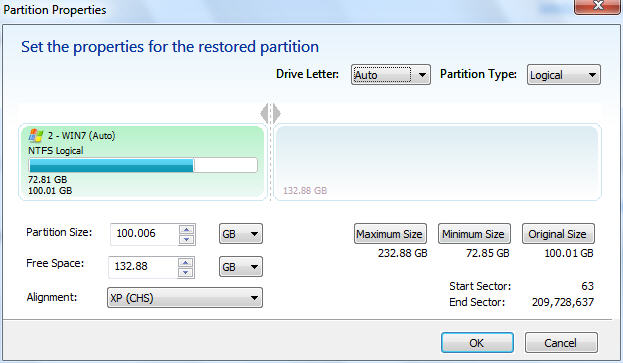
In Macrium Reflect, should I change any "Cloned Partition Properties" (Drive Letter, Partition Type, Alignment)?

partitionProperties.jpg
 

My Computer My Computer

At a glance

Windows 7 Professional 342it
Computer type
PC/Desktop
OS
Windows 7 Professional 342it
You can either reinstall, reimage with Macrium at default settings, or stay with the letter you're stuck with because of this.

"Default settings"? Are you sure that I don't need to change anything?
 

My Computer My Computer

At a glance

Windows 7 Professional 342it
Computer type
PC/Desktop
OS
Windows 7 Professional 342it
Back
Top