Cannot view hidden Folders and Files Even When through Folder Options

benway1

Banned
Local time
3:50 PM
Messages
7
Hi!
[Please note I have attached a couple of small screenshots for the following problem]
I have a pretty frustrating problem. I seem to have some hidden files and folders which I CANNOT view in the normal way.
Normally, if I have hidden files and folders and I want to reveal them, I do the normal thing and go to
Tools > Folder Options > View
And I check the box "Show hidden files, folders and drives"

However, I have noticed that a lot of my folders are not visible at all, not even the "transparent icon", even with this box checked, and only become available to see when I do a search for them.

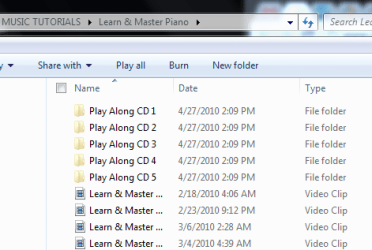
For example, I have a folder with piano lessons in it, of ripped dvds and ripped cds, under the same folder "Learn & Master Piano"
All the ripped DVD lessons are visible in this folder, however, there are sub-folders under "Learn and Master Piano" containing the CD's called variously "Play Along CD 1" and "Play Along CD 2" etc. and there are 5 of them.

However, none of these are visible at all when I go into the folder "Learn and Master Piano". What I have to do is go to the search box and do a search for "Play Along CD" to reveal them in explorer.

I only came across this because it appeared incidentally in explorer when I was searching for other things.

This makes me wonder how many other thousands of files and folders I have downloaded or whatever are totally invisible !!

I did do a "hide folders" a few months back when this was a shared computer, but I have had the box for "Show hidden files, folders and drives" checked for a long time now, and have been toggling it trying to show my hidden files and folders for the "Play Along CD" folders, without any success.

Please help !!
Any help is much appreciated.
Thanks, and regards,
Carl.
 

Attachments

  • Problem 11.PNG
    Problem 11.PNG
    6 KB · Views: 172
  • Problem 2.PNG
    Problem 2.PNG
    4.4 KB · Views: 116

My Computer

Computer Manufacturer/Model Number
ACPI x86 based PC
OS
Windows 7 Professional 32 bit
CPU
Intel Core i5
Memory
4GB
Graphics Card(s)
NVIDIA GeForce 9600 GT
Sound Card
Realtek High Definition
Monitor(s) Displays
Generic PnP
Hard Drives
ST3500418AS ATA
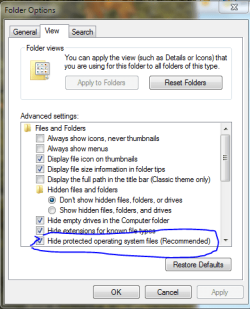
Have you tried to uncheck the hide system files option?

You can try to use 7zip.
7-Zip
It is free and safe to use.
It will show all of the folders even the hidden ones.
Once in the folder click on propties and
uncheck the hide this folder option.
Sending a screen shot of the 1st option
I mentioned.

Jimmy
 

Attachments

  • folder view.PNG
    folder view.PNG
    18.5 KB · Views: 252

My Computer

Computer Manufacturer/Model Number
Power Spec- Micro Electronics,Inc.
OS
Windows 7 64-bit
CPU
Intel i7
Motherboard
Intel
Memory
12 gigs
Graphics Card(s)
AMD Radeon HD 6900 series
Sound Card
AMD High Definition Audio Device
Monitor(s) Displays
Gateway FHX2300
Screen Resolution
1920x1080
Hard Drives
Samsung HD204UI 2 terabytes used for storage
SSD G2 Series 64 GB System drive
Hi jp! And thank you so much for your help.
Okay, this is now HALF solved.
It is half-good news...
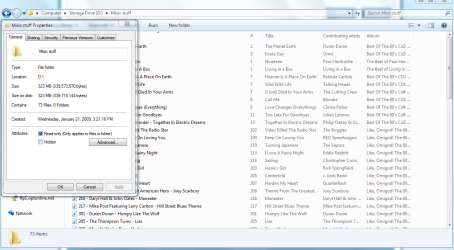
When I unchecked the hide system files option, it revealed them, however, the icons of the folders have now have that "transparent" look which files that are hidden are supposed to have I guess, [I attached a photo], when I have hidden files in the past that is what they do, [although I find that strange in itself, because when they look like that, they are not hidden, they just have a transparent icon, and now that I have checked the "show system files" box to reveal them, these files which are not even system files have a transparent icon].

Okay, so I decided to toggle the hide system files box, but when I checked it again, it hid these files again. This is not great news itself, because I really WOULD like my system files to be hidden. I don't want to accidentally delete any, and I am the kind of person who would.
I sometimes go on big deleting sprees, and I could very easily delete something important this way, or even just seeing files when I don't know what they are taking up space and just thinking "I don't need that" and delete it.... I've done this before and ruined my system, and it's easy to do....

7-Zip, huh? I have downloaded it and I am trying it, but from what I can see, it looks like a compression tool.
I can't quite make sense of it, or how to use it for the current purpose at present.
Would you be able to give me the quick steps to use it for this purpose?


It would also be interesting to know why these folders of mine which are filled with mp3 files and other non-system files are being treated as system files by Windows.... I am thinking at present that the Windows "hide files" options are very glitchy....however I am prepared to accept it is myself who is glitchy, but I'm not realizing it...

Thanks again for your help!
Definitely a step in the right direction. :D
 

Attachments

  • Problem 3.PNG
    Problem 3.PNG
    10.2 KB · Views: 68

My Computer

Computer Manufacturer/Model Number
ACPI x86 based PC
OS
Windows 7 Professional 32 bit
CPU
Intel Core i5
Memory
4GB
Graphics Card(s)
NVIDIA GeForce 9600 GT
Sound Card
Realtek High Definition
Monitor(s) Displays
Generic PnP
Hard Drives
ST3500418AS ATA
Ok glad you got the files unhidden.
Yes 7zip is a file compession tool.
With the files you want to see you have to
right click on an empty space in the folder the list will say
propities (can not spell) Click that it will bring out the box
Sending a screen shot.
On the bottom you will see hide uncheck it.
Do this for all the folders you want to unhide.
Then go back to hide system hiden folders
and hide them again so you will not do as you said delete something by
mistake. With windows 7 you can do that anyway it will get mad at you and
tell you do not have admin permission.

As for 7 zip you do not need that now that you have figured out how to
unhide your files.
You can keep it or remove it. It is up to you.
I use it cause it comes in handy to open rars files and to put split files back together.
Like I said it also is good to find hidden files without going thought the files and folders options.

Jimmy
 

Attachments

  • screen 1.PNG
    screen 1.PNG
    58.7 KB · Views: 500
Last edited:

My Computer

Computer Manufacturer/Model Number
Power Spec- Micro Electronics,Inc.
OS
Windows 7 64-bit
CPU
Intel i7
Motherboard
Intel
Memory
12 gigs
Graphics Card(s)
AMD Radeon HD 6900 series
Sound Card
AMD High Definition Audio Device
Monitor(s) Displays
Gateway FHX2300
Screen Resolution
1920x1080
Hard Drives
Samsung HD204UI 2 terabytes used for storage
SSD G2 Series 64 GB System drive

My Computer

Computer Manufacturer/Model Number
Power Spec- Micro Electronics,Inc.
OS
Windows 7 64-bit
CPU
Intel i7
Motherboard
Intel
Memory
12 gigs
Graphics Card(s)
AMD Radeon HD 6900 series
Sound Card
AMD High Definition Audio Device
Monitor(s) Displays
Gateway FHX2300
Screen Resolution
1920x1080
Hard Drives
Samsung HD204UI 2 terabytes used for storage
SSD G2 Series 64 GB System drive
Hi jp!
Thanks again for your responses.
7-Zip seems like a useful program.
It does make a useful file browser,
and I can view the hidden files and folders with it,
even when I have the "hide files" box checked.

It is also useful to know that Windows 7 will ask me for permission to delete system files.
However, this is tricky, because Win 7 asks permission for a LOT of things, and it is difficult to know which ones are important, and which are not, and I often just grant permission accidentally or on purpose when it asks.

Part of the problem still remains though.
You mention right-clicking on the folders and selecting Properties, and unchecking the "hidden" box.
Sorry, I forgot to mention, I have already tried that as well. It does not work either.
I have toggled it on a few folders now, and the problem is the same.

I still have the non-system files and folders with the transparent icons, and my system files are still visible, and the only way I can see my many of my folders now is to make the system files visible. ): :eek:

However, it is a big help to be able to see them. It would be nice to be able to hide system files and see all my proper files and folders normally without system files being visible and available.

Thank you so much again for your help !! (: :D:D
 

My Computer

Computer Manufacturer/Model Number
ACPI x86 based PC
OS
Windows 7 Professional 32 bit
CPU
Intel Core i5
Memory
4GB
Graphics Card(s)
NVIDIA GeForce 9600 GT
Sound Card
Realtek High Definition
Monitor(s) Displays
Generic PnP
Hard Drives
ST3500418AS ATA
Actually, just so it doesn't seem like I am nitpicking at this point, a more important part of the problem which I did not mention is that I use a Mac a lot more than my pc these days for certain tasks, because Macs are what we use in my workplace, so I often need to transfer a lot of folders and files from my PC to my Mac.

I back up a lot of files on my PC, and these are easily transferred to my Mac, and they are nearly all visible [although in a "read-only" format, I cannot edit them or write to the external drive on a Mac obviously as it is formatted for PC, but I can copy these read-only files onto my Mac.]

However, the hidden folders and files from my PC are NOT visible on my external drive when I plug it into my Mac, they are not visible.

Even when I have it plugged into my PC, and select "Show System Files" option, and apply this to all the folders and sub-folders, those transparent folders and files I mentioned are still not visible when I plug the external hard drive into my Mac.

This actually is a real dilemma for me at present.

Any further help would be greatly appreciated.

Thanks so much again jp,
and to anyone who can assist with this problem! (:
 

My Computer

Computer Manufacturer/Model Number
ACPI x86 based PC
OS
Windows 7 Professional 32 bit
CPU
Intel Core i5
Memory
4GB
Graphics Card(s)
NVIDIA GeForce 9600 GT
Sound Card
Realtek High Definition
Monitor(s) Displays
Generic PnP
Hard Drives
ST3500418AS ATA
That is ok I have used macs also.
You can always try the take ownership
thing. http://www.sevenforums.com/tutorials/1911-take-ownership-shortcut.html
Just add this and then right click it.
Go to propties and do the hidden thing.
It should work. Windows is holding your files
this should give you ownership not wondows.
But only use it on YOUR FILES.
Do not use it on system files.
This is the last option I have to give you.

Jimmy
 

My Computer

Computer Manufacturer/Model Number
Power Spec- Micro Electronics,Inc.
OS
Windows 7 64-bit
CPU
Intel i7
Motherboard
Intel
Memory
12 gigs
Graphics Card(s)
AMD Radeon HD 6900 series
Sound Card
AMD High Definition Audio Device
Monitor(s) Displays
Gateway FHX2300
Screen Resolution
1920x1080
Hard Drives
Samsung HD204UI 2 terabytes used for storage
SSD G2 Series 64 GB System drive
Hi Jimmy. I just tried to Take Ownership. Sadly for me , the files are still transparent. I will try taking ownership of the files on my external hard drive this afternoon, and see if that reveals them on the drive and makes them visible to my mac, but I have to run out to work right now. :(

Thanks so much for your help Jimmy, at least I got some files revealed on Windows, if not Mac. :)

Is there anyway I can get a Windows or Microsoft tech here with an answer, because this is such a stupid problem which really should not be happening. Why is Windows treating mp3s and other non-system files as hidden system files? This is so dumb of Windows!! I really can't understand this one.

Thanks again Jimmy.
 

My Computer

Computer Manufacturer/Model Number
ACPI x86 based PC
OS
Windows 7 Professional 32 bit
CPU
Intel Core i5
Memory
4GB
Graphics Card(s)
NVIDIA GeForce 9600 GT
Sound Card
Realtek High Definition
Monitor(s) Displays
Generic PnP
Hard Drives
ST3500418AS ATA
I sent a message to some one on the forum that maybe able to help.
He is a very good person and knows his stuff.
Sorry I could not help anymore that I could.
I am just afraid if we keep fussing with things
it could mess things up.

Jimmy
 

My Computer

Computer Manufacturer/Model Number
Power Spec- Micro Electronics,Inc.
OS
Windows 7 64-bit
CPU
Intel i7
Motherboard
Intel
Memory
12 gigs
Graphics Card(s)
AMD Radeon HD 6900 series
Sound Card
AMD High Definition Audio Device
Monitor(s) Displays
Gateway FHX2300
Screen Resolution
1920x1080
Hard Drives
Samsung HD204UI 2 terabytes used for storage
SSD G2 Series 64 GB System drive
You have been given good advice as to how to view the folders, unfortunately, it did not work and that concerns me.
Run a full, updated anti virus scan
Download and run a full upadated scan with malwarebytes.
You could have saved more that you thought.
Report back.
 

My Computer

Computer type
PC/Desktop
Computer Manufacturer/Model Number
Dell XPS 420
OS
Windows 10, Home Clean Install
CPU
Intel Core2 processsor Q8200(2.33Ghz 1333FSB) Quad Core Tech
Motherboard
Dell
Memory
6 gb
Graphics Card(s)
ATI Radeon 256MB HD3650
Sound Card
Intergrated 7.1 Channel Audio
Monitor(s) Displays
Dell SP2009W 20"
Hard Drives
640 GB Serial ATA Hard drive
Cooling
Fan
Keyboard
Dell USB Keyboard
Mouse
Dell Premium Optical USB
Internet Speed
DSL 2.85
You need to take off the system attribute.

You can do it with command prompt - probably easier with this free context menu app.

Petges.lu - Attribute Changer

Worth checking rich46 post - you never know.
 

My Computers

System One System Two

  • Computer type
    PC/Desktop
    OS
    7 X64
    CPU
    i5 8400
    Motherboard
    gigabyte b365m ds3h
    Memory
    2x8gb 3200mhz
    Hard Drives
    various
    PSU
    pure power 11 400w cm
    Case
    Coolermaster
    Cooling
    cryorig m9i
  • Computer type
    PC/Desktop
    OS
    7x64
    CPU
    g5400
    Motherboard
    ga b365m ds3h
    Memory
    8gb ddr4 2400
    PSU
    xfx pro 450w
Hi Jimmy! Thanks so much for that.
You have been a great help !!
Yes, I am afraid of fussing and messing things up!
I'm very good at messing things up accidentally :)
So I have to be careful.

Cheers! :D

Oh, did not realise there have been other replies!

Hi Richc and SIW !
Thank you very much for your responses.
I will try these things and report back shortly.

Richc: I have Kaspersky, so I will run a full scan on all users.
I will D/L Malawarebytes and run it.

SIW : I will try that program. And let you know the results.

Cheers all!

--Carl
 

My Computer

Computer Manufacturer/Model Number
ACPI x86 based PC
OS
Windows 7 Professional 32 bit
CPU
Intel Core i5
Memory
4GB
Graphics Card(s)
NVIDIA GeForce 9600 GT
Sound Card
Realtek High Definition
Monitor(s) Displays
Generic PnP
Hard Drives
ST3500418AS ATA
Okay, this problem is now three-quarters solved.

Richc: I am running a Kaspersky full system scan right now.

SIW: Okay, System Attributes has half-helped [and it looks like a great program]
I went to change the attributes on the folders on my C Drive, and I changed and unchecked the boxes of the attributes of "system" and "hidden" on my MP3 files and folders [although why these attributes were checked in Attribute Changer when I had unchecked them in Folder Options is also a mystery, and also why Windows sees these MP3 files and folders as system files and why they are so difficult to properly unhide is still a mystery too].

Now, on the C Drive it seems Attribute Changer has fixed this, and the files and folders no longer have that "transparent" look which seems to indicate Windows thinks they are sys files.

HOWEVER , Attribute Changer seems unable to change the attributes of these same files and folders and many others on my External Hard Drives. :(:confused:
I have attached Photos of the settings I have changed, and photos of my problem on the external drive.

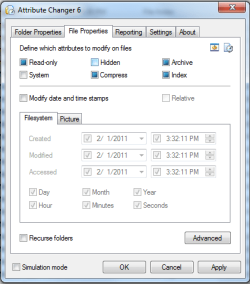
In Photo 1 : I have gone to "Change Attributes" and then in "Folder Properties" Tab, unchecked the "Hidden" and "System File" boxes, then clicked apply [the transparent folders are in the background]

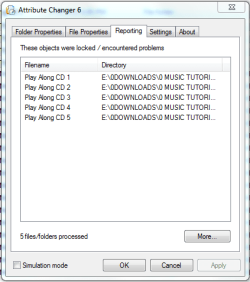
This did not work, and brought me to a reporting screen which is in the FIFTH photo I attached, with a report that says "These Objects were locked / encountered problems".

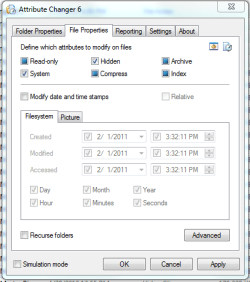
2nd Photo : So I went to the next tab [In the 2nd photo I attached] "File Properties" to change some other attributes [which is what I did on my C Drive] and changed the "Hidden" and "System" files attribute as well, and clicked "Apply", which brought me to the same report screen again which says "These Objects were locked / encountered problems".

Also, I found this second tab a little confusing, because when changing the attribute boxes, it seems to allow three different ways the boxes can be checked.
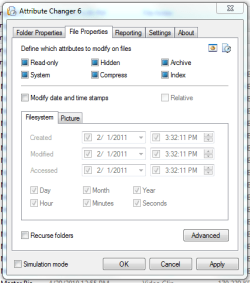
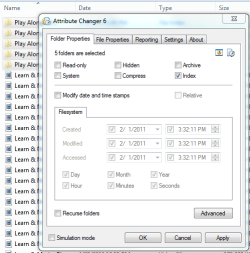
The default seems to have all the attribute boxes filled in blue [photo 2]. When you click on a box, it replaces the blue with a blue tick [photo 3]. If you click it again, it replaces the blue tick with an empty box [photo 4].
They also come under the heading of "define which attributes to modify on files" but doesn't say much about how it is going to modify them or how leaving the box filled, leaving the box ticked, or leaving the box empty will modify them.
So I tried them all, filled, ticked and empty, and clicked apply.

They all brought me to the report screen in photo 5 which says "These Objects were locked / encountered problems".
I have no idea what each of these box fill-ins means. So I tried them all.

Something else I tried was to select my external drive in explorer > Properties > Read Only , and I removed the "Read Only" setting since I thought this might have something to do with it.
I also did this to all the files on my external drive AND on my C Drive. I don't know if this was a good idea or a bad idea.

Which makes me wonder, when I fix this problem, is there a way to set all my folders and files to Windows defaults again? I've done a bit of meddling now and can't remember all the settings I've changed.

Thanks again Jimmy, Rich , and SIW all for your further help !! :D
Sorry this has become such a saga. :(:eek:
 

Attachments

  • AC5.PNG
    AC5.PNG
    13.3 KB · Views: 14
  • AC4.PNG
    AC4.PNG
    16.6 KB · Views: 12
  • AC3.PNG
    AC3.PNG
    17.1 KB · Views: 14
  • AC2.PNG
    AC2.PNG
    17.5 KB · Views: 13
  • AC1.PNG
    AC1.PNG
    19.4 KB · Views: 12

My Computer

Computer Manufacturer/Model Number
ACPI x86 based PC
OS
Windows 7 Professional 32 bit
CPU
Intel Core i5
Memory
4GB
Graphics Card(s)
NVIDIA GeForce 9600 GT
Sound Card
Realtek High Definition
Monitor(s) Displays
Generic PnP
Hard Drives
ST3500418AS ATA
On the last photo with the report on the bottom
the box that says more click it. It may tell you more about it.

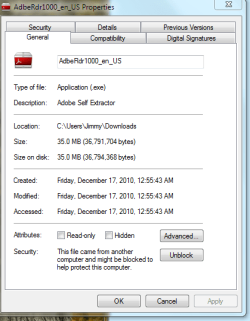
After reading your last post do any of the files have a propities
box that looks like the screen shot I am sending?
Way on the botom it says security and has a box next to it that says
unblock.
Sometimes windows will block files from diffrent computers for safty reasons.

Also like to thank Richie and Siw2 for coming to help.

Jimmy
 

Attachments

  • screen shot 2.PNG
    screen shot 2.PNG
    14.7 KB · Views: 18
Last edited by a moderator:

My Computer

Computer Manufacturer/Model Number
Power Spec- Micro Electronics,Inc.
OS
Windows 7 64-bit
CPU
Intel i7
Motherboard
Intel
Memory
12 gigs
Graphics Card(s)
AMD Radeon HD 6900 series
Sound Card
AMD High Definition Audio Device
Monitor(s) Displays
Gateway FHX2300
Screen Resolution
1920x1080
Hard Drives
Samsung HD204UI 2 terabytes used for storage
SSD G2 Series 64 GB System drive
There is no option in 7zip to show hidden files.....!!!!!:cry::cry::cry::cry::cry:
 

My Computer

Computer type
PC/Desktop
Computer Manufacturer/Model Number
custom build
OS
Windows 7 Ultimate 32bit
CPU
INTEX
Motherboard
Intel
Graphics Card(s)
Nvidia
Back
Top