
lemmiwinks
New member
- Local time
- 6:33 AM
- Messages
- 3
Upgraded to a new 120GB SSD (C: ) and a 2TB HDD (D: ) recently.
Installed Win7 on the SSD (did the dumb thing and still had the old 70GB HDD plugged in....)
Transferred all my files over from my 70GB to my SSD, happy with how things are going and decided to retire the old 70GB.
Now I can't boot to Windows unless the 70GB is plugged in. Initially I could boot from the 120GB with the 70GB plugged in - but now I need to boot to the 70GB for the 120GB's OS to come up.... Which is very confusing.
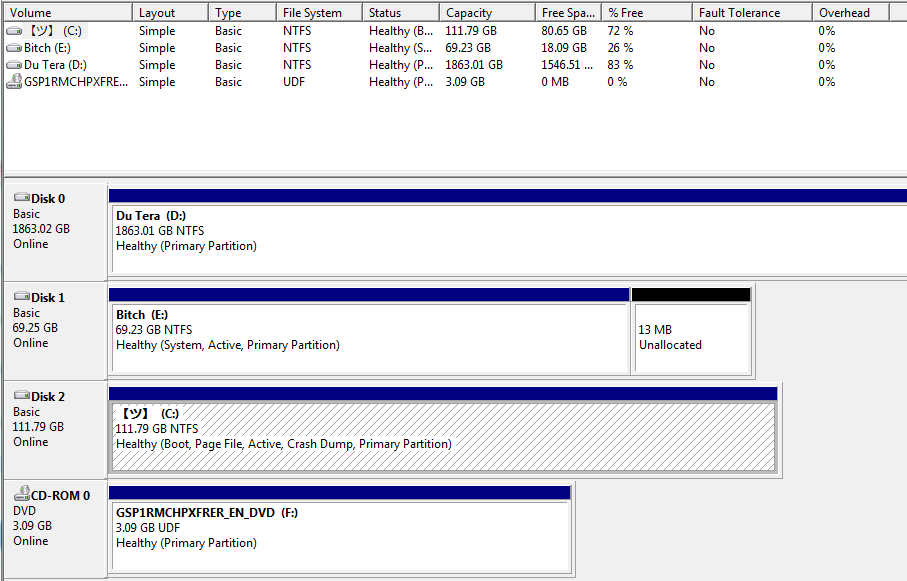
Disk 2 missing System Partition?
At first I got a "DISK BOOT FAILURE - INSERT SYSTEM DISK AND PRESS ENTER" - but when I put the Win7 disk in, it doesn't pick it up.
I've ran through various 'fixes' - ensuring boot order, marking the SSD as active, and trying to run Startup Repair off my Win7 disk. I've ran Startup Repair 4 times, regardless that I can't see any disks/OS's to choose from.
Now I'm getting "BOOTMGR.EXE IS MISSING".
When I run Startup Repair off my Win7 disk, it can't see any disks or OS's. BUT, when I browse for drivers it comes up that my 2TB is C: and my 120GB is D:, which should be the other way around.....
So I guess my question is, is there any way to create a System Partition on my SSD without a clean install of Win7?
Installed Win7 on the SSD (did the dumb thing and still had the old 70GB HDD plugged in....)
Transferred all my files over from my 70GB to my SSD, happy with how things are going and decided to retire the old 70GB.
Now I can't boot to Windows unless the 70GB is plugged in. Initially I could boot from the 120GB with the 70GB plugged in - but now I need to boot to the 70GB for the 120GB's OS to come up.... Which is very confusing.
Disk 2 missing System Partition?
At first I got a "DISK BOOT FAILURE - INSERT SYSTEM DISK AND PRESS ENTER" - but when I put the Win7 disk in, it doesn't pick it up.
I've ran through various 'fixes' - ensuring boot order, marking the SSD as active, and trying to run Startup Repair off my Win7 disk. I've ran Startup Repair 4 times, regardless that I can't see any disks/OS's to choose from.
Now I'm getting "BOOTMGR.EXE IS MISSING".
When I run Startup Repair off my Win7 disk, it can't see any disks or OS's. BUT, when I browse for drivers it comes up that my 2TB is C: and my 120GB is D:, which should be the other way around.....
So I guess my question is, is there any way to create a System Partition on my SSD without a clean install of Win7?
My Computer
At a glance
win 7 Home Premium 64 bit
- Computer type
- PC/Desktop
- OS
- win 7 Home Premium 64 bit


