This has been softened considerably ...
How about dramatically?
My Computer
At a glance
Windows 7 Ultimate x64
- OS
- Windows 7 Ultimate x64

This has been softened considerably ...

Then boot into installer DVD or flash stick burned or written using tool and latest ISO for your licensed OS version here.
At first installer screen Press Shift + F10 to open a Command Box, type:
DISKPART
LIST DISK
SEL DIS 0 (after confirming Windows 7 target HD #)
CLEAN
CONVERT MBR
CREATE PARTITION PRIMARY SIZE=102400 (for 100gb partition, adjust as desired)
FORMAT FS=NTFS LABEL="WINDOWS 7"
ACTIVE
EXIT
EXIT
Next click Install Now to Clean Install Windows 7 to the partition you created. If it fails then report back at which step and the verbatim error message.

DISKPART
LIST DISK
SEL DIS 0 (after confirming Windows 7 target HD #)
CLEAN
CONVERT MBR
CREATE PARTITION PRIMARY SIZE=102400 (for 100gb partition, adjust as desired)

Hi Greg,
Can I dual-boot with Windows 7 if I have Windows 8 pre-installed (Single Language and not Pro)??
Pls confirm. If yes, do I need to follow the same steps as you've mentioned in the earlier posts.
Thanks,
Rahul
My question is whether dual-boot works if I don't have the Pro edition of Windows 8?
I read somewhere that dual-boot only works with Windows 8 Pro.
You may be confusing it with Windows 8 Professional being downgradable to a free license for Win7, the only version which allows this as of now (until MS comes to their senses).
Isn't Professional the only version which allows this?
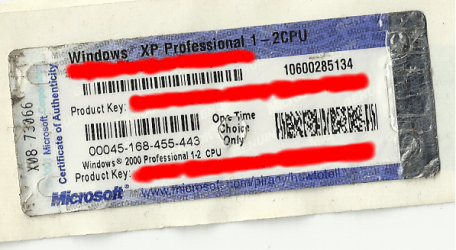
MS said:Can I transfer the software to another user? You may transfer the software directly to another user, only with the licensed computer. The transfer must include the software, proof of purchase, and, if provided with the computer, an authentic Windows label such as the certificate of authenticity label including the product key. You may not keep any copies of the software or any earlier version. Before any permitted transfer, the other party must agree that this agreement applies to the transfer and use of the software.
MS said:Can I downgrade the software? Instead of using the Windows 8 Pro software, you may use one of the following earlier versions: Windows 7 Professional or Windows Vista Business.
This agreement applies to your use of the earlier versions. If the earlier version includes different components, any terms for those components in the agreement that come with the earlier version apply to your use of such components. Neither the manufacturer or installer, nor Microsoft, is obligated to supply earlier versions to you. You must obtain the earlier version separately. At any time, you may replace an earlier version with Windows 8 Pro. To enable downgrade on this computer to Windows 7, you must change the settings to boot into legacy BIOS mode. If the BIOS setting is not changed back to native UEFI mode boot prior to installing Windows 8 Pro, Windows 8 Pro will install; however, the following Windows 8 Pro functionalities will not work as they rely on UEFI mode boot:
• Secure Boot,
• Seamless Boot experience,
• Network unlock for Bitlocker for computers with a Trusted Platform Module (TPM), and
MS said:Can I transfer the software to another user? You may transfer the software directly to another user, only with the licensed computer. The transfer must include the software, proof of purchase, and, if provided with the computer, an authentic Windows label such as the certificate of authenticity label including the product key. You may not keep any copies of the software or any earlier version. Before any permitted transfer, the other party must agree that this agreement applies to the transfer and use of the software.
Is it also a "one-time only" choice for Win8>Windows 7, and how does that work?

Make your Recovery disks and save a System image as a secondary backup. Back up your files, unplug all other HD's and peripherals,
Boot into BIOS setup, if this is a new Win8 PC look for a setting to disable Secure Boot. Then enable Legacy BIOS or Compatibility Support Module (CSM). This should remove any EFI Boot Disk from BIOS Boot order. Set DVD drive first to boot, HDD second. Then set SATA controller to AHCI. Save changes and Exit.
Then boot into installer DVD or flash stick burned or written using tool and latest ISO for your licensed OS version here.
At first installer screen Press Shift + F10 to open a Command Box, type:
DISKPART
LIST DISK
SEL DIS 0 (after confirming Windows 7 target HD #)
CLEAN
CONVERT MBR
CREATE PARTITION PRIMARY SIZE=102400 (for 100gb partition, adjust as desired)
FORMAT FS=NTFS LABEL="WINDOWS 7"
ACTIVE
EXIT
EXIT
Next click Install Now to Clean Install Windows 7 to the partition you created. If it fails then report back at which step and the verbatim error message.
In addition read over these steps to understand the tools and methods which work best to get and maintain a perfect Clean Reinstall - Factory OEM Windows 7. The steps are the same for retail.
The purpose of creating the partition above is to wipe the HD and define an Active partition which resolves most install failures. Afterwards you can adjust the OS partition size in Disk Mgmt, create other partitions as desired.


