
How to Restore the Caret Browsing Confirmation Prompt
Information
If you checked the Do not show me this dialog box again. in the Caret Browsing confirmation prompt, then this will show you how to restore the confirmation prompt in Internet Explorer and Firefox.
EXAMPLE: Caret Browsing confirmation prompt
NOTE: This is what you see when you press F7 in Internet Explorer or Firefox to confirm turning on Caret Browsing.

OPTION ONE
Restore Caret Browsing Confirmation Prompt in "Internet Explorer"
Download
2. Save the .reg file to the desktop.
3. Double click/tap on the downloaded .reg file to merge it.
4. Click/tap on Run, Yes (UAC-Windows 7/8) or Continue (UAC-Vista), Yes, and OK when prompted.
5. You will now see the Caret Browsing confirmation prompt when you press F7 in Internet Explorer again.
OPTION TWO
Restore Caret Browsing Confirmation Prompt in "Firefox"
2. Type about:config in the Firefox address bar and press enter, then click/tap on the I'll be careful, I promise button. (see screenshot below)

3. Scroll down a bit and double click/tap on the accessibility.warn_on_browsewithcaret entry to change the "value" from false (no confirmation prompt) to true (confirmation prompt).
:warn: WARNING: Be real careful to not double click on any other entry and change it's value.
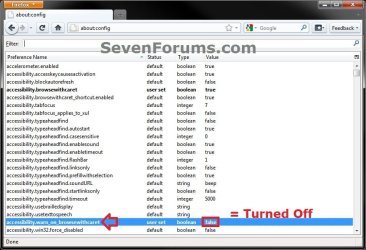

4. You will now see the Caret Browsing confirmation prompt when you press F7 in Firefox again.
That's it,
Shawn
Attachments
Last edited:


