chkdsk not showing in Event Viewer

geohei

New member
Local time
9:55 PM
Messages
10
Hi.

Yesterday evening, I booted my (up-to-date) Windows 7 system and chkdsk started for a data partition (as opposed to system partition). To the best of my knowledge, I shut the down properly a week ago.

I tried to find the chkdsk results in the Event Viewer, Windows Logs, Applications ... but nothing there!

1. Is it possible that chkdsk is triggered without any detected problem on a partition (e.g. after a certain time)?

2. How come the chkdsk doesn't show up in the Event Viewer?

Thanks,
 

My Computer My Computer

At a glance

Windoes 7 Ultimate x64
OS
Windoes 7 Ultimate x64
Hi geohie,

Step 1.
Press the Windows + R Keys to bring up the Run dialog box, and then type in powershell.exe and press the Enter key.
Step 2. Copy and paste the command below into the Powershell interface and press Enter:
get-winevent -FilterHashTable @{logname="Application"; id="1001"}| ?{$_.providername –match wininit"} | fl timecreated, message | out-file Desktop\CHKDSKResults.txt


Step 3.
Check your desktop and you'll see a new text file entitled CHKDSKResults.txt containing all your CHKDSK logs in one convenient location.

Finding CHKDSK Log Location in the Event Viewer in Windows 7


Step 1. Open Event Viewer by typing eventvwr.msc in the Start Menu search bar and pressing the Enter key.
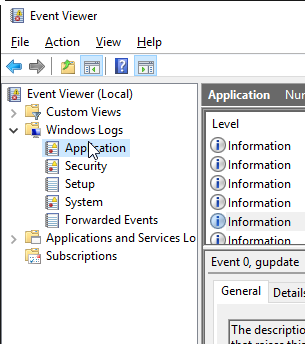
Step 2. Navigate to Windows Logs ->Application in the left sidebar:

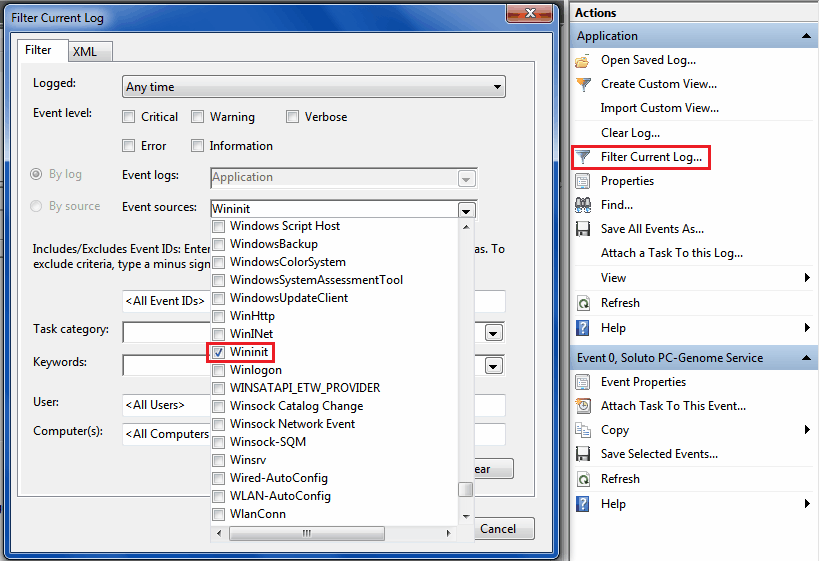
Step 3. Click the 'Filter current log' button on the right side:
Step 4. This is where it will vary depending on which version of Windows you're using.

  • For Windows 7: Select 'Wininit' in the Event sources dropdown list, as shown in the screenshot below:

Now you should see only log files from the Wininit even source displayed, which is where you'll find your CHKDSK logs. Alternatively, you can enter "1001" into the Event ID field to achieve the same results.
 

My Computer My Computer

At a glance

Win 10 x64, Linux Lite, Win 7 x64, BlackArch,...
Computer type
PC/Desktop
Computer Manufacturer/Model Number
HP Desktop & Compaq Laptop
OS
Win 10 x64, Linux Lite, Win 7 x64, BlackArch, & Kali
Hard Drives
Samsung 850 Pro 256Gb,
Hitachi HDD 1Tb,
Crucial MX SSD 250Gb
Segate 3Tb USB 3.0 Ext. Backup HDD
Internet Speed
150Mbps dn, 20Mbps up
Antivirus
Avast Free, Malwarebytes Anti-Exploit & Anti-Ransomware
Browser
Firefox, Chrome, Opera, & VPN
Great, that works (thanks a lot !!!), but ...

3. Why is it not shown when selecting "Chkdsk" as "Event Source"?
4. The text is cut at the end. It doesn't seem to be complete. Hence the most important, the results, are not shown.

Besides this, question 1. from the top posting remains open. Why was Chkdsk triggered at all?

Thanks
 
Last edited:

My Computer My Computer

At a glance

Windoes 7 Ultimate x64
OS
Windoes 7 Ultimate x64
If windows detects possible errors, it initiates chkdsk which checks
files
bad records
parsing
index
security descriptors
Usn Journal
bad sectors

Not sure about what's misisng your referring to:
open event viewer
windows logs
applications
right pane click find
type chkdsk
find popup click cancel
double click chkdsk
click copy
paste into notepad, etc.
attach log or copy paste info into reply

Here's my chkdsk log for comparison purpose.
View attachment Log from chkdsk.txt
 

My Computer My Computer

At a glance

Win 10 x64, Linux Lite, Win 7 x64, BlackArch,...
Computer type
PC/Desktop
Computer Manufacturer/Model Number
HP Desktop & Compaq Laptop
OS
Win 10 x64, Linux Lite, Win 7 x64, BlackArch, & Kali
Hard Drives
Samsung 850 Pro 256Gb,
Hitachi HDD 1Tb,
Crucial MX SSD 250Gb
Segate 3Tb USB 3.0 Ext. Backup HDD
Internet Speed
150Mbps dn, 20Mbps up
Antivirus
Avast Free, Malwarebytes Anti-Exploit & Anti-Ransomware
Browser
Firefox, Chrome, Opera, & VPN
My Chkdsk just stops in the middle somewhere.
Here my beginning and the end (I skipped the middle part).
Could it be that the output is just too big and only the first part is kept by the Event Viewer?

Code:
Checking file system on E:
The type of the file system is NTFS.
Volume label is Data.


One of your disks needs to be checked for consistency. You
may cancel the disk check, but it is strongly recommended
that you continue.
Windows will now check the disk.                         

...
Attribute record of type 0x80 and instance tag 0x4 is cross linked
starting at 0x5869225 for possibly 0xc clusters.
Some clusters occupied by attribute of type 0x80 and instance tag 0x4
in file 0x40a5a is already in use.
Deleting corrupt attribute record (128, "")
from file record segment 264794.
Attribute record of type 0x80 and instance tag 0x4 is cross linked
starting at 0x585fabc for possibly 0x1c clusters.
Some clusters occupied by attribute of type 0x80 and instance tag 0x4
in file 0x40a80 is al
Here it just stops!
 

My Computer My Computer

At a glance

Windoes 7 Ultimate x64
OS
Windoes 7 Ultimate x64
If you have a longer log, does it also stop?
I noticed that it stops at exactly (!) 16KB (16384 bytes).
Is everything after that lost?
 

My Computer My Computer

At a glance

Windoes 7 Ultimate x64
OS
Windoes 7 Ultimate x64
geohei, increase the log file size.

To do this:

Click Start, Type event viewer.

Right-click the event log whose properties you want to set and select Properties from the shortcut menu.
Enter a maximum size in the Maximum Log Size field. Make sure that the drive containing the operating system has enough free space for the maximum log size you select. Log files are stored in the %SystemRoot%\system32\config directory by default

For more information: http://technet.microsoft.com/en-us/library/bb726966.aspx
 

My Computer My Computer

At a glance

Win 10 x64, Linux Lite, Win 7 x64, BlackArch,...
Computer type
PC/Desktop
Computer Manufacturer/Model Number
HP Desktop & Compaq Laptop
OS
Win 10 x64, Linux Lite, Win 7 x64, BlackArch, & Kali
Hard Drives
Samsung 850 Pro 256Gb,
Hitachi HDD 1Tb,
Crucial MX SSD 250Gb
Segate 3Tb USB 3.0 Ext. Backup HDD
Internet Speed
150Mbps dn, 20Mbps up
Antivirus
Avast Free, Malwarebytes Anti-Exploit & Anti-Ransomware
Browser
Firefox, Chrome, Opera, & VPN
I start the Event Viewer
> Windows Logs
>> Application (right-click)

When I select Properties, I see 20480 KB. However my Chkdsk log (Wininit) had exactly 16 KB (see above). I believe this is not the right place I was. You talk about the log file size (all logs together), while I seem to have a problem with the max. size of one (!) event only (one Chkdsk log).

I don't see where I could possibly increase the log size of a single event.
 

My Computer My Computer

At a glance

Windoes 7 Ultimate x64
OS
Windoes 7 Ultimate x64
Back
Top