
How to Turn the Bookmarks Bar On or Off in Google Chrome
Information
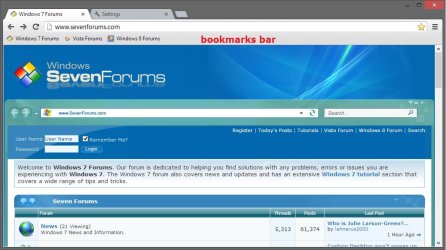
The bookmarks bar contains all your bookmarks and bookmark folders created or imported in Google Chrome.
This tutorial will show you how to turn the bookmarks bar on or off to display under the address bar in Google Chrome.
This tutorial will show you how to turn the bookmarks bar on or off to display under the address bar in Google Chrome.
Note
Google Chrome saves your bookmarks as the Bookmarks file in the hidden folder below. You could open the file in notepad to see it's contents.
C:\Users\(user-name)\AppData\Local\Google\Chrome\User Data\Default
C:\Users\(user-name)\AppData\Local\Google\Chrome\User Data\Default
EXAMPLE: "Bookmarks Bar" in Google Chrome Browser
OPTION ONE
Turn Chrome "Bookmarks Bar" On or Off using Keyboard Shortcut
1. In Chrome, press the Ctrl+Shift+B keys to toggle the bookmarks bar on or off.
OPTION TWO
Turn Chrome "Bookmarks Bar" Off from Bookmarks Bar
1. In Chrome, right click on an empty area on the bookmarks bar, and click/tap on Show bookmarks bar. (see screenshot below)

OPTION THREE
Turn Chrome "Bookmarks Bar" On or Off in Bookmarks Menu
1. In Chrome, click/tap on the Chrome menu
 button, and do step 2 or 3 below.
2. To Turn On Bookmarks Bar in Google Chrome Browser
A) Click/tap on Bookmarks and Show bookmarks bar to check it. (see screenshot below)
3. To Turn Off Bookmarks Bar in Google Chrome Browser
A) Click/tap on Bookmarks and Show bookmarks bar to uncheck it. (see screenshot below)

OPTION FOUR
Turn Chrome "Bookmarks Bar" On or Off in Settings
1. In Chrome, click/tap on the Chrome menu
button, and click/tap on Settings. (see screenshot below)
2. Do step 3 or 4 below for what you would like to do.
3. To Turn On Bookmarks Bar in Google Chrome Browser
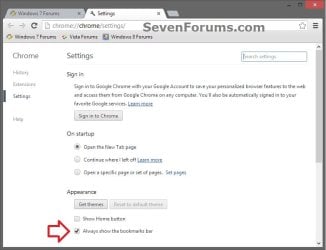
A) In the Settings tab under Appearance, check the Always show the bookmarks bar box, and go to step 5 below. (see screenshot below)
4. To Turn Off Bookmarks Bar in Google Chrome Browser
A) In the Settings tab under Appearance, uncheck the Always show the bookmarks bar box, and go to step 5 below. (see screenshot below)
5. You can now close the Settings tab if you like. (see screenshot below)
That's it,
Shawn
Last edited:
