
Solved Clean install planning with 2 drives, one SSD one HDD

winwolf

New member
Local time
12:05 PM
Messages
12
I have been having issues with my system for some time, and have never been able to create a restore point that didn't disappear after a reboot. I was hoping SP1 would solve things, but no luck. After spending a few hours reviewing posts, I've concluded I need to do a clean install <sigh>, and am planning my strategy.

I can't repair Windows as I only have an OEM disk. However, I have replaced the removable DVD drive on my laptop with an HDD. My C: drive is the SSD, I assigned D: to my HDD.

I have copied the Win 7 OEM CD to a folder on my D: drive. Can I just run setup.exe from my D: drive? Or do I somehow need to make my D: drive (HDD) bootable first? I presume that installing from the HDD makes the install go faster, but if it won't work as-is then it may simply be easier to install from the CD/DVD drive and then shut down and swap back the HDD versus creating a bootable D: drive (I'm hoping not to have to do this on a regular basis).

If I can simply run setup.exe from the D: drive, can I also re-use the Windows Update downloaded SP1 so I can run it right after the Win 7 install? Where would I find it? Or do I have to download the standalone SP1 installer as you noted in this post: http://www.sevenforums.com/windows-...tly-fresh-win-7-installation.html#post1263480 Not that big a deal, it will just save 20 minutes downloading it again.

I'm not happy about having to restore all of my settings for Windows and then reinstall Office etc. but I've read about DeepFreeze, and hope that once I've rebuilt and things look good I will be able to prevent any future infection/issues via that product in combination with a reliable 3rd party imaging product alternative to System Restore.

Another question, though: is there any value to making my D: drive (HDD) bootable so that if I see an issue with a program I can boot from my pristine HDD version to see if the version on my C: drive (SSD) has been compromised? If so, how do I make my D: drive bootable, since then it will be worth the effort. Or doesn't that work because of there being a different registry?

Next, should I create a separate data partition on my SSD? If I have to do a clean install again, can I still just create a new Windows folder with my OEM disk and leave all my apps in place, in which case it surely makes sense? Or does the OEM disk require an overwrite, in which case I will still have to reinstall my apps since that wipes out the registry? I'm already putting photos, videos, etc. on my D: drive (HDD), but on the SSD I've got my ost file, many pst files (6 GB) and other high I/O files (Nuance/Dragon, X1, etc.). I presume it makes more sense to keep them on the SSD. ANYWAY, if it does make sense to partition the SSD upon clean install, what's the best way to do that?

More on partitions: should I try to recover the OEM partition space being used up on the SSD? I seem to recall from something I read that I'd need that to have Windows installer recognize and activate based on the serial number on the laptop sticker which is also stored in that OEM partition. Is that the only reason? Here is a screen shot of the partition info. Both OEM partitions are Lenovo (the HDD came from an older model Lenovo):
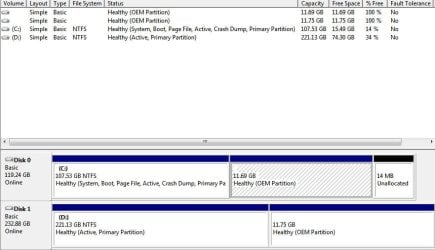
Disk Partitions.JPG

Thanks in advance!
 

My Computer My Computer

At a glance

Windows 7 Professional SP1Intel Core i7 M620 2.67GHz4 GBNVIDIA NVS 3100M
Computer Manufacturer/Model Number
Lenovo T510 Laptop
OS
Windows 7 Professional SP1
CPU
Intel Core i7 M620 2.67GHz
Memory
4 GB
Graphics Card(s)
NVIDIA NVS 3100M
Sound Card
Conexant 2085 SmartAudio HD
Monitor(s) Displays
HP w2408 Wide LCD
Hard Drives
Samsung MMCRE28G8MXP 1.8-inch 128GB Solid State Drive
Seagate Momentus XT ST92505610AS 250GB 7200 RPM 32MB Cache 2.5" SATA 3.0Gb/s
Is the OEM disk you have a Win7 Installation DVD for your installed version, or is the Recovery DVD which will reinstall all of the factory bloatware and useless utilities which have better versions built into Win7?

If it is an Installation DVD then you can indeed boot it to Repair using the Repair console on second screen.

I'm not sure why you removed your DVD drive as you need to boot the DVD to do a clean reinstall, or write the extracted ISO to a bootable flash stick. The flash stick may be easiest: install UltraISO trial version, on File tab Open ISO, on Bootable tab Write Disk Image, Format, Write.

Now back up your files, make your Recovery Disks, boot the installer with only the target SSD/HD plugged in, wipe the HD using Diskpart Clean All command, then use the CUstom>Drive Options to partition, format and install.

Here are more tips for getting a purrfect clean reinstall of factory OEM: http://www.sevenforums.com/installation-setup/125874-re-install-windows-7-a.html#post1086729

I'd clean install per above to the SSD then if you start running out of space move active User folders to the HD for storage along with Win7 backup image: http://www.sevenforums.com/tutorials/18629-user-folders-change-default-location.html
 
Thanks, gregrocker.

I have an OEM disk I purchased and used to install Win 7 on my laptop, which came with Win 7 (so it has the key under the battery), but was reimaged with XP before I got it. I installed over XP so I had all the MS Office install files and keys (and those to many of my other apps) which made it easier to reinstall all my apps. On a second laptop I did a complete wipe first, but that's being used as a shared family unit so it's only running unmodified Office and browsers.

It sounds like you think I should do a complete wipe here, after copying pretty much everything I can to my spare drive so I have the config files etc. that I need. BTDT pretty much already, so I know what to do. But what about the "recovery disks" - you indicate to create them prior to the reimaging. What are those and why? Is that to recover to my prior state if the new install doesn't work? Or does that make it easier to reinstall the programs again? I think I have some application issues as well, so I'd want to reinstall them anyway. Is there another reason I haven't thought of?

I only have a 2GB memory stick, probably not big enough from what I've read. I can swap out the HDD for the install. But what about creating an ISO image partition on the HDD, or "stealing" the OEM partition on the HDD, and making that my bootable ISO image? I also have a 230 GB external USB drive. Is it easy to create a partition on that unit and create a bootable drive, or can't we do that with a USB drive?

Thanks again!
 

My Computer My Computer

At a glance

Windows 7 Professional SP1Intel Core i7 M620 2.67GHz4 GBNVIDIA NVS 3100M
Computer Manufacturer/Model Number
Lenovo T510 Laptop
OS
Windows 7 Professional SP1
CPU
Intel Core i7 M620 2.67GHz
Memory
4 GB
Graphics Card(s)
NVIDIA NVS 3100M
Sound Card
Conexant 2085 SmartAudio HD
Monitor(s) Displays
HP w2408 Wide LCD
Hard Drives
Samsung MMCRE28G8MXP 1.8-inch 128GB Solid State Drive
Seagate Momentus XT ST92505610AS 250GB 7200 RPM 32MB Cache 2.5" SATA 3.0Gb/s
Winwolf, From What i Can tell your trying to create a System Image, this in itself will take about 30 minutes however it is available to be burnt to a disk.

What the System image is, is basically a Snapshot of what your software setup is at the time it was taken.

If you Navigate to
'Control Panel\All Control Panel Items\Backup and Restore'
You can create the image and burn it to Disk. This will allow you to Restore your System in Case it should fall Foul of Anything.

Now as to Having a 'Pristine' Copy, It is Available, it is called Dual Booting, And yes you Can Load that up with all the original settings from the OEM disk, i Presume you just need to edit the Installation Path when installing it.
 

My Computer My Computer

At a glance

Windows 8.1Intel i5 3750k OC'd 4.0Ghz16GB Vengence CorsairGTX 770 OC 2GB Windforce
Computer type
PC/Desktop
Computer Manufacturer/Model Number
Custom Build
OS
Windows 8.1
CPU
Intel i5 3750k OC'd 4.0Ghz
Motherboard
P8Z77-V LX3
Memory
16GB Vengence Corsair
Graphics Card(s)
GTX 770 OC 2GB Windforce
Sound Card
C-Media 7.1 Surround Card
Monitor(s) Displays
Asus 3D 23" & BenQ 24" & LG 19"
Screen Resolution
1920*1080, 1920*1080, 1440*900
Hard Drives
Crucial 512GB SSD
WD 1.5 TB
WD 500Gb
PSU
850MW Silverstone
Case
inWin DragonRider
Cooling
4 * 140mm LED Akasa, One 140mm Fan Akasa
Keyboard
Corsair k95
Mouse
R.A.T 7 Contagion
Internet Speed
152 Mb Fiber Optic
Antivirus
ESET Nod32
Browser
Waterfox x64 / Chrome x64
Other Info
Freenas / Plex Media server
Q6600
6Gb DDR3
6TB ZFS Raid
500W PSu
2 x Intel NIC's
If you haven't already created the Recovery Disk set which should have been made when you set up your computer, it's a good idea to make them if the utility will still run so you have a way to restore to factory condition if you should wish to sell or give away the computer.

What are the problems you're having that you need to repair and thought you couldn't with the OEM installer? We can help you fix specific issues that don't require a clean reinstall, including a last-resort http://www.sevenforums.com/tutorials/3413-repair-install.html?ltr=R.

I am not clear why you removed your DVD drive if it is functioning. Making a bootable HD partition is more trouble than it's worth if you have a working DVD drive or 4gb flash stick to use.
 
Gregrocker, I only have an OEM disk, and according to the tutorial I can't use that to do a repair-install.

Sniper, & Gregrocke, thank's for the pointers to the system image and recovery set. Duh! I should have found those.

I've done a lot of digging, and was wondering if anybody out there has any ideas about DeepFreeze, Returnil and Sandboxie?

DeepFreeze seems too restrictive, since any changes are lost at reboot, and excluding a User Profile (via Igloo) means remaining wide open to a lot of stuff, no?

Sandboxie sounds nice, but then I have to copy my files to my HD at the end of some period to maintain them as static, I think,

Returnil sounds like the best of both worlds, but I haven't looked deeper into it yet.
 

My Computer My Computer

At a glance

Windows 7 Professional SP1Intel Core i7 M620 2.67GHz4 GBNVIDIA NVS 3100M
Computer Manufacturer/Model Number
Lenovo T510 Laptop
OS
Windows 7 Professional SP1
CPU
Intel Core i7 M620 2.67GHz
Memory
4 GB
Graphics Card(s)
NVIDIA NVS 3100M
Sound Card
Conexant 2085 SmartAudio HD
Monitor(s) Displays
HP w2408 Wide LCD
Hard Drives
Samsung MMCRE28G8MXP 1.8-inch 128GB Solid State Drive
Seagate Momentus XT ST92505610AS 250GB 7200 RPM 32MB Cache 2.5" SATA 3.0Gb/s
At the link you noted it specifically says that an OEM disk will not work, but I'll try anyway.

Also, I've installed SP3, and as noted I can't create restore points. I'll have to uninstall SP3 - is that easy or a major pain.

Also, do you have any experience with:

- DeepFreeze
- Returnil
- Sandboxie

And, unrelated to Win 7 - I'm running Outlook 2007, and have 50 or so pst files. Is it better to have fewer, larger ones or many small ones? I'm using the old-style ones with most under 1GB in size, average around 600 meg. I could combine them into the unicode version (also a pain), but then have fewer. I keep running out of system resources when I associate the pst files with Outlook the first time, and I suspect that each one uses up too many "resource" and affects the system overall. But I have to archive to keep my .ost file small or Outlook slows down.

Thanks!
 

My Computer My Computer

At a glance

Windows 7 Professional SP1Intel Core i7 M620 2.67GHz4 GBNVIDIA NVS 3100M
Computer Manufacturer/Model Number
Lenovo T510 Laptop
OS
Windows 7 Professional SP1
CPU
Intel Core i7 M620 2.67GHz
Memory
4 GB
Graphics Card(s)
NVIDIA NVS 3100M
Sound Card
Conexant 2085 SmartAudio HD
Monitor(s) Displays
HP w2408 Wide LCD
Hard Drives
Samsung MMCRE28G8MXP 1.8-inch 128GB Solid State Drive
Seagate Momentus XT ST92505610AS 250GB 7200 RPM 32MB Cache 2.5" SATA 3.0Gb/s
Gregrocker, you ROCK! My OEM disk did successfully do a repair install, and since I didn't have to boot from the DVD, I suspect I could have run it from the copy I made to my removeable HDD. I hope there won't be a next time, but if there is I'll do it from there instead. Right now I'm running the windows updates.

And, I meant SP1 in my prior post. I was able to uninstall it, and I suppose I'll be reinstalling it soon, if I don't fall asleep first...

Thanks again!!!
 

My Computer My Computer

At a glance

Windows 7 Professional SP1Intel Core i7 M620 2.67GHz4 GBNVIDIA NVS 3100M
Computer Manufacturer/Model Number
Lenovo T510 Laptop
OS
Windows 7 Professional SP1
CPU
Intel Core i7 M620 2.67GHz
Memory
4 GB
Graphics Card(s)
NVIDIA NVS 3100M
Sound Card
Conexant 2085 SmartAudio HD
Monitor(s) Displays
HP w2408 Wide LCD
Hard Drives
Samsung MMCRE28G8MXP 1.8-inch 128GB Solid State Drive
Seagate Momentus XT ST92505610AS 250GB 7200 RPM 32MB Cache 2.5" SATA 3.0Gb/s
If you have uninstalled SP 1 and are going to reinstall it, you are making a "terrible mess" of Windows that I'm sure will cause serious issues as time goes by, you're best-bet would be to do a complete clean install since it seems you have a retail OEM installation disk.


After you have copied out or made back-ups of the data you need to save to external media, use Step One of this tutorial at the link below to do a wipe (secure erase) to the entire Hard Disk Drive / Solid State Drive.
  • Then if you do not want to create the new Windows 7 "System Reserved" partition use the outline in Step Two #2 to create, format and mark Active a single 100GB partition to do the installation to.
  • If you do want to create the "System Reserved" partition use the outline in Step Two #3 to create, format and mark Active the System Reserved partition and then create and format the 100GB partition to do the installation to.
Either way, running the "clean all" then creating and formatting the partition(s) using diskpart will get you the best possible space to do a clean install of Windows 7 to; you can always extend the Windows partition to include the remaining unallocated space on the HDD / SSD or create additional partitions after the installation completes if you choose.

SSD / HDD : Optimize for Windows Reinstallation

DISKPART : At PC Startup
 

My Computer My Computer

At a glance

W 7 64-bit UltimateIntel Q9550 Yorkfield8GB Dominator 8500C5DATI : XFX 5870
Computer Manufacturer/Model Number
* BFK Customs *
OS
W 7 64-bit Ultimate
CPU
Intel Q9550 Yorkfield
Motherboard
ASUS P5Q Pro
Memory
8GB Dominator 8500C5D
Graphics Card(s)
ATI : XFX 5870
Sound Card
Realtek HD Audio 7-1
Monitor(s) Displays
1x 47" LCD HDMI & 3x 26" LCD HDMI
Screen Resolution
1920x1080P & 1920x1200
Hard Drives
1x 80GB Intel X25-M G2 SSD : 1x 500GB & 1x 640GB WD Caviar Black(s)
PSU
Corsair 620HX
Case
Cooler Master RC-690
Cooling
Tuniq Tower 120, 2x 140mm and 3x 120mm case fans
Keyboard
Microsoft 500
Mouse
Razer Diamondback 3G
Internet Speed
14 Mb/s
Other Info
1x Koutech 3Gb/s SATA HDD Hot Swap Rack
Thanks Bare Foot Kid. SO FAR, doing the repair install followed by a reinstall of Office followed by installing SP1 seems to be working OK. I've cleaned up space on my HDD to make room for an image backup, and I'm also running Returnil System Safe (RSS), which has its own VSS-like system restore feature. I'm also configuring things so that RSS will work in virtual mode for me.

Of course, it will take a bit of time before I know for sure that things are solid, and if I do have to do a clean install I'll follow your advice!
 

My Computer My Computer

At a glance

Windows 7 Professional SP1Intel Core i7 M620 2.67GHz4 GBNVIDIA NVS 3100M
Computer Manufacturer/Model Number
Lenovo T510 Laptop
OS
Windows 7 Professional SP1
CPU
Intel Core i7 M620 2.67GHz
Memory
4 GB
Graphics Card(s)
NVIDIA NVS 3100M
Sound Card
Conexant 2085 SmartAudio HD
Monitor(s) Displays
HP w2408 Wide LCD
Hard Drives
Samsung MMCRE28G8MXP 1.8-inch 128GB Solid State Drive
Seagate Momentus XT ST92505610AS 250GB 7200 RPM 32MB Cache 2.5" SATA 3.0Gb/s
Good to see you getting things sorted and thanks for the update.
 

My Computer My Computer

At a glance

W 7 64-bit UltimateIntel Q9550 Yorkfield8GB Dominator 8500C5DATI : XFX 5870
Computer Manufacturer/Model Number
* BFK Customs *
OS
W 7 64-bit Ultimate
CPU
Intel Q9550 Yorkfield
Motherboard
ASUS P5Q Pro
Memory
8GB Dominator 8500C5D
Graphics Card(s)
ATI : XFX 5870
Sound Card
Realtek HD Audio 7-1
Monitor(s) Displays
1x 47" LCD HDMI & 3x 26" LCD HDMI
Screen Resolution
1920x1080P & 1920x1200
Hard Drives
1x 80GB Intel X25-M G2 SSD : 1x 500GB & 1x 640GB WD Caviar Black(s)
PSU
Corsair 620HX
Case
Cooler Master RC-690
Cooling
Tuniq Tower 120, 2x 140mm and 3x 120mm case fans
Keyboard
Microsoft 500
Mouse
Razer Diamondback 3G
Internet Speed
14 Mb/s
Other Info
1x Koutech 3Gb/s SATA HDD Hot Swap Rack
Back
Top