Clean Install Windows 7

How to Do a Clean Installation with Windows 7

   Information
This will show you how to do a clean installation with a retail Windows 7. A OEM Windows 7 may have a few different screens than below, but basically the same.

Yes, you can do a clean install from a upgrade Windows 7 version. :)
NOTE: See this tutorial for how: Clean Install with a Upgrade Windows 7 Version

   Note
Do a Clean Installation if:
  • Your computer has no operating system installed, or it’s running a version of Windows prior to Windows Vista with Service Pack 1 (including Windows XP).
  • You do NOT want to preserve your data, programs, or system drivers.
  • You want to delete your current operating system and replace it with Windows 7.
  • You want to create a multiboot system by installing Windows 7 on a separate hard disk partition.
   Tip

  • Sometimes you may have a problem with installing Windows 7 with more than 2 GB of RAM installed on some older motherboards. If you have this problem, then you should install Windows 7 with a maximum of 2GB of RAM installed and add the rest of the RAM after Windows 7 is fully installed. You may need to flash your motherboard BIOS with the latest version to support more RAM like this. (WARNING - DO NOT FLASH THE BIOS if you do not know what you are doing. Please ask for help instead. One mistake can kill your motherboard permanently.)
  • Before doing this clean install, you should download and save all of your device drivers to a USB flash drive, DVD, another HDD, or some other media to have them handy to make setting Windows 7 up easier when finished installing Windows 7. For example, having the network driver available in case you cannot connect to the internet until it's installed.
   Warning
Windows 7 Minimum Hardware Requirements:

NOTE: For more information on this, see: Windows 7 system requirements
  • 1 GHz 32-bit or 64-bit processor
  • 1 GB RAM for 32-bit Windows 7 OR 2 GB RAM for 64-bit Windows 7
  • 16 GB available hard disk space for 32-bit Windows 7 OR 20 GB for 64-bit Windows 7
  • Graphics card or chip that supports DirectX 9 with 128 MB memory (to have Aero theme enabled)
  • DVD-R/W drive, or bootable USB 2.0 port with Windows 7 USB flash drive
  • Internet or phone access to activate Windows 7.


Here's How:1. Boot the computer from your Windows 7 installation DVD/USB.
NOTE: Make sure that the CD/DVD drive is selected first and your HDD second in the boot priority order in your BIOS settings. Usually it is by default.

   Warning
If you want to install Windows 7 using UEFI instead of BIOS, then see this below first.

How to Install Windows 7 Using "Unified Extensible Firmware Interface" (UEFI)

   Note
If you do not have a Windows 7 with SP1 installation DVD/USB, then you can download the latest official Windows 7 with SP1 ISO file at the links below.

:ar: Microsoft Software Recovery

:ar: Microsoft: Windows 7 Direct Download Links

You can use Windows 7 USB-DVD Download Tool to create a bootable DVD or USB flash drive with the ISO to do the clean install with.


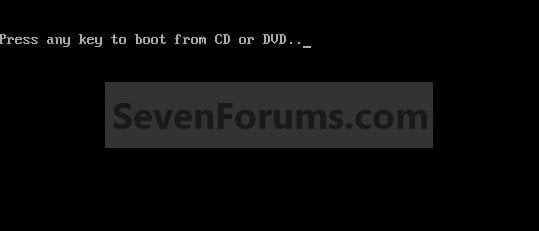
2. If using a DVD, then when prompted, press any key to boot from the installation DVD. (See screenshot below)
NOTE: You will only have about 8 seconds to press this key. If you miss it, you will have to restart the computer.Step1.jpg
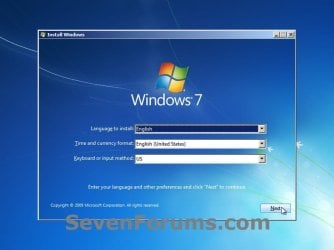
3. Set up your language preferences, and click on the Next button. (See screeshot below).step3.jpg
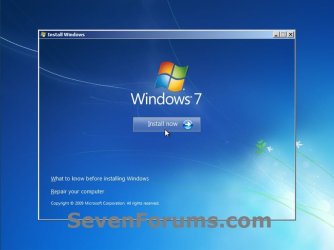
4. Click on the Install Now button to start the installation. (See screenshot below)step4.jpg
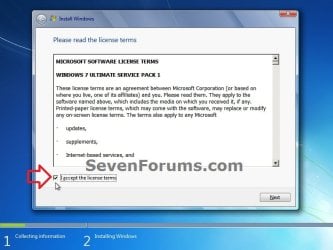
5. Check the I accept the license terms box, and click on Next. (See screenshot below)step5.jpg
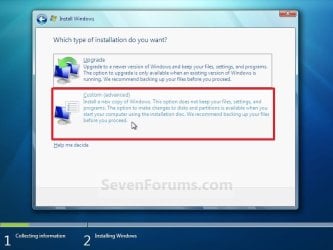
6. Click on the Custom (advanced) option. (See screenshot below)Step6.jpg
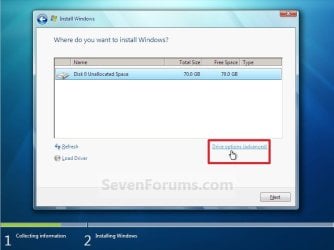
7. Select the hard drive or partition that you want to install Windows 7 on, and click on the Drive Options (advanced) link. (See screenshot below)
NOTE: If the hard drive or partition that you have selected is unallocated, then you can just click on the Next button instead and go to step 9 since it is already empty.
WARNING: You may not have the Drive options (advanced) option unless the installation is done at boot, and not running the installation from within your current OS.Step7.jpg
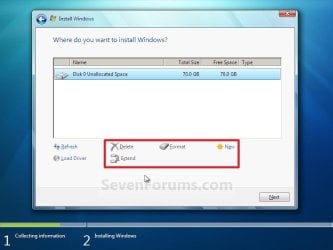
8. Select a hard drive or partition that you want to do a clean install of Windows 7 on, do what Drive options (advanced) you want if any, and click on the Next button when finished. (See screenshot below)
NOTE: If you have your hard drives in a RAID setup, then connect your USB key with the RAID drivers on it, click on Load Driver, select the folder on the USB key that contains the RAID drivers to install them. Afterwards, your RAID drives will be available to select from to install Windows 7 on.

   Tip
Drive options (advanced)
  • If you have more than one partition for a disk # (hard drive) and want to get rid of them to make that disk # one partition drive again, then select a partition with that disk # and click on the Delete option for each partition with the same disk # until there is only one "unallocated space" with that disk # left as in the screenshot below.
  • To shrink an existing partition to create another partition to install Windows 7 on instead, select the partition you want shrink and click on the Extend option. Type in how much in MB (1 GB = 1024 MB) that you want to shrink it by. Now select the new extended partition.
   Note
The 100 MB System Reserved partition is used for the Boot Manager code, BCD (Boot Configuration Database), System Recovery Options (Windows RE), and start up files for BitLocker (if turned on).
  • If you want to have the 100 MB System Reserved partition in addition to the Windows 7 C: partition on a HDD or SSD after installation, then you would need to make sure that all partitions on the drive have been deleted until it is only unallocated space. Next, select the unallocated drive to install Windows 7 on. If there are no partitions on the disk, you will get the 100 MB System Reserved.
  • If you do not want to have the 100 MB System Reserved partition and only the Windows 7 C: partition on a HDD or SSD after installation, then select a formatted partition or drive to install Windows 7 on. If there are any partitions on the disk, you won't get the 100 MB System Reserved.
Step8.jpg
9. The installation of Windows 7 will now begin. (See screenshot below)
NOTE: During the installation process, your screen may flash and computer will restart a few times.Step9.jpg
10. After the final restart, you will see this screen for a moment. (See screenshot below)step10.jpg
11. Type in any user name that you want for your default administrator account and any computer name, then click on the Next button. (See screenshot below)Step11.jpg
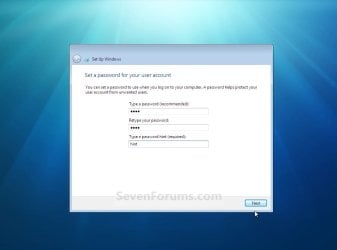
12. Type in a password you want for your default administrator account. Type it in again to confirm it, then type in a hint for your password. Click on the Next button. (See screenshots below)
WARNING: The password will be case sensitive. The hint will be seen by all users on the computer, so do not type your password as the hint.
NOTE: If you do not want your your user account password protected at this time or do not want to have to type in a hint, then leave this blank and click on the Next button. You can create a password later for your user account in the Control Panel User Accounts after installing Windows 7 without having to type in a hint.Step12A.jpg

Step12B.jpg
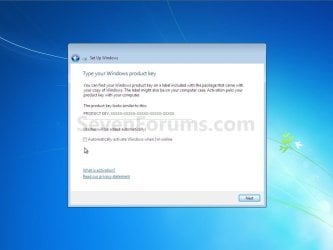
13. Type in your Windows 7 product key number. (See screenshot below step 14)

14. Uncheck the Automatically activate Windows when I'm online box, then click on the Next button. (See screenshot below)
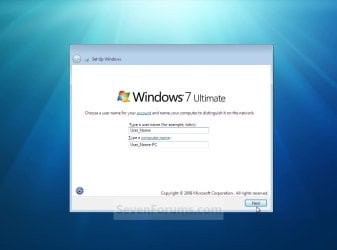
NOTE: You can activate Windows 7 later after you make sure it is running properly. (See step 21 below)
If you chose to automatically activate Windows 7 online when you set up your computer, automatic activation begins trying to activate your copy of Windows three days after you log on for the first time.Step13.jpg
15. Click on Use recommended settings to allow automatic Windows Updates and proper security settings. (See screenshot below)
NOTE: For more information about these recommended settings, click on the Learn more about each option link in this window.Step14.jpg
16. Select your time zone and set your time and date settings, then click on the Next button. (See screenshot below)Step15.jpg
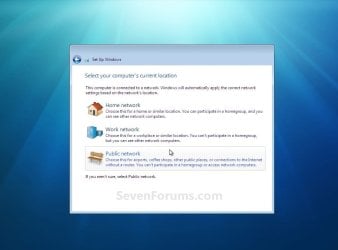
17. Click on your computer's correct network location type location to select it and have the settings for that location automatically applied. (See screenshot below)Step16.jpg
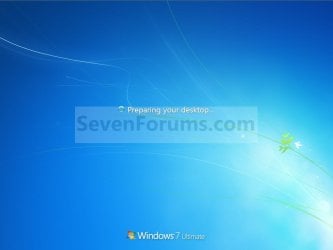
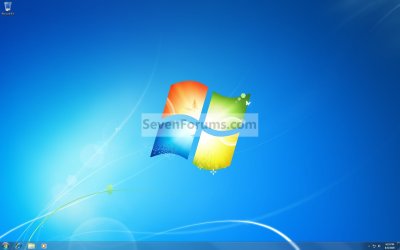
18. Windows 7 will now prepare your desktop to startup. (See screenshots below)Step17.jpg

Desktop.jpg
19. When it's finished and you are at your desktop, you can now remove or disconnect your installation DVD/USB from step 1 above.

20. Install all of your device drivers, then Windows Updates.

21. Refresh your Windows Experience Index (WEI) score.

22. When finished, all you will need to do is to activate Windows 7. (See screenshot below)
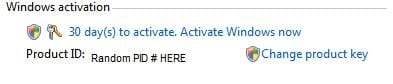
Activate.jpg
   Tip
If you are dual booting with another OS (ex: Vista), then that OS partition may not show up in Computer with a driver letter in Windows 7. You will need to add a drive letter to the OS (ex: Vista) partition in Windows 7 Disk Management for it to show up in Computer with a driver letter.


That's it,
Shawn


Related Tutorials

 
Last edited:
When you say "custom install", do you mean a clean install where you are left with a windows.old folder??
 

My Computer

Computer type
PC/Desktop
Computer Manufacturer/Model Number
LENOVO K450 @3.0GHZ
OS
64-bit Windows 8.1 Pro
CPU
Core(TM) i5 CPU 4330 Haswell @ 3.20GHz
Motherboard
LENOVO
Memory
12.00 GB
Graphics Card(s)
Intel(R) HD Graphics
Sound Card
Intel HD integtrated
Monitor(s) Displays
HP 25' ISP Monitor
Screen Resolution
1900/1020
Hard Drives
(1) ST1000DM003-1CH162 (2) Generic STORAGE DEVICE USB Device (3) Generic STORAGE DEVICE USB Device
Internet Speed
100mb down/10mb up
Brink...any ideas?

I went ahead and got the Family Pack...2 computers down...but I've run into an issue. The first one I installed windows as a "custom install"...but the vista boot screen...the little green bar that goes from left to right with microsoft corporation logo at the bottom...is still there. My 2nd computer I did has the actual Win 7 flying balls into the glowing Windows logo...what did I do wrong? Is it possible that it did not install properly? It seems to be Win 7 when I log all the way in...but that 1 screen is bothering the hell out of me. I know it's trivial...but I can be a bit of a perfectionist..sorry.

What are the system specs for the first one that has the Vista boot screen instead? Is it the same "Custom install" as described in the tutorial below?

http://www.sevenforums.com/tutorials/20146-custom-install-windows-7-a.html
 

My Computer

Computer type
PC/Desktop
Computer Manufacturer/Model Number
Self built custom
OS
64-bit Windows 11 Pro for Workstations
CPU
Intel i7-8700K OC'd to 5 GHz
Motherboard
ASUS ROG Maximus XI Formula Z390
Memory
64 GB (4x16GB) G.SKILL TridentZ RGB DDR4 3600 MHz
Graphics Card(s)
ASUS ROG-STRIX-GTX1080TI-O11G-GAMING
Sound Card
Integrated
Monitor(s) Displays
2 x Samsung Odyssey G7 27"
Screen Resolution
2560x1440
Hard Drives
1TB Samsung 990 PRO M.2,
4TB Samsung 990 PRO PRO M.2,
TerraMaster F8 SSD Plus NAS
PSU
Seasonic Prime Titanium 850W
Case
Thermaltake Core P3
Cooling
Corsair Hydro H115i
Keyboard
Logitech wireless K800
Mouse
Logitech MX Master 4
Internet Speed
2 Gb/s Download and 100 Mb/s Upload
Antivirus
Malwarebyte Anti-Malware Premium
Browser
Google Chrome
Other Info
Logitech Z625 speaker system,
Logitech BRIO 4K Pro webcam,
HP Color LaserJet Pro MFP M477fdn,
APC SMART-UPS RT 1000 XL - SURT1000XLI,
Galaxy S23 Plus phone
Brink & Tews...

The specs are different on the 2 computers

HTPC (has the Vista Boot Screen)
Antec Fusion Remote Max Case
Core 2 Duo E6600
Gigabyte P45 GA-EP45-UD3P
Sapphire HD4850 Vapor-X
4Gig's Corsair Dominator Memory
1 WD Black 1TB
1 Hitachi 1TB
1 WD Blue 500gig
Lite-On iHES208-08 Blu-Ray
Corsair 520HX PSU
Thermalright Ultra 120 Extreme
No Sound Card (using onboard digital coax)


Main Computer (Win 7 Boot Screen)
Antec 900 Case
Core 2 Quad Q6600 (O.C.'d to 3.2/core)
Asus Striker Extreme
BFG 8800GTX
4 Gig's Corsair DHX Memory
1 WD Blue 750gig
2 Lite-On LH-20A1L DVD's
PC Power & Cooling Silencer 750 PSU
Thermalright Ultra 120 Extreme
Creative Labs X-Fi Platinum

I did a "custom install" on each...but I forgot to mention on how...

The HTPC (computer I have the issue with) I did select the custom install as stated on the original post by Brink...I did not delete the partition, I allowed the install disc to wipe out the info...it left the windows.old on the HDD...which I did delete after. I'm assuming this is the reason I have this problem because...

The Main computer (the one I don't have an issue with) I did select the custom install, but this time I deleted the partition and started completely fresh with the install. I am honestly not sure why I didn't delete it on the HTPC...brain fart or something...but it doesn't make sense why that screen would be left behind.

I've upgraded 2 other computers...both HP machines...one for a co-worker and the other is my fathers. They have the proper boot screen for Win 7...but both of those I did the "upgrade" because HP is specific about the process.
 

My Computer

OS
Windows 7 Home Premium x64
CPU
Q6600
Motherboard
Gigabyte GA-EP45-UD3P
Memory
Corsair TWIN2X4086-8500C5D
Graphics Card(s)
Nvidia 8800GTX
Sound Card
Onboard M/B
Hard Drives
WD 750GB Blue
PSU
PC Power & Cooling Silencer 750
Case
Antec 900
Cooling
Thermalright Ultra 120 Extreme
Keyboard
Logitech Wave Pro
Mouse
Logitech MX1100
Dragon,

I'm going to agree that it seems that it may just be because you did a custom instead of clean (format) install. I see nothing in that computer's specs that would indicate that it would not support showing the W7 boot screen.
 

My Computer

Computer type
PC/Desktop
Computer Manufacturer/Model Number
Self built custom
OS
64-bit Windows 11 Pro for Workstations
CPU
Intel i7-8700K OC'd to 5 GHz
Motherboard
ASUS ROG Maximus XI Formula Z390
Memory
64 GB (4x16GB) G.SKILL TridentZ RGB DDR4 3600 MHz
Graphics Card(s)
ASUS ROG-STRIX-GTX1080TI-O11G-GAMING
Sound Card
Integrated
Monitor(s) Displays
2 x Samsung Odyssey G7 27"
Screen Resolution
2560x1440
Hard Drives
1TB Samsung 990 PRO M.2,
4TB Samsung 990 PRO PRO M.2,
TerraMaster F8 SSD Plus NAS
PSU
Seasonic Prime Titanium 850W
Case
Thermaltake Core P3
Cooling
Corsair Hydro H115i
Keyboard
Logitech wireless K800
Mouse
Logitech MX Master 4
Internet Speed
2 Gb/s Download and 100 Mb/s Upload
Antivirus
Malwarebyte Anti-Malware Premium
Browser
Google Chrome
Other Info
Logitech Z625 speaker system,
Logitech BRIO 4K Pro webcam,
HP Color LaserJet Pro MFP M477fdn,
APC SMART-UPS RT 1000 XL - SURT1000XLI,
Galaxy S23 Plus phone
Brink...

Thanks...that's what I'm thinking too...

Last question, I won't say stupid question as those are only the ones unasked, but...since I have the family pack, if I was to reinstall Win 7 on the HTPC, would it then use up my 3rd allowed install...or is it by computer specs? I'd hate to waste my 3rd on a reinstall
 

My Computer

OS
Windows 7 Home Premium x64
CPU
Q6600
Motherboard
Gigabyte GA-EP45-UD3P
Memory
Corsair TWIN2X4086-8500C5D
Graphics Card(s)
Nvidia 8800GTX
Sound Card
Onboard M/B
Hard Drives
WD 750GB Blue
PSU
PC Power & Cooling Silencer 750
Case
Antec 900
Cooling
Thermalright Ultra 120 Extreme
Keyboard
Logitech Wave Pro
Mouse
Logitech MX1100
A family pack Windows 7 comes with one key that can be installed and activated on up to 3 separate computers running at the same time. You can reinstall as many times as you like on the same computer. If you cannot activate online for some reason, then you can do a phone activation instead and just let them know what you were doing to get it activated.
 

My Computer

Computer type
PC/Desktop
Computer Manufacturer/Model Number
Self built custom
OS
64-bit Windows 11 Pro for Workstations
CPU
Intel i7-8700K OC'd to 5 GHz
Motherboard
ASUS ROG Maximus XI Formula Z390
Memory
64 GB (4x16GB) G.SKILL TridentZ RGB DDR4 3600 MHz
Graphics Card(s)
ASUS ROG-STRIX-GTX1080TI-O11G-GAMING
Sound Card
Integrated
Monitor(s) Displays
2 x Samsung Odyssey G7 27"
Screen Resolution
2560x1440
Hard Drives
1TB Samsung 990 PRO M.2,
4TB Samsung 990 PRO PRO M.2,
TerraMaster F8 SSD Plus NAS
PSU
Seasonic Prime Titanium 850W
Case
Thermaltake Core P3
Cooling
Corsair Hydro H115i
Keyboard
Logitech wireless K800
Mouse
Logitech MX Master 4
Internet Speed
2 Gb/s Download and 100 Mb/s Upload
Antivirus
Malwarebyte Anti-Malware Premium
Browser
Google Chrome
Other Info
Logitech Z625 speaker system,
Logitech BRIO 4K Pro webcam,
HP Color LaserJet Pro MFP M477fdn,
APC SMART-UPS RT 1000 XL - SURT1000XLI,
Galaxy S23 Plus phone
Awesome! That's what I thought. Thanks very much for all the help Brink!!! I'm off to reinstall on the HTPC
 

My Computer

OS
Windows 7 Home Premium x64
CPU
Q6600
Motherboard
Gigabyte GA-EP45-UD3P
Memory
Corsair TWIN2X4086-8500C5D
Graphics Card(s)
Nvidia 8800GTX
Sound Card
Onboard M/B
Hard Drives
WD 750GB Blue
PSU
PC Power & Cooling Silencer 750
Case
Antec 900
Cooling
Thermalright Ultra 120 Extreme
Keyboard
Logitech Wave Pro
Mouse
Logitech MX1100
Well...I just installed by deleting the partition first...and I still got the Vista boot screen...not the proper Win 7 boot screen. I'm trying again just to be safe...this should not be happening.
 

My Computer

OS
Windows 7 Home Premium x64
CPU
Q6600
Motherboard
Gigabyte GA-EP45-UD3P
Memory
Corsair TWIN2X4086-8500C5D
Graphics Card(s)
Nvidia 8800GTX
Sound Card
Onboard M/B
Hard Drives
WD 750GB Blue
PSU
PC Power & Cooling Silencer 750
Case
Antec 900
Cooling
Thermalright Ultra 120 Extreme
Keyboard
Logitech Wave Pro
Mouse
Logitech MX1100
Ok...same thing...since I'm doing a clean install...I'm going to update the BIOS just for the heck of it even though I haven't had any issues before
 

My Computer

OS
Windows 7 Home Premium x64
CPU
Q6600
Motherboard
Gigabyte GA-EP45-UD3P
Memory
Corsair TWIN2X4086-8500C5D
Graphics Card(s)
Nvidia 8800GTX
Sound Card
Onboard M/B
Hard Drives
WD 750GB Blue
PSU
PC Power & Cooling Silencer 750
Case
Antec 900
Cooling
Thermalright Ultra 120 Extreme
Keyboard
Logitech Wave Pro
Mouse
Logitech MX1100
That didn't work either...even tried the custom install...fresh partition...then when it was done, I re-installed using the upgrade meathod...still have the Vista Boot Screen...am I losing my mind?

Brink...what do you think the possibility is that due to me having 2 other hard drives...even though they are storage only and have no "windows system files" on them...they are the cause of it? It's the only thing I can think of that was different on my install between the 2 computers I have other then hard ware at the time of install
 

My Computer

OS
Windows 7 Home Premium x64
CPU
Q6600
Motherboard
Gigabyte GA-EP45-UD3P
Memory
Corsair TWIN2X4086-8500C5D
Graphics Card(s)
Nvidia 8800GTX
Sound Card
Onboard M/B
Hard Drives
WD 750GB Blue
PSU
PC Power & Cooling Silencer 750
Case
Antec 900
Cooling
Thermalright Ultra 120 Extreme
Keyboard
Logitech Wave Pro
Mouse
Logitech MX1100
Dragon,

I must admit that I'm stumped as to why you are getting the Vista boot screen instead of the Windows 7 one. I just do not see a reason why. :confused:
 

My Computer

Computer type
PC/Desktop
Computer Manufacturer/Model Number
Self built custom
OS
64-bit Windows 11 Pro for Workstations
CPU
Intel i7-8700K OC'd to 5 GHz
Motherboard
ASUS ROG Maximus XI Formula Z390
Memory
64 GB (4x16GB) G.SKILL TridentZ RGB DDR4 3600 MHz
Graphics Card(s)
ASUS ROG-STRIX-GTX1080TI-O11G-GAMING
Sound Card
Integrated
Monitor(s) Displays
2 x Samsung Odyssey G7 27"
Screen Resolution
2560x1440
Hard Drives
1TB Samsung 990 PRO M.2,
4TB Samsung 990 PRO PRO M.2,
TerraMaster F8 SSD Plus NAS
PSU
Seasonic Prime Titanium 850W
Case
Thermaltake Core P3
Cooling
Corsair Hydro H115i
Keyboard
Logitech wireless K800
Mouse
Logitech MX Master 4
Internet Speed
2 Gb/s Download and 100 Mb/s Upload
Antivirus
Malwarebyte Anti-Malware Premium
Browser
Google Chrome
Other Info
Logitech Z625 speaker system,
Logitech BRIO 4K Pro webcam,
HP Color LaserJet Pro MFP M477fdn,
APC SMART-UPS RT 1000 XL - SURT1000XLI,
Galaxy S23 Plus phone
I think I may have found the answer...problem is I'm at work. I won't post it here till I know for sure as to not put wrong info out there...but if it works...I will definitely post it!

Thanks again for all your help Brink!
 

My Computer

OS
Windows 7 Home Premium x64
CPU
Q6600
Motherboard
Gigabyte GA-EP45-UD3P
Memory
Corsair TWIN2X4086-8500C5D
Graphics Card(s)
Nvidia 8800GTX
Sound Card
Onboard M/B
Hard Drives
WD 750GB Blue
PSU
PC Power & Cooling Silencer 750
Case
Antec 900
Cooling
Thermalright Ultra 120 Extreme
Keyboard
Logitech Wave Pro
Mouse
Logitech MX1100
Brink, without a doubt the most important and most read tutorial made.
I'm unsure and will ask you if I can make partitions(3 or 4) just before the clean install (in Drive Options), in a situation where the entire disk is unallocated. Should I use the Extend option to shrink and make partitions or is it better just to install and after in Disk Manager make new ones?
Thanks a lot
 

My Computer

Computer Manufacturer/Model Number
Build in store
OS
Windows 7 Professional 32bit
CPU
AMD Athlon 64x2 6000+
Motherboard
BIOSTAR Group/N61PC-M25
Memory
Kingston 2GB DDR2 800MHz
Graphics Card(s)
NVIDIA Geforce 9600 GSO 384MB
Sound Card
5.1
Monitor(s) Displays
Samsung SyncMaster T220HD
Screen Resolution
1680x1050
Hard Drives
Hitachi 320GB,SATA,7200 RPM
PSU
400W
Case
MIDI Tower CX-8159
Cooling
build in
Keyboard
Logitech standard
Mouse
NEON
Internet Speed
4MB/256kbps

My Computer

Computer type
PC/Desktop
Computer Manufacturer/Model Number
Self built custom
OS
64-bit Windows 11 Pro for Workstations
CPU
Intel i7-8700K OC'd to 5 GHz
Motherboard
ASUS ROG Maximus XI Formula Z390
Memory
64 GB (4x16GB) G.SKILL TridentZ RGB DDR4 3600 MHz
Graphics Card(s)
ASUS ROG-STRIX-GTX1080TI-O11G-GAMING
Sound Card
Integrated
Monitor(s) Displays
2 x Samsung Odyssey G7 27"
Screen Resolution
2560x1440
Hard Drives
1TB Samsung 990 PRO M.2,
4TB Samsung 990 PRO PRO M.2,
TerraMaster F8 SSD Plus NAS
PSU
Seasonic Prime Titanium 850W
Case
Thermaltake Core P3
Cooling
Corsair Hydro H115i
Keyboard
Logitech wireless K800
Mouse
Logitech MX Master 4
Internet Speed
2 Gb/s Download and 100 Mb/s Upload
Antivirus
Malwarebyte Anti-Malware Premium
Browser
Google Chrome
Other Info
Logitech Z625 speaker system,
Logitech BRIO 4K Pro webcam,
HP Color LaserJet Pro MFP M477fdn,
APC SMART-UPS RT 1000 XL - SURT1000XLI,
Galaxy S23 Plus phone
Thanks you for a quick reply, I'll follow your advice.
 

My Computer

Computer Manufacturer/Model Number
Build in store
OS
Windows 7 Professional 32bit
CPU
AMD Athlon 64x2 6000+
Motherboard
BIOSTAR Group/N61PC-M25
Memory
Kingston 2GB DDR2 800MHz
Graphics Card(s)
NVIDIA Geforce 9600 GSO 384MB
Sound Card
5.1
Monitor(s) Displays
Samsung SyncMaster T220HD
Screen Resolution
1680x1050
Hard Drives
Hitachi 320GB,SATA,7200 RPM
PSU
400W
Case
MIDI Tower CX-8159
Cooling
build in
Keyboard
Logitech standard
Mouse
NEON
Internet Speed
4MB/256kbps
You're welcome. :)
 

My Computer

Computer type
PC/Desktop
Computer Manufacturer/Model Number
Self built custom
OS
64-bit Windows 11 Pro for Workstations
CPU
Intel i7-8700K OC'd to 5 GHz
Motherboard
ASUS ROG Maximus XI Formula Z390
Memory
64 GB (4x16GB) G.SKILL TridentZ RGB DDR4 3600 MHz
Graphics Card(s)
ASUS ROG-STRIX-GTX1080TI-O11G-GAMING
Sound Card
Integrated
Monitor(s) Displays
2 x Samsung Odyssey G7 27"
Screen Resolution
2560x1440
Hard Drives
1TB Samsung 990 PRO M.2,
4TB Samsung 990 PRO PRO M.2,
TerraMaster F8 SSD Plus NAS
PSU
Seasonic Prime Titanium 850W
Case
Thermaltake Core P3
Cooling
Corsair Hydro H115i
Keyboard
Logitech wireless K800
Mouse
Logitech MX Master 4
Internet Speed
2 Gb/s Download and 100 Mb/s Upload
Antivirus
Malwarebyte Anti-Malware Premium
Browser
Google Chrome
Other Info
Logitech Z625 speaker system,
Logitech BRIO 4K Pro webcam,
HP Color LaserJet Pro MFP M477fdn,
APC SMART-UPS RT 1000 XL - SURT1000XLI,
Galaxy S23 Plus phone
Sorry it's taken so long to get back...had a lot going on...

Found the problem...it's the HDMI connection. When Windows 7 uses a HDMI connection, something is forcing the Vista Startup Style Screen (I'm assuming HDCP or something along those lines). I confirmed this by using a VGA cable directly from my HTPC...to the TV (it has VGA input)...and TADA...Windows 7 Start Up Flying Ball's to Win Logo screen!!!

All that reinstalling for nothing! GUURRR!!!! At least I know it was a true clean install! hahaha
 

My Computer

OS
Windows 7 Home Premium x64
CPU
Q6600
Motherboard
Gigabyte GA-EP45-UD3P
Memory
Corsair TWIN2X4086-8500C5D
Graphics Card(s)
Nvidia 8800GTX
Sound Card
Onboard M/B
Hard Drives
WD 750GB Blue
PSU
PC Power & Cooling Silencer 750
Case
Antec 900
Cooling
Thermalright Ultra 120 Extreme
Keyboard
Logitech Wave Pro
Mouse
Logitech MX1100
Dragon,

I'm happy to hear that you found out what the culprit was and got it sorted. Thank you for posting back with your results. :)
 

My Computer

Computer type
PC/Desktop
Computer Manufacturer/Model Number
Self built custom
OS
64-bit Windows 11 Pro for Workstations
CPU
Intel i7-8700K OC'd to 5 GHz
Motherboard
ASUS ROG Maximus XI Formula Z390
Memory
64 GB (4x16GB) G.SKILL TridentZ RGB DDR4 3600 MHz
Graphics Card(s)
ASUS ROG-STRIX-GTX1080TI-O11G-GAMING
Sound Card
Integrated
Monitor(s) Displays
2 x Samsung Odyssey G7 27"
Screen Resolution
2560x1440
Hard Drives
1TB Samsung 990 PRO M.2,
4TB Samsung 990 PRO PRO M.2,
TerraMaster F8 SSD Plus NAS
PSU
Seasonic Prime Titanium 850W
Case
Thermaltake Core P3
Cooling
Corsair Hydro H115i
Keyboard
Logitech wireless K800
Mouse
Logitech MX Master 4
Internet Speed
2 Gb/s Download and 100 Mb/s Upload
Antivirus
Malwarebyte Anti-Malware Premium
Browser
Google Chrome
Other Info
Logitech Z625 speaker system,
Logitech BRIO 4K Pro webcam,
HP Color LaserJet Pro MFP M477fdn,
APC SMART-UPS RT 1000 XL - SURT1000XLI,
Galaxy S23 Plus phone
Anytime Brink...sorry it took so long. Really odd though...and a couple hours of wasted time re-installing Win 7 (I think I got up to 4 or 5 tries)...but at least I know what it was
 

My Computer

OS
Windows 7 Home Premium x64
CPU
Q6600
Motherboard
Gigabyte GA-EP45-UD3P
Memory
Corsair TWIN2X4086-8500C5D
Graphics Card(s)
Nvidia 8800GTX
Sound Card
Onboard M/B
Hard Drives
WD 750GB Blue
PSU
PC Power & Cooling Silencer 750
Case
Antec 900
Cooling
Thermalright Ultra 120 Extreme
Keyboard
Logitech Wave Pro
Mouse
Logitech MX1100
question concerning clean install

Ok so I have a brand new spanking HDD that geek squad put in. No partition, no previous OS at all. NO system image at all. Now on your steps I get to step #3 but step #4 never happens. Instead I get System Recovery Options. But I can't use any of them. What do I do?
 

My Computer

OS
none still trying to install one
Back
Top