Clean Install Windows 7

How to Do a Clean Installation with Windows 7

   Information
This will show you how to do a clean installation with a retail Windows 7. A OEM Windows 7 may have a few different screens than below, but basically the same.

Yes, you can do a clean install from a upgrade Windows 7 version. :)
NOTE: See this tutorial for how: Clean Install with a Upgrade Windows 7 Version

   Note
Do a Clean Installation if:
  • Your computer has no operating system installed, or it’s running a version of Windows prior to Windows Vista with Service Pack 1 (including Windows XP).
  • You do NOT want to preserve your data, programs, or system drivers.
  • You want to delete your current operating system and replace it with Windows 7.
  • You want to create a multiboot system by installing Windows 7 on a separate hard disk partition.
   Tip

  • Sometimes you may have a problem with installing Windows 7 with more than 2 GB of RAM installed on some older motherboards. If you have this problem, then you should install Windows 7 with a maximum of 2GB of RAM installed and add the rest of the RAM after Windows 7 is fully installed. You may need to flash your motherboard BIOS with the latest version to support more RAM like this. (WARNING - DO NOT FLASH THE BIOS if you do not know what you are doing. Please ask for help instead. One mistake can kill your motherboard permanently.)
  • Before doing this clean install, you should download and save all of your device drivers to a USB flash drive, DVD, another HDD, or some other media to have them handy to make setting Windows 7 up easier when finished installing Windows 7. For example, having the network driver available in case you cannot connect to the internet until it's installed.
   Warning
Windows 7 Minimum Hardware Requirements:

NOTE: For more information on this, see: Windows 7 system requirements
  • 1 GHz 32-bit or 64-bit processor
  • 1 GB RAM for 32-bit Windows 7 OR 2 GB RAM for 64-bit Windows 7
  • 16 GB available hard disk space for 32-bit Windows 7 OR 20 GB for 64-bit Windows 7
  • Graphics card or chip that supports DirectX 9 with 128 MB memory (to have Aero theme enabled)
  • DVD-R/W drive, or bootable USB 2.0 port with Windows 7 USB flash drive
  • Internet or phone access to activate Windows 7.


Here's How:1. Boot the computer from your Windows 7 installation DVD/USB.
NOTE: Make sure that the CD/DVD drive is selected first and your HDD second in the boot priority order in your BIOS settings. Usually it is by default.

   Warning
If you want to install Windows 7 using UEFI instead of BIOS, then see this below first.

How to Install Windows 7 Using "Unified Extensible Firmware Interface" (UEFI)

   Note
If you do not have a Windows 7 with SP1 installation DVD/USB, then you can download the latest official Windows 7 with SP1 ISO file at the links below.

:ar: Microsoft Software Recovery

:ar: Microsoft: Windows 7 Direct Download Links

You can use Windows 7 USB-DVD Download Tool to create a bootable DVD or USB flash drive with the ISO to do the clean install with.


2. If using a DVD, then when prompted, press any key to boot from the installation DVD. (See screenshot below)
NOTE: You will only have about 8 seconds to press this key. If you miss it, you will have to restart the computer.Step1.jpg
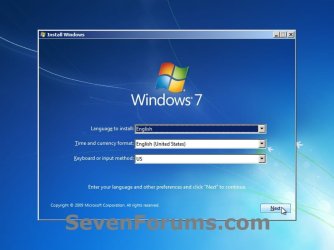
3. Set up your language preferences, and click on the Next button. (See screeshot below).step3.jpg
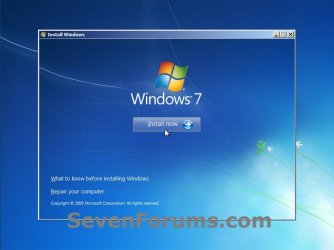
4. Click on the Install Now button to start the installation. (See screenshot below)step4.jpg
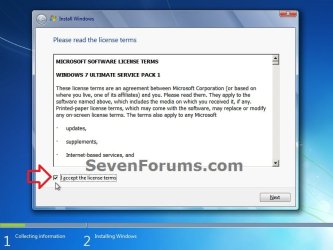
5. Check the I accept the license terms box, and click on Next. (See screenshot below)step5.jpg
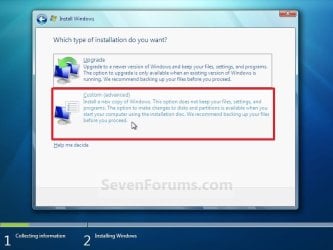
6. Click on the Custom (advanced) option. (See screenshot below)Step6.jpg
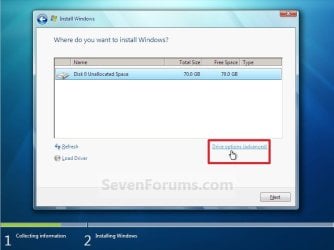
7. Select the hard drive or partition that you want to install Windows 7 on, and click on the Drive Options (advanced) link. (See screenshot below)
NOTE: If the hard drive or partition that you have selected is unallocated, then you can just click on the Next button instead and go to step 9 since it is already empty.
WARNING: You may not have the Drive options (advanced) option unless the installation is done at boot, and not running the installation from within your current OS.Step7.jpg
8. Select a hard drive or partition that you want to do a clean install of Windows 7 on, do what Drive options (advanced) you want if any, and click on the Next button when finished. (See screenshot below)
NOTE: If you have your hard drives in a RAID setup, then connect your USB key with the RAID drivers on it, click on Load Driver, select the folder on the USB key that contains the RAID drivers to install them. Afterwards, your RAID drives will be available to select from to install Windows 7 on.

   Tip
Drive options (advanced)
  • If you have more than one partition for a disk # (hard drive) and want to get rid of them to make that disk # one partition drive again, then select a partition with that disk # and click on the Delete option for each partition with the same disk # until there is only one "unallocated space" with that disk # left as in the screenshot below.
  • To shrink an existing partition to create another partition to install Windows 7 on instead, select the partition you want shrink and click on the Extend option. Type in how much in MB (1 GB = 1024 MB) that you want to shrink it by. Now select the new extended partition.
   Note
The 100 MB System Reserved partition is used for the Boot Manager code, BCD (Boot Configuration Database), System Recovery Options (Windows RE), and start up files for BitLocker (if turned on).
  • If you want to have the 100 MB System Reserved partition in addition to the Windows 7 C: partition on a HDD or SSD after installation, then you would need to make sure that all partitions on the drive have been deleted until it is only unallocated space. Next, select the unallocated drive to install Windows 7 on. If there are no partitions on the disk, you will get the 100 MB System Reserved.
  • If you do not want to have the 100 MB System Reserved partition and only the Windows 7 C: partition on a HDD or SSD after installation, then select a formatted partition or drive to install Windows 7 on. If there are any partitions on the disk, you won't get the 100 MB System Reserved.
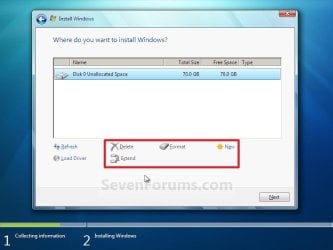
Step8.jpg
9. The installation of Windows 7 will now begin. (See screenshot below)
NOTE: During the installation process, your screen may flash and computer will restart a few times.Step9.jpg
10. After the final restart, you will see this screen for a moment. (See screenshot below)step10.jpg
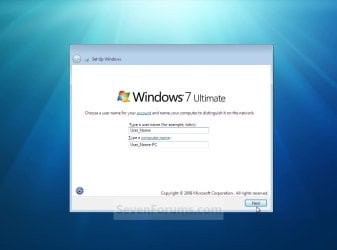
11. Type in any user name that you want for your default administrator account and any computer name, then click on the Next button. (See screenshot below)Step11.jpg
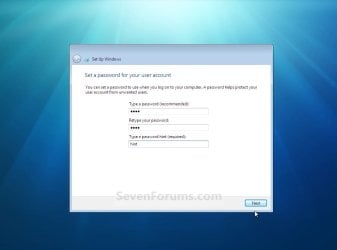
12. Type in a password you want for your default administrator account. Type it in again to confirm it, then type in a hint for your password. Click on the Next button. (See screenshots below)
WARNING: The password will be case sensitive. The hint will be seen by all users on the computer, so do not type your password as the hint.
NOTE: If you do not want your your user account password protected at this time or do not want to have to type in a hint, then leave this blank and click on the Next button. You can create a password later for your user account in the Control Panel User Accounts after installing Windows 7 without having to type in a hint.Step12A.jpg

Step12B.jpg
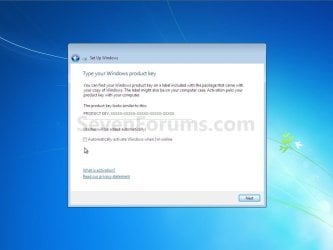
13. Type in your Windows 7 product key number. (See screenshot below step 14)

14. Uncheck the Automatically activate Windows when I'm online box, then click on the Next button. (See screenshot below)
NOTE: You can activate Windows 7 later after you make sure it is running properly. (See step 21 below)
If you chose to automatically activate Windows 7 online when you set up your computer, automatic activation begins trying to activate your copy of Windows three days after you log on for the first time.Step13.jpg
15. Click on Use recommended settings to allow automatic Windows Updates and proper security settings. (See screenshot below)
NOTE: For more information about these recommended settings, click on the Learn more about each option link in this window.Step14.jpg
16. Select your time zone and set your time and date settings, then click on the Next button. (See screenshot below)Step15.jpg
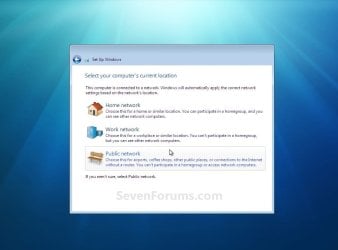
17. Click on your computer's correct network location type location to select it and have the settings for that location automatically applied. (See screenshot below)Step16.jpg
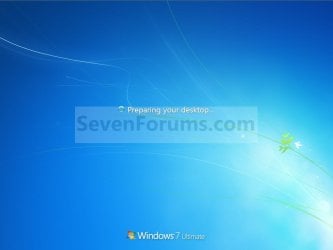
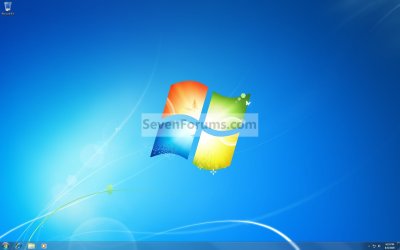
18. Windows 7 will now prepare your desktop to startup. (See screenshots below)Step17.jpg

Desktop.jpg
19. When it's finished and you are at your desktop, you can now remove or disconnect your installation DVD/USB from step 1 above.

20. Install all of your device drivers, then Windows Updates.

21. Refresh your Windows Experience Index (WEI) score.

22. When finished, all you will need to do is to activate Windows 7. (See screenshot below)
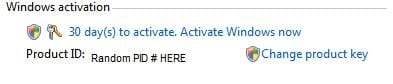
Activate.jpg
   Tip
If you are dual booting with another OS (ex: Vista), then that OS partition may not show up in Computer with a driver letter in Windows 7. You will need to add a drive letter to the OS (ex: Vista) partition in Windows 7 Disk Management for it to show up in Computer with a driver letter.


That's it,
Shawn


Related Tutorials

 
Last edited:
Thanks alot you guys!

Britton30, your method did work. I can choose Home Premium now on the Professional edition!

But can i be sure that ill really the Home Premium version ?? since its meant to be Professional edition will it really install the version i need and use my old Product-id key??

oh and btw my Windows 7 is an OEM version.. does that make a difference? (it sais OEM in the product-id key)
 

My Computer

Computer type
PC/Desktop
Computer Manufacturer/Model Number
Acer
OS
Windows 7 Home Premium 64bit
CPU
Intel Quad Core Q8300
Motherboard
dig43l agreyhound
Memory
4Gb ddr3 ram
Graphics Card(s)
AMD Radeon HD
Keyboard
Razer Deathstalker Expert Gamingboard
Mouse
Logitech G500
It should give a choice of versions at some point when the install is started. Use you OEM key, it will be fine. It's the key that determines what version if installed, i.e. OEM, retail, upgrade, etc.

The tutorial you run against the iso file opens the other versions up.
 

My Computer

Computer type
PC/Desktop
Computer Manufacturer/Model Number
Home Built Desktop By DataTech
OS
Windows 7 Ultimate X64 SP1
CPU
Intel i5-2550K, Differing ~4.4-4.8GHz No built in GPU
Motherboard
ASUS P8Z68-V PRO/GEN3
Memory
16GB G.Skill Sniper 1866MHz @ 2133MHz 2x8GB
Graphics Card(s)
ASUS GTX650TIB-DC2OC-2GD5, (650TI Boost)
Sound Card
Onboard Realtek 5-1
Monitor(s) Displays
Samsung P2570HD
Screen Resolution
1920x1080
Hard Drives
Samsung 840 Pro 256GB SSD for OS, 500GB Seagate Constellation (Enterprise drive) for Data
PSU
Corsair HX650W
Case
Inwin Dragon Rider
Cooling
Hyper 212 EVO w/two Noctua fans, push-pull, @1300 RPM
Keyboard
E-Z Eyes, bright yellow keys with large characters
Mouse
steelseries SENSEI Laser Pro Gaming
Internet Speed
48-51Mbs Mbs down, 11 Mbs up Xfinity Cable
Antivirus
Norton Internet Security 2013
Browser
IE 10, Opera, Pale Moon if needed
Other Info
4 case fans, LG BluRay-RE, ASUS DVD-RW, Mr. Fusion power supply, 1.21 gigawatts.
Guys i need your help one more time >_<''

I have problems with booting my PC from my dvd drive.

I've tried lots of things,
1st i burnt Windows 7 to a DVD-R and opened it on my desktop to make sure it worked, and it did.

so when it came to booting, i restarted my PC hit F12 selected my drive, and it just booted like normally.. i had my windows login screen to my desktop.
ive also adjusted the BIOS and set the DVD to 1st place in booting order, didnt work either.

i do hear my dvd-drive working 1 second and then stops. it repeats this several times till windows 7 starts up instead of installation screen :(

So what to do? :(
 

My Computer

Computer type
PC/Desktop
Computer Manufacturer/Model Number
Acer
OS
Windows 7 Home Premium 64bit
CPU
Intel Quad Core Q8300
Motherboard
dig43l agreyhound
Memory
4Gb ddr3 ram
Graphics Card(s)
AMD Radeon HD
Keyboard
Razer Deathstalker Expert Gamingboard
Mouse
Logitech G500
Oh and btw, for more information.

I've burnt the contents of the ISO file which i got from you guys after i created an universal installer from it.

That should do it right?
 

My Computer

Computer type
PC/Desktop
Computer Manufacturer/Model Number
Acer
OS
Windows 7 Home Premium 64bit
CPU
Intel Quad Core Q8300
Motherboard
dig43l agreyhound
Memory
4Gb ddr3 ram
Graphics Card(s)
AMD Radeon HD
Keyboard
Razer Deathstalker Expert Gamingboard
Mouse
Logitech G500
YEs it will do it, just be sure to install the version that you COA or key is for.
 

My Computer

Computer type
PC/Desktop
Computer Manufacturer/Model Number
Home Built Desktop By DataTech
OS
Windows 7 Ultimate X64 SP1
CPU
Intel i5-2550K, Differing ~4.4-4.8GHz No built in GPU
Motherboard
ASUS P8Z68-V PRO/GEN3
Memory
16GB G.Skill Sniper 1866MHz @ 2133MHz 2x8GB
Graphics Card(s)
ASUS GTX650TIB-DC2OC-2GD5, (650TI Boost)
Sound Card
Onboard Realtek 5-1
Monitor(s) Displays
Samsung P2570HD
Screen Resolution
1920x1080
Hard Drives
Samsung 840 Pro 256GB SSD for OS, 500GB Seagate Constellation (Enterprise drive) for Data
PSU
Corsair HX650W
Case
Inwin Dragon Rider
Cooling
Hyper 212 EVO w/two Noctua fans, push-pull, @1300 RPM
Keyboard
E-Z Eyes, bright yellow keys with large characters
Mouse
steelseries SENSEI Laser Pro Gaming
Internet Speed
48-51Mbs Mbs down, 11 Mbs up Xfinity Cable
Antivirus
Norton Internet Security 2013
Browser
IE 10, Opera, Pale Moon if needed
Other Info
4 case fans, LG BluRay-RE, ASUS DVD-RW, Mr. Fusion power supply, 1.21 gigawatts.
Finished my first re-install from a USB drive with great success so far. :thumbsup:

One tip I would give would be to be sure if you change your boot sequence order for the usb to load first, that you change the order back to the Internal HDD on the first restart or else the usb will just keep returning to the installation page.

Any tips on what to look out for as per step 14's NOTE: You can activate Windows 7 later after you make sure it is running properly. to be sure all is well
 

My Computer

Computer type
PC/Desktop
OS
Microsoft Windows 7 Professional 64-bit SP1
CPU
Intel(R) Core(TM) i5 CPU M 520 @ 2.40GHz
Motherboard
Dell Inc. 0K42JR
Memory
8.00 GB
Graphics Card(s)
NVIDIA NVS 3100M
Sound Card
(1) NVIDIA High Definition Audio (2) IDT High Definition A
Monitor(s) Displays
1
Screen Resolution
1440 x 900 x 32 bits (4294967296 colors) @ 59 Hz
Hard Drives
Samsung SSD 840 PRO Series ATA Device
Hey Berkey,

In addition, instead of changing the boot order, you could boot to the boot menu to select to temporarily boot from the USB flash drive while still having the OS drive listed first in the boot order. It'll briefly show you what key (ex: F11) to press at during bootup.
 

My Computer

Computer type
PC/Desktop
Computer Manufacturer/Model Number
Self built custom
OS
64-bit Windows 11 Pro for Workstations
CPU
Intel i7-8700K OC'd to 5 GHz
Motherboard
ASUS ROG Maximus XI Formula Z390
Memory
64 GB (4x16GB) G.SKILL TridentZ RGB DDR4 3600 MHz
Graphics Card(s)
ASUS ROG-STRIX-GTX1080TI-O11G-GAMING
Sound Card
Integrated
Monitor(s) Displays
2 x Samsung Odyssey G7 27"
Screen Resolution
2560x1440
Hard Drives
1TB Samsung 990 PRO M.2,
4TB Samsung 990 PRO PRO M.2,
TerraMaster F8 SSD Plus NAS
PSU
Seasonic Prime Titanium 850W
Case
Thermaltake Core P3
Cooling
Corsair Hydro H115i
Keyboard
Logitech wireless K800
Mouse
Logitech MX Master 4
Internet Speed
2 Gb/s Download and 100 Mb/s Upload
Antivirus
Malwarebyte Anti-Malware Premium
Browser
Google Chrome
Other Info
Logitech Z625 speaker system,
Logitech BRIO 4K Pro webcam,
HP Color LaserJet Pro MFP M477fdn,
APC SMART-UPS RT 1000 XL - SURT1000XLI,
Galaxy S23 Plus phone
Hey Berkey,

In addition, instead of changing the boot order, you could boot to the boot menu to select to temporarily boot from the USB flash drive while still having the OS drive listed first in the boot order. It'll briefly show you what key (ex: F11) to press at during bootup.

Great to know. Thanks for all your help Brink especially the tutorials, wouldn't try anything new without consulting the forums first:)
 

My Computer

Computer type
PC/Desktop
OS
Microsoft Windows 7 Professional 64-bit SP1
CPU
Intel(R) Core(TM) i5 CPU M 520 @ 2.40GHz
Motherboard
Dell Inc. 0K42JR
Memory
8.00 GB
Graphics Card(s)
NVIDIA NVS 3100M
Sound Card
(1) NVIDIA High Definition Audio (2) IDT High Definition A
Monitor(s) Displays
1
Screen Resolution
1440 x 900 x 32 bits (4294967296 colors) @ 59 Hz
Hard Drives
Samsung SSD 840 PRO Series ATA Device
Glad to have been of help. :)
 

My Computer

Computer type
PC/Desktop
Computer Manufacturer/Model Number
Self built custom
OS
64-bit Windows 11 Pro for Workstations
CPU
Intel i7-8700K OC'd to 5 GHz
Motherboard
ASUS ROG Maximus XI Formula Z390
Memory
64 GB (4x16GB) G.SKILL TridentZ RGB DDR4 3600 MHz
Graphics Card(s)
ASUS ROG-STRIX-GTX1080TI-O11G-GAMING
Sound Card
Integrated
Monitor(s) Displays
2 x Samsung Odyssey G7 27"
Screen Resolution
2560x1440
Hard Drives
1TB Samsung 990 PRO M.2,
4TB Samsung 990 PRO PRO M.2,
TerraMaster F8 SSD Plus NAS
PSU
Seasonic Prime Titanium 850W
Case
Thermaltake Core P3
Cooling
Corsair Hydro H115i
Keyboard
Logitech wireless K800
Mouse
Logitech MX Master 4
Internet Speed
2 Gb/s Download and 100 Mb/s Upload
Antivirus
Malwarebyte Anti-Malware Premium
Browser
Google Chrome
Other Info
Logitech Z625 speaker system,
Logitech BRIO 4K Pro webcam,
HP Color LaserJet Pro MFP M477fdn,
APC SMART-UPS RT 1000 XL - SURT1000XLI,
Galaxy S23 Plus phone
Hi, Brink. I last posted a few months ago and with your help upgraded my old Dell machine to Windows 7 HP 64.and replaced the graphics card. It's all working fine.

Howver, since then I've bitten the bullet and built myself a new computer. :D I switched the power on yesterday, and the fans and lights and monitor all woke up so this tutorial on a Clean install of Windows 7 Home Premium 64bit (OEM version) looks like the one I should follow to get my machine to work. Yes? I have 8GB of Ram.

I have a 120G SSD hard drive and a 1TB mechanical hard drive connected via SATA 1 and 2 respectively.

I understand I should use the SSD for loading Windows. Will I be given the choice to do that when I pop the Windows disc in? I would recognise which drive selects by default, if any, by the size of it, no?

Lastly, if Windows recognises my Motherboard and graphics card and monitor (and I'm not interested in overclocking) I assume I may not need to insert the relative Driver Discs that came with these unless specifically requested to do so. The motherboard disc seems to have bundled stuff on it.

Sorry for these questions but I just thought I'd check before starting. I'll also spend a wee while browsing here to see if I can find tips on using these two drives to the best advantage.

Thank you for your tolerance.

:)

I've an MSI Motherboard H87-G43, intelCore i5processor 3.4GHZ and a Saphire Raedon R9-280X Graphics card.
 

My Computer

Computer type
PC/Desktop
Computer Manufacturer/Model Number
Dell Dimension 9200 (March 2007) Model XP061 (originally Vista 32bit))
OS
Windows 7 Home Premium 64bit
CPU
Intel(R)Core (TM)2 CPU [email protected] Ghz 2.39 Ghz
Motherboard
KU345 Conroe E6600 2.40G 4MB 1066FSB B2 -I think
Memory
Dual Channel 2048mb (2x1024) 667mhz DDR2
Graphics Card(s)
Single 256mb nvidia GeForce 7900GS (2VDI 1xS-video)
Hard Drives
500GB(2x250GB) Serial ATA (7200rpm) Dual HDD Config Raid 0 Stripe
Antivirus
MSE
Browser
Firefox
Hello Aurondium,

No worries. Please feel free to ask whatever questions you may have. :)

I would recommend to only have the SSD connected during installation to make sure everything is only installed to it. After installation is complete, you could connect the other hard drive.

Everything should be recognized, and Windows should automatically install generic drivers for them. I would still install the latest drivers for your hardware and devices afterwards though.
 

My Computer

Computer type
PC/Desktop
Computer Manufacturer/Model Number
Self built custom
OS
64-bit Windows 11 Pro for Workstations
CPU
Intel i7-8700K OC'd to 5 GHz
Motherboard
ASUS ROG Maximus XI Formula Z390
Memory
64 GB (4x16GB) G.SKILL TridentZ RGB DDR4 3600 MHz
Graphics Card(s)
ASUS ROG-STRIX-GTX1080TI-O11G-GAMING
Sound Card
Integrated
Monitor(s) Displays
2 x Samsung Odyssey G7 27"
Screen Resolution
2560x1440
Hard Drives
1TB Samsung 990 PRO M.2,
4TB Samsung 990 PRO PRO M.2,
TerraMaster F8 SSD Plus NAS
PSU
Seasonic Prime Titanium 850W
Case
Thermaltake Core P3
Cooling
Corsair Hydro H115i
Keyboard
Logitech wireless K800
Mouse
Logitech MX Master 4
Internet Speed
2 Gb/s Download and 100 Mb/s Upload
Antivirus
Malwarebyte Anti-Malware Premium
Browser
Google Chrome
Other Info
Logitech Z625 speaker system,
Logitech BRIO 4K Pro webcam,
HP Color LaserJet Pro MFP M477fdn,
APC SMART-UPS RT 1000 XL - SURT1000XLI,
Galaxy S23 Plus phone
That's very helpful. Thank you.

I dread getting the internet connection up and running. I have a connection on the machine I'm using to post this and will take the USB connection out and over to the new machine when Windows has finished installing. From then on it's seat of my trousers stuff till I get the internet up and running on the new machine.

I'll worry about that when it happens. I'm now going to print out the Tutorial.

Thanks again.:)
 

My Computer

Computer type
PC/Desktop
Computer Manufacturer/Model Number
Dell Dimension 9200 (March 2007) Model XP061 (originally Vista 32bit))
OS
Windows 7 Home Premium 64bit
CPU
Intel(R)Core (TM)2 CPU [email protected] Ghz 2.39 Ghz
Motherboard
KU345 Conroe E6600 2.40G 4MB 1066FSB B2 -I think
Memory
Dual Channel 2048mb (2x1024) 667mhz DDR2
Graphics Card(s)
Single 256mb nvidia GeForce 7900GS (2VDI 1xS-video)
Hard Drives
500GB(2x250GB) Serial ATA (7200rpm) Dual HDD Config Raid 0 Stripe
Antivirus
MSE
Browser
Firefox
I disconnected the mechanical Drive while installing Windows and have now reconnected it.

Windows 7 seems to have installed fine but when I tried to download MSE I got a message saying no network Driver was detected. I scratched my head for a while but then popped in the Motherboard disc and selected the drivers section. BINGO!

I now have a net connection and am presently relaxing, a tad relieved, watching a stack of Windows Updates being installed.

So far there is no indication of any reserved portion on my 120Gig SSD (C Drive) where Windows is installed. Is this something I should fix? If so- how?

By the by, does MSE go into the C drive as part of the operating system or do I pop that into the D (mechanical) drive or do I not get any choice in the matter?
 

My Computer

Computer type
PC/Desktop
Computer Manufacturer/Model Number
Dell Dimension 9200 (March 2007) Model XP061 (originally Vista 32bit))
OS
Windows 7 Home Premium 64bit
CPU
Intel(R)Core (TM)2 CPU [email protected] Ghz 2.39 Ghz
Motherboard
KU345 Conroe E6600 2.40G 4MB 1066FSB B2 -I think
Memory
Dual Channel 2048mb (2x1024) 667mhz DDR2
Graphics Card(s)
Single 256mb nvidia GeForce 7900GS (2VDI 1xS-video)
Hard Drives
500GB(2x250GB) Serial ATA (7200rpm) Dual HDD Config Raid 0 Stripe
Antivirus
MSE
Browser
Firefox
Good news so far.

It depends on what you did at step 8 for if you will have a 100 MB "System Reserved" partition or not. To have one, you would have needed to delete all partitions on the SSD until it showed as "unallocated", then selected it to install Windows on.

I wouldn't worry about trying to create a reserved partition after already installing Windows. If you like, you could use your Windows installation DVD/USB or a System Repair Disc to serve the same purpose of being able to boot to System Recover Options.
 

My Computer

Computer type
PC/Desktop
Computer Manufacturer/Model Number
Self built custom
OS
64-bit Windows 11 Pro for Workstations
CPU
Intel i7-8700K OC'd to 5 GHz
Motherboard
ASUS ROG Maximus XI Formula Z390
Memory
64 GB (4x16GB) G.SKILL TridentZ RGB DDR4 3600 MHz
Graphics Card(s)
ASUS ROG-STRIX-GTX1080TI-O11G-GAMING
Sound Card
Integrated
Monitor(s) Displays
2 x Samsung Odyssey G7 27"
Screen Resolution
2560x1440
Hard Drives
1TB Samsung 990 PRO M.2,
4TB Samsung 990 PRO PRO M.2,
TerraMaster F8 SSD Plus NAS
PSU
Seasonic Prime Titanium 850W
Case
Thermaltake Core P3
Cooling
Corsair Hydro H115i
Keyboard
Logitech wireless K800
Mouse
Logitech MX Master 4
Internet Speed
2 Gb/s Download and 100 Mb/s Upload
Antivirus
Malwarebyte Anti-Malware Premium
Browser
Google Chrome
Other Info
Logitech Z625 speaker system,
Logitech BRIO 4K Pro webcam,
HP Color LaserJet Pro MFP M477fdn,
APC SMART-UPS RT 1000 XL - SURT1000XLI,
Galaxy S23 Plus phone
Great work on this tutorial. A quick note on a potentially improvement, though.

I've reinstalled xp in the past and the activation key was easily obtainable by going to the system info window and reading it from the screen. Well now in windows 7 there's a wonderful 25 digit product id code on the same screen that is different than the 25 digit activation key Microsoft has embedded deep in the registry. This was a nice little quirk I didn't discover until after overwriting my harddrive, reinstalling windows, and trying to activate windows using my 25 digit product id. :doh:

If you are feeling especially generous, up there in the fine print for os reinstallers where you mention saving your drivers and such, a quick reminder for people to ensure they've recorded the correct activation key embedded in the registry via the magicaljellybean keyfinder or the like could be helpful. Would probably help those people in the future like me who think they know just enough about computers to get themselves into a pickle.

Again, thanks again for the work you've put into this.
 

My Computer

Computer type
PC/Desktop
OS
64bit win7
Hello Leeboiy, and welcome to Seven Forums.

The link in step 13 can help folks find their actual product key number. :)
 

My Computer

Computer type
PC/Desktop
Computer Manufacturer/Model Number
Self built custom
OS
64-bit Windows 11 Pro for Workstations
CPU
Intel i7-8700K OC'd to 5 GHz
Motherboard
ASUS ROG Maximus XI Formula Z390
Memory
64 GB (4x16GB) G.SKILL TridentZ RGB DDR4 3600 MHz
Graphics Card(s)
ASUS ROG-STRIX-GTX1080TI-O11G-GAMING
Sound Card
Integrated
Monitor(s) Displays
2 x Samsung Odyssey G7 27"
Screen Resolution
2560x1440
Hard Drives
1TB Samsung 990 PRO M.2,
4TB Samsung 990 PRO PRO M.2,
TerraMaster F8 SSD Plus NAS
PSU
Seasonic Prime Titanium 850W
Case
Thermaltake Core P3
Cooling
Corsair Hydro H115i
Keyboard
Logitech wireless K800
Mouse
Logitech MX Master 4
Internet Speed
2 Gb/s Download and 100 Mb/s Upload
Antivirus
Malwarebyte Anti-Malware Premium
Browser
Google Chrome
Other Info
Logitech Z625 speaker system,
Logitech BRIO 4K Pro webcam,
HP Color LaserJet Pro MFP M477fdn,
APC SMART-UPS RT 1000 XL - SURT1000XLI,
Galaxy S23 Plus phone
.... question please ... after i reinstall the windows and look into task scheduler to disable some unnecessary tasks , i found that there is nothing there , clean , not a single task , 100% clean , nothing at all:confused:.
it is not normal right ? , should i do anything , should i reinstall the windows , or should i just leave it there because the windows is running 90% normal , everything is fine but sometime i get un-IDed lag , like when i alt tab out of a game , wmp stops for 1 sec then resume , other than that i dont see anything abnormal
 

My Computer

Computer type
PC/Desktop
Computer Manufacturer/Model Number
custom build
OS
Windows 7 Home Premium x64
CPU
I3-3220 3,3Ghz
Motherboard
Asus B75M-Plus
Memory
Dynet 4gb @1333Mhz
Graphics Card(s)
Gigabyte GTX 750Ti Windforce OC'd 13%
Sound Card
Realtek
Screen Resolution
1280x1024
Hard Drives
WD blue 500gb
Keyboard
E-Blue Cobra Reinforcement
Mouse
E-Blue Gaming Mouse
Internet Speed
580kb/s | 67kb/s
Antivirus
Bitdefender Internet Security
Browser
Google Chrome / Firefox
That would be normal zap9x if you've not installed anything that runs on a schedule, ex. virus scan, which you should have if you don't.
 

My Computer

Computer type
PC/Desktop
Computer Manufacturer/Model Number
Home Built Desktop By DataTech
OS
Windows 7 Ultimate X64 SP1
CPU
Intel i5-2550K, Differing ~4.4-4.8GHz No built in GPU
Motherboard
ASUS P8Z68-V PRO/GEN3
Memory
16GB G.Skill Sniper 1866MHz @ 2133MHz 2x8GB
Graphics Card(s)
ASUS GTX650TIB-DC2OC-2GD5, (650TI Boost)
Sound Card
Onboard Realtek 5-1
Monitor(s) Displays
Samsung P2570HD
Screen Resolution
1920x1080
Hard Drives
Samsung 840 Pro 256GB SSD for OS, 500GB Seagate Constellation (Enterprise drive) for Data
PSU
Corsair HX650W
Case
Inwin Dragon Rider
Cooling
Hyper 212 EVO w/two Noctua fans, push-pull, @1300 RPM
Keyboard
E-Z Eyes, bright yellow keys with large characters
Mouse
steelseries SENSEI Laser Pro Gaming
Internet Speed
48-51Mbs Mbs down, 11 Mbs up Xfinity Cable
Antivirus
Norton Internet Security 2013
Browser
IE 10, Opera, Pale Moon if needed
Other Info
4 case fans, LG BluRay-RE, ASUS DVD-RW, Mr. Fusion power supply, 1.21 gigawatts.
i thought usually windows will have tasks of it own , like check HDD everyday , check system files , and defrag every weeks ....
 

My Computer

Computer type
PC/Desktop
Computer Manufacturer/Model Number
custom build
OS
Windows 7 Home Premium x64
CPU
I3-3220 3,3Ghz
Motherboard
Asus B75M-Plus
Memory
Dynet 4gb @1333Mhz
Graphics Card(s)
Gigabyte GTX 750Ti Windforce OC'd 13%
Sound Card
Realtek
Screen Resolution
1280x1024
Hard Drives
WD blue 500gb
Keyboard
E-Blue Cobra Reinforcement
Mouse
E-Blue Gaming Mouse
Internet Speed
580kb/s | 67kb/s
Antivirus
Bitdefender Internet Security
Browser
Google Chrome / Firefox

My Computer

Computer type
PC/Desktop
Computer Manufacturer/Model Number
Self built custom
OS
64-bit Windows 11 Pro for Workstations
CPU
Intel i7-8700K OC'd to 5 GHz
Motherboard
ASUS ROG Maximus XI Formula Z390
Memory
64 GB (4x16GB) G.SKILL TridentZ RGB DDR4 3600 MHz
Graphics Card(s)
ASUS ROG-STRIX-GTX1080TI-O11G-GAMING
Sound Card
Integrated
Monitor(s) Displays
2 x Samsung Odyssey G7 27"
Screen Resolution
2560x1440
Hard Drives
1TB Samsung 990 PRO M.2,
4TB Samsung 990 PRO PRO M.2,
TerraMaster F8 SSD Plus NAS
PSU
Seasonic Prime Titanium 850W
Case
Thermaltake Core P3
Cooling
Corsair Hydro H115i
Keyboard
Logitech wireless K800
Mouse
Logitech MX Master 4
Internet Speed
2 Gb/s Download and 100 Mb/s Upload
Antivirus
Malwarebyte Anti-Malware Premium
Browser
Google Chrome
Other Info
Logitech Z625 speaker system,
Logitech BRIO 4K Pro webcam,
HP Color LaserJet Pro MFP M477fdn,
APC SMART-UPS RT 1000 XL - SURT1000XLI,
Galaxy S23 Plus phone
Back
Top