Solved Computer doesn't recognize ANY DVD writer/reader

metchank

New member
Local time
6:56 AM
Messages
5
I haven't changed anything in the system, I just woke up one morning and I couldn't burn videos to DVD! I am running Sony's software for movie editing (picture motion browser) and have been making movies for years and never had a problem. I have tried to get the computer to recognize about 6 different DVD reader/writers and I just bought a brand new ASUS unit and still no recognition. HELP!
 

My Computer

Computer type
PC/Desktop
Computer Manufacturer/Model Number
custom build
OS
windows 7 - home premium 64
CPU
AMD Phenom II X 6 1100T
Motherboard
ASUS M4A89GTD PRO
Memory
16GB
Graphics Card(s)
?
Hard Drives
WDC WD10EARS
WDC WD20EARX
Antivirus
Norton 360 premier
Browser
IE11
I assume you already tried those suspect cd-dvd devices in other computers, correct? Are the devices showing correctly in UEFI or BIOS? If yes, are the devices correctly showing up in Control Panel's Device Manager? And, you have or have not used something similar to Acronis Universal Boot, I can't boot the Acronis dvd right now to make sure of the correct name; however, once I invoked it, both my hard-drive and what was once my cd-dvd device had the same name in BIOS; I had to restore a recent [month-old] OS partition image to fix it. It is the first choice of four or five choices within the Acronis Rescue DVD [or usb] boot.

addendum: I corrected the name above: Acronis Universal Boot is the correct name.
 
Last edited:

My Computer

Computer type
PC/Desktop
Computer Manufacturer/Model Number
Antec desktop; Acer Aspire laptops
OS
Windows 7 Professional 64-bit
CPU
Desktop i5; Acers i5 & i7
Memory
desktop 16GB; 1 Acer 8GB & 1 Acer 16GB
Hard Drives
1TB split into 2 equal partitions [OS and data] usable by RJS
Internet Speed
AT&T DSL
Browser
FF, GChrome, msIE
Other Info
Windows 7 Firewall, Emsisoft AM/AV, MSE [scan-only], SpywareBlaster, Ruiware/BillP combine
Welcome onboard.

Are you using external CD/DVD/BD writers plugged into USB ports - plugging those in and out frequently?? I presume so, but need confirmation.
 

My Computer

OS
Windows 7 Home Premium 32 bit
Internal

All my devices are internal, and were working in another system, except the two new ones. I haven't looked in the BIOS and I don't know what UEFI is but none of the devices show up in the Device Manager when I plug them in. I don't know what Acronis Universal Boot is either, and what you said about it is Greek to me.:cry:
 

My Computer

Computer type
PC/Desktop
Computer Manufacturer/Model Number
custom build
OS
windows 7 - home premium 64
CPU
AMD Phenom II X 6 1100T
Motherboard
ASUS M4A89GTD PRO
Memory
16GB
Graphics Card(s)
?
Hard Drives
WDC WD10EARS
WDC WD20EARX
Antivirus
Norton 360 premier
Browser
IE11
OK, that means you are plugging out the internal drives from one PC and plugging those into another PC. It is still analogus to plugging in and out multiple USB storage devices with Windows getting confused :D.

Try this.

Download v 0.8.1 of the drivecleanup.zip from Drive Tools for Windows. ( You can use the latest version also. I am an old oldtimer :))

Unzip it to a folder, say drivecleanup.

You will have two folders Win32 and x64 each containing DriveCleanup.exe for 32 bit and 64 bit respectively.

Disconnect all your optical drives, USB storage devices like external HDDs/Flash drives, USB hubs/docks/Printers/ external Card Readers etc., from the host system( All except your USB Keyboard and USB mouse) and reboot.

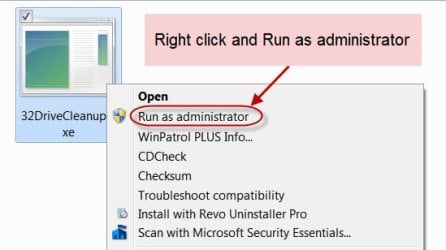
Right click on the DriveCleanup.exe and run as administrator. (Use the DriveCleanup.exe file appropriate for your bit version of Windows in the host system.).

After the clean up act, reboot and shut down. Now connect all your optical drives and boot your system. Check whether all your optical drives are recognised now.

( When you plug in your devices after this cleanup these will be installed afresh. What you have done is to remove all non-present devices and drive letters associated with them and start with a clean slate. Hopefully that should resolve the problem.)

Report.
 

My Computer

OS
Windows 7 Home Premium 32 bit
It's not been said, but can I assume that you're using the same drive data cable, for all your testing?
Sata ?
Hopefully not the old IDE, but in any case those cables can go bad, or in the case of the SATA data cables, they can work loose from the socket in the motherboard.

First thing I'd do is check the data cable and/or replace it with a new one.

Even trying a different SATA Port on the Motherboard would be a good idea.

Depending on what I experienced with the data cables, etc, I might just do a full RESET on the bios.
Over the past 30+ years, I've seen Resetting the Bios solve all sorts of weird hardware problems.
And, it's so easy to do. Just unplug the computer from line power, then remove the CMOS battery
for 20 to 30 minutes. If you have access to a volt meter, check the battery voltage. It should be at least 3.0vdc or if lower, it should be replaced. Then after replacing the battery, plug in the PC and boot to the Bios Setting screen, where you'll input the correct time and date. All newer bios's will scan for hardware and list all that it finds, like HD's, DVD's, etc. Then save the changes and reboot.

Good Luck!
TechnoMage :cool:
 

My Computer

Computer type
PC/Desktop
Computer Manufacturer/Model Number
Various
OS
Win 7 Pro, SP1, x86, Win-11/Pro/64
CPU
AMD
Motherboard
Various
Memory
8GB Crucial
Graphics Card(s)
Various
Sound Card
OnBoard
Monitor(s) Displays
Acer 21.5"
Hard Drives
Crucial SSD, 500 GB
PSU
OEM
Case
SFF Slim Line Case
Cooling
OEM
Keyboard
eMachines
Mouse
Logitech Wireless
Internet Speed
varies
Antivirus
Windows Defender/Super Anti-Spyware
Browser
Firefox
I downloaded the drive tools for Windows latest version and I still have all the original devices on board even though I just apparently deleted them all! But the new drive is not in the list, however it is in the BIOS. And to TechnoMage2016 I used three different (SATA) cables to connect the device in question. So I think that option is out. I can reset the BIOS if you can tell me exactly how to do that. Is there a reset button within the BIOS menu? Also I have a voltmeter but how do I go about testing the voltage of that little round disc.....is one side the ground? or how do I put the two leads to the battery? Sorry I built this computer but I'm just a guy with a screw driver and not much real knowledge:o
 

My Computer

Computer type
PC/Desktop
Computer Manufacturer/Model Number
custom build
OS
windows 7 - home premium 64
CPU
AMD Phenom II X 6 1100T
Motherboard
ASUS M4A89GTD PRO
Memory
16GB
Graphics Card(s)
?
Hard Drives
WDC WD10EARS
WDC WD20EARX
Antivirus
Norton 360 premier
Browser
IE11
After disconnecting all the optical drives, make sure you right click on the appropriate DriveClean.exe and run as Administrator. If you do not do this, the program will only run to show you what non-present devices and redundant registry entries it will remove without actually removing those. Most people do not follow this instruction scrupulously and then complain nothing happened. Are you one? :)

17-06-2016 06-58-54.jpg
 

My Computer

OS
Windows 7 Home Premium 32 bit
Not Me!!

:thumbsup:Jumanji....you are too funny, but no.... that is not me. When I have directions I try to follow them religiously as long as I can understand them. The thing I didn't realize is that the DVD ROM was recognized just not in the device manager. I went into "computer" and lo and behold there was my drive under D: ASUS DVD drive. I don't know what the problem is with device mgr. but I'll take it as long as I can make videos again. So Thank You, Thank You, Very Mucho Ken Metcalfe
 

My Computer

Computer type
PC/Desktop
Computer Manufacturer/Model Number
custom build
OS
windows 7 - home premium 64
CPU
AMD Phenom II X 6 1100T
Motherboard
ASUS M4A89GTD PRO
Memory
16GB
Graphics Card(s)
?
Hard Drives
WDC WD10EARS
WDC WD20EARX
Antivirus
Norton 360 premier
Browser
IE11
I was expecting the solved tick mark without my prodding ( post #8 :D) but it was not you. Glad.

I am still surprised why Device Manager is not showing up your optical drive.

Windows should have automatically installed the optical drives after the drive cleanup and assigned a now-available drive letter - that remained locked to a non-present device. To me it would appear that for some "unknown reason" ( unknown to me) Windows is hiding it.

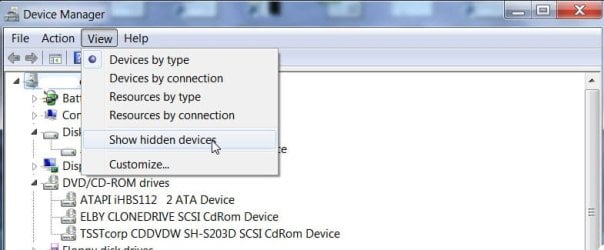
Try this and see if it gets unhidden. Device Manager > View > Show hidden devices

17-06-2016 14-53-31.jpg
 

My Computer

OS
Windows 7 Home Premium 32 bit
Still No

Well I chose "show hidden devices" and still no love there. It is an obstinate 'puter I have here with a nasty personality (a reflection of the owner?).....I can just feel it thumbing it's nose at me and saying "hell no I won't go" :roflmao:
I know that this is probably a puzzle that is challenging you because it is not doing what is expected. I appreciate that, but for me the problem is solved. Are you thinking that this may be a symptom of a larger problem, like the patient has a headache but it's being caused by a tumor in their brain? bad analogy but you get the point. Is that where you are coming from?
BTW I really appreciate the help and your relentless pursuit of the problem. I am so happy that there are people like you out there to lend a hand when people like me are in over their heads. THANK YOU, KM
 
Last edited:

My Computer

Computer type
PC/Desktop
Computer Manufacturer/Model Number
custom build
OS
windows 7 - home premium 64
CPU
AMD Phenom II X 6 1100T
Motherboard
ASUS M4A89GTD PRO
Memory
16GB
Graphics Card(s)
?
Hard Drives
WDC WD10EARS
WDC WD20EARX
Antivirus
Norton 360 premier
Browser
IE11
Back
Top