Constant hard drive activity?

I think the 2 second pulse LED issue is an HPism. It has nothing to do with background processes in the sense of things reading or writing the HD. I've seen a lot of posts about systems with CD auto-insert notification enabled causing it on XP and other OS.

I have auto-insert for all removable media disabled. I think in this case it has to do with polling the memory stick slots. On my HP dual core the HD LED blinks like a clock ticking. On my HP quad core, the HD LED doesn't blink, but if look into the top of the case where the memory stick connectors are(dark translucent plastic cover apparently,) I can see a red LED come on now and then. I think on the older machine for some reason this polling lights the HD LED.

Much ado about nuthin'. I hate it when that happens!!

ahhhhhhh.GIF
 

My Computer

Computer Manufacturer/Model Number
HP Media Center
OS
Windows 7 32 bit
CPU
AMD 5200+ dual core
Memory
2 GB
Graphics Card(s)
NVidia GeForce 6150SE 128 MB
Monitor(s) Displays
CRT
Screen Resolution
1280x1024
Hard Drives
500 GB Sata internal :

SIIG USB 3.0 docking stations w/WD Caviar Black 6 Gb/s drives
Keyboard
PS/2
Mouse
PS/2 Wheel Mouse
Other Info
SIIG USB 3.0 PCIexpress card.
TBH, the only background processes that mildly annoy me are the SearchFilterHost.exe, SearchIndexer.exe and SearchProtocolHost.exe simply because they start at the drop of a hat and seemingly take forever to plod through their business.

But it's not annoying enough to change, as it has little to no impact on performance.
 

My Computer

Computer type
PC/Desktop
Computer Manufacturer/Model Number
Systems by SmartEyeball
OS
8 Pro x64
CPU
i7 3770K 4.6GHz
Motherboard
ASUS P8Z77 WS
Memory
16GB G.Skill Trident X 2666mhz
Graphics Card(s)
x2 EVGA 780 Ti Superclocked SLI
Sound Card
SB X-FI Surround 5.1 PRO USB / ATH-AD900 Headphones
Monitor(s) Displays
x3 Dell U2410 / 58" Samsung
Screen Resolution
5760*1200/ 1920*1200
Hard Drives
2x Intel 520 240GB (RAID 0) * 2x WD Caviar Blacks 2TB (RAID 0) * 2TB WD Caviar Black * Sony Optirac DVD
PSU
Silverstone Strider Evolution 1200W
Case
Thermaltake Level 10 GT Snow Edition
Cooling
Noctua NH-D14
Keyboard
Topre Realforce // Ducky Shine MX Black // Filco Ninja TKL
Mouse
Thermaltake Theron (Highly Recommended) + Razer Imperator
Antivirus
MSE
Browser
IE, FF, WaterFox
Other Info
GT Extreme V2 Sim Racing Cockpit + 40" LCD and K/B Mouse stand ▼
Fanatec CSR Elite Wheel + Clubsport V1 Pedals + CSR shifter/7G-H ▼Saitek X52 Pro ▼ TrackIR 5 Pro
Buttkicker v2 Seat Rumbler with Dedicated 5.1 and Sub Woofer attached to frame ▼
=
Bloody Big Grin
...simply because they start at the drop of a hat and seemingly take forever to plod through their business.

They only come on when files in the index locations are updated, or added. And the reason they can take time is if something else is using most if not all of the I/O available. The Windows Search processes work on a low priority background thread, they receive no love from the scheduler until the resources they need are mostly free. When setting index locations, it is best to select locations that do not change often, and those location you actually search most.
 

My Computer

Computer type
PC/Desktop
Computer Manufacturer/Model Number
Alienware Aurora ALX R4
OS
Windows 10 Pro (x64)
CPU
Intel Core i7-3930K (3.2GHz - 4.5GHz)
Motherboard
Alienware Aurora-R4 x79
Memory
4x Samsung 4GB PC3-12800 DDR3 (16GB 1600MHz)
Graphics Card(s)
Nvidia Geforce GTX 690
Sound Card
SteelSeries Siberia Elite
Monitor(s) Displays
Dell UltraSharp U3011
Screen Resolution
2560x1600
Hard Drives
Samsung 850 Pro 256 GB, Seagate 1TB Desktop Hybrid HDD, 2x Western Digital 4TB Green HDD
PSU
875W Some Dell PSU <.<
Case
Alienware Aurora ALX
Cooling
Custom Liquid Cooling (EK CPU & GPU blocks) dual EK 480RAD
Keyboard
Logitech G710+ Mechanical
Mouse
Logitech G700s
Internet Speed
Verizon Fios (50 mbps average)
Other Info
Server: Intel NUC D54250WYK: i5-4250U, 16GB, 256 GB mSATA, Windows Server 2012 R2
logicearth:

That's fine if you don't care what your computer is doing, but I do. I just want to know. It's my computer after all, not Windows 7's computer.


Miles Ahead:

Yes, the Superfetch suggestion didn't help my Windows 7 Professional installation, so I've since changed my Superfetch back to caching only boot files.
 

My Computer

OS
Windows 7 Professional
logicearth:That's fine if you don't care what your computer is doing, but I do. I just want to know. It's my computer after all, not Windows 7's computer..

The moment you installed Windows 7 you gave it explicit permission to do as it wants and should.

Wanting to know is fine, but not as the cost of obsessing over unnecessary things or trying to make other users figure it out.
 

My Computer

Computer Manufacturer/Model Number
self built
OS
7600.20510 x86
CPU
P4 550 3.4 GHz HT running at 3.5 GHz
Motherboard
MSI PM8M3-V (MS-7211 v1.x) Micro-ATX mainboard
Memory
OCZ 2 GB(2x1GB) DDR400mHz running @ 414 mHz
Graphics Card(s)
HIS Radeon HD 3850 IceQ 3 Turbo HDMI Dual DL-DVI AGP
Sound Card
MOTU Traveler firewire studio interface 192 kHz 24 bit
Monitor(s) Displays
22" widescreen Acer X223W LCD, 17" Compaq P75 CRT
Screen Resolution
1680x1050 and 1280x1024
Hard Drives
SATA I x2 WD, 400 GB and 120 GB, SATA 2 WD Caviar Black 1 TB
PSU
350W generic
Case
Cybertronpc, it glows blue
Cooling
stock cpu fan, Ice-Q 3 gpu and system, many case fans
Keyboard
Logitch Classical Keyboard 200
Mouse
Logitech Mediaplay cordless
Internet Speed
1792/448 kbits/sec
Other Info
SATA II PCI fake RAID adapter, 1 GB Readyboost, original ATI Remote Wonder (even works with WMC perfectly), Logitech Rumblepad 2 game controller x2
I think the 2 second pulse LED issue is an HPism. It has nothing to do with background processes in the sense of things reading or writing the HD. I've seen a lot of posts about systems with CD auto-insert notification enabled causing it on XP and other OS.

I have auto-insert for all removable media disabled. I think in this case it has to do with polling the memory stick slots. On my HP dual core the HD LED blinks like a clock ticking. On my HP quad core, the HD LED doesn't blink, but if look into the top of the case where the memory stick connectors are(dark translucent plastic cover apparently,) I can see a red LED come on now and then. I think on the older machine for some reason this polling lights the HD LED.

Much ado about nuthin'. I hate it when that happens!!

View attachment 39410


Interesting. My PC is an HP. Maybe I'll just write it off as an HP Pavillion "feature". Though mine is not even a full year old.
 

My Computer

OS
Windows 7 Professional
Pulsing every few seconds can be your optical drives looking to see if a disk has been inserted, CD/DVD drives tend to trigger the HDD LED on a lot of motherboards I believe.
 

My Computer

OS
Windows 7
I'm having this issue with windows 7 too. When the screen is off or the lid is shut, windows seems to be scanning for viruses, indexing, optimizing, or defragging. I'm running MS security essentials but it is only set to scan weekly and email/downloads.
I'm dual booting with OS X snow leopard and it does not do this, it's only windows that is constantly making this HD noise when idle.
 

My Computer

Computer Manufacturer/Model Number
dell mini 10v
OS
windows 7 dual boot, snow leopard hackintosh
I am also having my hd make noises like searches...anyway I can hear it often. I've disabled everything mentioned in the thread so far.

I noticed in my firewall settings that my HP Printer has something like over 10 entries in the firewall setting....like it is talking on the internet...back to HP base or something.

I wondered if all that talking (from HP and anything else allowed to chat with the internet) would produce communications between the hd and the internet...like the internet is reading stuff from my hd?

But then earlier someone said that his hd still cycles and makes noise in safe mode without internet connection...

Anyway...the noise isn't gonna bother me. I've just installed and the case is on my desk by my right ear without the side panel on. Usually it would sit on the floor, with the side panel on...and mybe I've never really noticed much noise before.

Be that as it may....I would love to know exactly what is happening to make the hd noise. (and it's not deadly sounding clicking scary noise...it's just soft activity noise). I just would like to know what the go is out of curiosity.

...as a few people said...this topic is all over the net with few solutions/ explanations
 

My Computer

OS
Windows 7 Home Premium 64bit
CPU
i7 930 2.8g
Motherboard
x58A-Ud3R rev2.0 FB
Memory
Corsair xms3 CMX6GX3M3C 1600 C7 2gx3
Graphics Card(s)
HIS ATI pcie HD5670
Sound Card
Presonus Firebox
Monitor(s) Displays
Flatron W2343T x2
Hard Drives
1x500g Seagate Sata2 7200
2x1TB Seagate Sata2 7200
PSU
Cooler Master 700W Silent Pro
Case
Antec
Cooling
Zalman CPU Cooler CNPS10x-Quiet
Once you pare down everything else that is accessing your hard drives, you will find that wmiprvse.exe will poll the drives every 5 minutes to monitor the free space for performance monitoring. If you have a wdc green drive for instance, this will unpark the heads every five minutes.

You can disable this behavior by disabling performance monitoring for disks. Got to the registry key

[HKEY_LOCAL_MACHINE\SYSTEM\CurrentControlSet\services\PerfDisk\Performance]

Create the DWORD "Disable Performance Counters" and set it to 1. This will disable disk performance monitoring and will immediately take effect.
 

My Computer

Computer type
PC/Desktop
Computer Manufacturer/Model Number
Home built (GeneO industries)/Model 4
OS
Windows 10 Pro. EFI boot partition, full EFI boot
CPU
i7 4770k 4.4GHz (44-44-43-43 turbo) @ 1.248V
Motherboard
ASUS Maximus VI Hero
Memory
16GB (8GBx2) @2200 MHz G.skill Sniper 10-11-10-30-1, 1.6V
Graphics Card(s)
MSI GTX 970 Gaming 4G
Sound Card
Onboard SupremeFX Audio
Monitor(s) Displays
NEC Spectraview 2490WUXi-SV
Screen Resolution
1920 x 1200
Hard Drives
Samsung 850 Pro 256GB (OS), Samsung 2x 128GB 840 Pro SSD in RAID0, 3x WD Blue 6Gb/s 1TB RAID0, WD 2TB Black external USB 3.0, 2TB WD20EARS Green external USB 3.0, 2x 500GB Seagate and 1 750 GB external USB, 1x 350GB external USB3
PSU
Seasonic X-850 (2012 KM3 model)
Case
Fractal Design Define R4
Cooling
NH-D14, NF-F12, NF-A15; NF-P14, NF-P12,NF-A14, S12A PWM
Keyboard
Cooler Master Storm Quickfire Rapid - Brown
Mouse
Logitech G602
Internet Speed
126.4 Mb/s down, 24.3 Mb/s up
Other Info
USB 3.0 x8 , SATA III x8, eSATA, USB 2.0 x6. Samsung DVD R/W drive.

WEI: CPU 7.8, Memory 7.9, Graphics 7.9, Disk 7.9
Is it safe to do that?
 

My Computer

OS
Windows 7 Home Premium 64bit
CPU
i7 930 2.8g
Motherboard
x58A-Ud3R rev2.0 FB
Memory
Corsair xms3 CMX6GX3M3C 1600 C7 2gx3
Graphics Card(s)
HIS ATI pcie HD5670
Sound Card
Presonus Firebox
Monitor(s) Displays
Flatron W2343T x2
Hard Drives
1x500g Seagate Sata2 7200
2x1TB Seagate Sata2 7200
PSU
Cooler Master 700W Silent Pro
Case
Antec
Cooling
Zalman CPU Cooler CNPS10x-Quiet
As safe as any such thing can be. At the very least export the registry key to a file before the change so you ca n restore it if needed. The change can be undone by setting the new value to 0 instead of 1.

You will loose performance monitoring of your disks.
 

My Computer

Computer type
PC/Desktop
Computer Manufacturer/Model Number
Home built (GeneO industries)/Model 4
OS
Windows 10 Pro. EFI boot partition, full EFI boot
CPU
i7 4770k 4.4GHz (44-44-43-43 turbo) @ 1.248V
Motherboard
ASUS Maximus VI Hero
Memory
16GB (8GBx2) @2200 MHz G.skill Sniper 10-11-10-30-1, 1.6V
Graphics Card(s)
MSI GTX 970 Gaming 4G
Sound Card
Onboard SupremeFX Audio
Monitor(s) Displays
NEC Spectraview 2490WUXi-SV
Screen Resolution
1920 x 1200
Hard Drives
Samsung 850 Pro 256GB (OS), Samsung 2x 128GB 840 Pro SSD in RAID0, 3x WD Blue 6Gb/s 1TB RAID0, WD 2TB Black external USB 3.0, 2TB WD20EARS Green external USB 3.0, 2x 500GB Seagate and 1 750 GB external USB, 1x 350GB external USB3
PSU
Seasonic X-850 (2012 KM3 model)
Case
Fractal Design Define R4
Cooling
NH-D14, NF-F12, NF-A15; NF-P14, NF-P12,NF-A14, S12A PWM
Keyboard
Cooler Master Storm Quickfire Rapid - Brown
Mouse
Logitech G602
Internet Speed
126.4 Mb/s down, 24.3 Mb/s up
Other Info
USB 3.0 x8 , SATA III x8, eSATA, USB 2.0 x6. Samsung DVD R/W drive.

WEI: CPU 7.8, Memory 7.9, Graphics 7.9, Disk 7.9
Just check for disk activity in the resource monitor..
 

My Computer

Computer Manufacturer/Model Number
aspire 5920
OS
Windows 8 Professional x64
CPU
core 2 duo T5550
Memory
4 GB
Graphics Card(s)
GMA X3100
Hard Drives
160 GB + 320 GB
Internet Speed
2 mbps
This might help those of you wondering what your hard drive is doing after you leave your computer/close your lid/etc.

While trying to figure this out myself I was looking at ProcessMonitor output. (My HDD is pretty quiet but I really need total silence to sleep, and all that activity kept me up). I noticed a lot of this:

C:\Windows\system32\rundll32.exe /d srrstr.dll,ExecuteScheduledSPPCreation

Turns out that by default, Windows 7 schedules System Restore to create restore points every night at 12am, but only after the system has been idle for 10 minutes. So if you go to bed at 2am, it'll start building the restore point just about the time you're drifting off to sleep. Bad for us light sleepers.

There are many processes that could take advantage of idle processor time, but assuming you've eliminated other possibilities like scheduled virus scans, defrags, windows indexer, superfetcher, etc., this is probably the issue.

To modify this behavior, go to Start Menu -> Administrative Tools (may need to enable this in start menu properties if you don't see it) -> Task Scheduler ->

In the Task Scheduler tree on the left, expand Task Scheduler Library -> Microsoft -> Windows -> SystemRestore. In the middle pane, click the "Triggers" tab.

By default you'll see two entries here, both enabled: One "Daily, At 12am every day" and one "At startup". To make changes to these, click the "Properties" link in the RIGHT pane of the Task Scheduler window.

Go to the "Triggers" tab and double-click the "Daily - 12am" trigger, then uncheck "Enabled" at the bottom. Obviously you can alternatively edit the trigger settings, or the conditions, to set parameters that won't end up disturbing you.

Just learned this and thought I'd share. Hope it helps.

PS, Task Scheduler is a good place to look when you're investigating mysterious automated Windows activity. It's a much more complex and integral part of Windows than it used to be (ie. in Win XP), and Windows 7 makes much use of it to run processes. Several things are set to run regularly there in a default Windows installation. In my research into these issues on the forums, I've found that people aren't really all that aware of this yet. Especially after you've eliminated all third-party software possibilities, this is the place to look next.

More info: http://equazcion.wordpress.com/2010/10/18/win7mysteryactivity/
 
Last edited:

My Computer

Computer Manufacturer/Model Number
Self-built
OS
Windows 7 Ultimate x64
CPU
Intel i5-2500K
Motherboard
ASRock Extreme4 Gen3
Memory
8GB DDR3 1333MHz
Graphics Card(s)
Asus ATI 5830
Sound Card
Integrated
Monitor(s) Displays
Acer 23"
Hard Drives
2x Samsung Spinpoint F4 320GB in RAID-0
1x Samsung Spinpoint F3 2TB
PSU
Corsair 650W
Case
CoolerMaster HAF 932
Cooling
Noctua U12P CPU cooler
Internet Speed
Verizon FiOS
Just check for disk activity in the resource monitor..

And then?

I have checked and the only things really running are the Microsoft Security Essentials dll and 'system'...

For the post above...I have system restore disabled...and no scheduled tasks.

Anyway, late last night I defragged and tonight everything seems pretty quiet from my hd...maybe it was a defrag that helped me....but I still dont really know what my hd was doing before the defrag...because I also have Windows auto defrag disabled
 

My Computer

OS
Windows 7 Home Premium 64bit
CPU
i7 930 2.8g
Motherboard
x58A-Ud3R rev2.0 FB
Memory
Corsair xms3 CMX6GX3M3C 1600 C7 2gx3
Graphics Card(s)
HIS ATI pcie HD5670
Sound Card
Presonus Firebox
Monitor(s) Displays
Flatron W2343T x2
Hard Drives
1x500g Seagate Sata2 7200
2x1TB Seagate Sata2 7200
PSU
Cooler Master 700W Silent Pro
Case
Antec
Cooling
Zalman CPU Cooler CNPS10x-Quiet
For the post above...I have system restore disabled...and no scheduled tasks.

It's hard to believe you have no scheduled tasks, cause Windows 7 has many tasks scheduled by default -- at least mine does, which is Ultimate... so it's possible Home doesn't, but I really doubt that. Have you actually expanded the folders on the left of the Task Scheduler window? There's a whole tree full of stuff there. Nothing will show up in the main section of the window until you expand the folders a bit on the left.

One of the tasks Windows 7 runs regularly is defrag, so if that was the source of the mystery activity, it makes sense that running a defrag yourself would cause the activity to stop. If that's what happened, then you'll have to deal with this again in a week.
 

My Computer

Computer Manufacturer/Model Number
Self-built
OS
Windows 7 Ultimate x64
CPU
Intel i5-2500K
Motherboard
ASRock Extreme4 Gen3
Memory
8GB DDR3 1333MHz
Graphics Card(s)
Asus ATI 5830
Sound Card
Integrated
Monitor(s) Displays
Acer 23"
Hard Drives
2x Samsung Spinpoint F4 320GB in RAID-0
1x Samsung Spinpoint F3 2TB
PSU
Corsair 650W
Case
CoolerMaster HAF 932
Cooling
Noctua U12P CPU cooler
Internet Speed
Verizon FiOS
Wanting to know is fine, but not as the cost of obsessing over unnecessary things or trying to make other users figure it out.

Actually, I am not getting a good night's rest because of this. One of my HDD's is loud enough to piss me off when trying to take a nap or fall asleep. It usually takes me longer to doze off than most. So of course, while I am still trying to fall asleep, viola! HDD activity!

LED's I can unplug or cover up. HDD noise is harder to eliminate.

I will have to try many of the suggestions posted here. I expect to have a hard time discovering a solution, but I will post back with any info I come up with.

If I can't sleep, I may as well try to solve this issue.
 

My Computer

OS
XP Pro SP3 / 7 Pro
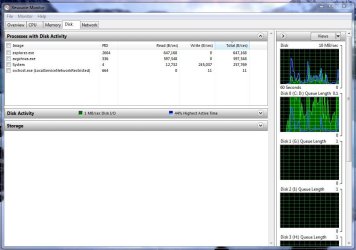
My disk activity was always pretty quiet until I installed SP1 a few days ago. The first couple of install attempts failed and I had to do a disk cleanup and disable AVG antivirus to install it. Now the disk seems to be in heavy use most of the time even when the PC is sitting idle. See screen shot, not sure what it could be...

Capture.JPG
 

My Computer

OS
Windows 7 Home Premium 64-bit
CPU
Intel i5 750
Motherboard
Asus P7P55D
Memory
8GB Corsair XMS 1333Mhz CL9
Graphics Card(s)
Asus HD4350
Sound Card
ASUS onboard sound
Monitor(s) Displays
Dell U2412m
Screen Resolution
1920 x 1200
Hard Drives
Crucial M4 128GB
Samsung EcoGreen F2 500GB
PSU
Corsair VX450
Case
Cooler Master aluminium case
Cooling
Noctua NH-U9B
Hi everyone

Thanks everyone - advises in this topic have helped me to battle the problem of constant HDD activity while the PC is idle under Windows 7.

Here's what I did:
- Disabled following services:
* Windows Search
* Superfetch
* Defragmenter
- Uninstalled anti-virus software (I have had Notron Internet Security - going to try if real-time protectionn by DR Web or Avast is any faster and if those programs utilize HDD less)
- PERMANENTLY disabled swap (page file) - set "No Paging File" on ALL disks (4 GB of RAM shold be enough anyway - don't have a lot of programs running simultaneously)
- Disabled HDD free space monitoring (look for "Disable Performance Counters" DWORD value to 1 - in this topic)
- And last but not least - restarted my PC (did not notice any difference before restarting).


Well, after restarting I now have 1.2 to 1.7 GB RAM free (instead of 800 MB before) while running Visual C++, Skype, Open Office Writer and a tab or two in Google Chrome.
And all that suspicious disk activity in idle is gone - now HDD led lights up once in 5 seconds to several minutes.

But one thing still bothers me - CPU fan speeds up in idle mode for a few minutes. Well, according to advises in this topic, its best to look for more pesky processes under Administrative Tools - Task Scheduler.
 

My Computer

Computer Manufacturer/Model Number
1. Sony VAIO Y-series
OS
1. Windows 7 Home Premium x86
CPU
1. AMD E-350 (2 x 1.6 GHz)
Memory
1. 4 GB
Graphics Card(s)
1. Radeon HD6310
Monitor(s) Displays
1. 1366 x 768
Hard Drives
1. 500 GB
I apologize for necroing the thread, but its on top of googles search results for this particular problem and maybe someone might find it useful.

I've had a fresh install of windows x64 the other day and like some the noise is just giving me grief while playing, sleeping, etc. After going through Services and turning off everything not important to me, looking through multiple monitoring programs and finding the culprit (System), I've resorted to googling to find a solution. >_>

One thing that stopped the annoying writing sounds was COMPLETELY disabling page files as HAPKAH mentioned in the post above.
 

My Computer

OS
Windows 7 Ultimate x64
Back
Top