Convert a Dynamic Disk to a Basic Disk

How to Convert a Dynamic Disk to a Basic Disk

   Information
A disk is a separate physical hard drive. This will show you how to convert a dynamic, also known as "software RAID", disk to a basic disk in Windows Disk Manager or in a command prompt. By default Windows uses Basic disks.

Basic and dynamic disks both support using MBR and GPT partition (volume) styles.

For more detailed information on basic and dynamic disks, see: Basic and Dynamic Disks (Windows)


   Note
Differences Between Basic and Dynamic Disks:
  • Basic disks are supported (readable) by all Windows operating systems since MS-DOS.
    • Dynamic disks are only supported (readable) by Windows 2000, XP Professional, Windows Server 2003, Vista Ultimate, Vista Enterprise, Windows 7, and Windows Server 2008.
  • Basic disks can have up to 128 GPT primary partitions, or 4 MBR primary partitions or 3 MBR primary partitions and 1 extended partition with up to 128 logical volumes in the extended partition.
    • Dynamic disks can have up to 2000 dynamic volumes that function like a primary partition used in basic disks.
  • Basic disks cannot share or split data with other primary or logical partitions, or basic disks. Each partitiion on a basic disk is treated as if it was a separate hard disk on the basic disk.
    • Separate dynamic disks can be combined into a single dynamic volume (spanning), split data among several dynamic disks (striping) for increased performance, or duplicate data among several dynamic disks (mirroring) for increased reliability.
  • Hard disks are basic disks by default, including removable disks and disks on a laptop (notepad).
    • Removable disks cannot be converted to a dynamic disk.
   Warning
VERY IMPORTANT, PLEASE READ THIS FIRST.
  • You must be logged in as an administrator to do this inside Windows.
  • Before you convert a dynamic disk to a basic disk, be sure to backup anything that you do not want to lose on that dynamic disk. Converting the dynamic disk back to a basic disk using either OPTION 3-5 below requires that all dynamic volumes are deleted on the disk first.
  • See OPTION ONE or OPTION TWO below if you wanted to be able to convert a dynamic disk back to a basic disk without losing the data on it.
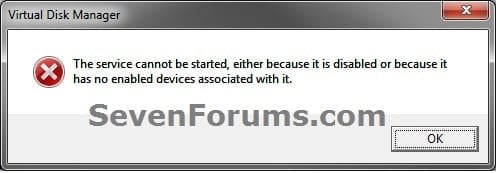
  • If you disable the Disk Defragmenter service, then you will get the error below when you try to do anything in Disk Management. If you get this error, then make sure that the Disk Defragmenter service is set to only Manual.
Error.jpg


OPTION ONE

Convert Dynamic Disk to Basic Disk using "Partition Wizard 4.2 Free"


:warn:WARNING: Even though you will not lose the data on the dynamic disk when you use this option to convert the dynamic disk back to a basic disk, be sure to backup any data on the dynamic disk that you wish to keep first just to be safe in case something happens. Say a power outage while in the middle of converting the disk.1. Do step 2 or 3 below depending on what you are able to do.

2. To Use Partition Wizard 4.2 Free at Boot
NOTE: This option can be helpful if you are unable to startup Windows if your Windows disk was made dynamic.A) Download "pwhe42.iso" file here to your desktop.
NOTE: It will take a moment for the download option to automatically appear at the link.

B) Create either a bootable CD/DVD or USB with the pwhe42.iso file.
NOTE: You could also use a free program like ImgBurn at 4x burn speed to create a bootable CD/DVD with.

C) Boot from the the CD/DVD or USB.

D) Convert the dynamic disk to basic like starting at step 3E below.

3. To Use Partition Wizard 4.2 Free in WindowsA) Download the "Partition_Wizard_4.2_free.zip" file here to your desktop.

B) Open the ZIP file, and extract (drag and drop) the PW folder to your desktop.

C) Open the PW folder, and run the PWIZ.exe file.

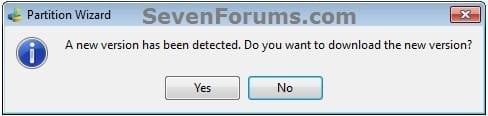
D) Click on No for the new version avialable update. (see screenshot below)PW-1.jpg

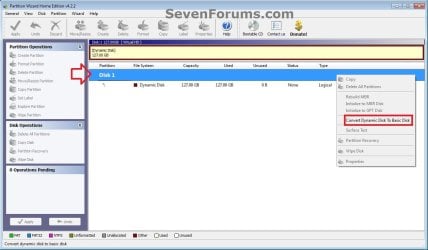
E) Right click on the Disk # (ex: Disk 1) of the dynamic disk you want to convert, then click on Convert Dynamic Disk to Basic Disk. (see screenshot below)PW-2.jpg

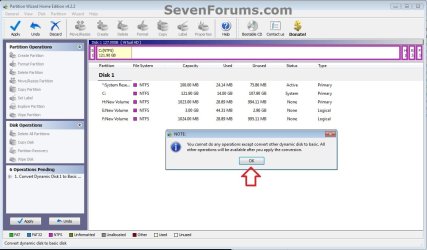
F) Click on OK. (see screenshot below)

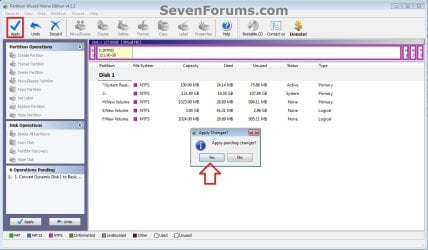
G) Click on the blue Apply check mark toolbar button at the top left corner, and click on Yes. (see screenshot below)PW-4.jpg

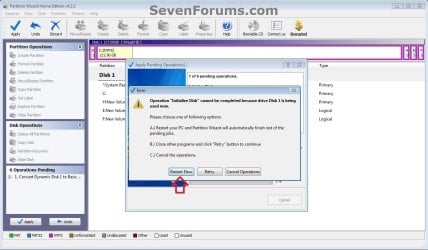
H) If prompted to restart, click on Restart Now. (see screenshot below)
NOTE: This is normal if the dynamic disk you wanted to convert to basic is the disk that the currently running Windows is installed on.PW-5.jpg


4. When finished, the selected dynamic disc will now be converted to a basic disk without losing any data on it.


OPTION TWO

To Convert Dynamic Disk to Basic Disk using Disk Management


:warn:WARNING: Be sure to read the red WARNING box above. You will lose all data on the dynamic disk using this option.1. Open the Control Panel (icons view), and click on the Administrative Tools icon, then close the Control Panel window.

2. Click on Computer Management in Administrative Tools, then close the Administrative Tools window.

3. If prompted by UAC, click on Yes.

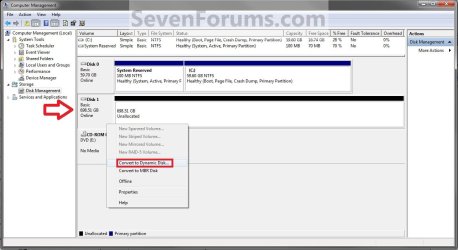
4. In the left pane under Storage, click on Disk Management. (See screenshot below)Step1.jpg

5. In the dynamic disk (ex: Disk 1) that you want to convert to a basic disk, right click on each volume on the disk and click on Delete Volume until the whole disk is unallocated space. (See screenshot above)
NOTE: If prompted, click on Yes to continue deleting the volume(s).

6. If the disk (ex: Disk 1) that you want to convert to a basic disk is still displayed has being Dynamic (left side under Disk #), then right click on the disk (ex: Disk 1) and click on Convert to Basic Disk if available. (See screenshot below)Step2.jpg

7. You can also confirm that the disk is a basic disk if it's displayed has being Basic (left side under Disk #), or if you right click on the disk # and it has Convert to Dynamic Disk instead now. (See screenshot below)Step3.jpg

8. You can now create partitions on the now basic disk if you like.

9. When done, close Disk Management.


OPTION THREE

To Convert Dynamic Disk to Basic Disk using "Clean" Command


:warn:WARNING: Be sure to read the red WARNING box above. You will lose all data on the dynamic disk using this option.1. Use the Clean command in the tutorial below on the dynamic disk that you want to wipe out and convert to be a basic disk.
NOTE: You could also use the Clean all command for this as well, but it will take much longer to do since it also does a secure erase.How to Clean or Clean All a Disk with the Diskpart Command

2. You can now create partitions on the now basic disk if you like.


OPTION FOUR

To Convert Dynamic Disk to Basic Disk using "Delete Volume" Command


:warn:WARNING: Be sure to read the red WARNING box above. You will lose all data on the dynamic disk using this option.1. Open an elevated command prompt, and go to step 3 below.

OR

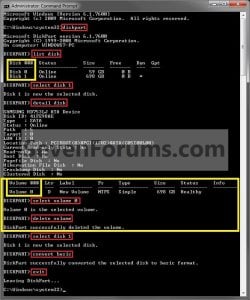
2. Open a command prompt at boot, and go to step 3 below.Command_Basic.jpg

3. In the command prompt, type diskpart and press enter. (See screenshot above)

4. Type list disk and press enter.
NOTE: Make note of the disk number (ex: Disk 1) that you want to convert to a basic disk.

5. Type select disk # and press enter.
NOTE: Substitute # with the actual disk number that you want to convert to a dynamic disk. For example, select disk 1.

6. Type detail disk and press enter.
NOTE: This will give you a list of all the volume numbers on the selected disk number that you will need to delete in steps 7 and 8 below.A) If you do not have any volumes listed, then you can go to step 10.

7. Type select volume # and press enter.
NOTE: Substitute # with a volume number listed in step 6. For example, select volume 3.

8. Type delete volume and press enter.

9. Repeat steps 7 an 8 for each volume # listed in step 6 until you have deleted all volume #'s.

10. When done, type select disk # and press enter.
NOTE: You would use the same one from step 5 above. For example, select disk 1.

11. Type convert basic and press enter.

12. When done, type exit and press enter.

13. Close the command prompt.

14. You can now create partitions on the now basic disk if you like.
NOTE: Restart the computer if you did step 2 instead.

That's it,
Shawn


Attachments

Last edited:
No Data Loss on Dynamic -> Basic

Howdy folks,

It's been a while but the last post reminded of something...

I've successfully converted dynamic -> basic disks using one of EASEUS (Partition Master v10.2) and AOMEI (AOMEI Partition Assistant Standard Edition 5.6) (free versions) of their partition tool software (in fact I they look so similar there's nothing to choose between them ?).

No data loss. as far I could see. I can't write tutorial, but it must quite easy to figure out because I did !! As Brink said, always make a back up of data you might lose.

This post is not supposed to be an advert for that software; doubtless there are many others that will perform the same job. These are two items that I know will do it, by experience.

Idiot
21.February.2016
 

My Computer

Computer type
PC/Desktop
Computer Manufacturer/Model Number
HP
OS
Windows 7 home premium 64-bit
CPU
core i5
Antivirus
AVG
Browser
IE11
Thank you for sharing. :)
 

My Computer

Computer type
PC/Desktop
Computer Manufacturer/Model Number
Self built custom
OS
64-bit Windows 11 Pro for Workstations
CPU
Intel i7-8700K OC'd to 5 GHz
Motherboard
ASUS ROG Maximus XI Formula Z390
Memory
64 GB (4x16GB) G.SKILL TridentZ RGB DDR4 3600 MHz
Graphics Card(s)
ASUS ROG-STRIX-GTX1080TI-O11G-GAMING
Sound Card
Integrated
Monitor(s) Displays
2 x Samsung Odyssey G7 27"
Screen Resolution
2560x1440
Hard Drives
1TB Samsung 990 PRO M.2,
4TB Samsung 990 PRO PRO M.2,
TerraMaster F8 SSD Plus NAS
PSU
Seasonic Prime Titanium 850W
Case
Thermaltake Core P3
Cooling
Corsair Hydro H115i
Keyboard
Logitech wireless K800
Mouse
Logitech MX Master 4
Internet Speed
2 Gb/s Download and 100 Mb/s Upload
Antivirus
Malwarebyte Anti-Malware Premium
Browser
Google Chrome
Other Info
Logitech Z625 speaker system,
Logitech BRIO 4K Pro webcam,
HP Color LaserJet Pro MFP M477fdn,
APC SMART-UPS RT 1000 XL - SURT1000XLI,
Galaxy S23 Plus phone
I have a disk from an older Windows Home Server 2011 system and when I put it into my Windows 10 PC it shows up in Disk Management as Invalid. First I was wondering if your original tutorial would work in Windows 10. Second, I was wondering if I should use the latest version of Partition Wizard instead of the 4_2 in your original post?
 

My Computer

OS
Windows 7 32-bit
Hello Brergo, and welcome to Seven Forums. :)

Yes, you can use the tutorial in Windows 10 as well. The option is only available in the older 4_2 version, otherwise it's only a feature in the newer paid version.
 

My Computer

Computer type
PC/Desktop
Computer Manufacturer/Model Number
Self built custom
OS
64-bit Windows 11 Pro for Workstations
CPU
Intel i7-8700K OC'd to 5 GHz
Motherboard
ASUS ROG Maximus XI Formula Z390
Memory
64 GB (4x16GB) G.SKILL TridentZ RGB DDR4 3600 MHz
Graphics Card(s)
ASUS ROG-STRIX-GTX1080TI-O11G-GAMING
Sound Card
Integrated
Monitor(s) Displays
2 x Samsung Odyssey G7 27"
Screen Resolution
2560x1440
Hard Drives
1TB Samsung 990 PRO M.2,
4TB Samsung 990 PRO PRO M.2,
TerraMaster F8 SSD Plus NAS
PSU
Seasonic Prime Titanium 850W
Case
Thermaltake Core P3
Cooling
Corsair Hydro H115i
Keyboard
Logitech wireless K800
Mouse
Logitech MX Master 4
Internet Speed
2 Gb/s Download and 100 Mb/s Upload
Antivirus
Malwarebyte Anti-Malware Premium
Browser
Google Chrome
Other Info
Logitech Z625 speaker system,
Logitech BRIO 4K Pro webcam,
HP Color LaserJet Pro MFP M477fdn,
APC SMART-UPS RT 1000 XL - SURT1000XLI,
Galaxy S23 Plus phone
Hello Brergo, and welcome to Seven Forums. :)

Yes, you can use the tutorial in Windows 10 as well. The option is only available in the older 4_2 version, otherwise it's only a feature in the newer paid version.

Thanks for your quick reply Brink!
 

My Computer

OS
Windows 7 32-bit
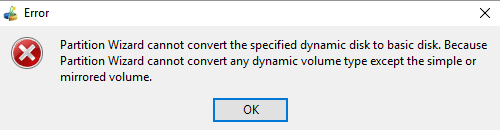
I installed PW 4_2 and after clicking Convert Dynamic DIsk to Basic Disk, I got the following error:

Partition Wizard cannot convert the specified dynamic disk to basic disk. Because Partition Wizard cannot convert any dynamic volume type except the simple or mirrored volume. (see attached screenshot).

Could it be the because of the way Windows Home Server configures disks? Any thoughts?
 

Attachments

  • snip_20161010202422.png
    snip_20161010202422.png
    7.7 KB · Views: 800

My Computer

OS
Windows 7 32-bit
Could be. If you have the data on the drive backed up, you should be able to use option 3 to do so. It will wipe the disk completely, but it will no longer be dynamic afterwards.
 

My Computer

Computer type
PC/Desktop
Computer Manufacturer/Model Number
Self built custom
OS
64-bit Windows 11 Pro for Workstations
CPU
Intel i7-8700K OC'd to 5 GHz
Motherboard
ASUS ROG Maximus XI Formula Z390
Memory
64 GB (4x16GB) G.SKILL TridentZ RGB DDR4 3600 MHz
Graphics Card(s)
ASUS ROG-STRIX-GTX1080TI-O11G-GAMING
Sound Card
Integrated
Monitor(s) Displays
2 x Samsung Odyssey G7 27"
Screen Resolution
2560x1440
Hard Drives
1TB Samsung 990 PRO M.2,
4TB Samsung 990 PRO PRO M.2,
TerraMaster F8 SSD Plus NAS
PSU
Seasonic Prime Titanium 850W
Case
Thermaltake Core P3
Cooling
Corsair Hydro H115i
Keyboard
Logitech wireless K800
Mouse
Logitech MX Master 4
Internet Speed
2 Gb/s Download and 100 Mb/s Upload
Antivirus
Malwarebyte Anti-Malware Premium
Browser
Google Chrome
Other Info
Logitech Z625 speaker system,
Logitech BRIO 4K Pro webcam,
HP Color LaserJet Pro MFP M477fdn,
APC SMART-UPS RT 1000 XL - SURT1000XLI,
Galaxy S23 Plus phone
Most likely the disks were in some form of RAID that is supported only with dynamic disks. If the disks were converted Windows wouldn't be able to use them.
 

My Computer

Computer type
PC/Desktop
Computer Manufacturer/Model Number
HP
OS
Windows 7 Pro 64 bit
CPU
Xeon W3520
Memory
8 GB
Graphics Card(s)
Nvidia Geforce 210
Option 1, step 3 K: is not available

Hi,
I am trying to repair a disc.
It was a primary disk, but got converted to dynamic somehow.
I am at Option 1, tep 3.
I ran PW 4.2 and it ran for a few minutes and did a restart.
After the restart, I get the following error when trying to access it
>Location is not available
>K:\ is not accessible
>Access is denied.


When I go to properties, the security tab says
>You must have read permissions to view the properties of this object.
If I click advanced, and try to add me to "full control", it sends me back to previous page.


I can look at the disk with PW, and the explore command shows a bunch of files
with strange file names.
This does not look good.
Any ideas on where to go from here?
 

My Computer

Computer type
Laptop
Computer Manufacturer/Model Number
Dell
OS
windows 7 pro
CPU
i5
Hi,
I am trying to repair a disc.
It was a primary disk, but got converted to dynamic somehow.
I am at Option 1, tep 3.
I ran PW 4.2 and it ran for a few minutes and did a restart.
After the restart, I get the following error when trying to access it
>Location is not available
>K:\ is not accessible
>Access is denied.


When I go to properties, the security tab says
>You must have read permissions to view the properties of this object.
If I click advanced, and try to add me to "full control", it sends me back to previous page.


I can look at the disk with PW, and the explore command shows a bunch of files
with strange file names.
This does not look good.
Any ideas on where to go from here?

Hello Gordon, :-)

If you backed up the data, you could use option 2 to convert the disk, and copy the data back afterwards.
 

My Computer

Computer type
PC/Desktop
Computer Manufacturer/Model Number
Self built custom
OS
64-bit Windows 11 Pro for Workstations
CPU
Intel i7-8700K OC'd to 5 GHz
Motherboard
ASUS ROG Maximus XI Formula Z390
Memory
64 GB (4x16GB) G.SKILL TridentZ RGB DDR4 3600 MHz
Graphics Card(s)
ASUS ROG-STRIX-GTX1080TI-O11G-GAMING
Sound Card
Integrated
Monitor(s) Displays
2 x Samsung Odyssey G7 27"
Screen Resolution
2560x1440
Hard Drives
1TB Samsung 990 PRO M.2,
4TB Samsung 990 PRO PRO M.2,
TerraMaster F8 SSD Plus NAS
PSU
Seasonic Prime Titanium 850W
Case
Thermaltake Core P3
Cooling
Corsair Hydro H115i
Keyboard
Logitech wireless K800
Mouse
Logitech MX Master 4
Internet Speed
2 Gb/s Download and 100 Mb/s Upload
Antivirus
Malwarebyte Anti-Malware Premium
Browser
Google Chrome
Other Info
Logitech Z625 speaker system,
Logitech BRIO 4K Pro webcam,
HP Color LaserJet Pro MFP M477fdn,
APC SMART-UPS RT 1000 XL - SURT1000XLI,
Galaxy S23 Plus phone

My Computer

Computer type
PC/Desktop
Computer Manufacturer/Model Number
Self built custom
OS
64-bit Windows 11 Pro for Workstations
CPU
Intel i7-8700K OC'd to 5 GHz
Motherboard
ASUS ROG Maximus XI Formula Z390
Memory
64 GB (4x16GB) G.SKILL TridentZ RGB DDR4 3600 MHz
Graphics Card(s)
ASUS ROG-STRIX-GTX1080TI-O11G-GAMING
Sound Card
Integrated
Monitor(s) Displays
2 x Samsung Odyssey G7 27"
Screen Resolution
2560x1440
Hard Drives
1TB Samsung 990 PRO M.2,
4TB Samsung 990 PRO PRO M.2,
TerraMaster F8 SSD Plus NAS
PSU
Seasonic Prime Titanium 850W
Case
Thermaltake Core P3
Cooling
Corsair Hydro H115i
Keyboard
Logitech wireless K800
Mouse
Logitech MX Master 4
Internet Speed
2 Gb/s Download and 100 Mb/s Upload
Antivirus
Malwarebyte Anti-Malware Premium
Browser
Google Chrome
Other Info
Logitech Z625 speaker system,
Logitech BRIO 4K Pro webcam,
HP Color LaserJet Pro MFP M477fdn,
APC SMART-UPS RT 1000 XL - SURT1000XLI,
Galaxy S23 Plus phone
Link in the tutorial is 404'ing: VOGONS Vintage Driver Library (vogonsdrivers.com)
If this link should ever die just google: "pwhe42.iso" download - being aware the file is 38.8MB [current link size], i believe the old link was ≈ 33.3MB [?], and you should find it again. Salut Shawn! xOx
 

My Computers

System One System Two

  • Computer type
    Laptop
    Computer Manufacturer/Model Number
    Medion Erazer X78833
    OS
    Windows 10 Home x64
    CPU
    2.5GHz
    Motherboard
    X782X/X783X
    Memory
    16GB
    Graphics Card(s)
    Intel HD Graphics 4600
    Hard Drives
    116GB SSD
    1TB HDD
    Antivirus
    Windows Defender
    Browser
    Opera since 2008
  • Computer type
    PC/Desktop
Back
Top