Convert a Dynamic Disk to a Basic Disk

How to Convert a Dynamic Disk to a Basic Disk

   Information
A disk is a separate physical hard drive. This will show you how to convert a dynamic, also known as "software RAID", disk to a basic disk in Windows Disk Manager or in a command prompt. By default Windows uses Basic disks.

Basic and dynamic disks both support using MBR and GPT partition (volume) styles.

For more detailed information on basic and dynamic disks, see: Basic and Dynamic Disks (Windows)


   Note
Differences Between Basic and Dynamic Disks:
  • Basic disks are supported (readable) by all Windows operating systems since MS-DOS.
    • Dynamic disks are only supported (readable) by Windows 2000, XP Professional, Windows Server 2003, Vista Ultimate, Vista Enterprise, Windows 7, and Windows Server 2008.
  • Basic disks can have up to 128 GPT primary partitions, or 4 MBR primary partitions or 3 MBR primary partitions and 1 extended partition with up to 128 logical volumes in the extended partition.
    • Dynamic disks can have up to 2000 dynamic volumes that function like a primary partition used in basic disks.
  • Basic disks cannot share or split data with other primary or logical partitions, or basic disks. Each partitiion on a basic disk is treated as if it was a separate hard disk on the basic disk.
    • Separate dynamic disks can be combined into a single dynamic volume (spanning), split data among several dynamic disks (striping) for increased performance, or duplicate data among several dynamic disks (mirroring) for increased reliability.
  • Hard disks are basic disks by default, including removable disks and disks on a laptop (notepad).
    • Removable disks cannot be converted to a dynamic disk.
   Warning
VERY IMPORTANT, PLEASE READ THIS FIRST.
  • You must be logged in as an administrator to do this inside Windows.
  • Before you convert a dynamic disk to a basic disk, be sure to backup anything that you do not want to lose on that dynamic disk. Converting the dynamic disk back to a basic disk using either OPTION 3-5 below requires that all dynamic volumes are deleted on the disk first.
  • See OPTION ONE or OPTION TWO below if you wanted to be able to convert a dynamic disk back to a basic disk without losing the data on it.
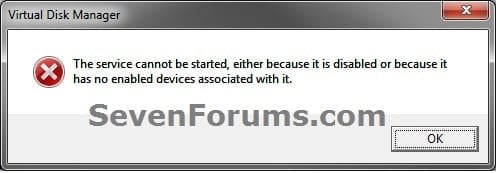
  • If you disable the Disk Defragmenter service, then you will get the error below when you try to do anything in Disk Management. If you get this error, then make sure that the Disk Defragmenter service is set to only Manual.
Error.jpg


OPTION ONE

Convert Dynamic Disk to Basic Disk using "Partition Wizard 4.2 Free"


:warn:WARNING: Even though you will not lose the data on the dynamic disk when you use this option to convert the dynamic disk back to a basic disk, be sure to backup any data on the dynamic disk that you wish to keep first just to be safe in case something happens. Say a power outage while in the middle of converting the disk.1. Do step 2 or 3 below depending on what you are able to do.

2. To Use Partition Wizard 4.2 Free at Boot
NOTE: This option can be helpful if you are unable to startup Windows if your Windows disk was made dynamic.A) Download "pwhe42.iso" file here to your desktop.
NOTE: It will take a moment for the download option to automatically appear at the link.

B) Create either a bootable CD/DVD or USB with the pwhe42.iso file.
NOTE: You could also use a free program like ImgBurn at 4x burn speed to create a bootable CD/DVD with.

C) Boot from the the CD/DVD or USB.

D) Convert the dynamic disk to basic like starting at step 3E below.

3. To Use Partition Wizard 4.2 Free in WindowsA) Download the "Partition_Wizard_4.2_free.zip" file here to your desktop.

B) Open the ZIP file, and extract (drag and drop) the PW folder to your desktop.

C) Open the PW folder, and run the PWIZ.exe file.

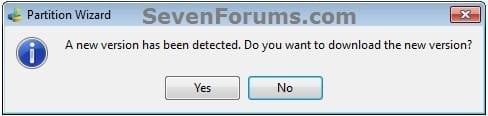
D) Click on No for the new version avialable update. (see screenshot below)PW-1.jpg

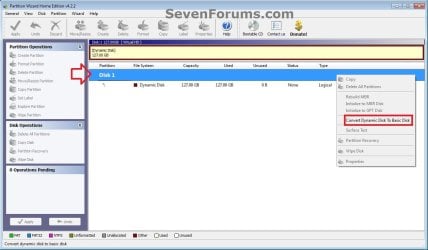
E) Right click on the Disk # (ex: Disk 1) of the dynamic disk you want to convert, then click on Convert Dynamic Disk to Basic Disk. (see screenshot below)PW-2.jpg

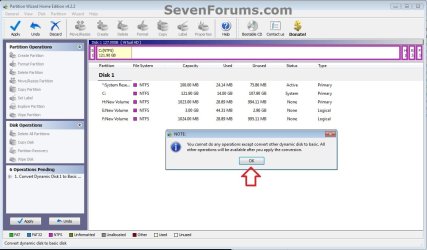
F) Click on OK. (see screenshot below)

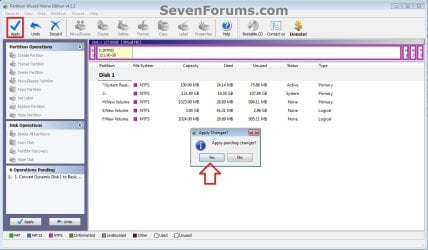
G) Click on the blue Apply check mark toolbar button at the top left corner, and click on Yes. (see screenshot below)PW-4.jpg

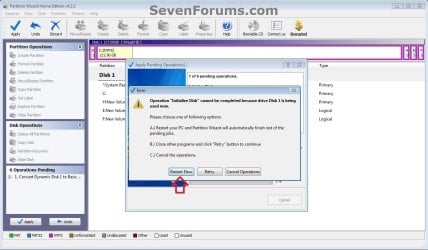
H) If prompted to restart, click on Restart Now. (see screenshot below)
NOTE: This is normal if the dynamic disk you wanted to convert to basic is the disk that the currently running Windows is installed on.PW-5.jpg


4. When finished, the selected dynamic disc will now be converted to a basic disk without losing any data on it.


OPTION TWO

To Convert Dynamic Disk to Basic Disk using Disk Management


:warn:WARNING: Be sure to read the red WARNING box above. You will lose all data on the dynamic disk using this option.1. Open the Control Panel (icons view), and click on the Administrative Tools icon, then close the Control Panel window.

2. Click on Computer Management in Administrative Tools, then close the Administrative Tools window.

3. If prompted by UAC, click on Yes.

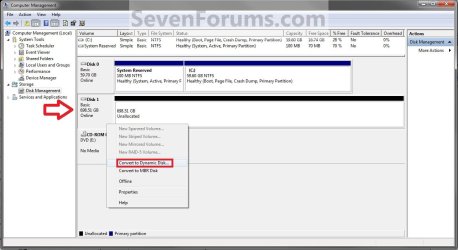
4. In the left pane under Storage, click on Disk Management. (See screenshot below)Step1.jpg

5. In the dynamic disk (ex: Disk 1) that you want to convert to a basic disk, right click on each volume on the disk and click on Delete Volume until the whole disk is unallocated space. (See screenshot above)
NOTE: If prompted, click on Yes to continue deleting the volume(s).

6. If the disk (ex: Disk 1) that you want to convert to a basic disk is still displayed has being Dynamic (left side under Disk #), then right click on the disk (ex: Disk 1) and click on Convert to Basic Disk if available. (See screenshot below)Step2.jpg

7. You can also confirm that the disk is a basic disk if it's displayed has being Basic (left side under Disk #), or if you right click on the disk # and it has Convert to Dynamic Disk instead now. (See screenshot below)Step3.jpg

8. You can now create partitions on the now basic disk if you like.

9. When done, close Disk Management.


OPTION THREE

To Convert Dynamic Disk to Basic Disk using "Clean" Command


:warn:WARNING: Be sure to read the red WARNING box above. You will lose all data on the dynamic disk using this option.1. Use the Clean command in the tutorial below on the dynamic disk that you want to wipe out and convert to be a basic disk.
NOTE: You could also use the Clean all command for this as well, but it will take much longer to do since it also does a secure erase.How to Clean or Clean All a Disk with the Diskpart Command

2. You can now create partitions on the now basic disk if you like.


OPTION FOUR

To Convert Dynamic Disk to Basic Disk using "Delete Volume" Command


:warn:WARNING: Be sure to read the red WARNING box above. You will lose all data on the dynamic disk using this option.1. Open an elevated command prompt, and go to step 3 below.

OR

2. Open a command prompt at boot, and go to step 3 below.Command_Basic.jpg

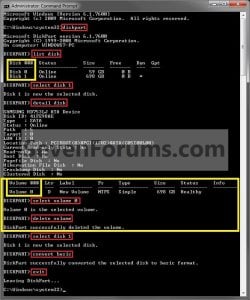
3. In the command prompt, type diskpart and press enter. (See screenshot above)

4. Type list disk and press enter.
NOTE: Make note of the disk number (ex: Disk 1) that you want to convert to a basic disk.

5. Type select disk # and press enter.
NOTE: Substitute # with the actual disk number that you want to convert to a dynamic disk. For example, select disk 1.

6. Type detail disk and press enter.
NOTE: This will give you a list of all the volume numbers on the selected disk number that you will need to delete in steps 7 and 8 below.A) If you do not have any volumes listed, then you can go to step 10.

7. Type select volume # and press enter.
NOTE: Substitute # with a volume number listed in step 6. For example, select volume 3.

8. Type delete volume and press enter.

9. Repeat steps 7 an 8 for each volume # listed in step 6 until you have deleted all volume #'s.

10. When done, type select disk # and press enter.
NOTE: You would use the same one from step 5 above. For example, select disk 1.

11. Type convert basic and press enter.

12. When done, type exit and press enter.

13. Close the command prompt.

14. You can now create partitions on the now basic disk if you like.
NOTE: Restart the computer if you did step 2 instead.

That's it,
Shawn


Attachments

Last edited:
You need to release a partition slot.

That means deleting one. You may need the recovery partition - leave that alone.

The logical answer is to make your C partition into "system" and get rid of the 100mb partition.

Do you have a 7 installation/recovery cd?

There is a tut on this site - BFK wrote it recently - I have no idea where it is though.
 

My Computers

System One System Two

  • Computer type
    PC/Desktop
    OS
    7 X64
    CPU
    i5 8400
    Motherboard
    gigabyte b365m ds3h
    Memory
    2x8gb 3200mhz
    Hard Drives
    various
    PSU
    pure power 11 400w cm
    Case
    Coolermaster
    Cooling
    cryorig m9i
  • Computer type
    PC/Desktop
    OS
    7x64
    CPU
    g5400
    Motherboard
    ga b365m ds3h
    Memory
    8gb ddr4 2400
    PSU
    xfx pro 450w

My Computer

Computer Manufacturer/Model Number
Custom
OS
Windows 7 Professional x64
CPU
Intel i7 2600K OC'd @ 4620 MHz
Motherboard
Asus P8Z68-V Pro
Memory
16GB GSkill Sniper 2133 Mhz (4x4GB)
Graphics Card(s)
EVGA GeForce GTX 480 SuperClocked+
Sound Card
Realtek High Definition Audio
Monitor(s) Displays
2x Acer S273HLbmii 27"
Screen Resolution
2 x 1920x1080
Hard Drives
64GB Crucial M4 SSD

Storage: Hitachi 1TB 5400RPM, Samsung 1.5TB 5400RPM
PSU
Corsair HW Series 750w (modular)
Case
Cooler Master HAF 932 Advanced Blue Edition
Cooling
CM Hyper 212+ CPU cooler, 3x 230mm + 1x 140mm case fans
Keyboard
Logitech MK320 (wireless)
Mouse
Logitech MK320 (wireless)
Internet Speed
30 Mb/s : 2 Mb/s
OOps, well there you go.

Maybe BFK's was about incorporating the 100mb unallocated space using PW.

Or I may have just imagined it.:rolleyes:
 

My Computers

System One System Two

  • Computer type
    PC/Desktop
    OS
    7 X64
    CPU
    i5 8400
    Motherboard
    gigabyte b365m ds3h
    Memory
    2x8gb 3200mhz
    Hard Drives
    various
    PSU
    pure power 11 400w cm
    Case
    Coolermaster
    Cooling
    cryorig m9i
  • Computer type
    PC/Desktop
    OS
    7x64
    CPU
    g5400
    Motherboard
    ga b365m ds3h
    Memory
    8gb ddr4 2400
    PSU
    xfx pro 450w
You need to release a partition slot.

That means deleting one. You may need the recovery partition - leave that alone.

The logical answer is to make your C partition into "system" and get rid of the 100mb partition.

Do you have a 7 installation/recovery cd?

There is a tut on this site - BFK wrote it recently - I have no idea where it is though.

Yes, I burned 3 DVDs which I believe make a copy of the recovery partition. As I have 7 Home Premium on my desktop I also have the proper instal disks for 32 bit and 64 bit.
I ran the evaluation 7 for a few months and then paid half price when the full version was released.

I'm very nervous of getting rid of the 100mb partition, chances are I would need what is on it!
I notice there is an option in the HP folder that (I think) allows me to reclaim the Recovery partition. Would that do the trick?
 

My Computer

Computer type
Laptop
Computer Manufacturer/Model Number
HP Envy 15
OS
Windows 8.1.1
CPU
AMD A10-5750M APU with Radeon(tm) HD Graphics
Memory
8gb
Hard Drives
1TB Serial ATA 16mb buffer

My Computer

Computer Manufacturer/Model Number
Custom
OS
Windows 7 Professional x64
CPU
Intel i7 2600K OC'd @ 4620 MHz
Motherboard
Asus P8Z68-V Pro
Memory
16GB GSkill Sniper 2133 Mhz (4x4GB)
Graphics Card(s)
EVGA GeForce GTX 480 SuperClocked+
Sound Card
Realtek High Definition Audio
Monitor(s) Displays
2x Acer S273HLbmii 27"
Screen Resolution
2 x 1920x1080
Hard Drives
64GB Crucial M4 SSD

Storage: Hitachi 1TB 5400RPM, Samsung 1.5TB 5400RPM
PSU
Corsair HW Series 750w (modular)
Case
Cooler Master HAF 932 Advanced Blue Edition
Cooling
CM Hyper 212+ CPU cooler, 3x 230mm + 1x 140mm case fans
Keyboard
Logitech MK320 (wireless)
Mouse
Logitech MK320 (wireless)
Internet Speed
30 Mb/s : 2 Mb/s
Jonathan

Uninstalling or Removing the Recovery Manager HP Pavilion dv6-2113sa Entertainment Notebook PC - HP technical support (United Kingdom - English)

This gives instructions on removing or uninstalling the HP Recovery Manager on my 2113sa. As I read it If I uninstall the Recovery Manager, that will leave D:\ as a logical drive and release 13.57GB. Then I assume, I can resize in the usual way taking space from C:\.

This is what I'm hoping to achieve:
1. Run Acronis True Image on a smaller C:\ drive, maybe 75GB. This will allow Acronis to do a much quicker image.
2. Create a large partition (resize D:\ after Recovery removal?) so that I can use my video camera to create (very) small movies.
3 Create another small logical partition for my data backups, but I might be jumping the gun here!

I do have the 3 recovery disks I burnt straight off when I got the system. I will do an Acronis image now before I do anything else.
Does that sound OK?
Many thanks for your guidance, and to everyone helping out here.

I just found another funny. System REstore had got turned off presumably after the conversion from dynamic and when I turned it back on I had C:\Windows 7 64 and C:\Windows 7 64( missing) with an error message and I couldn't turn on restore for C:. I'm not sure how i did it but it only shows the 'proper' C:\ now and it has done a restore point.
Gulp!
 

My Computer

Computer type
Laptop
Computer Manufacturer/Model Number
HP Envy 15
OS
Windows 8.1.1
CPU
AMD A10-5750M APU with Radeon(tm) HD Graphics
Memory
8gb
Hard Drives
1TB Serial ATA 16mb buffer
The 100MB partition is unneeded, provided the C partition is Primary.

Follow these instructions to the letter and should be okay: http://www.sevenforums.com/tutorials/71363-system-reserved-partition-delete.html

When I set Windows to view system files my SYSTEM folders still did not show any files, it said it was empty. Is it really empty?
I just came across this:

The Windows 7 created 100 MB partition is not the main boot partition or boot drive, but serve only as a backup. The following files and folders are the initial content of the partition (names in [] brackets indicate it’s a folder or directory), before BitLocker is enabled and in use.

[$RECYCLE.BIN]
[Boot]
[System Volume Information]
bootmgr
BOOTSECT.BAK

followed by your advice for getting rid of this partition.
I just want to be sure that doing this will release an MBR slot to allow me to create logical space with maybe 2 more partitions within that space.

Thank you.
 

My Computer

Computer type
Laptop
Computer Manufacturer/Model Number
HP Envy 15
OS
Windows 8.1.1
CPU
AMD A10-5750M APU with Radeon(tm) HD Graphics
Memory
8gb
Hard Drives
1TB Serial ATA 16mb buffer

My Computer

Computer Manufacturer/Model Number
Custom
OS
Windows 7 Professional x64
CPU
Intel i7 2600K OC'd @ 4620 MHz
Motherboard
Asus P8Z68-V Pro
Memory
16GB GSkill Sniper 2133 Mhz (4x4GB)
Graphics Card(s)
EVGA GeForce GTX 480 SuperClocked+
Sound Card
Realtek High Definition Audio
Monitor(s) Displays
2x Acer S273HLbmii 27"
Screen Resolution
2 x 1920x1080
Hard Drives
64GB Crucial M4 SSD

Storage: Hitachi 1TB 5400RPM, Samsung 1.5TB 5400RPM
PSU
Corsair HW Series 750w (modular)
Case
Cooler Master HAF 932 Advanced Blue Edition
Cooling
CM Hyper 212+ CPU cooler, 3x 230mm + 1x 140mm case fans
Keyboard
Logitech MK320 (wireless)
Mouse
Logitech MK320 (wireless)
Internet Speed
30 Mb/s : 2 Mb/s
Of course, here we are:

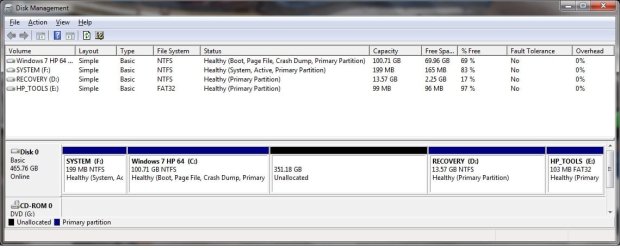
Please note that if the suggestion is for me to ditch the SYSTEM partition, then that is 199 Mb although most of that is unused anyway. Is that the one you mean as I would like to retain the HP_Tools. When someone said 'lose the 100M'b I wasn't sure which one was meant!
I have created unallocated space, just waiting to see what comes next.
Good fun isn't it?:)
 

Attachments

  • mydisk.jpg
    mydisk.jpg
    146.4 KB · Views: 485

My Computer

Computer type
Laptop
Computer Manufacturer/Model Number
HP Envy 15
OS
Windows 8.1.1
CPU
AMD A10-5750M APU with Radeon(tm) HD Graphics
Memory
8gb
Hard Drives
1TB Serial ATA 16mb buffer
You are out of Primary partitions. You cannot even create an extended partition, because it counts as a Primary.

If you remove the 100MB partition, that will free up that slot. You can then create a Logical drive using Partition Wizard, which will allow you to create unlimited partitions within the 350GB space.

See my tutorial: http://www.sevenforums.com/tutorials/71363-system-reserved-partition-delete.html
 

My Computer

Computer Manufacturer/Model Number
Custom
OS
Windows 7 Professional x64
CPU
Intel i7 2600K OC'd @ 4620 MHz
Motherboard
Asus P8Z68-V Pro
Memory
16GB GSkill Sniper 2133 Mhz (4x4GB)
Graphics Card(s)
EVGA GeForce GTX 480 SuperClocked+
Sound Card
Realtek High Definition Audio
Monitor(s) Displays
2x Acer S273HLbmii 27"
Screen Resolution
2 x 1920x1080
Hard Drives
64GB Crucial M4 SSD

Storage: Hitachi 1TB 5400RPM, Samsung 1.5TB 5400RPM
PSU
Corsair HW Series 750w (modular)
Case
Cooler Master HAF 932 Advanced Blue Edition
Cooling
CM Hyper 212+ CPU cooler, 3x 230mm + 1x 140mm case fans
Keyboard
Logitech MK320 (wireless)
Mouse
Logitech MK320 (wireless)
Internet Speed
30 Mb/s : 2 Mb/s
OK thanks for that.I see the distinction.

Looking at the E_Tools partition, all I see is a Hewlett Packard folder with System Diags and a very small .dat file, the whole lot about 2.7MB. I ought to be able to copy that into somewhere safe and then copy them back after I've done the deed and then update the path to the new location? Like I said I would like to keep this.
 

My Computer

Computer type
Laptop
Computer Manufacturer/Model Number
HP Envy 15
OS
Windows 8.1.1
CPU
AMD A10-5750M APU with Radeon(tm) HD Graphics
Memory
8gb
Hard Drives
1TB Serial ATA 16mb buffer
I would leave the recovery and HP Tools partitions untouched. It may not be so easy to copy all the files, because many are hidden and cannot simply be copied back.
 

My Computer

Computer Manufacturer/Model Number
Custom
OS
Windows 7 Professional x64
CPU
Intel i7 2600K OC'd @ 4620 MHz
Motherboard
Asus P8Z68-V Pro
Memory
16GB GSkill Sniper 2133 Mhz (4x4GB)
Graphics Card(s)
EVGA GeForce GTX 480 SuperClocked+
Sound Card
Realtek High Definition Audio
Monitor(s) Displays
2x Acer S273HLbmii 27"
Screen Resolution
2 x 1920x1080
Hard Drives
64GB Crucial M4 SSD

Storage: Hitachi 1TB 5400RPM, Samsung 1.5TB 5400RPM
PSU
Corsair HW Series 750w (modular)
Case
Cooler Master HAF 932 Advanced Blue Edition
Cooling
CM Hyper 212+ CPU cooler, 3x 230mm + 1x 140mm case fans
Keyboard
Logitech MK320 (wireless)
Mouse
Logitech MK320 (wireless)
Internet Speed
30 Mb/s : 2 Mb/s
I'm sorry Jonathan, I'm lost now!

You said "If you remove the 100MB partition, that will free up that slot. You can then create a Logical drive using Partition Wizard, which will allow you to create unlimited partitions within the 350GB space."

But if I delete the 100MB partition I will lose what is on it, won't it? I must be missing something but I cannot see it!:confused:

Unless the data remains and is 're-instated' later?
 

My Computer

Computer type
Laptop
Computer Manufacturer/Model Number
HP Envy 15
OS
Windows 8.1.1
CPU
AMD A10-5750M APU with Radeon(tm) HD Graphics
Memory
8gb
Hard Drives
1TB Serial ATA 16mb buffer

My Computer

Computer Manufacturer/Model Number
Custom
OS
Windows 7 Professional x64
CPU
Intel i7 2600K OC'd @ 4620 MHz
Motherboard
Asus P8Z68-V Pro
Memory
16GB GSkill Sniper 2133 Mhz (4x4GB)
Graphics Card(s)
EVGA GeForce GTX 480 SuperClocked+
Sound Card
Realtek High Definition Audio
Monitor(s) Displays
2x Acer S273HLbmii 27"
Screen Resolution
2 x 1920x1080
Hard Drives
64GB Crucial M4 SSD

Storage: Hitachi 1TB 5400RPM, Samsung 1.5TB 5400RPM
PSU
Corsair HW Series 750w (modular)
Case
Cooler Master HAF 932 Advanced Blue Edition
Cooling
CM Hyper 212+ CPU cooler, 3x 230mm + 1x 140mm case fans
Keyboard
Logitech MK320 (wireless)
Mouse
Logitech MK320 (wireless)
Internet Speed
30 Mb/s : 2 Mb/s
One addition to the Tutorial:

Use Diskpart to also mark the WIn7 partition active from WIn7 DVD or Repair CD: http://www.sevenforums.com/tutorials/71432-partition-mark-active.html

Then click through to DVD/CD Recovery Tools list to run Startup REpair up to 3 separate times with reboots until WIn7 starts.

Si: BFK wrote a tute for using Partition Wizard bootable CD, which also includes how to remove 100mb. It could also be used here. http://www.sevenforums.com/tutorials/93322-partition-wizard-use-bootable-cd.html
 
Well, that's me stymied!

!. I used the repair disk I created when I got the system. It loaded files, got to a screen that wanted keyboard type. Not the same shown in the tut. Shift+F10 did nothing. Abort.

2. Rebooted using disk 1 of recovery set created when I got the system. This time it loaded files and went into the recovery screen, asking me if I wanted to recover from hard disk (recovery partition) or recovery DVD. Shift+F10 did nothing. Abort.

It looks like HP 'did it their way' which doesn't help me. I'm not sure what to do now. I did mail HP yesterday but have heard nothing yet. It looks like I'm stuck with this setup.

Incidentally, I don't have a 100MB disk, I have a 199MB SYSTEM (F:) disk, I assume that is the one you mean, not that it matters now!
 

My Computer

Computer type
Laptop
Computer Manufacturer/Model Number
HP Envy 15
OS
Windows 8.1.1
CPU
AMD A10-5750M APU with Radeon(tm) HD Graphics
Memory
8gb
Hard Drives
1TB Serial ATA 16mb buffer
I think the repair disc you run off from within windows doesn't have the install now screen - it goes straight to searching for installations.

When it has finished that, click Next and select command prompt.


Greg - thanks for finding the link.


BTW - There is a giveaway today of EPMPRO 6. It has convert dynamic to basic capability.

I haven't tested that particular function , the rest of it works very well.


GOTD_EPMPRO6
 

My Computers

System One System Two

  • Computer type
    PC/Desktop
    OS
    7 X64
    CPU
    i5 8400
    Motherboard
    gigabyte b365m ds3h
    Memory
    2x8gb 3200mhz
    Hard Drives
    various
    PSU
    pure power 11 400w cm
    Case
    Coolermaster
    Cooling
    cryorig m9i
  • Computer type
    PC/Desktop
    OS
    7x64
    CPU
    g5400
    Motherboard
    ga b365m ds3h
    Memory
    8gb ddr4 2400
    PSU
    xfx pro 450w
Ah, Thanks for that SIW2, I had thought ah well, forget it, but I'm still in with a chance!

I also got a notification about EMPro 6. I just bought Partition Wizard 2 days ago!

I will have another go at deleting this partition when I get some more time. big backlog right now.
Thanks.
 

My Computer

Computer type
Laptop
Computer Manufacturer/Model Number
HP Envy 15
OS
Windows 8.1.1
CPU
AMD A10-5750M APU with Radeon(tm) HD Graphics
Memory
8gb
Hard Drives
1TB Serial ATA 16mb buffer
Siw2
Yes, you are right, I got to the command prompt like you said but its now getting a bit scary.
This is what I've got so far:
list disk = disk 0 online 465GB Free 0 B

select disk = disk 0 is now the selected disk

list partition = partition 1 primary 199MB offset 1024KB
= partition 2 primary 451GB offset 200MB
= partition 3 primary 13GB offset 452GB
= partition 4 primary 103MB offset 465GB

select partition 1 = partition 1 is now the selected partition

delete partition override = The arguments specified for this command are not valid. For more information on the command type :Help delete partition

command prompt>

What next then? And would someone please confirm about my 199MB disk partition. Is that the one I need to delete? It is the active partition so I assume it must be. The 100MB is my HP_TOOLS partition. Have HP gone to 200MB or what?

I can go no further at this point!
 

My Computer

Computer type
Laptop
Computer Manufacturer/Model Number
HP Envy 15
OS
Windows 8.1.1
CPU
AMD A10-5750M APU with Radeon(tm) HD Graphics
Memory
8gb
Hard Drives
1TB Serial ATA 16mb buffer
If I were you, I would make your win7 partition "system" first.

Boot back into 7 , and rt click and run as admin on sisparv6.cmd.

Enter your win7 driveletter ( probably C ) as the new system partition.

Enter N to adding existing boot menu entries.

Enter N to marking a partition Inactive.

It only takes about 3 secs to run.


Then restart and you should see your win7 partition listed as "system, active, boot" in Disk Management.


Then you can delete the 199mb partition.
 
Last edited:

My Computers

System One System Two

  • Computer type
    PC/Desktop
    OS
    7 X64
    CPU
    i5 8400
    Motherboard
    gigabyte b365m ds3h
    Memory
    2x8gb 3200mhz
    Hard Drives
    various
    PSU
    pure power 11 400w cm
    Case
    Coolermaster
    Cooling
    cryorig m9i
  • Computer type
    PC/Desktop
    OS
    7x64
    CPU
    g5400
    Motherboard
    ga b365m ds3h
    Memory
    8gb ddr4 2400
    PSU
    xfx pro 450w
Back
Top