You need to complete your "specs", else we have no idea at all what your machine looks like.
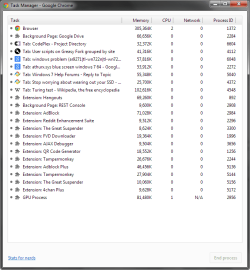
Also, when you take a screenshot of say "processes" or "services" that you want us to look at, be sure to spread the columns so that we can read all the text that's in each cell and which might be useful to see.
Also, when a big "list" (like processes or services) is posted, sorting it (by clicking on that column heading) into some user-friendly order (or to demonstrate what you want to demonstrate) is recommended. For example, alphabetical "name" sequence is very very useful.
Also, your "performance" screenshot didn't show any of the graphs, if that's what you wanted to show us. Each pane was absolutely black. If you wanted to show just the numbers at the bottom, why not take a screenshot of just that area instead of the entire window? And the numbers on "performance" are very similar to the numbers on "resource monitor", so one or the other would probably have been sufficient if you wanted to convey memory usage (since the graphs are all black anyway).
But just from looking at what you've posted, I don't know that using about 40-50% of your 8GB memory is wrong or problematic or unusual. I have similar number percentages, but of course it will vary widely depending on what you're running. Certainly you seem to have 11 open Chrome windows (and processes), so that's got to take up some storage. Perhaps running one window with 11 tabs might be more efficient.
CPU spiking is often the result of some program doing something on a regular periodic basis. For example, a hardware monitor program (like Aida64) that updates its display every 4-5 seconds is going to use some extra CPU cycles every 4-5 seconds to accomplish that. It will appear as a "spike" every 4-5 seconds in a timeline of CPU usage, and it's obviously completely explained and expected. Not unusual. The physical size of the spike (and your 40% CPU usage spike does sound very high) is obviously related to the strength of your CPU, with a weaker machine producing a bigger percentage spike for the identical reason a much stronger machine might show it as just a tiny spike. Since we have no specs for your machine, it's not clear what might be reasonable or unreasonable.
So only activating some type of task logging to a file (through a software tool) might get to the bottom of exactly which process/service is actually responsible for those spikes. And even then, it might be totally explainable. But I grant you a spike up to 40% does seem quite large, unless you have a relatively weak CPU.
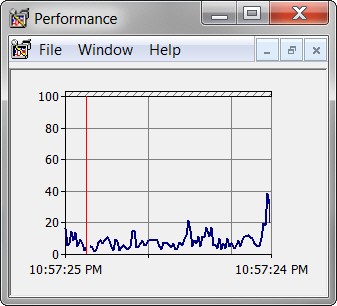
Just to allow you to have another perspective on CPU usage over time, Windows provides a "performance monitor" MSC service (conventionally named PERFMON by its users, and similar to the performance monitoring that you've taken screenshots of but with a different GUI) that is like an EKG for your CPU. It shows anything you want it to display (selected from its huge list of system items available for charting) displayed over time, with the scale/graph moving horizontally to the left every second. You can customize it to have different colors for different things for easier viewing, but intelligent use of this tool should really be isolated to one or two items at most, which don't step on each other in the graph but which provide you with exactly what you're trying to see.
Download the attachment I'm posting, unzip it, and then RUN (or double-click to launch) it. It is a PERFMON launcher that I use that shows only CPU usage graphed over time. If you size it like I've shown in this screenshot and let it run in a corner of your screen, you'll have a very nice graphical "EKG" of your CPU's heartbeat and "horsepower usage" over time. It should also reflect this "CPU spiking" you've observed
Note that the display window can be stretched and resized to show a longer period of time, and a more granular percentage CPU scale. I feel the size I've shown provides sufficient percentage detail scale lines (Y-axis) and about 2 1/2 minutes of time (X-axis) to satisfy my curiosity and interest. You can resize it to your own likes. It will "slide" the display to the left one increment each second, and will have the vertical red marker wrap around from right-edge back to left edge when it reaches the right side limit.